
Jotform Mobile Forms is packed with features designed to make collecting data easier and more convenient. One of its standout features is the ability to use offline forms, so you can keep gathering responses even when connectivity is limited or during network downtime.
When you collect data offline, it’s stored right on your device. Keep in mind, though, that the Submission Date is recorded based on when the data is synced, not when it was actually submitted. If you want to capture the real submission date on offline forms, you can use a simple workaround with the Date Picker element.
Getting the Actual Submission Date on Offline Forms With the Date Picker Element
With the Date Picker element, you can easily capture the true submission date of a form, even when responses are collected offline. It’s a simple way to make sure your data stays accurate no matter where it’s submitted. You can set it up like this:
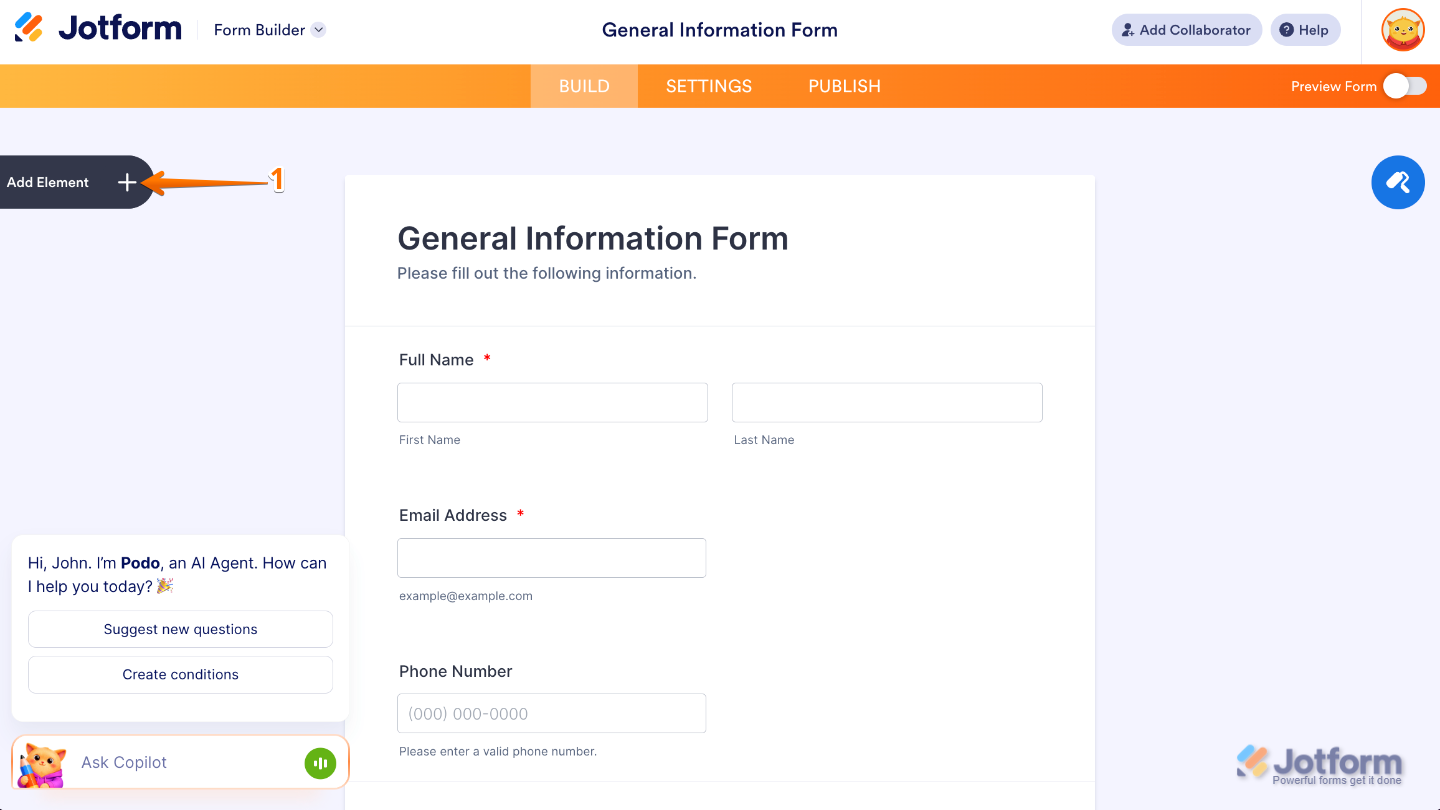
- In Form Builder, click on Add Element on the left side of the page.
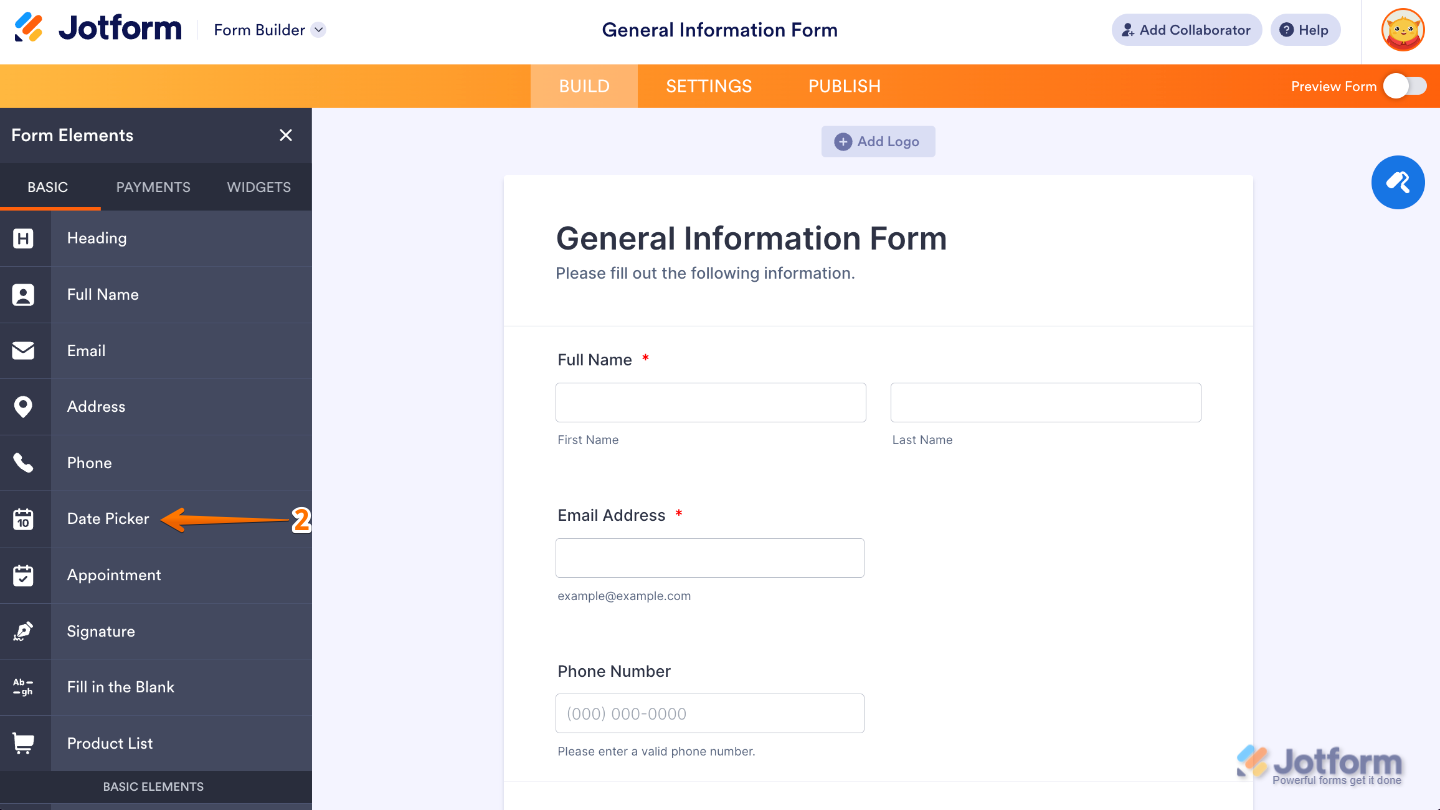
- Then, in the Form Elements menu, under the Basic tab, click on Date Picker. Or, just drag and drop it to where you want it to be on your form.
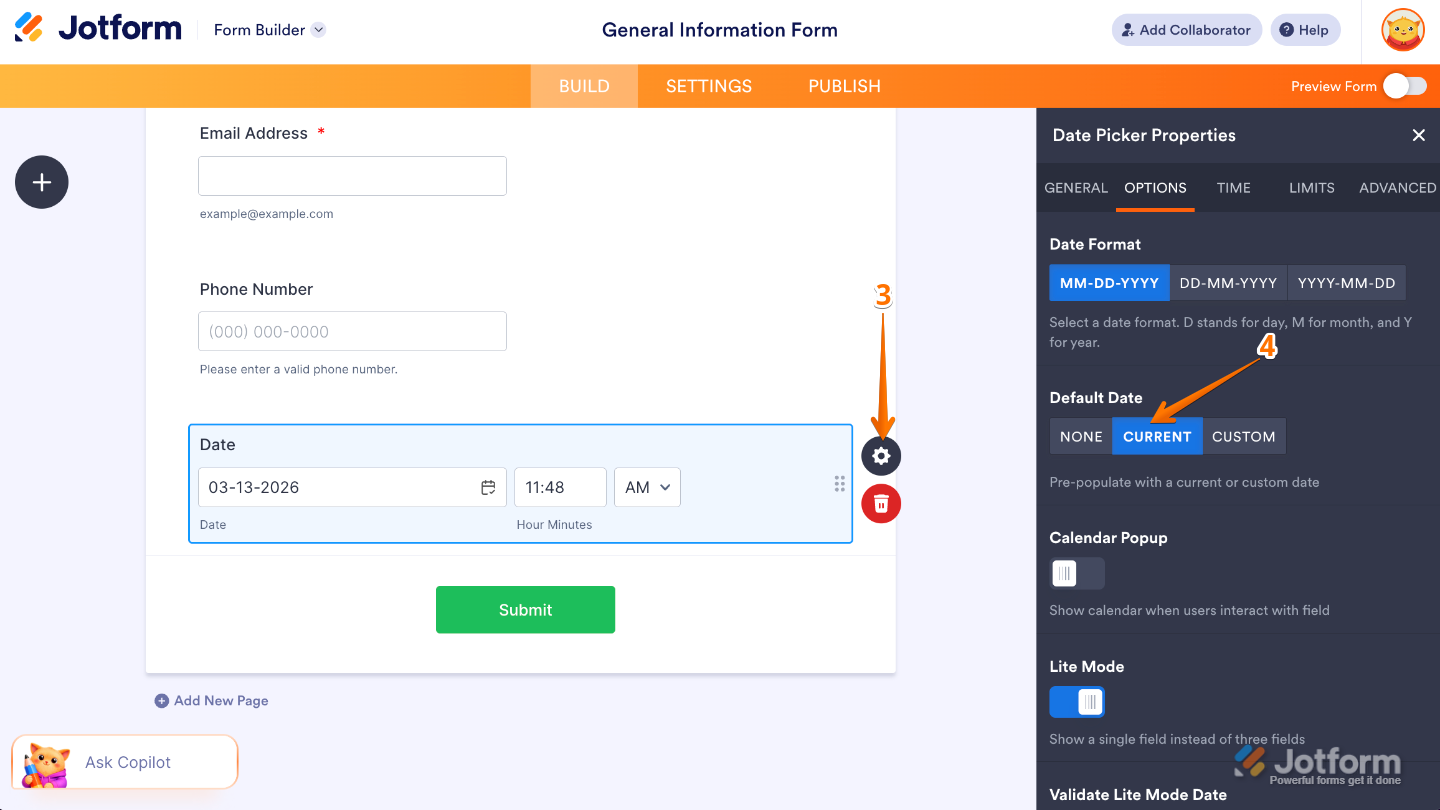
- Next, on the right side of the Date Picker field, click on the Gear icon.
- In the Date Picker Properties menu that opens on the right side of the page, under the Options tab, set the Default Date to Current.
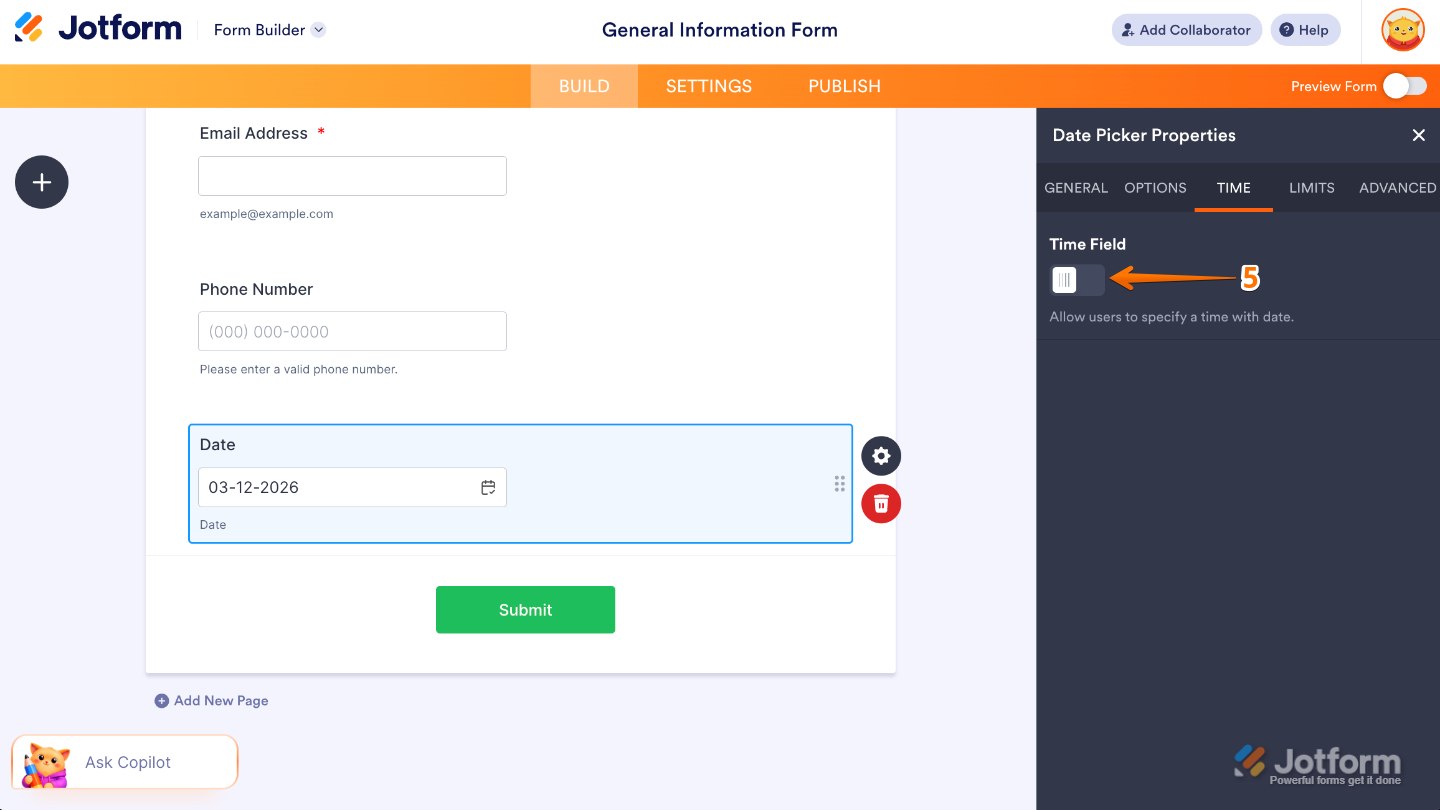
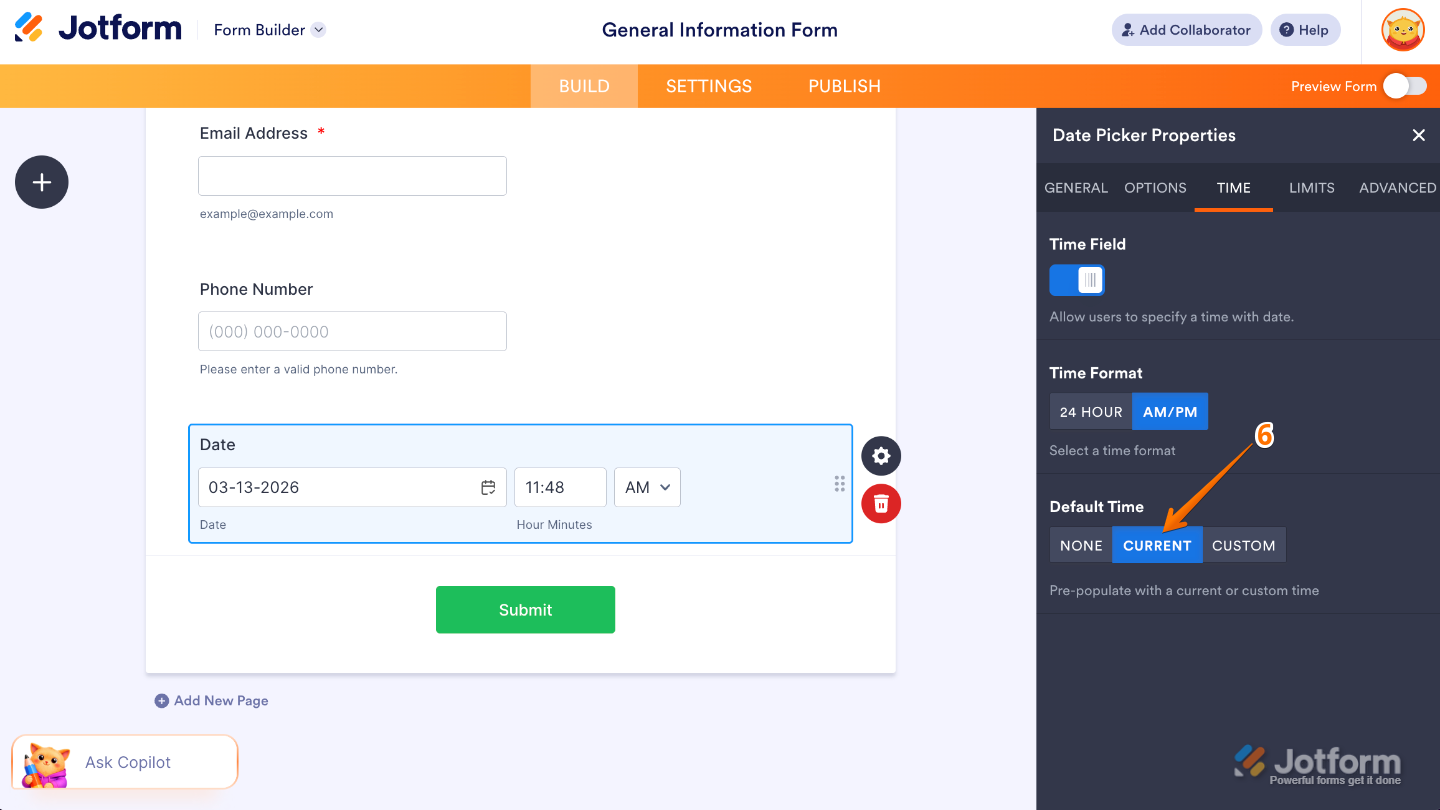
- Now, switch to the Time tab, and then toggle on Time Field.
- After that, set the Default Time to Current.
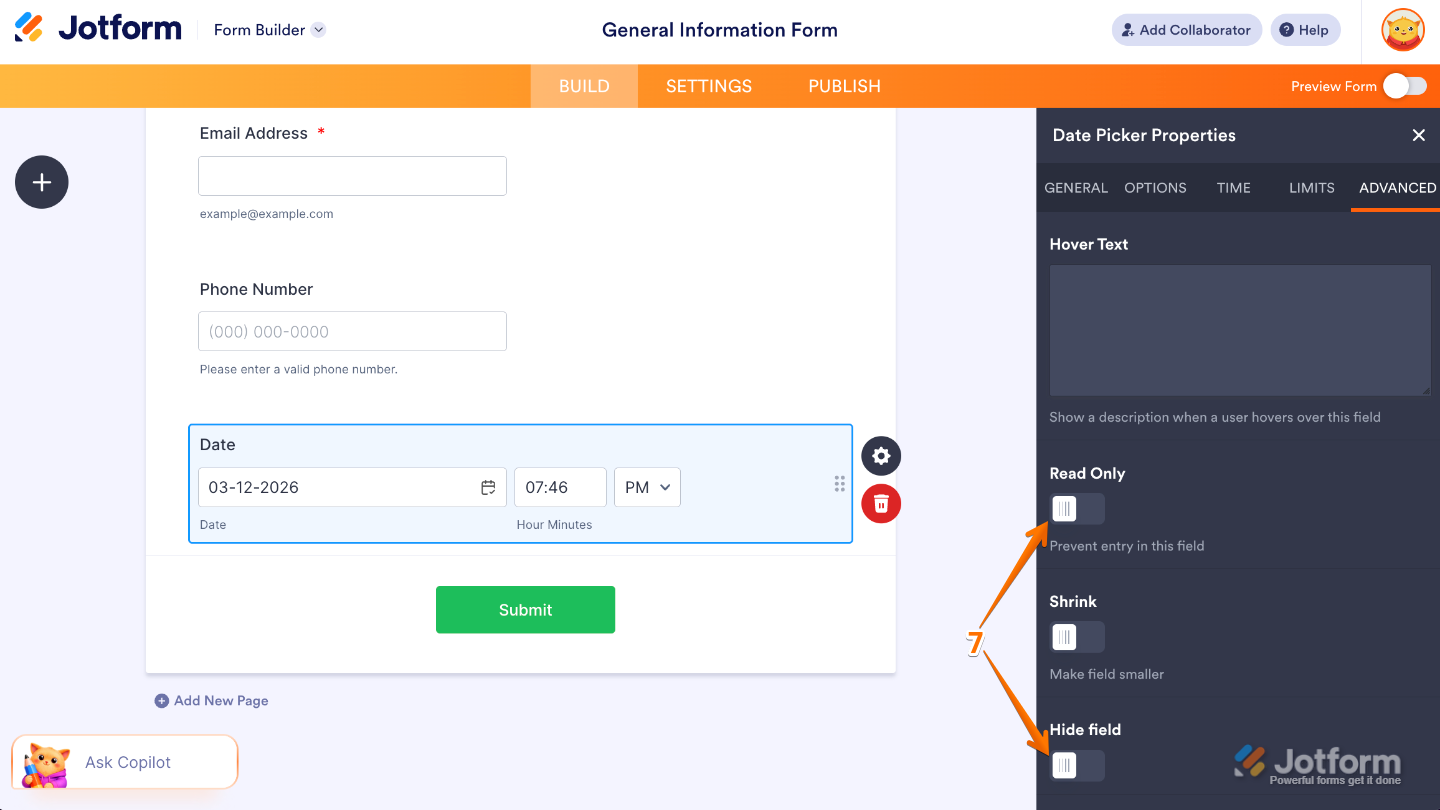
- Finally, switch to the Advanced tab, and then toggle on Read Only and Hide Field options.
Note
The date captured is accurate, but the time isn’t, because the Date Picker records the moment the form is opened—not the exact time it’s submitted. This way, you get the correct submission day while keeping things simple.















Send Comment: