

We regularly host “Jotform 101” webinars to help new customers (and existing ones) get acquainted with our products and their functionality.
We have webinars covering Jotform products like AI Agents, and one of the takeaways are all the great questions that come from our customers. We recently summarized some of the more common questions into themes that cover overall product functionality and AI capabilities alike.
By sharing answers to some of these common questions, we hope to provide product tips and advice to help you get ahead and focus more on what you do best in 2026.
How do I do X with AI Agents?
In 2025, we released Jotform AI Agents, our landmark new product to help you automate your customer service needs. In subsequent months, we released AI agents for everything from Gmail draft assistance to Salesforce case management.
So it comes as no surprise a lot of questions were asked this year around how to properly build agents to work in the ways you need them to.
Let’s dig into a few.
What kinds of data sources and integrations can the Jotform AI Agents use, and what are the limits?
Whoa, loaded question! Jotform’s AI Agents can use a lot of different data sources and integrations to draw knowledge from and streamline tasks and workflows.
In terms of drawing knowledge, you can build your agent’s Knowledge Base by
- Directly entering information your AI agent can use to answer questions
- Uploading files, from PDFs to CSVs, and everything in between
- Adding website URLs that train your agent with dynamic information
- Providing a direct question-and-answer document that your agent can use during conversations
- Adding YouTube channels or videos to train your agent
- Linking to other knowledge bases like Zendesk, Freshdesk, and Salesforce to provide agent training
Additionally, you can connect one or more of your forms for your agent to pull from.
Here’s a cool way to improve the knowledge of your AI Agent (and improve its performance) through training and practice questions.


To help with your post-submission tasks for your agents, there are currently eight you can use:
- Slack
- Google Calendar
- Google Drive
- Box
- Dropbox
- Egnyte
- OneDrive
- WooCommerce
To streamline workflows through your agent, you can use over 30 tools. Link to your Shopify account, play a video, trigger Jotform Workflows, schedule appointments with Calendly, collect donations, and more.
By default, Jotform’s AI Agents have the following limits for free:
| Agent limit | 5 agents |
| Monthly conversations | 100 |
| Monthly sessions | 10,000 |
| Monthly voice calls | 50 minutes |
| Monthly SMS | 250 |
| Knowledge base | 10M characters |
You can find limits for all agent/Jotform levels on the AI Agents pricing page.
From the diversity of options for the knowledge base to the customized ways you can activate post-submission workflows, AI Agents give you the flexibility you need to create amazing automations!
How do I best train and structure a Jotform AI Agent’s knowledge and behavior?
This question is somewhat related to the first one in terms of connecting data sources to your agent. But there’s no one hard and fast rule for the best way to train an agent since everyone’s needs are different.
For example, if you’re a small business with a robust website, you may want to use URLs to train your agent. Or, if you’re a technical writer you may want to use PDFs to train your agent — the method really depends on your business needs.
Whether you’re using links, documents, or Q&As to help the AI agent learn and become smarter, the best way is usually what works best for you.
Learn more about how to train your AI Agent.
How does the AI Agent actually behave in chats, and how can I control the experience?
No one likes a rogue agent! 🕵🏼♂️ There are a couple ways you can affect the agent’s behavior in chats.
The first way involves crafting your agent’s persona (how it talks and acts, including its tone of voice), and you can do this in the Train > Persona tab of the AI Agent builder.
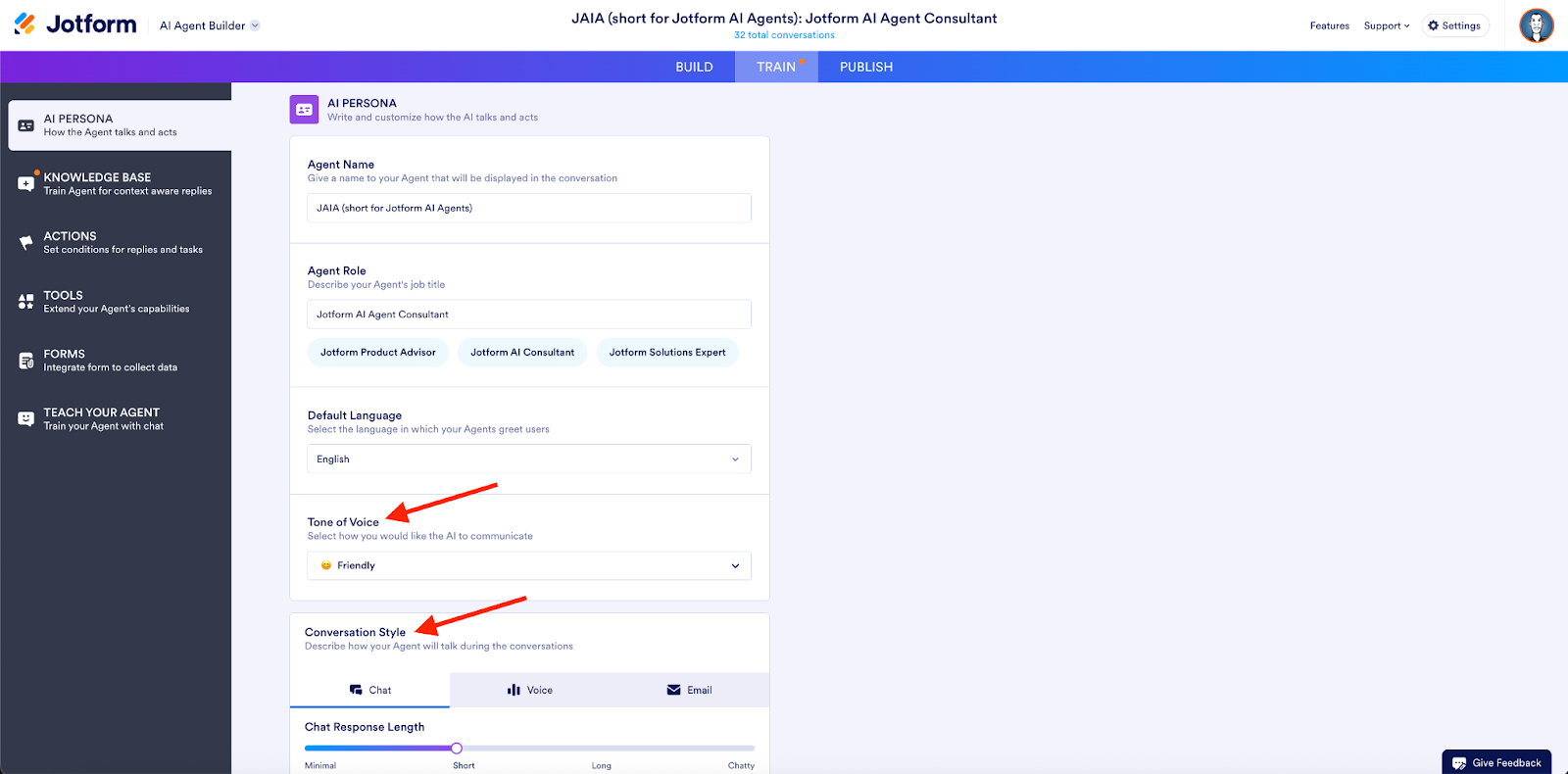
The second, more granular, way involves telling your agent what to do in specific situations by setting conditions for its replies and tasks. You can customize (and control) the way your AI Agent responds to certain trigger words or phrases based on the knowledge base and training you give it.
Here’s a video that talks about this in more depth.

Are you interested in attending our AI Agents 101 webinars?
How do I do X with other Jotform features?
Some of our most popular platform features also routinely make their way into the webinar conversations, so it’s good to resurface them here.
Knowing how to navigate conditional (or advanced) logic to customize your forms, or understanding which payment methods to use makes a big difference in your workflow efficiency.
How do I use advanced (conditional) logic to control how a form behaves based on the respondent’s input?
Sophisticated forms tend to employ conditional logic because it allows the form to respond dynamically to the respondent’s input. The conditions essentially operate on an if/then basis, letting you select the form field and values that triggers your form to carry out the action you need.
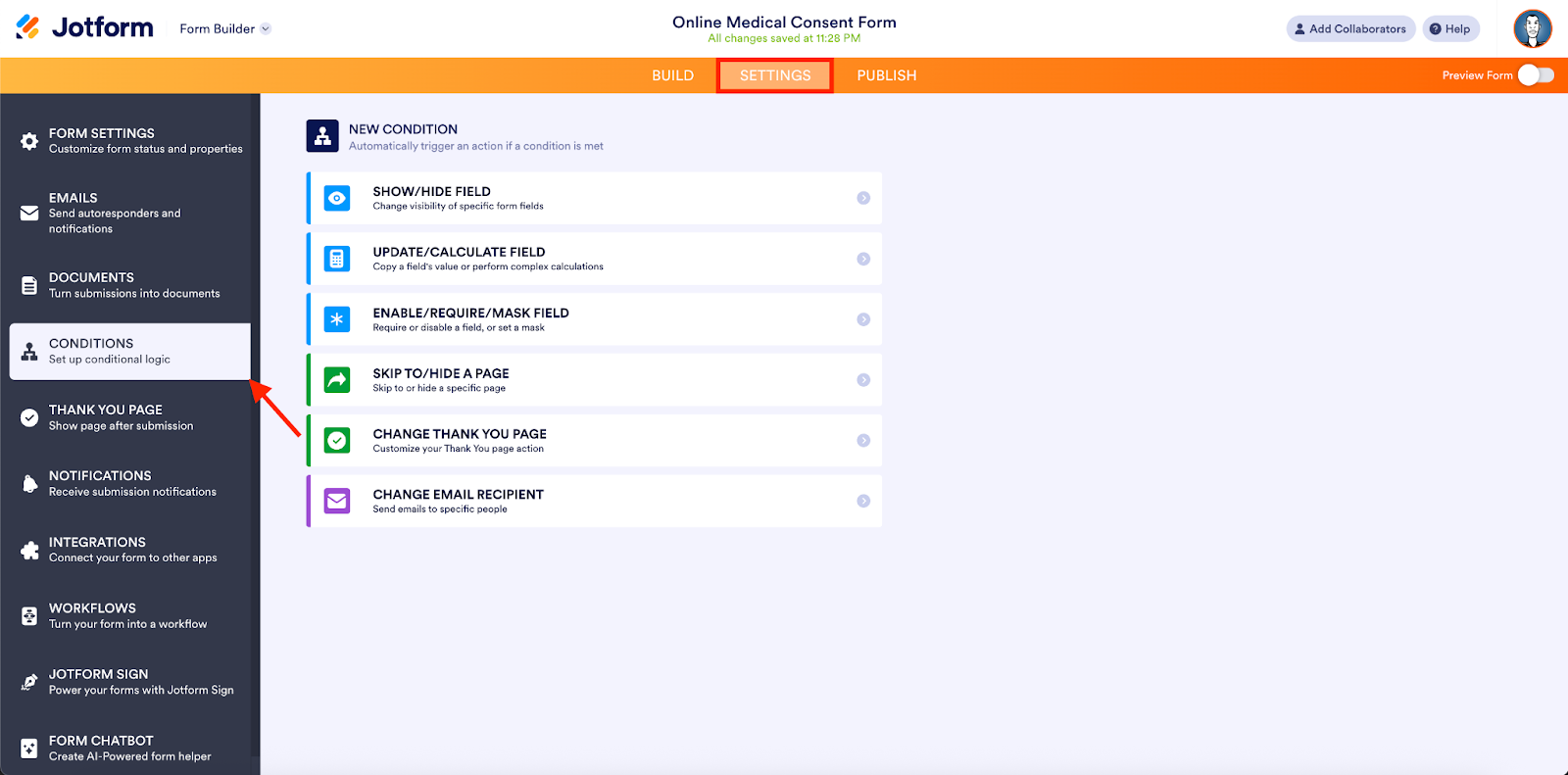
You can set up your form to show different questions, hide or show fields, change pages, etc. when the form filler answers a certain way, which can save you (and your form fillers) a ton of time.
For example, instead of having four separate forms for different uses, you can create one form to handle all of them, minimizing the amount of time you have to spend managing data and notifications on the backend.
Here’s a video that goes into a little more depth on this topic.

Pro Tip
Use the Change Email condition to send form notification (and autoresponder) emails to different stakeholders based on the answers received for a given form field.
How do I integrate multiple payment methods and processors into my Jotform, and what options do I have for safely collecting fees, deposits, subscriptions, or donations?
Merchants (and nonprofit organizations) of all sizes and shapes use Jotform, and their payment needs can be just as distinct.
Though Jotform has a plethora (yep, I said it) of payment processors, gateways and solutions, sometimes you still need a way to include more than one payment provider in the same form. In situations like this, you can display multiple integrations in the same form by using the iFrame Embed widget.
Here’s how to set it up.

Did you know…
Jotform offers over 40 payment integrations for you to work with? Whether ACH (through Square, Stripe) is your focus, you need a service for recurring payments (GoCardless, Authorize.net), or you like mobile payments (CashApp and Venmo), there’s a payment provider/service ready to help.
As a reminder, integrating processors like Square, Stripe and PayPal into your forms lets you offer your customers a number of payment methods covering almost every type and preference. Providing multiple options also allows customers to choose the method they prefer and even compare popular peer-to-peer payment services, such as Venmo vs Cash App, before completing their transaction.
Are you interested in attending our Jotform 101 webinars?
Are there other product questions that are weighing on your mind? Let us know!













Send Comment:
2 Comments:
January 18, 2026
Jotform is easy to use and very convenient for creating online forms quickly. The interface is user-friendly, and it offers many templates and integrations, which makes form building simple even for beginners.
January 2, 2026
Very practical and easy to follow tips.
This is a great overview for anyone looking to use Jotform and AI agents more effectively in 2026.