# Forms for Excel | Send Form Data to Microsoft Excel Automatically | Jotform

# Forms for Excel

## Send submissions directly to Microsoft Excel

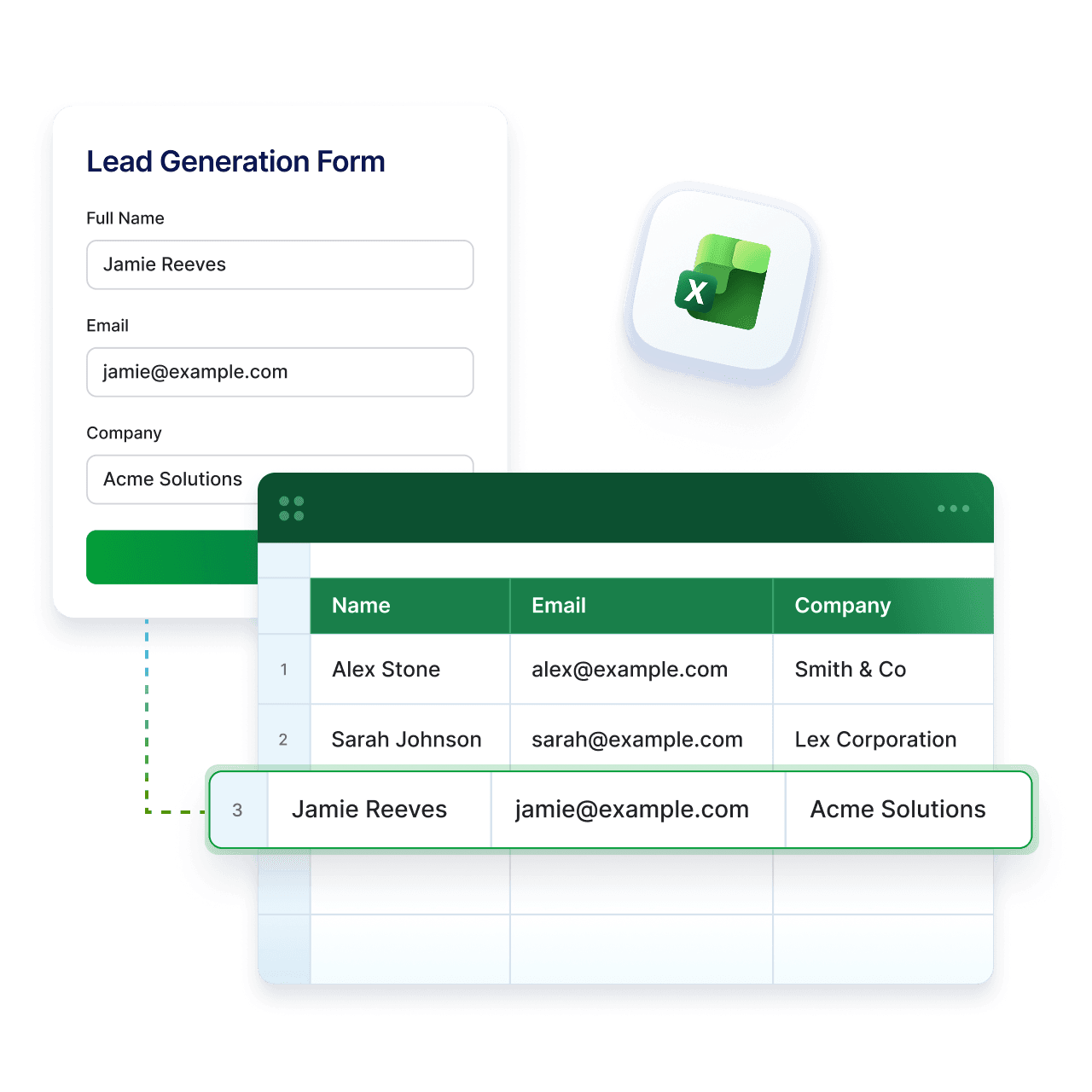
Jotform’s Microsoft Excel integration helps you keep your data up to date without extra steps. Collect data with Jotform and have every submission automatically added to your Excel workbook. No exports, no copy-and-paste. Just organized data where your team already works.
Integrate a Form with Excel

![Image 1: Jotform Forms for Excel Integration preview image](https://cdn.jotfor.ms/image/r/aHR0cHM6Ly9jZG4uam90Zm9yLm1zL3AvZm9ybXMtZm9yLWV4Y2VsL2Fzc2V0cy9pbWctbWluLy9oZXJvLnBuZw==/hero.png?w=1280&t=1)

## How it works

![Image 2: Choose Microsoft Excel in Integrations](https://cdn.jotfor.ms/image/r/aHR0cHM6Ly9jZG4uam90Zm9yLm1zL3AvZm9ybXMtZm9yLWV4Y2VsL2Fzc2V0cy9pbWcvaG93LWl0LTEucG5n/how-it-1.png?w=368&t=1)

### Choose Microsoft Excel in Integrations

Go to Jotform settings and select Microsoft Excel from the integrations list to start connecting your form.

![Image 3: Connect your Microsoft account](https://cdn.jotfor.ms/image/r/aHR0cHM6Ly9jZG4uam90Zm9yLm1zL3AvZm9ybXMtZm9yLWV4Y2VsL2Fzc2V0cy9pbWcvaG93LWl0LTIucG5n/how-it-2.png?w=368&t=1)

### Connect your Microsoft account

Sign in to your Microsoft account and give access so Jotform can send form submissions to your Excel files.
![Image 4: Set up and start collecting data](https://cdn.jotfor.ms/image/r/aHR0cHM6Ly9jZG4uam90Zm9yLm1zL3AvZm9ybXMtZm9yLWV4Y2VsL2Fzc2V0cy9pbWcvaG93LWl0LTMucG5n/how-it-3.png?w=368&t=1)

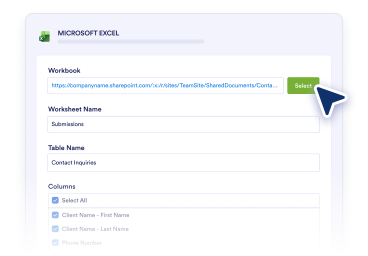
### Set up and start collecting data

Pick your workbook or table, map your fields, and have every new submission added to Excel automatically.

## Why use Jotform for Excel

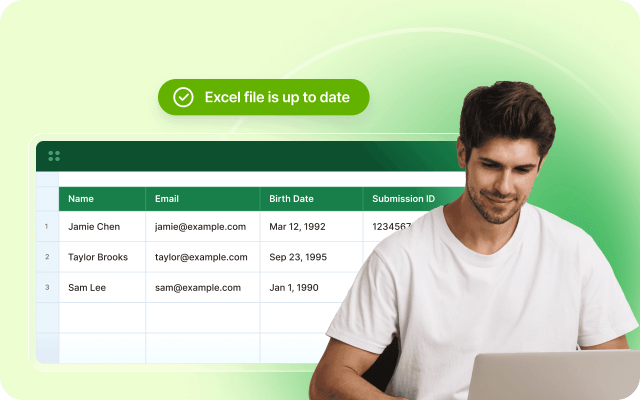
### Keep your Excel files up to date

Every form submission is added as a new row in your workbook, so your data stays current without manual updates.
![Image 5: Keep your Excel files up to date](https://cdn.jotfor.ms/image/r/aHR0cHM6Ly9jZG4uam90Zm9yLm1zL3AvZm9ybXMtZm9yLWV4Y2VsL2Fzc2V0cy9pbWctbWluL2JlbmVmaXRzLTEucG5n/benefits-1.png?w=640&t=1)

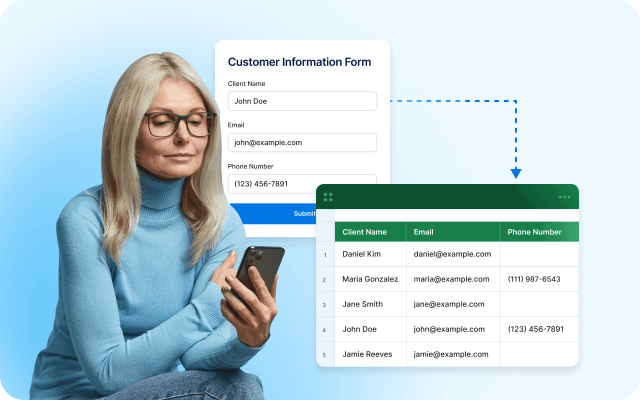
### Skip manual exports

Avoid downloading and uploading files. Send form data to Excel automatically and reduce time spent on manual tasks.
![Image 6: Skip manual exports](https://cdn.jotfor.ms/image/r/aHR0cHM6Ly9jZG4uam90Zm9yLm1zL3AvZm9ybXMtZm9yLWV4Y2VsL2Fzc2V0cy9pbWctbWluL2JlbmVmaXRzLTIucG5n/benefits-2.png?w=40&t=1)

### Works with your existing setup

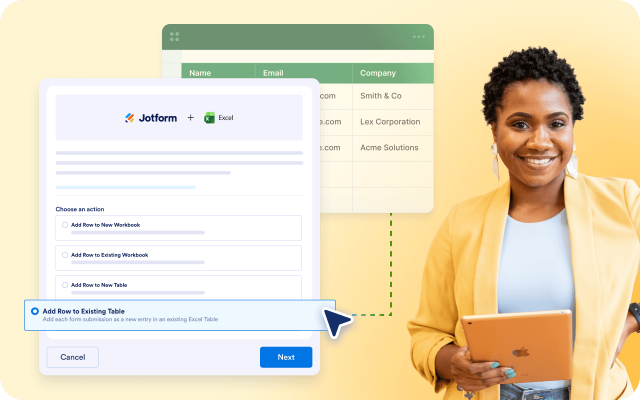
Connect to a new worksheet or an existing Excel table while keeping your current structure and workflow unchanged.
![Image 7: Works with your existing setup](https://cdn.jotfor.ms/image/r/aHR0cHM6Ly9jZG4uam90Zm9yLm1zL3AvZm9ybXMtZm9yLWV4Y2VsL2Fzc2V0cy9pbWctbWluL2JlbmVmaXRzLTMucG5nP3Y9MQ==/benefits-3.png?w=40&t=1)

### Easy field mapping

Quickly match form fields to Excel columns with a simple setup. No technical knowledge or complex steps needed.

![Image 8: Easy field mapping](https://cdn.jotfor.ms/image/r/aHR0cHM6Ly9jZG4uam90Zm9yLm1zL3AvZm9ybXMtZm9yLWV4Y2VsL2Fzc2V0cy9pbWctbWluL2JlbmVmaXRzLTQucG5n/benefits-4.png?w=40&t=1)

### Share and collaborate in Excel

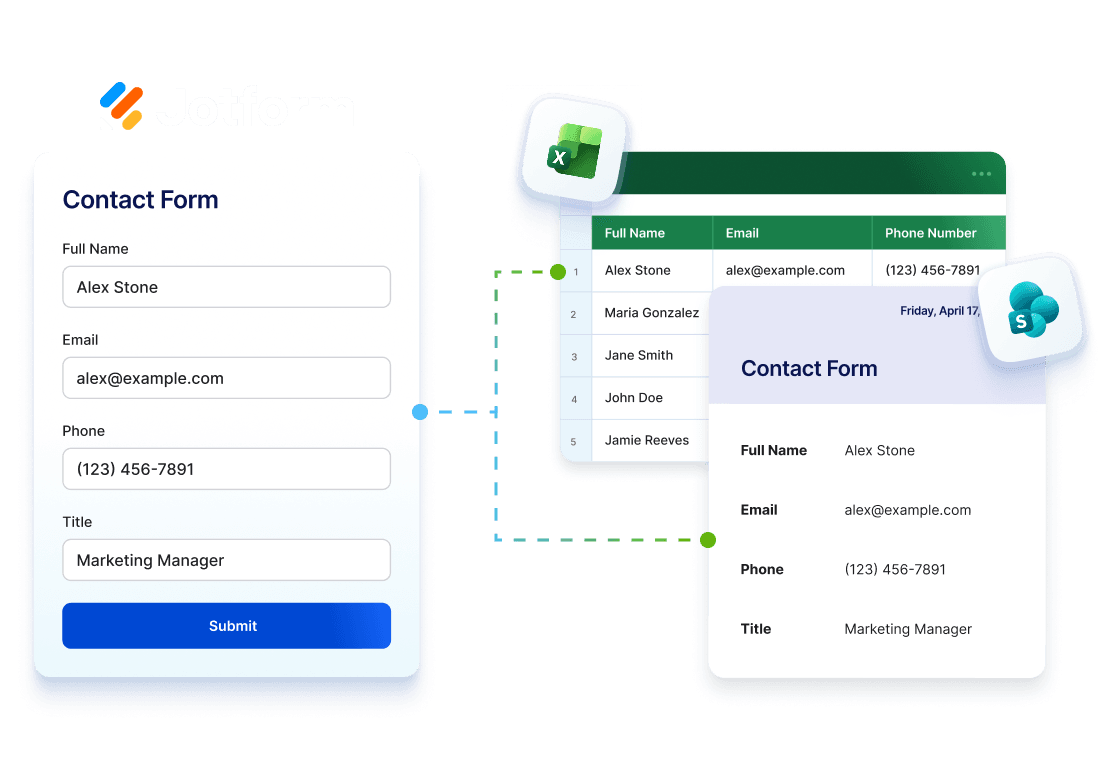
Keep your team aligned with up to date data in shared Excel workbooks, ready for review, edits, and reporting.

![Image 9: Share and collaborate in Excel](https://cdn.jotfor.ms/image/r/aHR0cHM6Ly9jZG4uam90Zm9yLm1zL3AvZm9ybXMtZm9yLWV4Y2VsL2Fzc2V0cy9pbWctbWluL2JlbmVmaXRzLTUucG5n/benefits-5.png?w=40&t=1)

![Image 10: Use Jotform with Excel and SharePoint](https://cdn.jotfor.ms/image/r/aHR0cHM6Ly9jZG4uam90Zm9yLm1zL3AvZm9ybXMtZm9yLWV4Y2VsL2Fzc2V0cy9pbWctbWluL3VzZS1qb3Rmb3JtXy5wbmc=/use-jotform_.png?w=40&t=1)

### Use Jotform with Excel and SharePoint

Collect data with Jotform, analyze it in Excel, and store files in SharePoint. Keep your workflow connected from submission to reporting and storage.

[Explore SharePoint Integration](https://www.jotform.com/sharepoint-forms/)

## Turn forms into organized Excel data

Collect data with Jotform and send it to Excel workbooks, where your team can track, analyze, and keep everything up to date in one place.

### Operations teams

Use Jotform to collect requests or updates with structured forms, then send each submission to Excel automatically so your workflows stay organized and up to date.

### Sales teams

Capture leads with Jotform and send them straight to Excel. Keep your pipeline organized while reducing manual entry and follow up faster.

### Customer success teams

Collect support requests and feedback through Jotform and log them in Excel automatically, so your team always has the latest customer data.

### Analysts and admins

Gather structured data with Jotform and send it to Excel for analysis. Use filters, formulas, and reports without extra steps or tools.

### Enterprise teams using Microsoft tools

Create forms in Jotform and connect them to Excel in minutes. Keep data inside your Microsoft environment without complex setups or workarounds.

## Create your first workflow with Microsoft Excel

### Add rows to a new Excel worksheet with form submissions

[Details](https://www.jotform.com/integrations/microsoft-excel/t/add-rows-to-a-new-excel-workbook/)

### Add rows to an existing Excel table with form submissions

[Details](https://www.jotform.com/integrations/microsoft-excel/t/add-rows-to-existing-excel-table/)

### Add rows to a new Excel table with form submissions

[Details](https://www.jotform.com/integrations/microsoft-excel/t/add-rows-to-a-new-excel-table/)

## How to Integrate Jotform with Microsoft Excel

![Image 11: How to Integrate Jotform with Microsoft Excel](https://cdn.jotfor.ms/image/r/aHR0cHM6Ly9jZG4uam90Zm9yLm1zL3AvZm9ybXMtZm9yLWV4Y2VsL2Fzc2V0cy9pbWctbWluL3ZpZGVvLXRodW1iLmpwZw==/video-thumb.jpg?w=40&t=1)

## FAQ

*    
### Can I automatically send form submissions to Microsoft Excel? Yes. The Microsoft Excel integration can automatically send form submissions to your Excel files, so your data stays organized and up to date without manual entry.   
*    
### What are the benefits of sending form submissions to Microsoft Excel? Sending form submissions to Microsoft Excel helps keep your data organized, up to date, and easy to manage. It also reduces manual data entry, supports reporting workflows, and makes it easier for teams to work with submission data in a familiar spreadsheet environment.   
*    
### What actions are available in the Microsoft Excel integration? The integration includes four actions: Add Row to New Workbook, Add Row to Existing Workbook, Add Row to New Table, and Add Row to Existing Table.   
*    
### What does Add Row to New Workbook do? This action adds each form submission as a new row in a new Excel workbook. It’s useful when you want to start collecting submission data in a brand-new file.   
*    
### What does Add Row to Existing Workbook do? This action adds each form submission as a new row in an existing Excel workbook. It’s a good option if you already have a workbook in place and want to keep adding new submission data to it automatically.   
*    
### What does Add Row to New Table do? This action adds each form submission as a new entry in a new Excel table. It’s helpful when you want to create a structured table for form data during setup.   
*    
### What does Add Row to Existing Table do? This action adds each form submission as a new entry in an existing Excel table. It’s useful for teams that already manage data in structured Excel tables and want new submissions to appear there automatically.   
*    
### Do I need an existing table to use Excel integration? Not always. An existing table is only required if you choose the **Add Row to Existing Table** action.   
*    
### Can I use the integration with an existing workbook? Yes. You can send form submissions to an existing Excel file by choosing either the **Add Row to Existing Workbook** or **Add Row to Existing Table** actions.   
*    
### Can I create a new workbook or table during setup? Yes. The integration allows you to create a new workbook or a new table in Microsoft Excel during setup, depending on the action you choose.   
*    
### Can I send existing submissions to Microsoft Excel? Yes. The Microsoft Excel integration includes an option to send existing submissions, so you can add past form responses to your selected Excel workbook or table.   
*    
### Do I need a Microsoft account to use the integration? Yes. A Microsoft account is required to connect Excel and send form submissions to your workbooks.   
*    
### Where can I learn more about Microsoft Excel integration? You can learn more in the help guide here: [How to Integrate Your Form With Microsoft Excel](https://www.jotform.com/help/how-to-integrate-your-form-with-microsoft-excel/)   

View More

## Start using forms for Excel today

Create your form, connect it to Excel, and keep your data organized without extra work.

Integrate a Form with Excel