

Microsoft is a founding name in software, and a vast number of global companies depend on its productivity solutions to manage data and documents.
While there’s no shortage of industry solutions, Microsoft is still the preferred choice among large enterprises and traditional corporations in highly regulated industries such as finance, healthcare, and the like.
But getting form submissions into those systems often requires complex or manual work.
To rectify this issue, we’re excited to announce new native integrations with Microsoft Excel and Microsoft SharePoint.


Now you can automatically send form submission data to Excel workbooks and tables, in addition to storing files and PDFs in SharePoint.
So if Microsoft is your business’s love language, these integrations are for you. 😉
These new integrations will help you create seamless Microsoft data workflows and save you tons of time.
| Data flows for Microsoft Excel & SharePoint | |
|---|---|
| Before | After |
| Exporting CSV/XLS files manually | Automatic data syncing to Excel |
| Uploading attachments one by one | Instant file delivery to SharePoint |
| Creating folders and organizing documents manually | Structured, scalable workflows with minimal effort |
Let’s take a closer look at how each integration works.
Turn form submissions into actionable data with Microsoft Excel
Tailored for those who manage their data, workflows, reporting, and collaboration in Excel, our new integration
- Automatically adds new submissions as rows in worksheets or tables
- Creates new worksheets/tables or adds to existing ones
- Maps form fields directly to Excel columns
- Sends existing form submissions to Excel during integration setup
The result is real-time data organization and no more manual work.
How to use the Excel integration
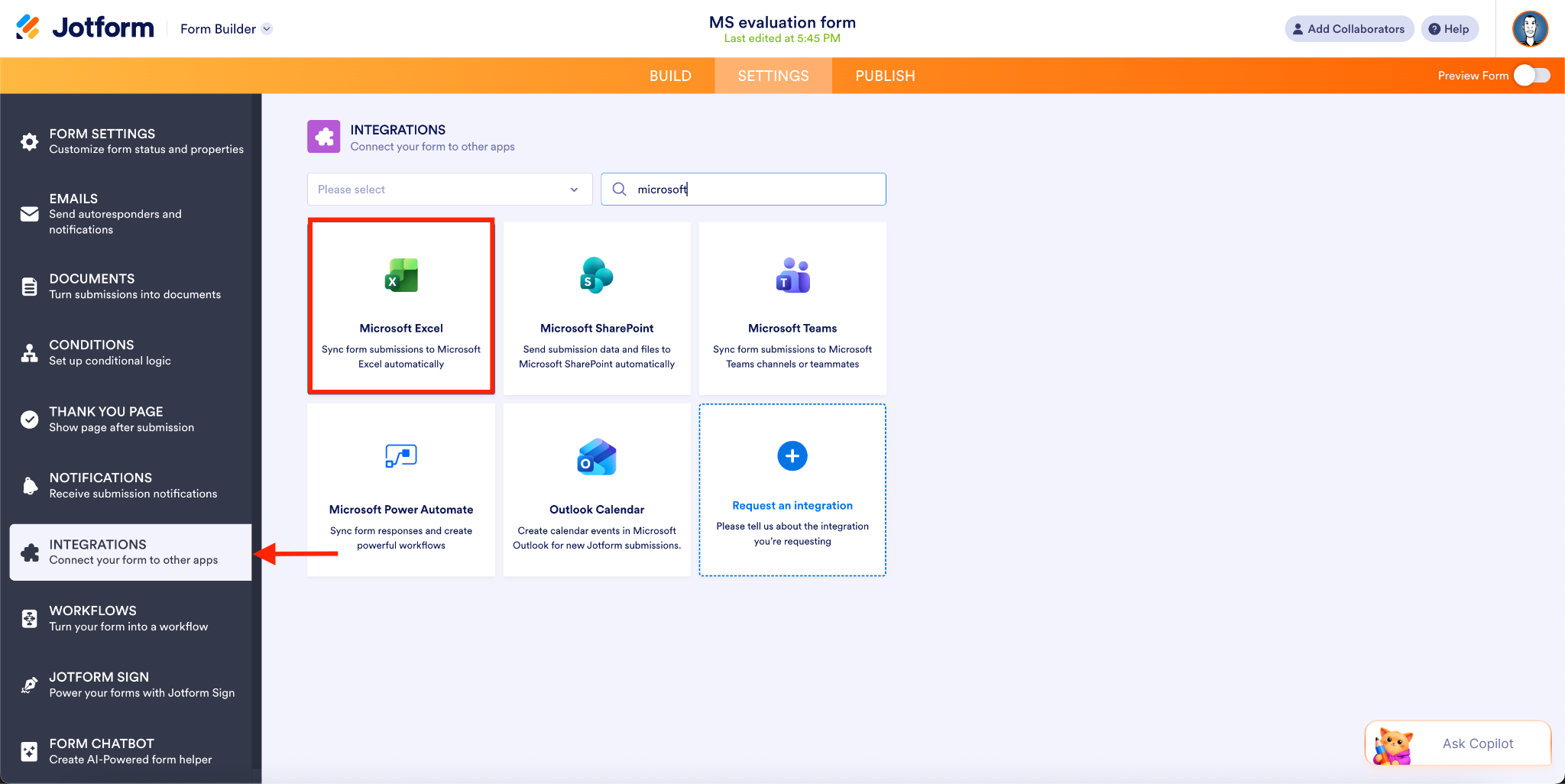
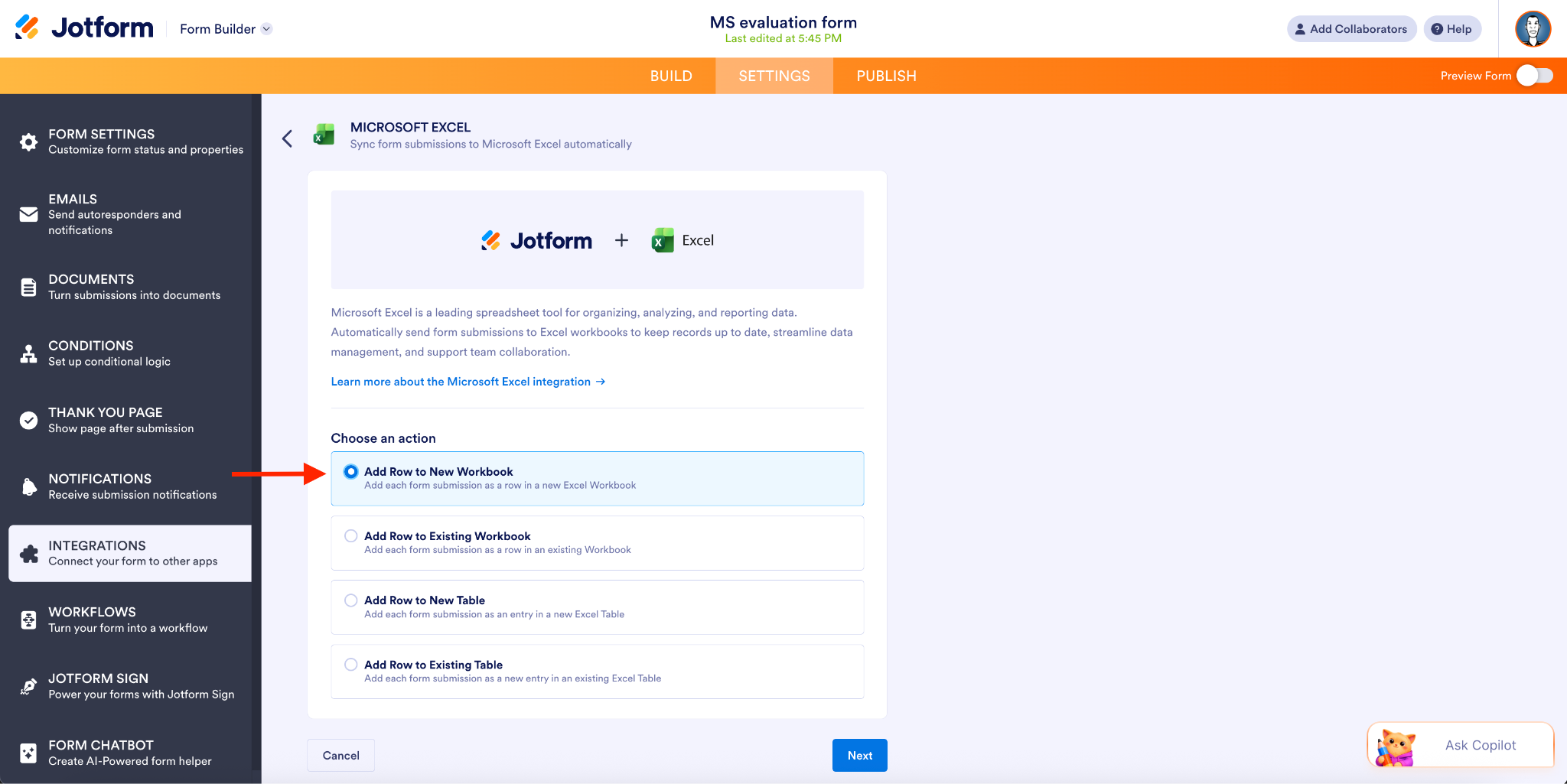
- You can access the Microsoft Excel integration in the Form Builder to create forms for Excel. Select the action for your Excel account (new workbook, existing workbook, new table, or existing table).
- On the next screen, authenticate your Microsoft account.

- Specify your folder/workbook name, worksheet name, and columns to create a new workbook. (If you’re adding to an existing workbook, this is how you’ll map your form fields to Excel columns and start syncing submissions automatically.)
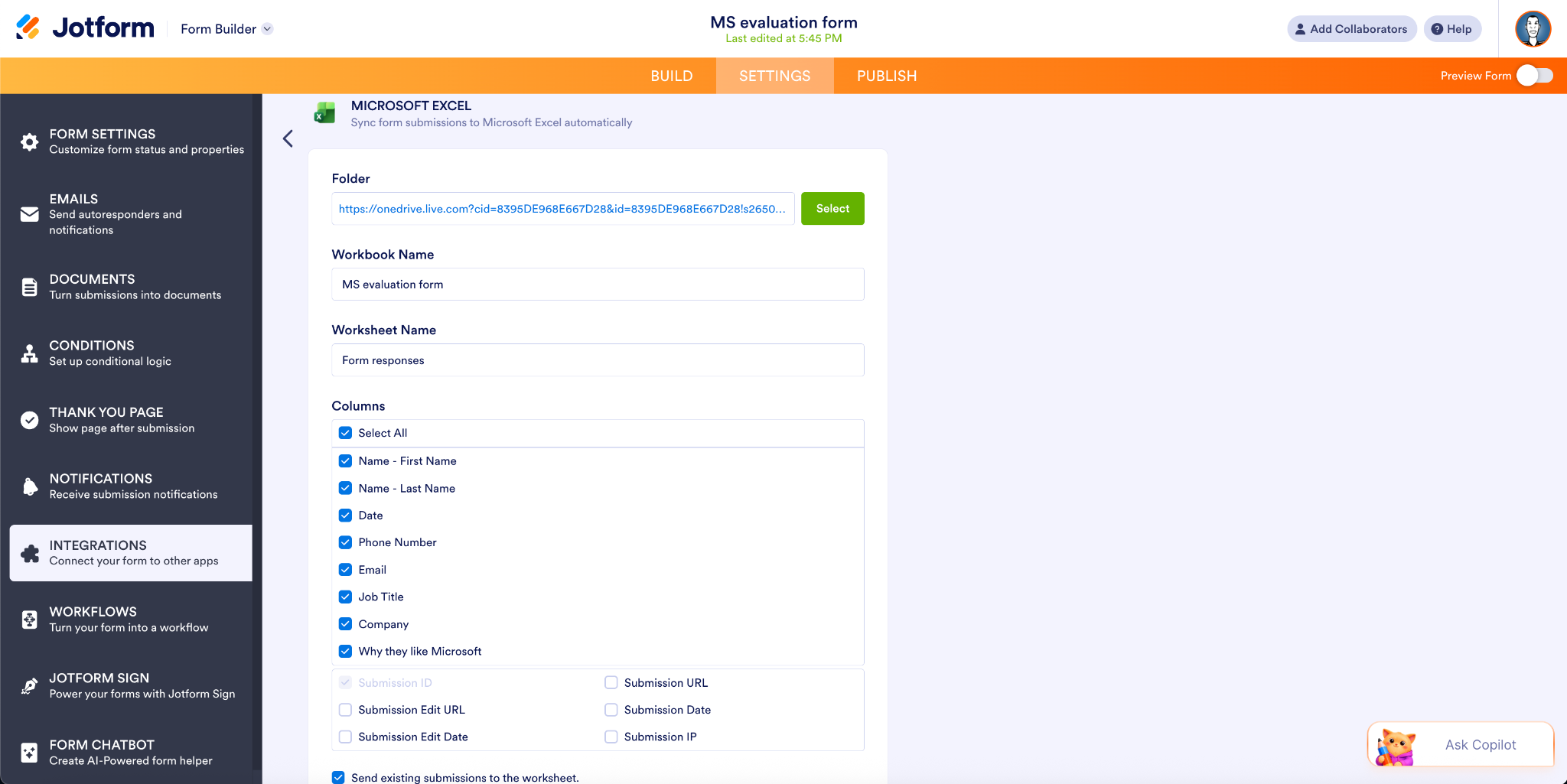
Click Save, and you’re good to go.
Excel action overview
There are four ways to sync your form data to Excel:
- Add Row to New Workbook: This is the example shown above. With this option, each time a new form is submitted, the data from that submission will be added as a row in a new Excel workbook.
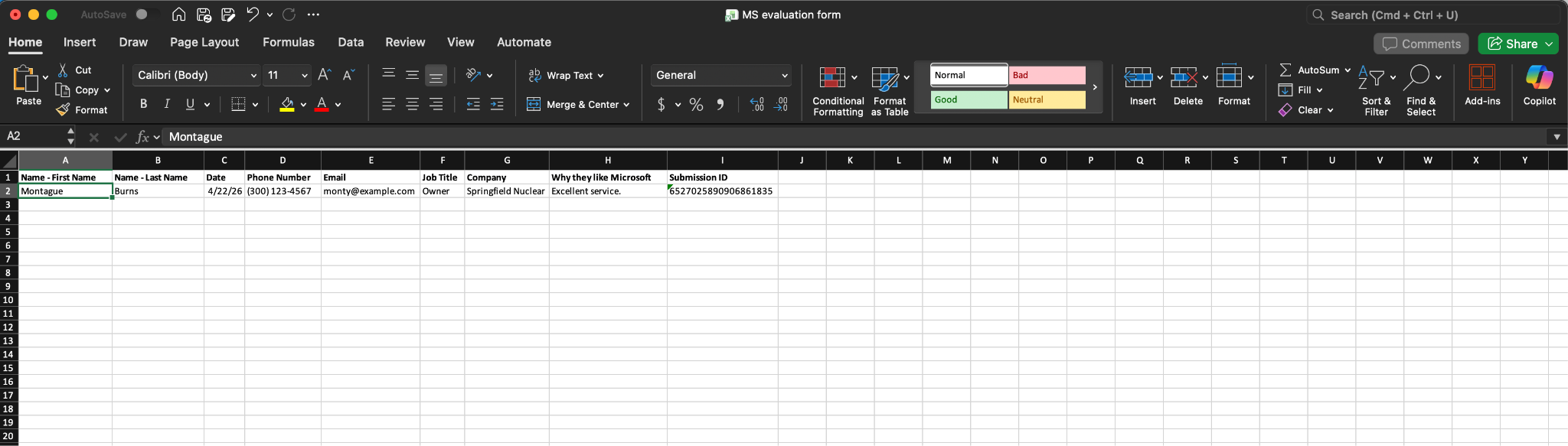
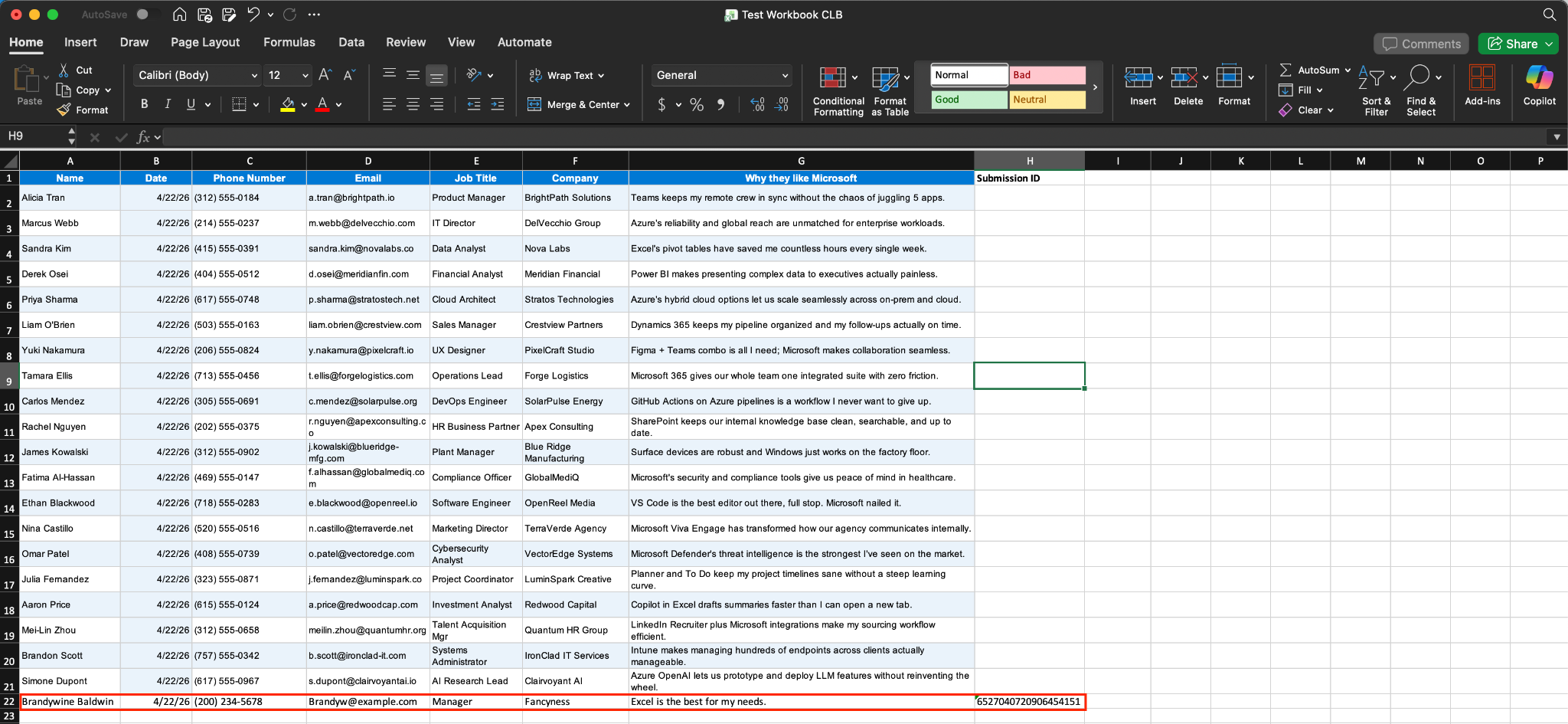
- Add Row to Existing Workbook: With this option, each new form submission will be added as a row to an existing workbook. In this case, the new submission by Brandywine is added as the last row.
Did you know?
When setting up your integration actions, you may have noticed the option to “Send existing submissions to the worksheet or table.” When you enable this option, any submissionsassociated with your form will appear in the workbook/table you specify.
- Add Row to New Table: Here, each new form submission will create an entry in a new Excel table (or tab) within your workbook.
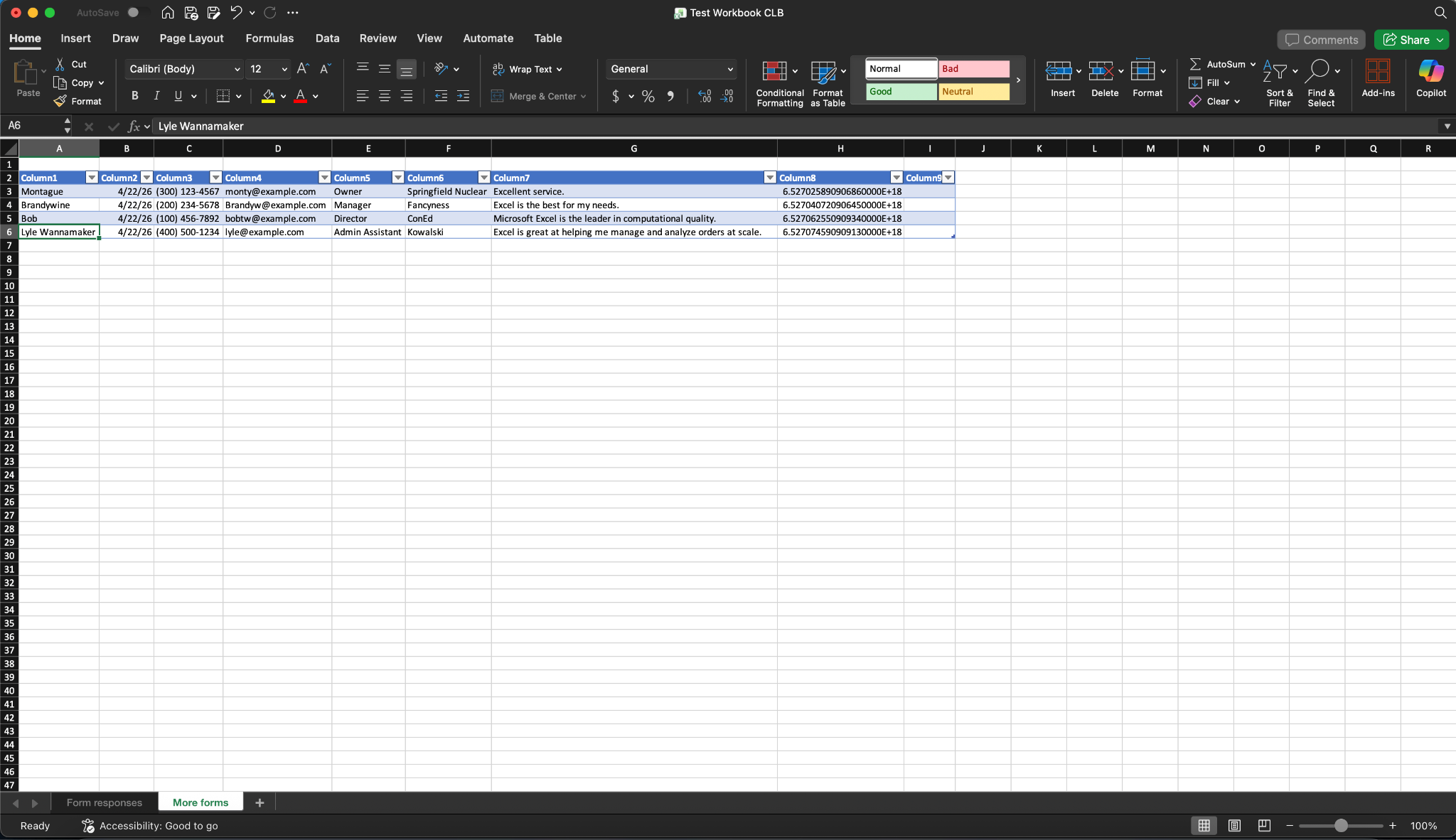
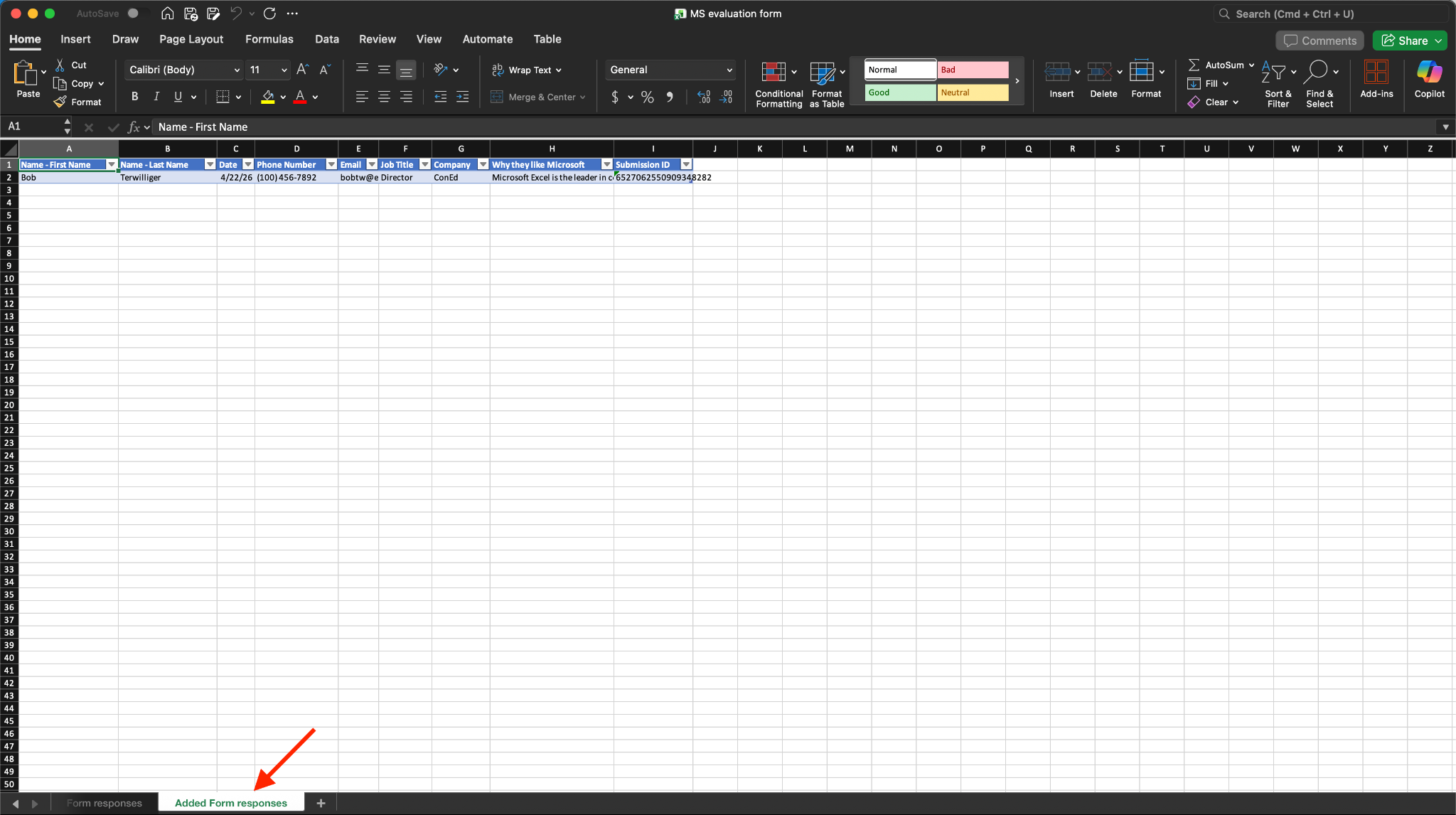
- Add Row to Existing Table: This syncing method adds each form submission as a new entry in an existing Excel table.
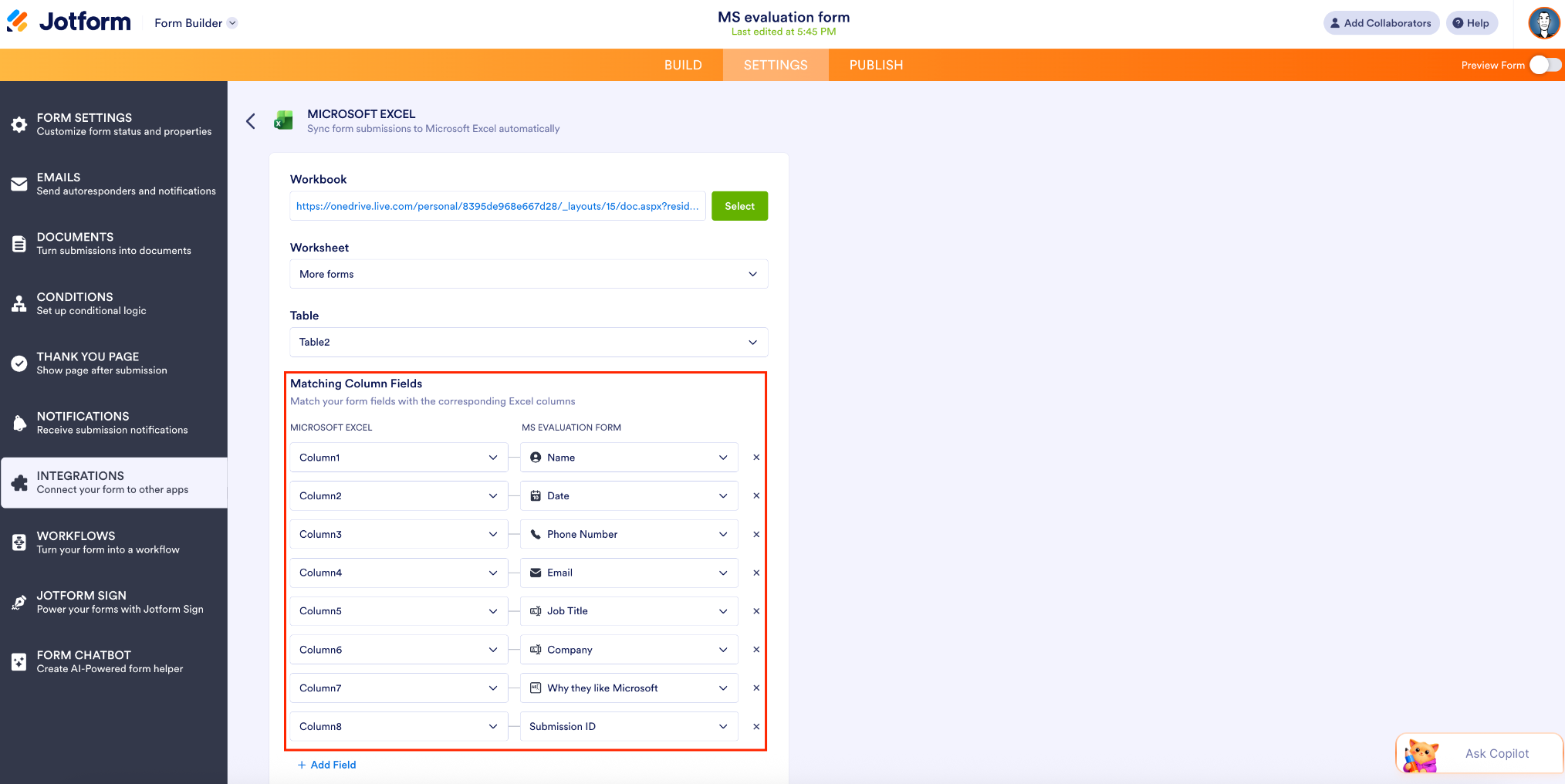
- Because I checked the “Send existing submissions to the table” option when I matched my columns and set up this action, prior submissions appear in this table as well.
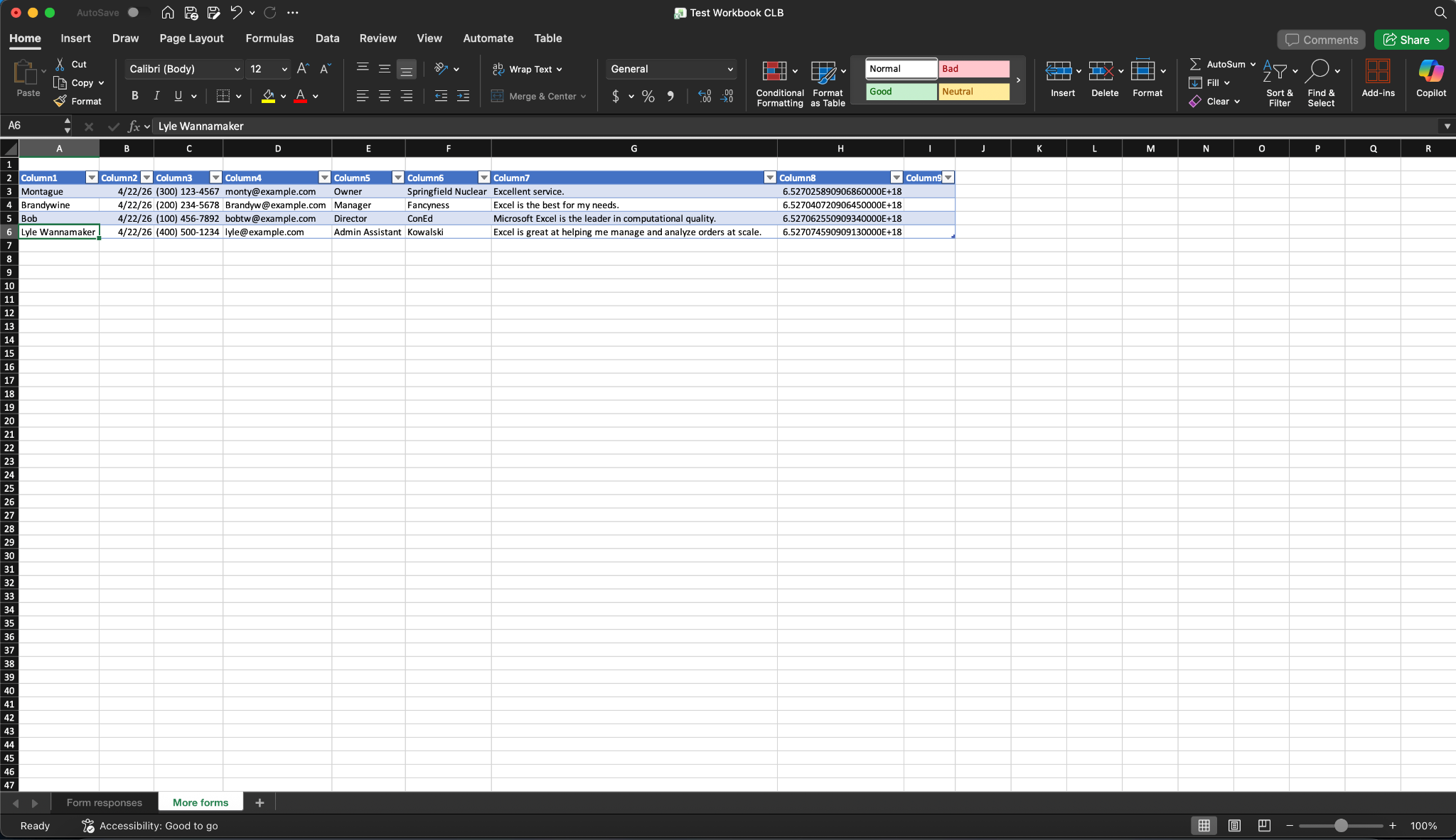
Note: For this option, you need to ensure that the worksheet name is unique to avoid overwriting existing data. This is especially important for worksheets that aren’t structured as tables.
Pro Tip
If the desired workbook/table is open when you set up your integration, you’ll need to close it prior to saving your action setup. Also, Microsoft Excel files used in this integration are managed through the web-based Excel experience (e.g., Excel for the web), which allows you to access, view, and edit your spreadsheets online anytime.
Microsoft Excel integration use cases
Anyone who needs to organize and analyze data will benefit from this integration, but it will appeal especially to
- Sales teams tracking leads (and analyzing trend data) in shared workbooks
- Marketing or operations teams managing structured submission data
- Data analysts maintaining live reporting tables
- Auditors forecasting and modeling for actionable recommendations


Learn more about how to integrate your form with Microsoft Excel.
Automatically organize submission files with Microsoft SharePoint
The SharePoint integration is built for teams that rely on the cloud-based storage service for document collaboration, internal management, and compliance. Beyond data collection, you can also automate file delivery from your form submissions.
With this integration, you can
- Upload submission attachments directly to SharePoint
- Send generated PDFs automatically
- Direct submissions to sites/intranets and folders
- Automatically create subfolders with each submission
How to use the SharePoint integration
- You can access the Microsoft Sharepoint integration in the Form Builder. Select the form action for your SharePoint account (add row to new list, add row to existing list, or send files).
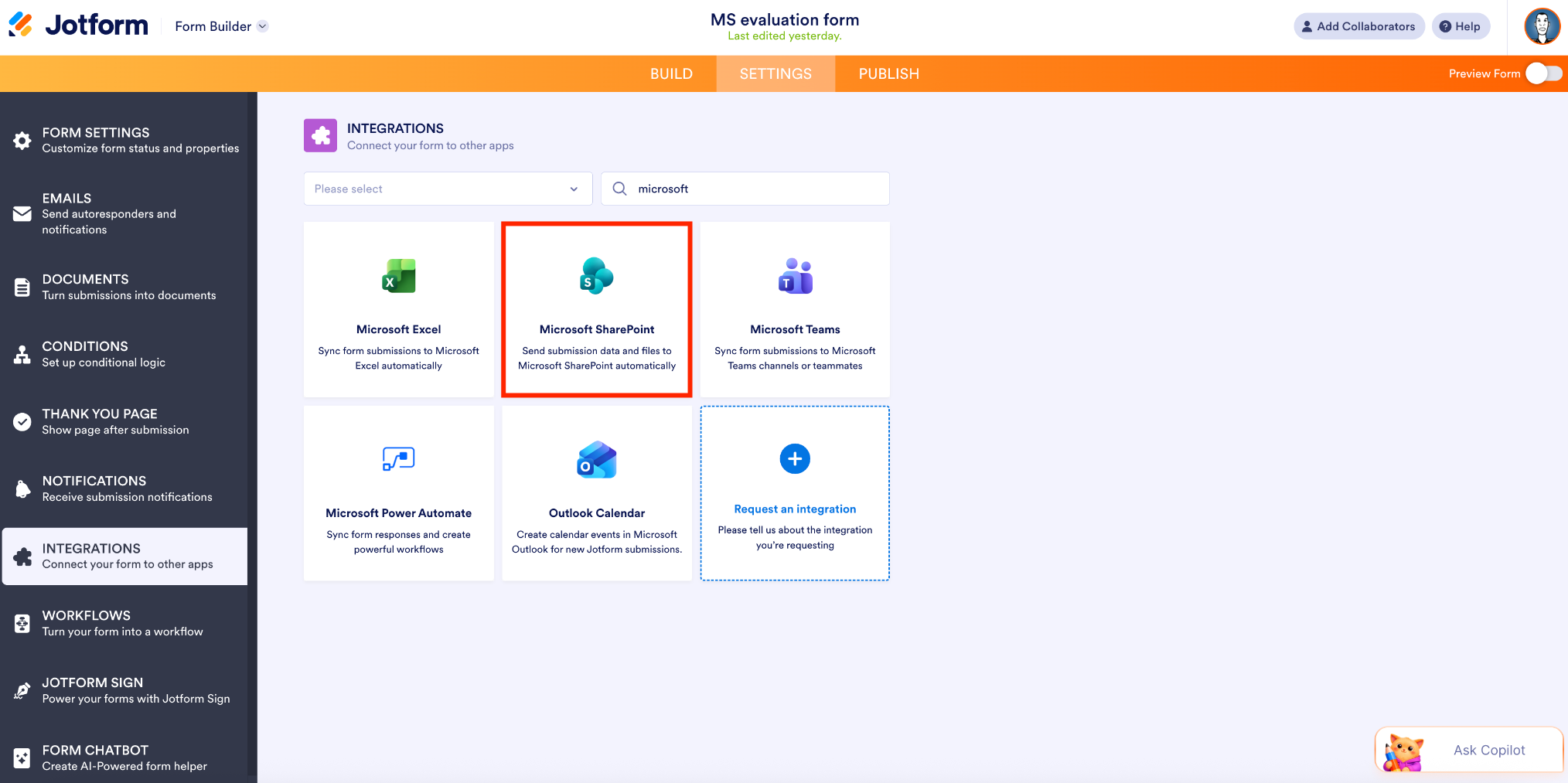
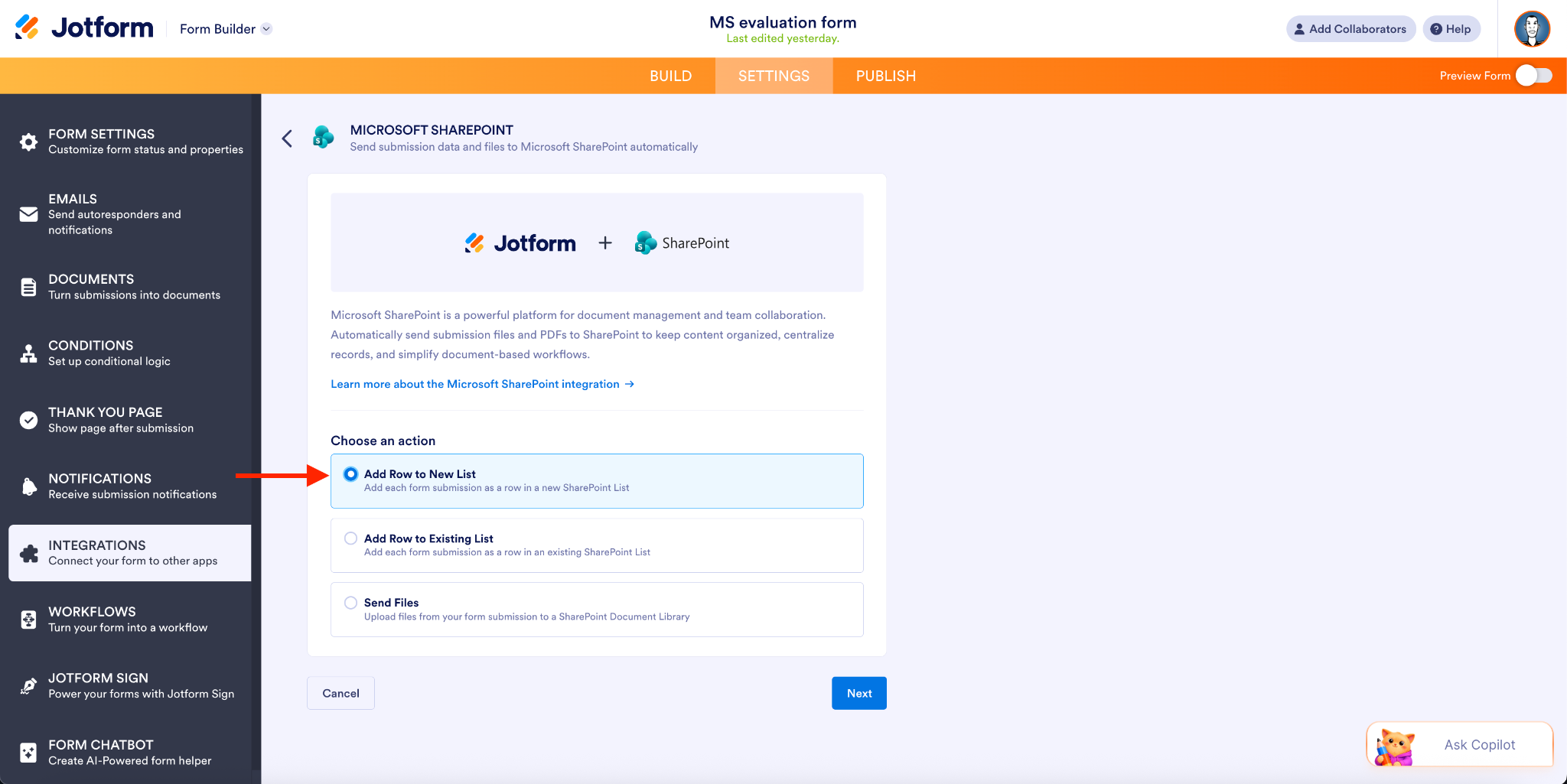
- On the next screen, click the button to authenticate your Microsoft account. Note: SharePoint requires a work or school account to integrate your data.
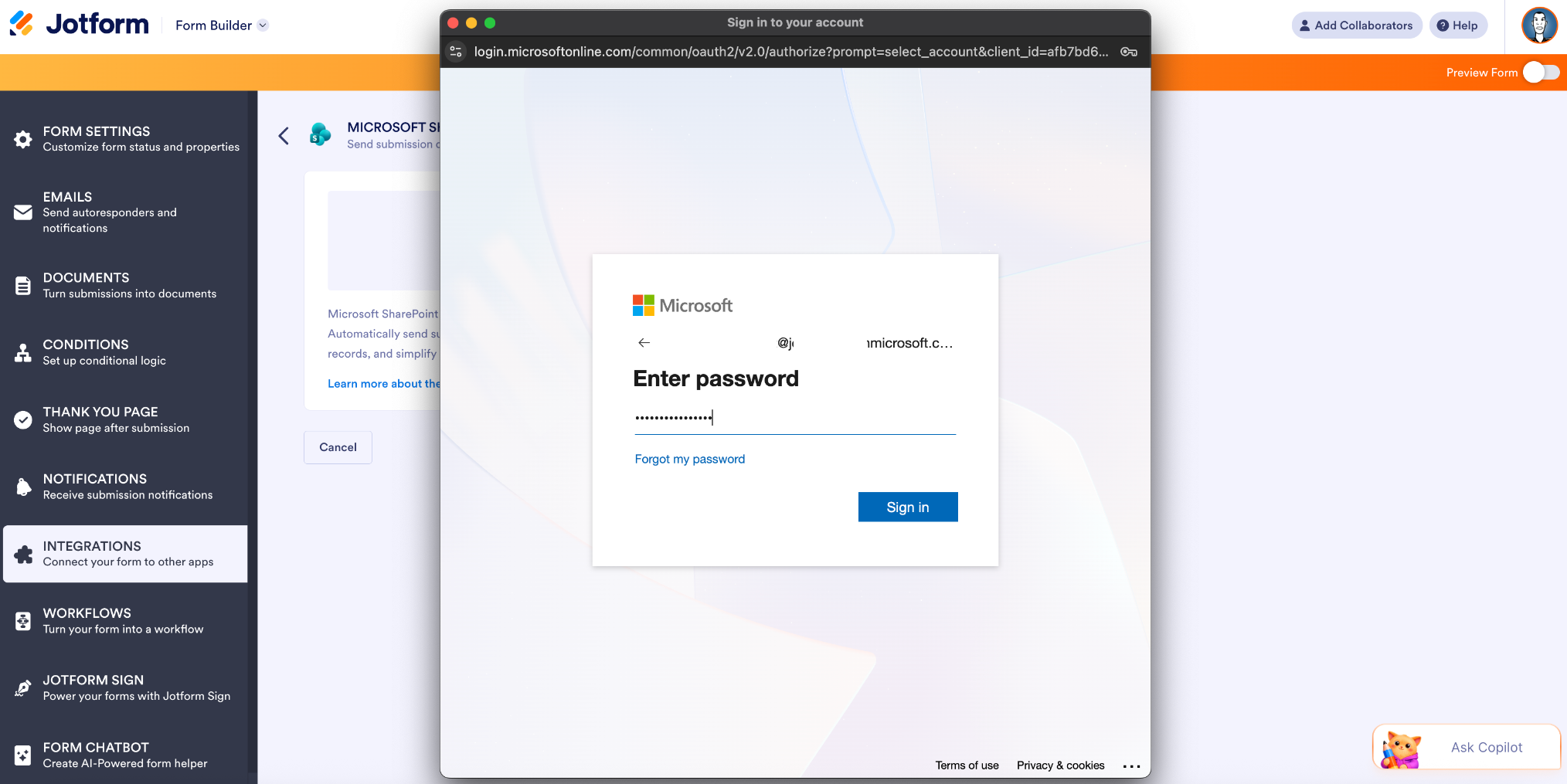
- Choose the destination site and folder/file name for your submissions (or destination site and list if adding a row to an existing list), then click Save.
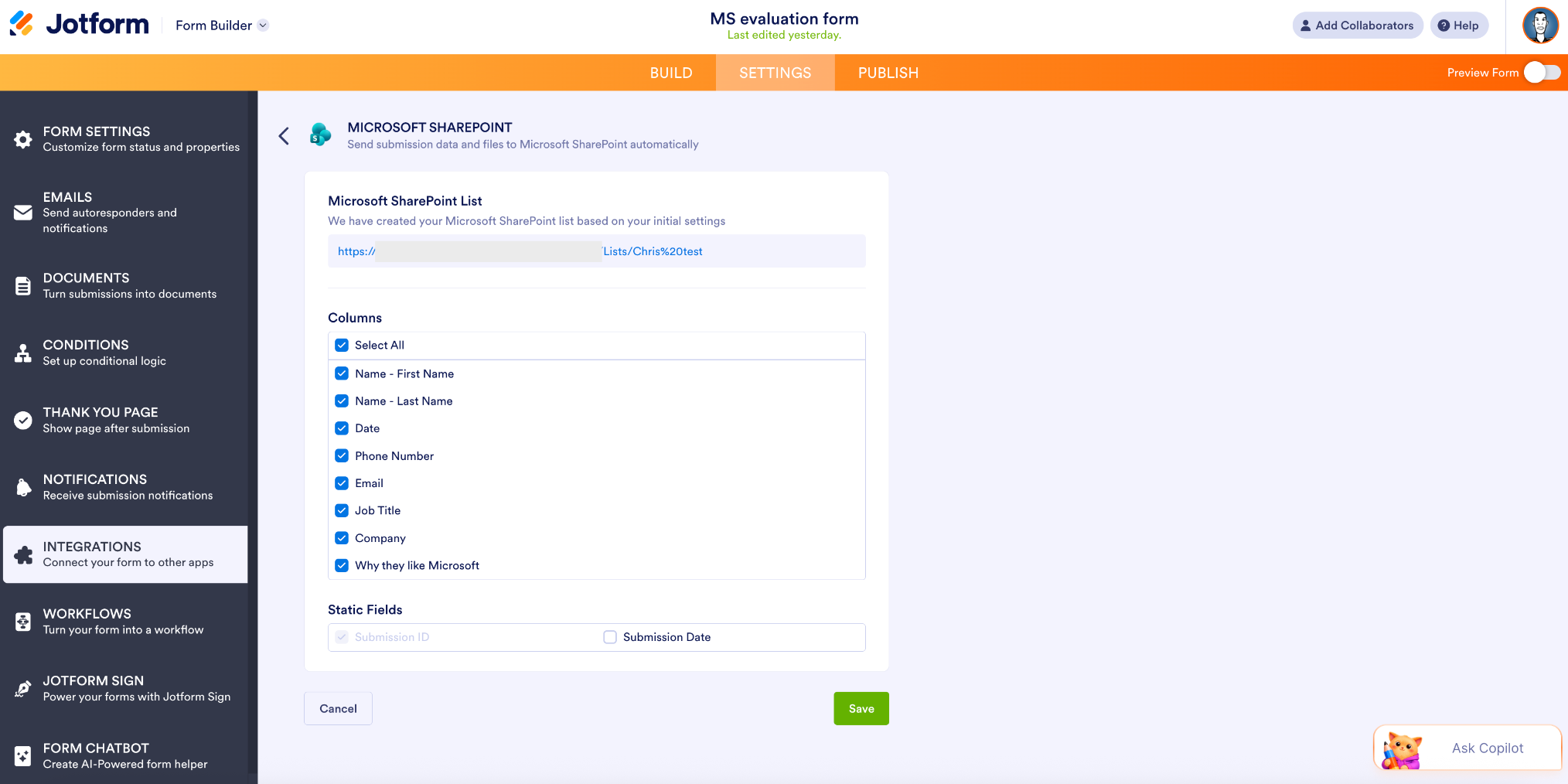
SharePoint action overview
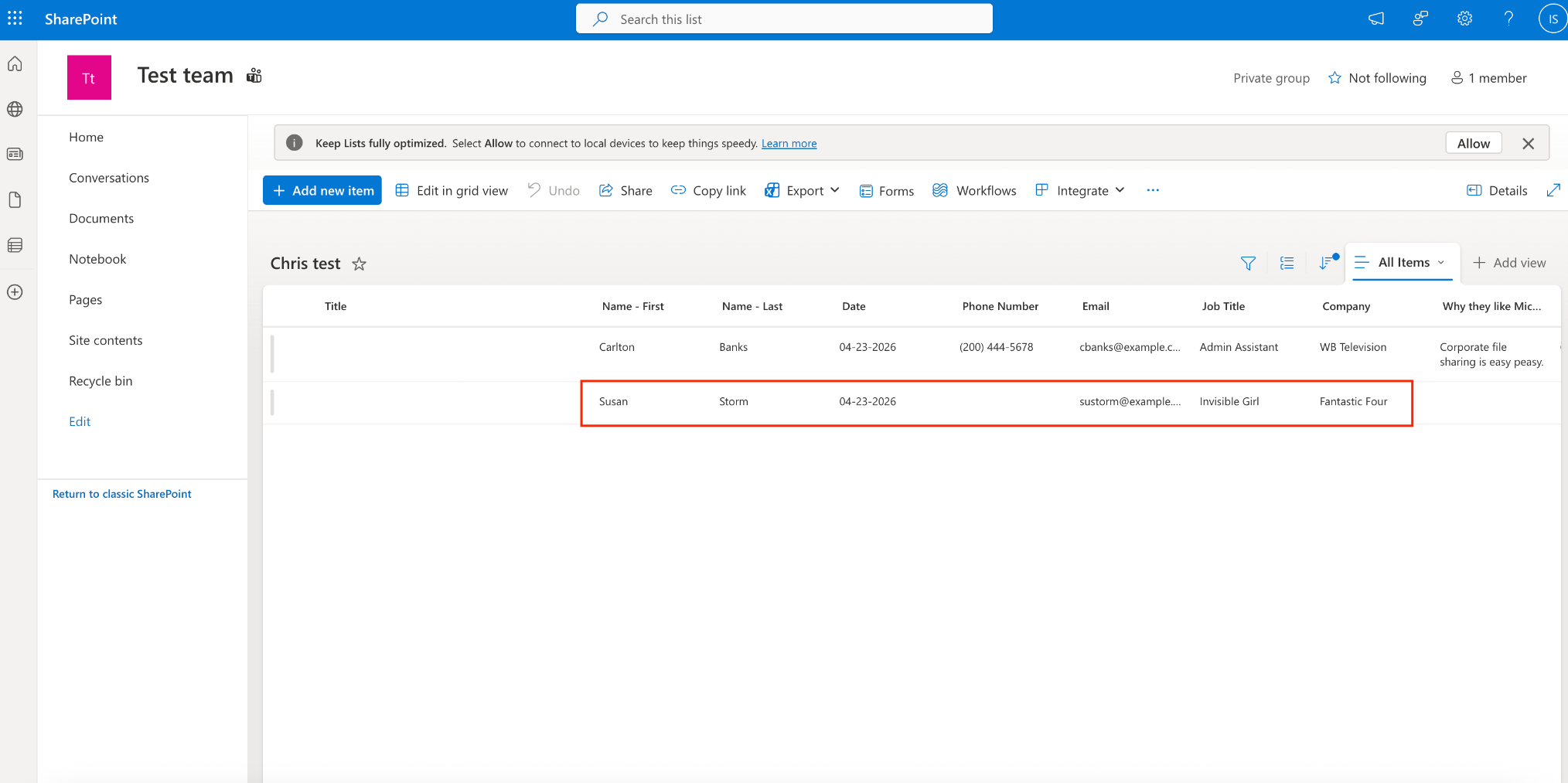
- Add Row to New List: I used this option in the example above. Each form submission will be added as a row in a new SharePoint list.
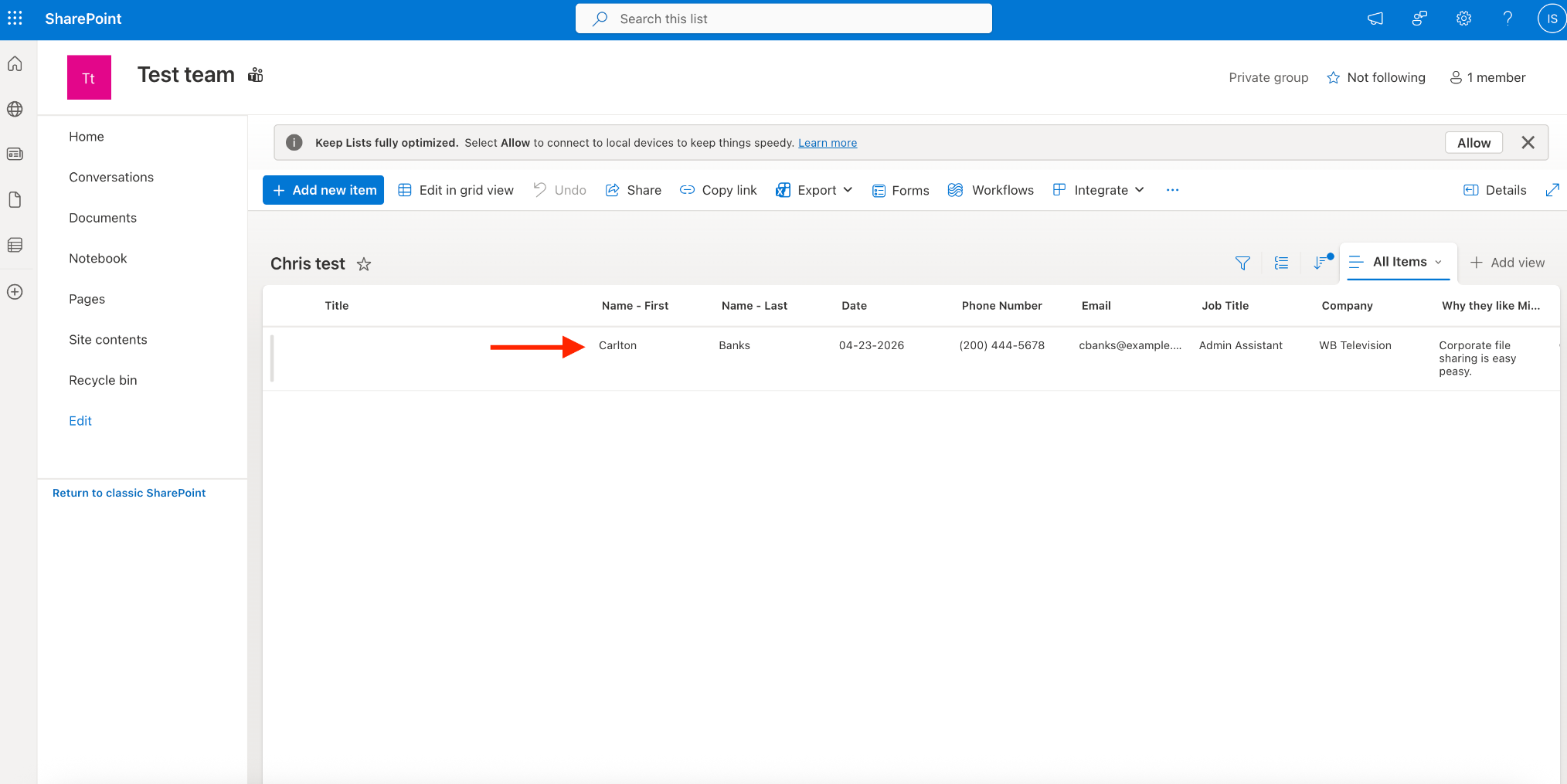
- Add Row to Existing List: This option adds each new form submission as a row in an existing SharePoint list.
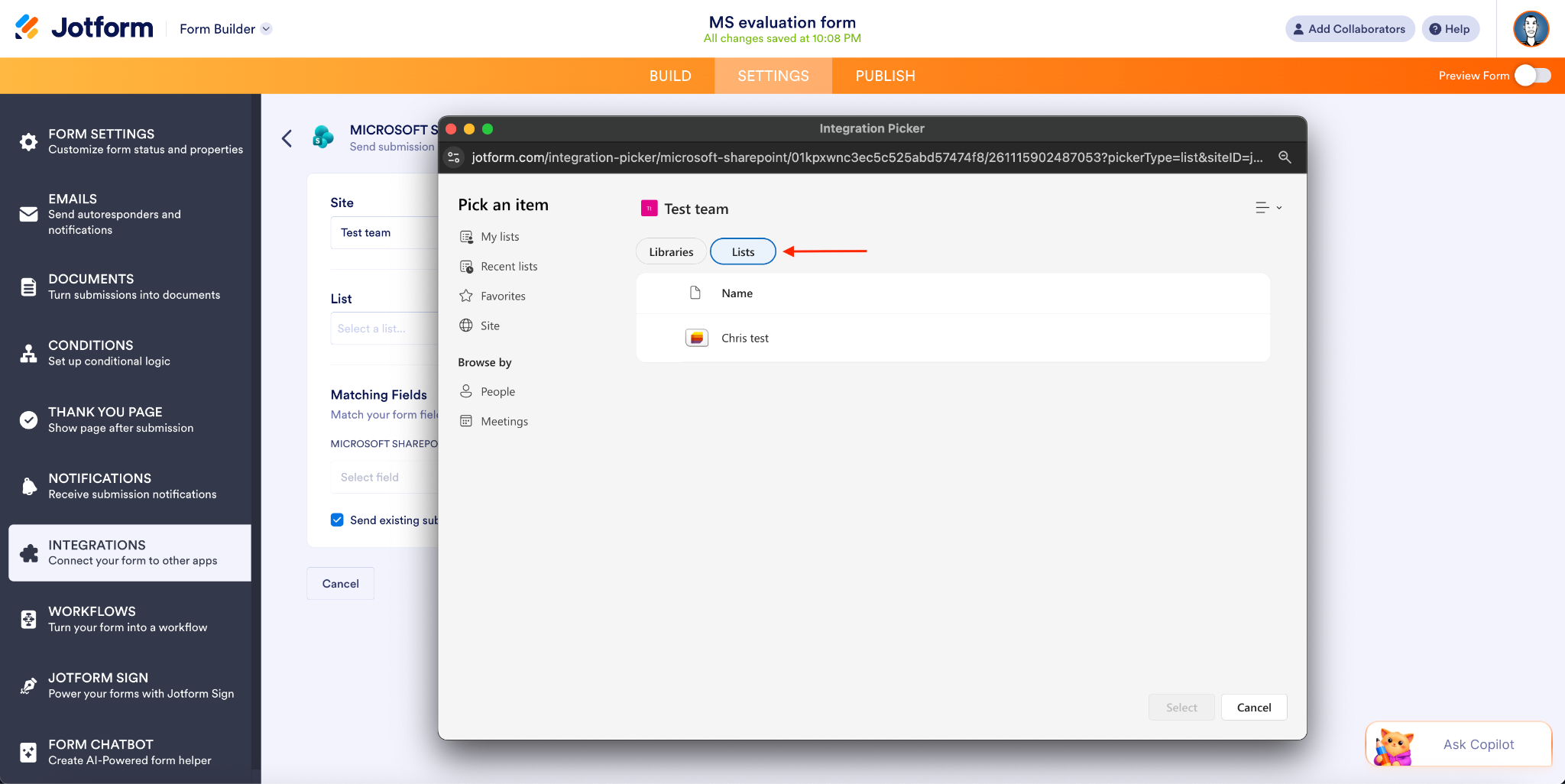
- After I’ve selected my destination site and list, I can match my SharePoint columns to the corresponding form fields I want to include.
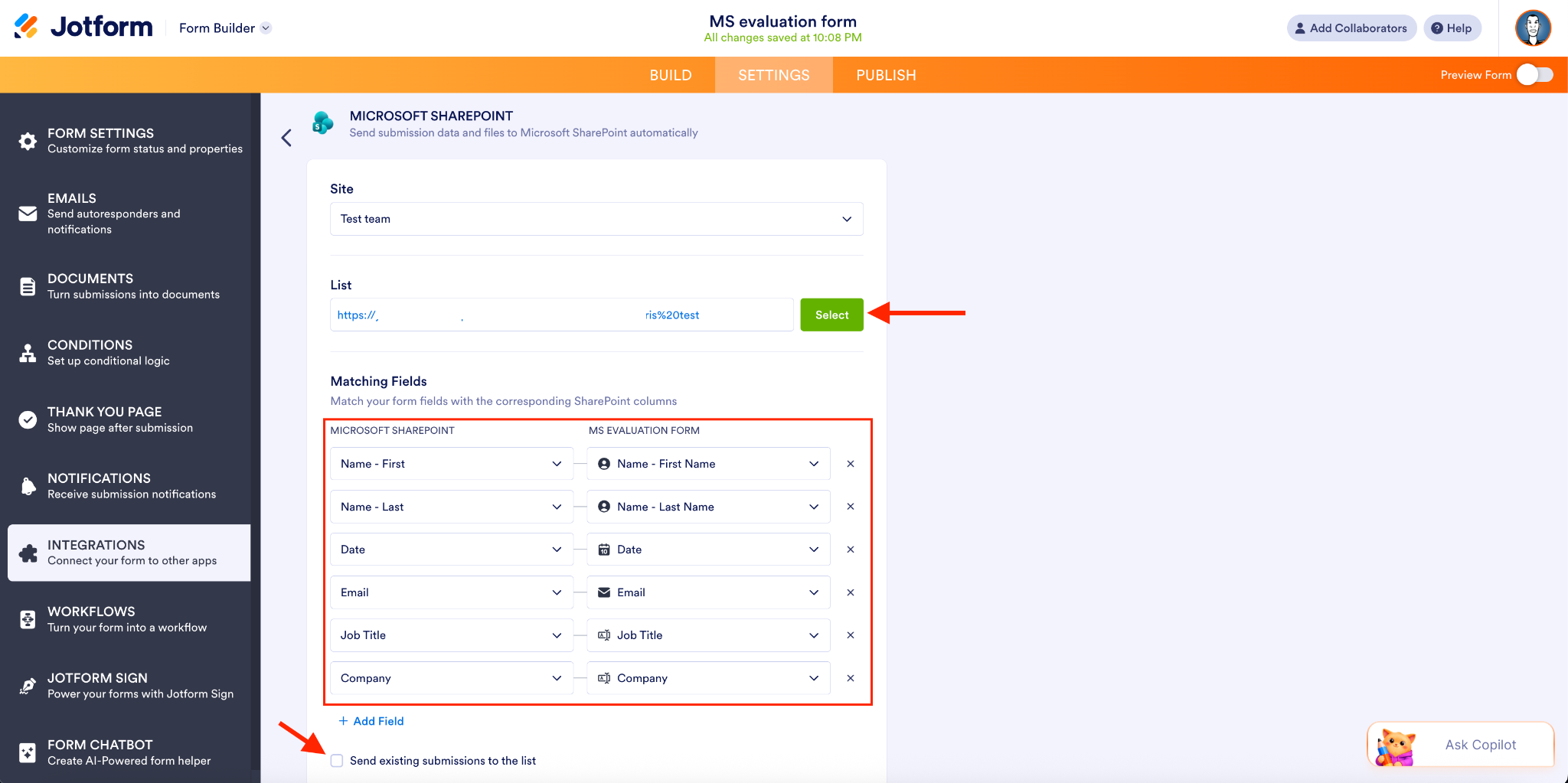
- Once the form is submitted, the new entry is added with the fields I’ve specified.
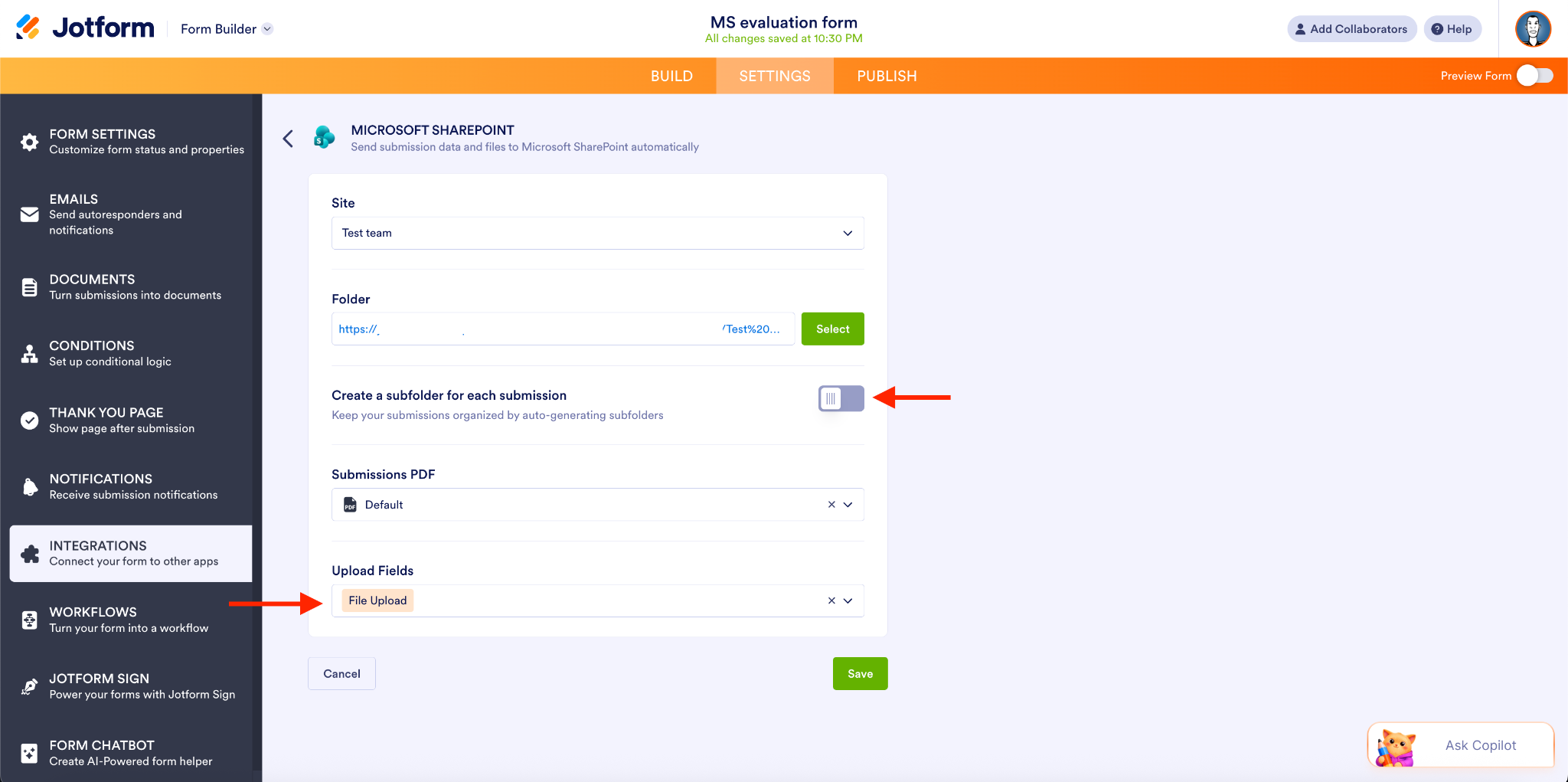
- Send Files: You can use this action to automatically send files and PDFs from your form submissions to a specified SharePoint document library.
As an FYI, you have the option to create a new subfolder for each submission, but in this example, I’ve toggled that option off. I then added File Upload as the Upload Field.
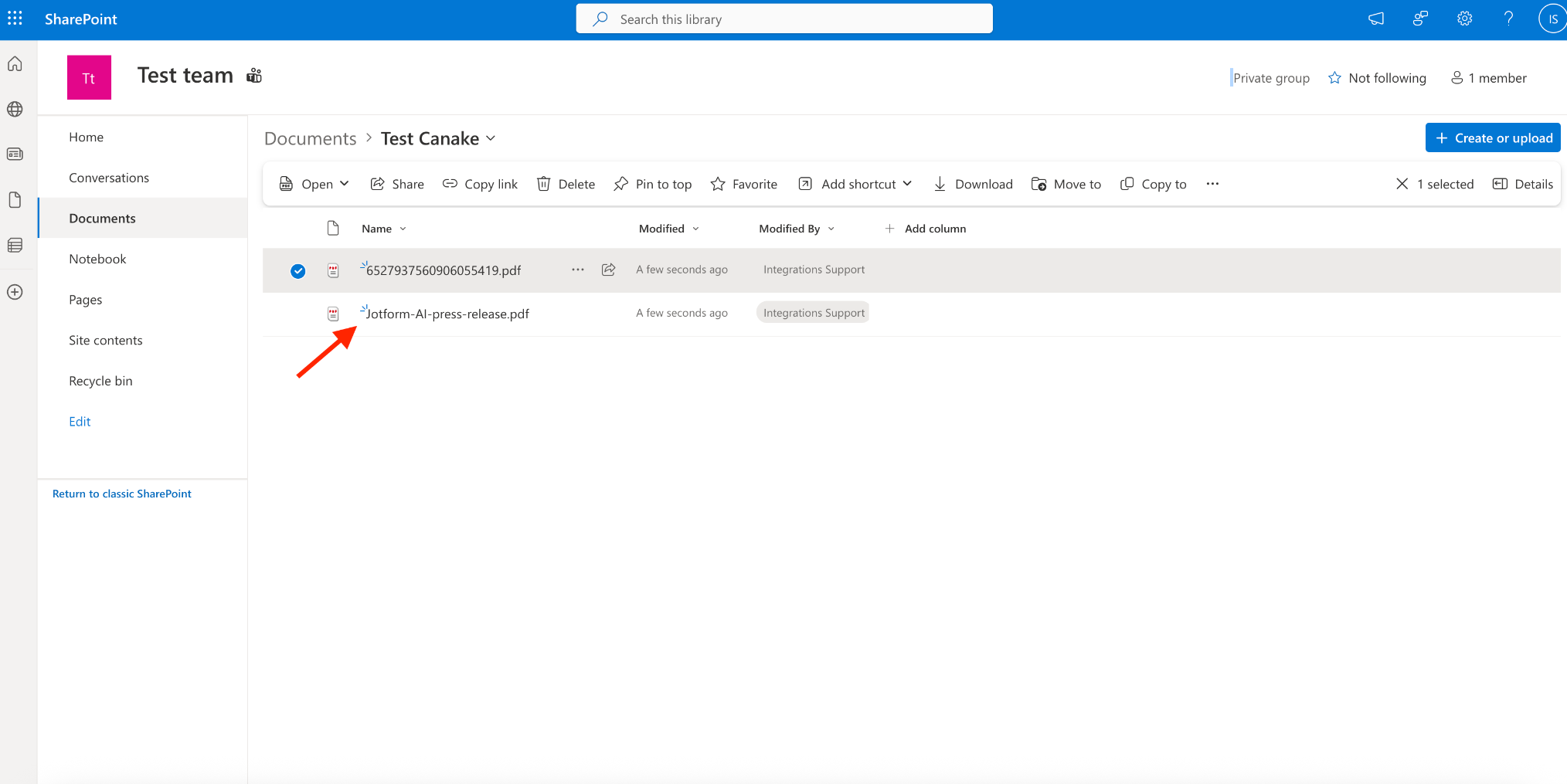
- When the form is submitted, the PDF is imported directly into my document folder.
Microsoft SharePoint integration use cases
The organizations that typically use SharePoint for information/document storage, shared resources, and team collaboration are Microsoft-centric organizations and educational institutions. Teams within these organizations tend to use SharePoint in the following ways:
- HR teams managing onboarding documents
- Admin teams storing internal form submissions
- Compliance teams organizing records and PDFs
- IT teams standardizing document workflows
- Project management teams centralizing collateral

Learn more about how to integrate Jotform with SharePoint.
Jotform, built for the Microsoft ecosystem
With these two integrations — Excel for streamlined data management and SharePoint for document workflows — Microsoft-centric organizations can confidently create workflows that begin with data collection and end with collaborative decision-making.
We’re excited to make these highly requested integrations available so you can begin syncing form data and files for end-to-end automation.
Jotform’s Excel and SharePoint integrations work across multiple core products like the Form Builder, Jotform Sign, PDF Editor, Smart PDF Forms, and Workflows (SharePoint only). Whether you need to automate submissions; streamline file transfers, storage, and e-signature processes; or trigger approvals and next steps, you’ve got HIPAA-enabled, cross-product capability at your disposal.
And those SMBs and enterprises that need to automatically send their data to Microsoft Teams, Outlook Calendar, One Drive, or Power Automate can do so through Jotform’s ecosystem.
Combined, Microsoft Excel and SharePoint connect multiple products and user journeys, while enabling compliance with laws and regulations like HIPAA. Starting today, you’ll save more time, reduce more errors, and improve collaboration across your organization.
Streamline your Microsoft Excel and SharePoint workflows with these integrations today!












Send Comment:
2 Comments:
May 12, 2026
These integrations will be very useful for organizations already working inside the Microsoft ecosystem. Automatic syncing to Excel and direct SharePoint file handling can save a significant amount of manual work, especially for teams managing large volumes of submissions, documents, and reporting workflows.
The ability to map form fields directly to Excel tables and automatically organize uploaded files in SharePoint should improve workflow efficiency and reduce data handling errors for enterprise teams.
April 29, 2026
ola quero criar um jogo