Do you want to create personalized or automatic responses to your friend? If so, it’s easy. Let’s do it:
- Create a form and add the Email and Long Text Entry fields.
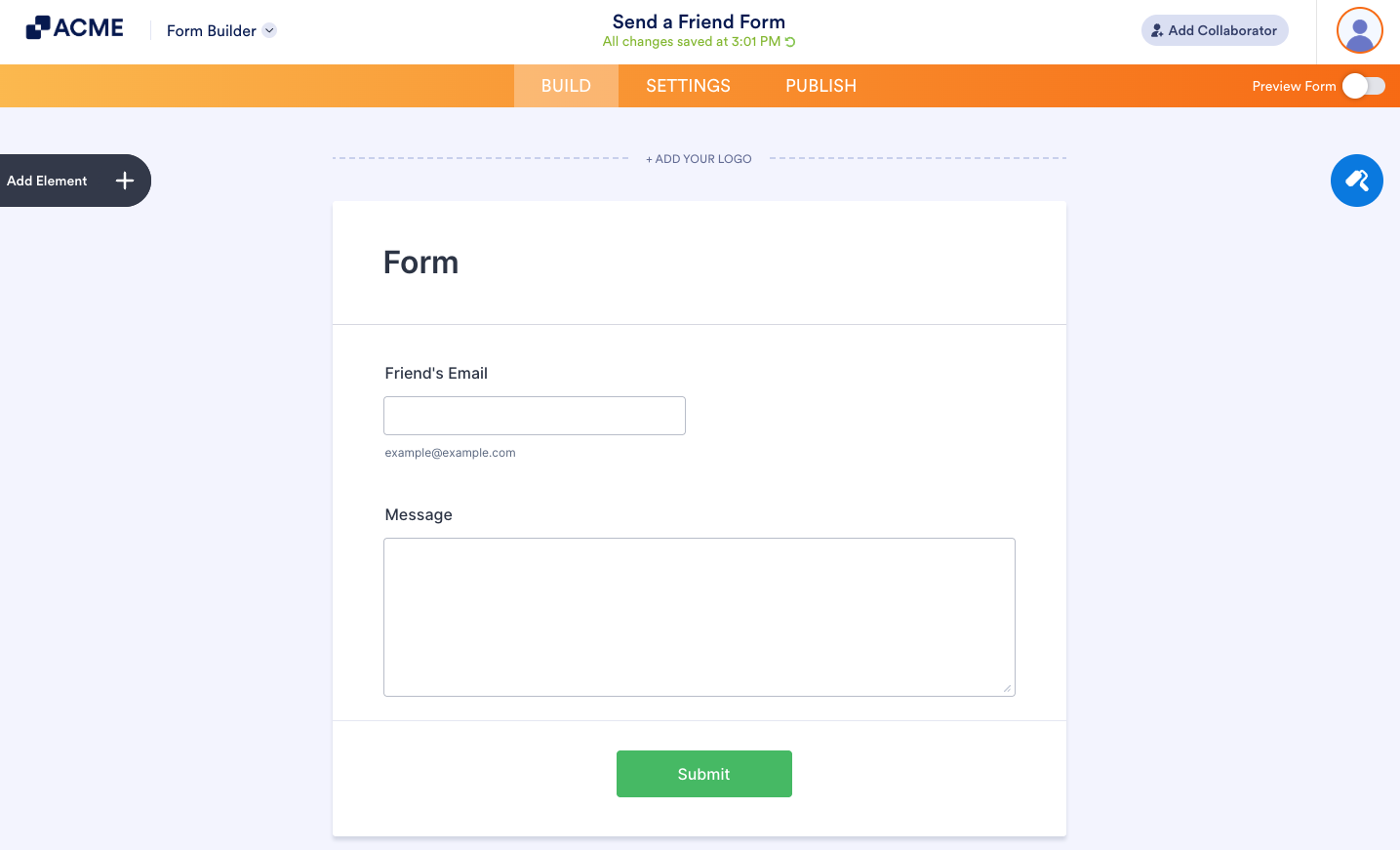
- In the Form Builder, go to the Settings tab.
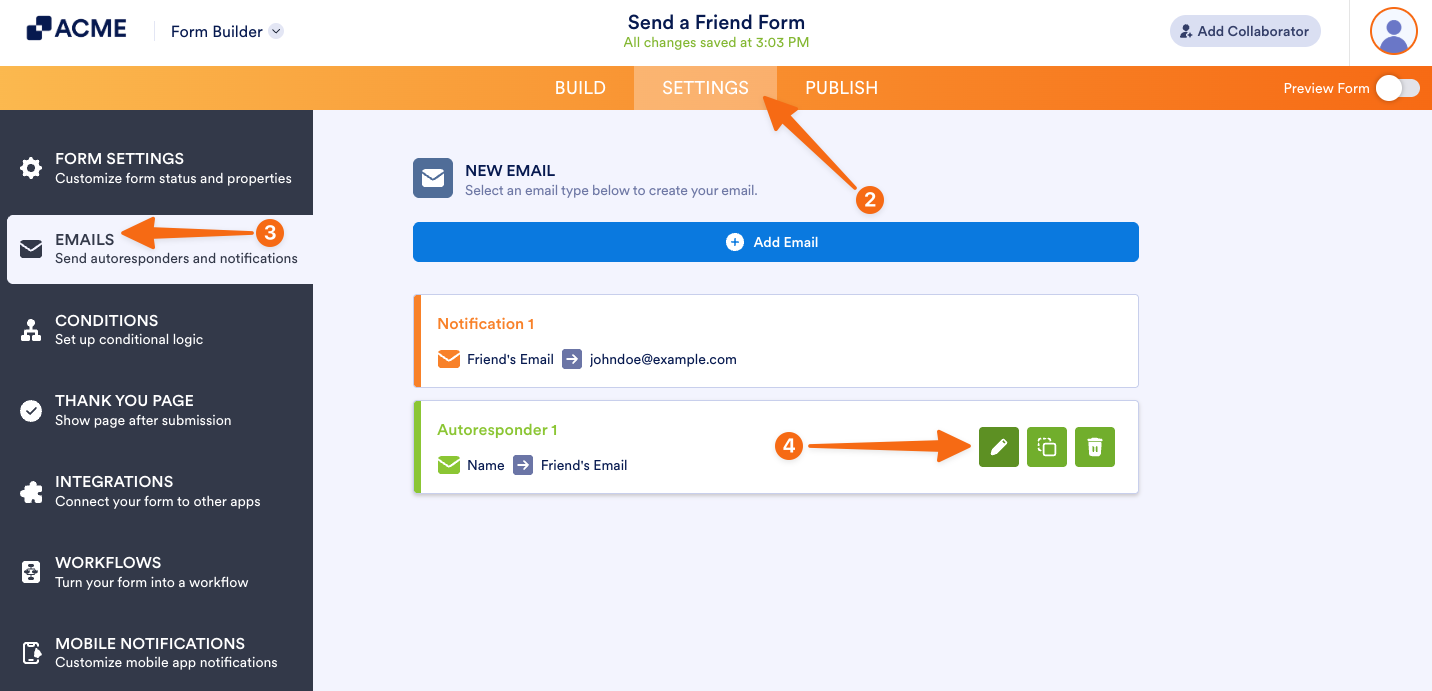
- Click Emails on the left of the settings tab.
- Edit the autoresponder email from the list of email templates. Hover to the template, and click the Edit (pencil icon).
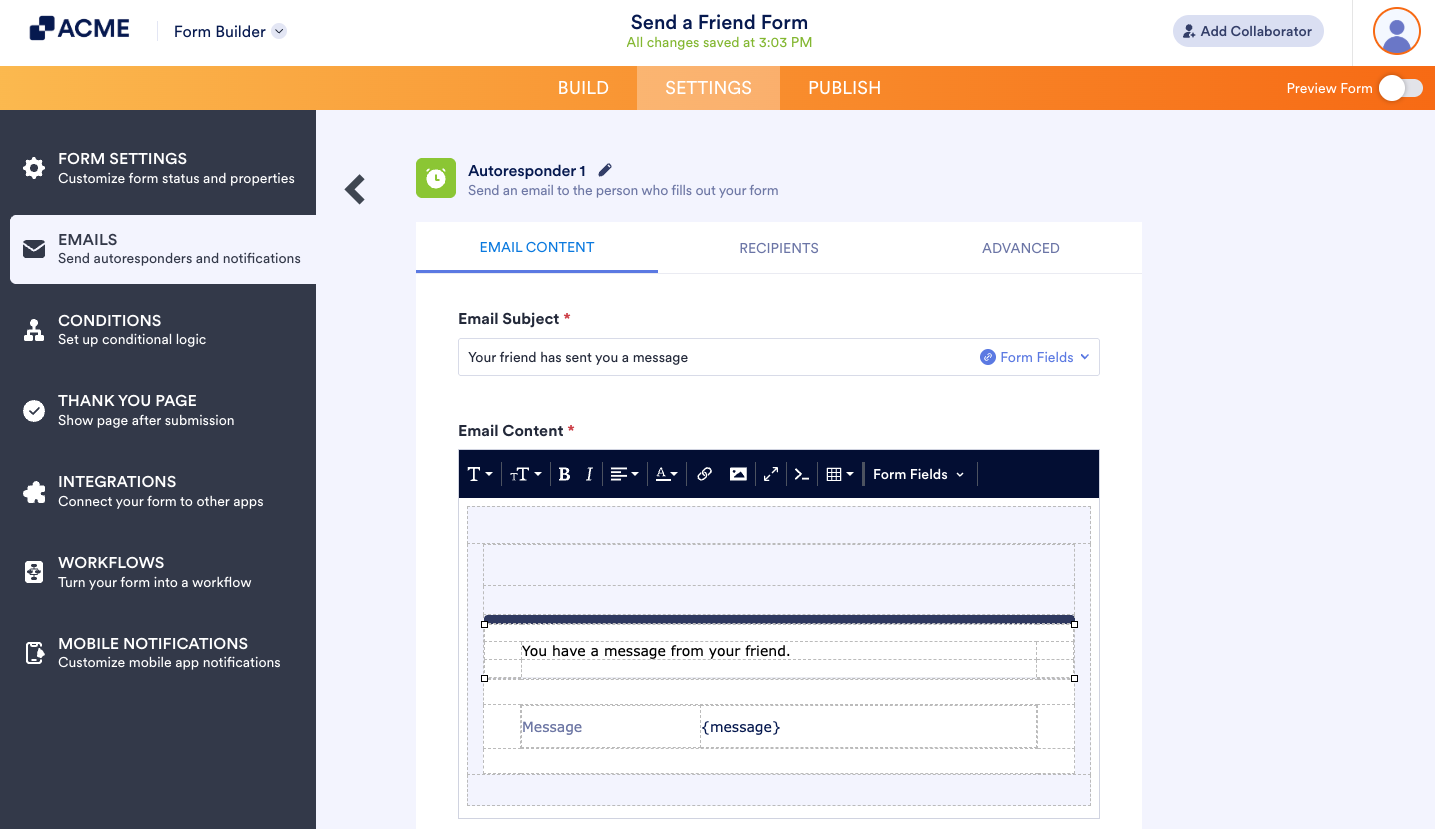
- In the Email tab, you can edit the Subject and Body of the email. You can set up both, as shown in the image below.
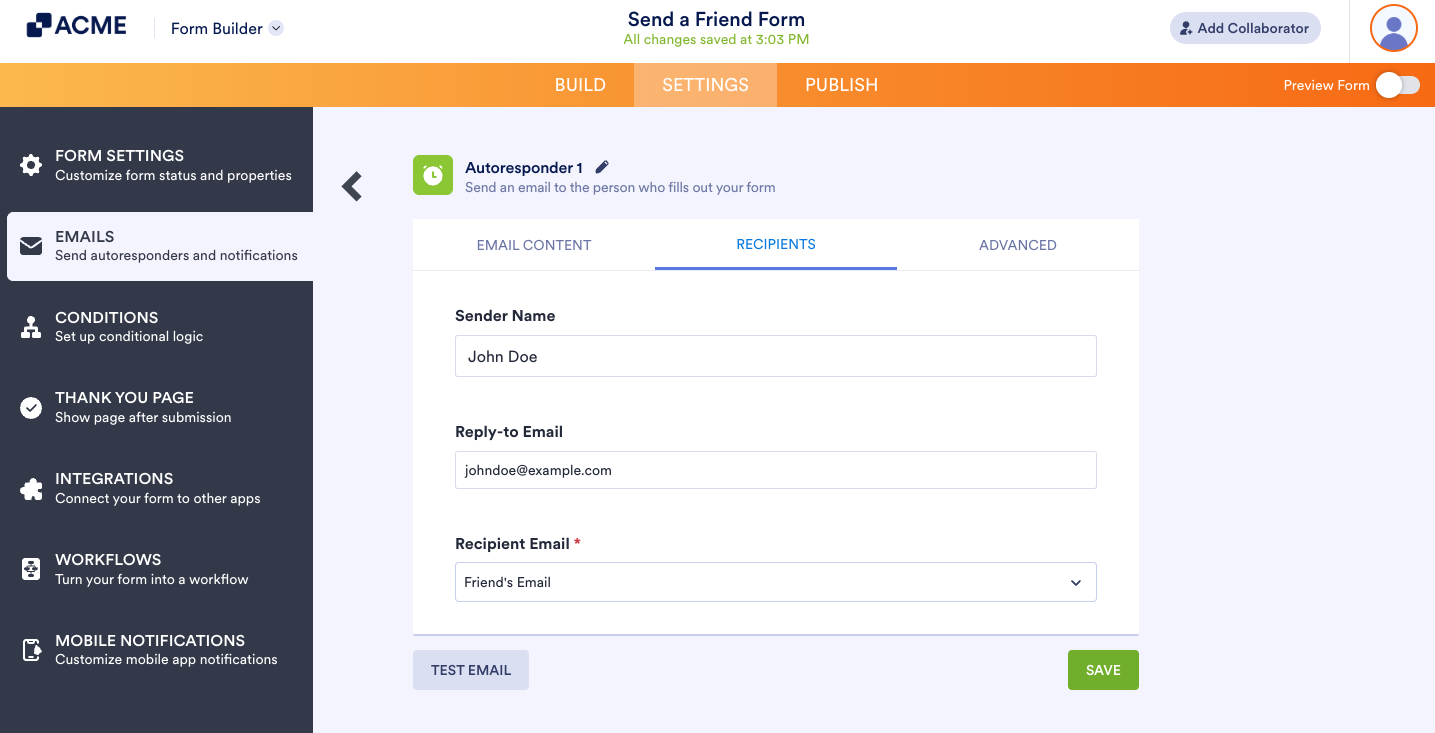
- Under the Recipient tab, provide the Sender and Recipient Details.
- Sender Name: Enter the name you wish to show as the sender.
- Reply-to Email: You can use a different email address in this section. When your friend hits the reply button, the Reply-to Email will be the recipient’s email.
- Recipient E-mail: Located at the lower right part of the Sender & Recipient details. You should select the Friend’s Email field from your form.
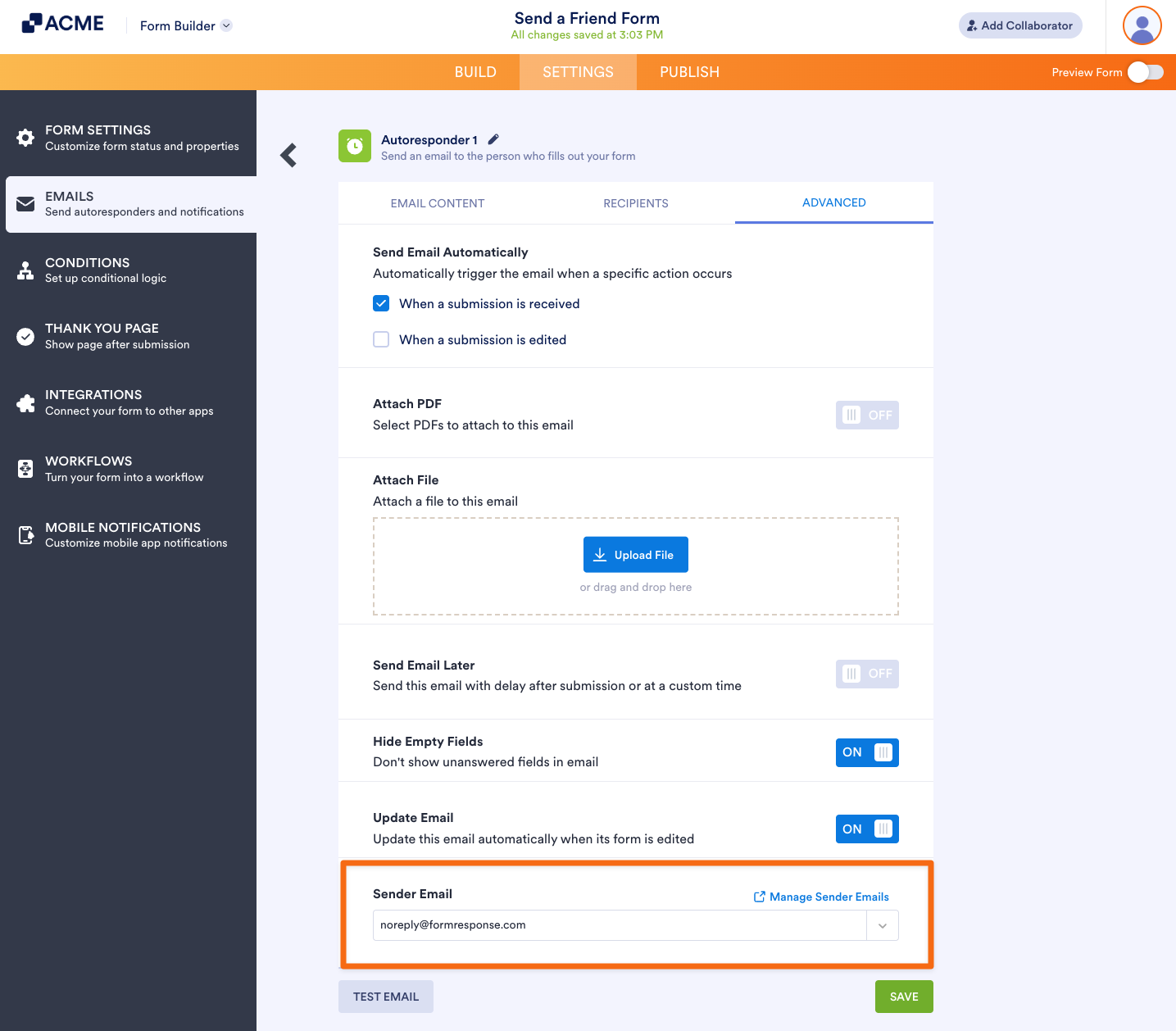
- Under the Advanced tab, you’ll find noreply@formresponse.com as the default Sender Email. You can add a custom sender email if you want to.
- Finally, save the changes by clicking the Save button at the bottom of the email editor.

Send Comment: