When you add a field to a new form, the form builder automatically sets up an Email Notification and an Email Autoresponder as soon as you add an Email element. If you want to delete your form’s email alerts to view submissions only in your account or through integrated third-party apps, or if you need to start over with a new email alert, you can easily do so, which also helps if you’ve accidentally created multiple alerts and are getting duplicate submission emails you don’t want. Follow the steps below to delete an email alert on your form:
- In Form Builder, go to the Settings tab.
- On the left side of the page, click on Emails from the menu.
- Next, hover your mouse over the Email Notification or Email Autoresponder on the right side of the page that you want to delete, and click on the Trash icon.
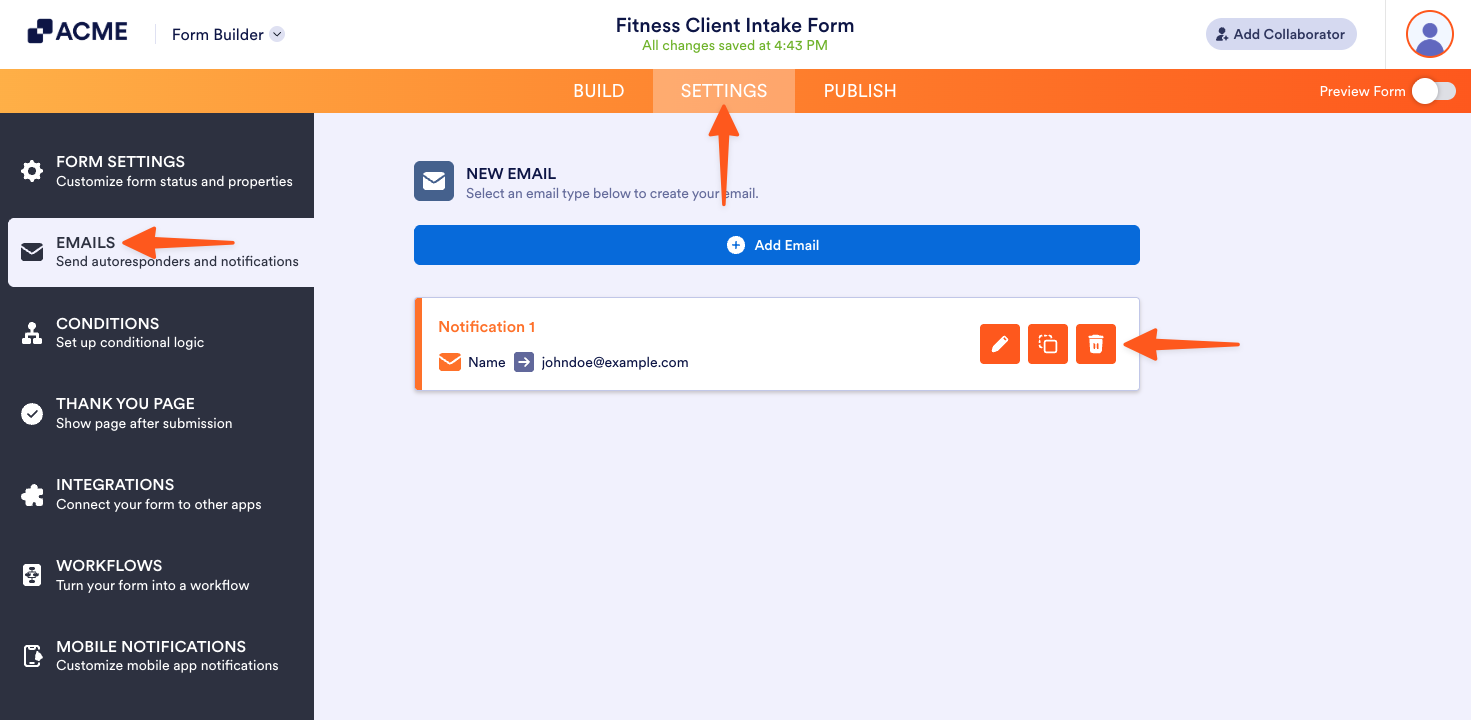
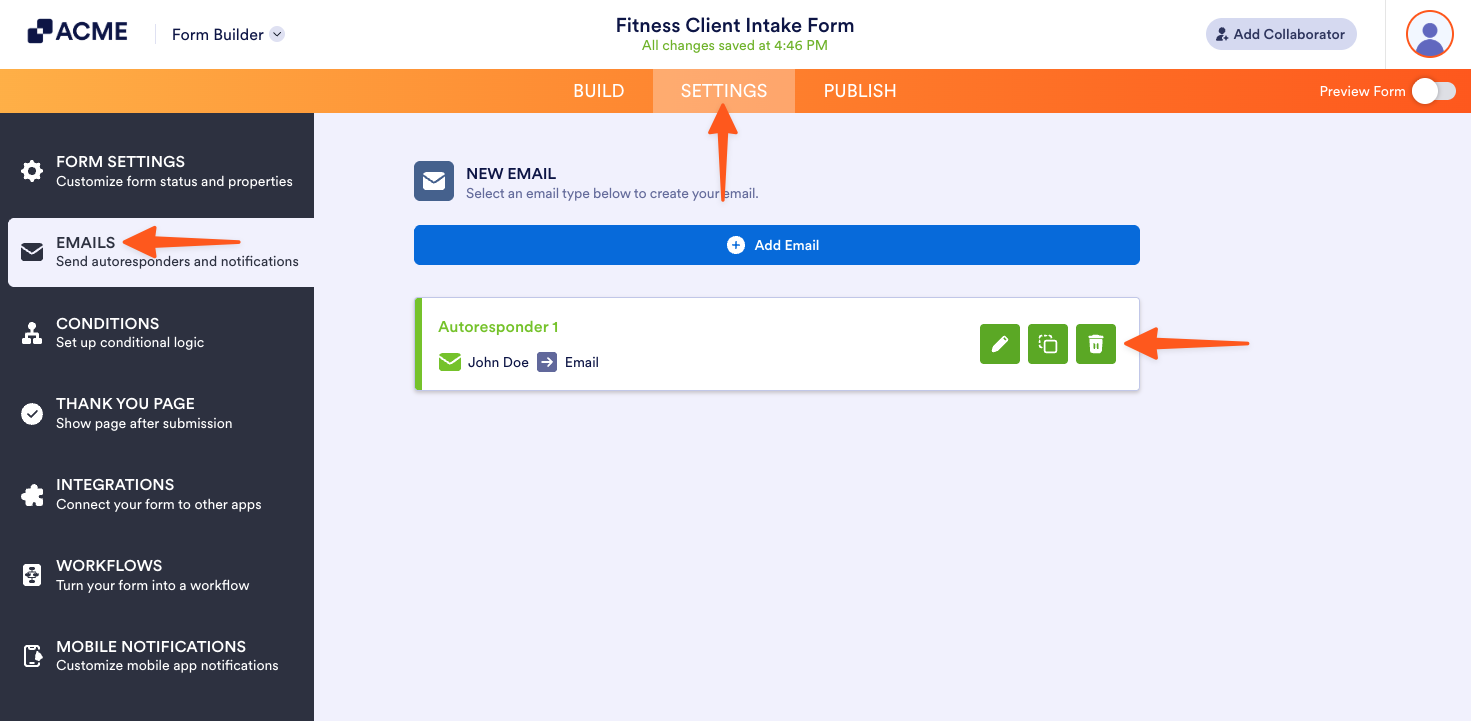
- Then, in the pop-up, click on the Delete button.
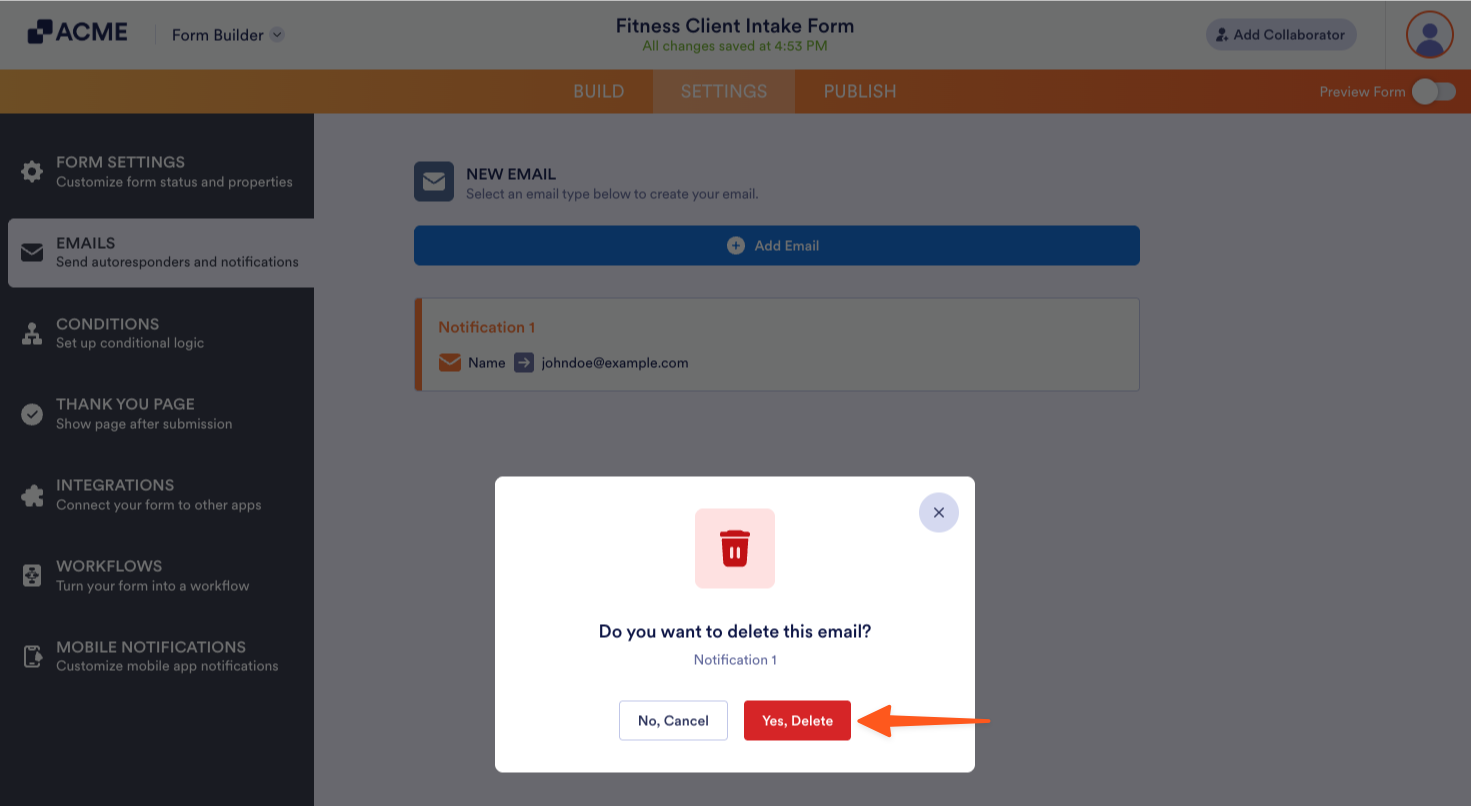
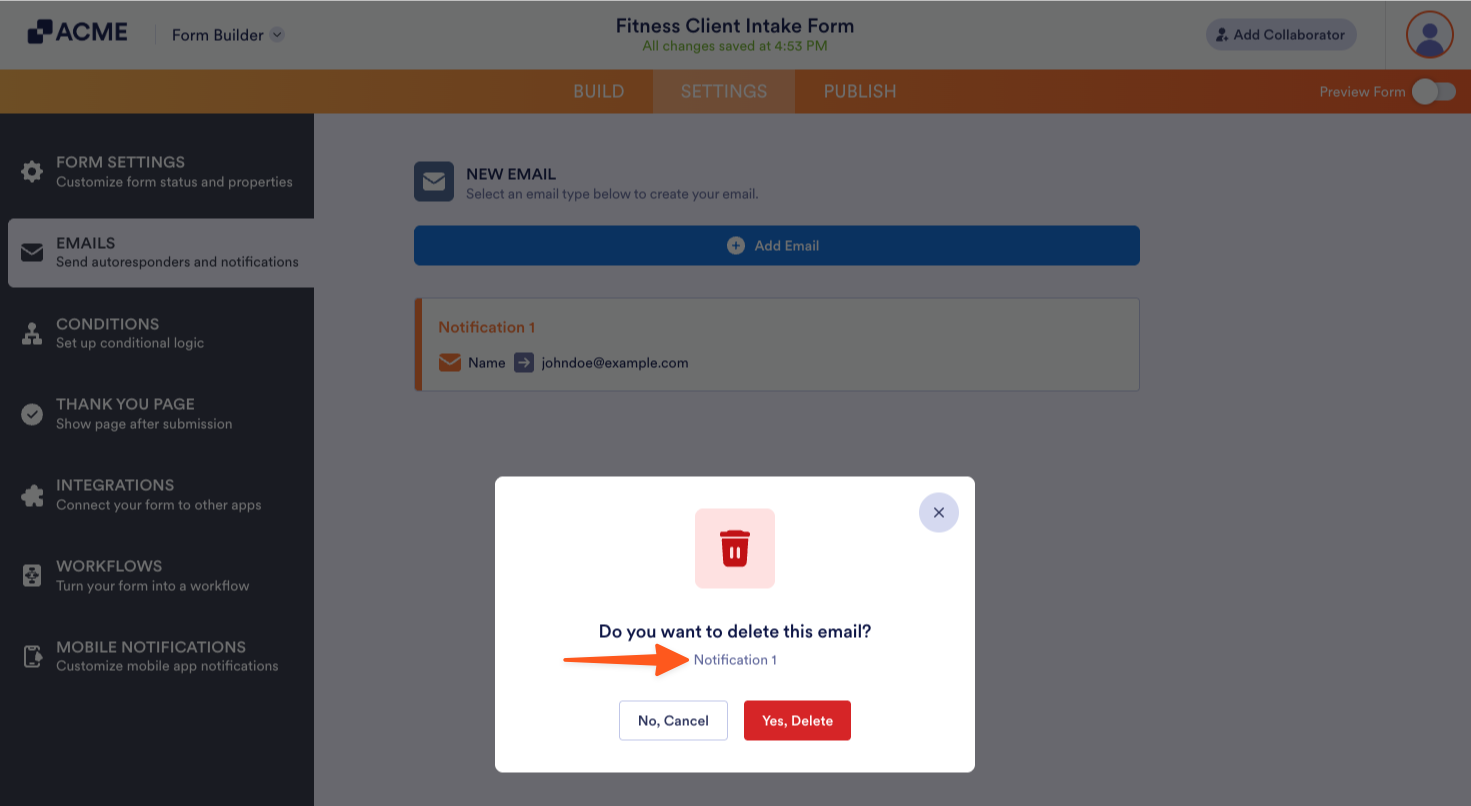
The pop-up displays the name of the Email Notification or Email Autoresponder you are about to delete, allowing you to confirm it is the correct one before clicking the Delete button.
Pro Tip: Pressing CTRL+Z on the Build tab of the Form Builder immediately after deleting an Email Notification or Email Autoresponder, without reloading the page, allows you to restore the deleted email alert.

Send Comment: