Microsoft OneDrive lets you store important files in the cloud and access them anywhere — at work or on the go! Use the OneDrive integration to automatically convert form responses into PDFs and send them to your OneDrive folder, including file uploads.
To integrate OneDrive, please follow the steps below.
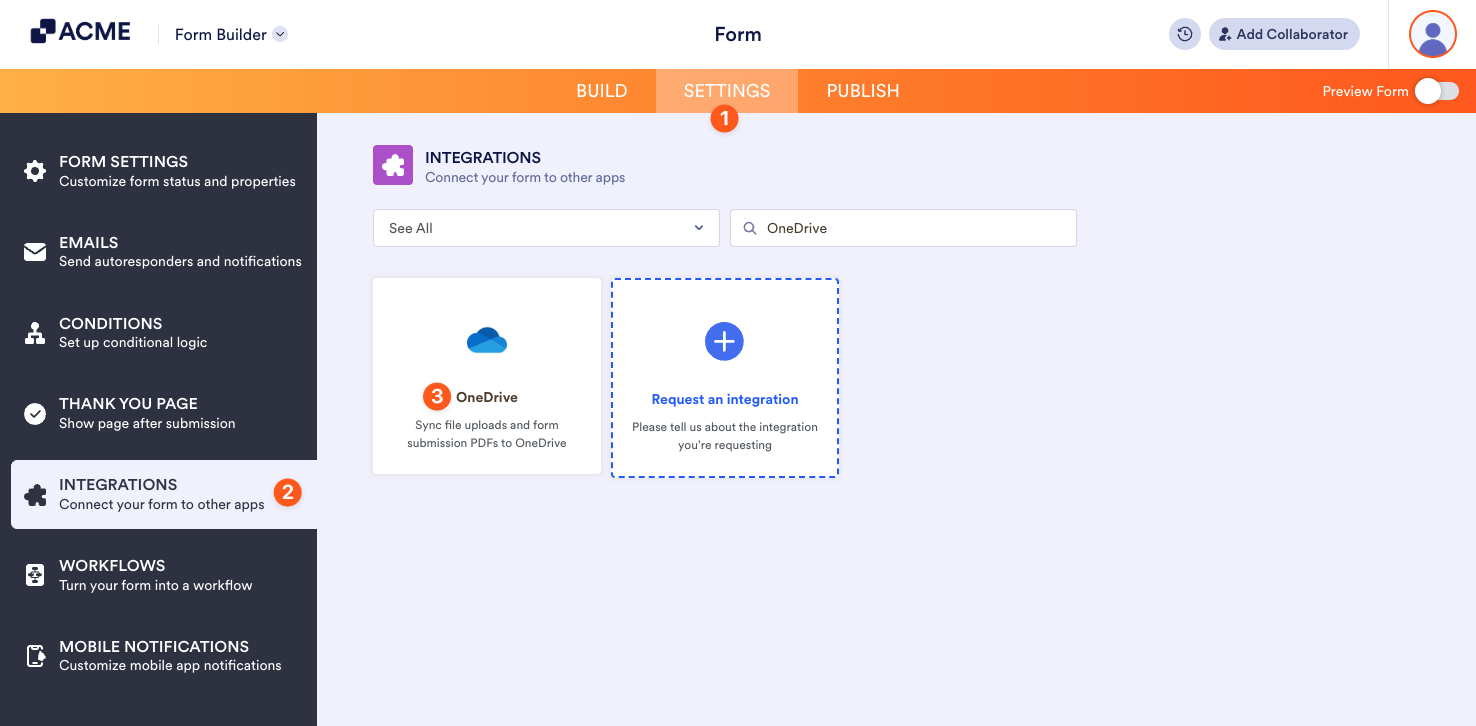
- In the Form Builder, go to the Settings tab.
- Click Integrations from the left side.
- Search for OneDrive and click it.
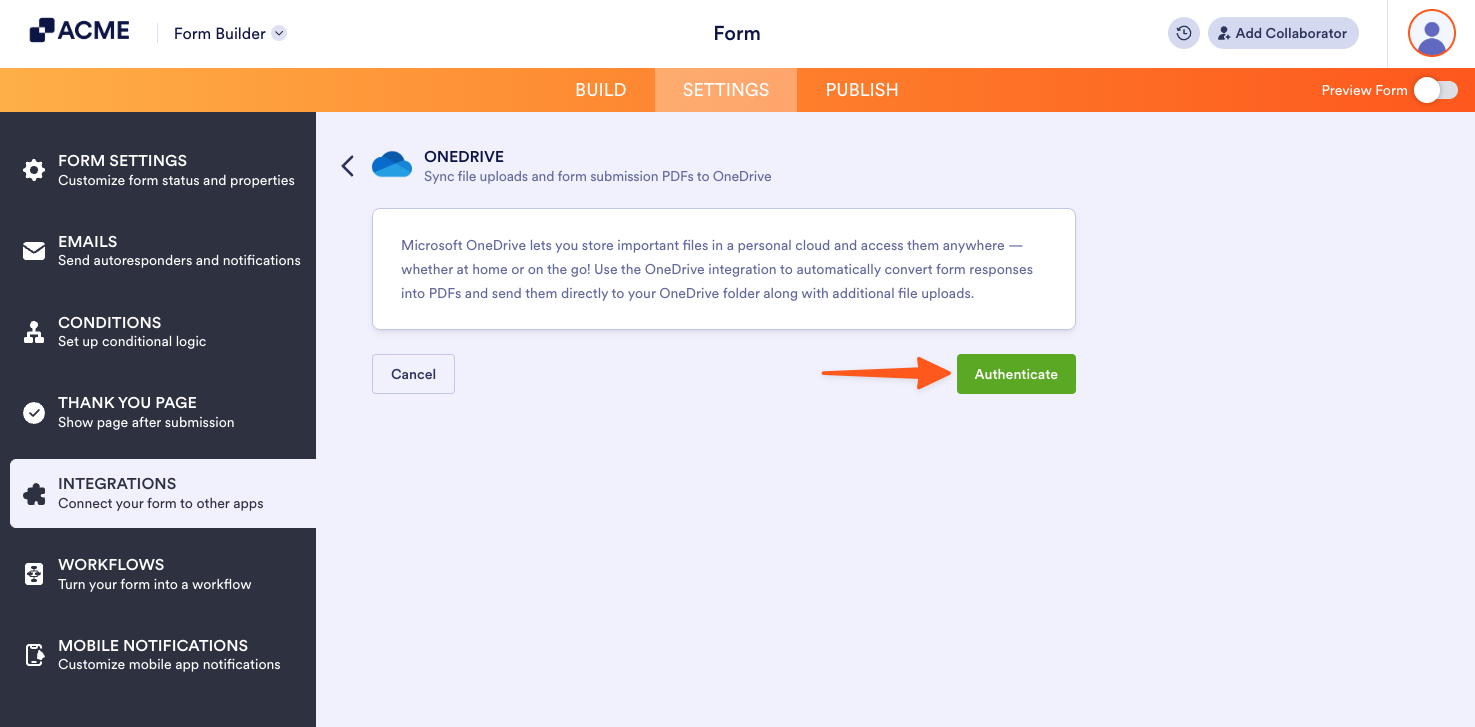
- Click the Authenticate button if you haven’t connected your OneDrive account yet. Ensure you grant access.
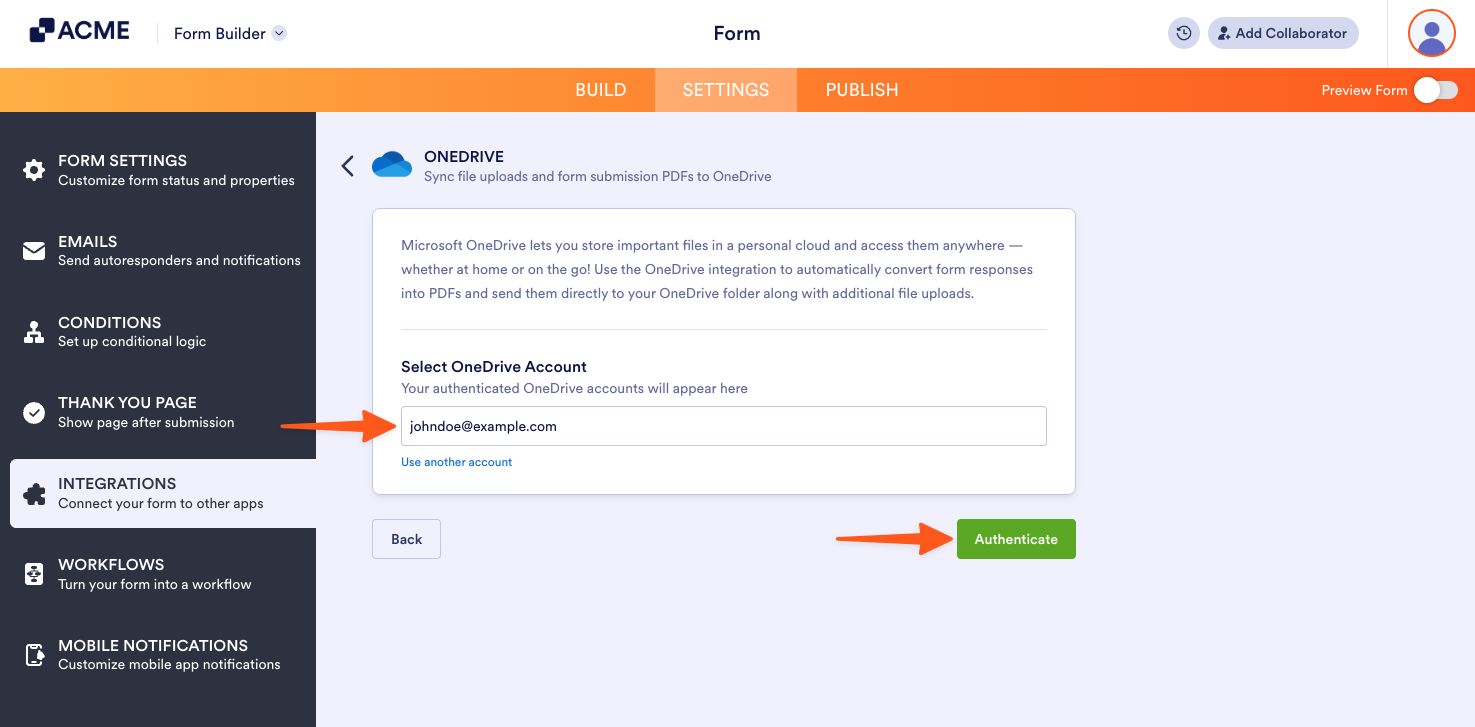
If you previously connected a OneDrive account, choose it from the dropdown and click the Authenticate button.
- Next, set up the following folder options:
- Enter folder name — Provide a name for the OneDrive folder where submissions will be stored.
- Create a subfolder for each submission — Enable this option to organize the individual submissions into separate folders within the main folder. You can personalize the subfolder names with unique properties/fields from your form.
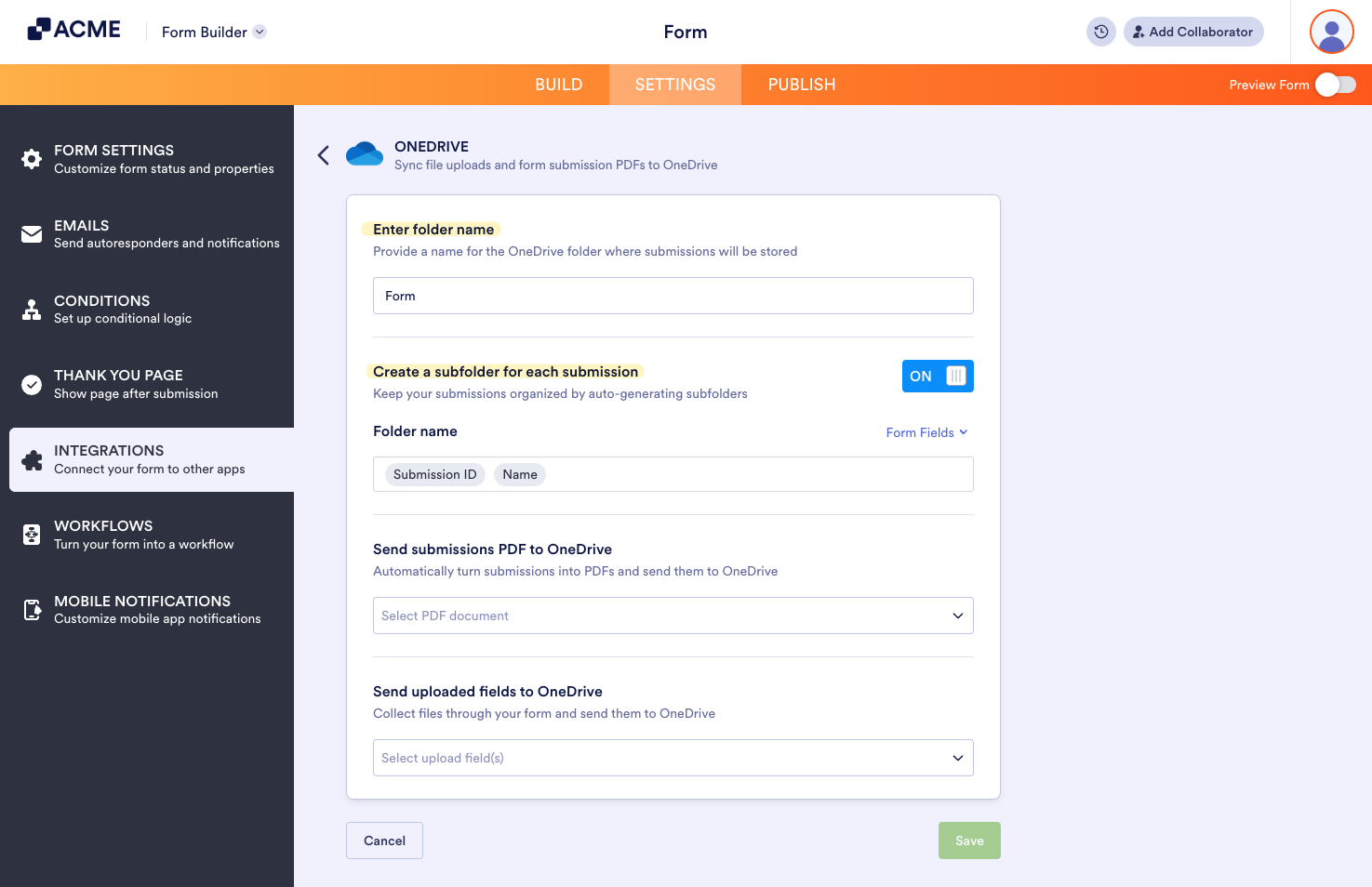
- Set up the File Upload and PDF options, as shown below:
- Send submission PDF to OneDrive —Select which PDF document to send to OneDrive. You’ll see Default if you haven’t created a PDF document yet.
- Send uploaded files to OneDrive — Select from which file upload to send to OneDrive. You can select multiple file upload fields here.
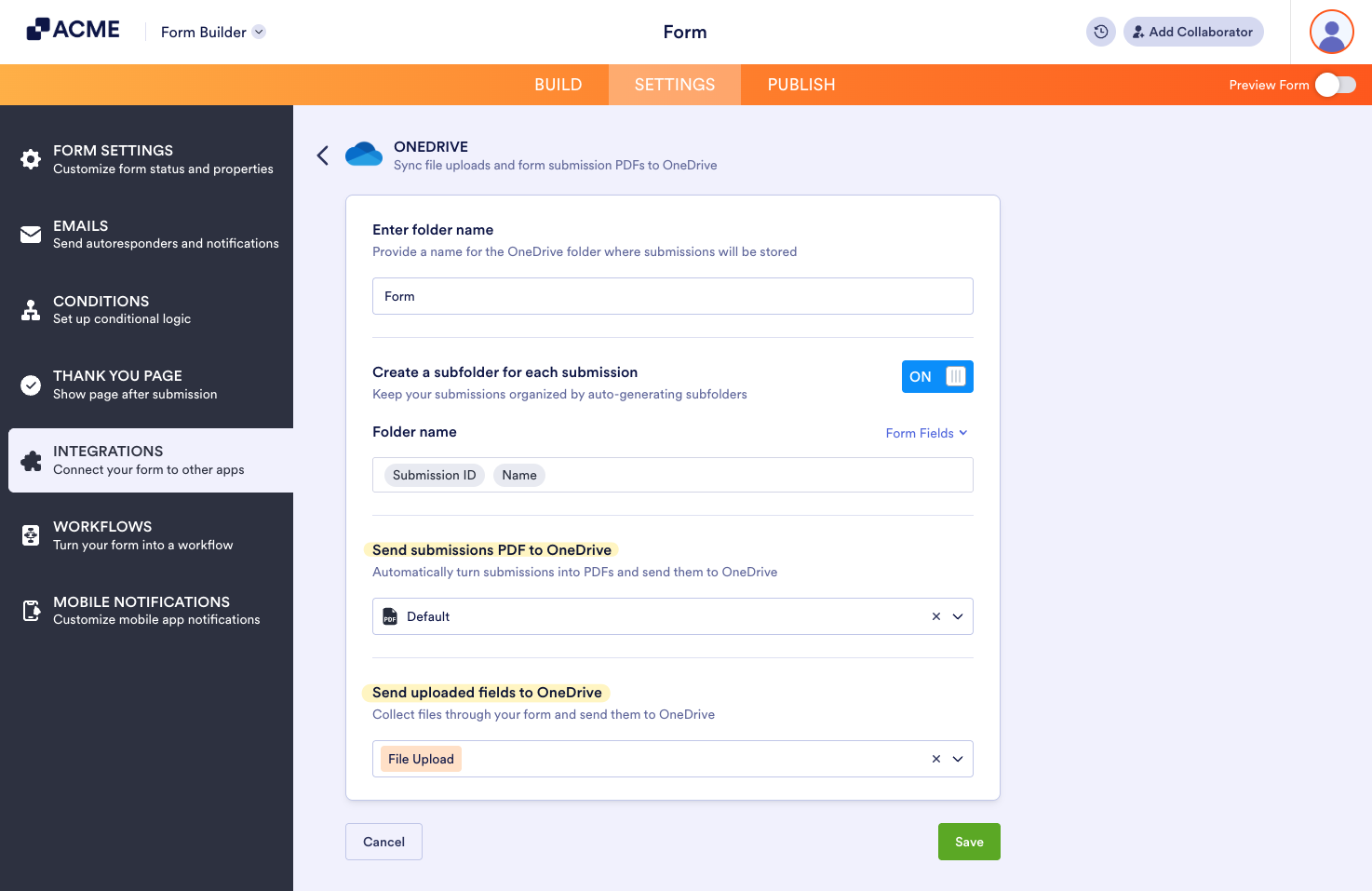
- Finally, click the Save button to complete the integration.
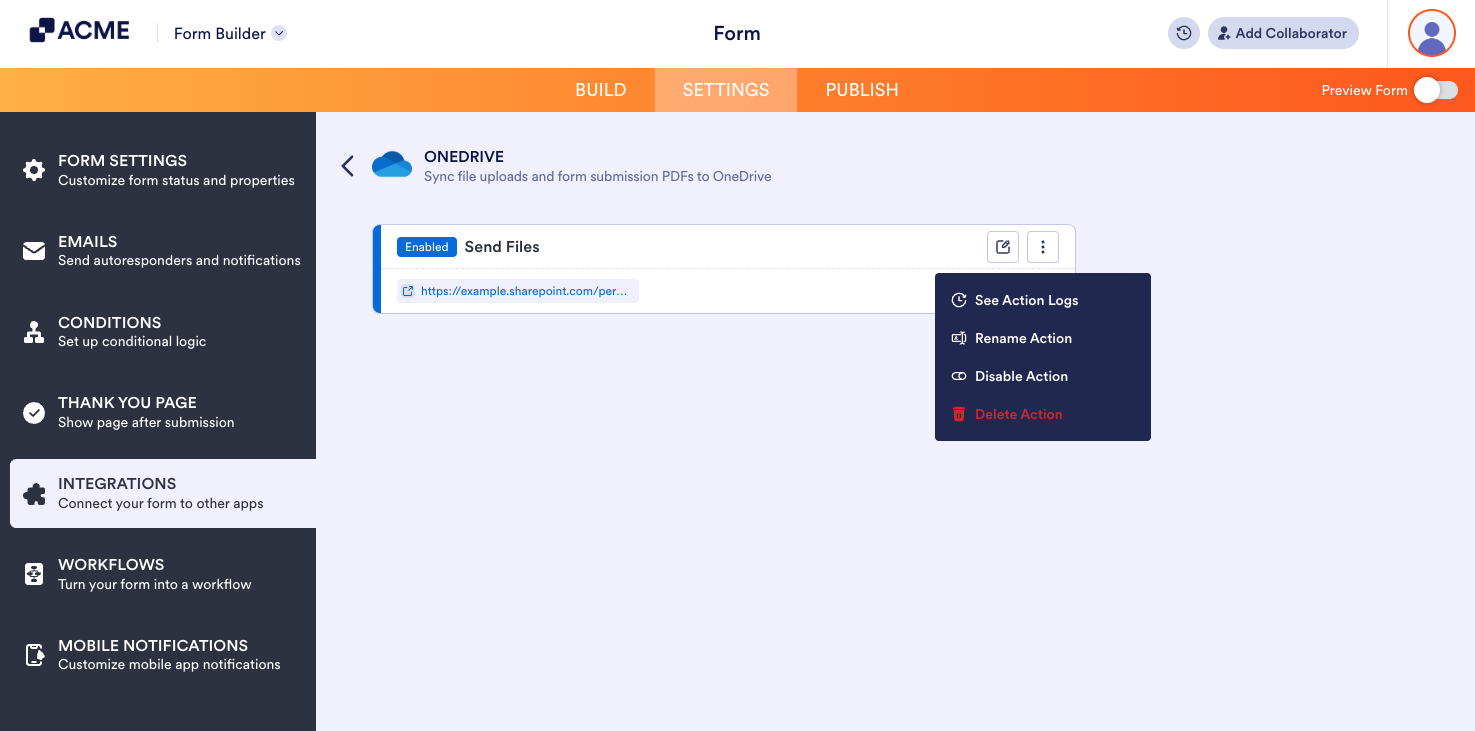
Once the integration is set, you can see and click the link to open the main folder. If you hover your mouse over the created action, you’ll see the Edit Action (pencil icon) and the More (thee-dotted vertical icon) options to the right. The More option includes the following:
- See Action Logs — This section will display your OneDrive integration’s successful and failed runs. It’s useful when troubleshooting issues.
- Rename Action — If you want to personalize the action’s title.
- Disable Action — This option is useful to temporarily stop the integration from sending files.
- Delete Action — If you want to remove the integration from your form.

Send Comment: