The platform’s Payment Elements sends its data in a format where labels are present. This isn’t useful if you’re going to create a custom email with the individual payment information. The trick to strip the payment labels would be adding a payment suffix to the payment element tag.
Field tags can be found in your form’s Email Alerts. Here’s how you can do the trick:
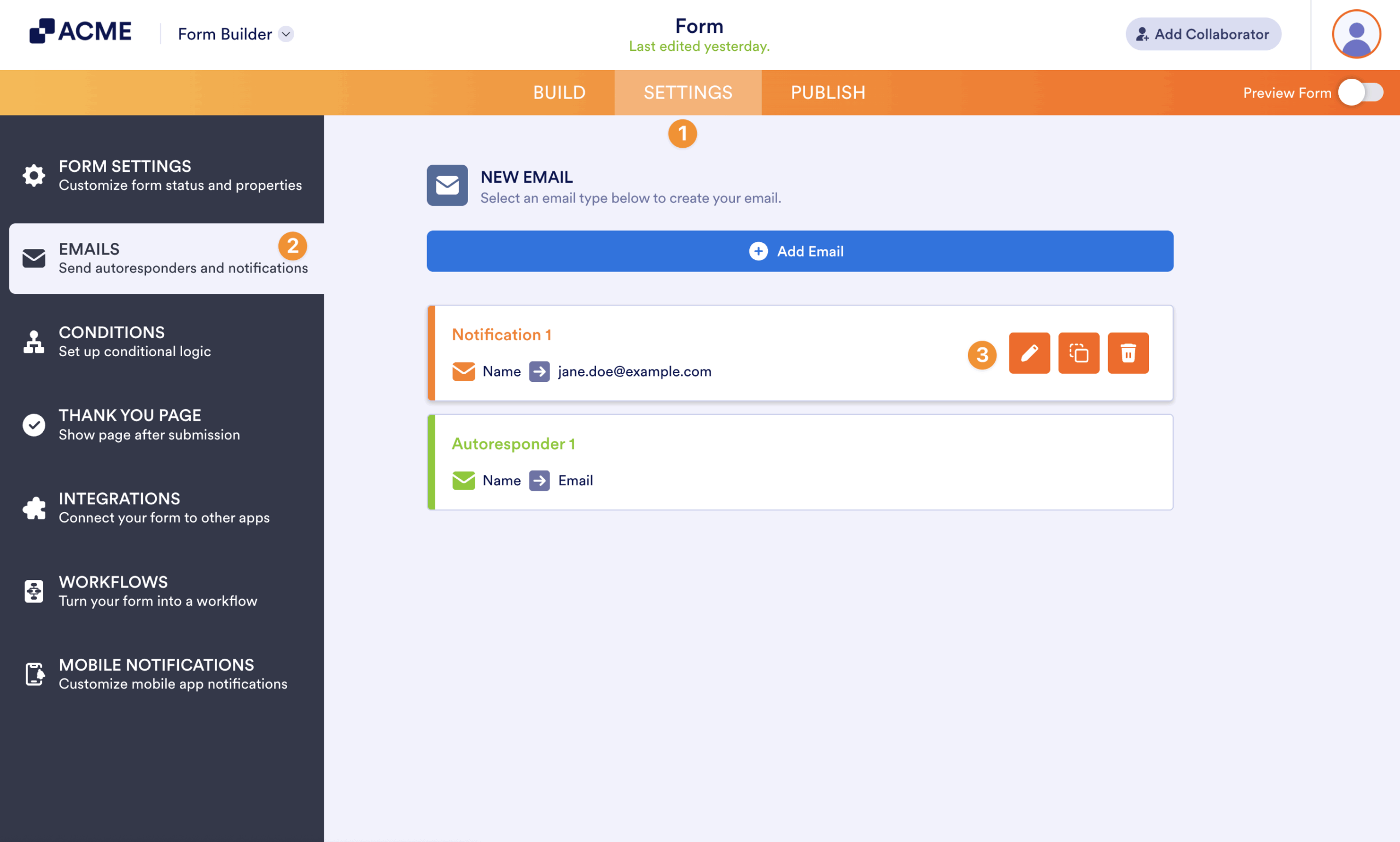
- In the Form Builder, go to the Settings tab.
- Select Emails on the left panel.
- Hover your mouse over the Notification Email, and click the Pencil icon to edit.
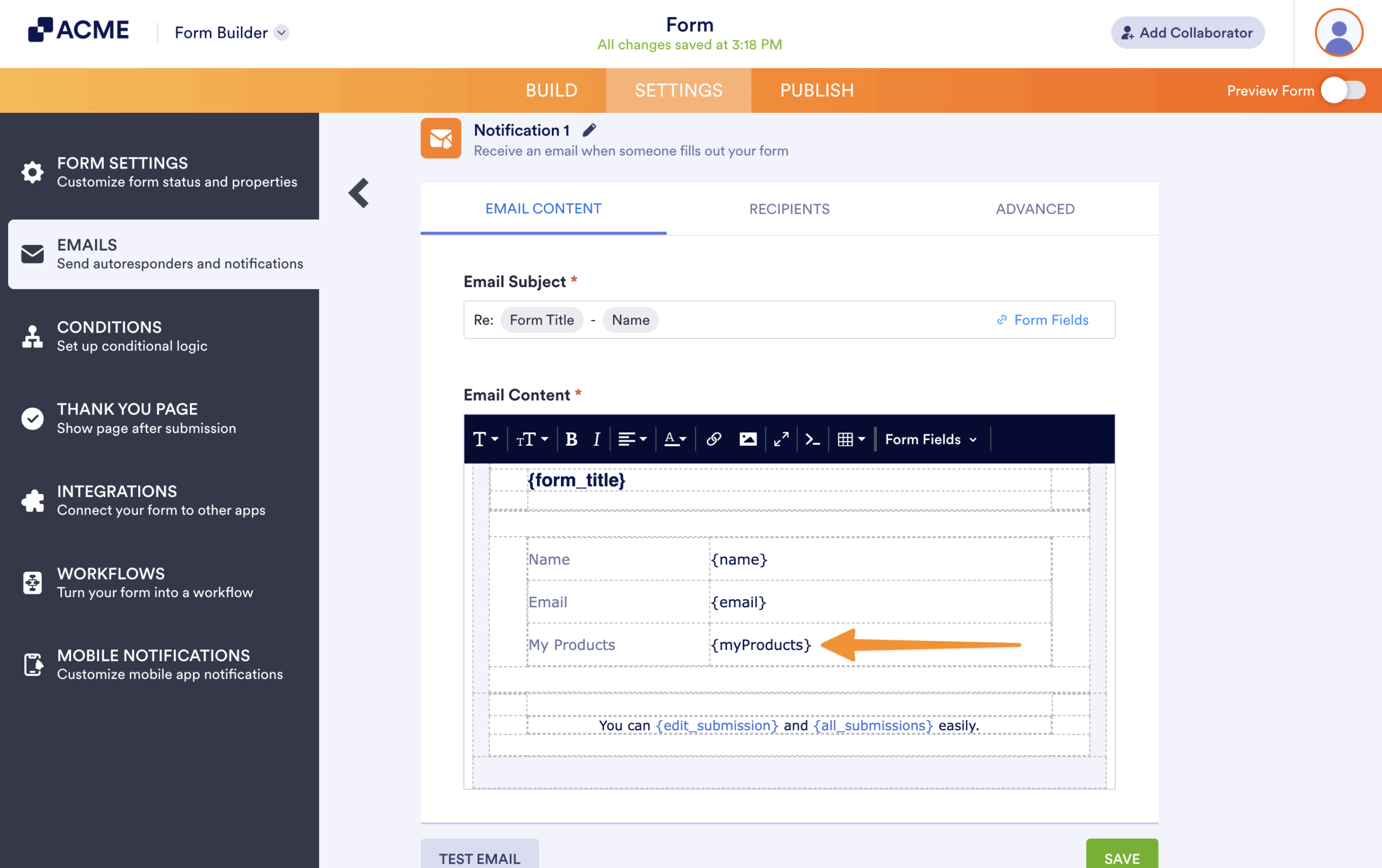
- Look for the field tag of the payment element. In the below example, you’ll see {myProducts}.
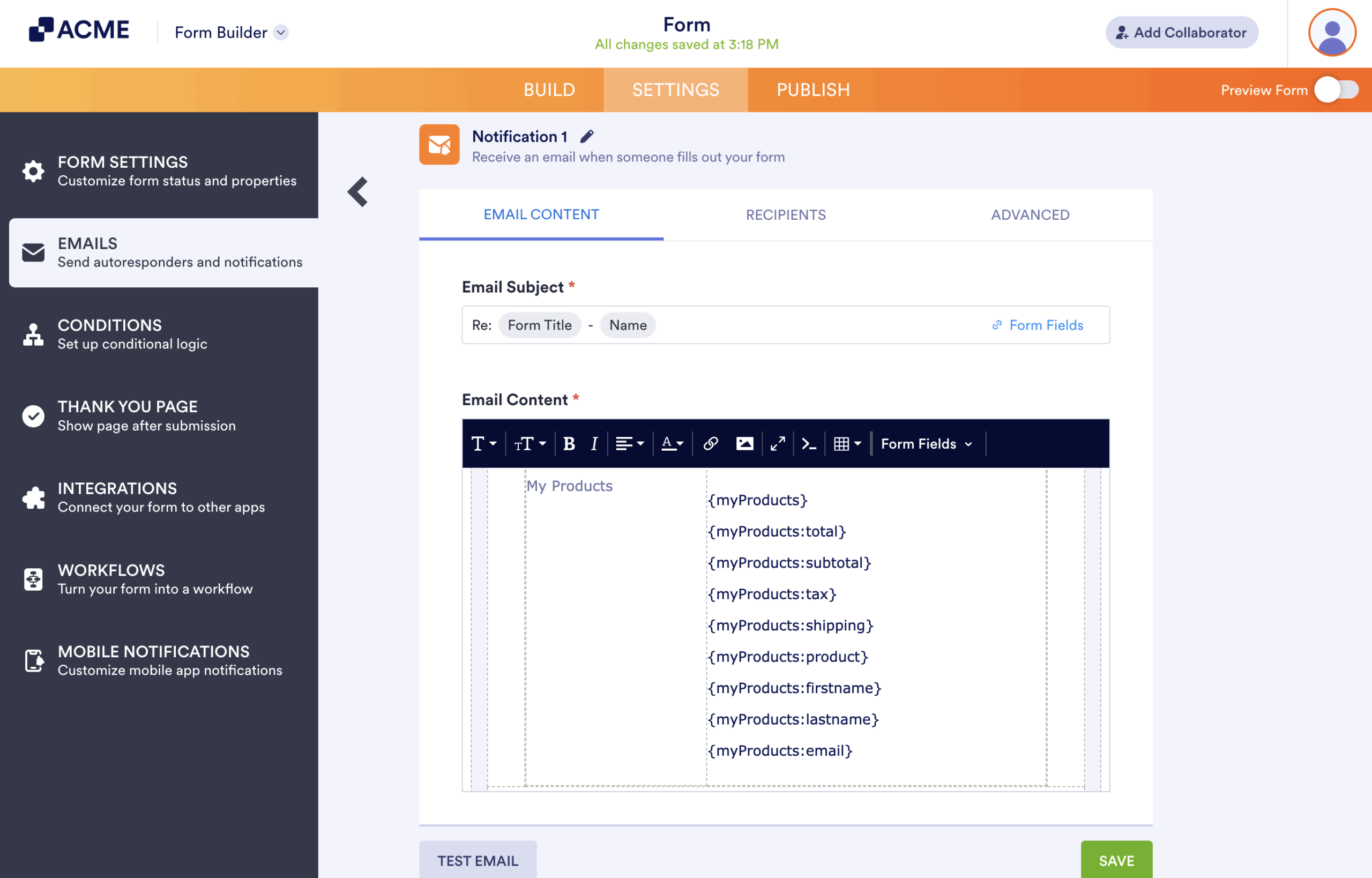
- Start adding the field tag with the required suffixes. The payment suffixes available are:
- transactionid
- total
- subtotal
- tax
- shipping
- product
- firstname
- lastname
- addr
- city
- state
- zip
- country
- customerid (Stripe)
As mentioned above, if your payment element’s unique name or tag is {myProducts}, simply insert the suffix separated by a colon. So, if you’re going to display only the product total, it becomes {myProducts:total}. Likewise, if you want to display only the PayPal transaction ID, the tag will be {myProducts:transactionid}.
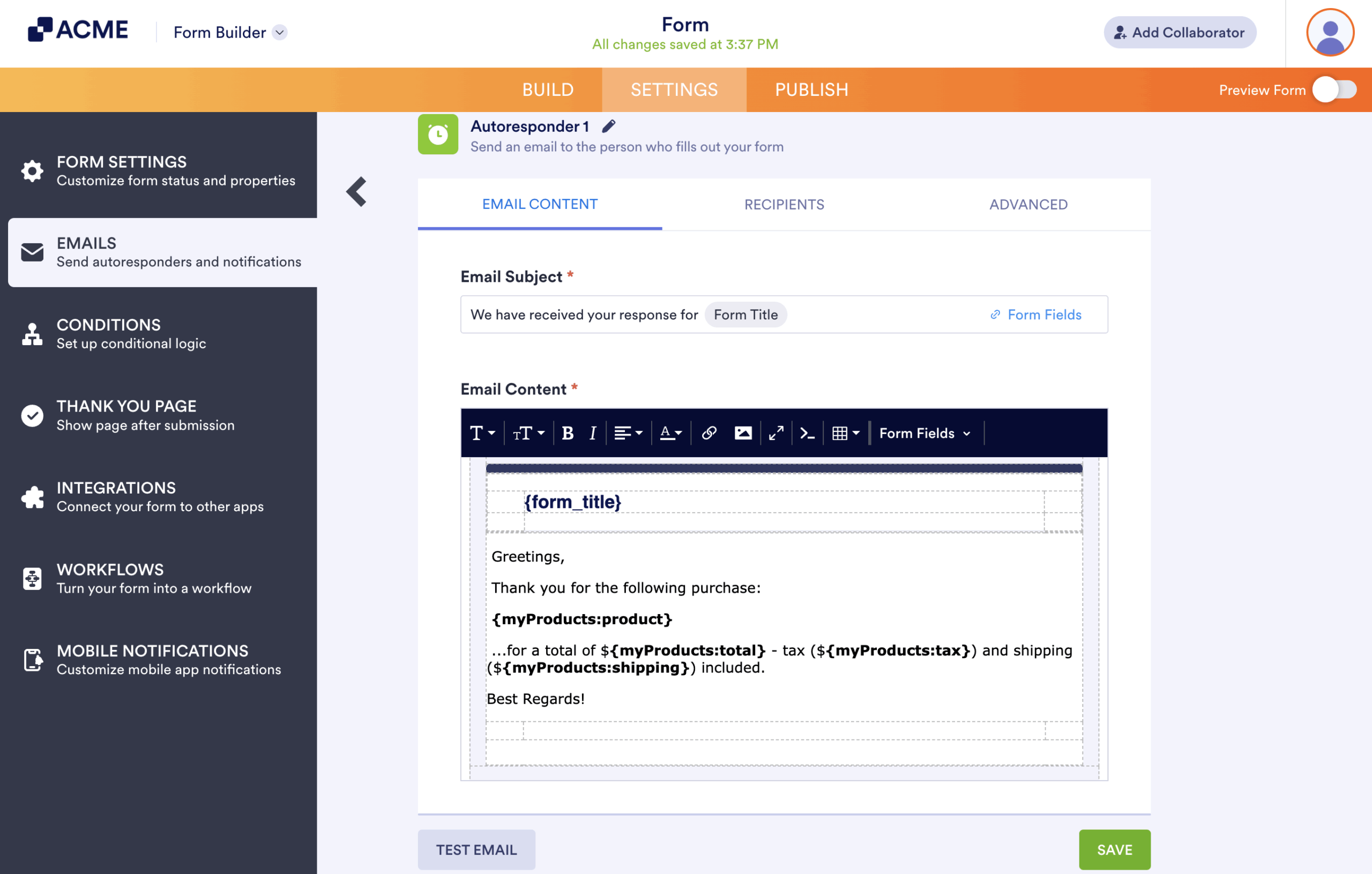
You can also construct a custom email with the tags, for example:

Send Comment: