Form email alerts, along with direct messages like forwarding and replying to submissions, and approval workflow emails, all benefit from using a custom sender email through SMTP. By doing so, you can enhance your branding, improve email deliverability through your own domain’s email server, and maintain a professional appearance. This approach helps strengthen your brand identity and reduces the likelihood of your emails being flagged as spam.
What you need to set up SMTP: Know the Required Credentials — contact your email service provider or hosting provider for help if you don’t have them.
Adding and Setting Up Sender Emails
You can add custom sender emails to your account and set them up with SMTP in a few easy steps. Here’s how to do it:
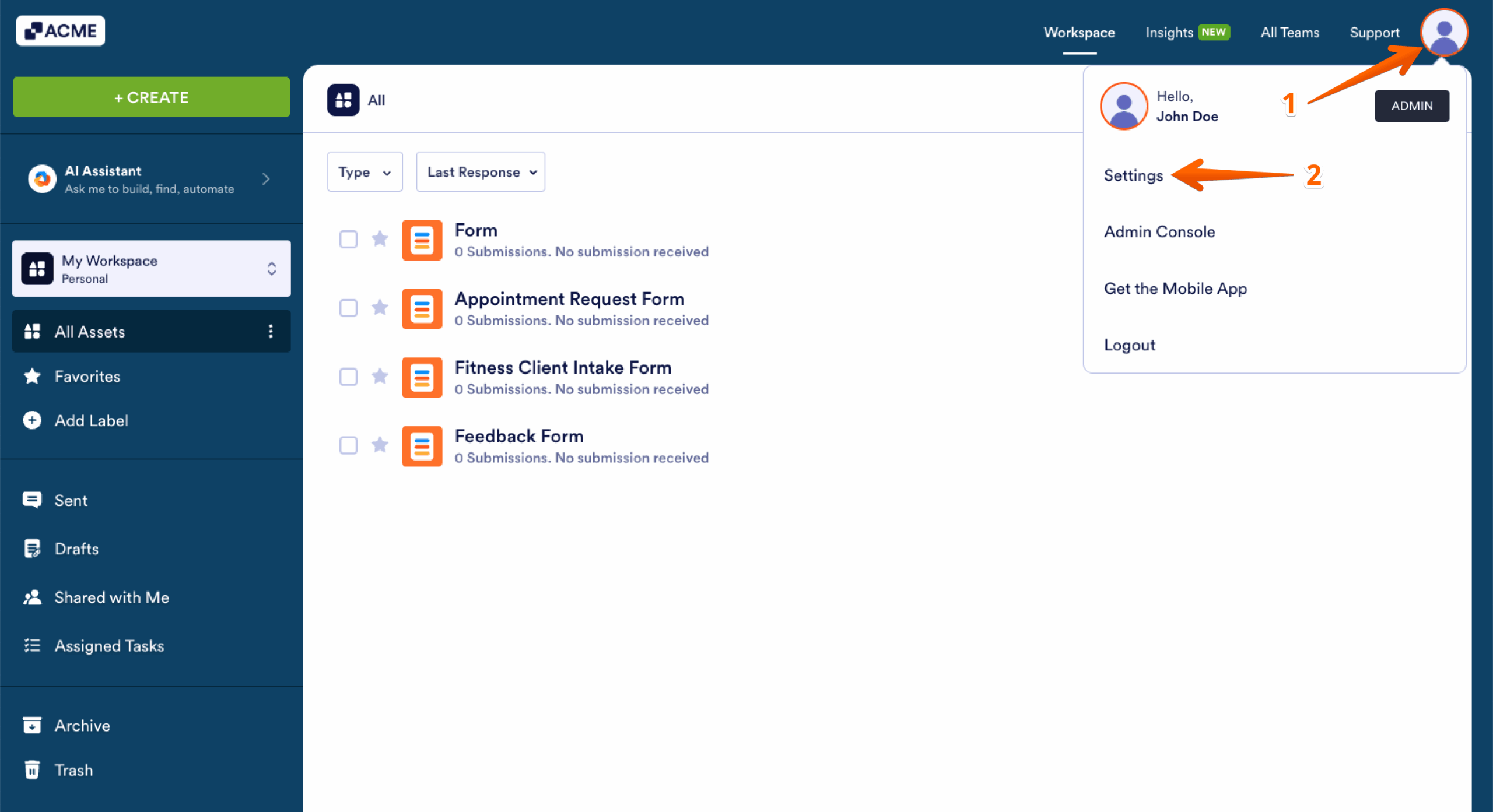
- On your My Workspace page, click on your Profile Picture/Avatar on the top-right side of the page.
- In the menu that opens, click on Settings to open your Account Settings page in a new browser tab.
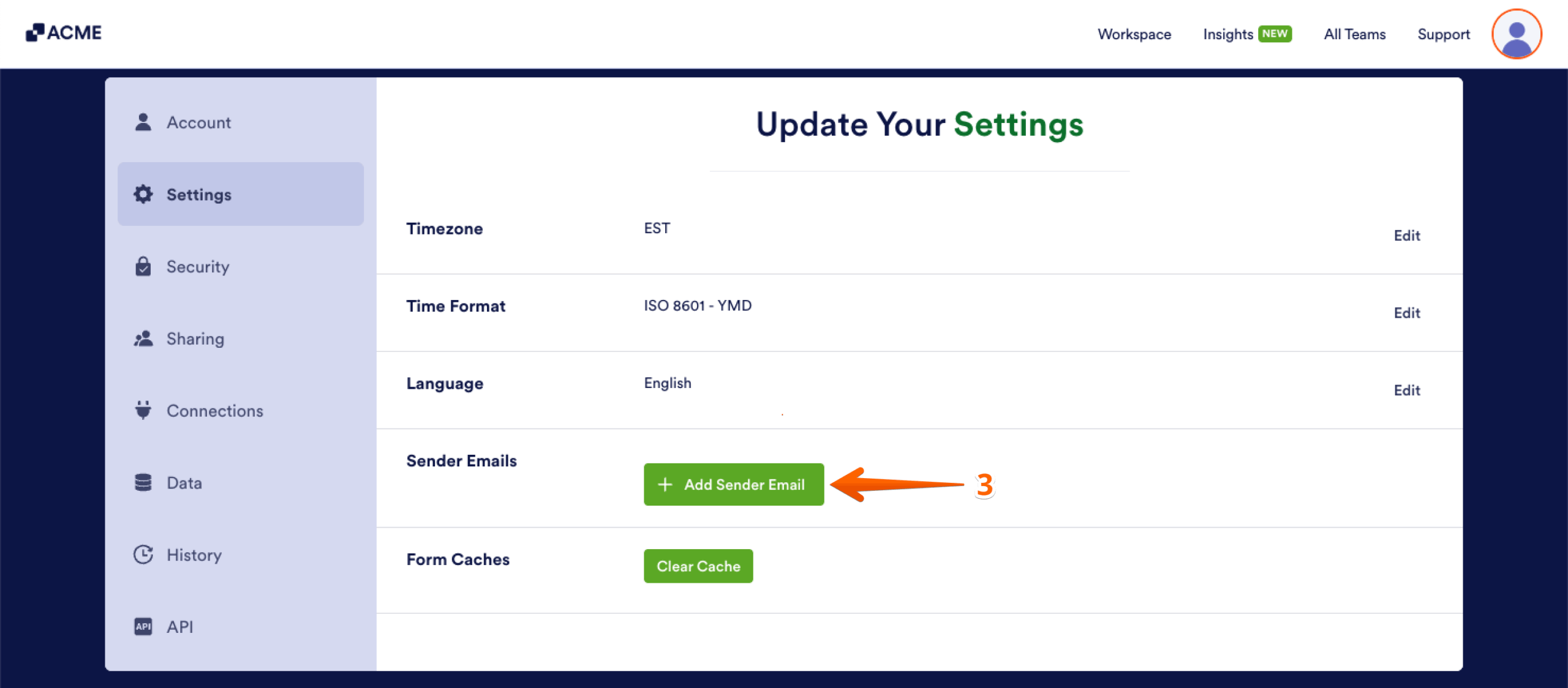
- Now, on the right side of the Send Emails section, click on Add Sender Email.
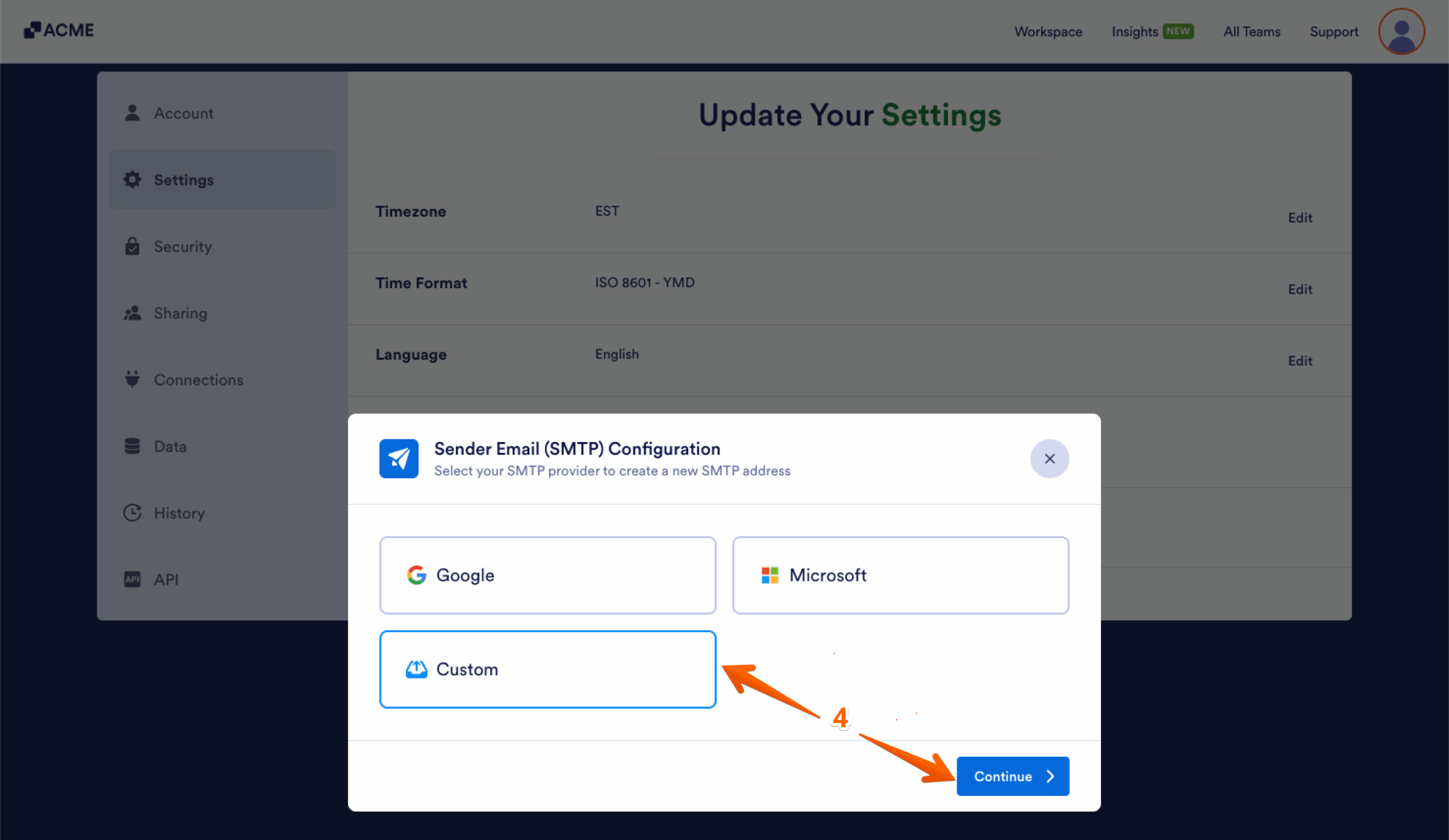
- Then, in the Sender Email (SMTP) Configuration window, select Custom and click on Continue.
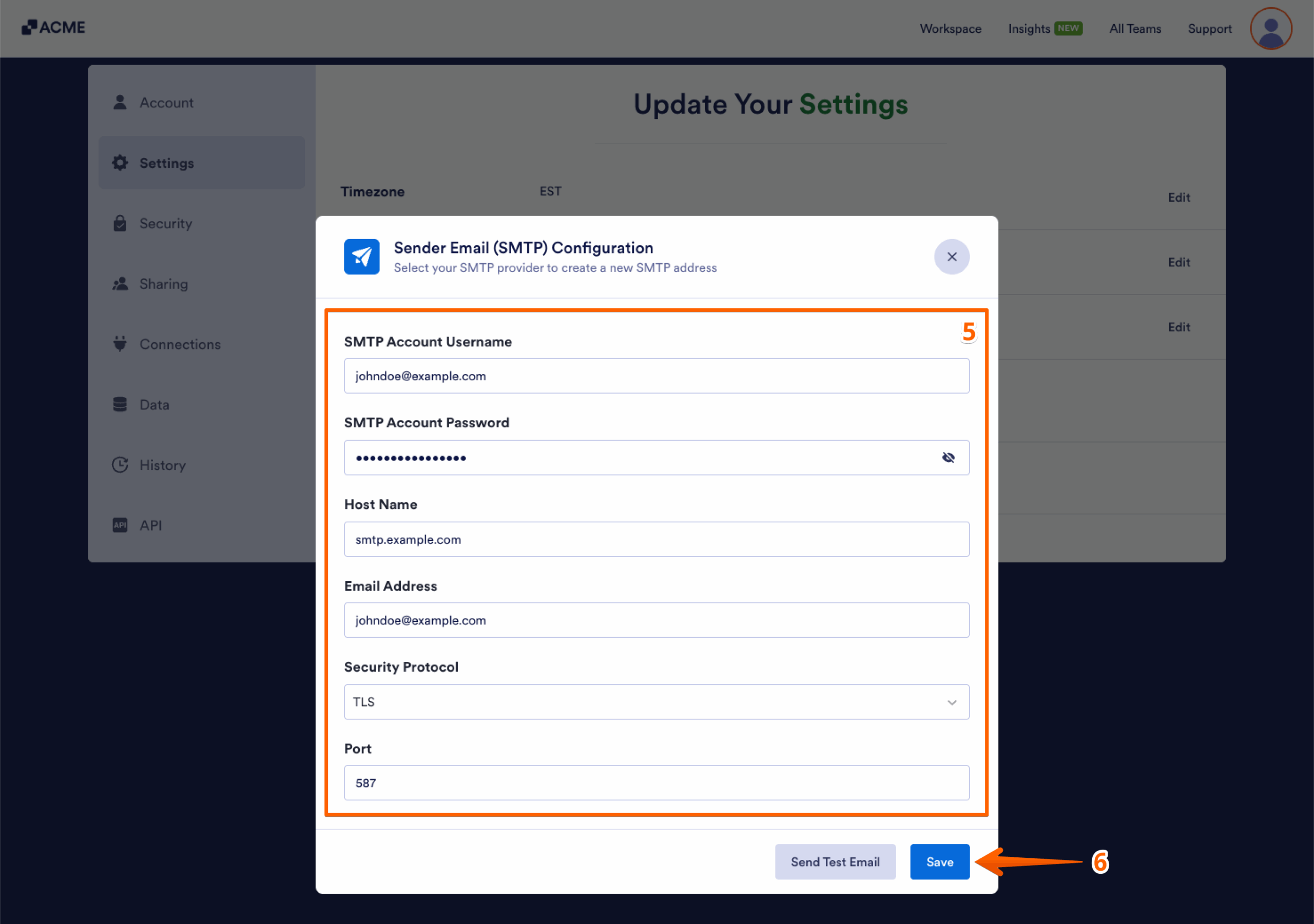
- Next, enter the SMTP configuration details for your email address:
- SMTP Account Username — Usually your full email address, unless your email provider specifies a unique username.
- SMTP Account Password — The password associated with your email account. Some email providers may require an app-specific password instead of your regular login password.
- Host Name — The SMTP (outgoing mail) server address provided by your email provider.
- Email Address — The email address you want to use as the sender. This usually matches your SMTP account username.
- Security Protocol — Choose TLS or SSL based on your email provider’s recommendation.
- Port — Enter 587 for TLS or 465 for SSL.
We recommend using the Send Test Email button to check if all the information you provided is correct. You should see a message at the bottom of the Sender Email (SMTP) Configuration window confirming that a test email has been sent to the address you’re setting up as a sender email for your account. If you get an error message during the test, you won’t be able to complete the setup.
- Once you’ve confirmed that everything is correct, click on Save to create the custom sender email with your email address.
That’s it! You’ve successfully set up a custom SMTP sender email for your account.
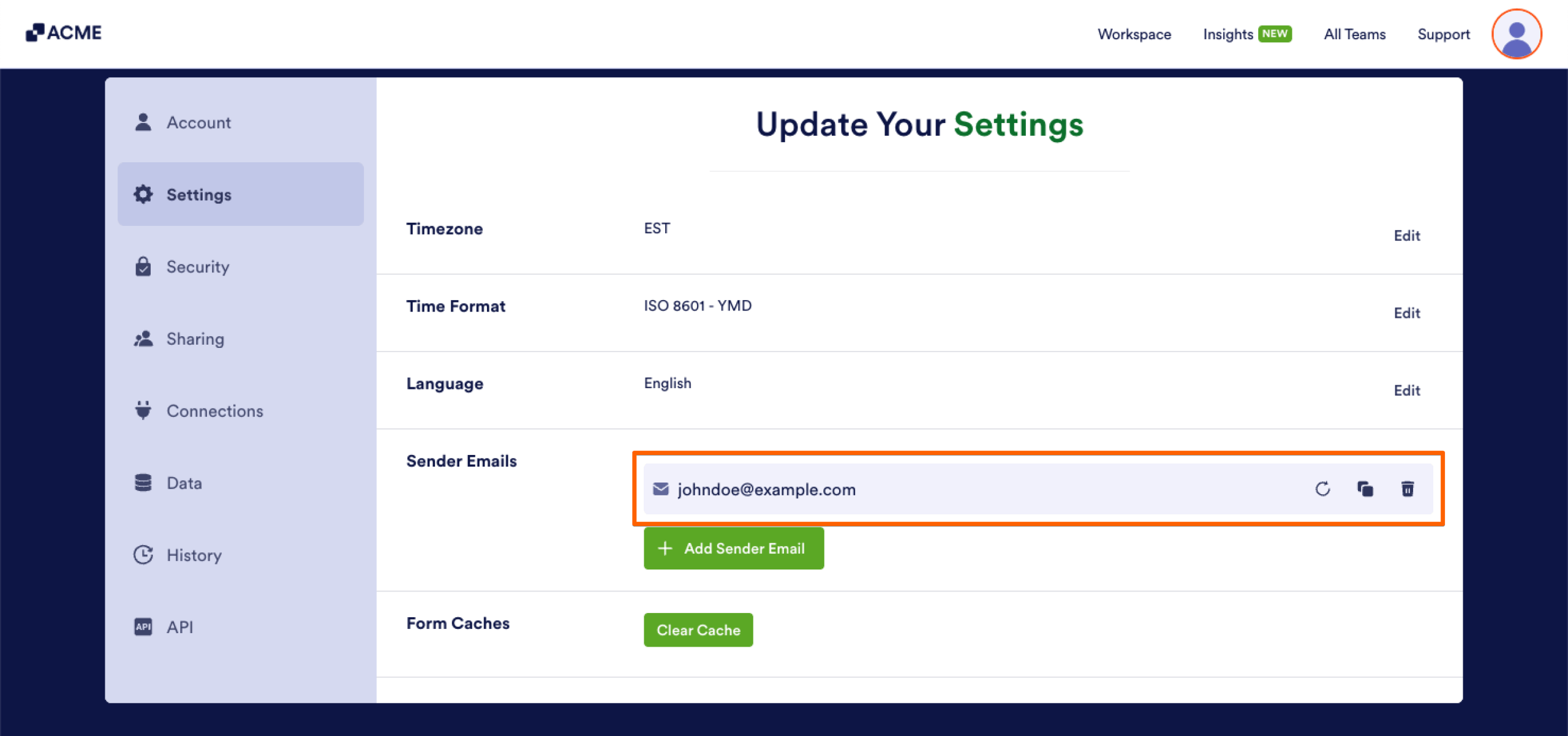
In addition to setting up custom sender emails, you can also configure Gmail and Microsoft Outlook with SMTP, or use free email providers like Yahoo and AOL. To help you with setting up your sender emails, you might also want to check out these guides:
- How to Use Gmail as Your Email Sender via SMTP
- How to Use Microsoft Outlook as Sender Email via SMTP
- SMTP Setup for Free Email Address Like Hotmail, AOL, and Yahoo
Using the Custom Sender Email in Form Email Alerts
Once you’ve set up your custom sender email, you can use it for your form email alerts, such as Notification and Autoresponder emails. You only need to set up the custom sender email once, and you can use it across all the form assets in your account. Here’s how:
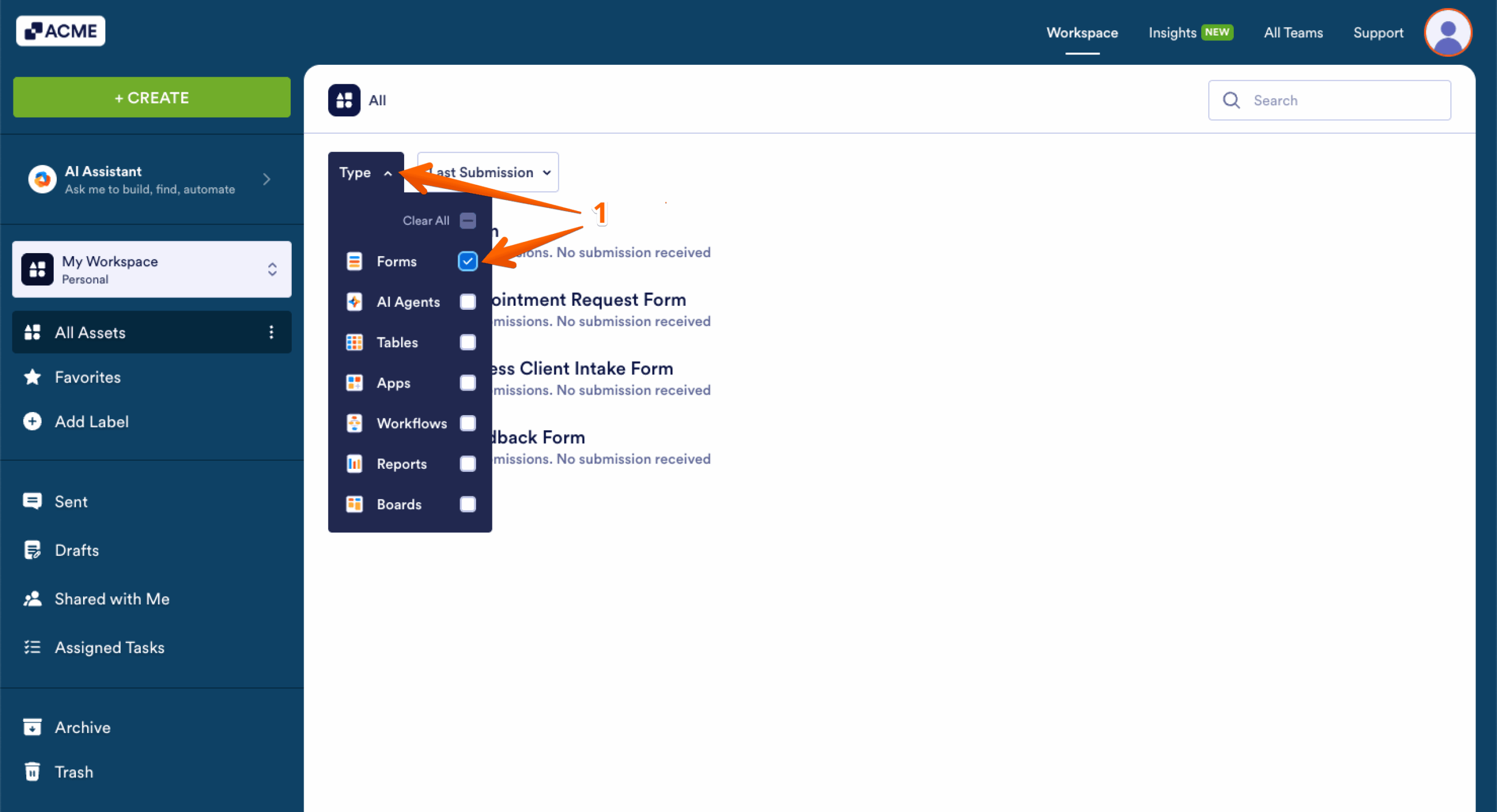
- On your My Workspace page, click on Type and in the Dropdown menu that opens, check the box next to Forms, so only they’ll be shown on the page.
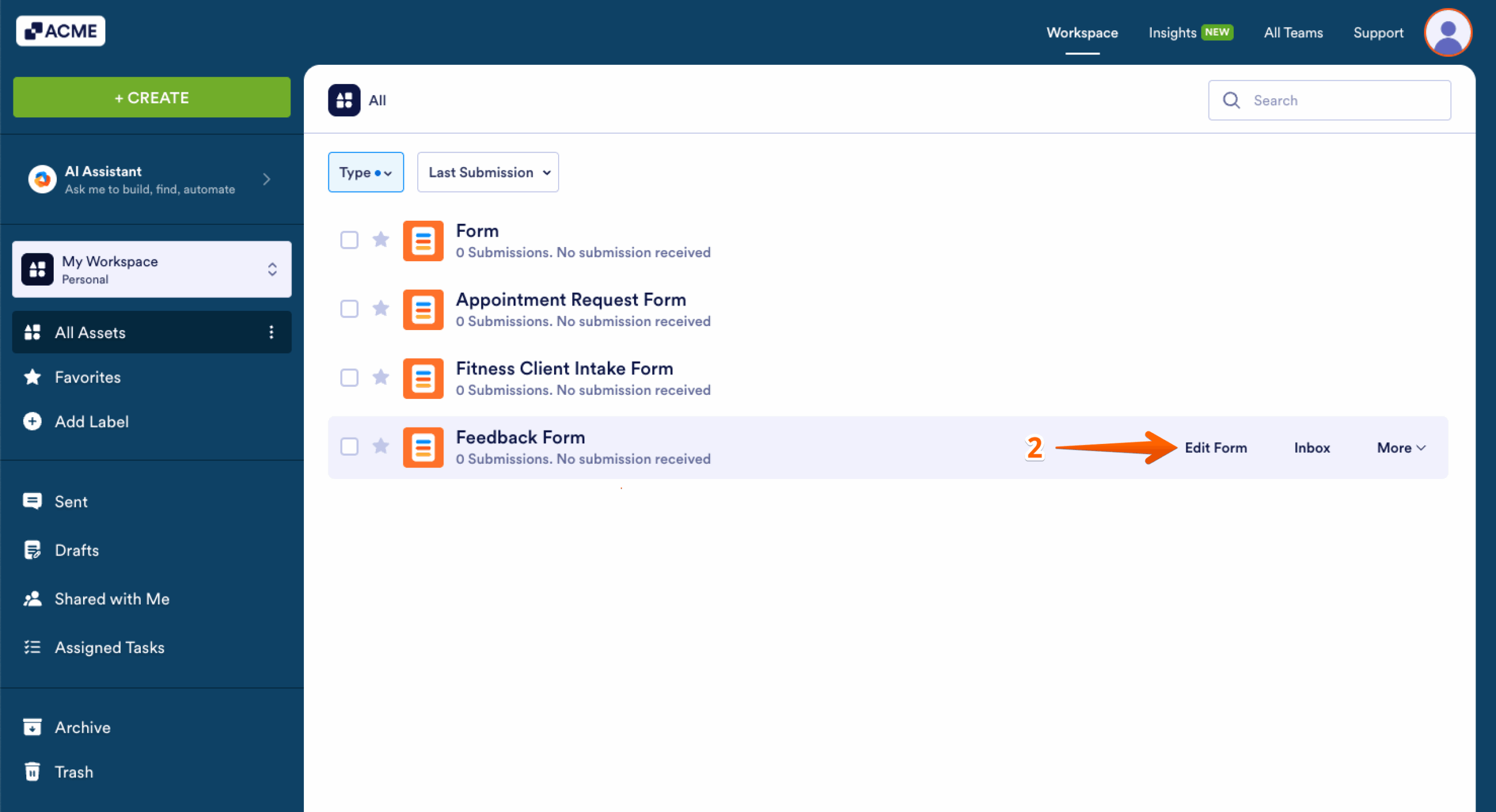
- Then, hover your mouse over the form you want to set up a custom sender email for, and click on Edit Form on the right side of the page.
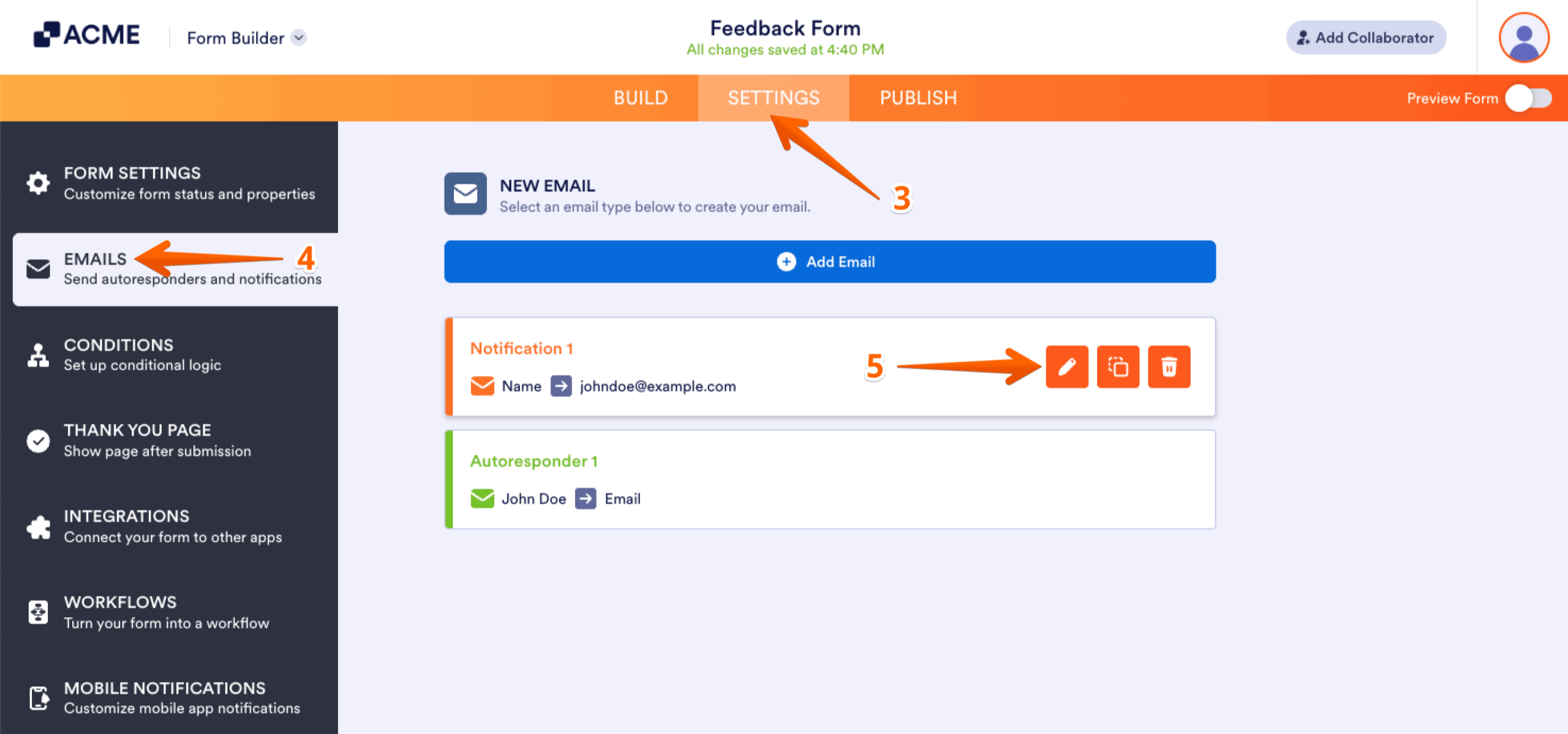
- Now, in Form Builder, in the orange navigation bar at the top of the page, click on Settings.
- Next, click on Emails in the menu on the left.
- Hover your mouse over the Notification Email or Autoresponder Email and click on the Pencil icon to edit it.
- Now, go to the Advanced tab.
- Then, click on the Sender Email Dropdown menu and select your custom sender email.
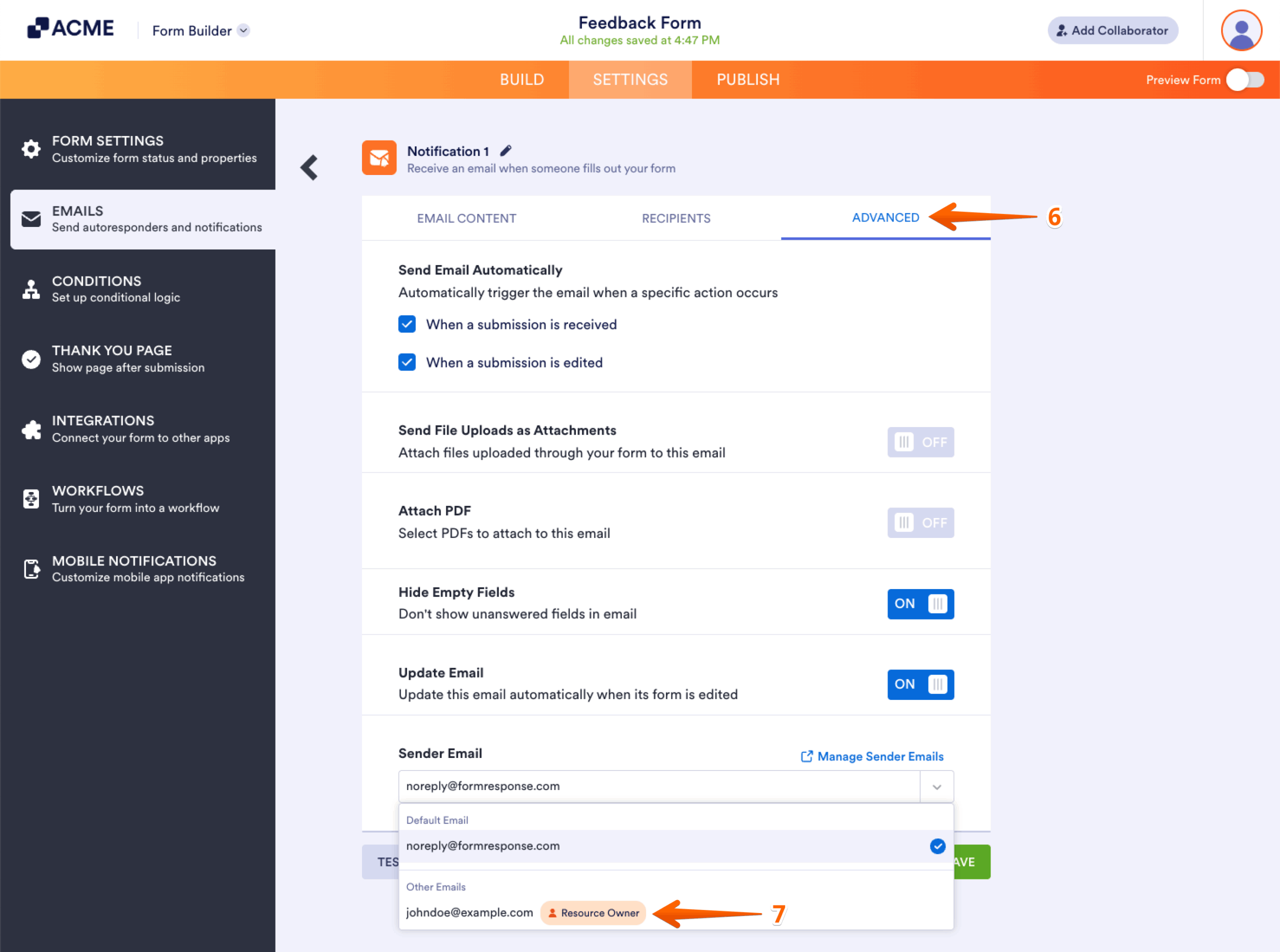
- After that, click on Save.
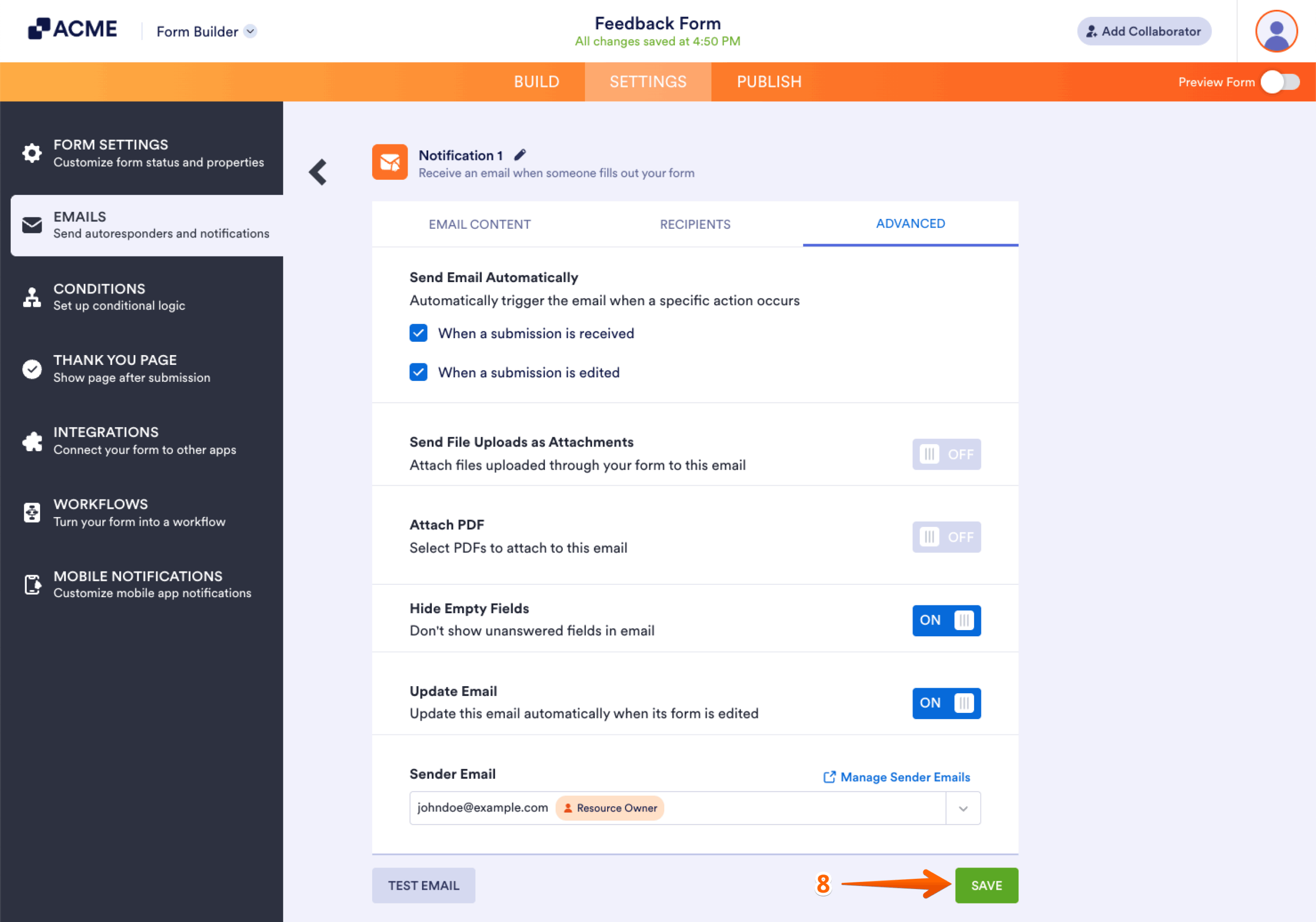
That’s it! Now, whenever Notification or Autoresponder emails are sent for your form, it’ll use the custom sender email you selected.
Note: Some email service providers implement limits on the number of SMTP requests that can be made per day. For example, Gmail allows up to 500 emails per day for free accounts and 2,000 emails per day for Google Workspace accounts, while Yahoo Mail and AOL Mail limit you to around 500 emails per day. Microsoft Outlook typically allows up to 300 emails per day for free accounts, and GoDaddy has a limit of 500 emails per day for basic email hosting. Exceeding these limits can result in temporary blocks, ranging from 1 to 24 hours, depending on the provider. So, it’s important to check with your email service provider for the latest limits and guidelines.

Send Comment: