If you need your form submitters to get an instant pre-written reply or a copy of their data, you can use Autoresponder. By default, when a respondent replies to your autoresponder email, the message is sent to your email address.
The Form Builder automatically creates an autoresponder email once you add an Email element to your form.
To create or edit your autoresponder email:
- In the Form Builder, go to Settings at the top.
- Select Emails on the left.
- Choose whether to create or edit an Autoresponder.
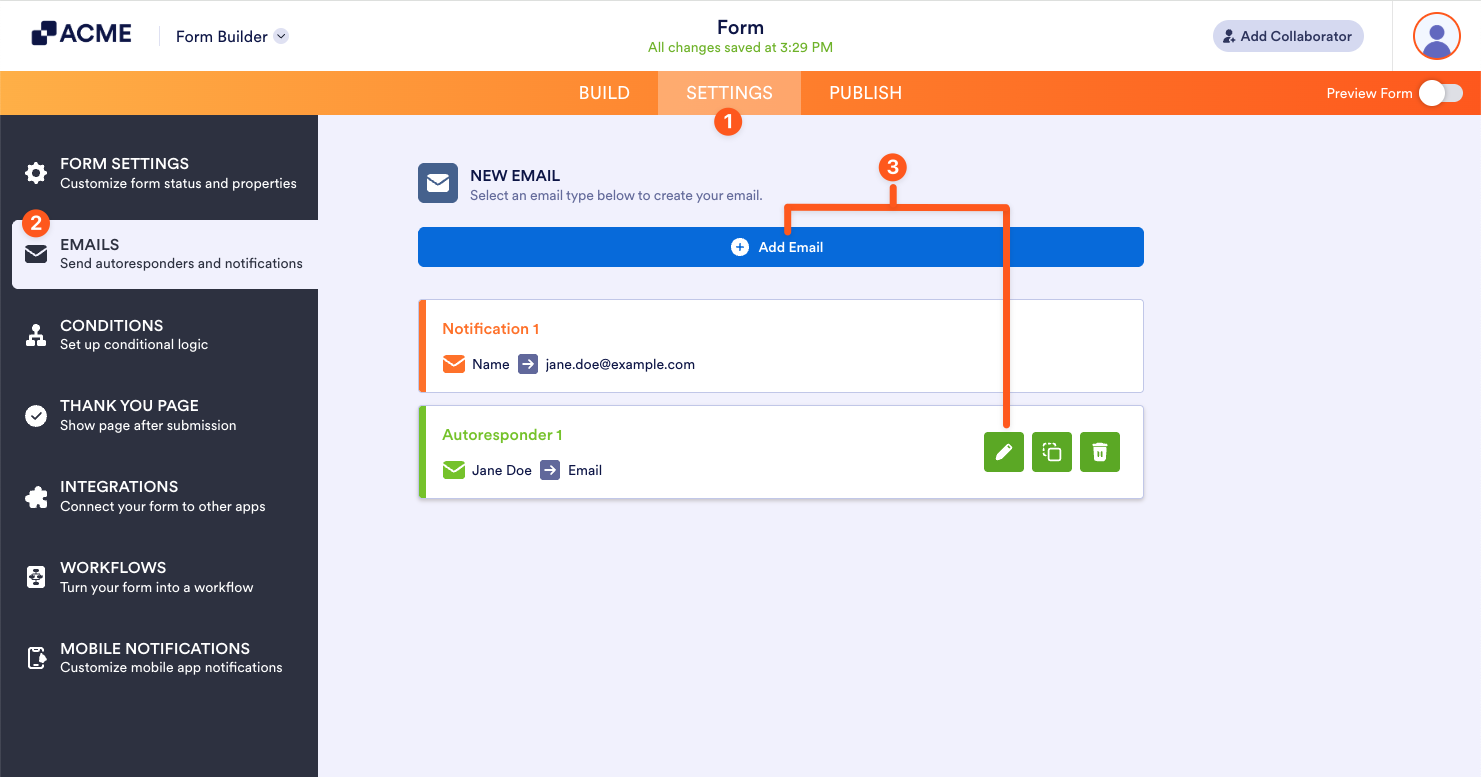
- To create an Autoresponder, click Add an email, then select Autoresponder Email.
- To edit an Autoresponder, select its pencil icon.
- Customize your autoresponder email in the editor. To learn more, see Editing Email Templates.
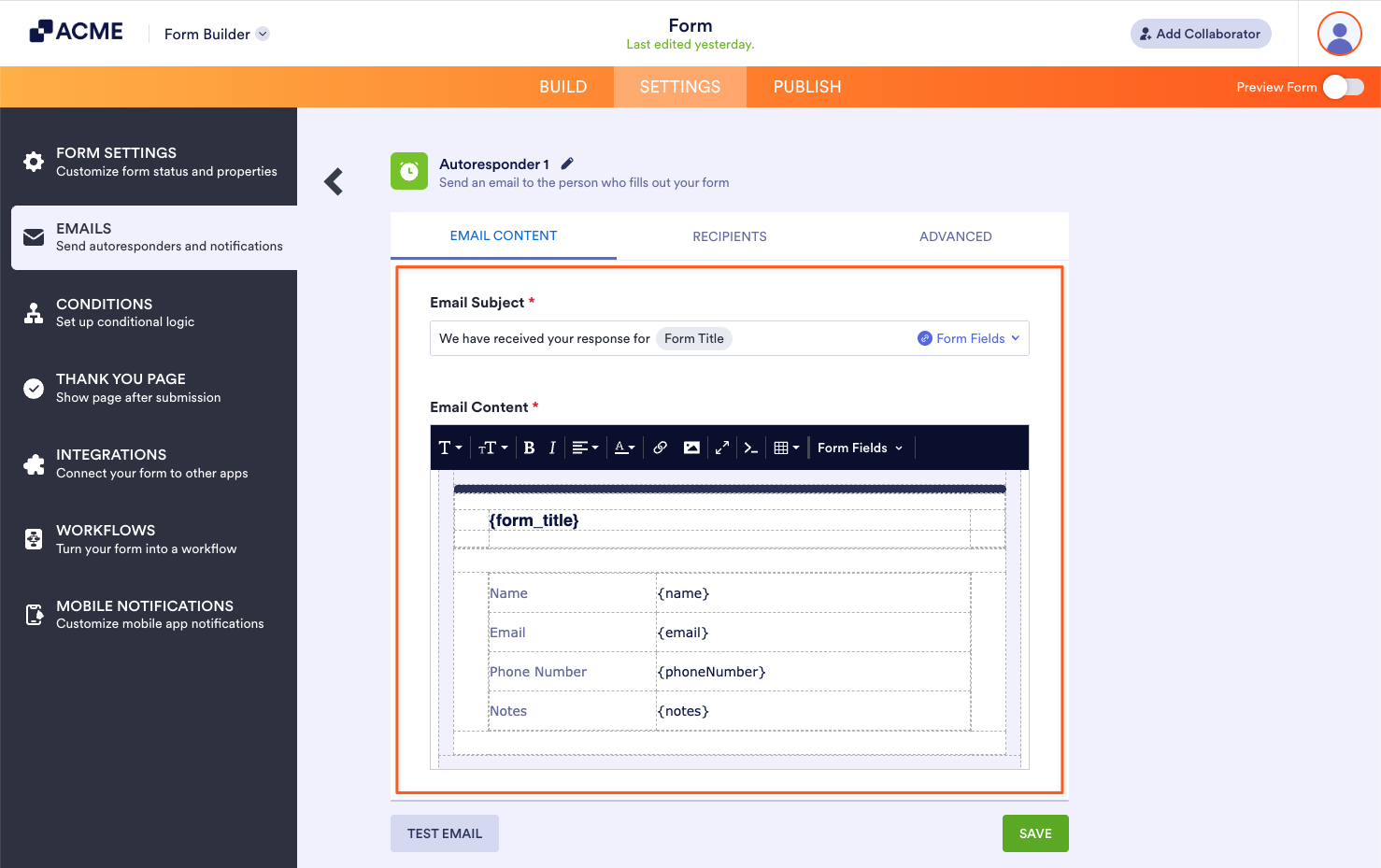
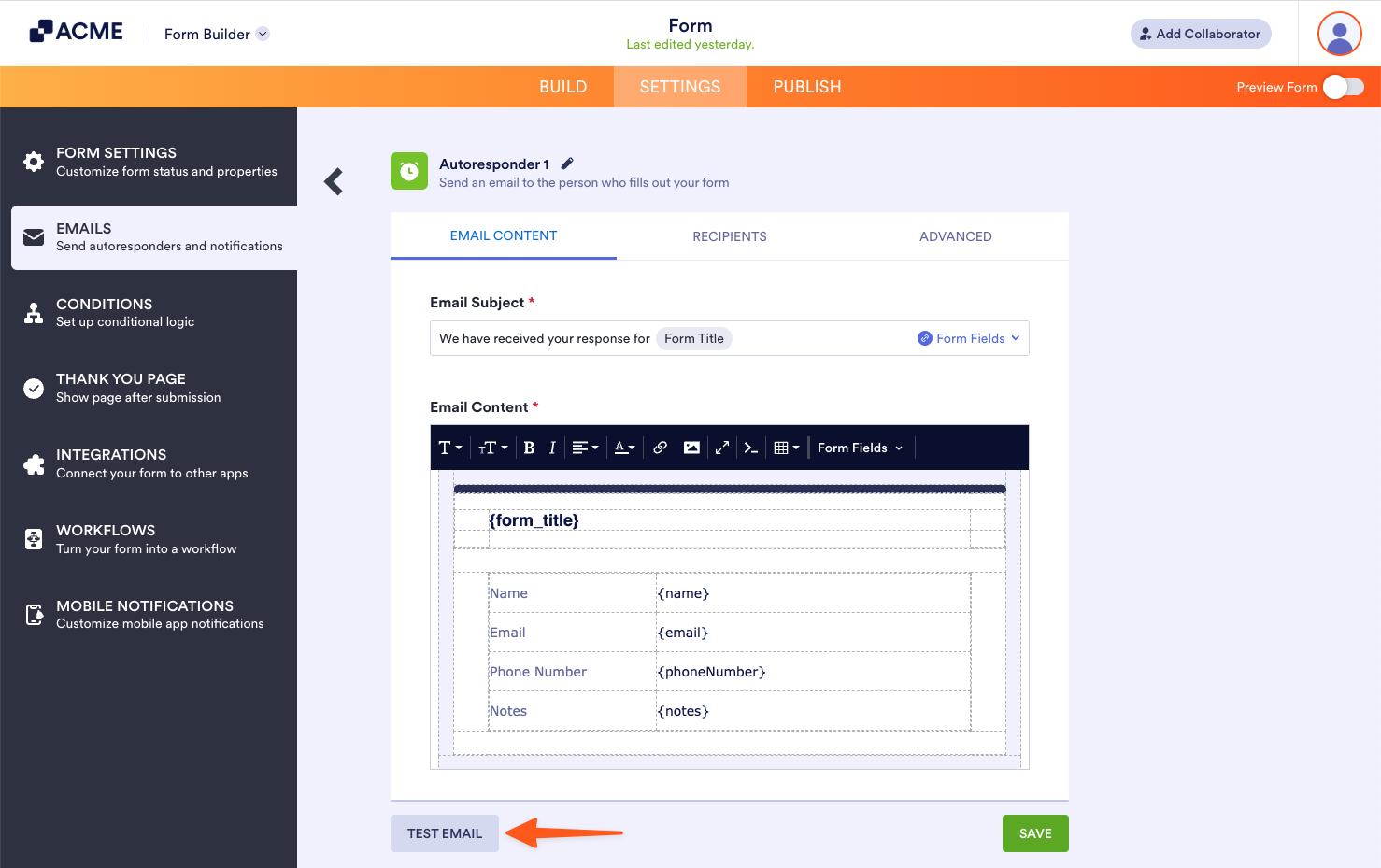
The Test Email button always sends the test email to your account’s email address. To check other recipients, send a test entry to your form.
Changing Email Recipients
To change the recipients and other email information, edit your autoresponder, then go to Recipients at the top.
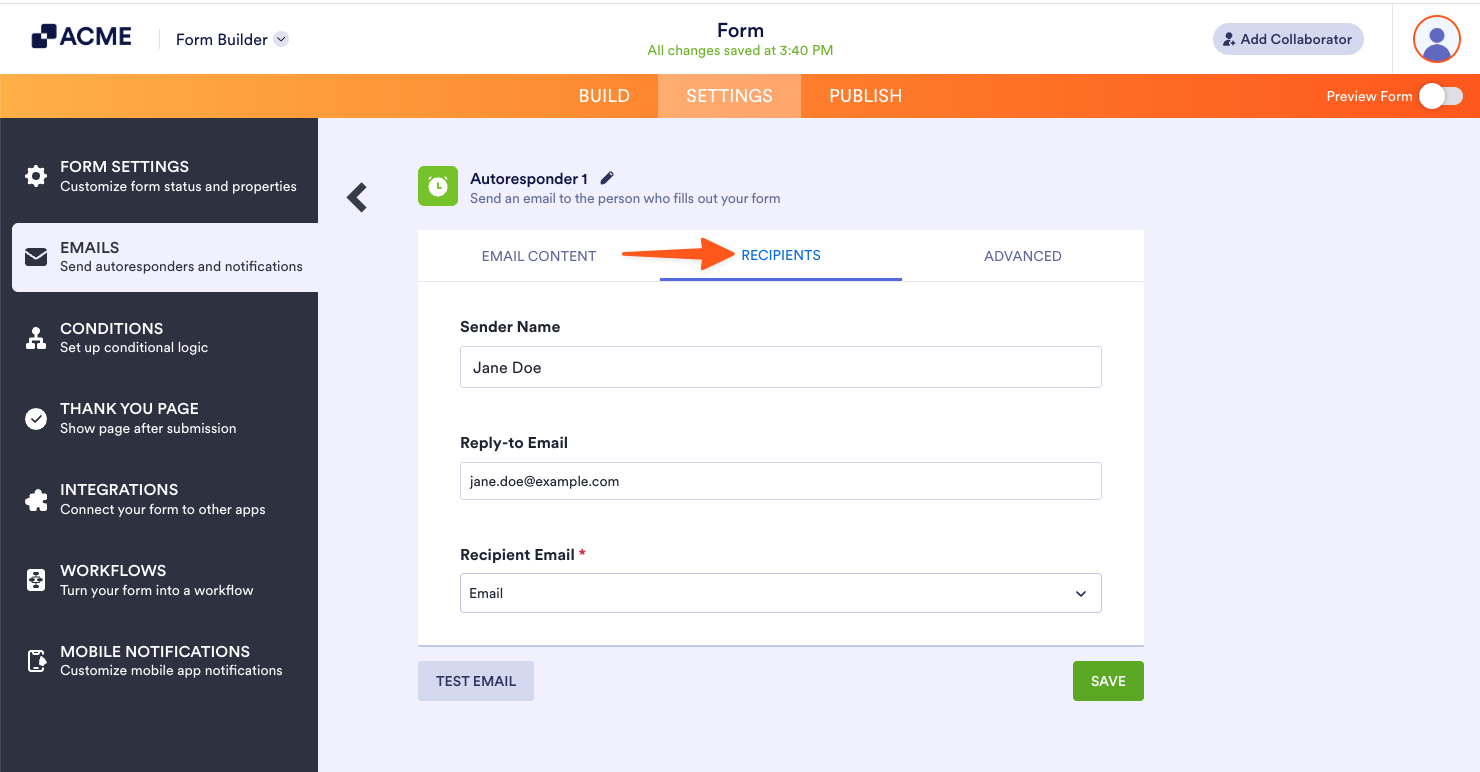
Here are the available options in the Recipients tab:
- Sender Name — The “from” name that appears in the email.
- Reply-to Email — The address where the message is sent when recipients reply to your autoresponder email.
- Recipient Email — Mapped to one of your form’s email fields, this is the address where the autoresponder email is sent after submission.
Accessing Advanced Options
The Autoresponder’s Advanced tab holds additional options for your autoresponder like changing the sender address and adding file attachments to name a few.
To view advanced options, edit your autoresponder, then go to Advanced at the top.
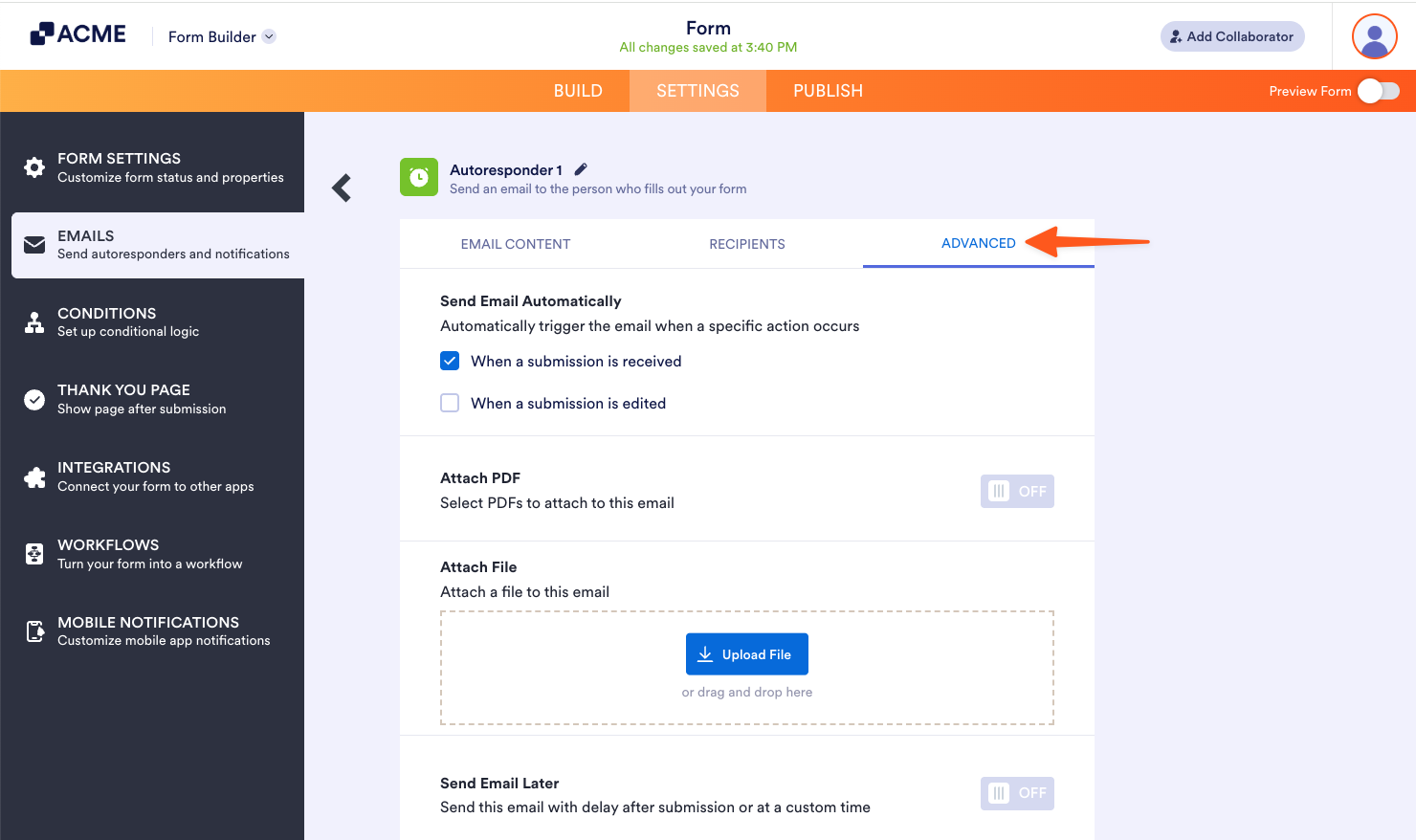
Here are the available options:
- Send Email When — Triggers for sending the autoresponder email.
- PDF Attachment — Add PDF documents to your email.
- Attach a File — Attach a file to your email.
- Send Emails Later — Delay or schedule sending the email.
- Hide Empty Fields — Exclude empty fields in your email when turned on.
- Update Email — The email template ignores changes on your form when turned off.
- Sender Email — Send the email using your SMTP server instead of the platform’s default servers. To learn more, see Adding a Custom Sender Address and Setting Up SMTP.

Send Comment: