In many forms, you might want to automatically insert specific text or calculated values into a field when certain conditions are met. For example, you could generate a custom message to include in the submission, or insert a label or category that helps organize responses for reporting or tracking. You can also calculate totals, scores, or other dynamic results based on user entries. This conditional logic ensures submissions capture accurate, relevant information automatically, saving time and reducing manual edits for both respondents and form owners.
Adding conditional logic to insert text or calculated values into a field only takes a few steps. Here’s how to get started:
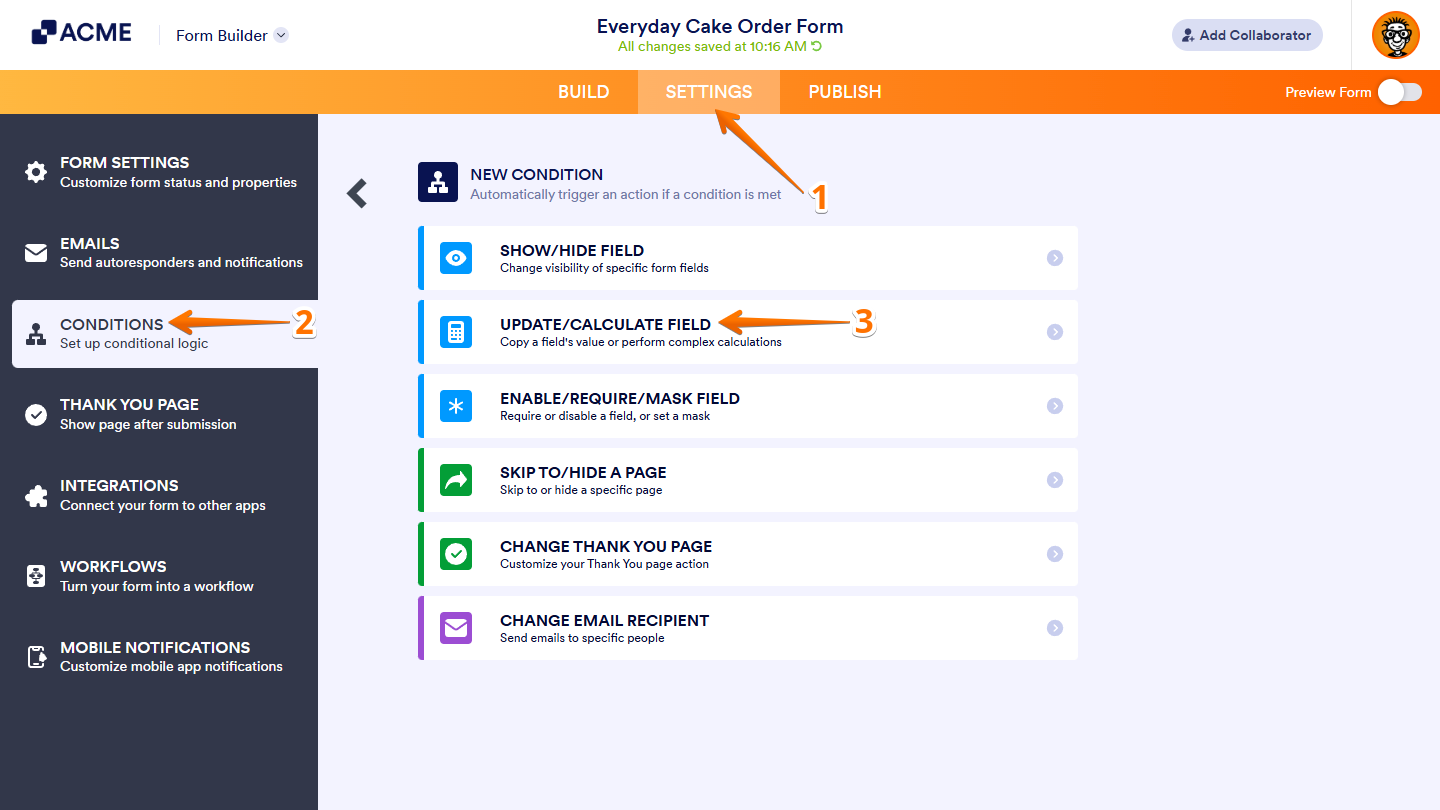
- In Form Builder, in the orange navigation bar at the top of the page, click on Settings.
- Then, in the menu on the left side of the page, click on Conditions.
- Now, in the New Condition section on the right, click on Update/Calculate Field.
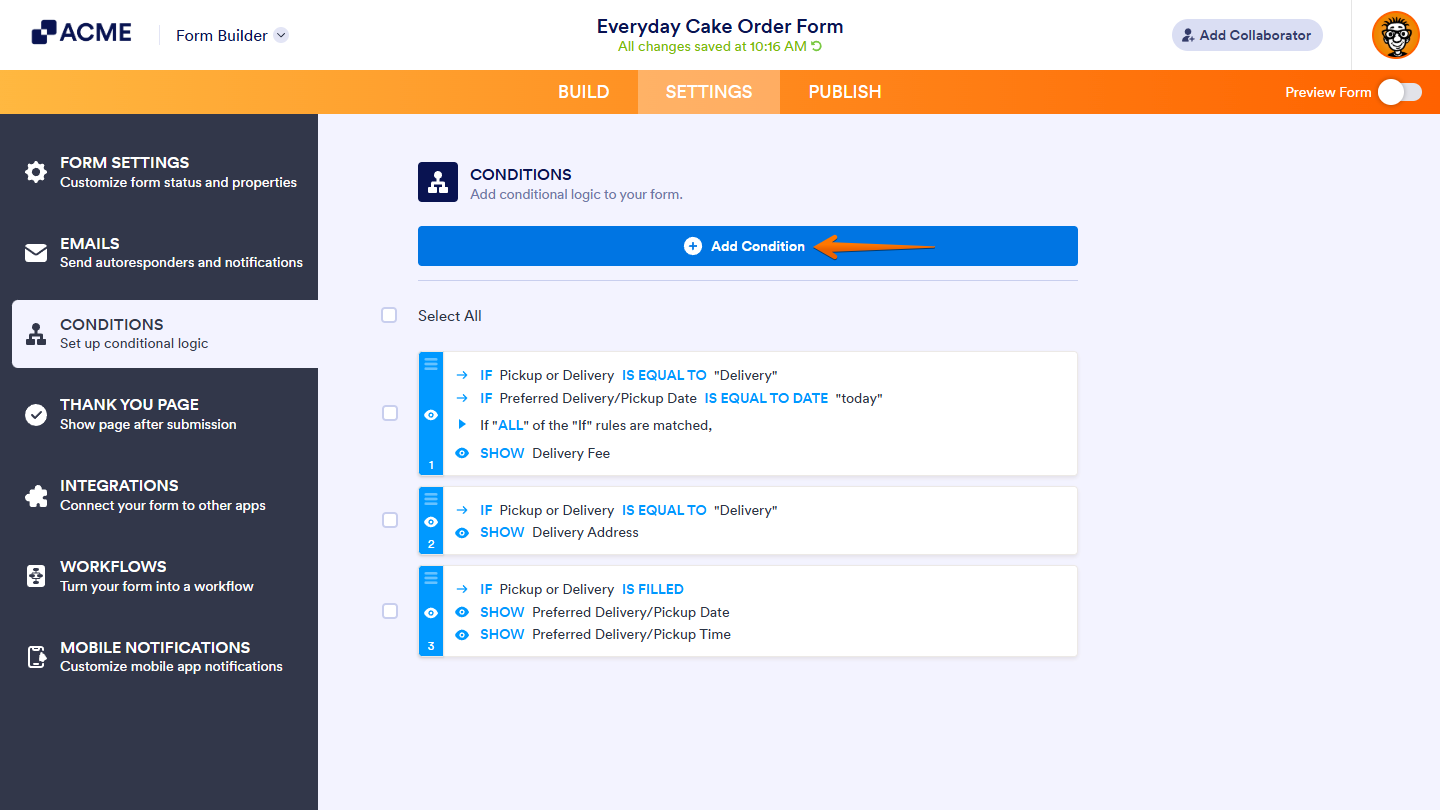
If there is already a conditional logic created for your form before, click on the Add Condition button at the top of the Conditions section first.
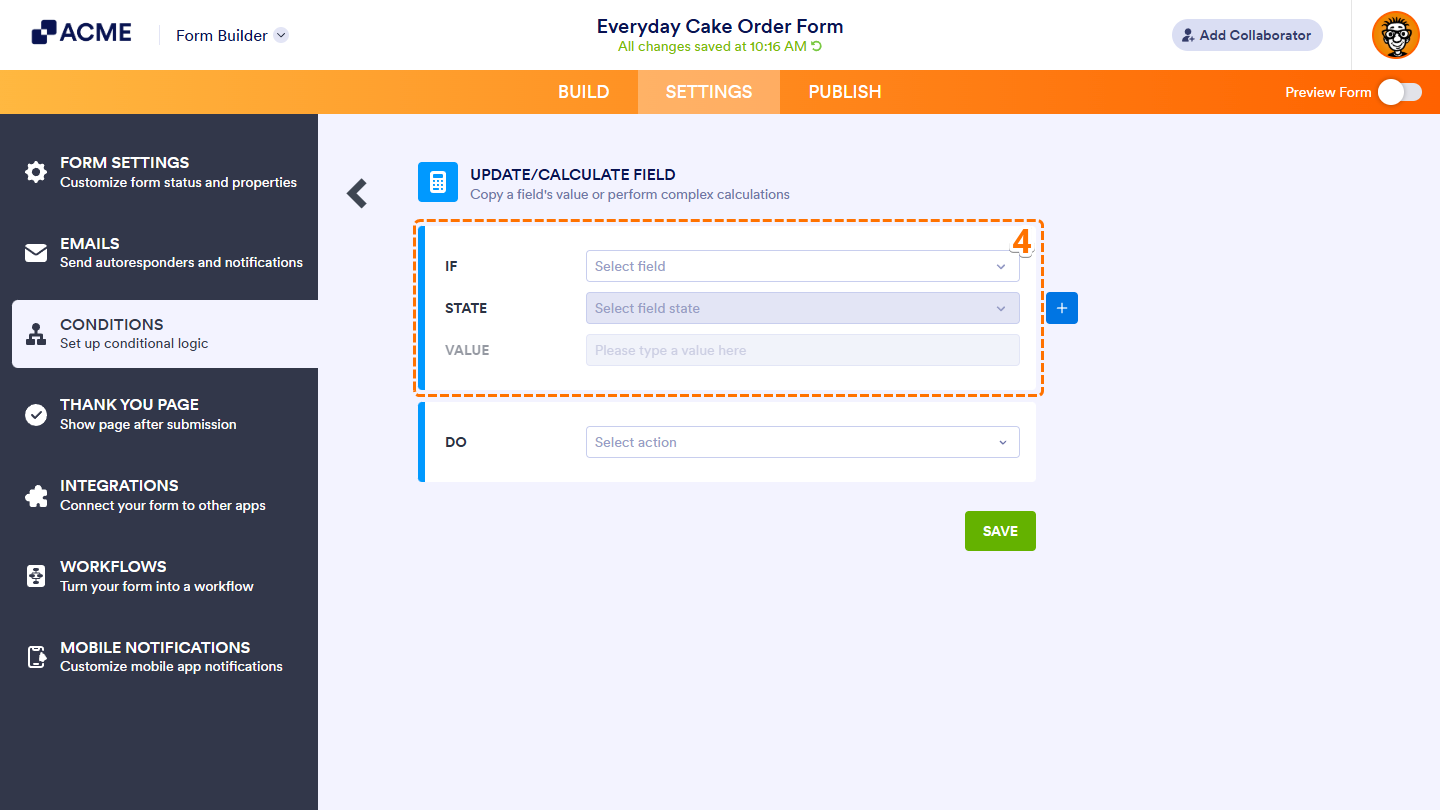
- In the Update/Calculate Field section, configure these fields to set an If rule for your condition:
- IF — Select a supported form field whose value or status will determine when the condition triggers.
- STATE — Select the status that the condition should check for in the field you chose.
- TARGET — This appears when the selected status is neither Is Empty nor Is Filled. Select whether you want to compare the value or selection of the field you chose to a specified value or to the value of another field.
- VALUE — This appears when Value is selected as the target. Enter a specific text that the selected field’s value will be compared to.
- FIELD — This appears when Field is selected as the target. Choose the field whose value will be compared to the field you selected in the If Dropdown menu.
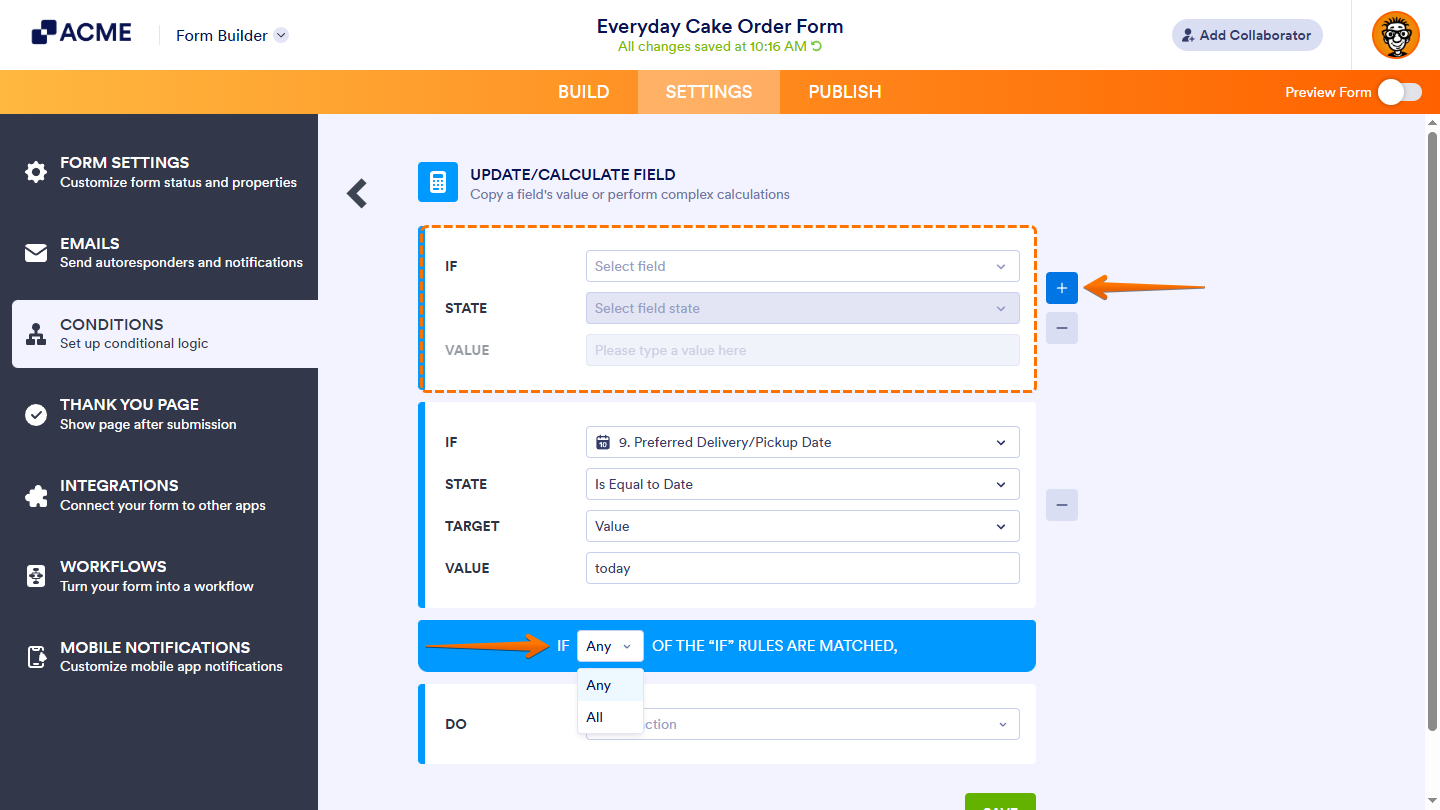
If you want to set another If rule for your condition, click on the Plus icon on the right side of the If Rule section, then, in the Any/All dropdown that appears below it, select Any if at least one rule should be met, or All if every rule should be met to trigger the condition.
- Next, click on the Do Dropdown menu and select Calculate Field Value.
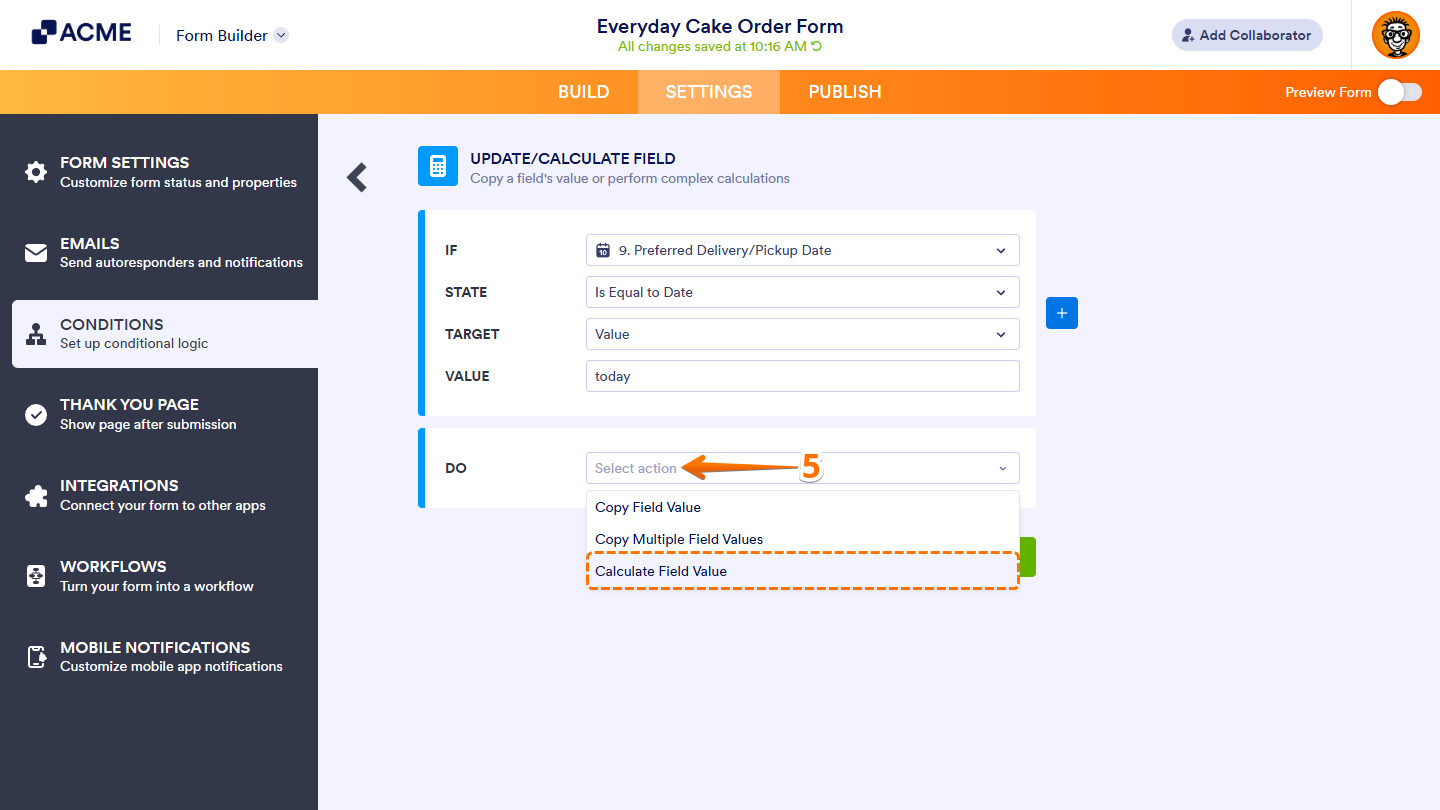
- Now, in the Formula Editor that appears, depending on what you want to do:
- Enter characters in String format to insert text into another field.
- Enter values in Number format to insert a calculated value into another field.
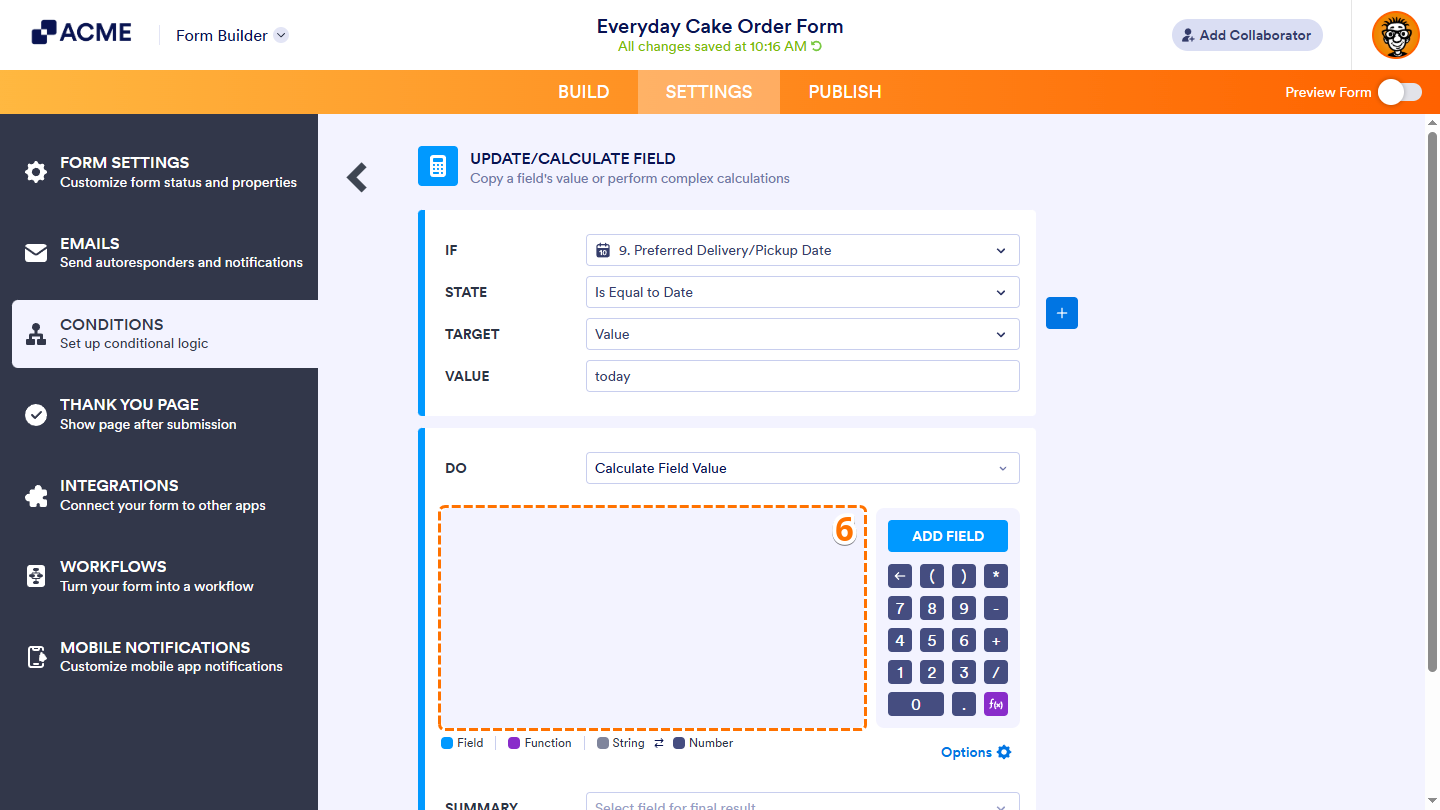
You can type characters, symbols, or text directly into the Formula Editor using your keyboard. Elements that appear on a light gray background are treated as strings, meaning they’ll be inserted as text rather than used in calculations. You can click on any element to switch its format when needed.
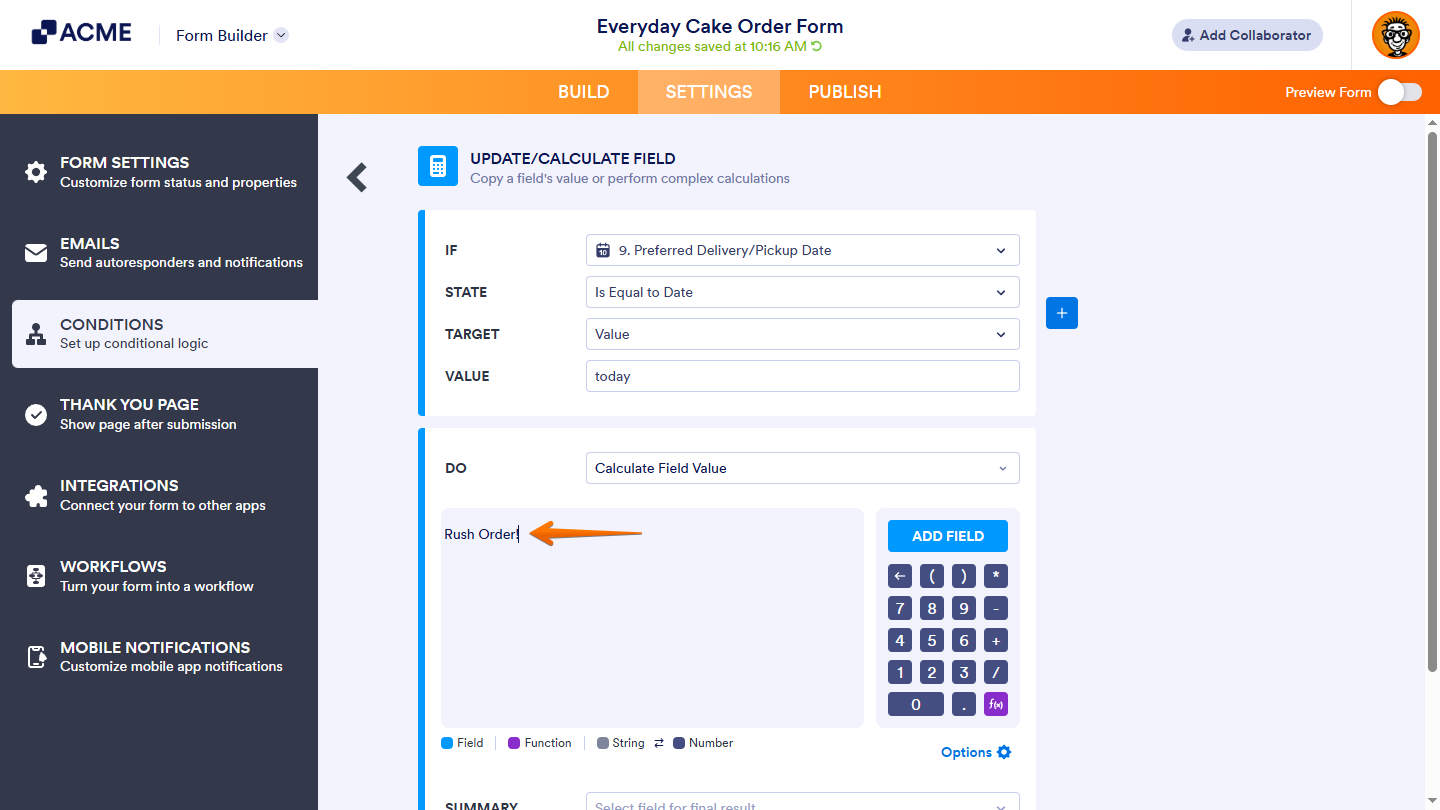
For calculations, characters and symbols must appear on a dark gray background. You can type digits, decimal points, parentheses, and operators (+, –, ×, ÷), or use the Formula Keypad on the right side of the editor to add them. These elements are recognized as numeric components and can be used in formulas to calculate values.
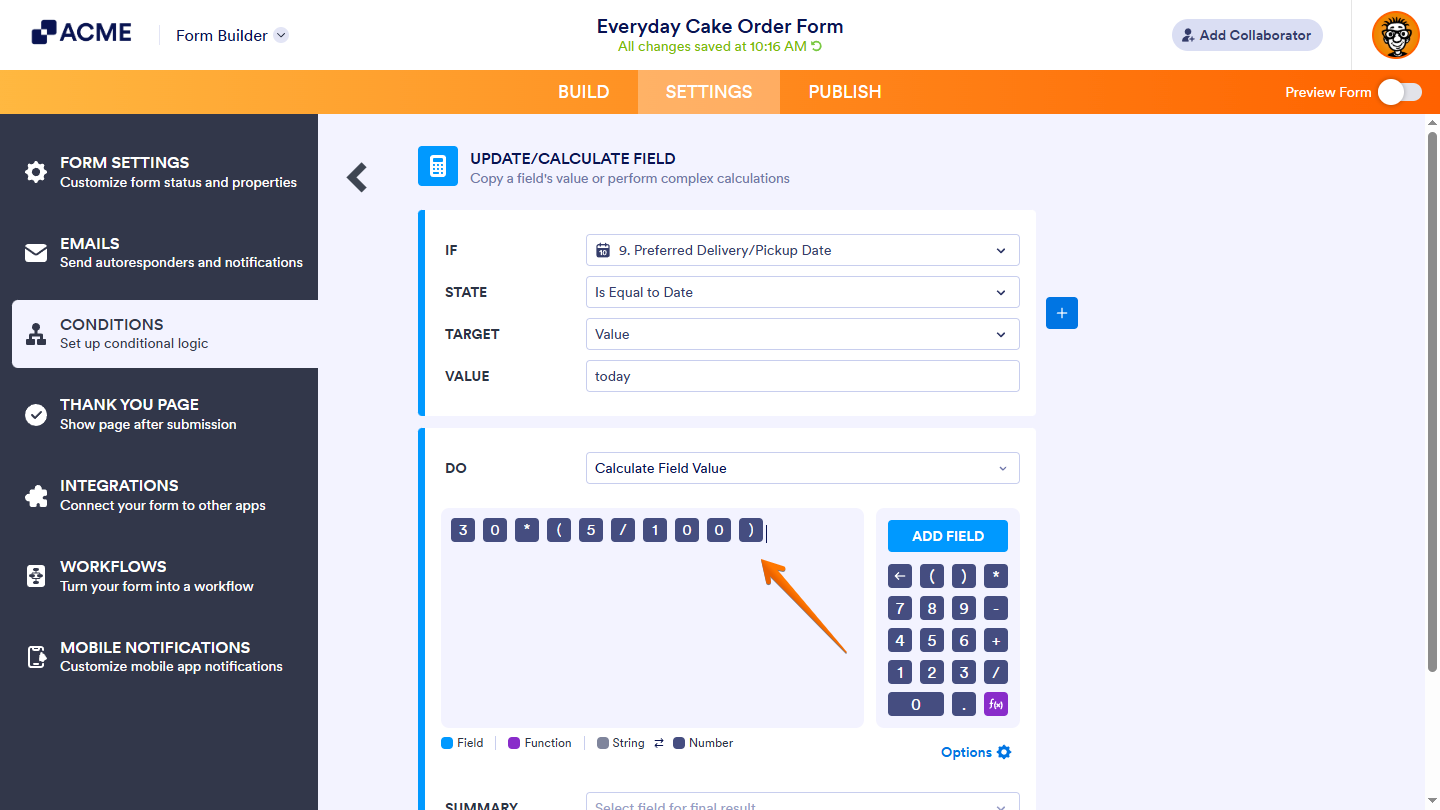
- Then, click on the Summary Dropdown menu and select the field where the text or value will be inserted. You can also use the Search bar at the top of the menu to find a specific field easily.
- Once everything is set, click on Save.
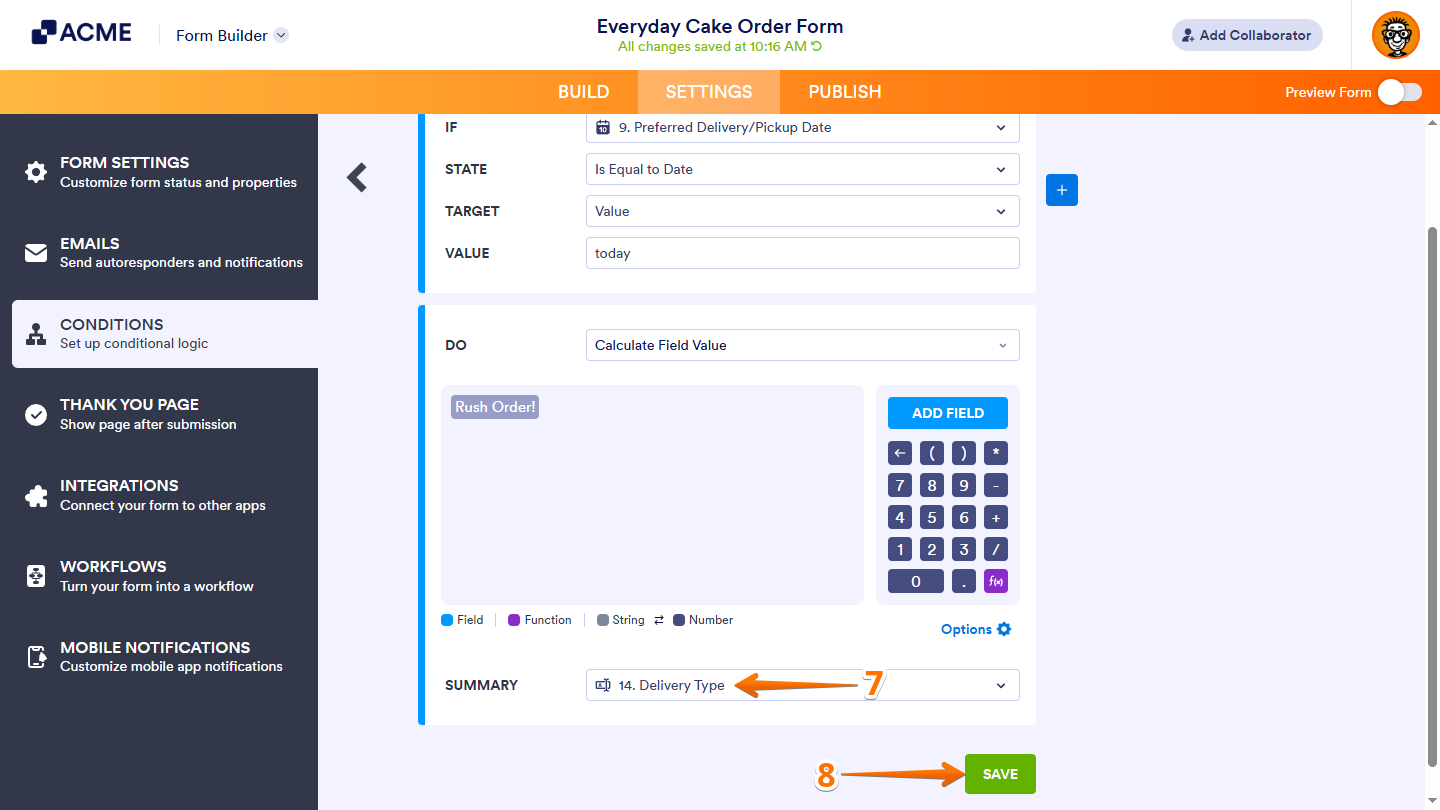
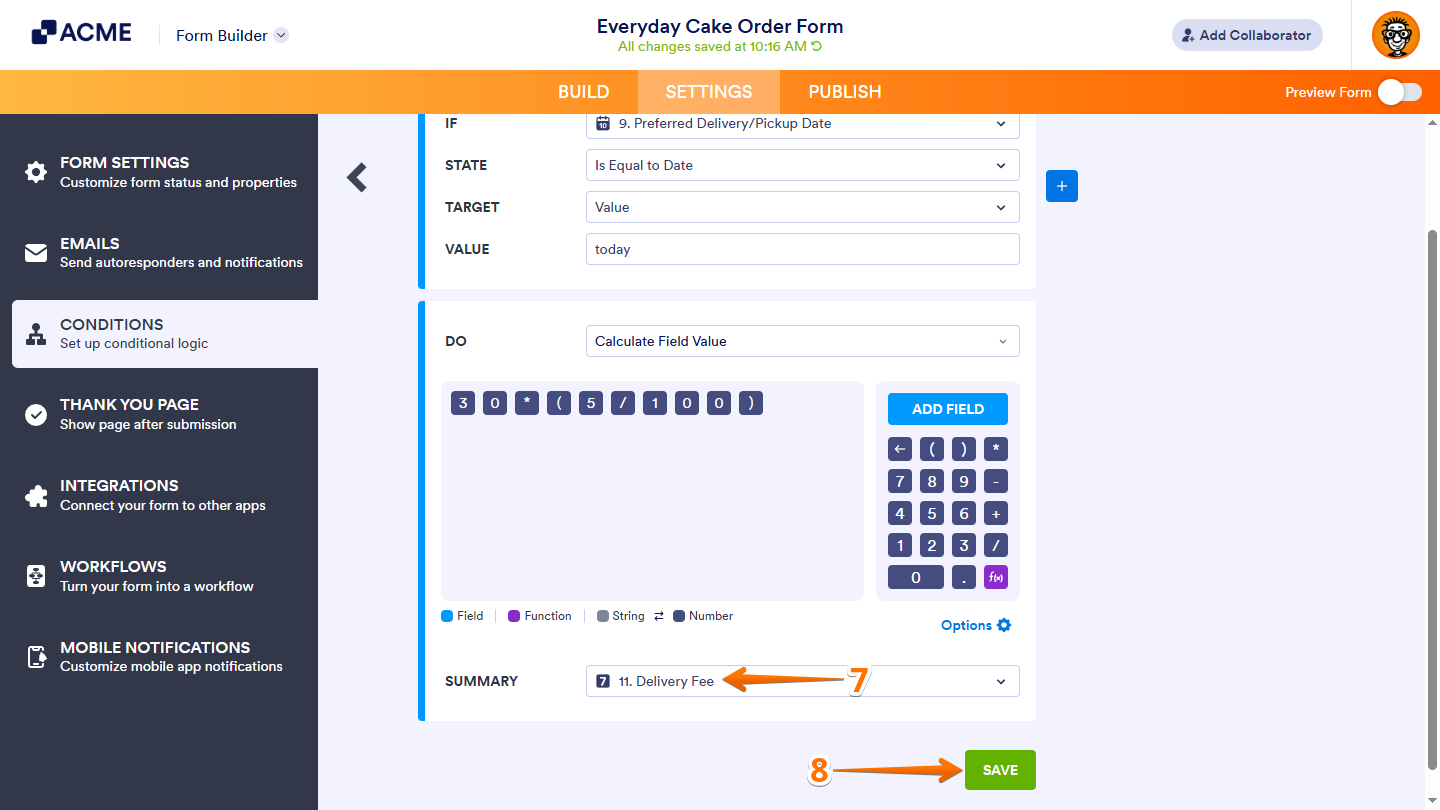
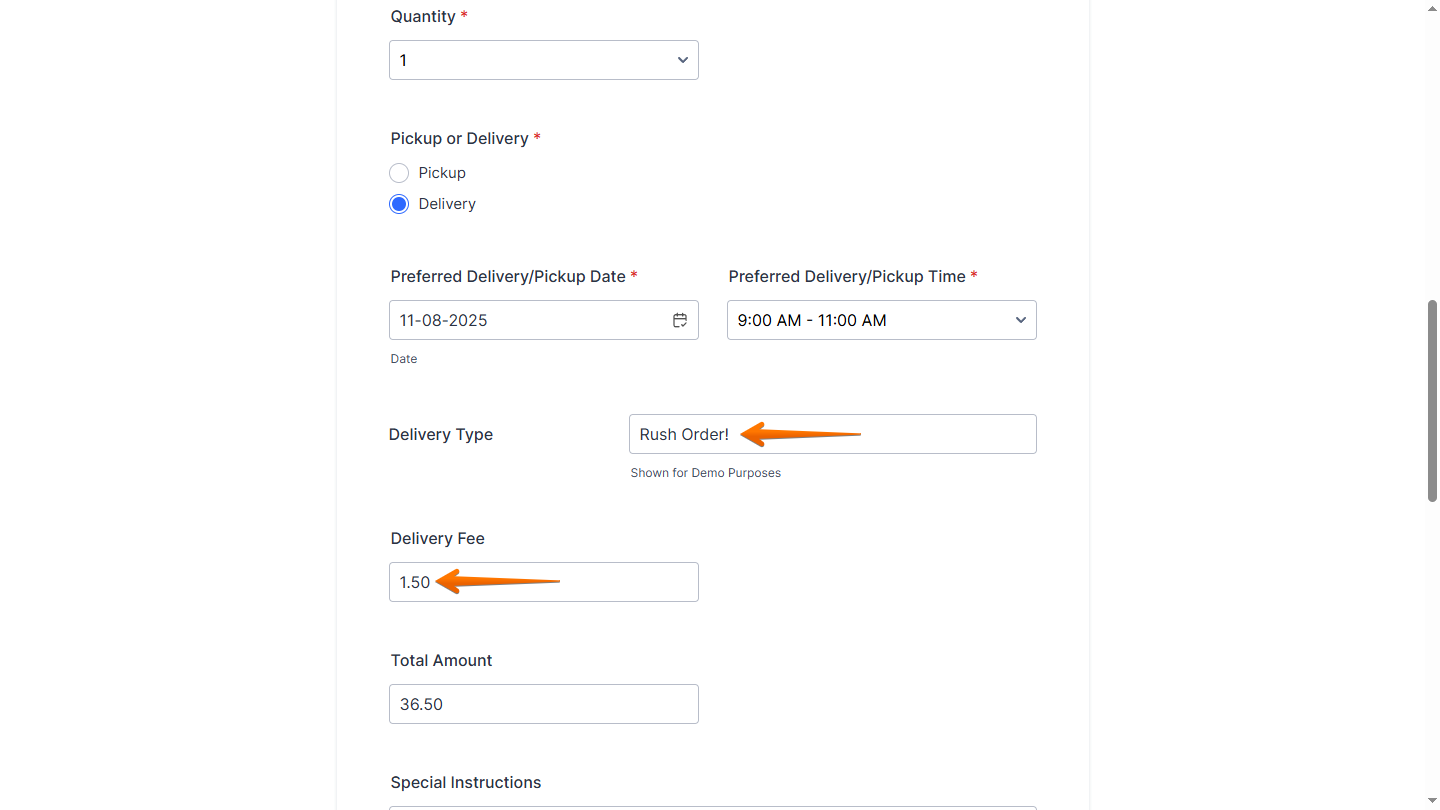
That’s it. Once you’ve set up your conditions, your form will automatically insert text or calculated values into the appropriate fields based on your respondents’ input.

Send Comment: