Creating forms that speak your users’ language helps make your forms more accessible and user-friendly. With multilingual support, you can translate your form into multiple languages so respondents can view and fill it out in the language they’re most comfortable with. This allows you to reach a wider audience and ensure a more inclusive experience for everyone.
Adding Language to Your Form
You can easily add a language and make your forms multilingual in just a few steps. Here’s how to set it up:
- In Form Builder, in the orange navigation bar at the top of the page, click on Settings.
- Then, under Form Settings, click on Show More Options at the bottom.
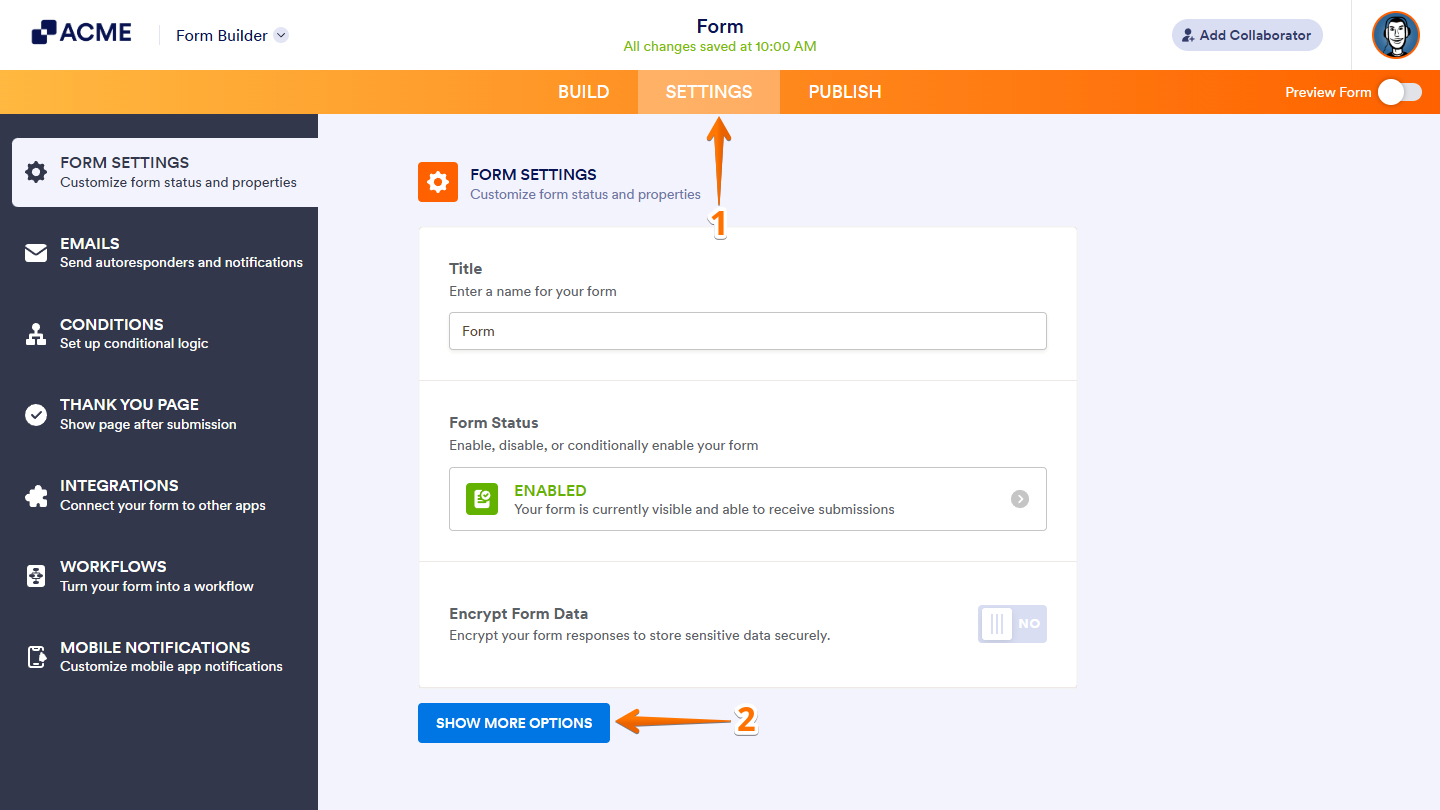
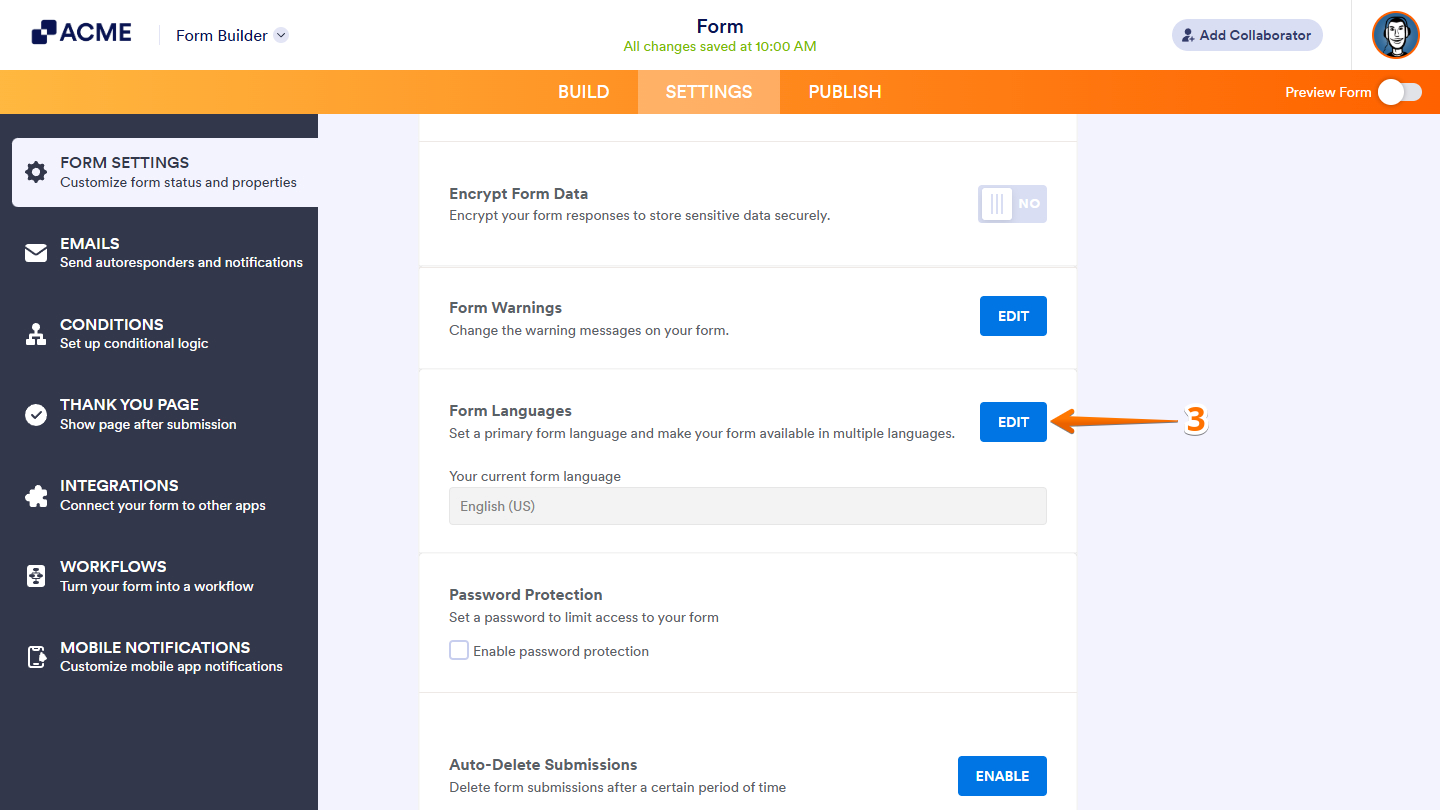
- Next, scroll down to the Form Languages section and click on Edit.
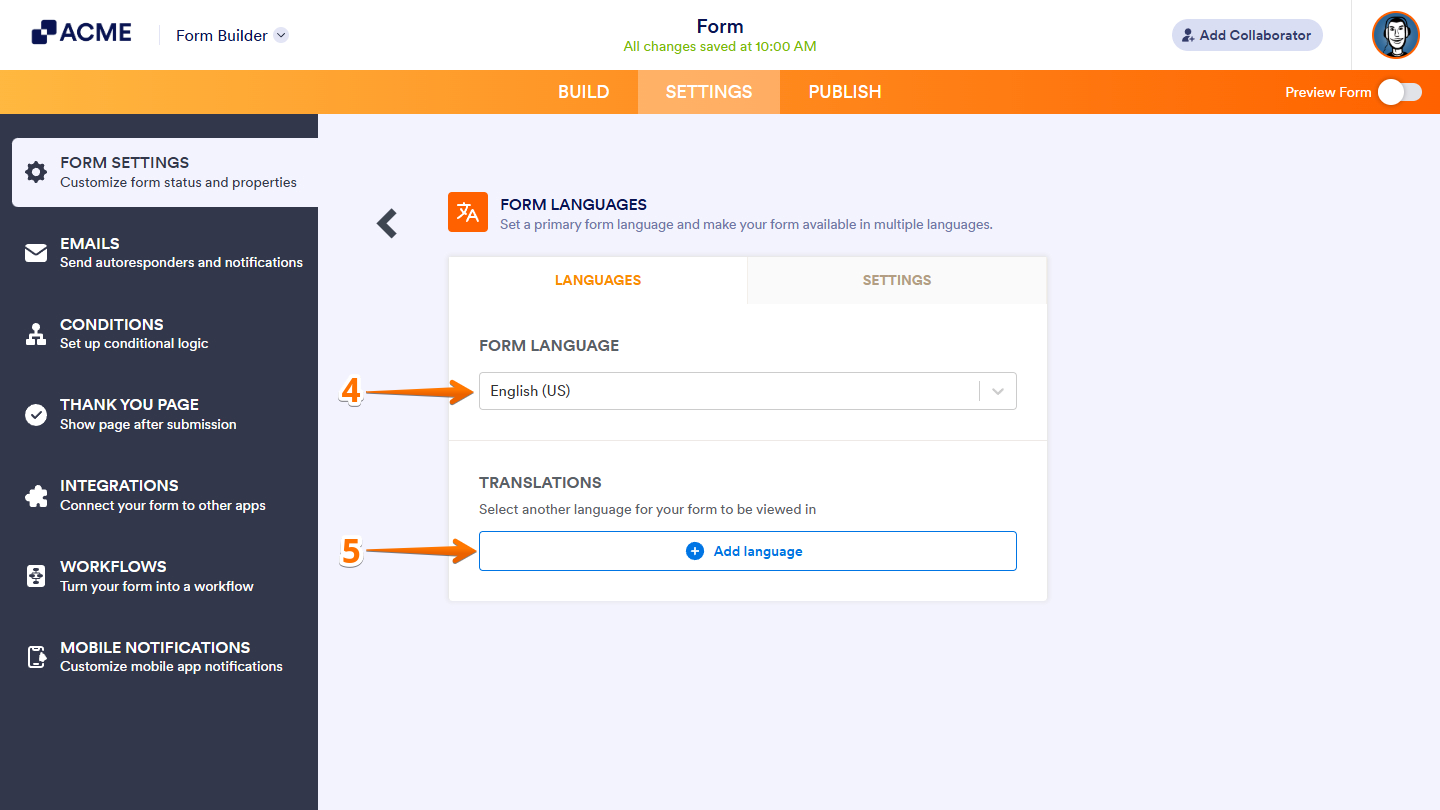
- Under the Languages tab, select your form’s default language in the Form Language Dropdown menu.
Note: Your account’s default language is automatically set as the default in your form settings. If your form is created in a different language, be sure to select it from the Form Language dropdown menu.
- Then, in the Translations section, click on Add Language to add another language to your form.
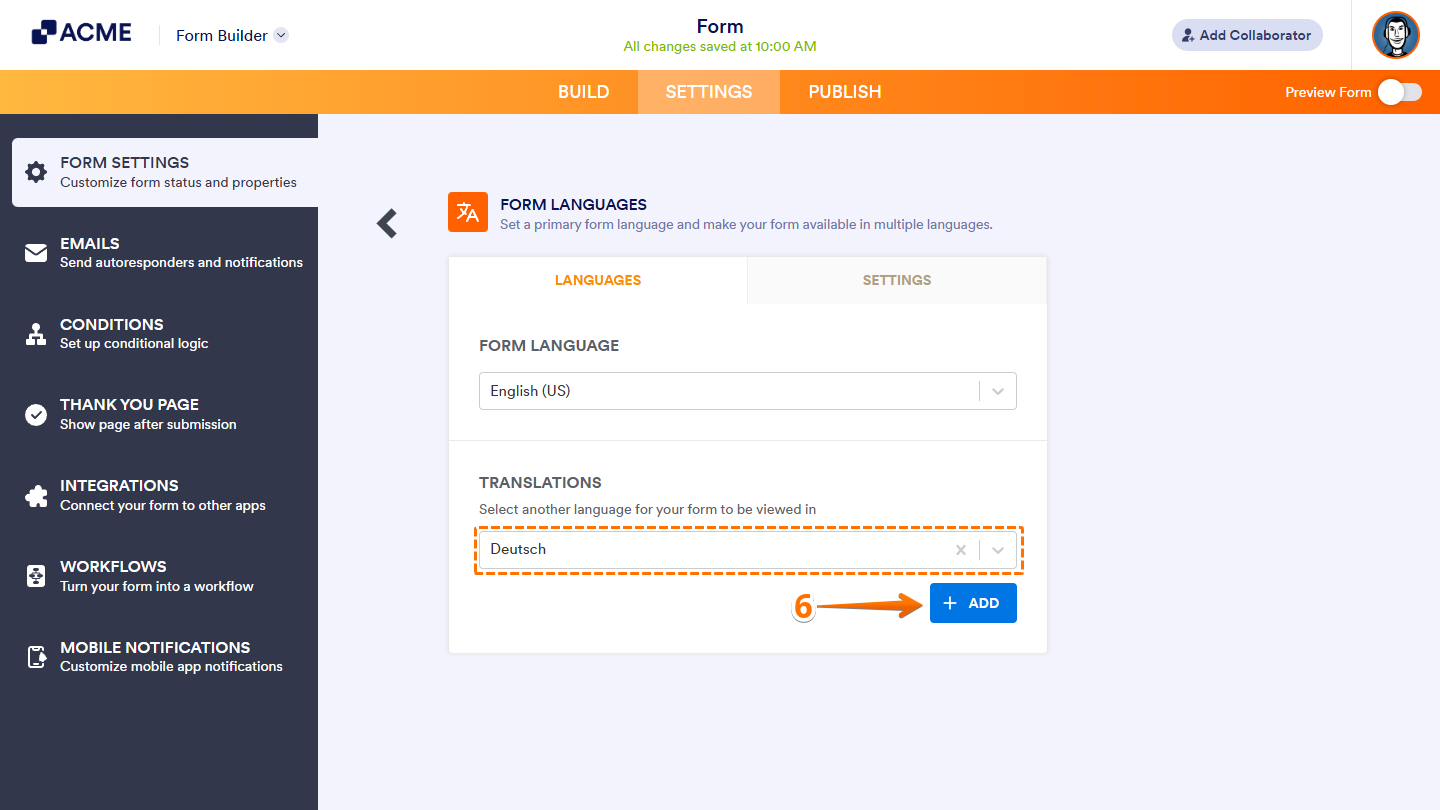
- Next, in the Translations Dropdown menu, select your preferred language, and click on Add.
- Now, under the Translations tab, translate all texts until the top part says All Items Translated.
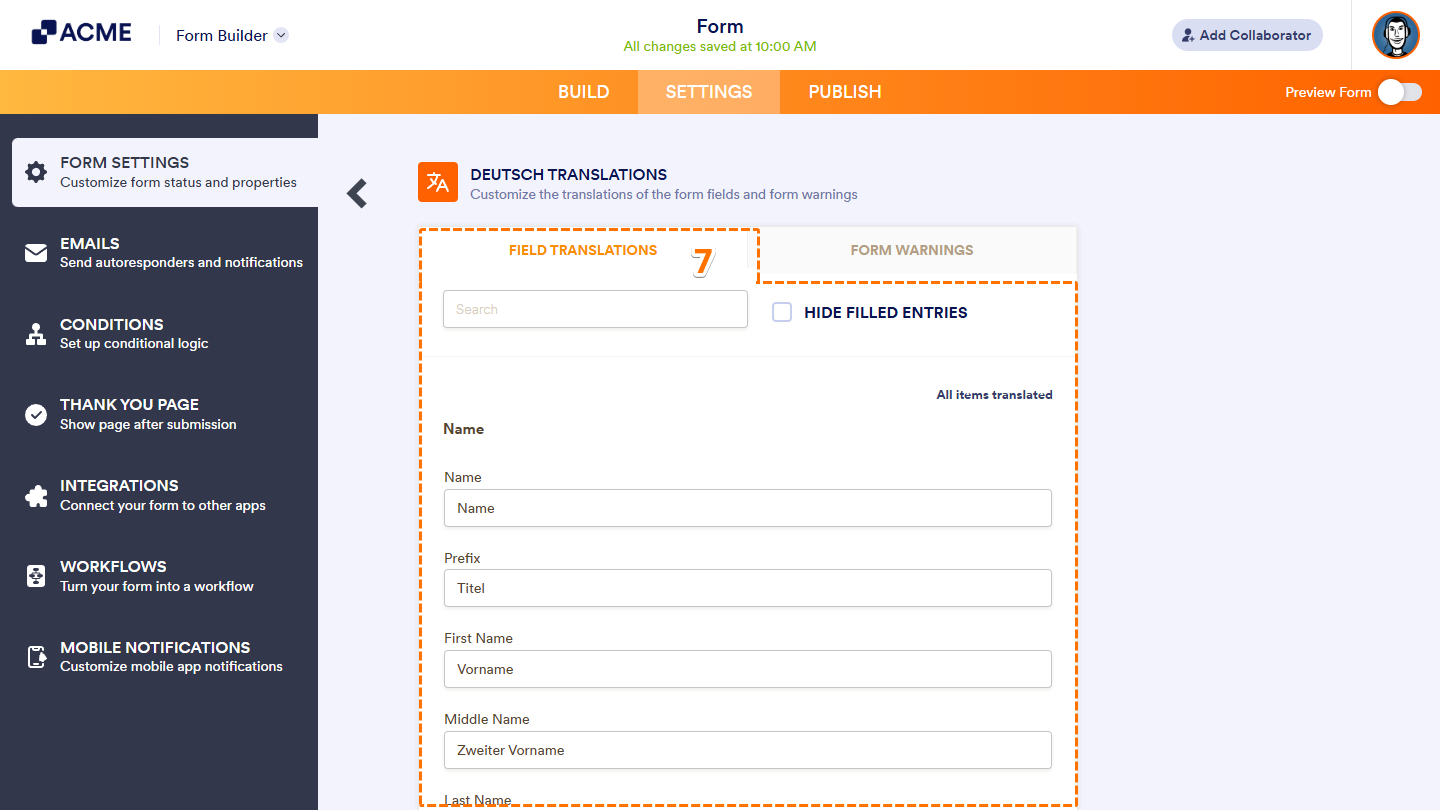
Note: In the same tab, you’ll find a Search bar that lets you quickly locate specific fields from your form. You’ll also see the Hide Filled Entries option, which, when enabled, hides all translated elements and shows only the items that still need translation.
- Finally, under the Form Warnings tab, translate all texts that are related to the following field or properties:
- Required
- Form Errors
- Validation
- Textarea
- Radio / Checkbox / Dropdown
- Number
- Dates
- Upload
- Matrix
- Appointment
- Payments
- Submit Button
- Other
- Accessibility
- Error Navigation
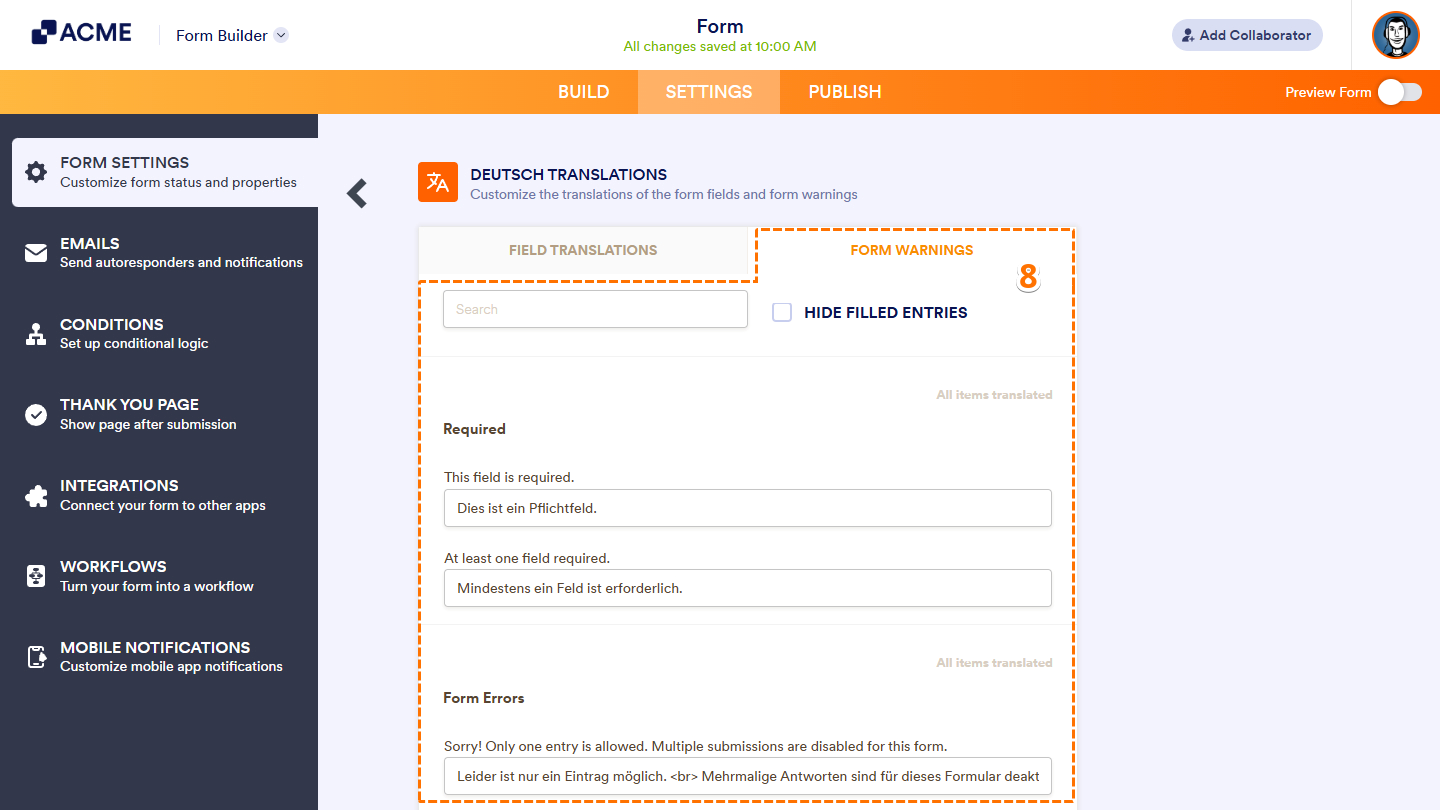
Note: The same tab includes a Search bar for finding specific warnings, as well as a Hide Filled Entries option. When selected, this option hides all translated form warnings and displays only untranslated items.
Changing the Form Language Settings
You can update your form’s language settings at any time to change the style, detect the user’s language, and change how it behaves on multi-page forms. Setting it up is quick—here’s how:
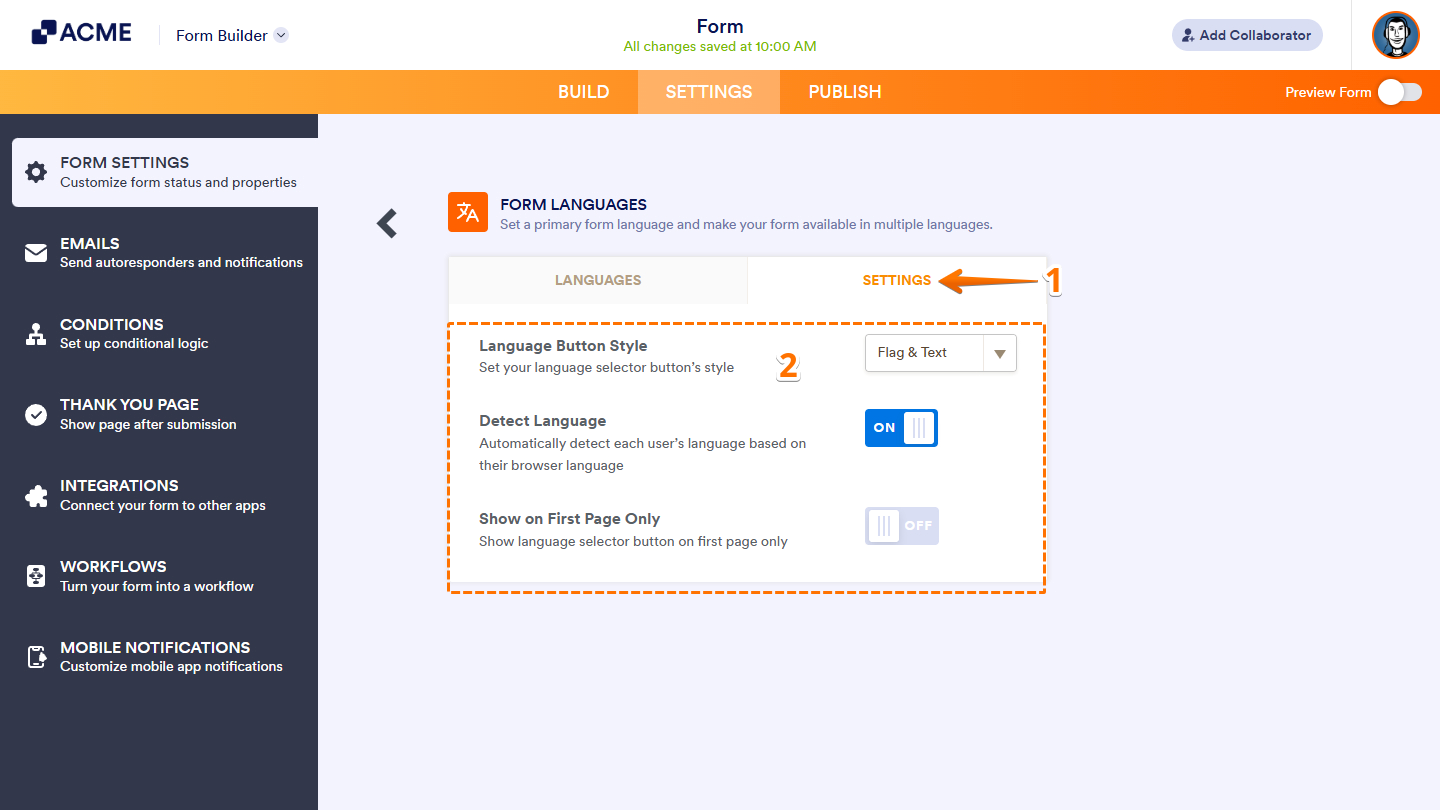
- While still on the Form Languages page, go to the Settings tab.
- Then, set up these things:
- Language Button Style — Select how the language selector appears on your form: as text, a flag, or both.
- Detect Language — Automatically detect the user’s preferred language based on their browser settings.
- Show on First Page Only — Toggle this on to display the language selector button only on the first page of multi-page forms.
That’s it for adding your form’s languages! Your form is now ready for users in different languages.

Send Comment: