The Show/Hide Field conditional logic allows you to change the visibility of questions or elements on your form based on the form filler’s answers.
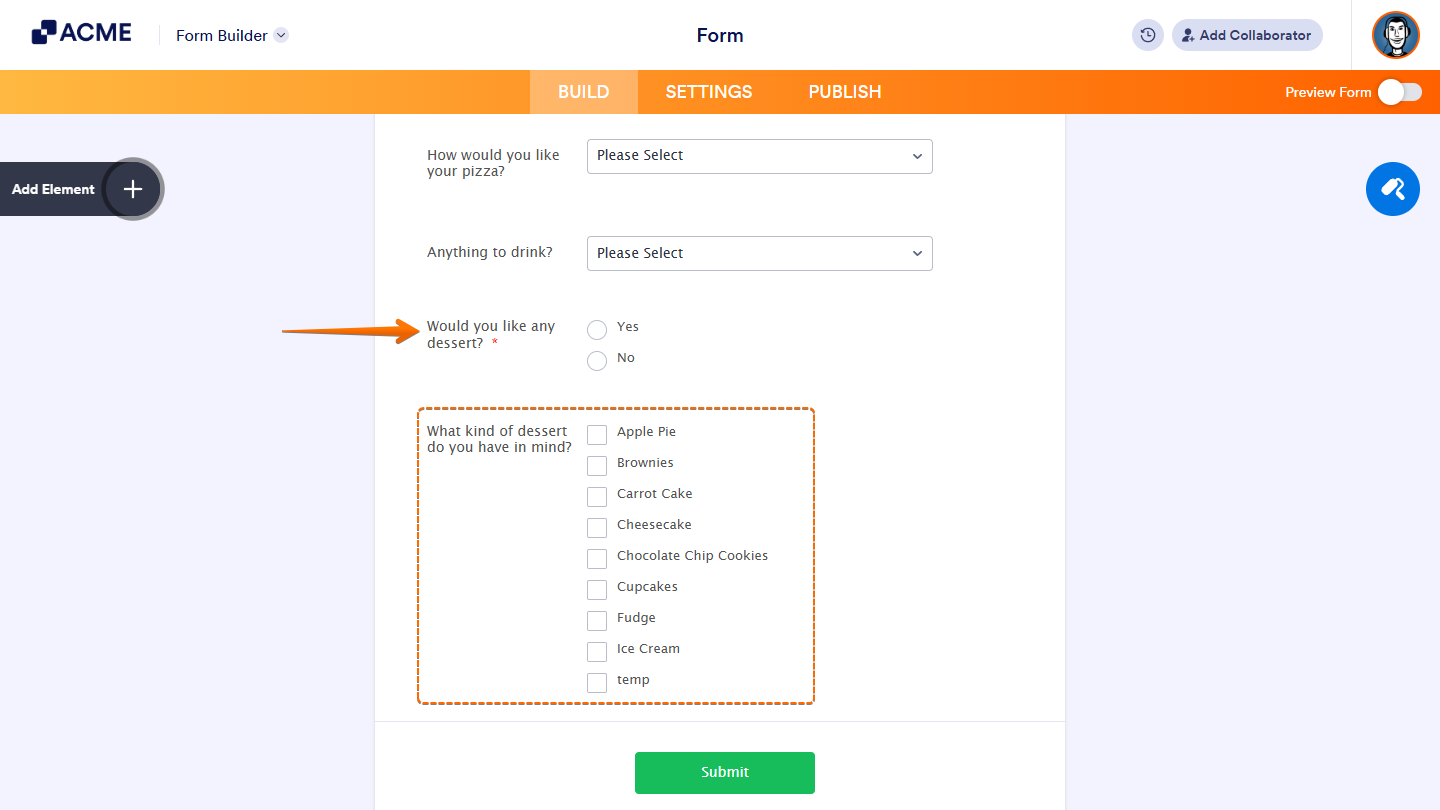
In this example form, the “Would you like any dessert?” question is configured to show a follow-up question if the form filler answered “Yes.”
To conditionally change your form field’s visibility. Here’s how:
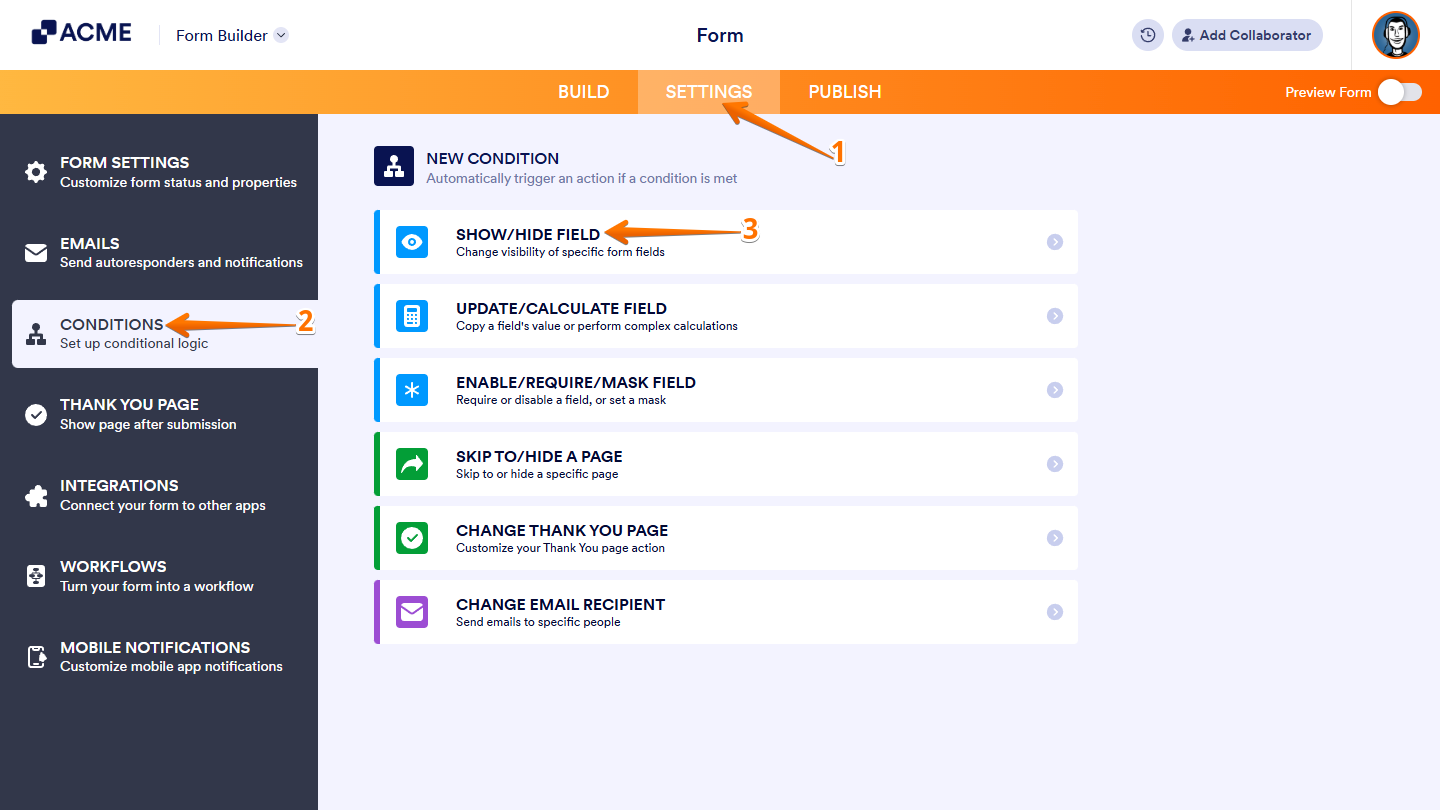
- In Form Builder, in the orange navigation bar at the top of the page, click on Settings.
- Then, click on Conditions on the left of the page.
- Now, click on Add a New Condition and then click on Show/Hide Field.
- Set the conditions like you see below and click on Save.
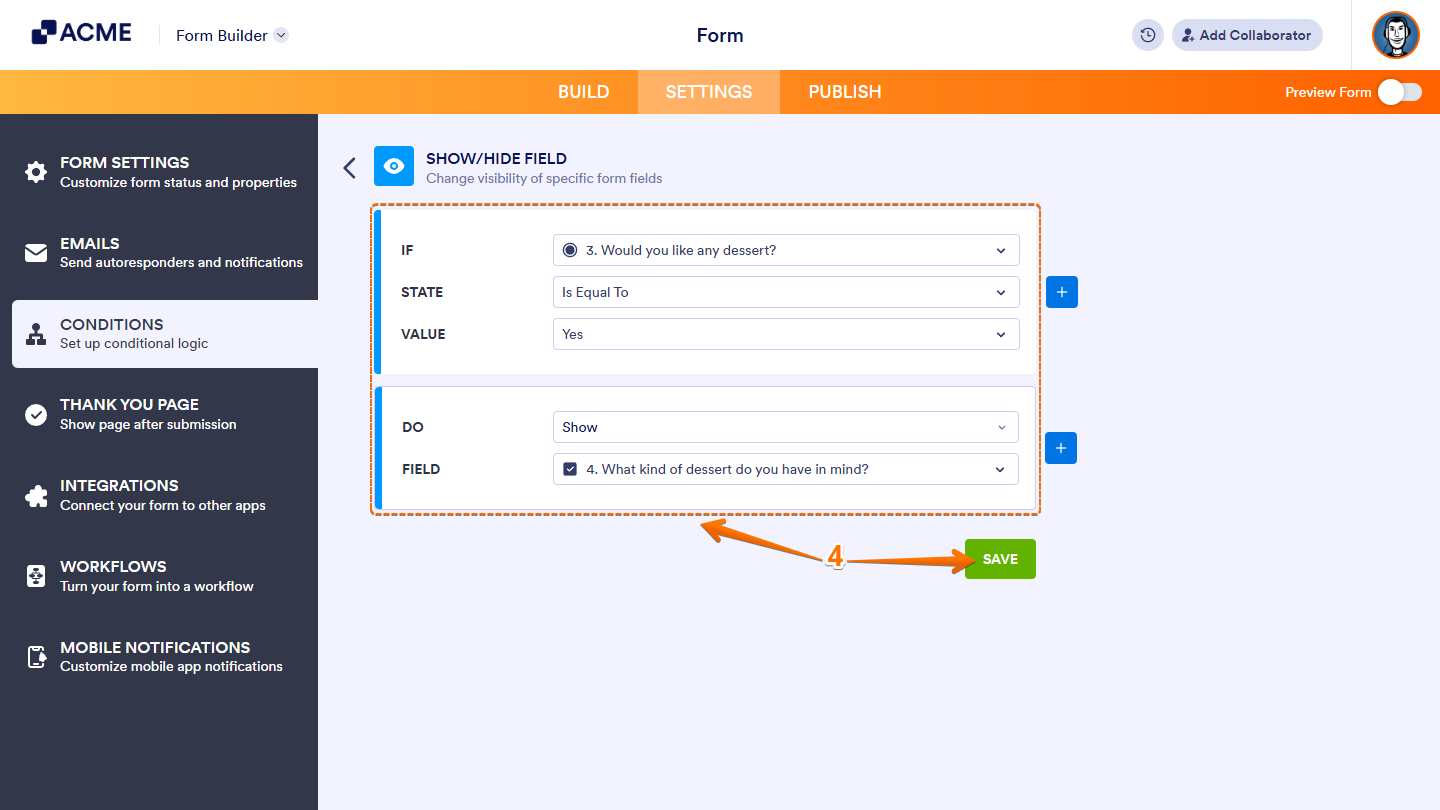
In the example form, the conditional logic is as follows:
- IF: Would you like any dessert?
- STATE: Is Equal To
- VALUE: Yes
- DO: Show
- FIELD: What kind of dessert do you have in mind?
That’s it! Once your conditions are set, your form will automatically show or hide fields based on your users’ answers. You’re all set! .

Send Comment: