With Conditional Logic, respondents can be redirected to different pages depending on their answers, making the experience feel more relevant and helpful for each person. This allows you to send users to a confirmation page, a scheduling link, a downloadable file, or another form that matches what they selected. It’s especially useful for order forms, surveys, registrations, and other workflows where people may need different next steps. By guiding respondents to the most appropriate page, you can keep the process clear and create a smoother, more seamless experience for them.
Adding conditional logic to send respondents to different pages based on their answers is simple. Here’s how to set it up:
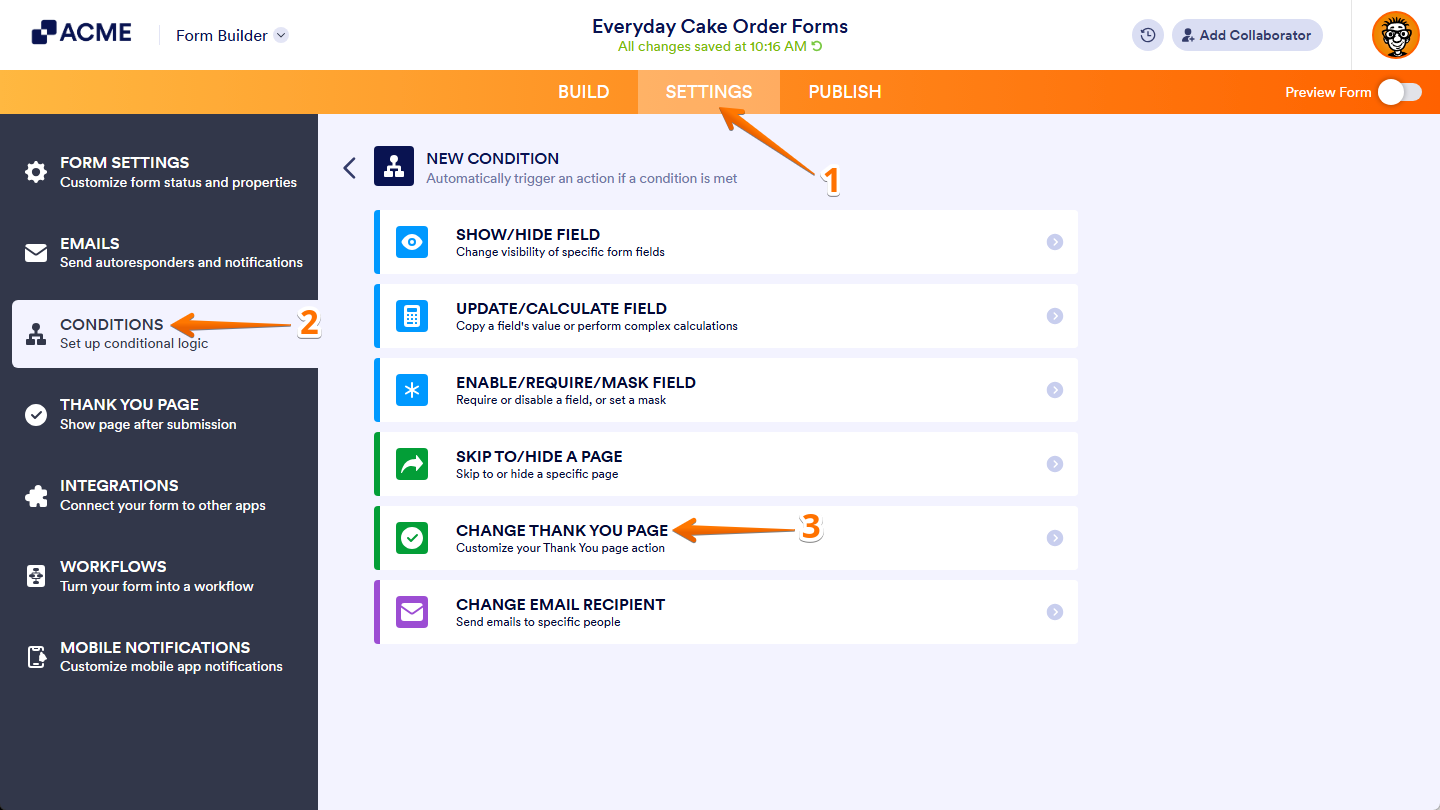
- In Form Builder, in the orange navigation bar at the top of the page, click on Settings.
- Then, in the menu on the left side of the page, click on Conditions.
- Now, in the New Condition section on the right, click on Change Thank You Page.
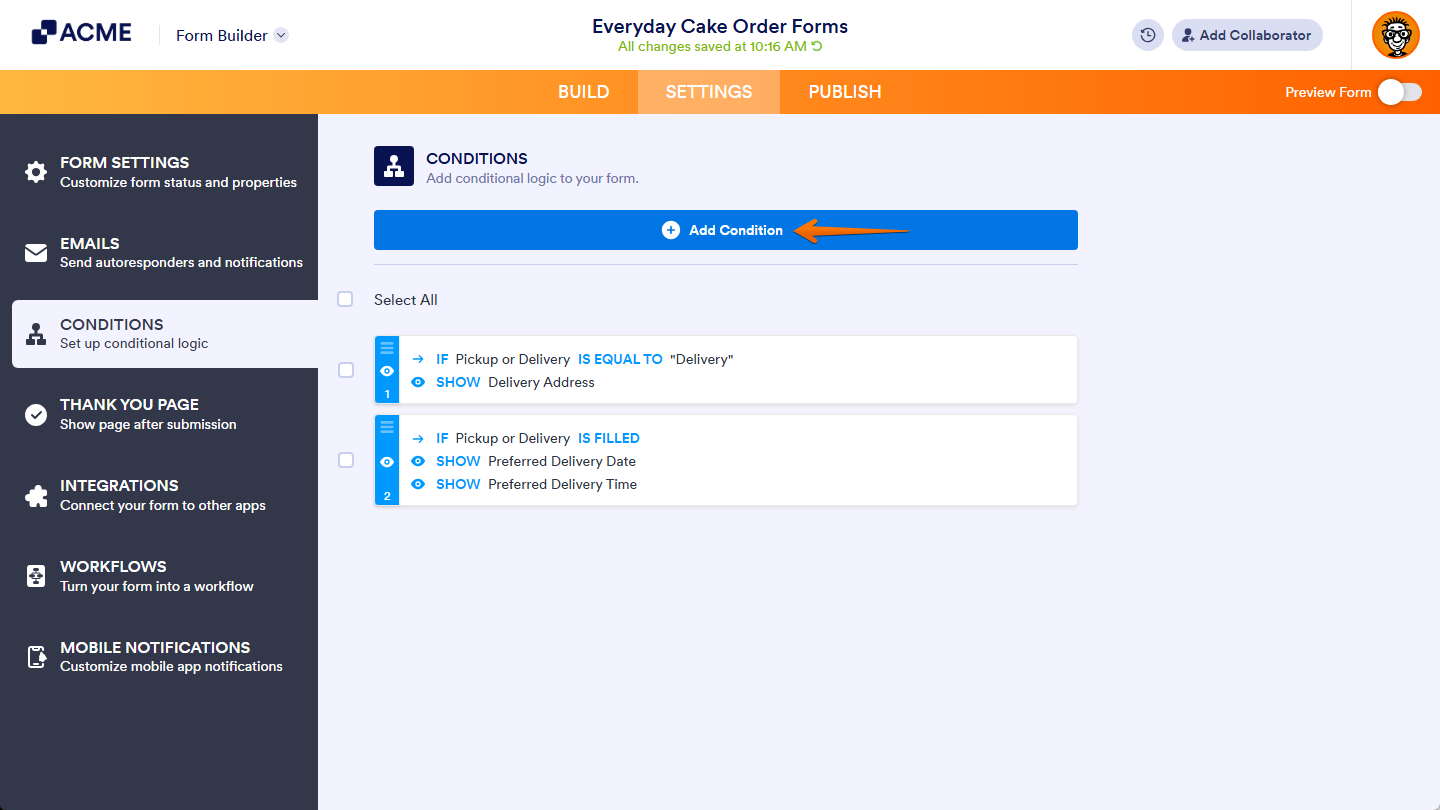
If there is already a conditional logic created for your form before, click on the Add Condition button at the top of the Conditions section first.
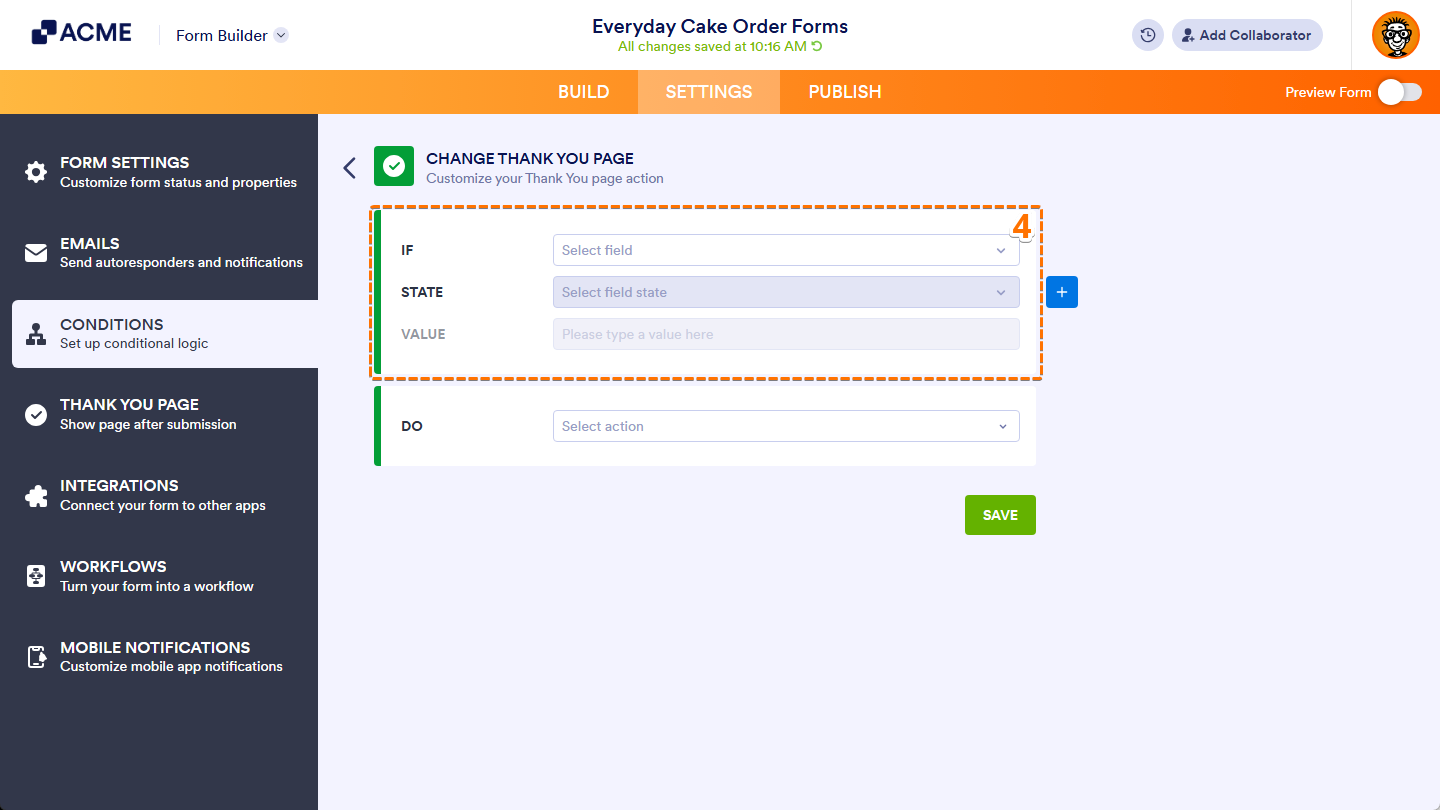
- In the Change Thank You Page section, configure these fields to set an If rule for your condition:
- IF — Select a supported form field whose value or status will determine when the condition triggers.
- STATE — Select the status that the condition should check for in the field you chose.
- TARGET — This appears when the selected status is neither Is Empty nor Is Filled. Select whether you want to compare the value or selection of the field you chose to a specified value or to the value of another field.
- VALUE — This appears when Value is selected as the target. Enter a specific text that the selected field’s value will be compared to.
- FIELD — This appears when Field is selected as the target. Choose the field whose value will be compared to the field you selected in the If Dropdown menu.
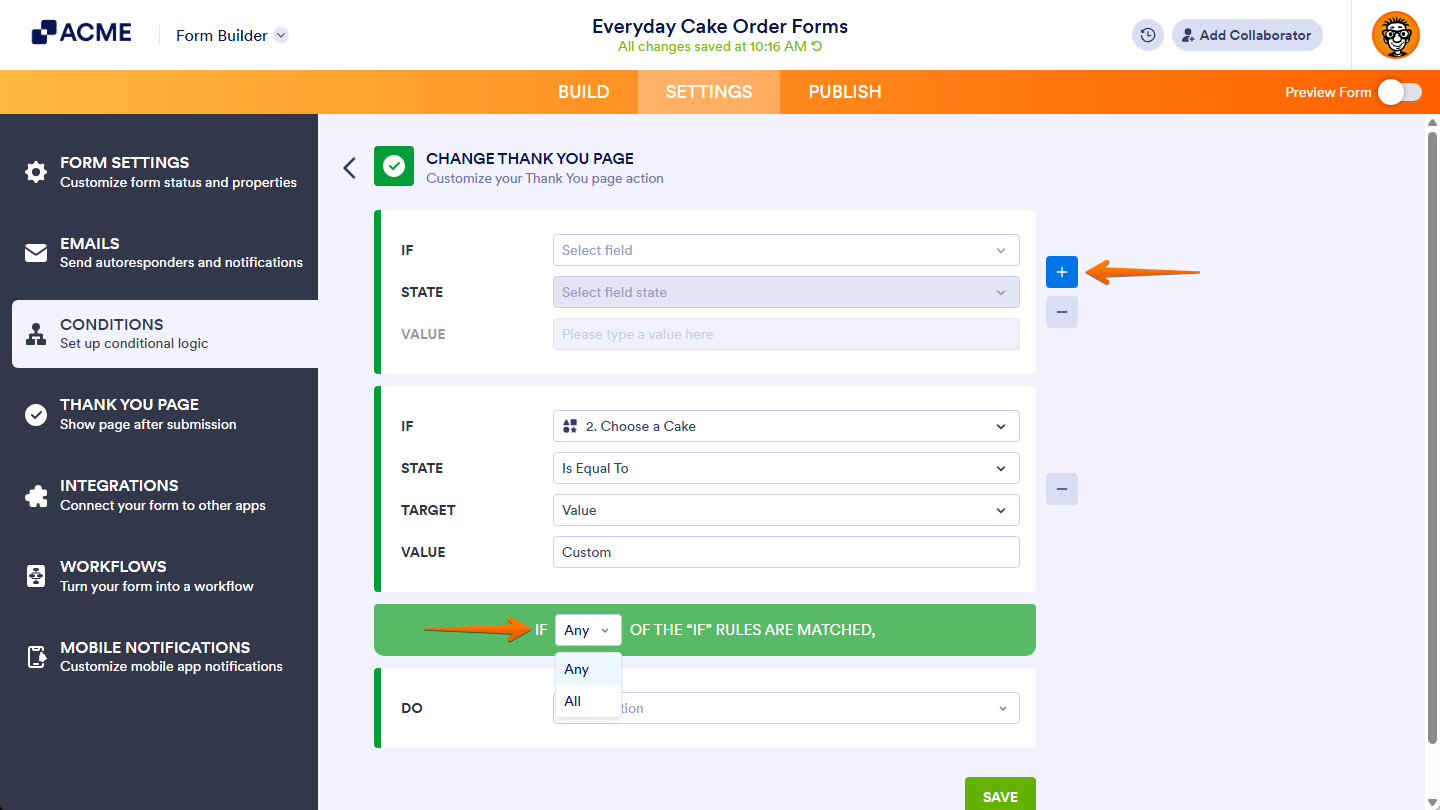
If you want to set another If rule for your condition, click on the Plus icon on the right side of the If Rule section, then, in the Any/All dropdown that appears below it, select Any if at least one rule should be met, or All if every rule should be met to trigger the condition.
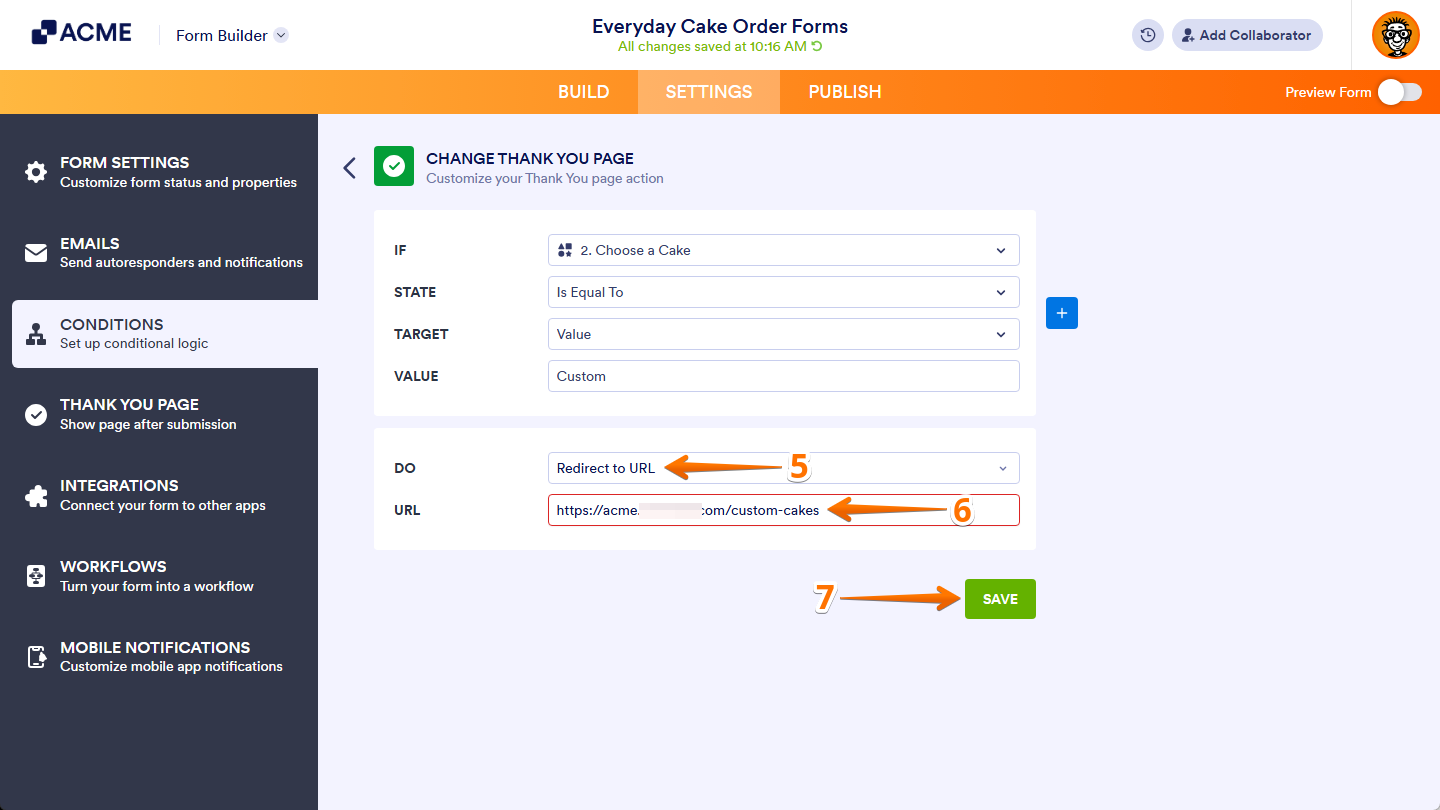
- Next, click on the Do Dropdown menu and then select Redirect to URL.
- Now, in the URL field that appears below it, enter the web address of the page you want respondents to be redirected to.
- Once everything is set, click on Save.
That’s it. Your form will now redirect respondents to the right page based on their answers. If you want to show a customized Thank You message based on respondents’ answers when the form is submitted, check out our guide on How to Change Your Thank You Message Conditionally.

Send Comment: