You can easily perform calculations within an Input Table to automatically total values, average scores, or create dynamic results based on user responses. This feature is perfect for order forms, quizzes, budgets, and evaluations, helping you save time and reduce manual calculations.
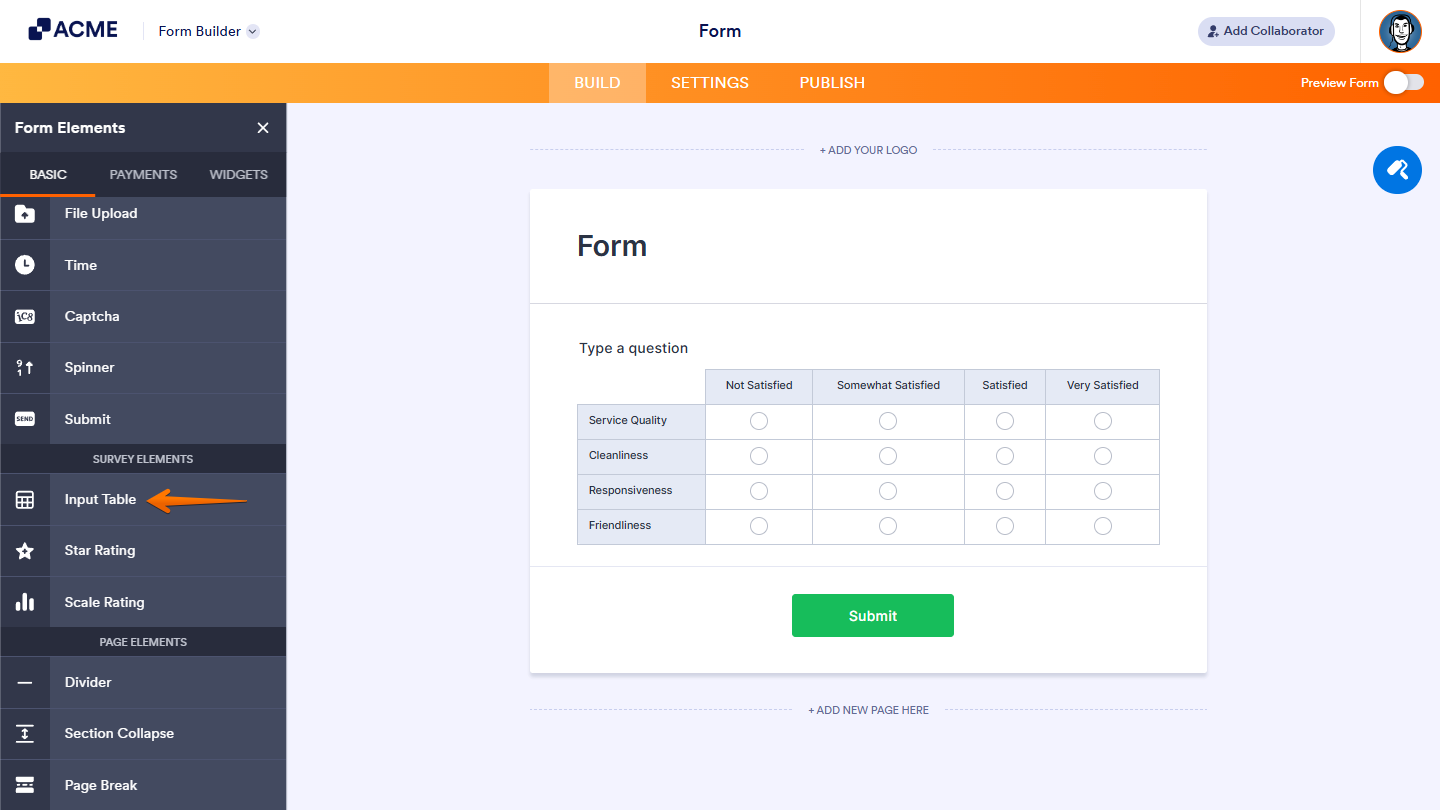
Calculations can be easily performed on your Input Table. Here’s how it’s done:
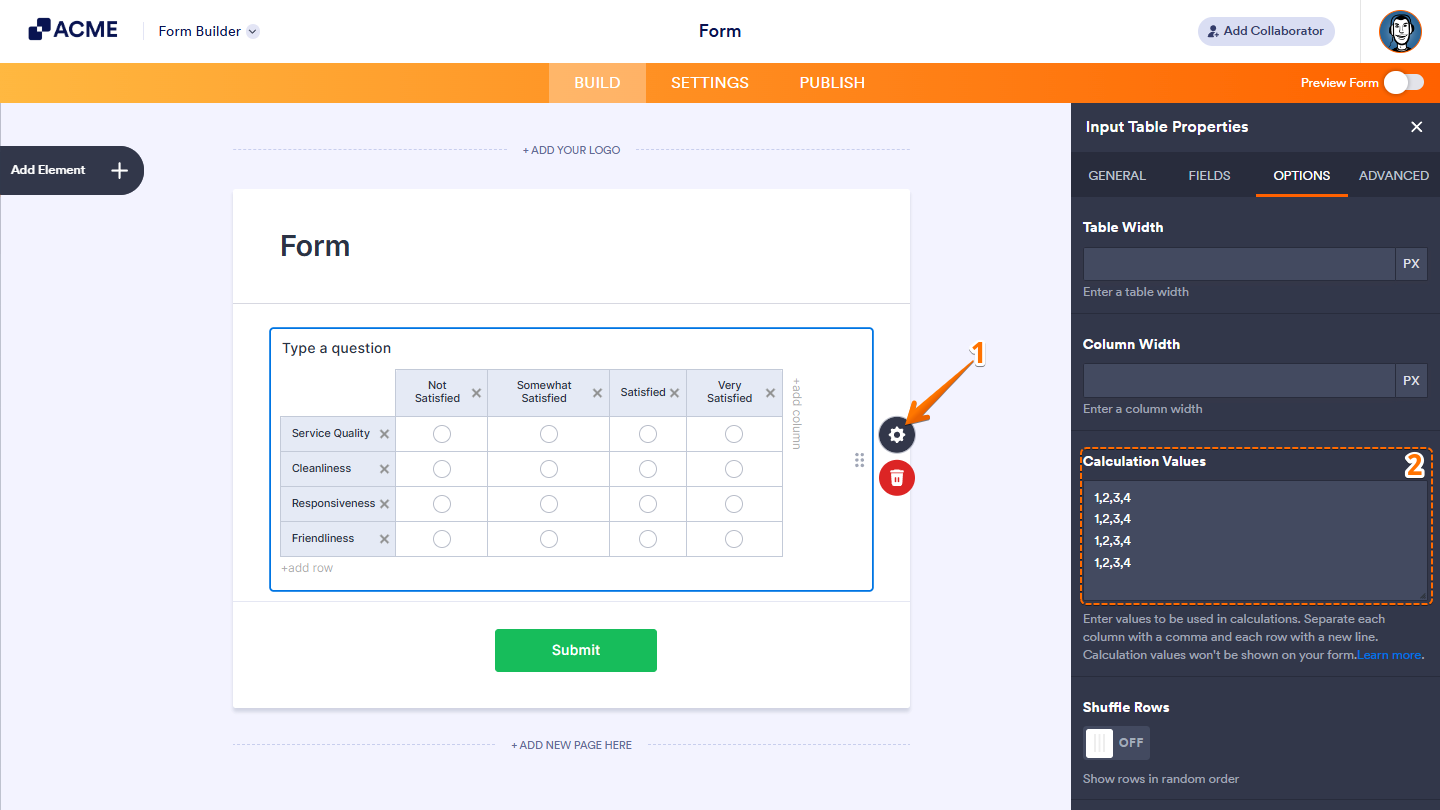
- In Form Builder, select your Input Table and click on Gear icon.
- Then, in the Input Table window that opens on the right, under the Options tab, enter your values in the Calculation Values field. Separate the values with commas for columns and break lines for rows.
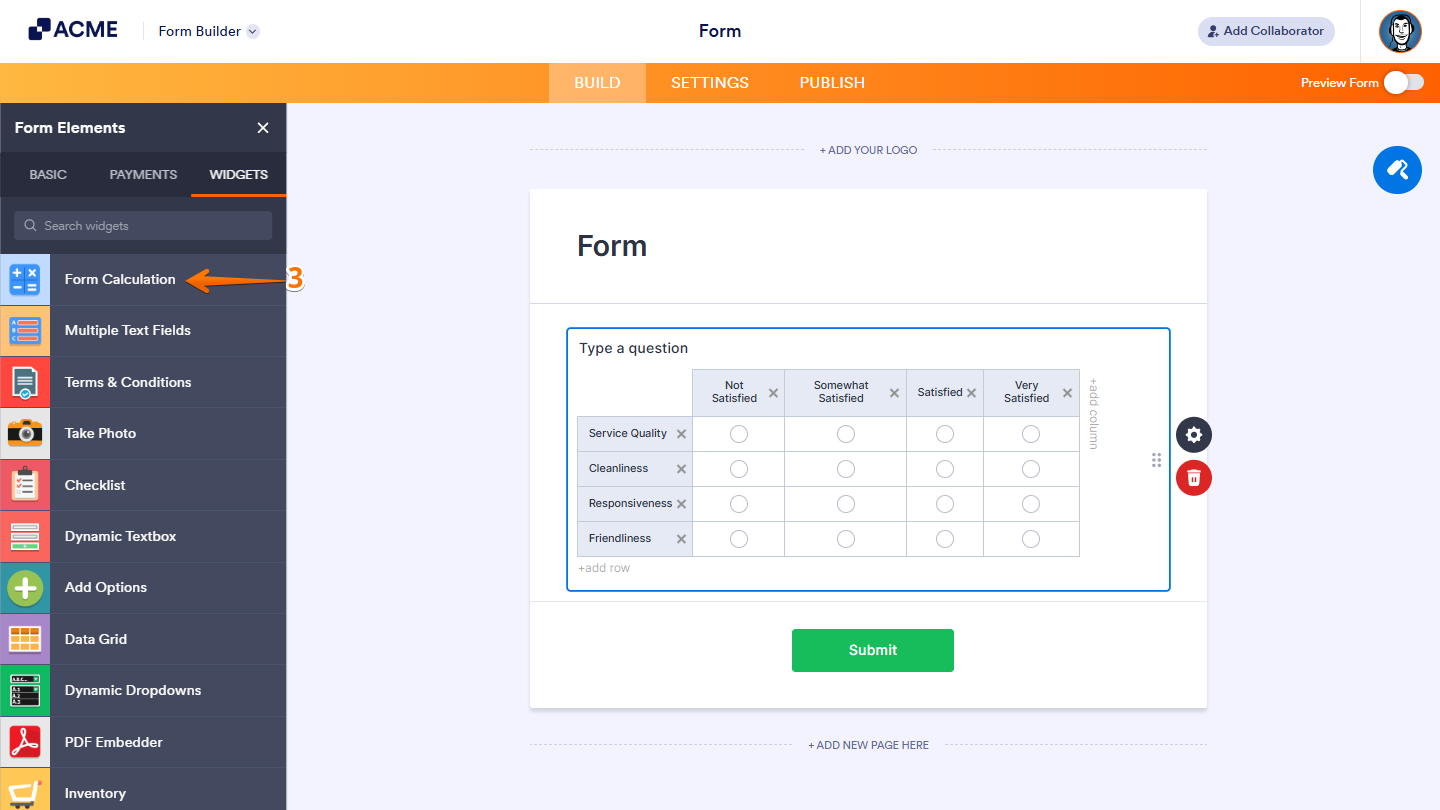
- Next, to perform the calculations, add a Form Calculation widget to your form.
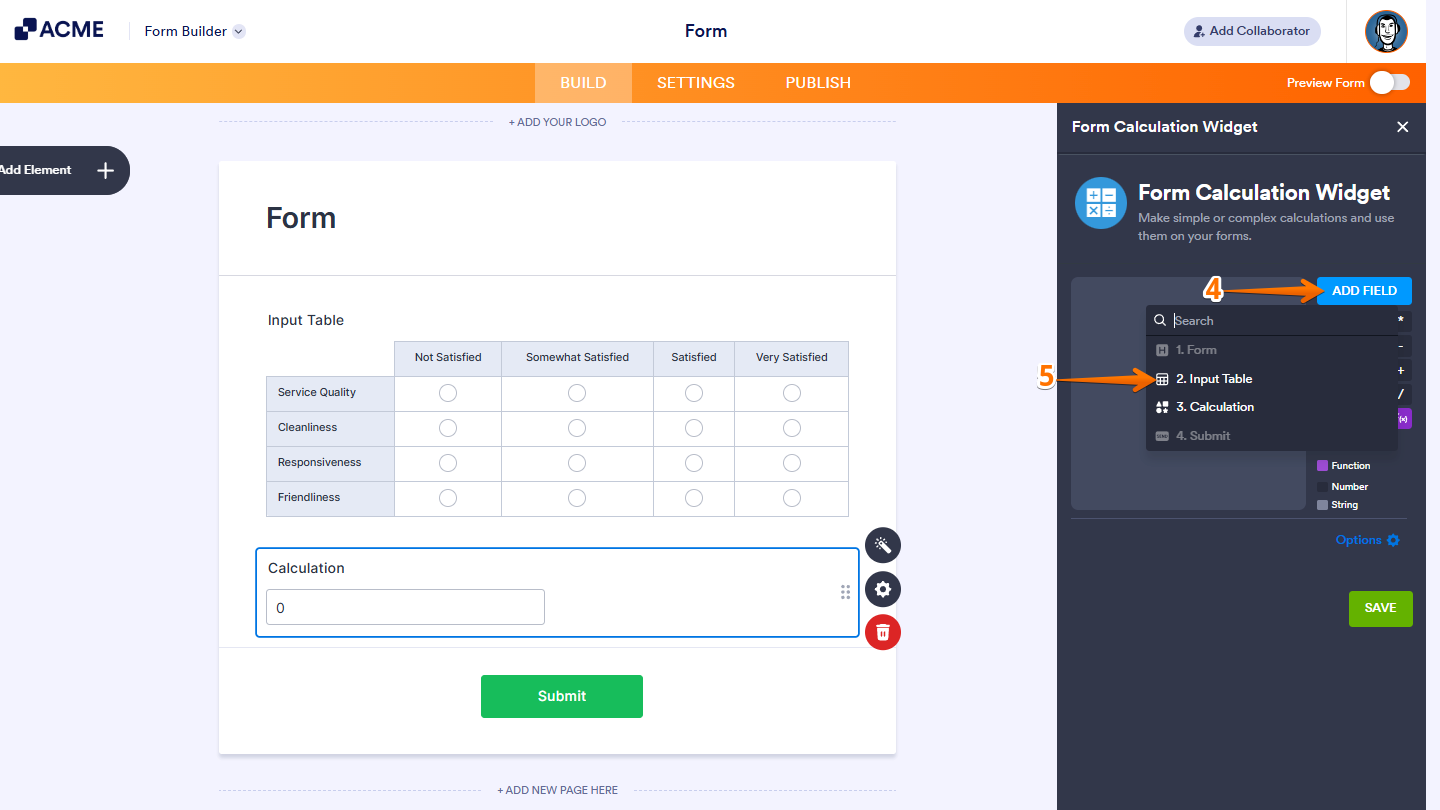
- Now, in the Form Calculation Widget window that opens on the right side of the page, click on Add field.
- Then, in the Dropdown menu that opens, select Input Table.
- Next, put a check to your Matrix Sub-Fields to use in your calculations.
- Then, click on Done.
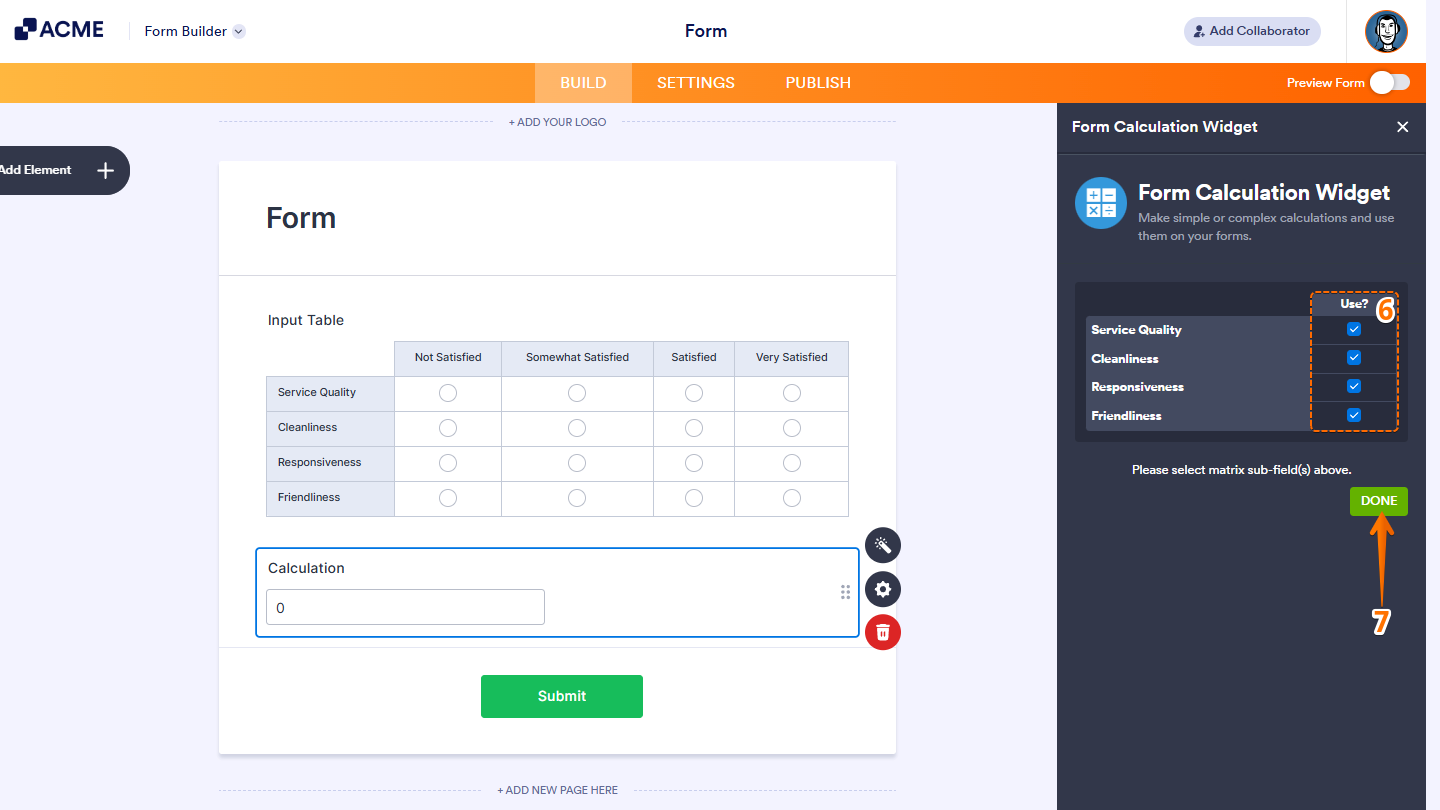
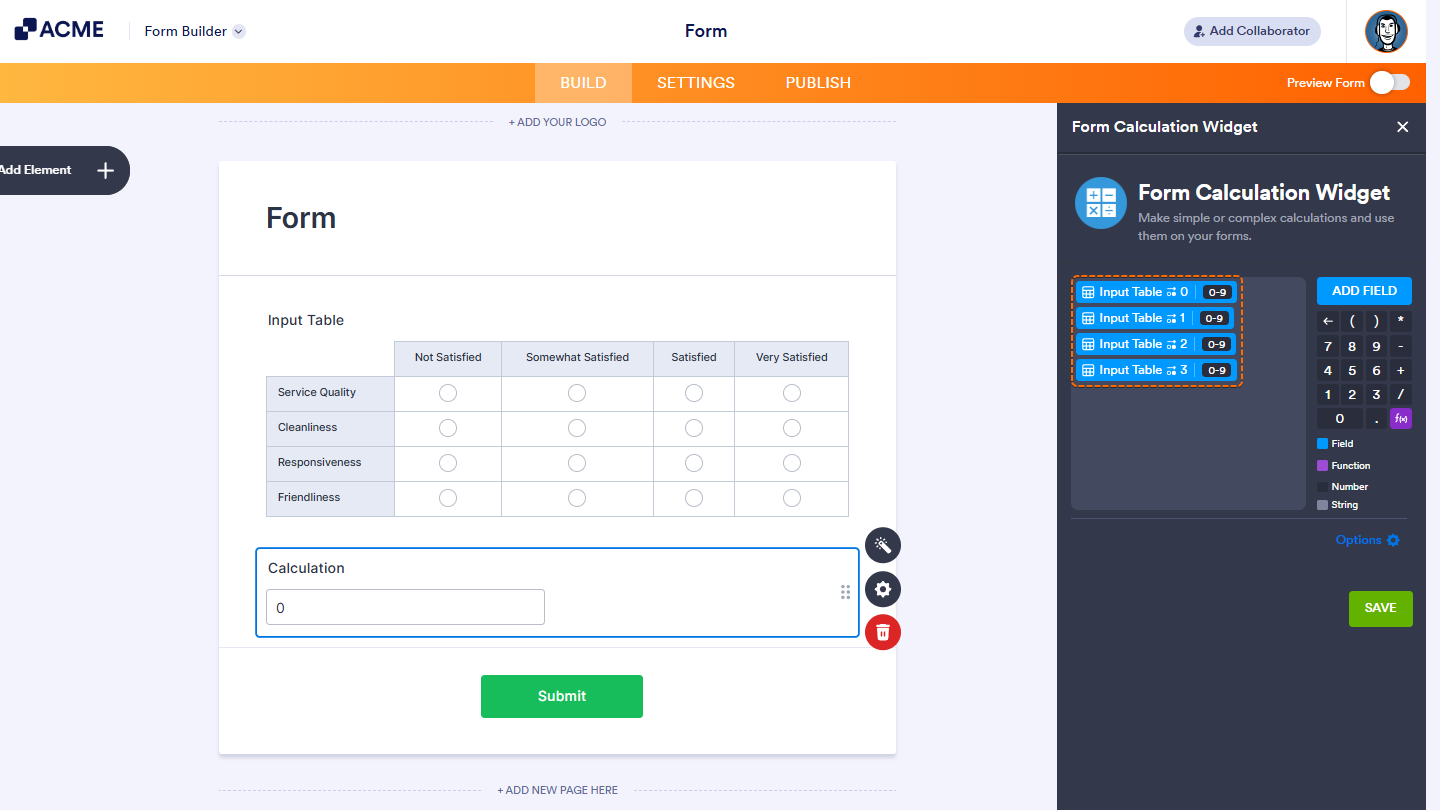
This will add the sub-fields in the calculation editor without operators. Sub-fields are either the rows or cells in your table, depending on the input type.
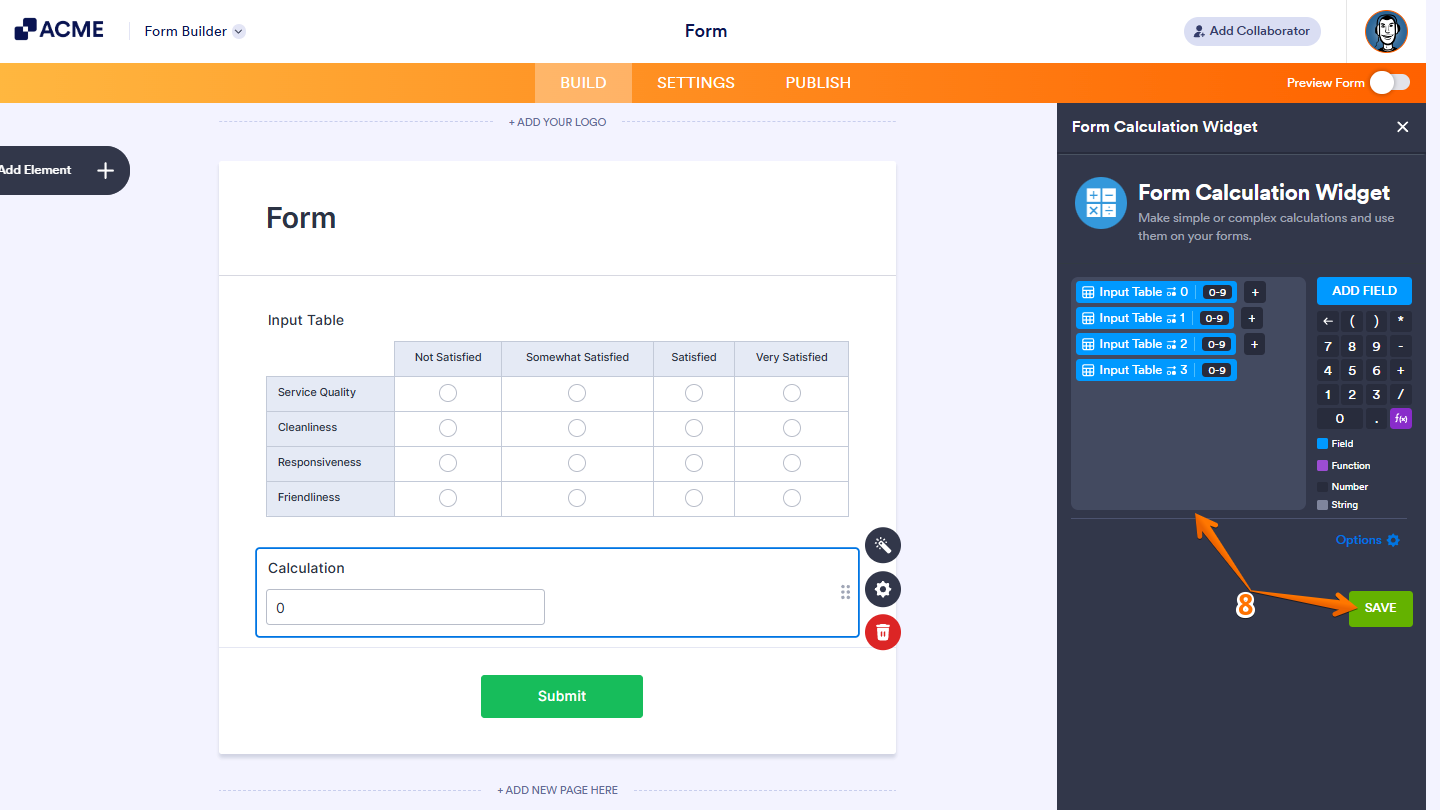
- Add the necessary elements to the Formula Editor based on what you want the widget to calculate, then click on Save, and you’re all set.

Send Comment: