In this guide, you’ll learn how to use conditional logic to skip pages based on a user’s form field input.
This allows your form to jump to a specific page depending on the dropdown option selected. Follow the steps below to set it up:
- Add a Dropdown element to your form.
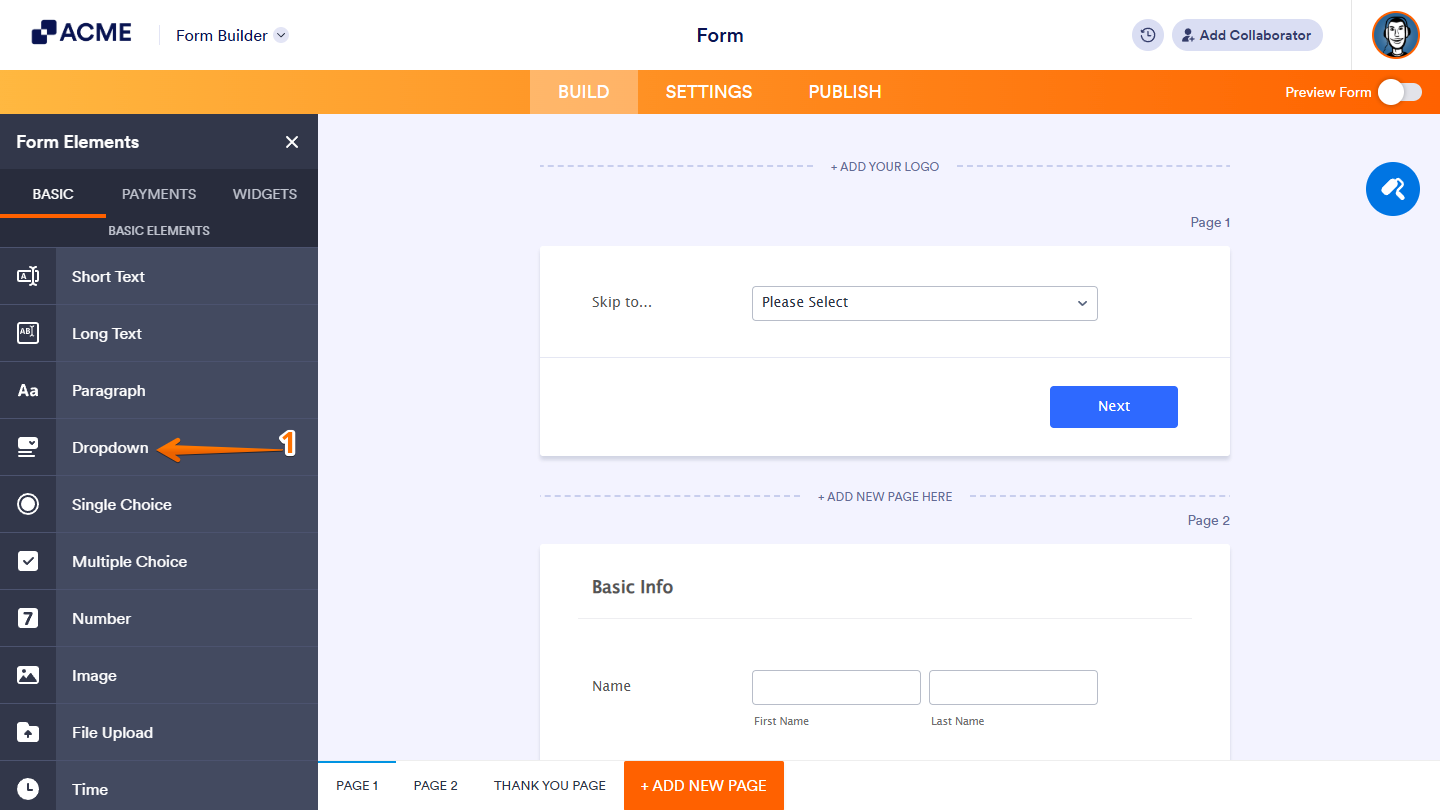
This will be used as the basis for the skipping of pages. You can also use other form elements like Single Choice or Short Text depending on how your form works.
- Make your form multi-page by adding page breaks.
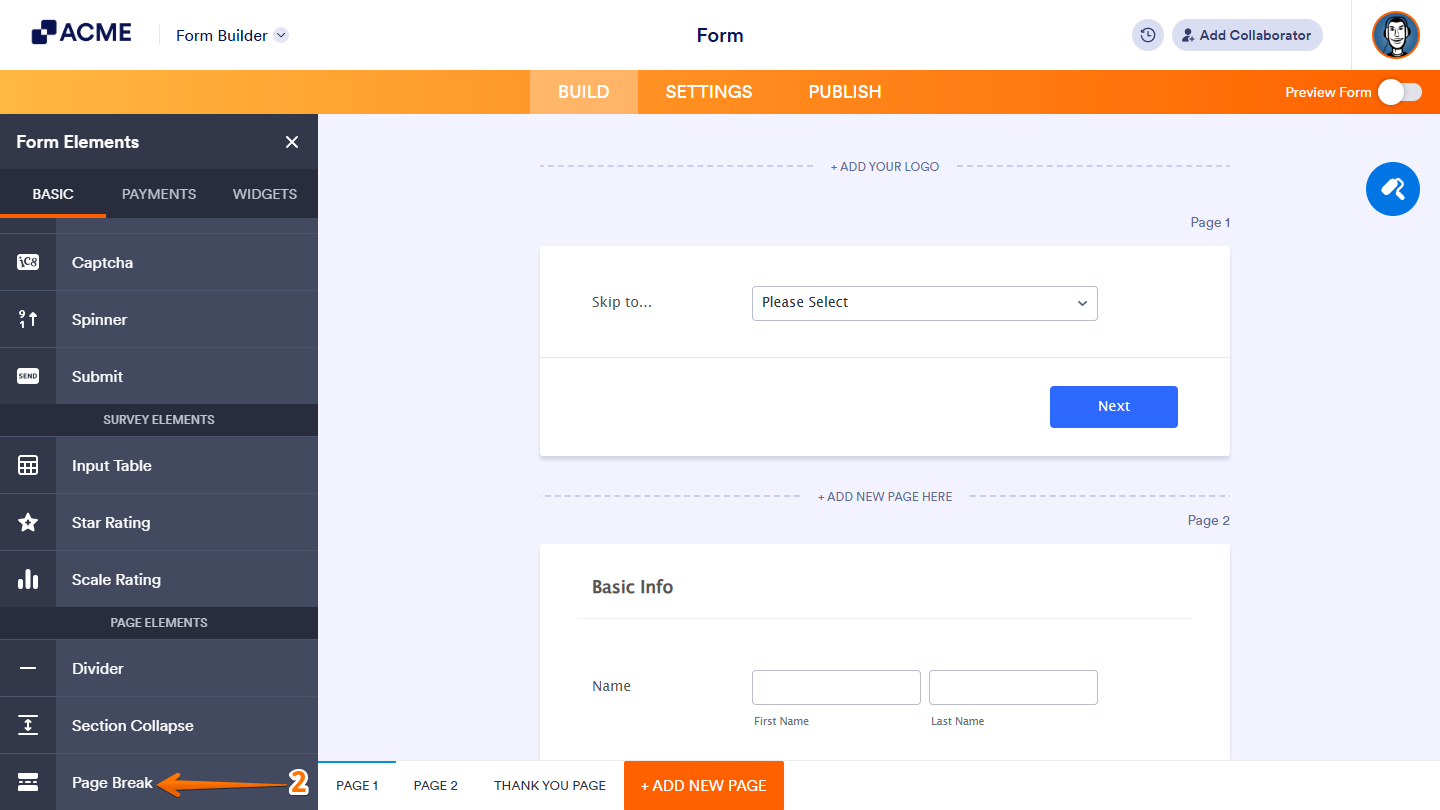
The next step is to set up the Conditional Logic.
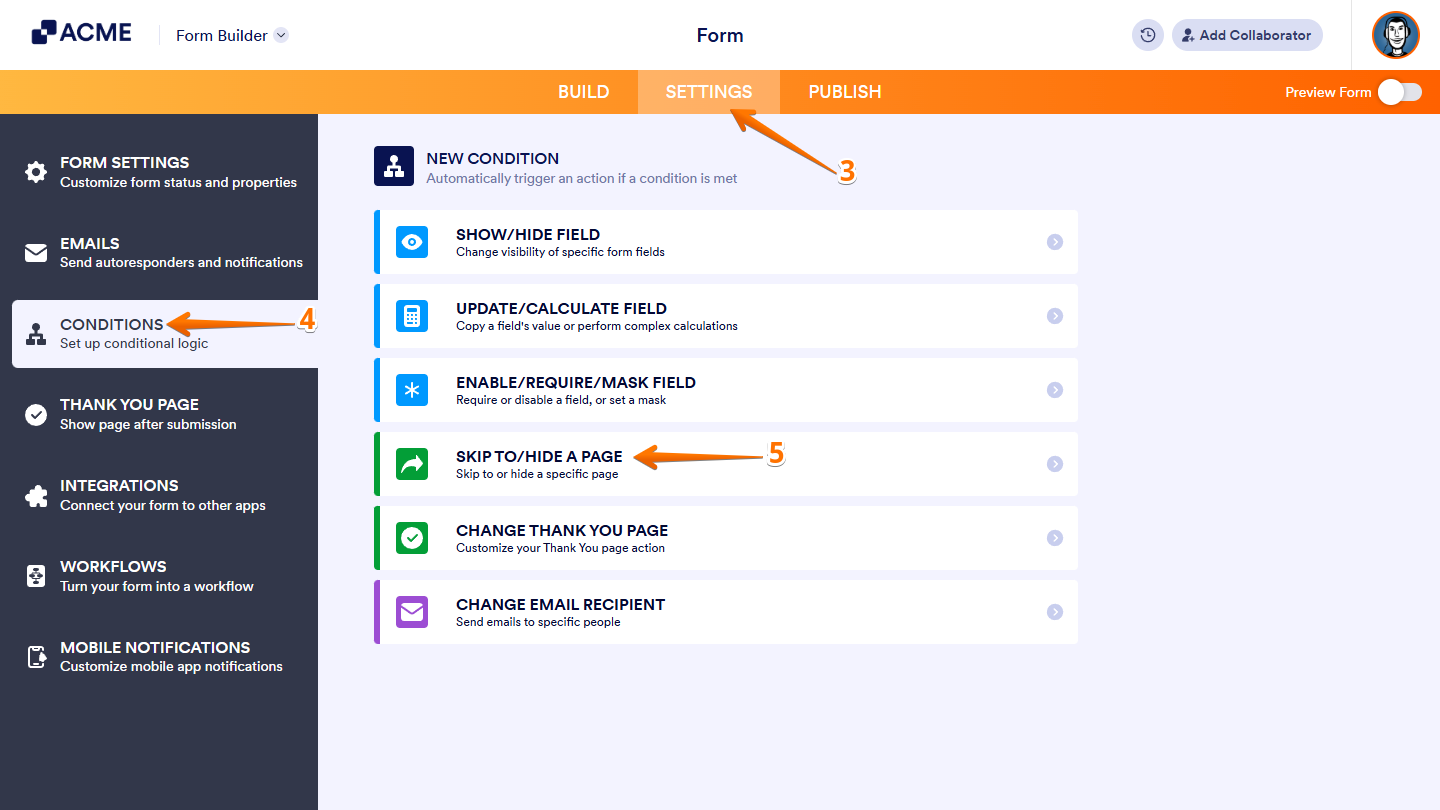
- In Form Builder, in the orange navigation bar at the top of the page, click on Settings.
- Next, click on Conditions on the left side of the page.
- Now, click on Skip To/Hide a Page to create your condition.
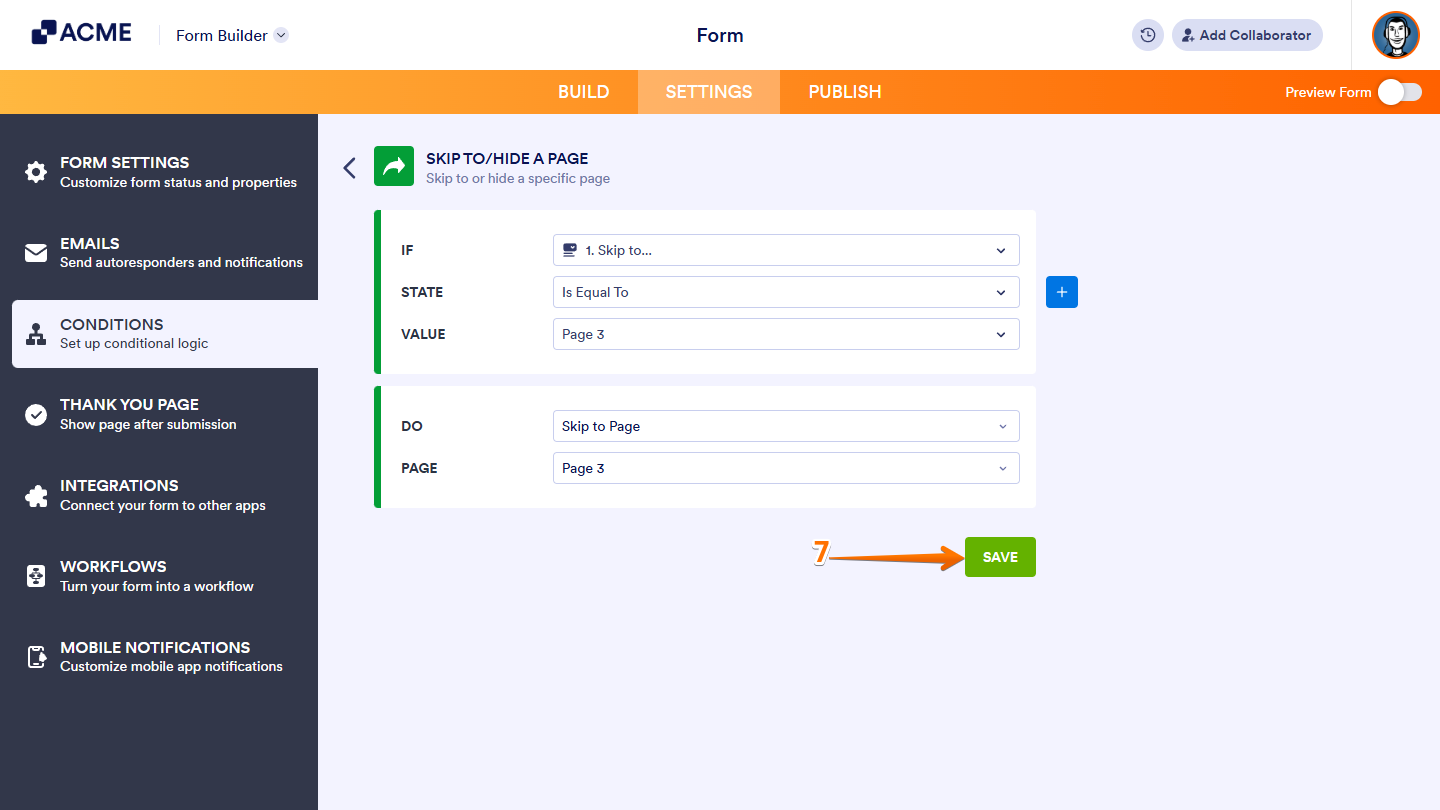
- Set up the condition and action in the next window. In our example, the Conditional Logic would be as follows:
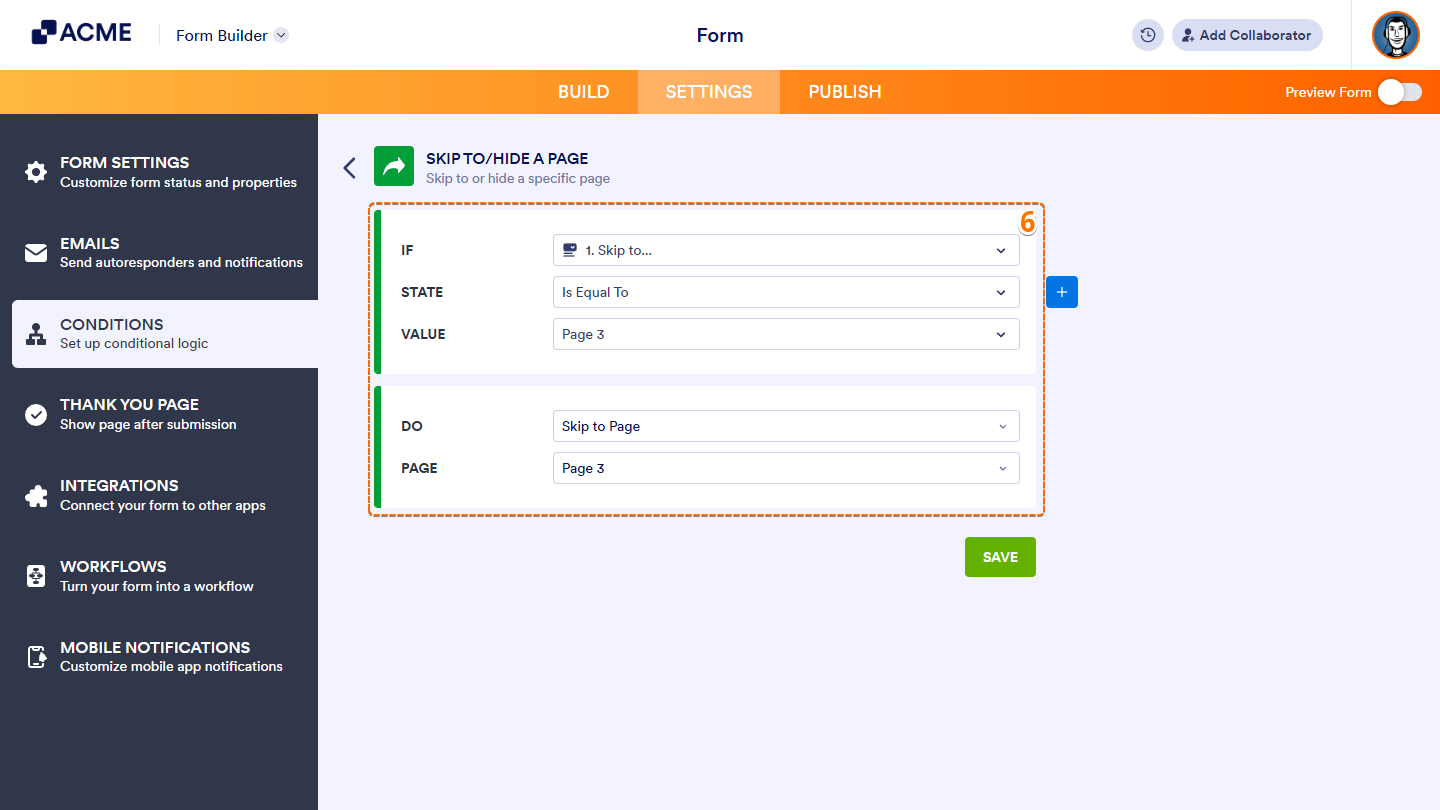
To break that down:
- We’ve set the condition or IF statement to check the value of the “Skip to…” dropdown.
- The action or DO statement will skip to the corresponding page if the condition is met.
- Finally, click on Save and you’re done.
Now, repeat the same steps for the other pages, depending on how you want your interactive form to work and that’s it!

Send Comment: