With Simple Mail Transfer Protocol (SMTP), you can send emails from your forms using a custom sender email. Gmail is an excellent option, as it uses OAuth 2.0, a trusted industry-standard protocol for secure authorization. With Gmail’s SMTP and OAuth 2.0, you can send emails from your forms while maintaining the safety of your account credentials.
Note: While this guide focuses on using a free Gmail account, this also applies to Google Workspace accounts. You only need to authorize the platform to send on your behalf through OAuth 2.0 authentication.
Adding Gmail as your custom sender email is a very straightforward process. Let’s do it!
- Login to your account and navigate to the Settings page.
- Click the Add Sender Email button.
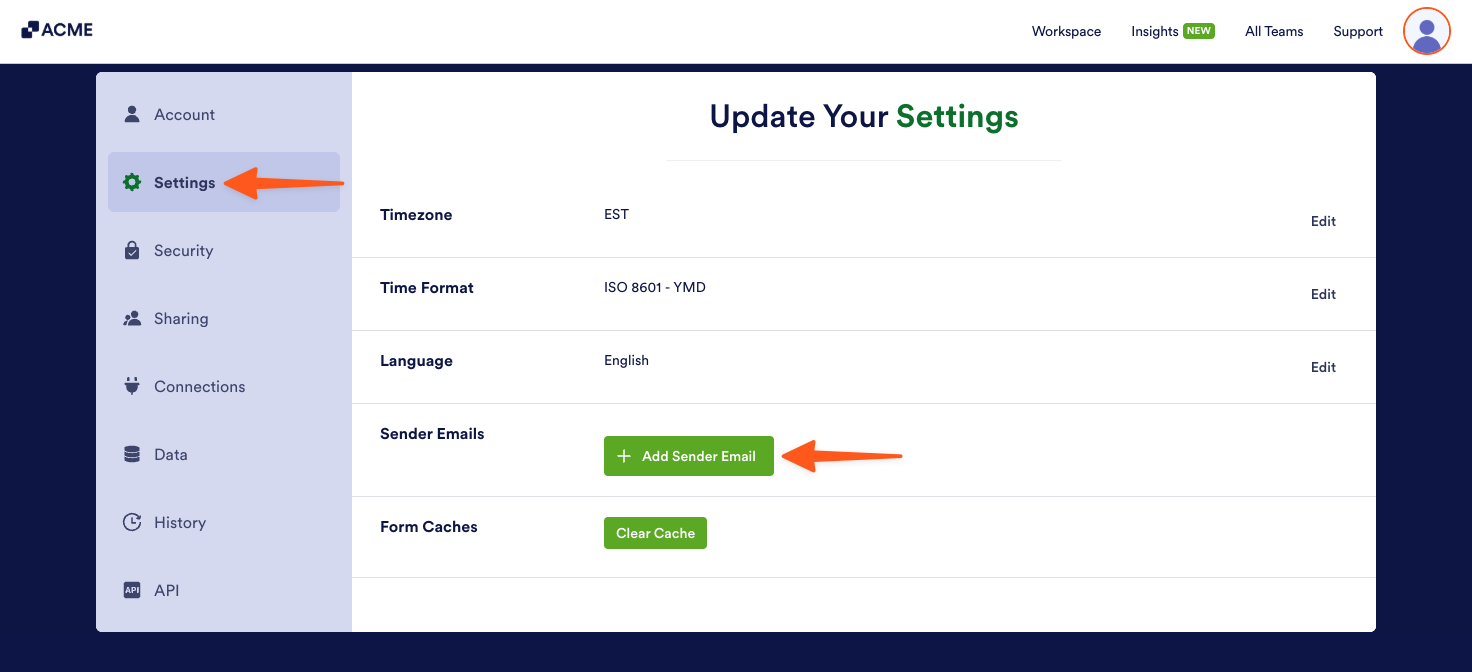
- Choose Google from the modal and click the Continue button.
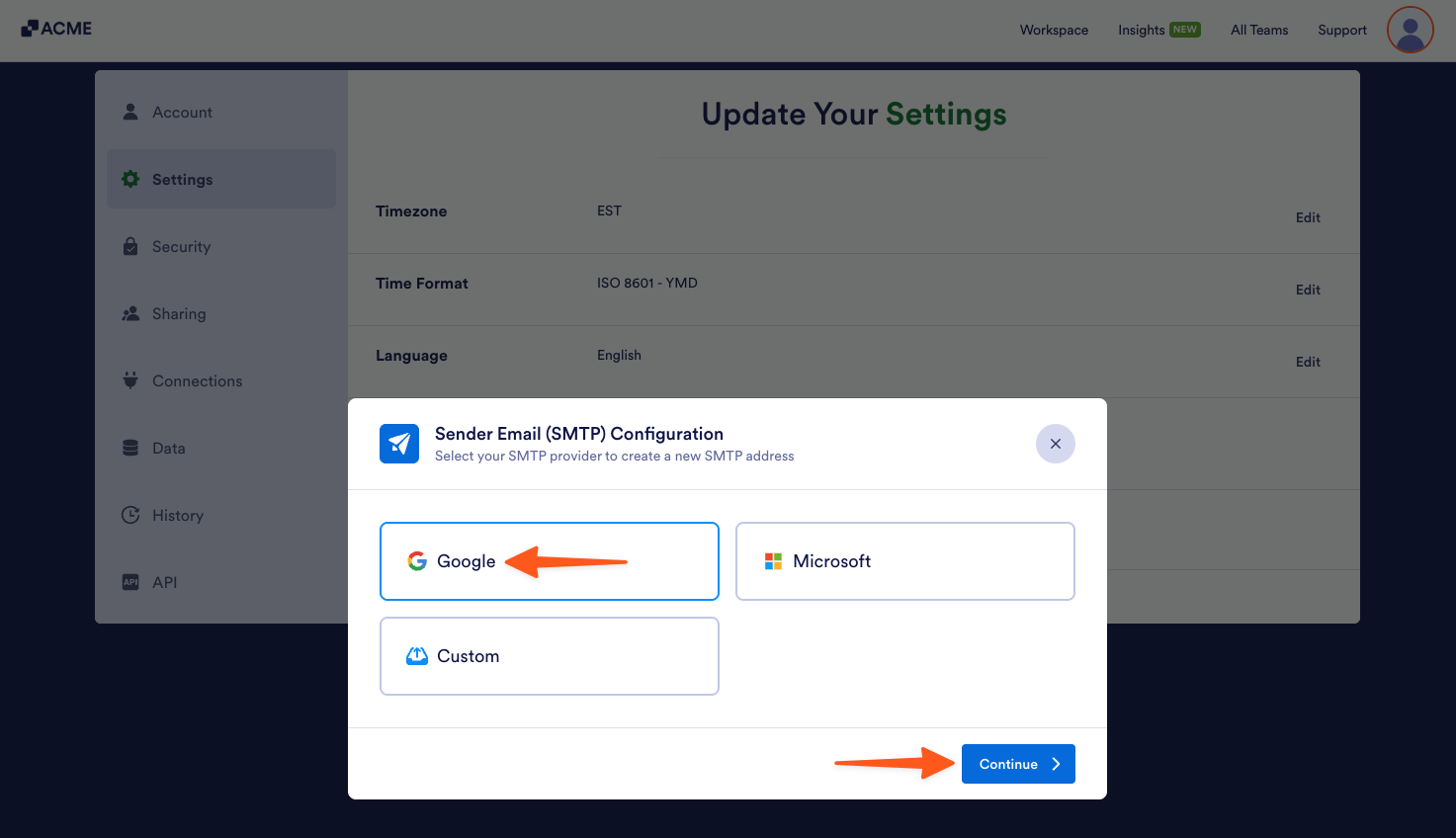
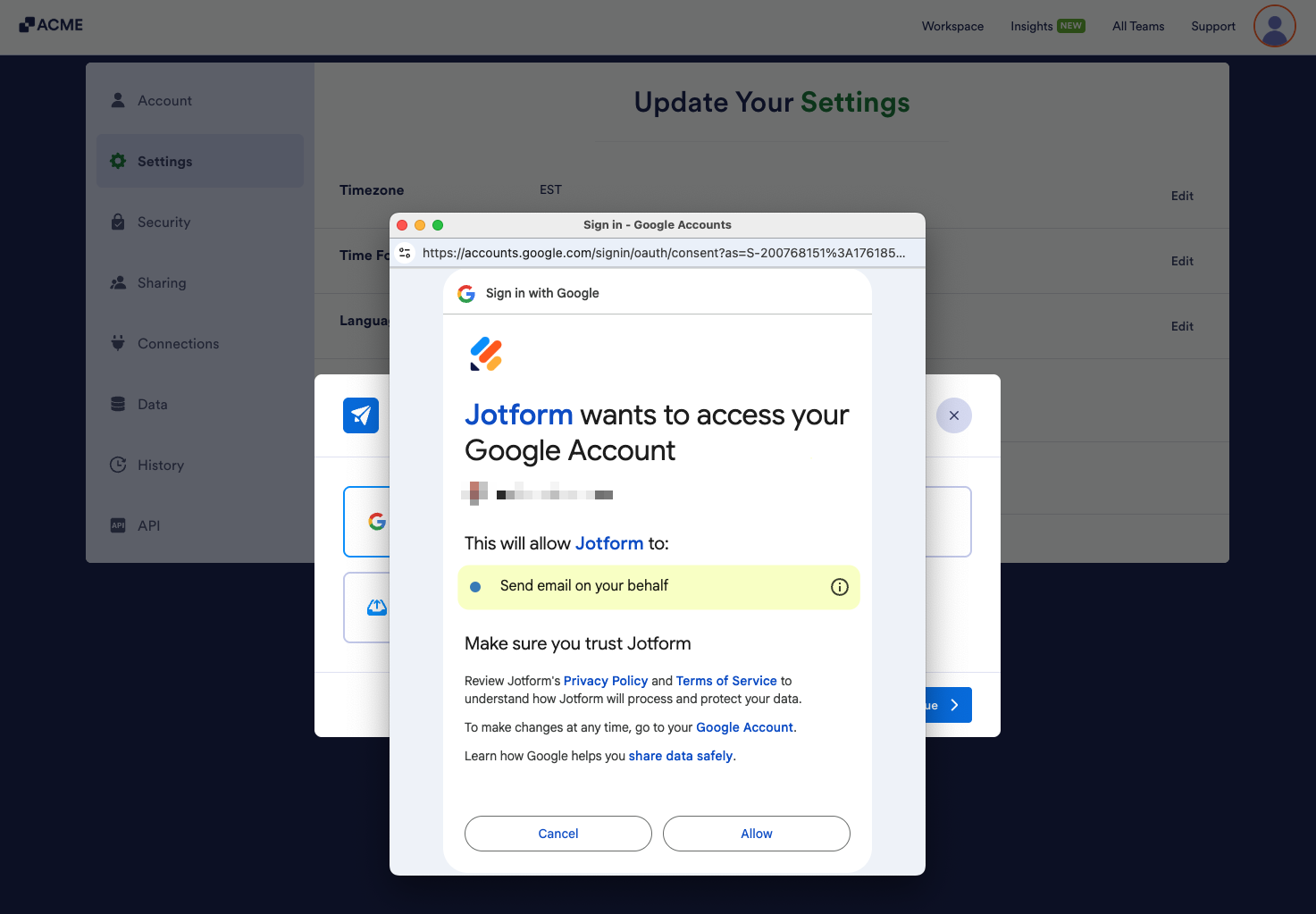
- Log in to your preferred Google/Gmail Account. This will allow the platform to send emails on your behalf automatically, as highlighted in the image below:
- After granting the permissions, your SMTP will be ready. You can make a test by clicking the Send Test Email button or Save to complete your custom sender email settings.
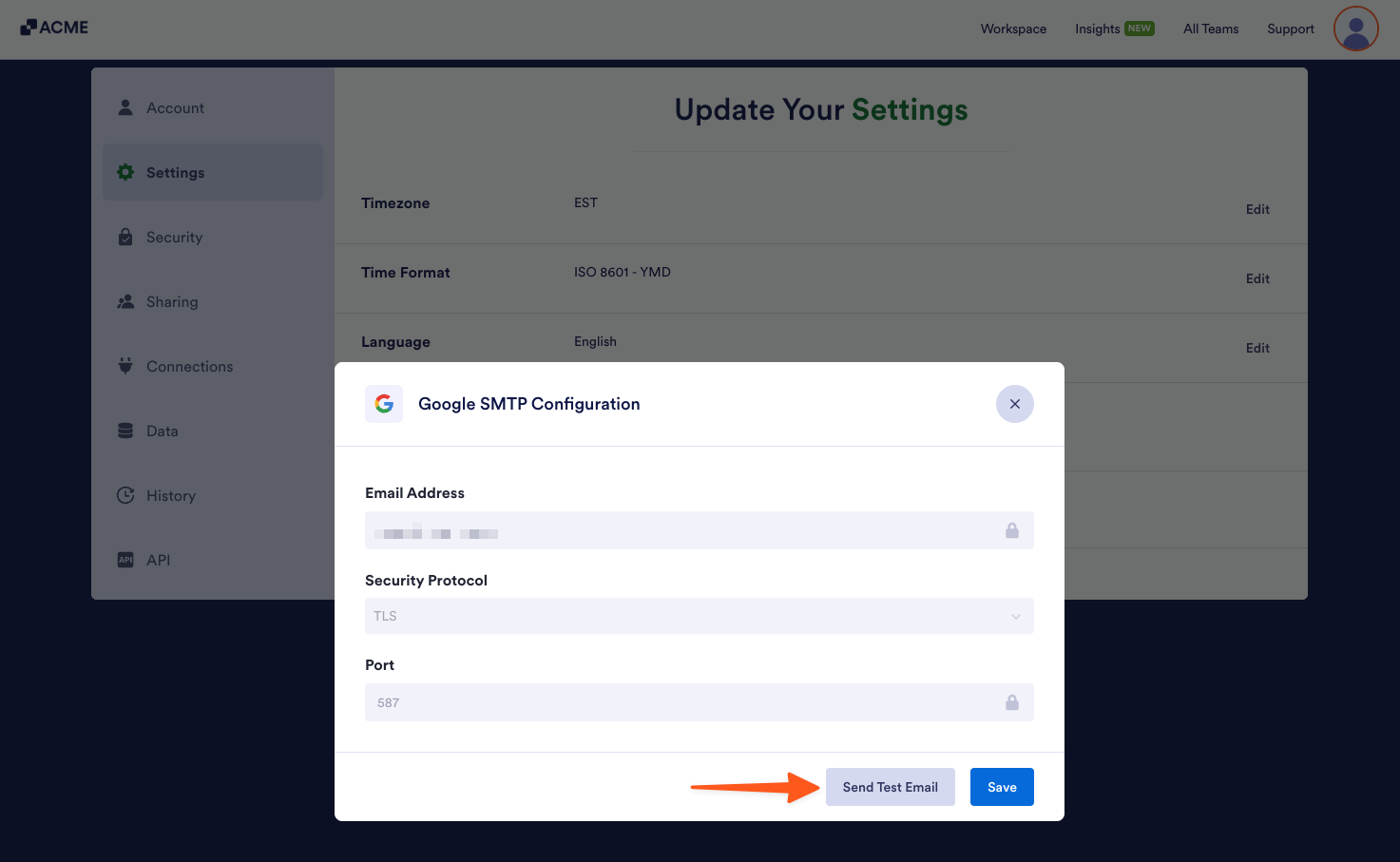
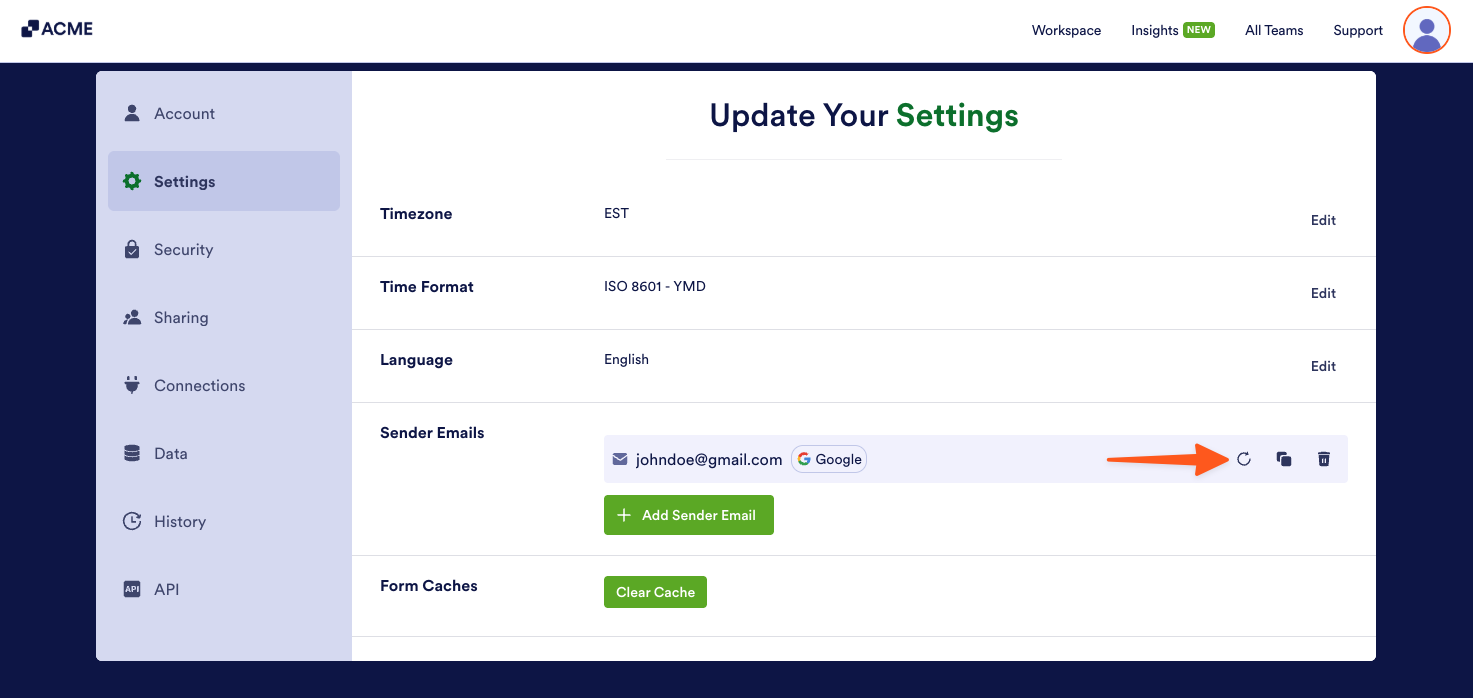
All custom senders using the OAuth 2.0 from Google are identifiable with the Google logo.
After configuring your custom sender email, remember to assign it to your Notification Email or Autoresponder.
Changing your Google password or adjusting platform permissions in your Google account will invalidate your current authentication token. To restore functionality for the custom sender email, refresh the token by clicking the Refresh icon next to the custom sender email.

Send Comment: