The Autoresponder Email is an invaluable tool on a form that allows you to send form respondents a copy of the data they submitted. And, you can also attach files when you need to. For example, if you want to send extra information in a PDF or Word file, you can just attach that in the form’s Autoresponder Email.
You can attach supported files to Email Autoresponders in a few easy steps. Here’s how to do it:
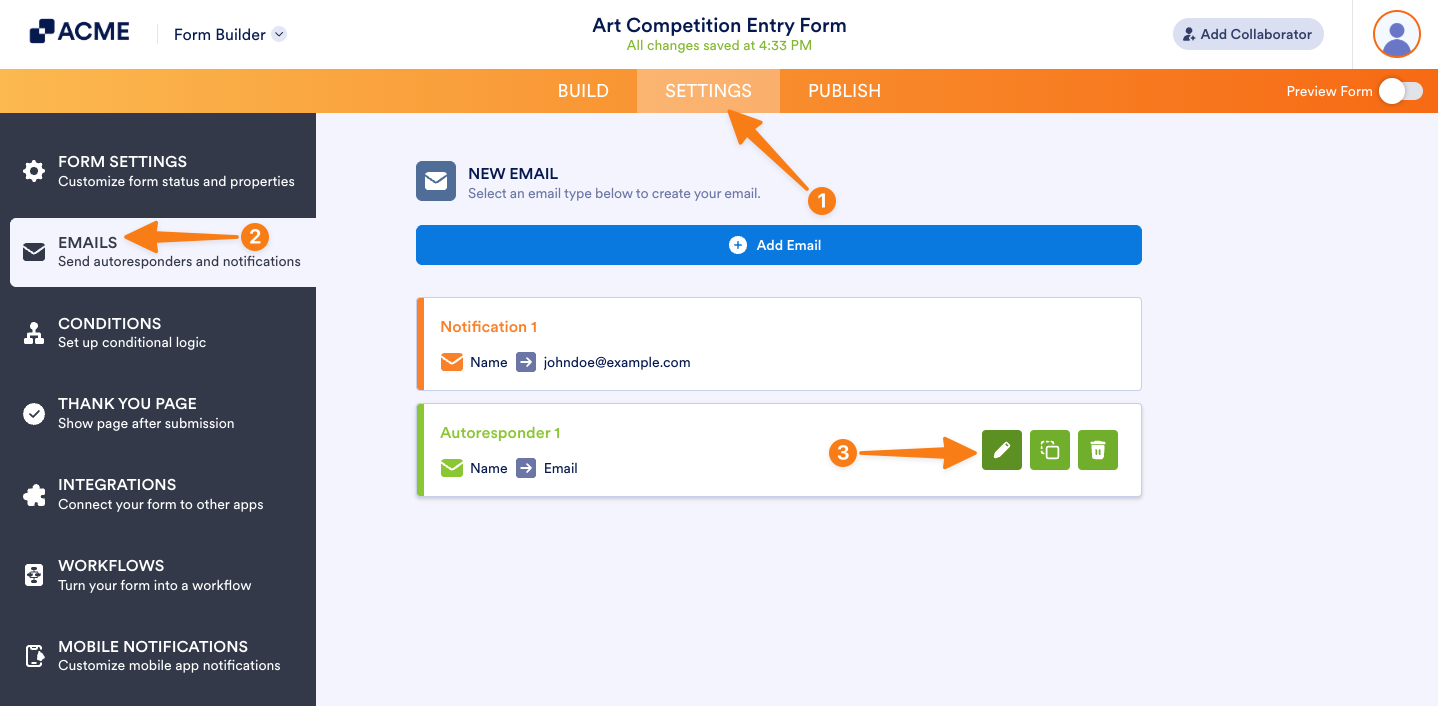
- In Form Builder, in the orange navigation bar at the top of the page, click on Settings.
- In the menu on the left, click on Emails.
- Hover your mouse over the Autoresponder Email and click on the Pencil icon.
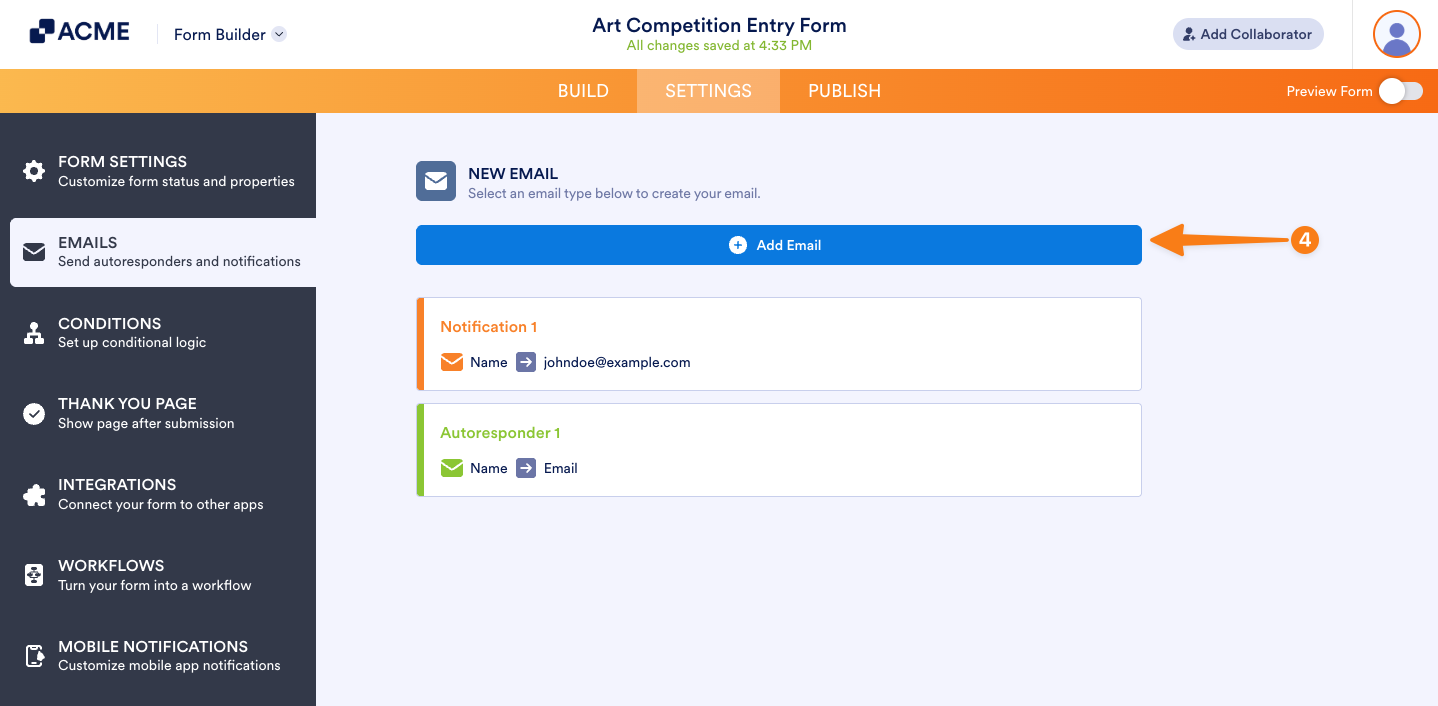
- Or, if you want to create a new Autoresponder Email and attach the file there, click on the Add Email button at the top and choose the Autoresponder Email.
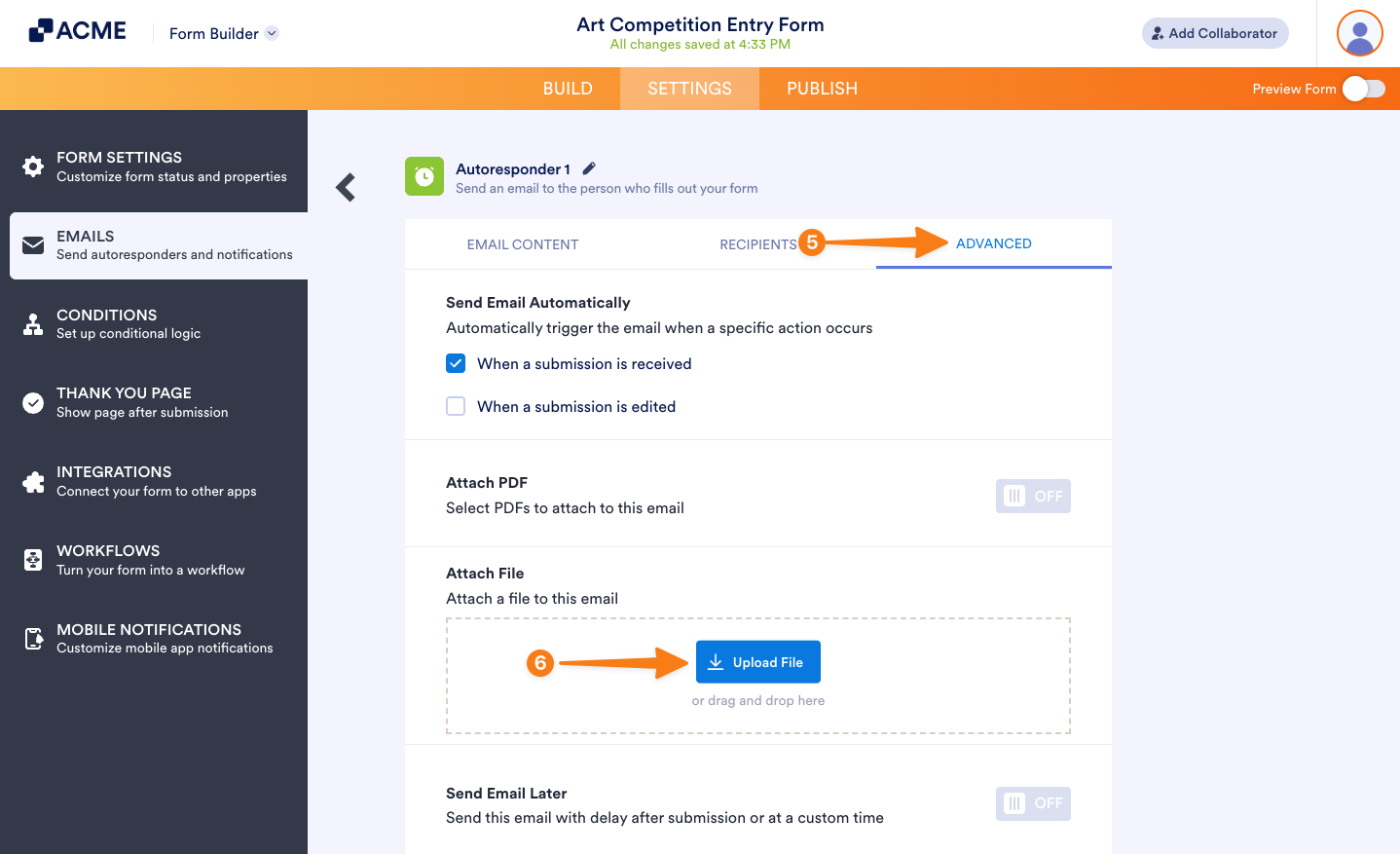
- Next, click on the Advanced tab.
- In the Attach a File section, click on Upload File to attach your file.
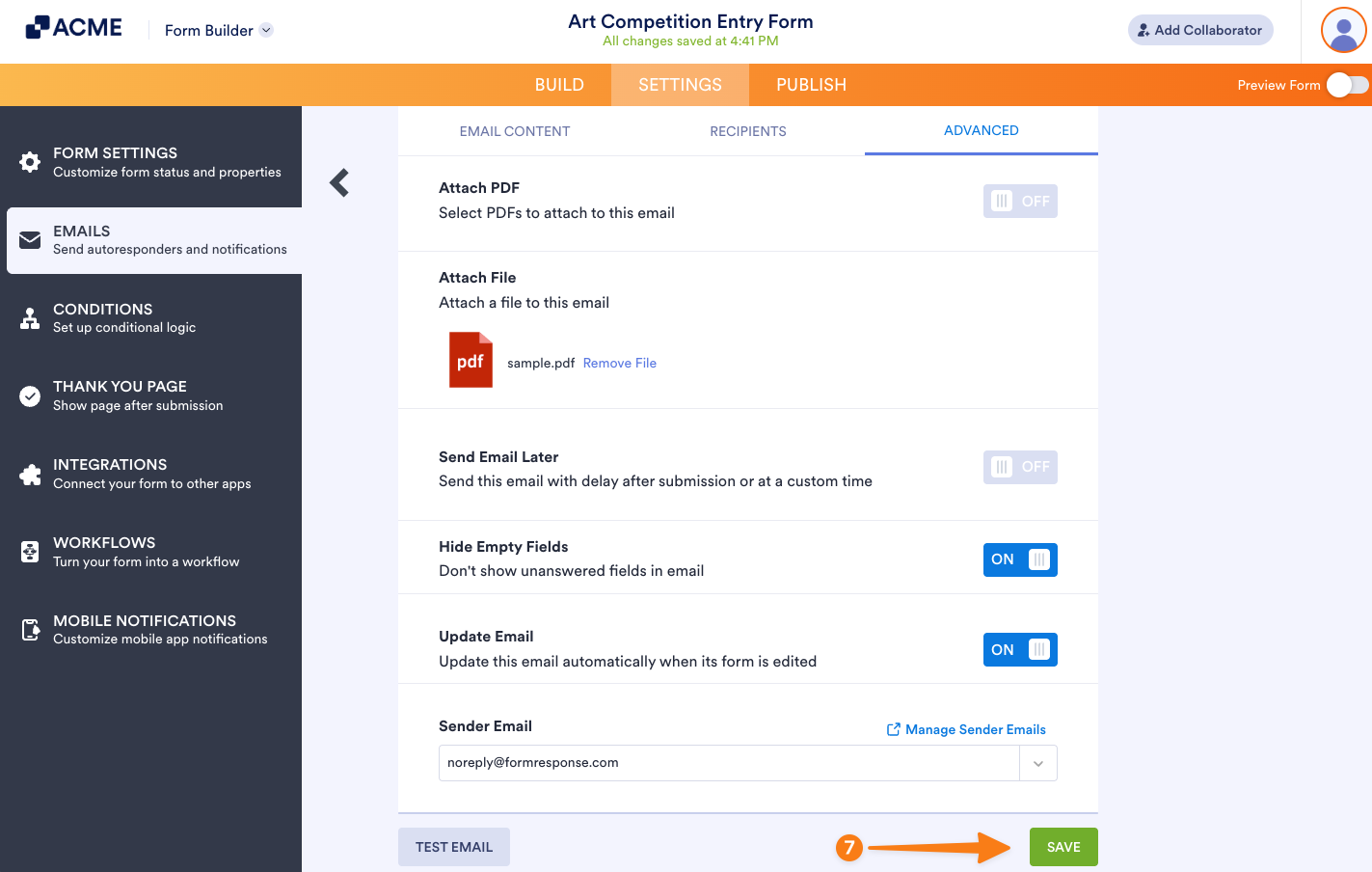
- Finally, click on Save at the bottom of the page, and you’re done.
Notes:
- The Autoresponder Email’s Attach File option supports the PDF, DOC, DOCX, PNG, JPG, and JPEG file formats.
- The maximum file size allowed for attachments in Autoresponder Emails is 5 MB. If a file is larger than that, it won’t be attached to the email. But, larger files can be handled by setting up a Custom Sender Email and connecting that to your account so you can use it as an Autoresponder Sender via SMTP.

Send Comment: