Zoho CRM is a customer relationship management service that helps businesses generate, organize, and manage leads. With Zoho CRM integration, you can gather leads through your website with a custom contact or lead generation form and instantly send submissions to your Zoho workflow.
Spend less time manually entering contacts and more time converting leads into customers with the Zoho integration! Simply match the form fields to the fields in your Zoho account and seamlessly transfer submission data directly to your CRM system.
Follow these steps to set up the Zoho CRM integration:
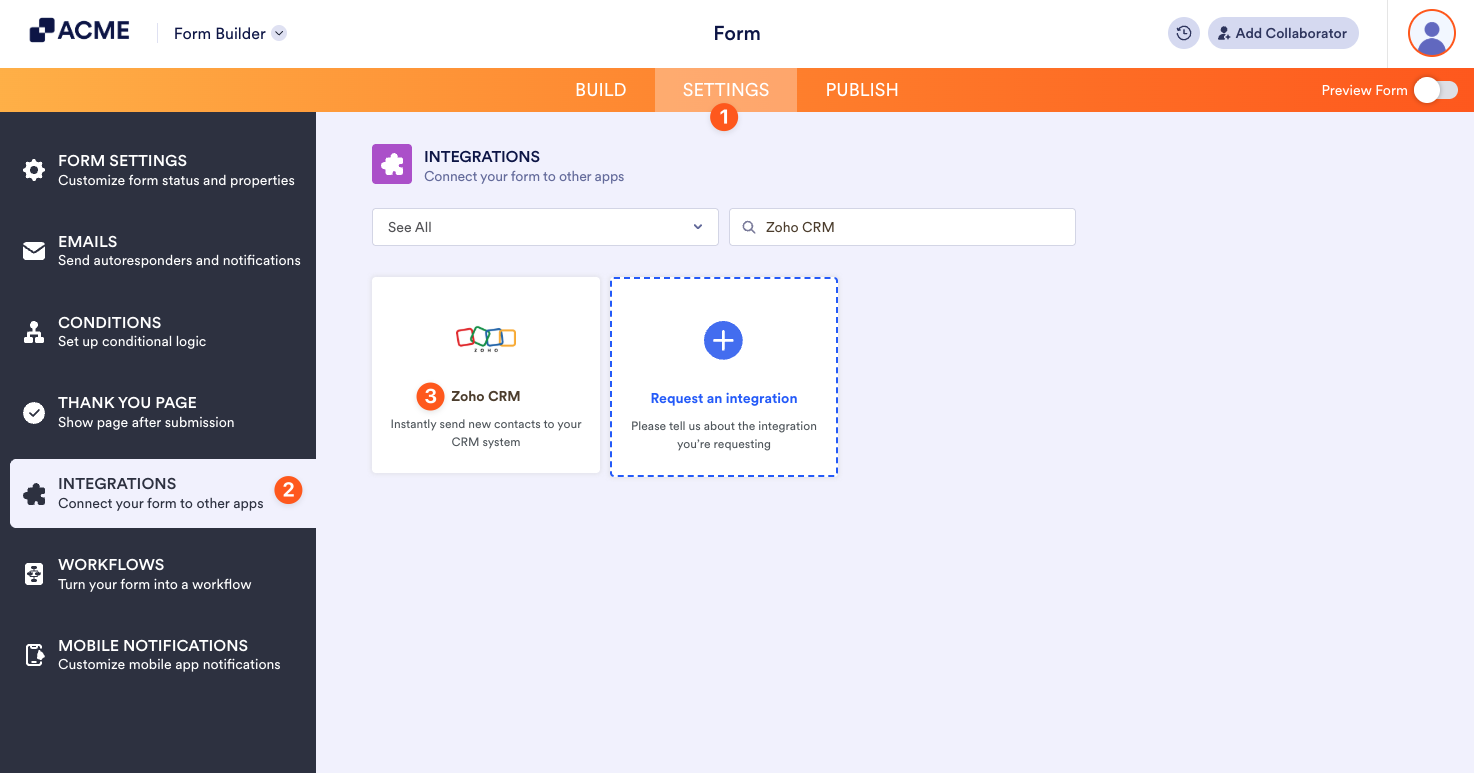
- In the Form Builder, go to the Settings tab.
- Select Integrations on the left panel.
- Search for Zoho CRM, and click it.
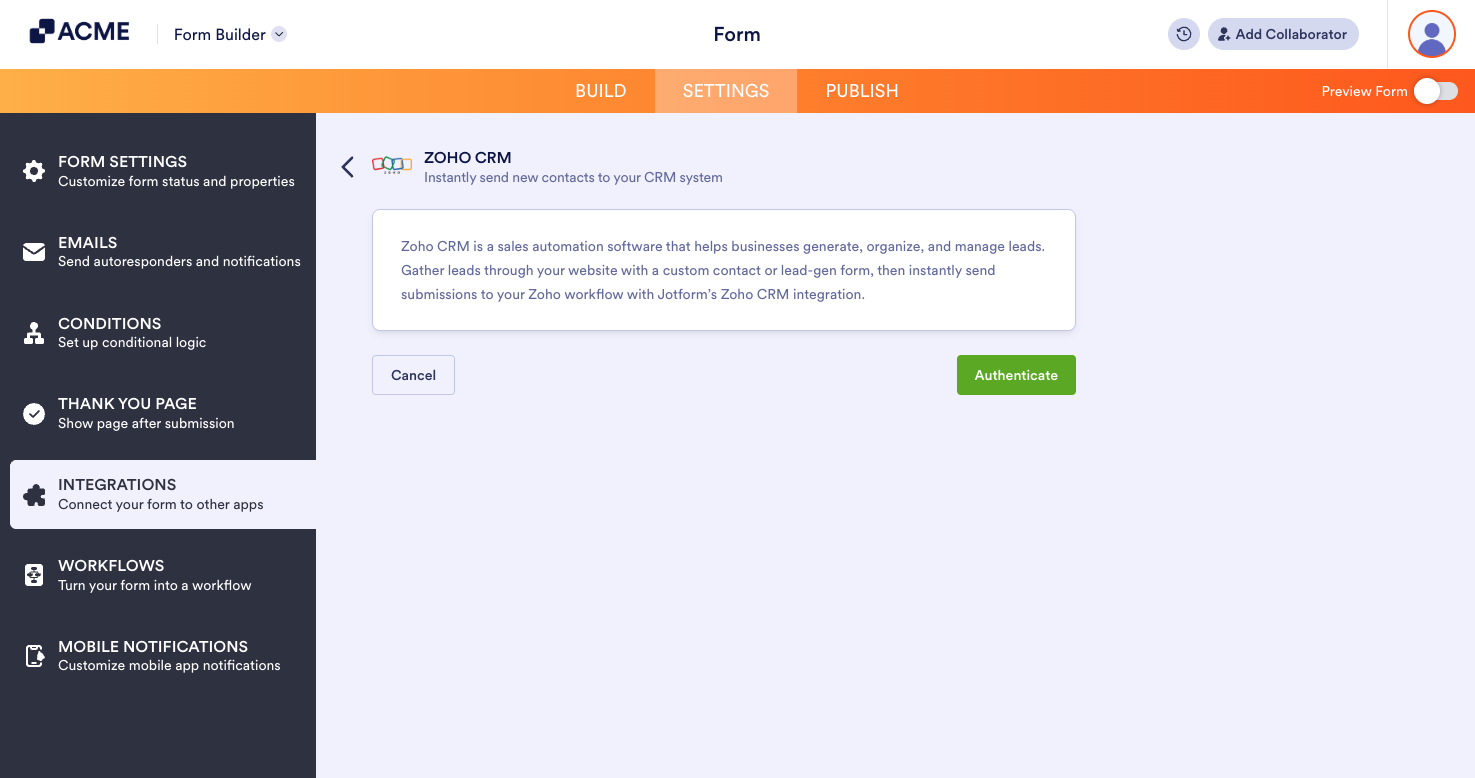
- Click the Authenticate button to link your Zoho CRM account. If you’ve already linked your Zoho CRM account, you will see a dropdown showing you the linked account(s) instead. Select the account to proceed.
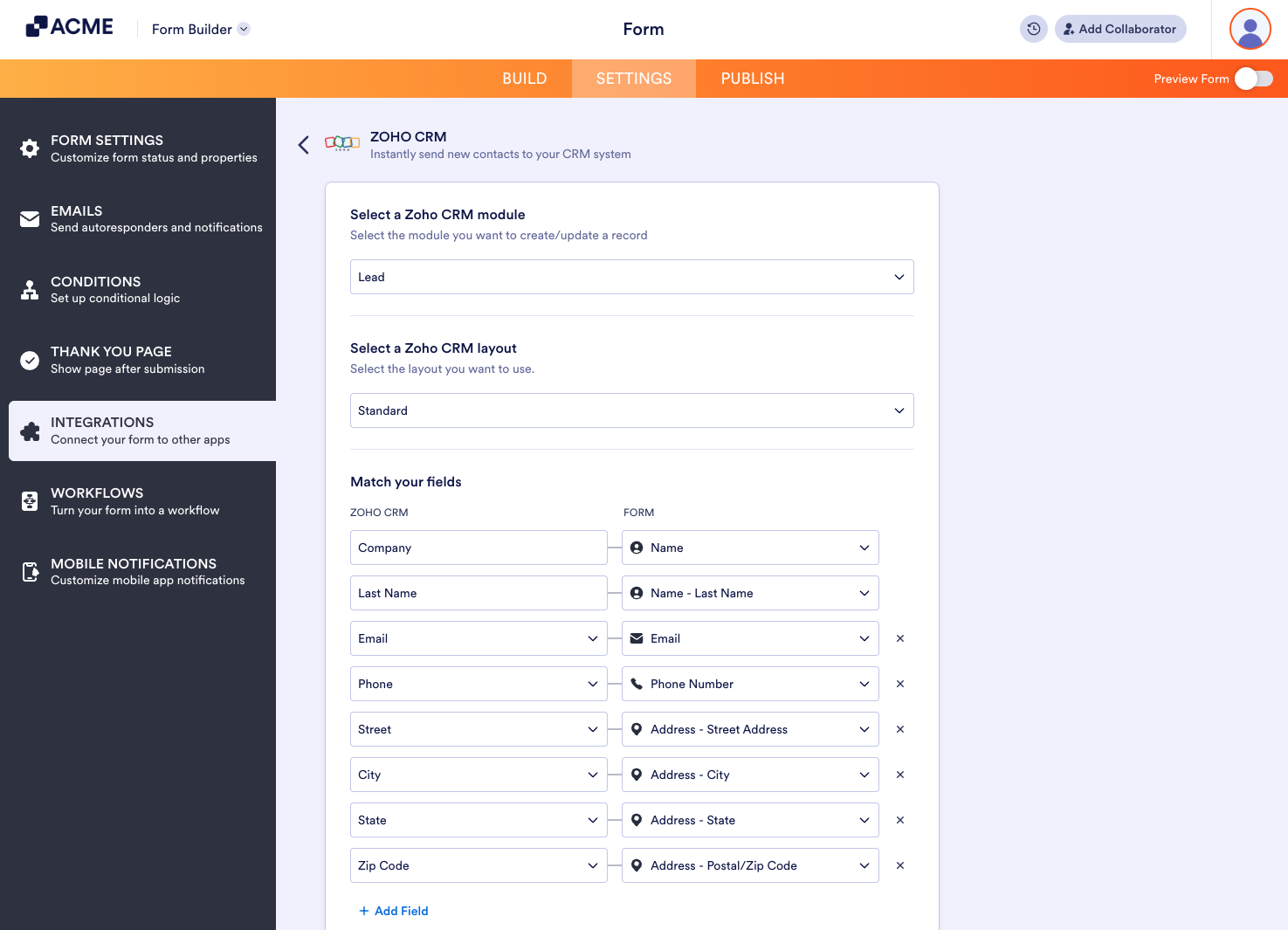
- On the next screen, you’ll find the following first three sets of options, which you need to set up:
- Zoho CRM Module — Zoho CRM integration does not support all Zoho CRM modules.
- Zoho CRM Layout — If you never set this up, you’ll only see Standard.
- Match your Zoho CRM fields to your form fields — Click the Add Field button to match the other fields.
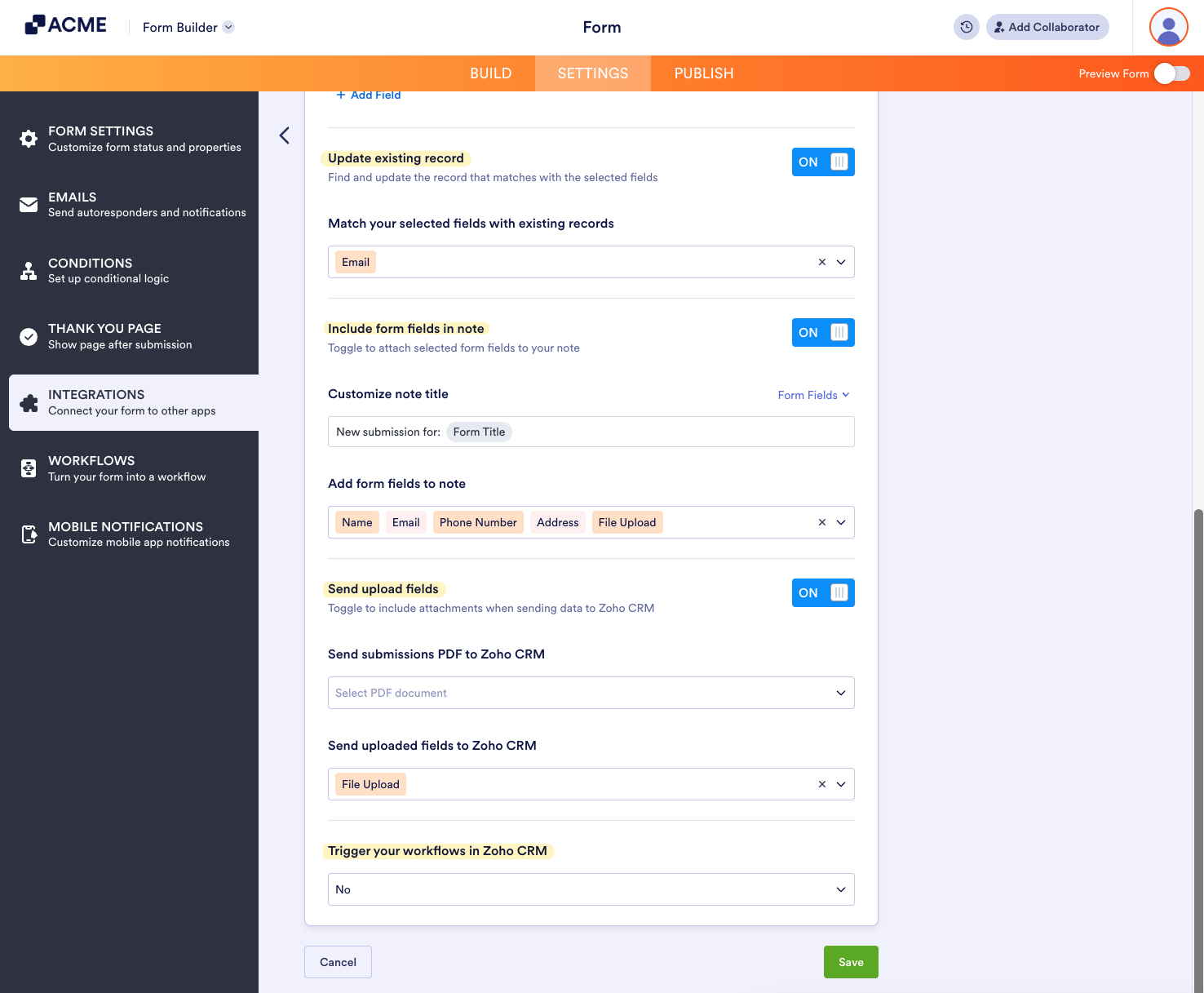
- At the bottom of the first three sets of options, you can set up the following options:
- Update existing record — You can set this option to update the record that matches with the selected fields.
- Include form fields in note — You can include the fields as a note.
- Send upload fields — This exists if your form has a file upload field.
- Trigger your workflows in Zoho CRM — If you have a workflow with Zoho CRM, you can trigger it for every submission.
- After setting up the above options, click the Save button, still at the bottom of the above options, to save your settings.
- You can opt to create a new action in the same integration settings. Click the Add New Action button to do so.
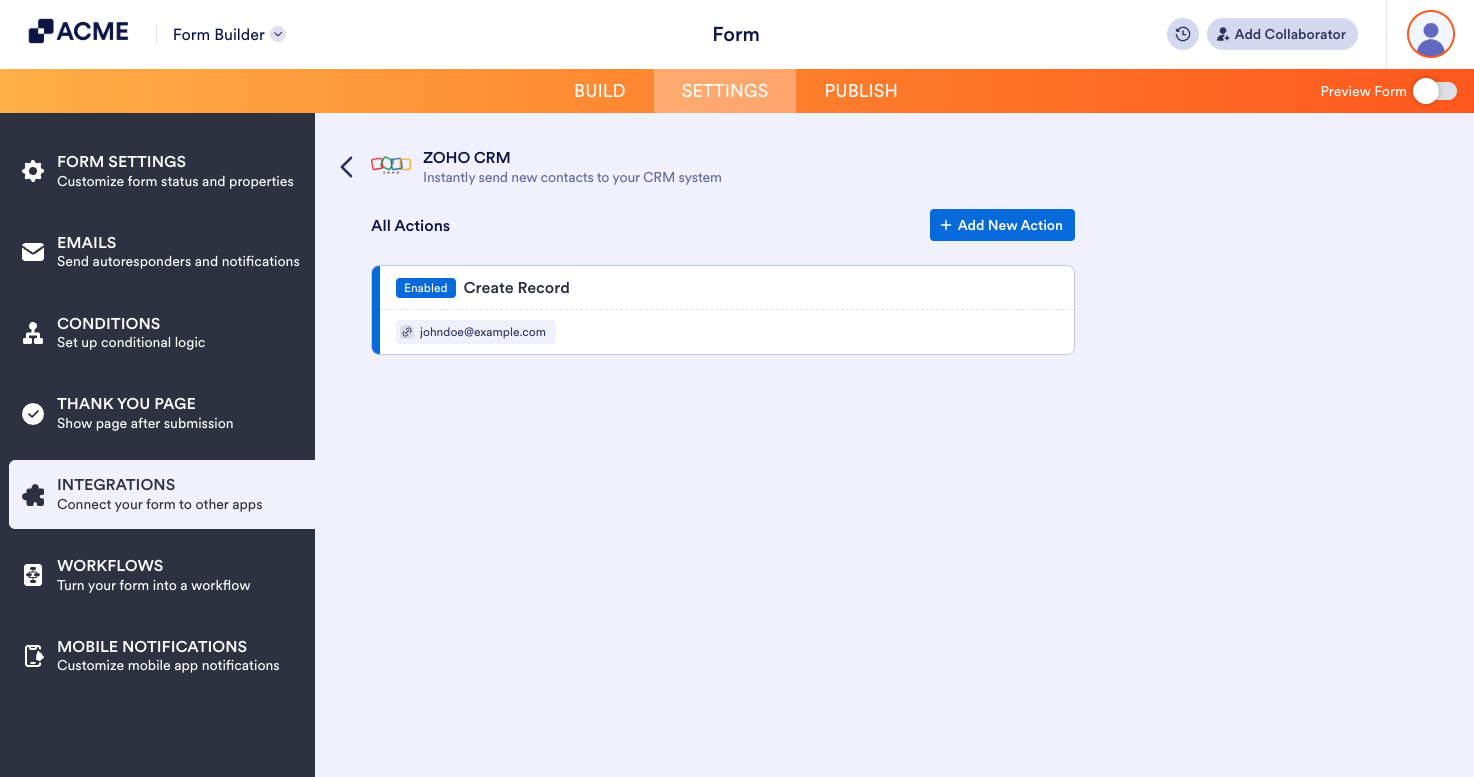
And that’s it! Your form now sends the data to Zoho CRM when someone submits it.

Send Comment: