Including Form Titles in your notification emails and autoresponders is a practical solution for managing multiple forms and keeping track of submissions. For instance, if you’re running a business with different contact forms for inquiries, feedback, and support, having the form title included in the email subject or content helps you quickly identify the form’s purpose. This feature is also valuable for organizations with forms embedded across various web pages, as it simplifies submission tracking and improves workflow efficiency. By customizing your emails to include form titles, you ensure better organization and a seamless experience for both you and your form users.
Adding Form Title to your Email Notification
To add Form Title to your email notification
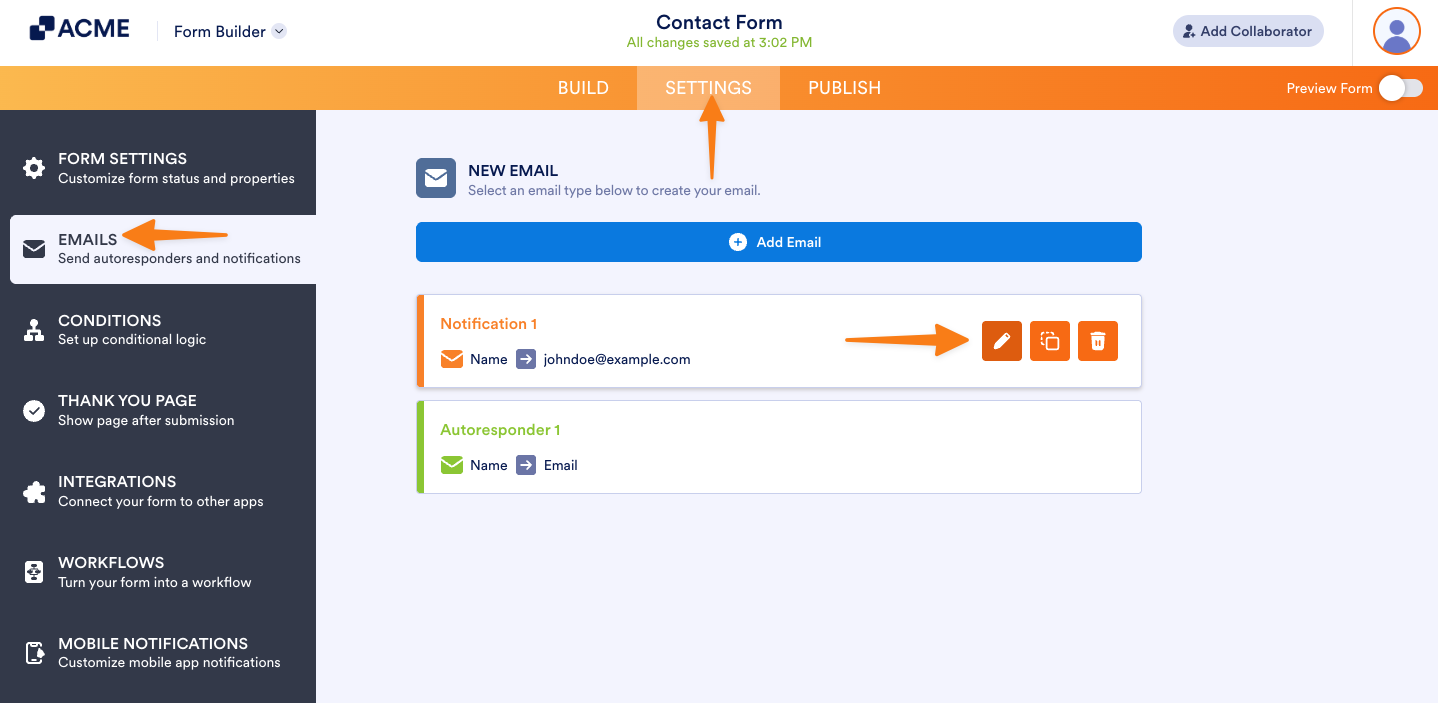
- In the Form Builder, go to the Settings tab.
- Select Emails on the left panel.
- Hover to your Notification Email, and click Edit (pencil icon).
- Click the Form Fields dropdown near the Email Subject section in the Email tab.
- Select and click the Form Title from the options.
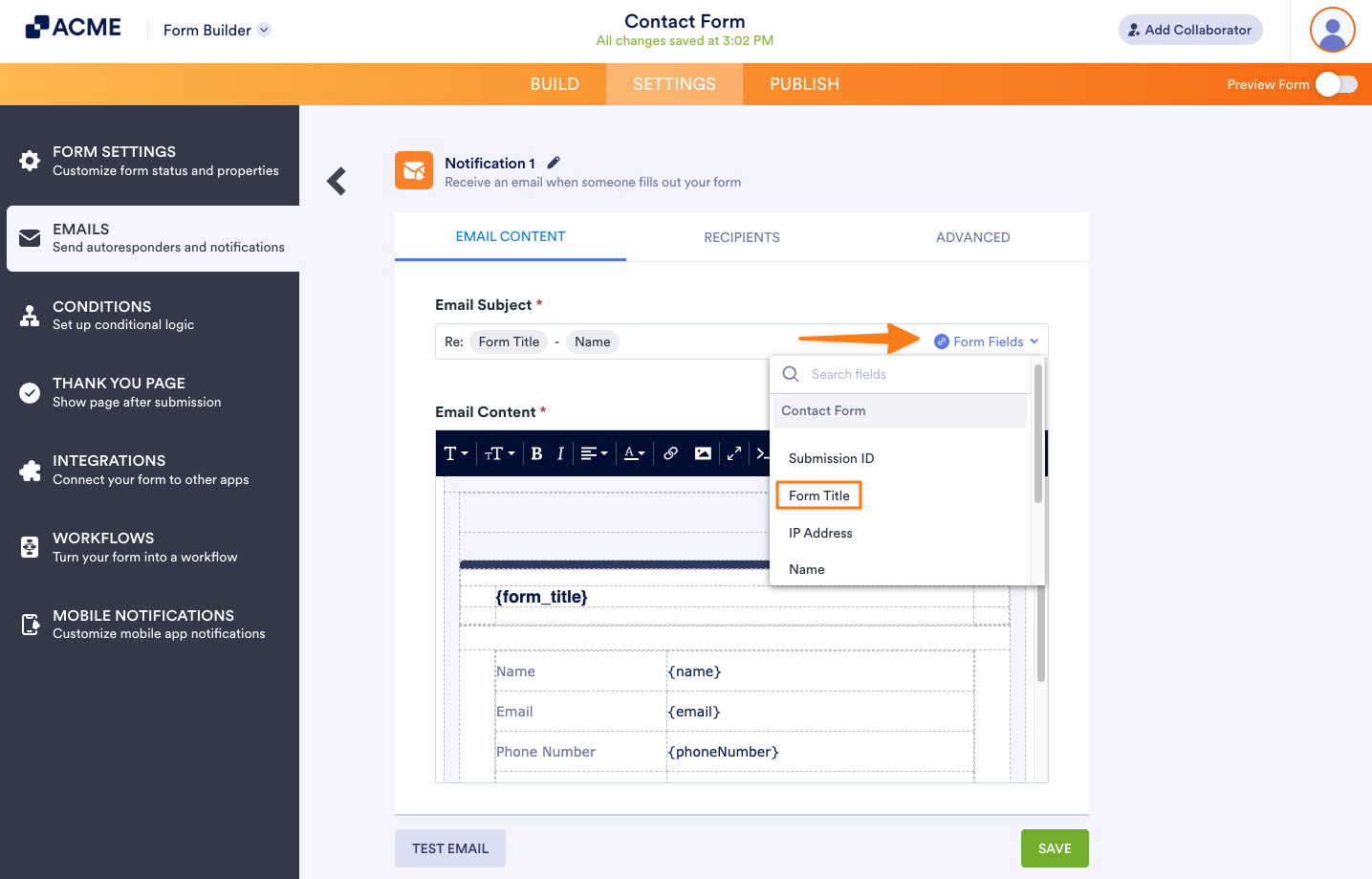
- Finally, click the Save button to save the changes.
Adding Form Title to your Email Autoresponder
To add Form Title to your email autoresponder
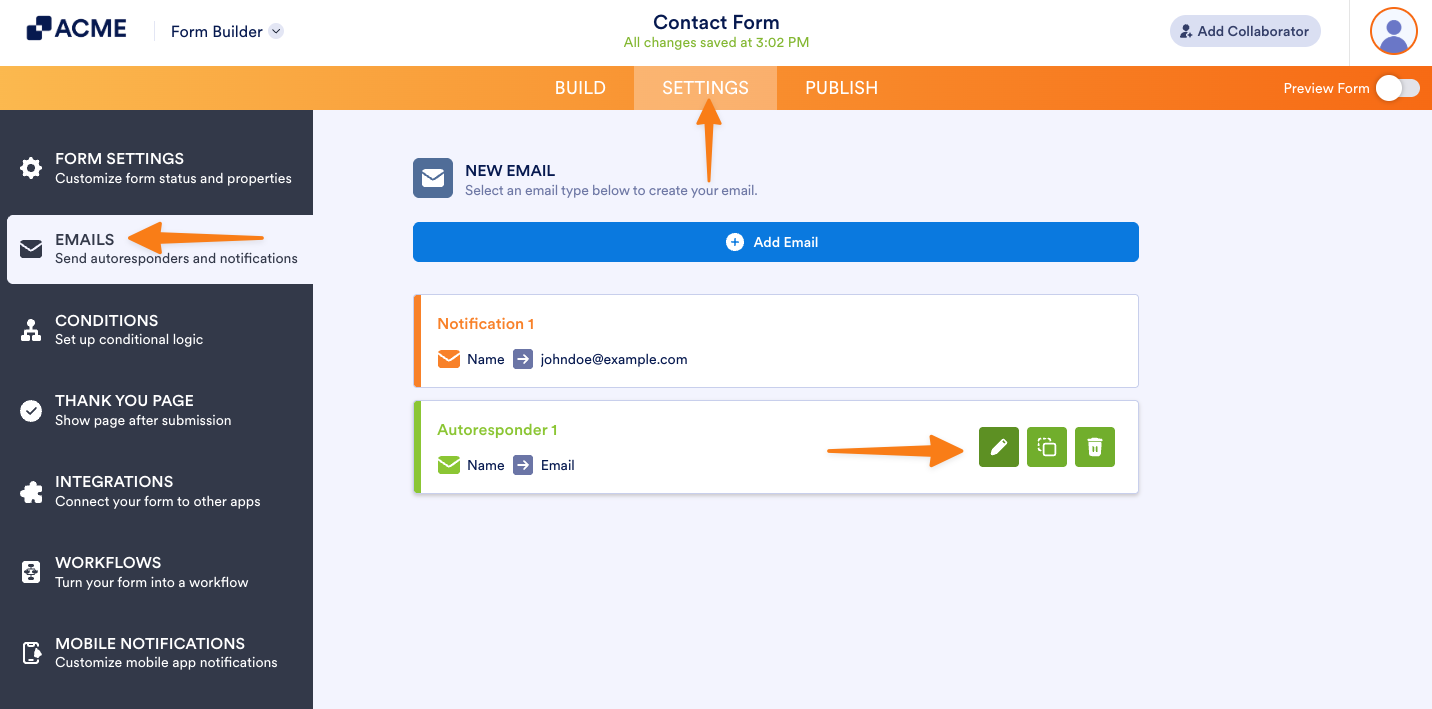
- In the Form Builder, go to the Settings tab.
- Select Emails on the left panel.
- Hover to your Email Notification, and click Edit (pencil icon).
- Click the Form Fields dropdown near the Email Subject section in the Email tab.
- Select and click the Form Title from the options.
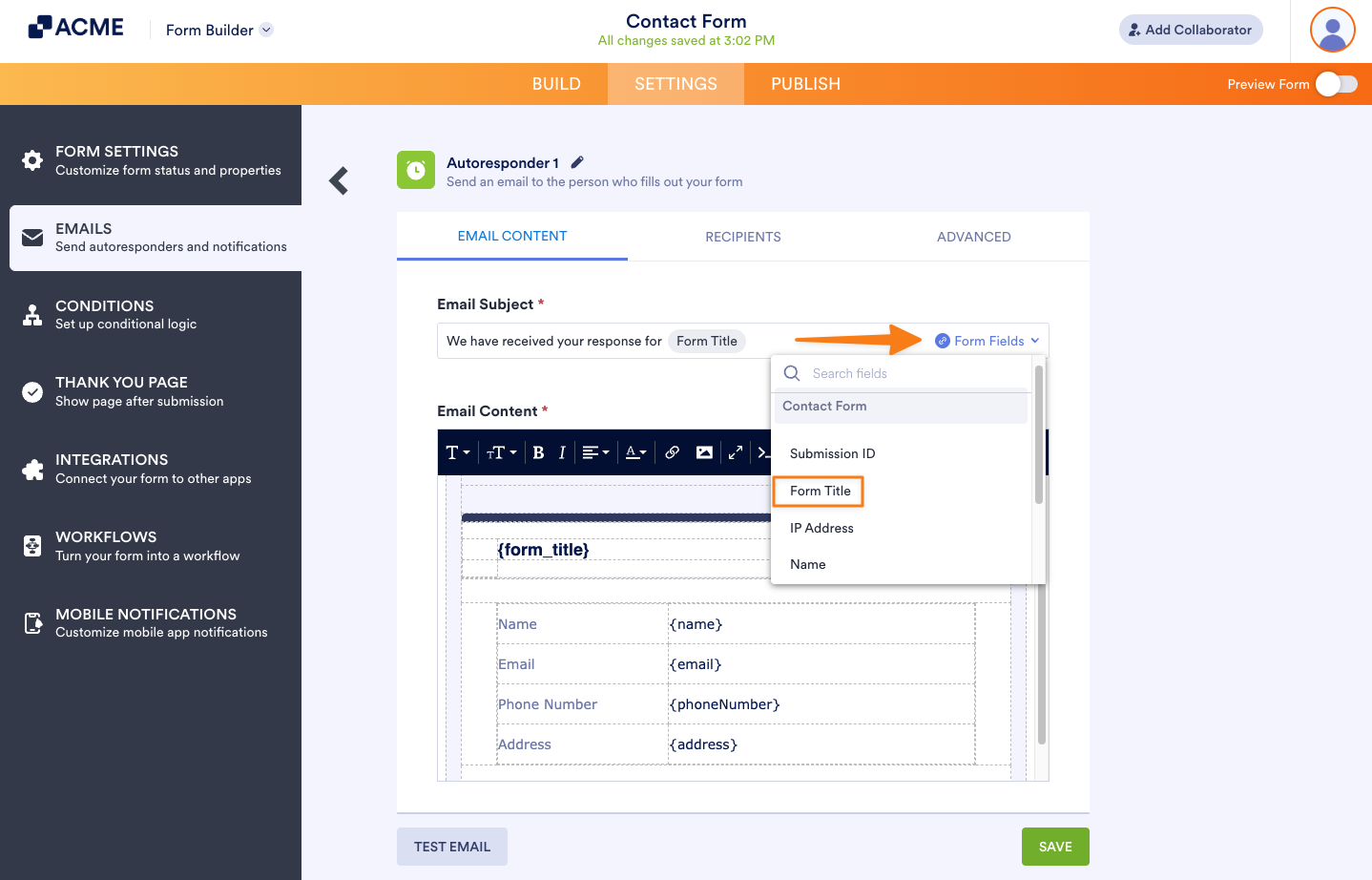
And that’s it! Every time you receive email notifications or your users receive autoresponder emails, the Form Title will now be included, making it easier to identify submissions and ensuring a smoother communication experience.

Send Comment: