The Send Emails Later feature lets you send emails at a later date. This is useful if you want to notify form respondents conditionally. For example, send a follow-up email after their initial submission or email based on a date filled in the form.
You can set up the Send Email Later feature by following the steps below:
- In the Form Builder, go to the Settings tab.
- Click Emails on the left panel.
- In the Email section, hover your mouse over the Autoresponder Email and click the Pencil icon to edit it.
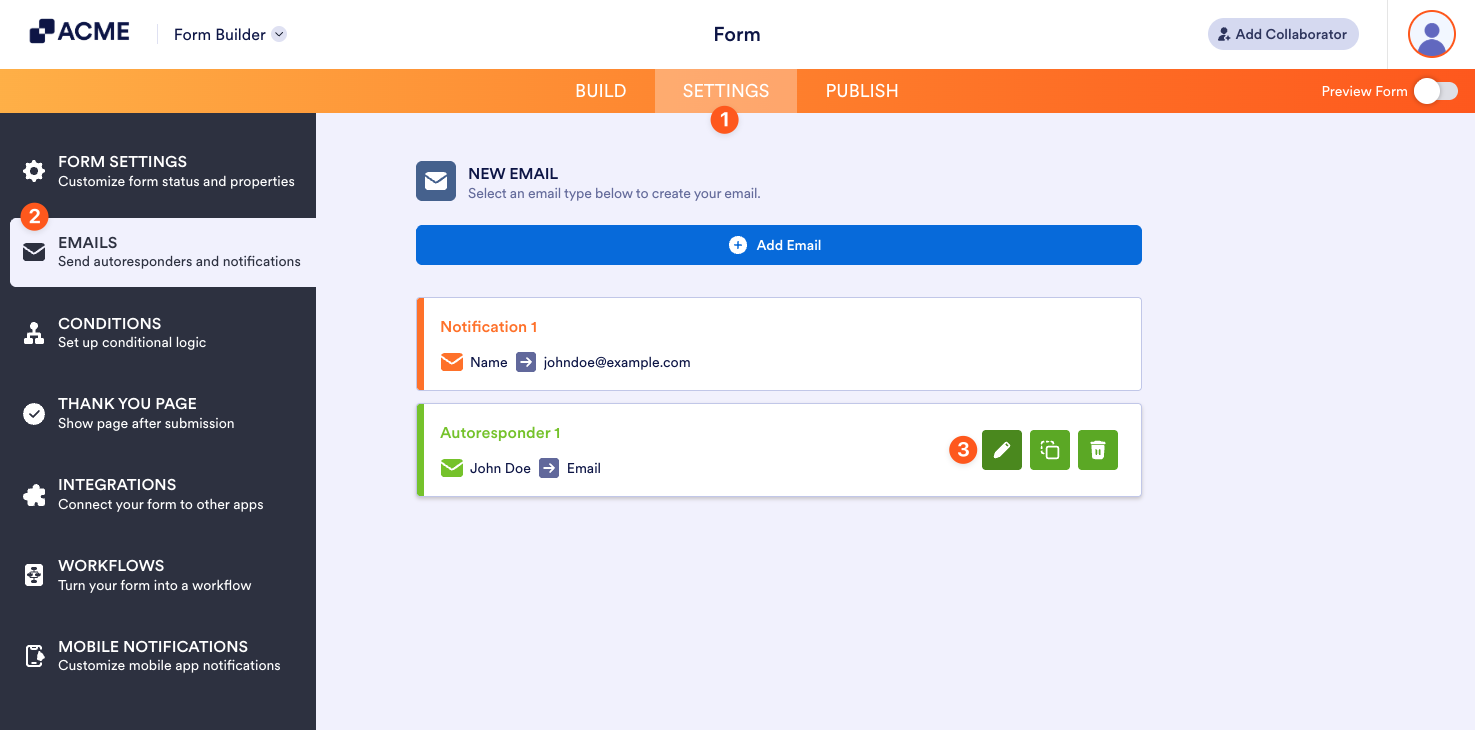
If you don’t have an Autoresponder Email in your form, check out this Setting up an Autoresponder Email guide to create one.
- Go to the Advanced tab of the Autoresponder Email.
- Scroll down to Send Email Later and toggle it to the On position.
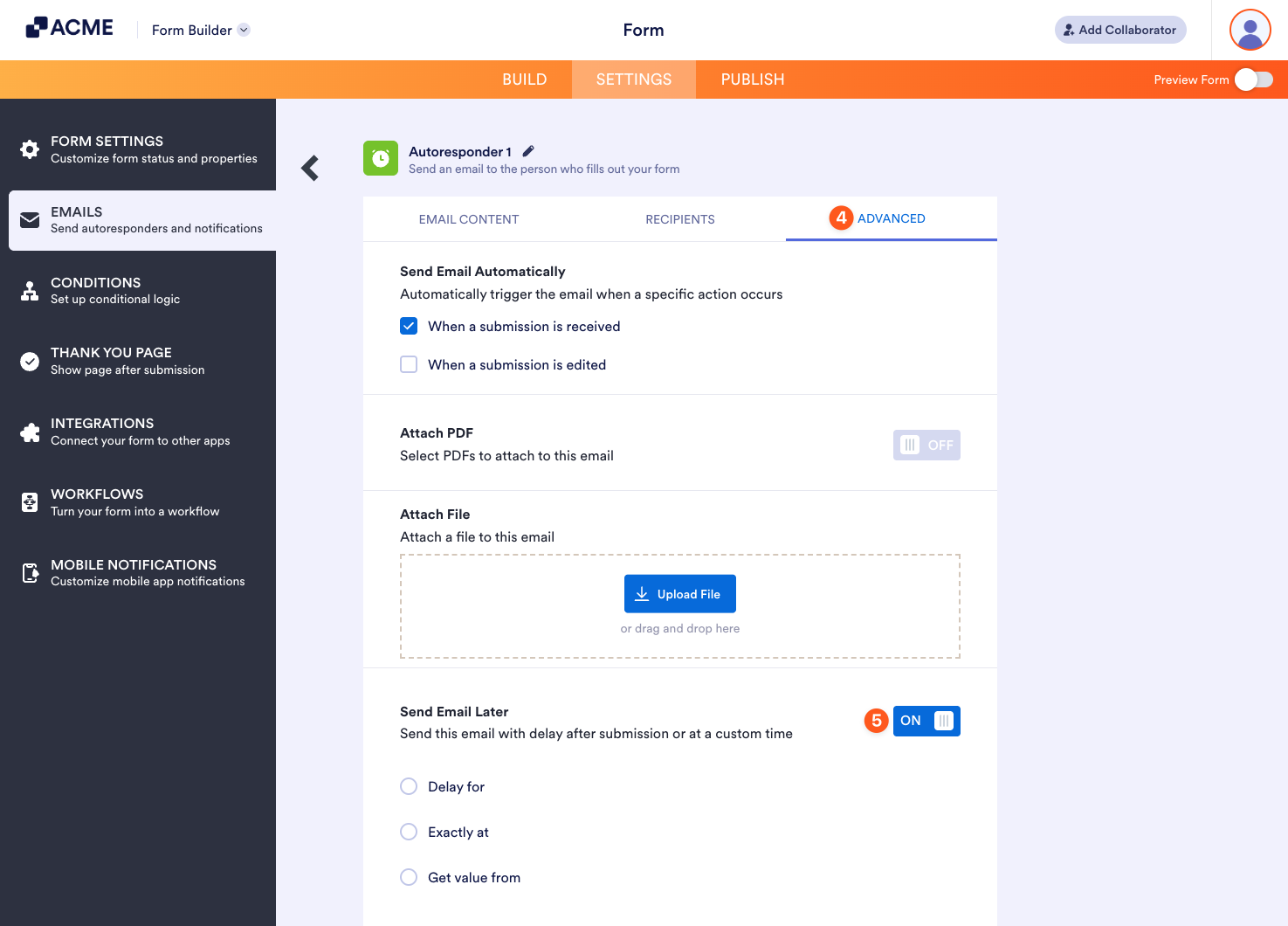
In the Send Email Later feature, you can choose from the following options:
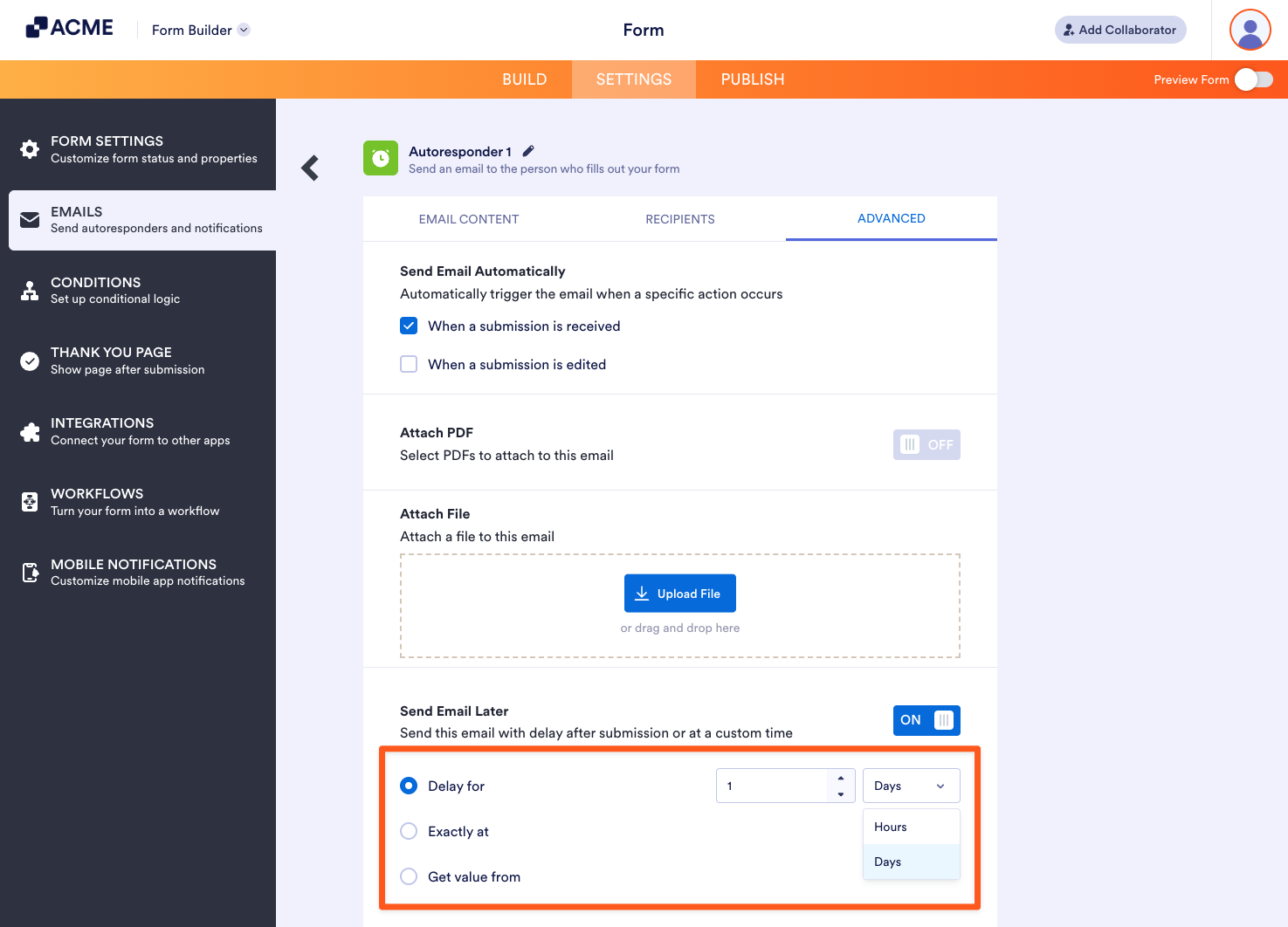
- Delay for — The email is sent after the selected time period, either a set number of days or hours following the initial submission.
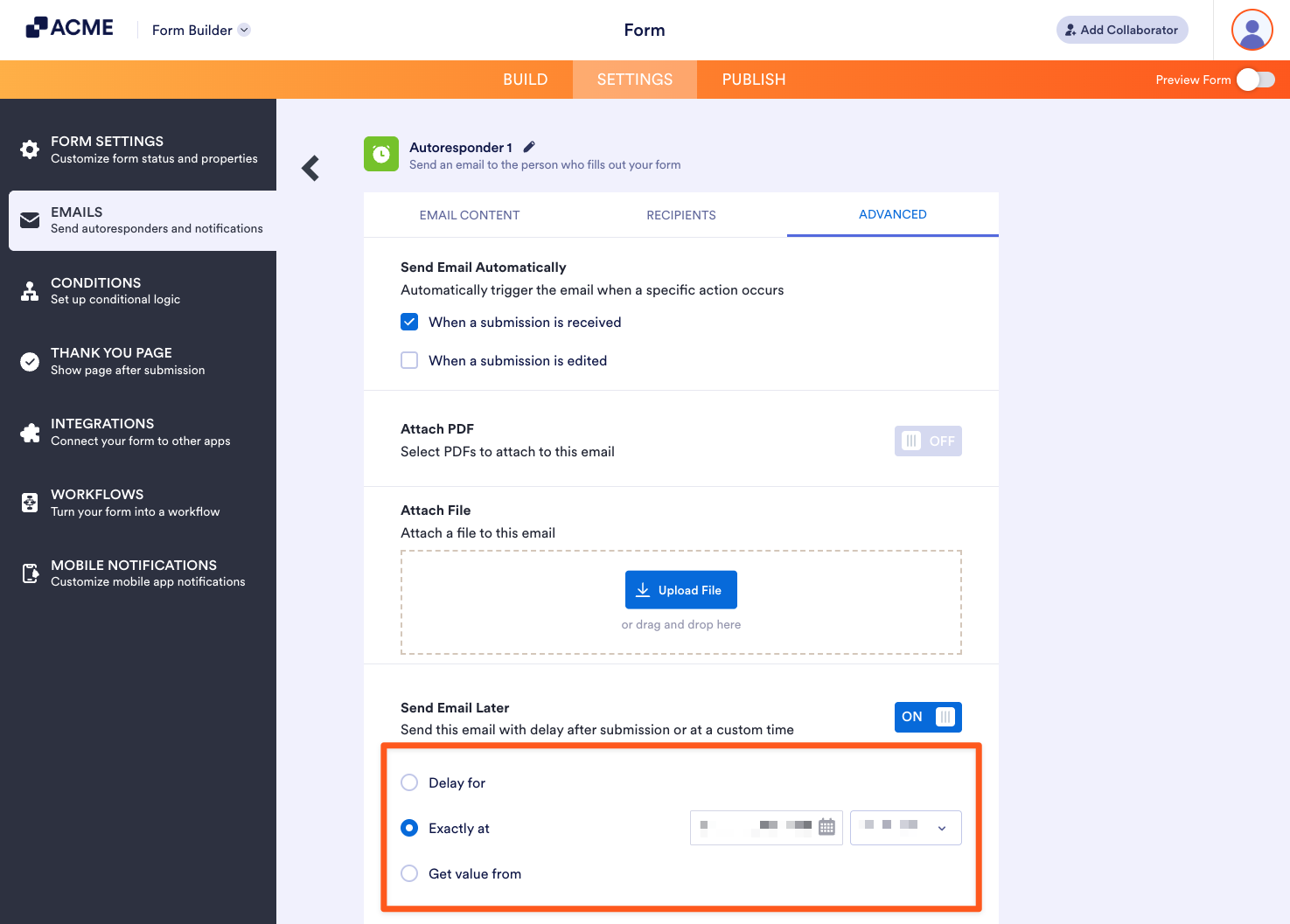
- Exactly at — The email is sent on the selected date and time after the initial submission.
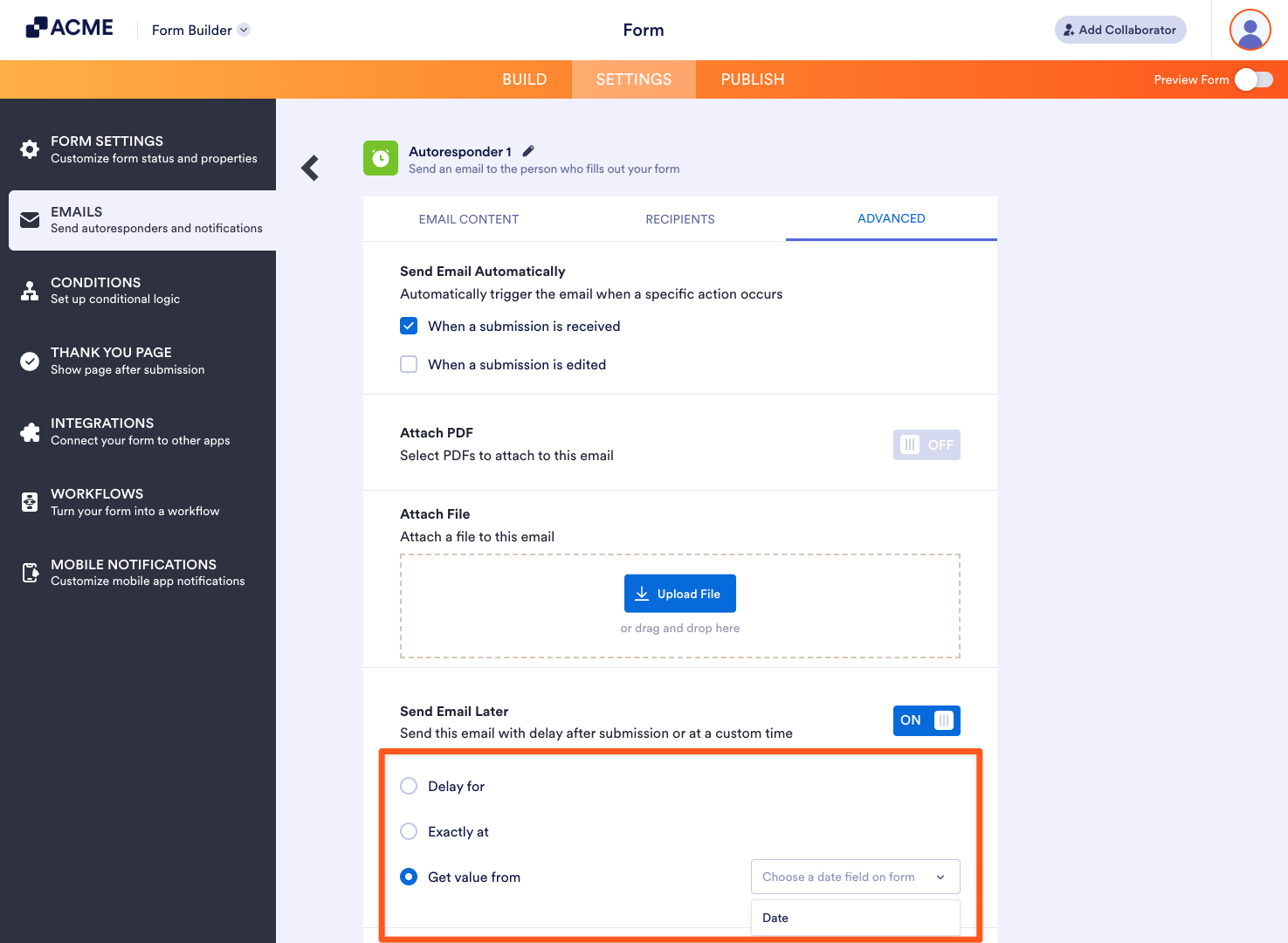
- Get value from — This is the date field that’s present on your form. All date fields in your form will appear in this dropdown. By choosing the field, the email is sent on the chosen date after the initial submission.
When selecting Delay for, specify the number of days or hours, as shown below:
When selecting Exactly at, specify the exact date and time, as shown below:
When selecting Get value from, choose the Date field on your form to get the value, as shown below:
Check Spice up Your Email Campaigns with Autoresponders guide for a use case of the Send Email Later feature.

Send Comment: