When you add new fields to your form, they are optional by default. This means users in your organization can submit the form without completing those fields. However, there may be cases where certain information—such as a name, email address, or other key details—must be provided.
To make a field mandatory, set it as required. This prevents users from submitting the form until all required fields are filled out. Setting required fields helps ensure that you collect all the necessary information before a form is submitted.
Require or Unrequire Fields through Element Properties
You can easily make any field required or optional through its element properties. Here’s how:
- In Form Builder, select the element you want to set as required and click on the Gear icon.
- Then, in the Properties window that opens on the right side of the page, under the General tab, toggle Required to On.
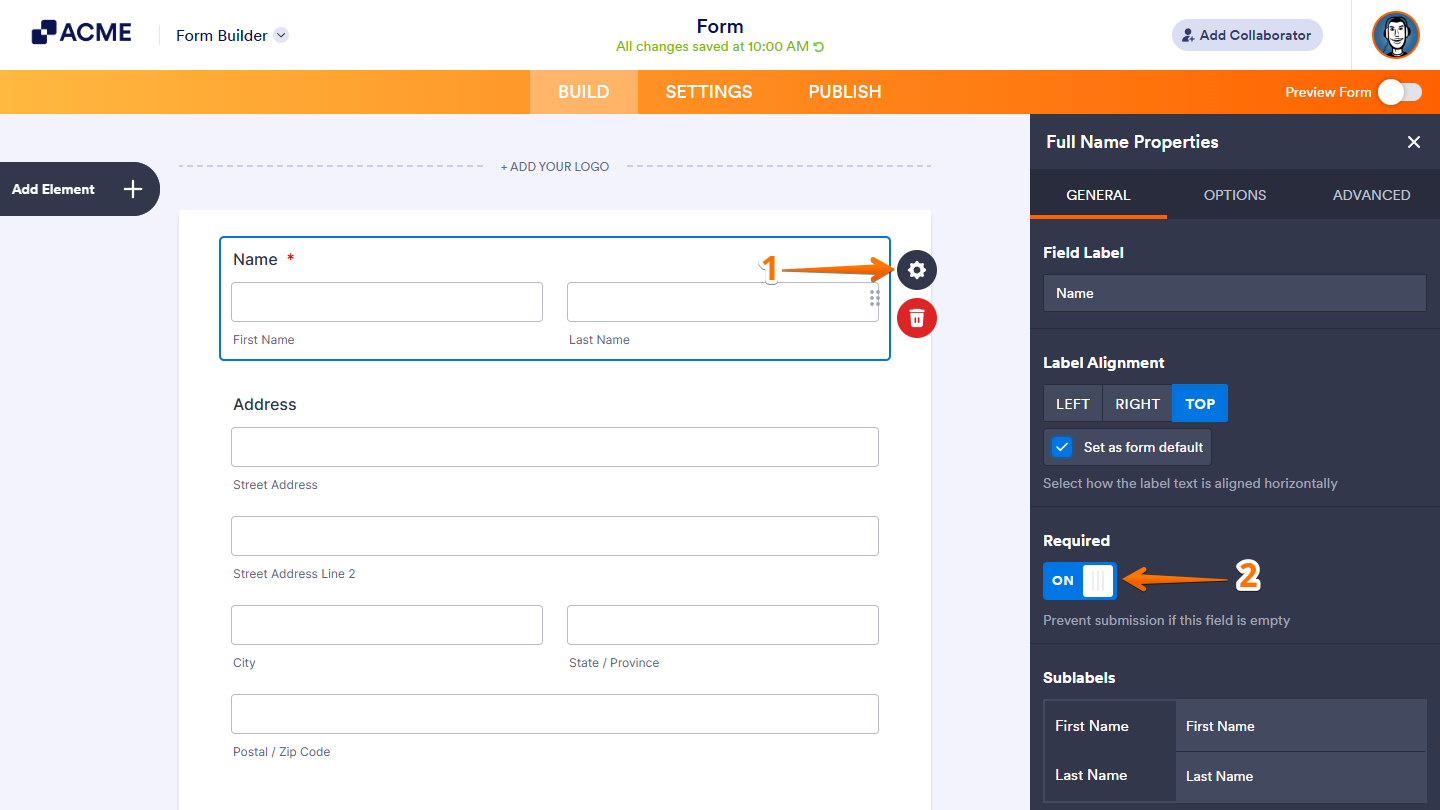
If you have required fields that you wish to be optional, do the same steps above but toggle Required to “Off”.
Require or Unrequire Fields from the Context Menu
You can also set fields as required or optional directly from the context menu. This provides a quick way to adjust field settings without opening the element properties panel. This is how it’s done:
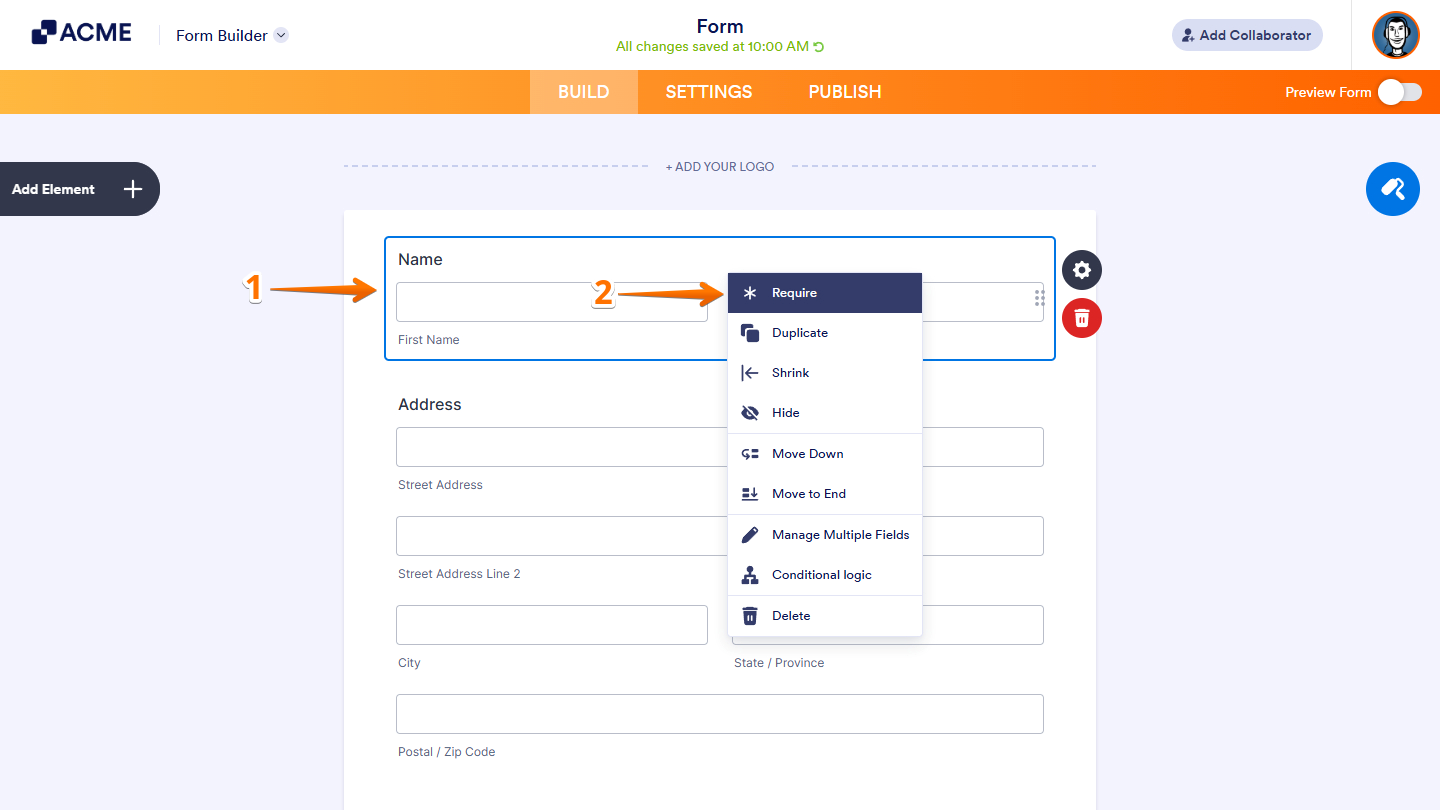
- In Form Builder, select the element you want to set as required or optional.
- Next, right-click on the element, and select Require or Unrequire.
Require or Unrequire Multiple Fields at Once
If you need to update several fields at the same time, you can require or unrequire them all at once. This saves time and helps keep your form setup consistent. Here’s what to do:
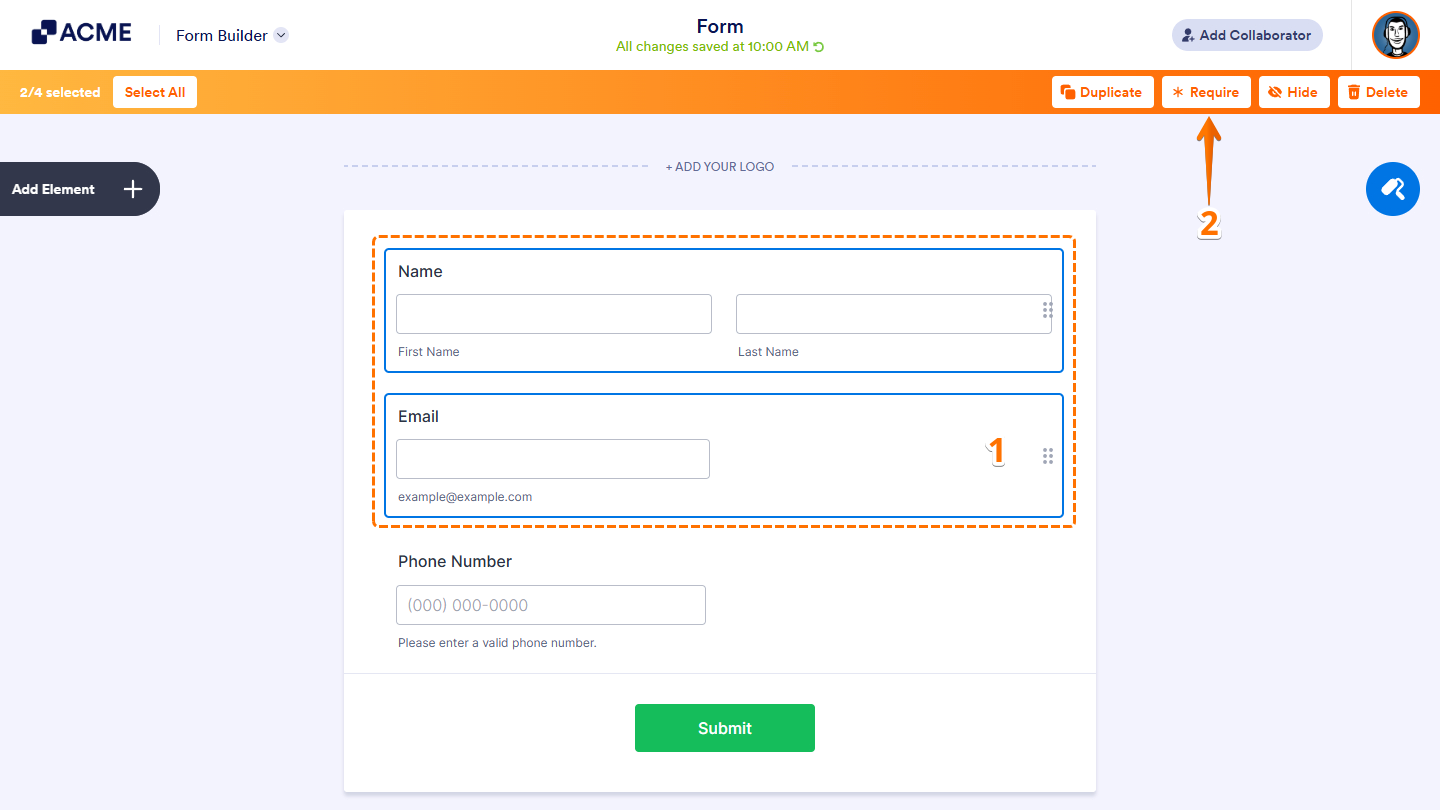
- In Form Builder, select the element you want to set as required or optional with CTRL + Click on your Windows PC or CMD + Click on Mac.
- Then, at the top, click on Require or Unrequire.
That’s it! You now have the flexibility to make fields required or optional using whichever method works best for you.

Send Comment: