Integrating your form with Airtable lets you collect data through your form and send it straight into your Airtable base as new records. It’s helpful for organizing submissions, tracking information, and managing lists in one place without manual copying or jumping between tools. This works well for teams handling registrations, submissions, inventory details, or structured data that needs to live inside Airtable for sorting, filtering, or collaboration.
Adding and Setting Up Actions
Setting up actions that send form data to Airtable is quick—here’s how:
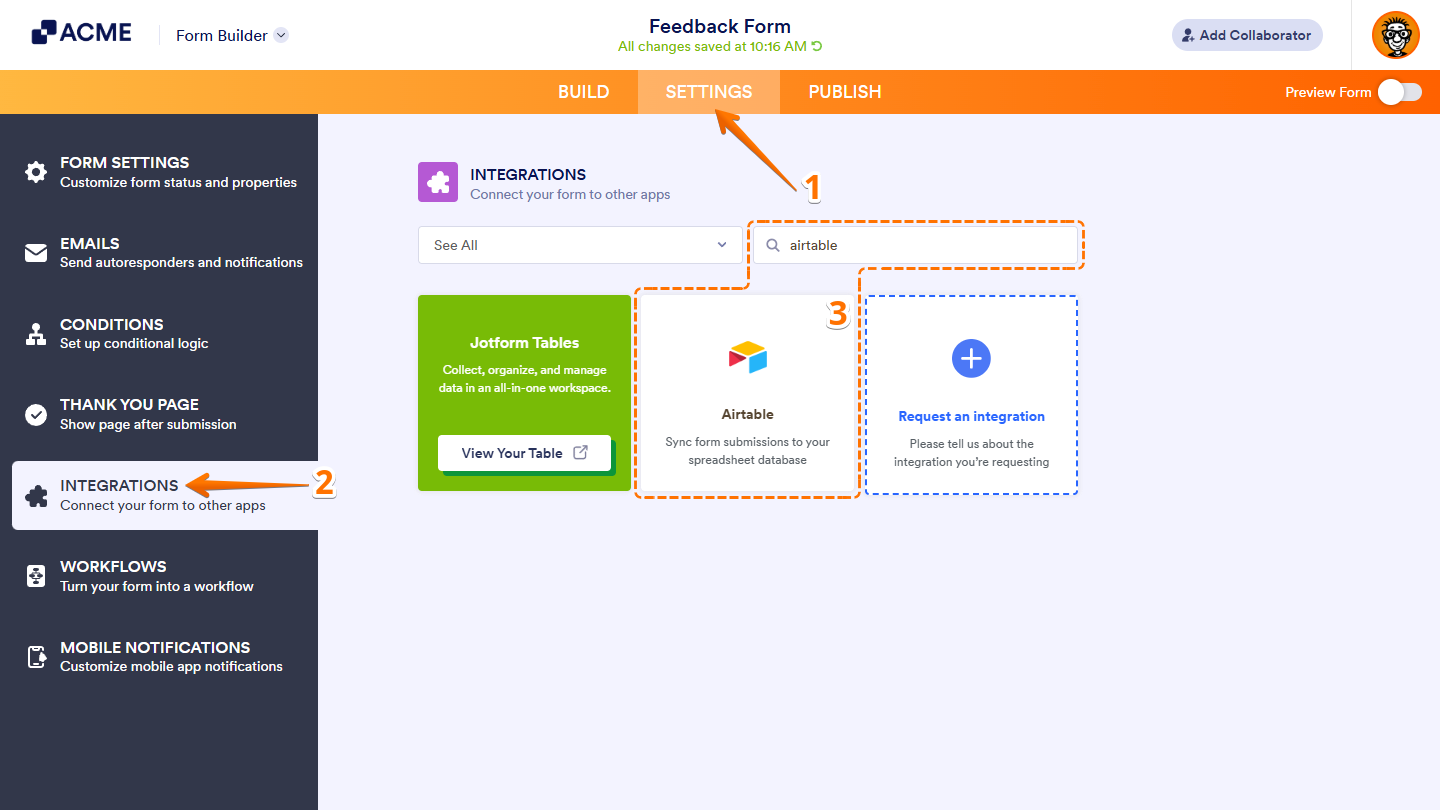
- In Form Builder, in the orange navigation bar at the top of the page, click on Settings.
- Then, in the menu on the left side of the page, click on Integrations.
- Now, in the Integrations section on the right, search for Airtable and click on it.
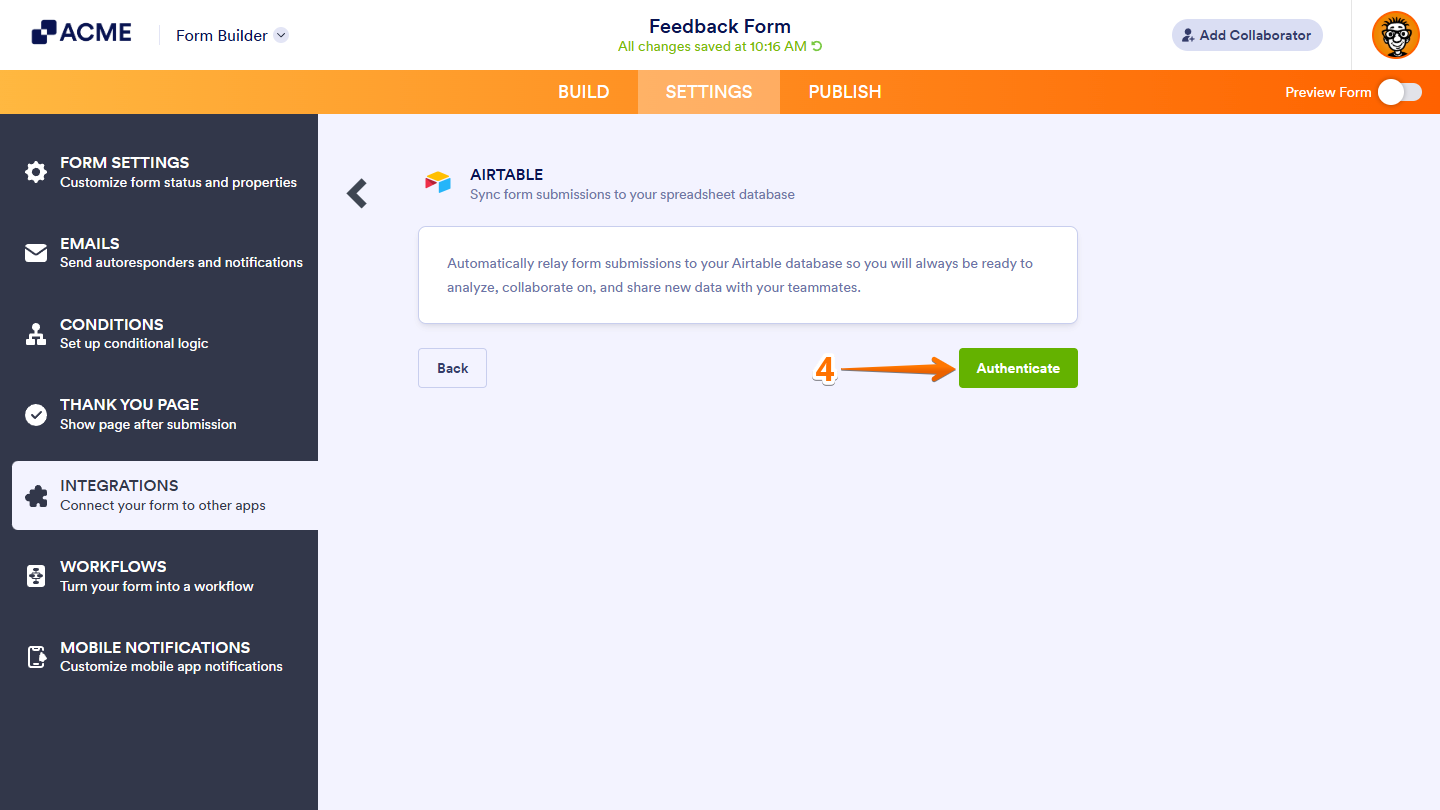
- Now, in the Airtable section, click on Authenticate. And then, in the pop-up window, log in and authorize access to bases and workspaces for the integration to your Airtable account.
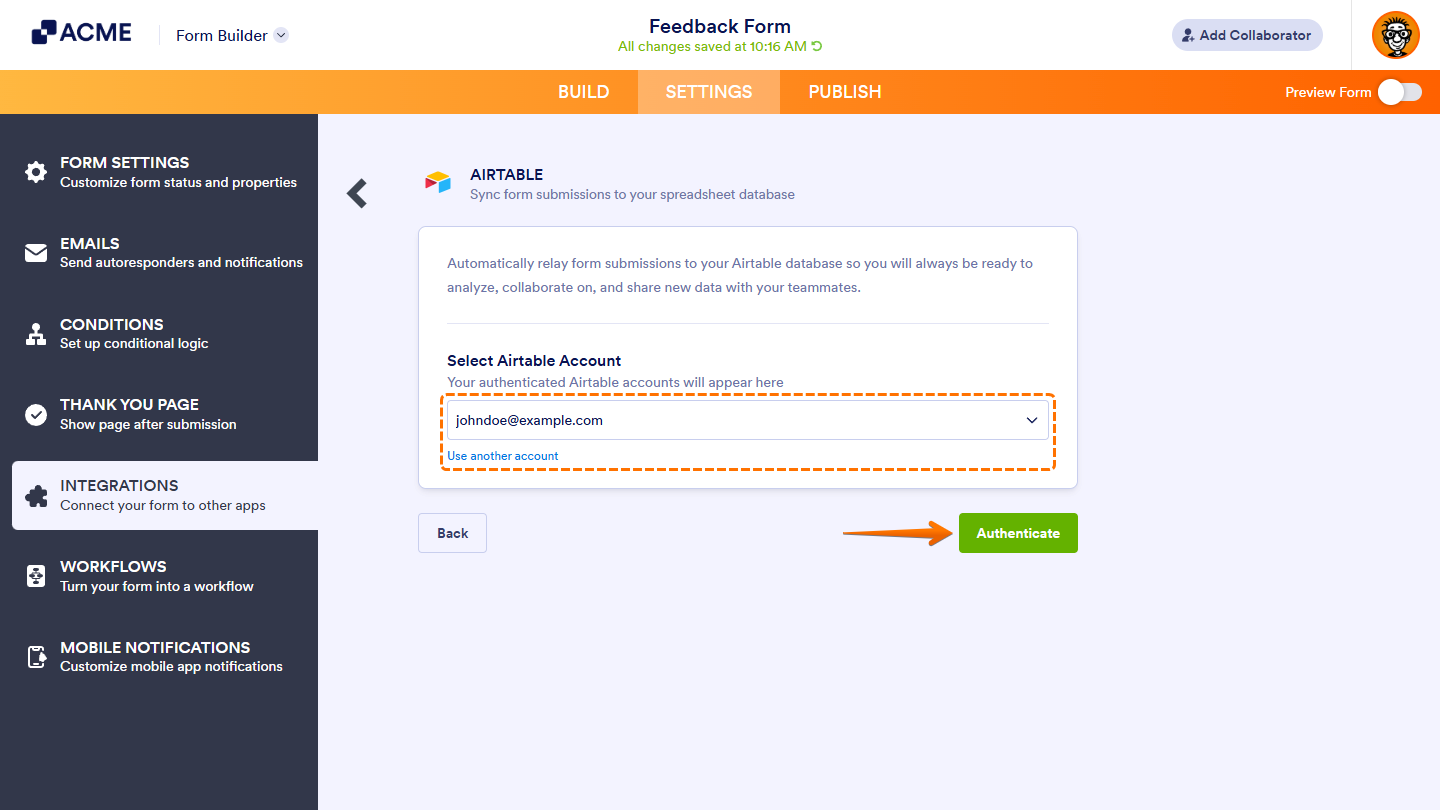
If there is a saved Airtable account you’ve integrated any of your forms with before, you can choose its email address from the dropdown and click on the Authenticate button on the right to use it. Or, you can also click on Use Another Account below the dropdown to log in and authorize access for the integration to a different Airtable account.
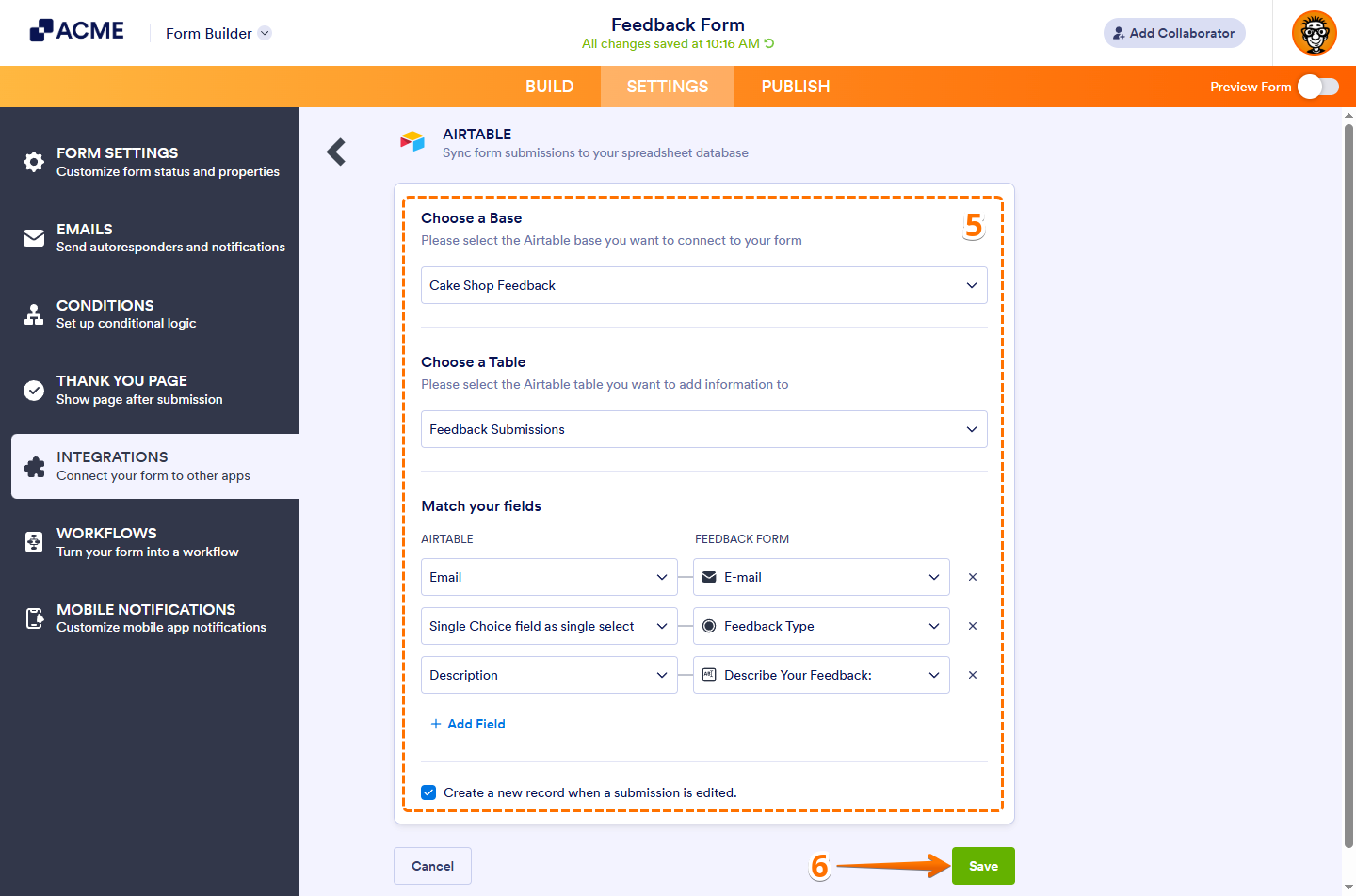
- Then, in Integration Settings, you’ll see this list of settings you can configure:
- Choose a Base — Select which Airtable base will receive your form submission data.
- Choose a Table — Pick the table inside your selected Airtable base where records will be added.
- Match Your Fields — Connect your form fields to the matching fields in your Airtable table so submission data is sent to the right places.
- Create a New Record When a Submission is Edited — Uncheck the box next to this option if you want to update the existing record in Airtable instead of creating a new one whenever a submission is edited.
- Once everything is set, click on Save.
That’s it. You’ve successfully set up your form for Airtable integration to send submissions to your selected base and table. Click on the Add New Action button on the top right side of the All Actions section if you want to add another one.
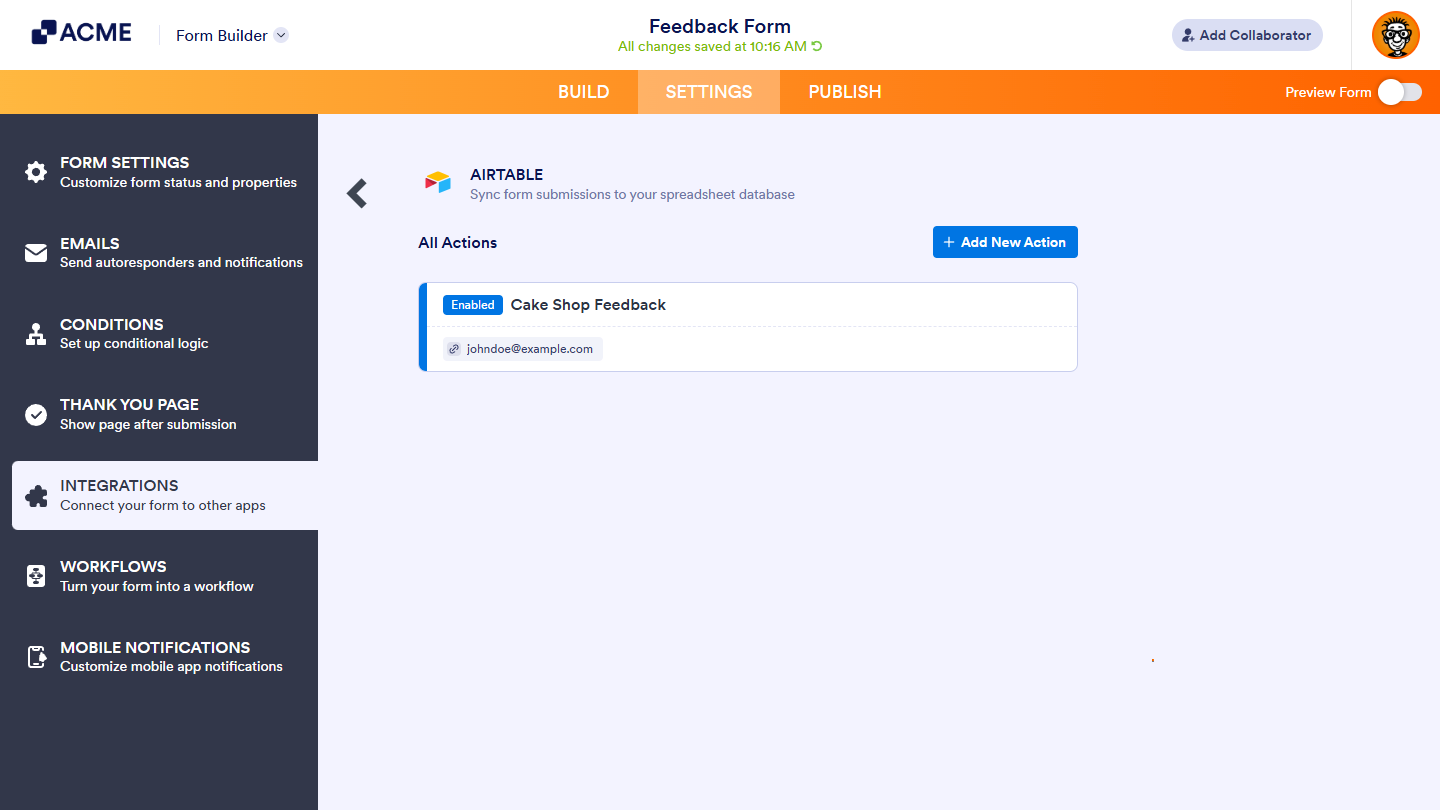
Note: You can use the same Airtable account to send submission data to different bases, or connect your form to multiple Airtable accounts to send the same or different data to each account during submissions.
Managing Actions
Once you’ve added your actions, you can manage them anytime to keep things organized and running the way you want. You can edit an action, check its logs, rename it, turn it on or off, or delete it if you don’t need it anymore.
Hover your mouse over an action and, on the right side of it, click on the Edit icon to open and update it in the Integration Settings.
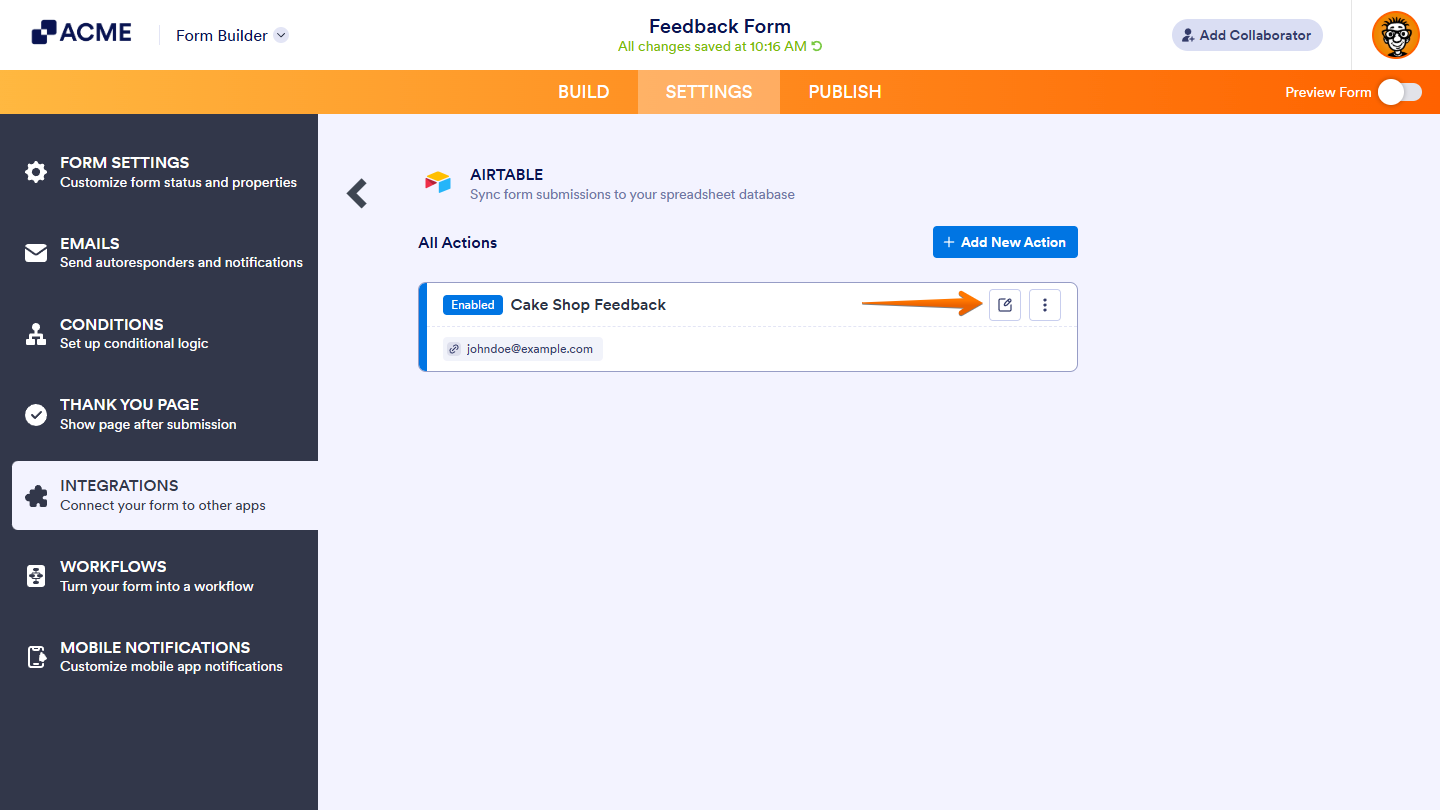
Note: Always click the Save button after making changes to make sure they’re applied.
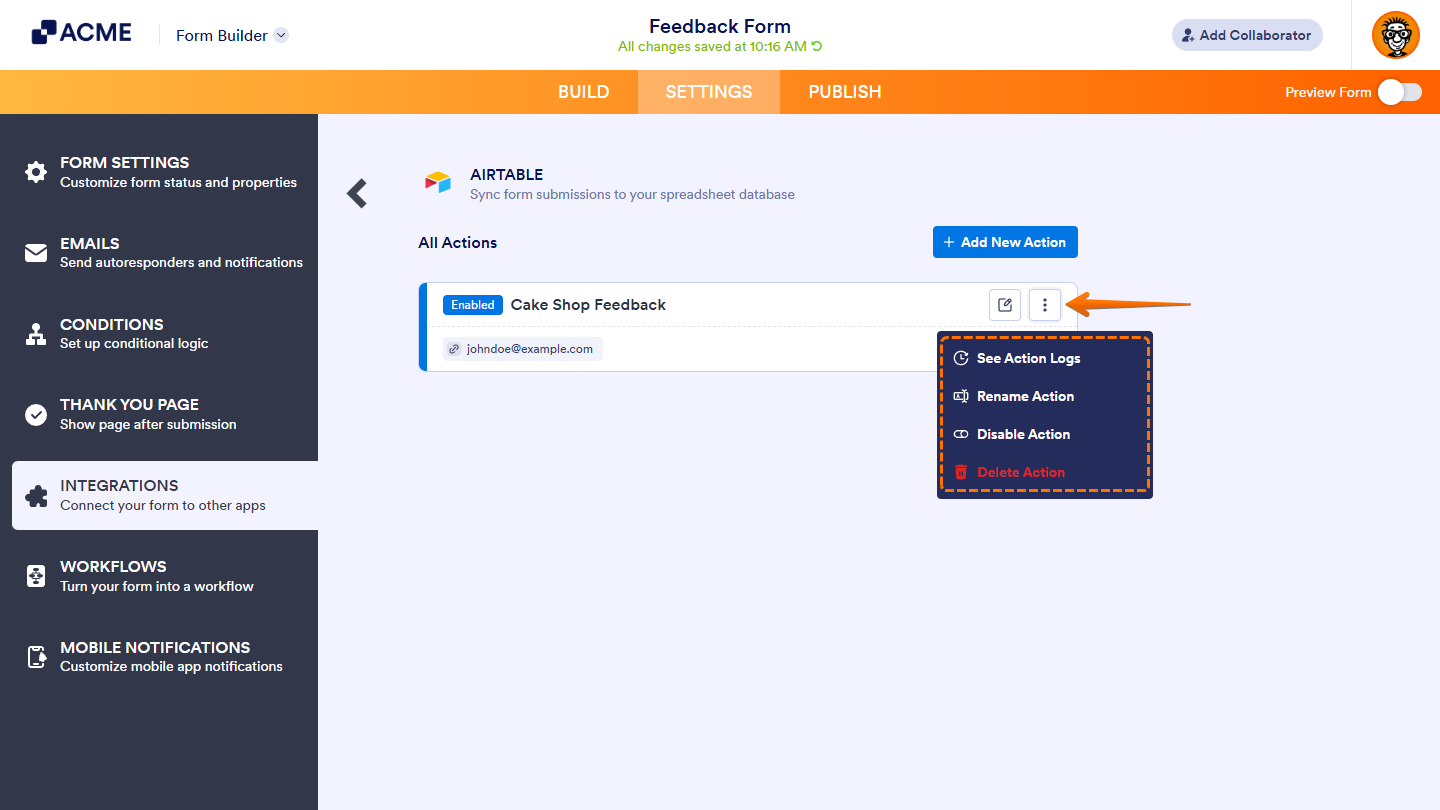
Click on the Three Dots icon next to the Edit icon and, in the menu that comes up, select one of the following options:
Viewing Action Logs
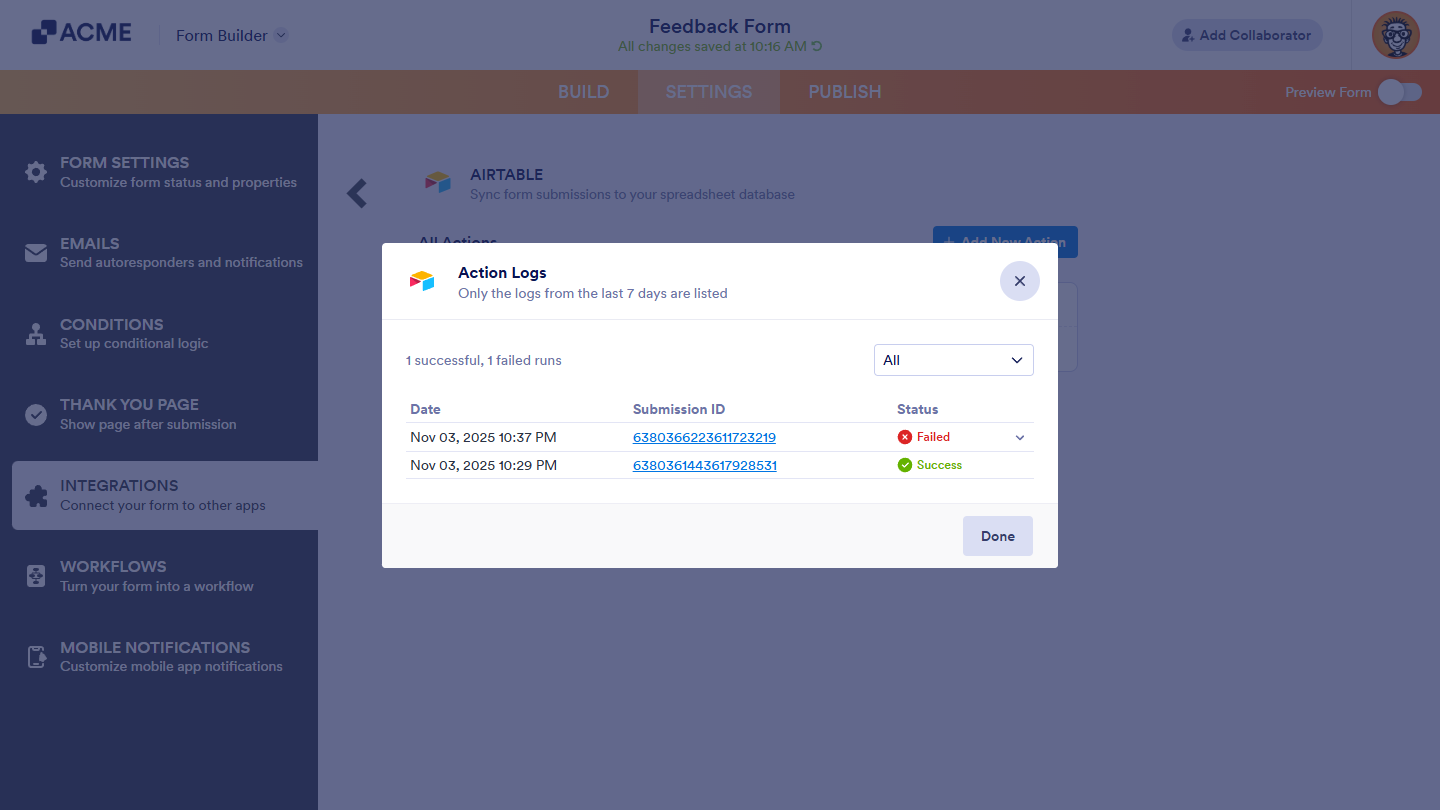
This opens the Action Logs window, where you’ll see successful and failed run logs of an Airtable integration action from the last seven days.
Notes:
- Use the dropdown menu on the right side of the Action Logs window to filter logs by All, Successful, or Failed.
- In the Status column, click on the Downward Arrow icon next to Failed to view the error details of a log.
- In the Submission ID column, click on an ID to open and review the details of the submission in another browser tab.
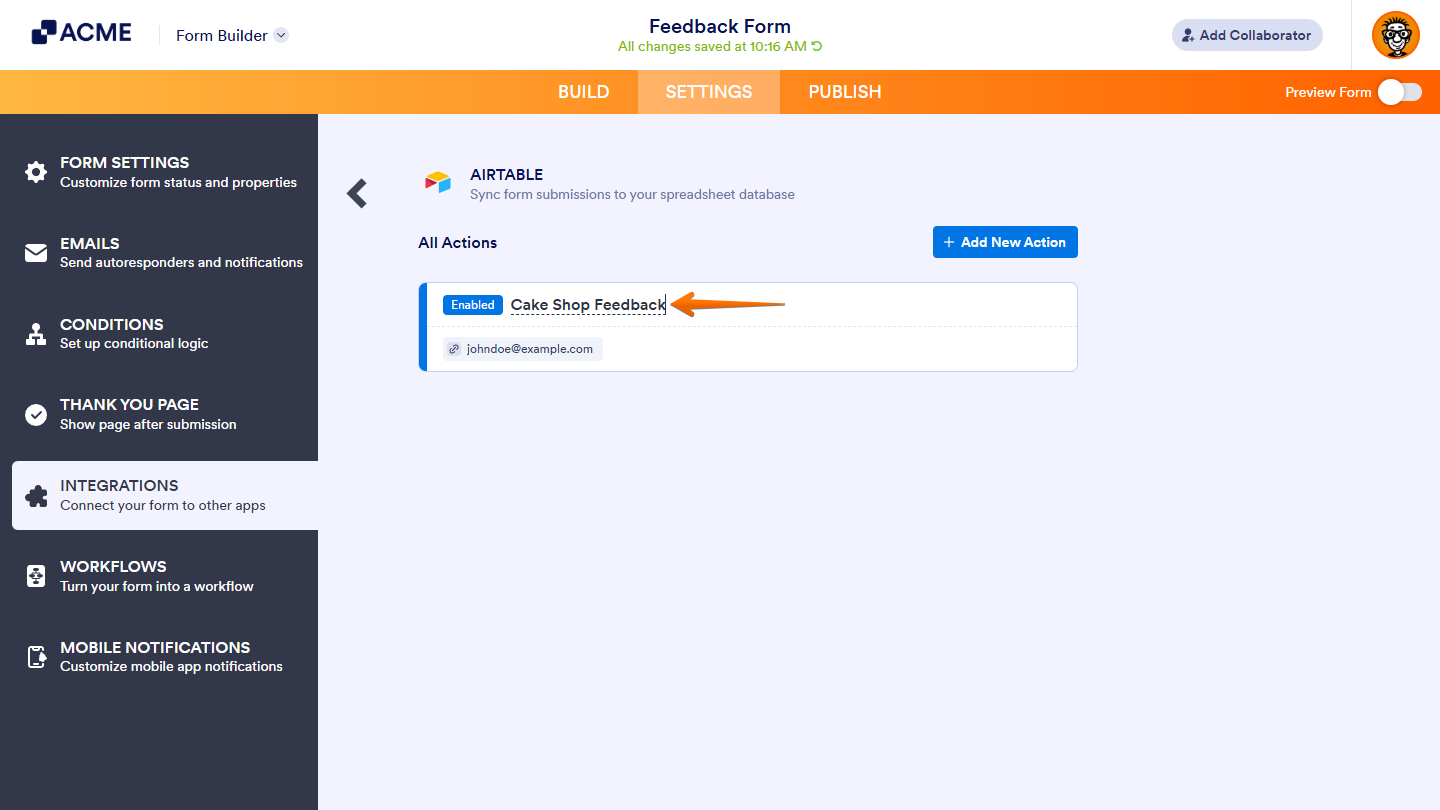
Renaming Actions
This gives an Airtable integration action a new name. It helps you label actions more clearly, match recent changes in your workflow, and tell similar actions apart in the All Actions section when they serve different purposes in Airtable.
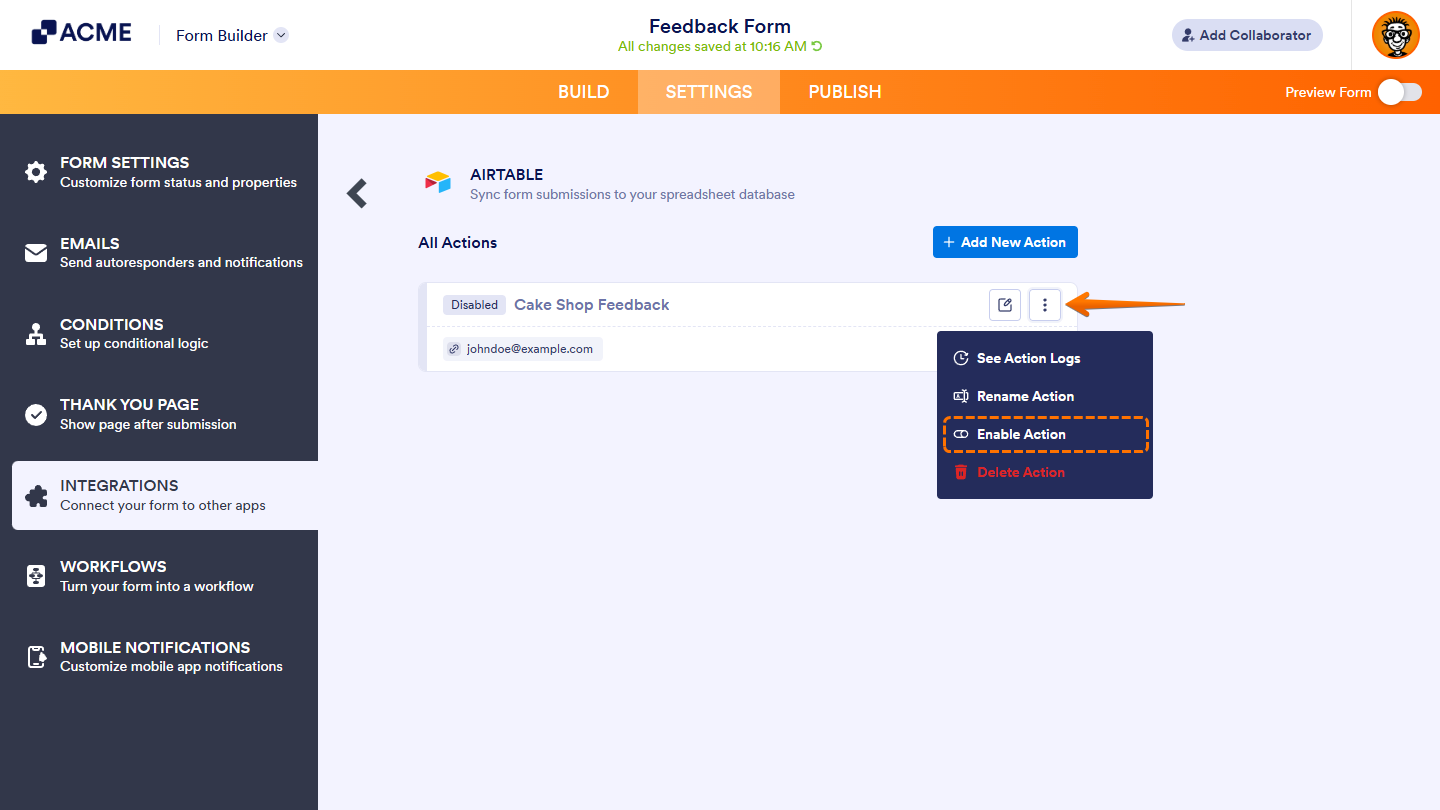
Disabling Actions
This temporarily stops an Airtable integration action from running. It’s useful when you need to pause it without deleting it or affecting other actions in the integration. When an action is disabled, the indicator next to its name changes from Enabled to Disabled. Click on the Three Dots icon and then select Enable Action to turn it back on.
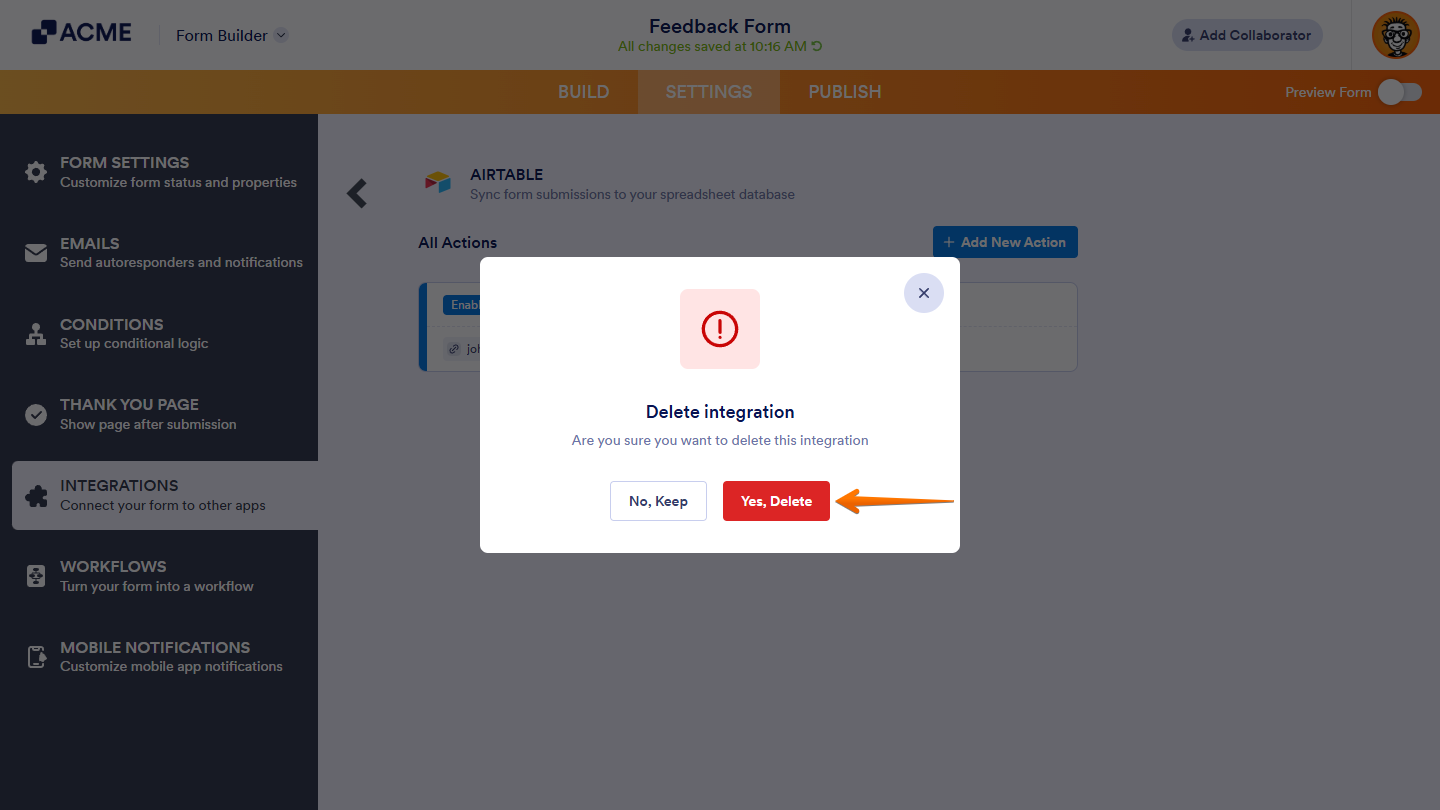
Deleting Actions
This permanently deletes an Airtable integration action and is helpful when it’s no longer needed and you want to keep your setup organized. After you click on Yes, Delete in the confirmation window, the action is removed forever. If you only need to pause it, consider disabling it instead.

Send Comment: