ActiveCampaign offers one of the smoothest experiences for marketing automation, providing a premier set of features to help you manage your contacts and evaluate the prospective direction of your campaign.
With the ActiveCampaign integration, you can extend your workflow automation to your form by updating your contacts, adding a contact to automation, adding a note to a contact, and creating deals.
Connecting Your ActiveCampaign Account
Whether you’re setting up a new form or updating an existing one, connecting your ActiveCampaign account takes no time at all—here’s how:
- In Form Builder, in the orange navigation bar at the top of the page, click on Settings.
- In the menu on the left, click on Integrations.
- Then, search for ActiveCampaign and click on it.
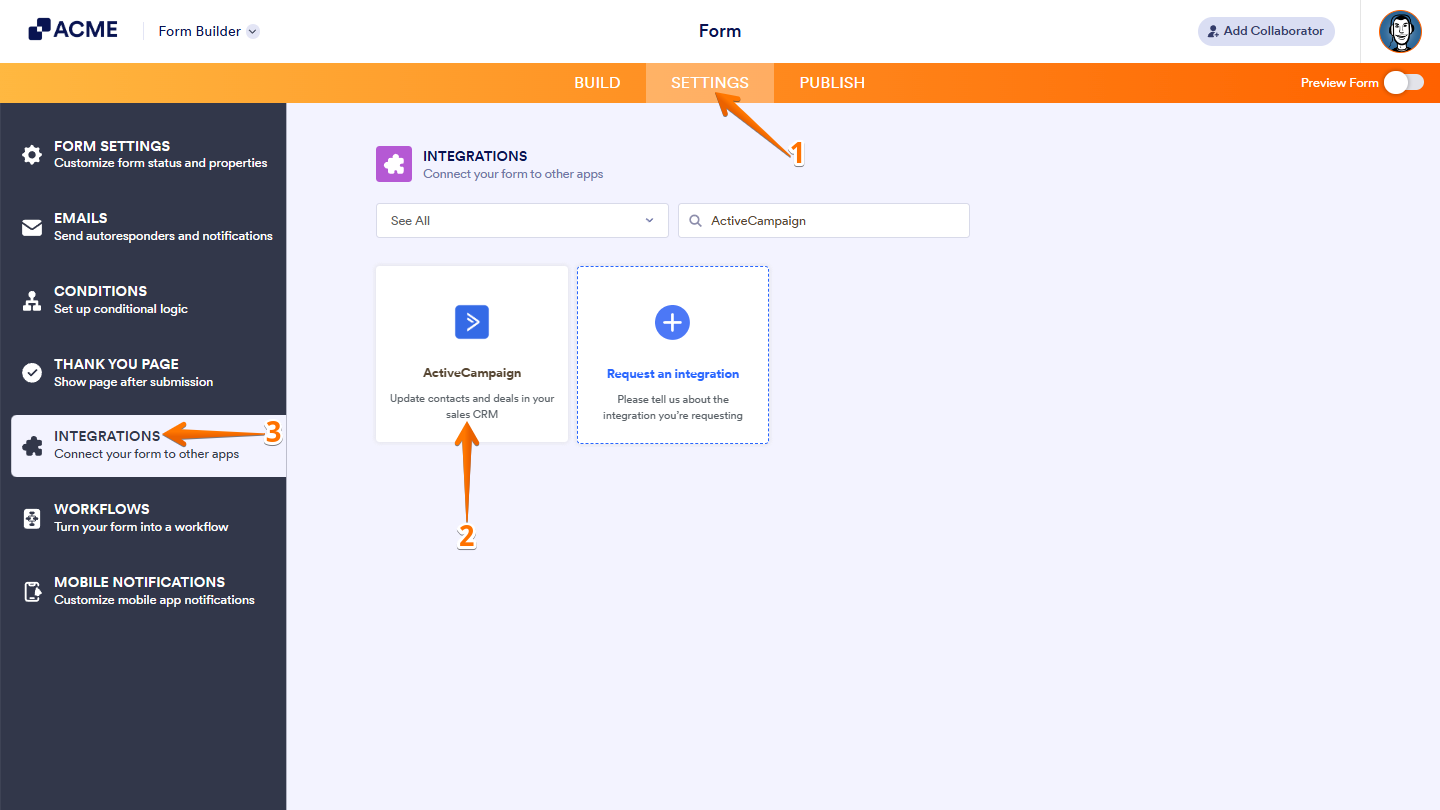
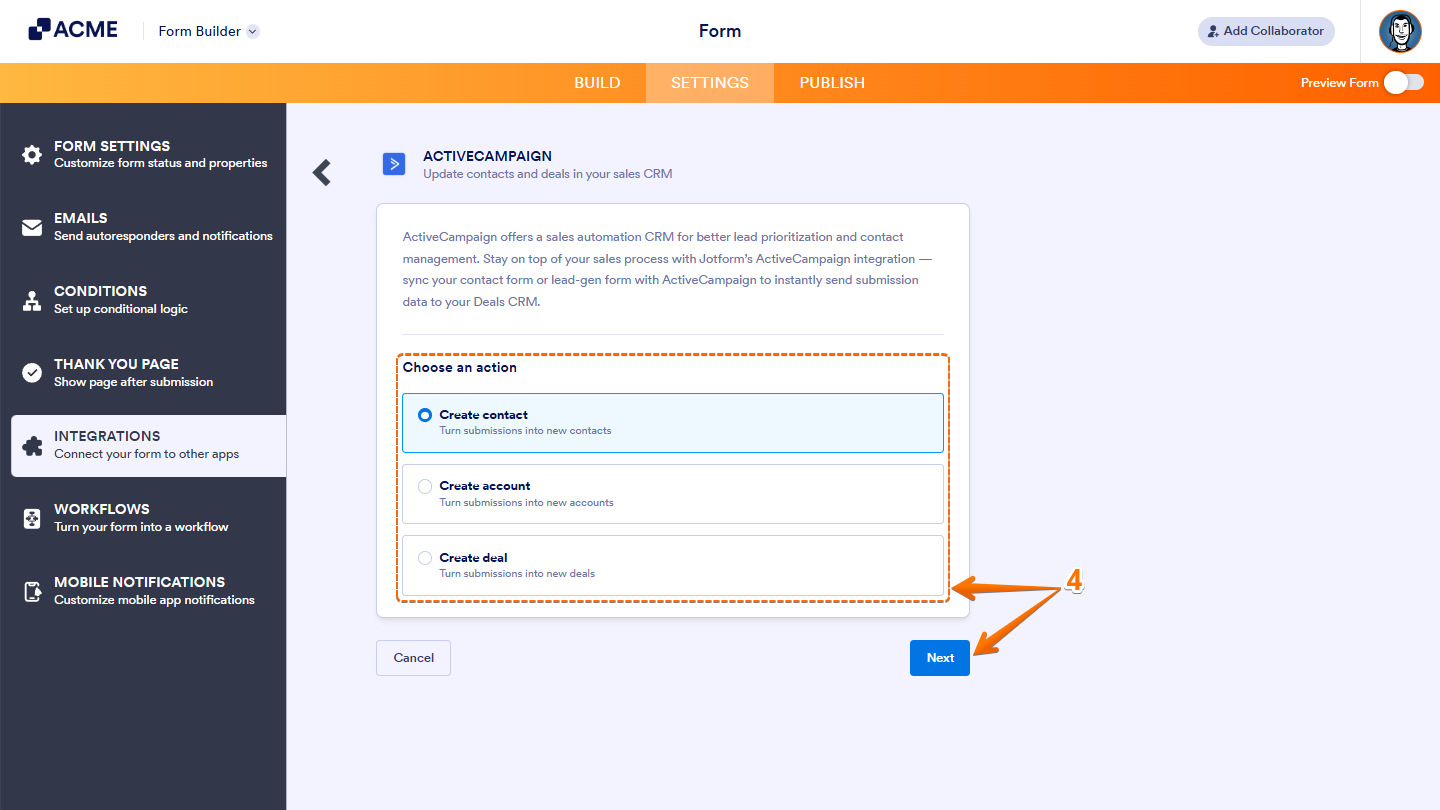
- Now, under the Choose an Action section on the right, select what you want to do, and then click on Next.
- Create Contact — Turn form submissions into new contacts.
- Create Account — Create new accounts on form submissions.
- Create Deal — You can create a new deal with form submissions.
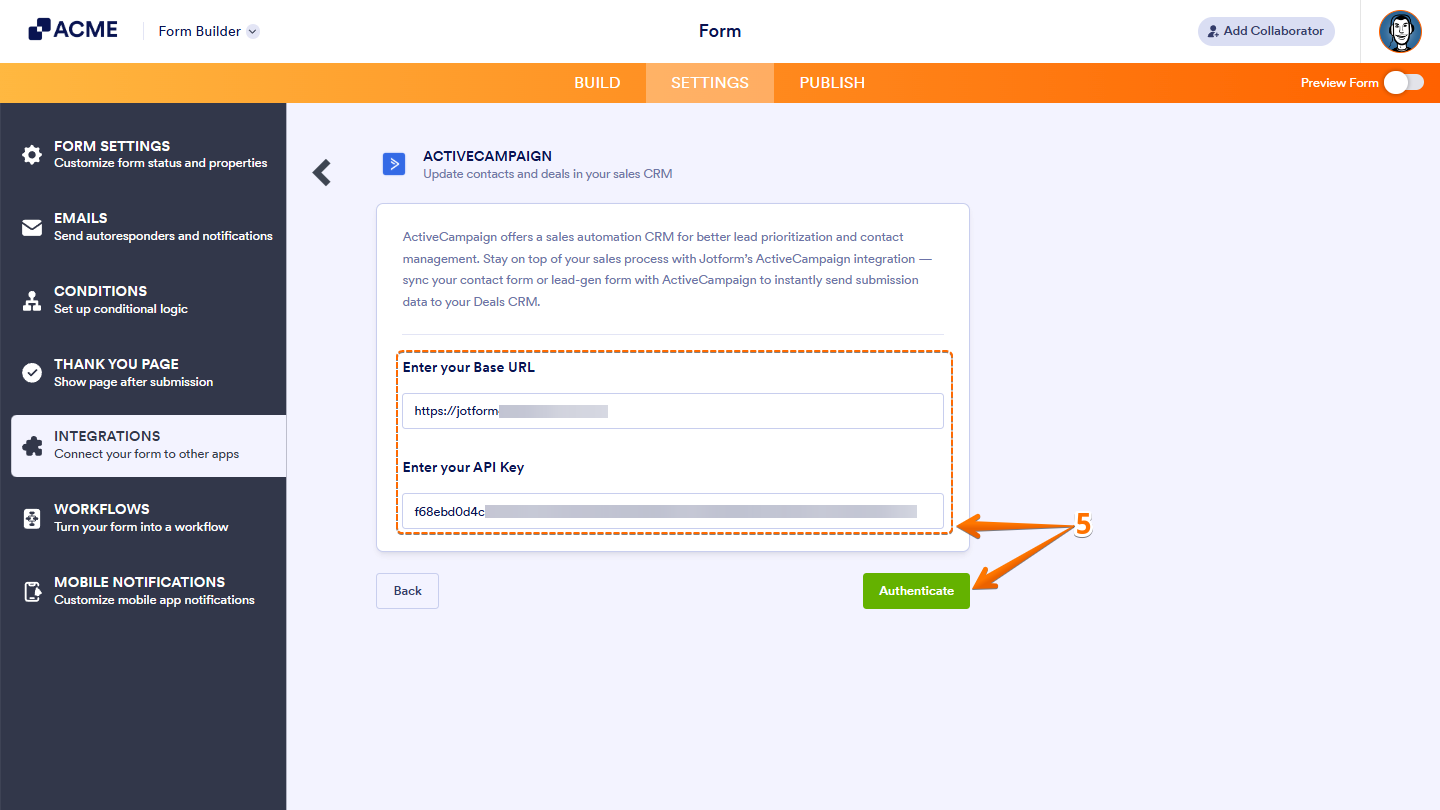
- Next, enter your Base URL and API Key, and then click on Authenticate. Take a look at this guide on Getting ActiveCampaign Credentials for more details.
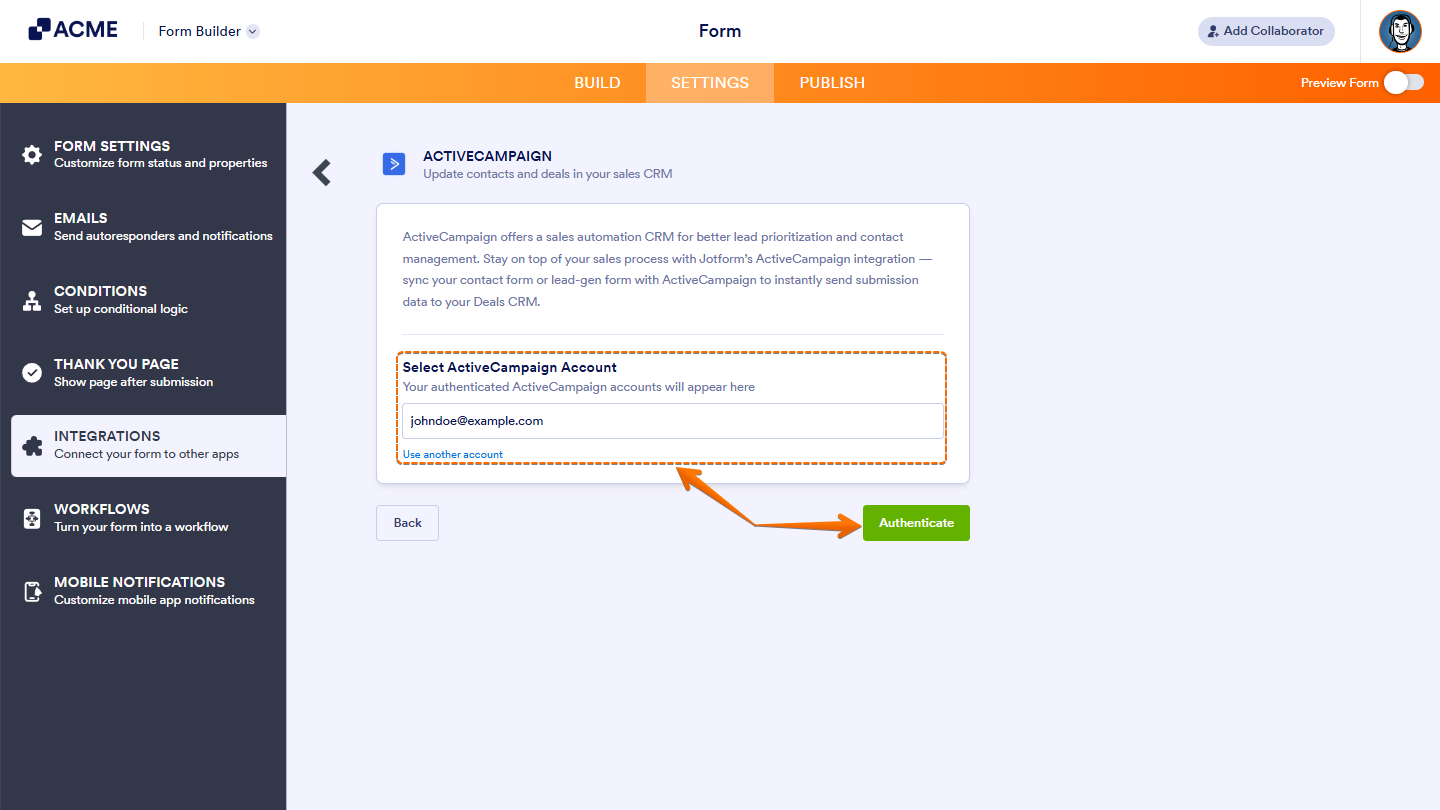
If you’ve logged in before, just pick your ActiveCampaign account from the Dropdown menu, and click on Authenticate. To use a different one, click on Use Another Account Link.
Creating a Contact
After connecting your account, set up how new contacts are created from your form submissions. Here’s how to do it:
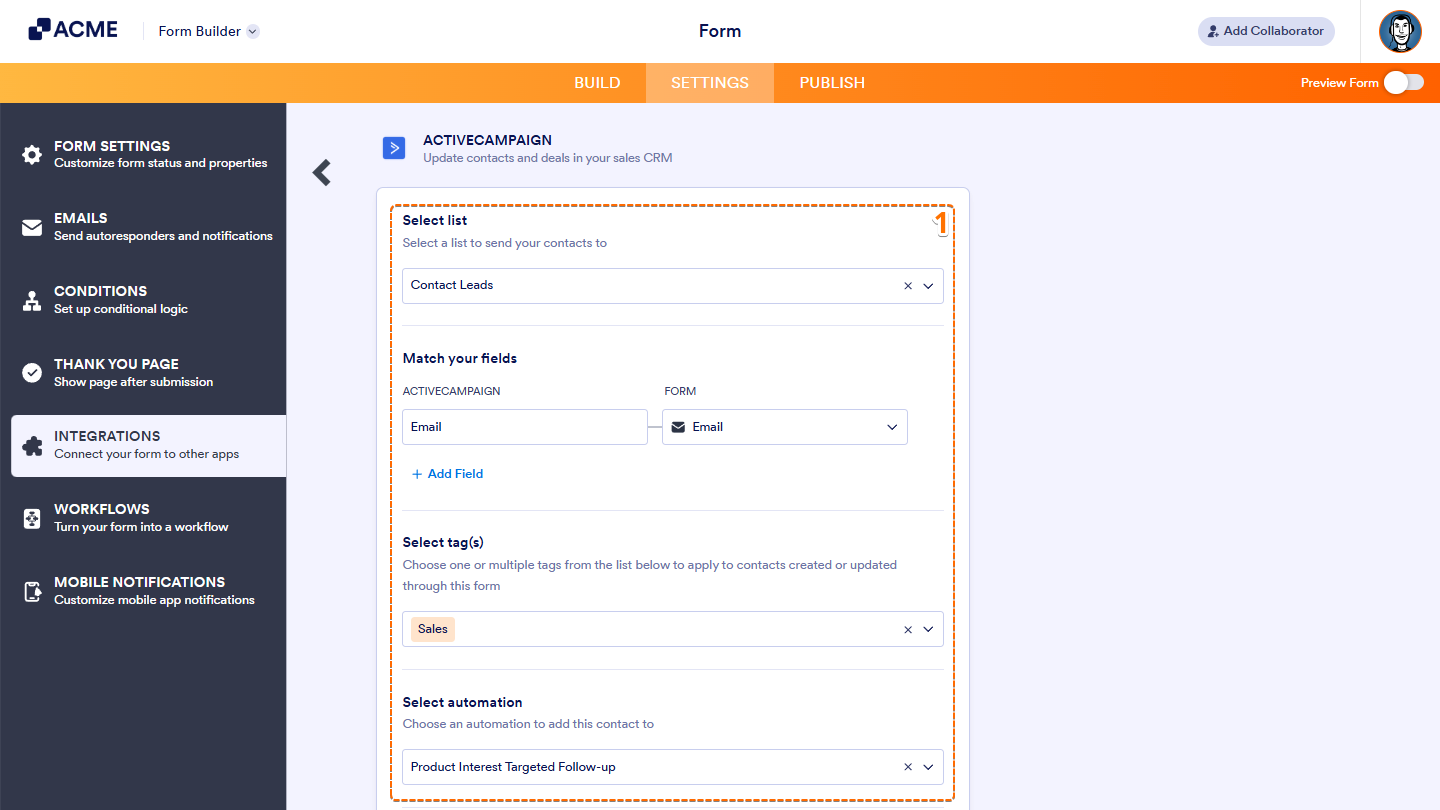
- In the next screen, after authenticating your account, setup these things:
- Select List — Select from one of your ActiveCampaign lists. It’s the list to which the integration sends your contact.
- Match your Fields — You must match your ActiveCampaign fields with your form. The action requires the email address, so ensure the Email element exists in your form. Click the Add Field to match additional fields.
- Select Tag(s) — Select one or more tags to assign to the contact created or updated by the integration on the selected list.
- Select Automation — Add your contact to a specific automated workflow in your ActiveCampaign account.
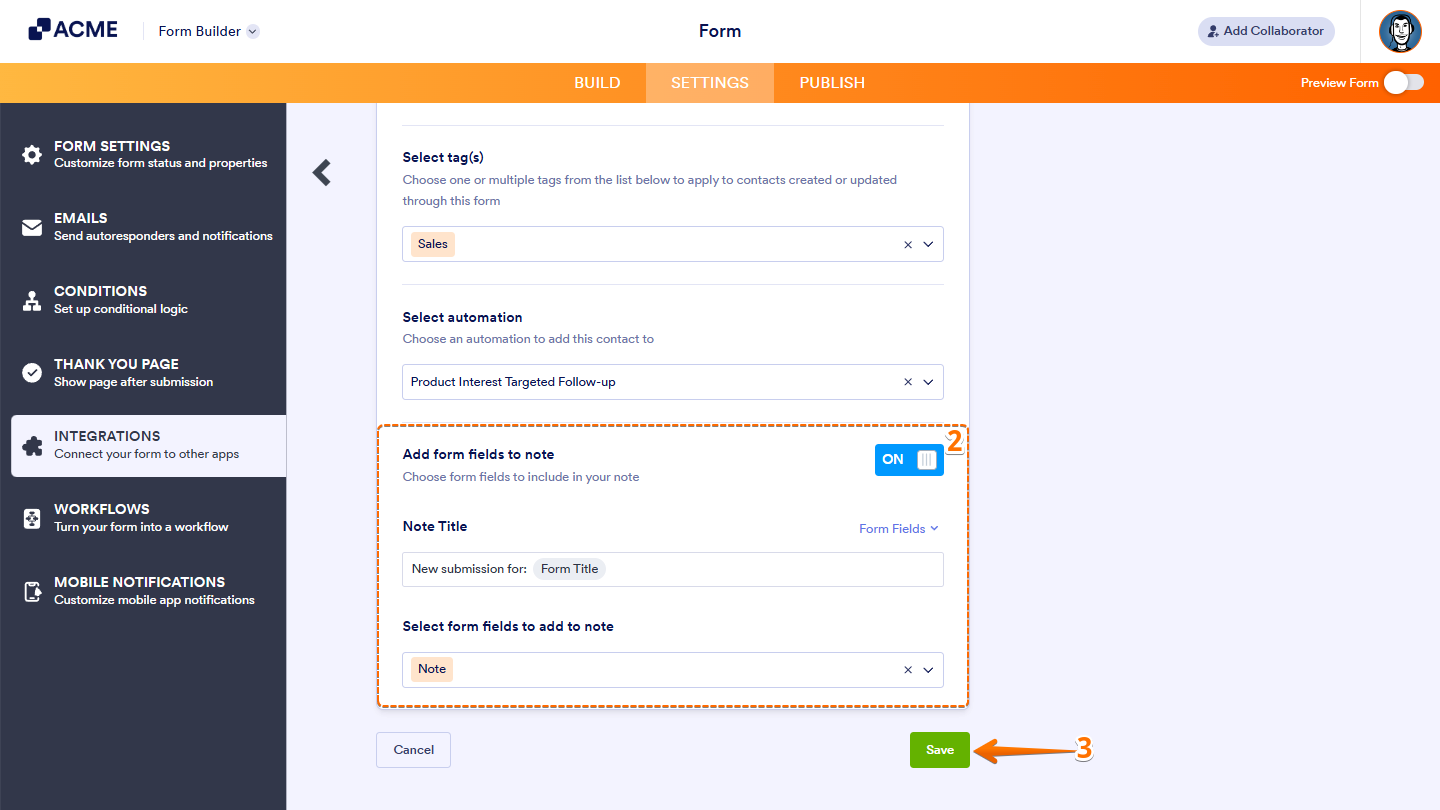
- Then, scroll down and turn on Add Form Fields to Note to include form fields as notes in the contact.
- Once you’re done, click on Save.
Creating an Account
If you’ve chosen to create an account, the setup is quick and simple. This is how it’s done:
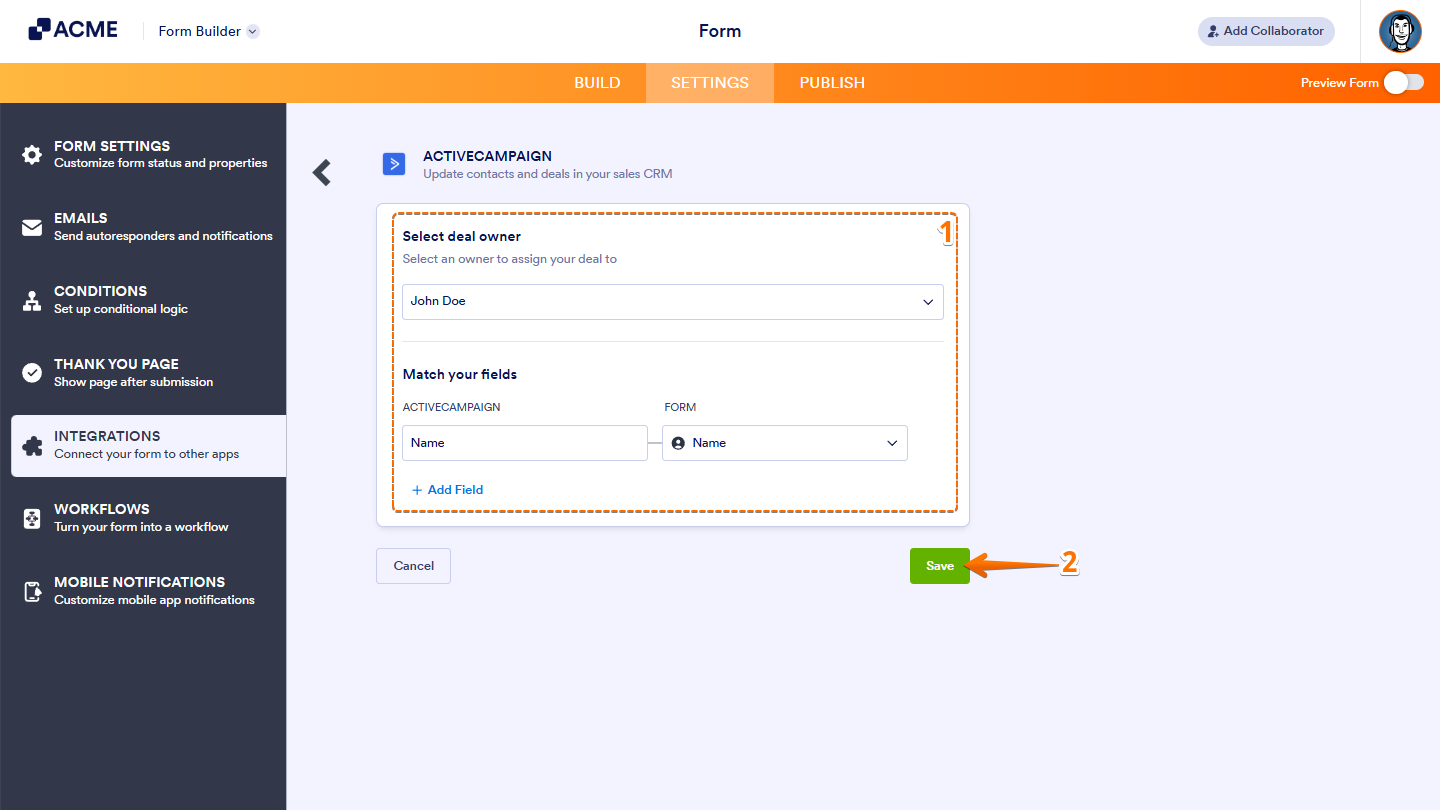
- In the next screen, after authenticating your account, setup these things:
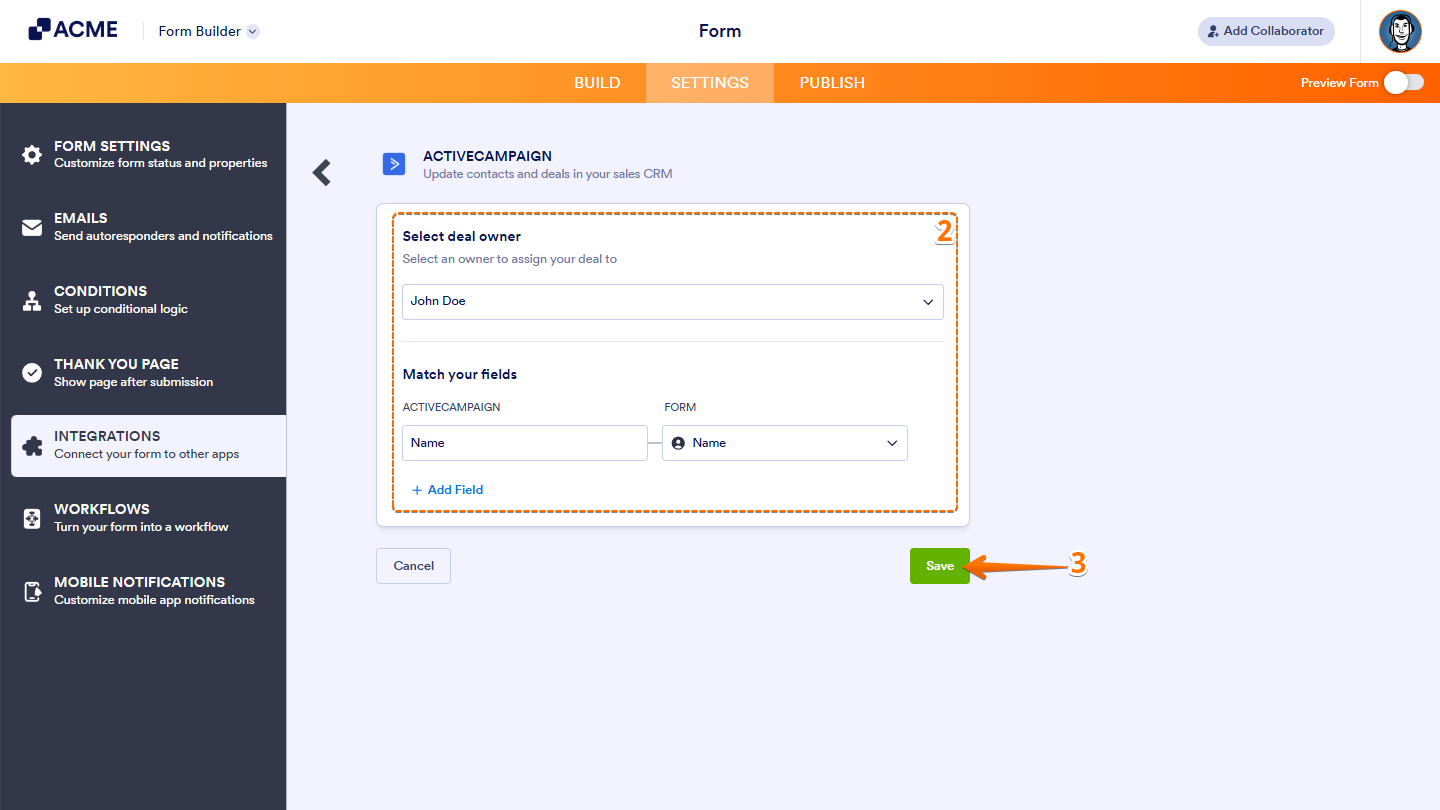
- Select deal owner — Choose from one of your deal owners from the dropdown to assign deals created on form submissions.
- Match your fields — The Name is required, so map it accordingly. You can also map the Account URL when needed. You can’t map additional fields when creating an account.
- Once everything’s set, click on Save.
Creating a Deal
If you’ve chosen to create a deal, here’s what to do:
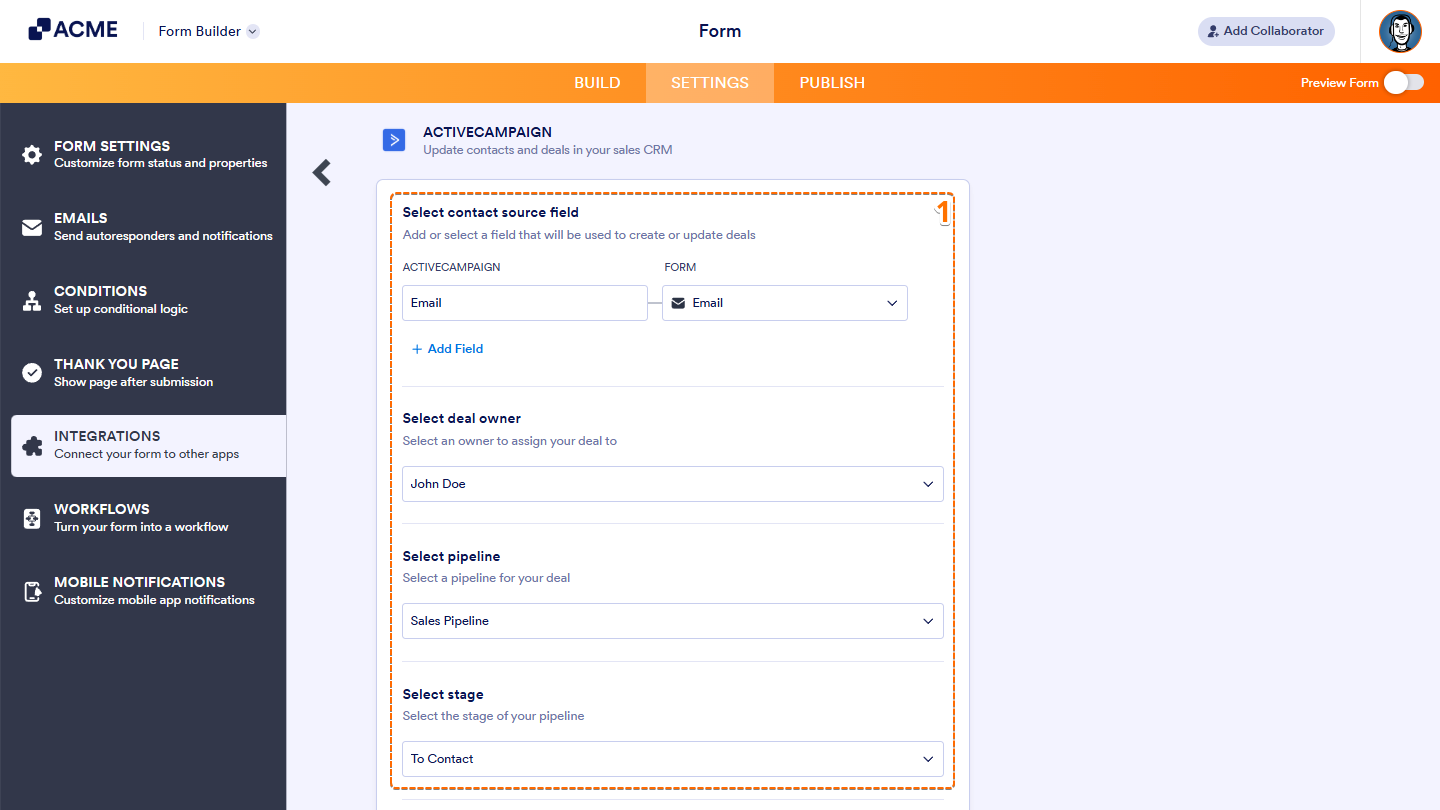
- In the next screen, after authenticating your account, setup these things:
- Select Contact Source Field — Add or select a field that will be used to create or update deals.
- Select Deal Owner — Select an owner to whom you can assign your deal.
- Select Pipeline — Select a pipeline for your deal.
- Select Stage — Select the stage of your pipeline.
- Then, scroll down and continue to set up these things:
- Match your fields — Match the required fields for the deal, such as the Title, Value, and Currency. You can map more fields by clicking the Add Field option.
- Add form fields to note — Toggle this option to add a note to the deal. You can personalize the Note Title with your form fields and select form fields to add to the note.
- When your settings are ready, click on Save.
And that’s it! Your contacts, accounts, or deals will be automatically created or updated as you get responses on your form.
Managing ActiveCampaign Integration Actions
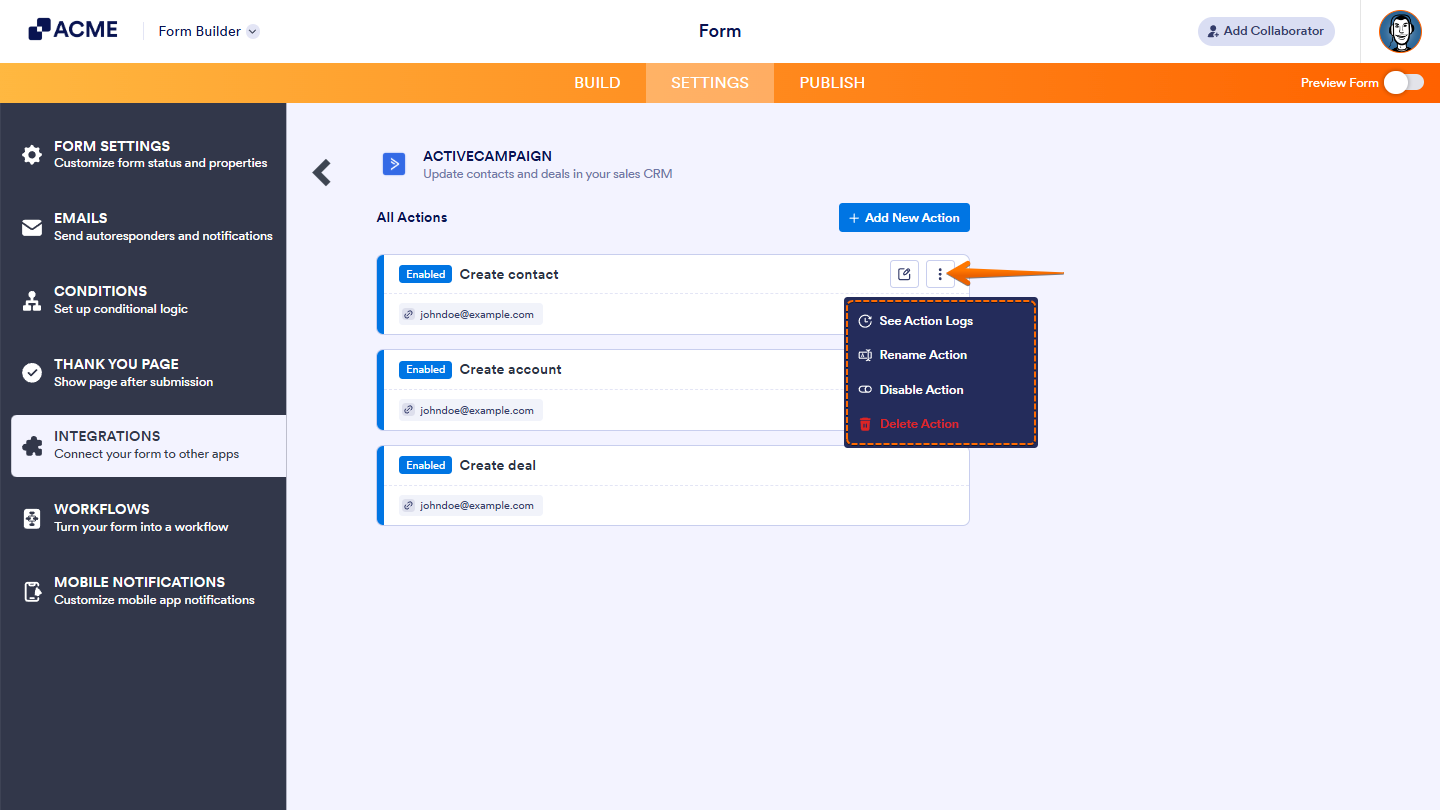
After saving the integration, you’ll see a list of the Active Campaign actions you’ve set up and the Add New Action button on the main page. Hover your mouse over an action and click on the Three Dots icon on the right side of it to access these options:
- Delete Action — Remove the action from your form.
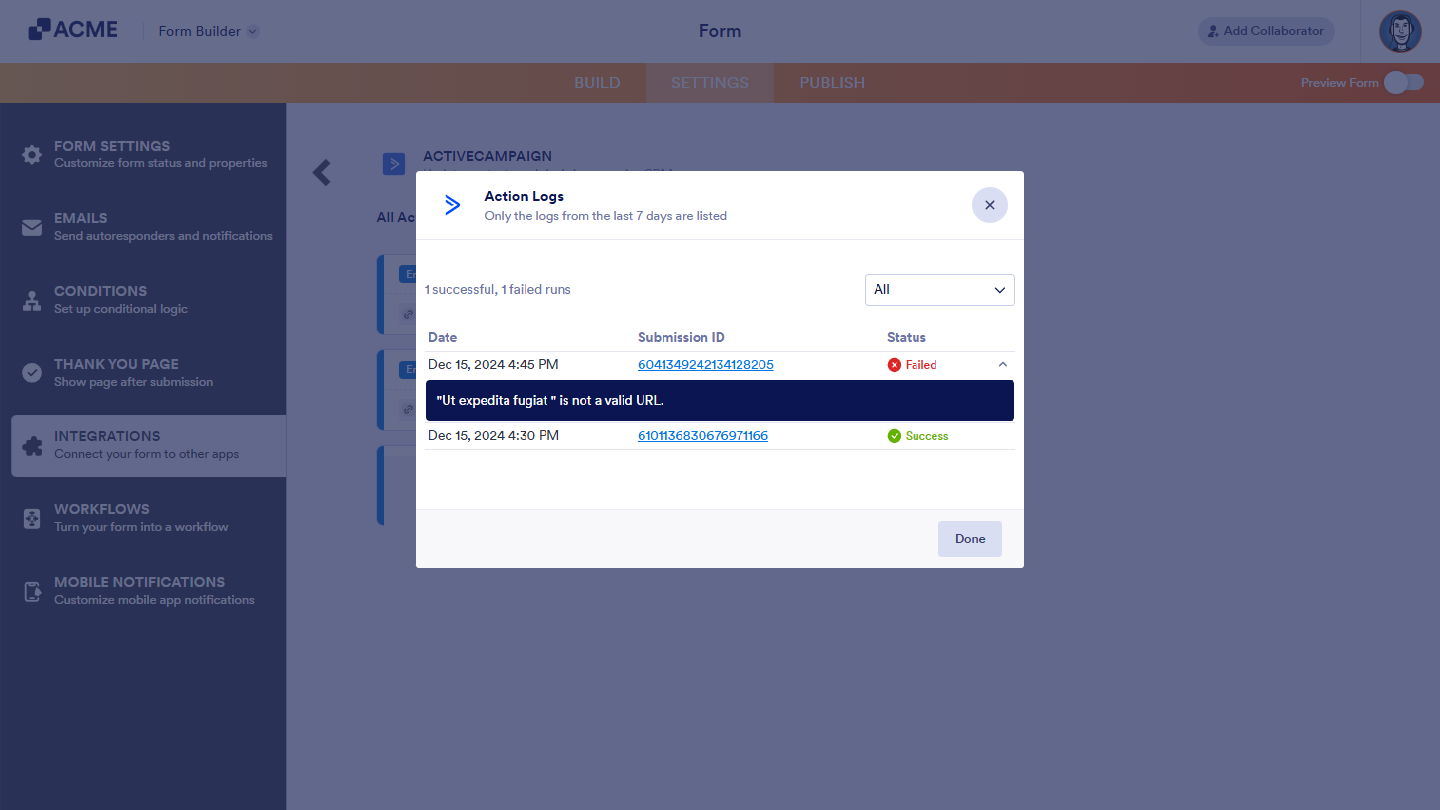
- See Action Logs — View successful and failed runs, helpful for troubleshooting.
- Rename Action — Change the action’s title.
- Disable Action — Temporarily stop the integration from sending data.
The Action Logs will display the integration logs for the last 7 days. Click the Downward Arrow on the error to view the error message or the reason for the failure.
Getting the ActiveCampaign Credentials
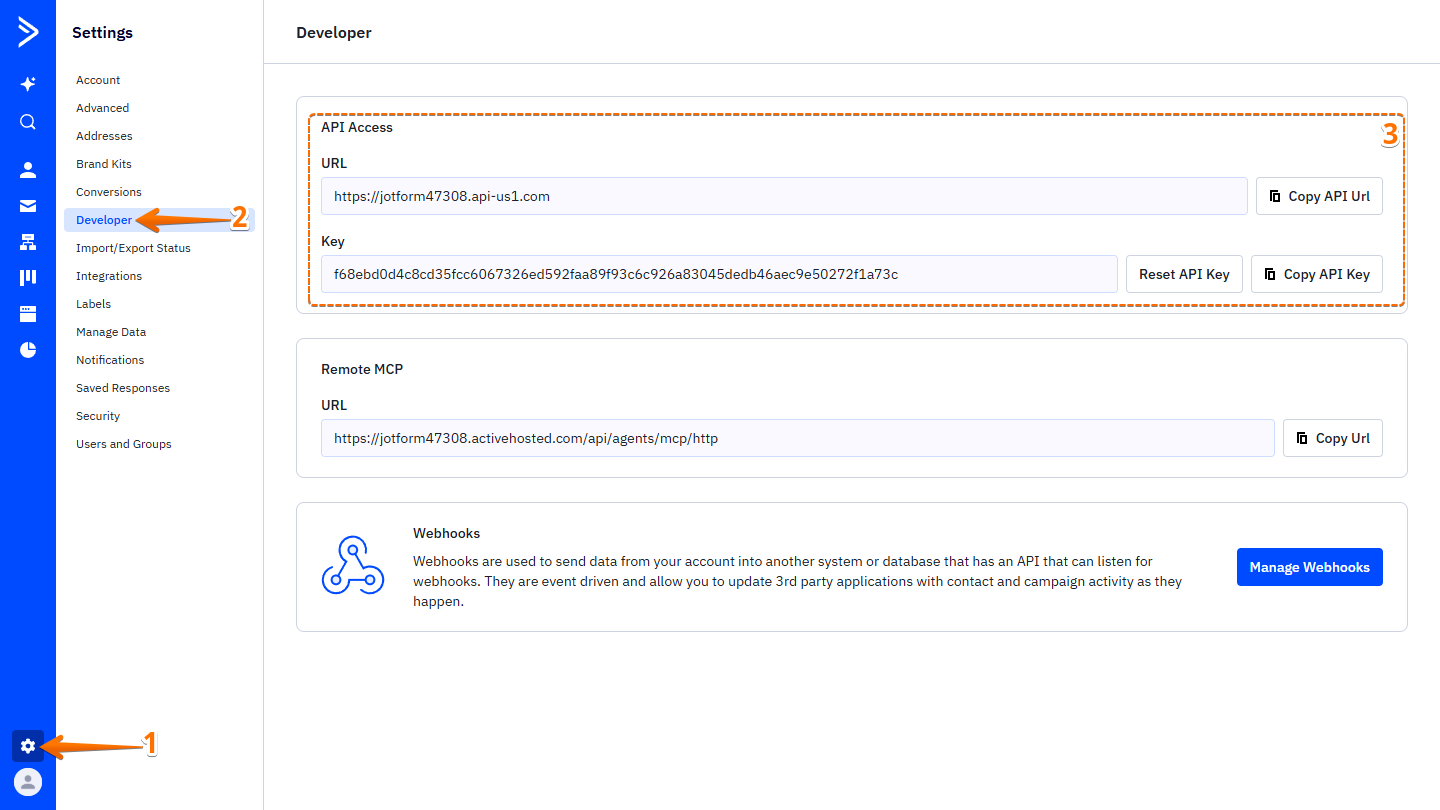
The ActiveCampaign integration requires you to prepare both the API URL and Key. Here’s how you can get that from your ActiveCampaign account:
- Log in to your ActiveCampaign account and in the menu on the left, click on Settings.
- Then, click on Developers.
- Now, under the Developers section, copy both the API URL and Key, and you’re done.

Send Comment: