Aside from the built-in form designer, you can also customize your forms using CSS in Form Builder. This guide contains a few examples of CSS codes that you can try or use on your forms.
Add a Background Image to the Page
The following CSS code allows you to add a custom background image for your form.

.supernova {
	background-image: url('{image_url}');
	background-repeat: no-repeat;
	background-position: center top;
	background-attachment: fixed;
	background-size: cover;
}
body {
	background: none;
}
Replace {image_url} with your background image’s URL.
Note
Use a secure HTTPS address for the image URL to avoid mixed content blocking.
Make the Page Background Transparent
Useful on embedded forms, you can use the following code if you need your form to use your web page’s background.
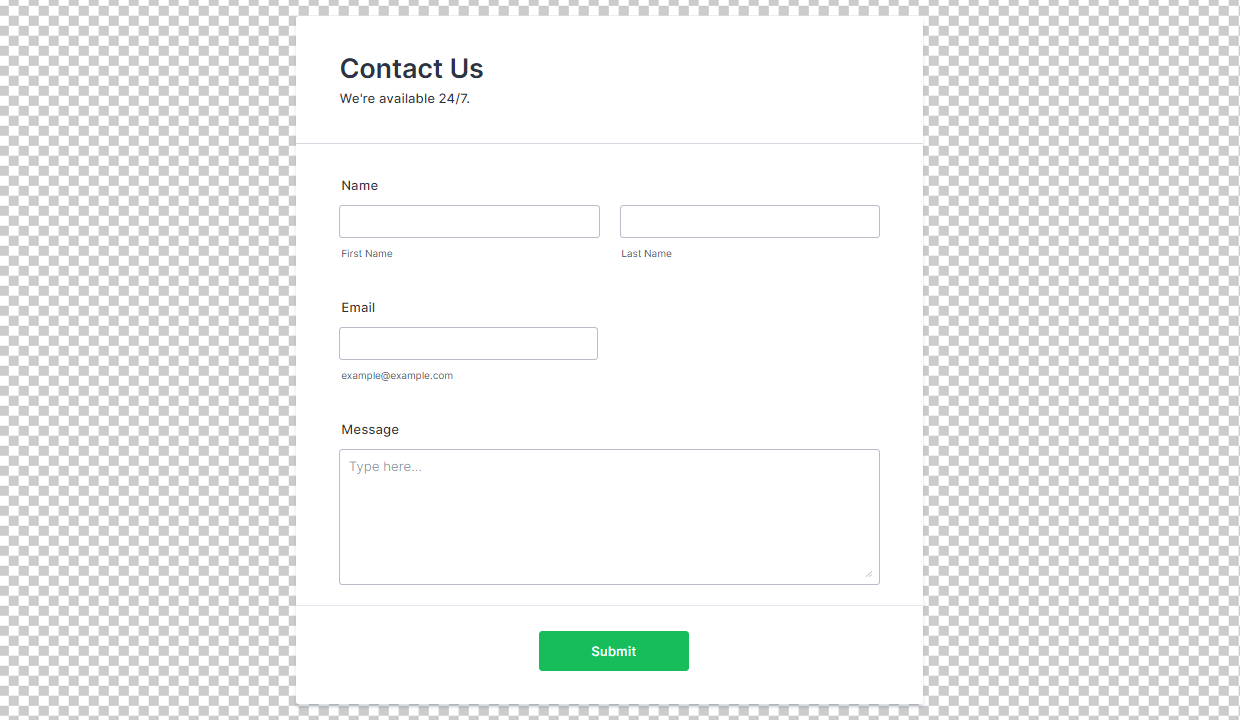
.supernova, body {
	background: none;
}
Make Form Background Transparent
The following code removes your form’s background and shadow making it flat and transparent.
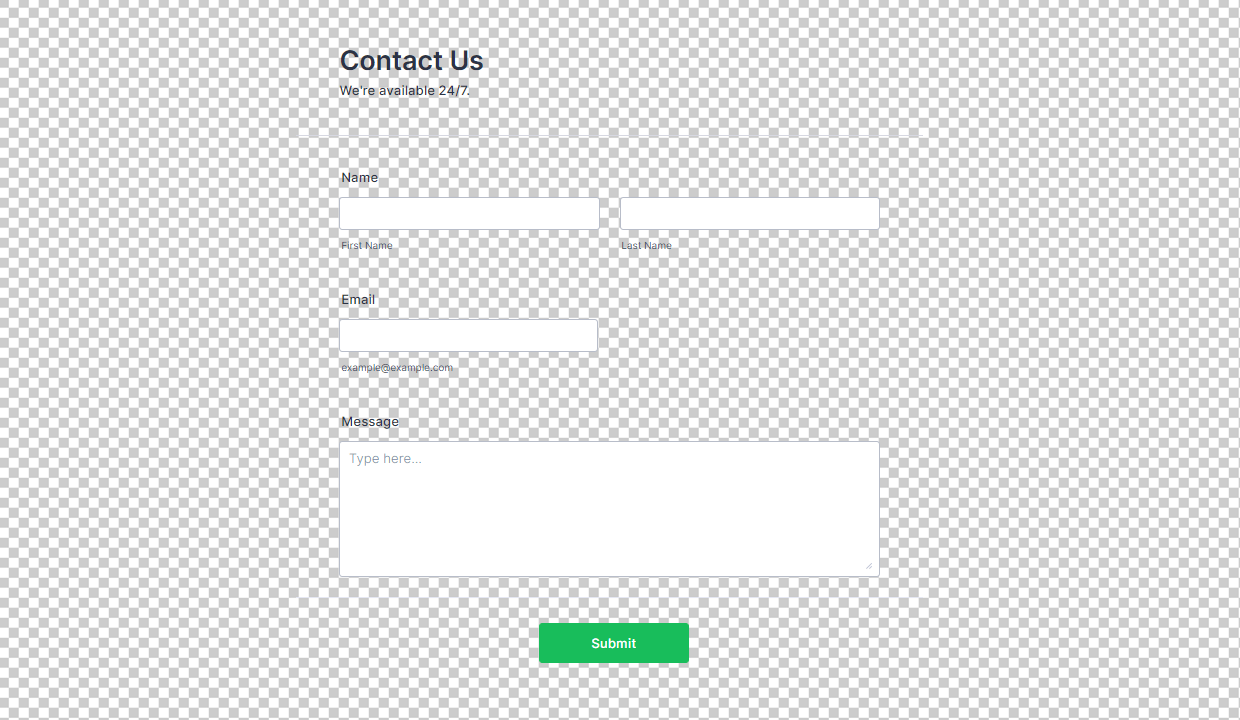
.form-all {
	background: none !important;
	box-shadow: none;
}
Remove the Spacing Above the Form
Useful on embedded forms, the following code removes the extra space above your form.
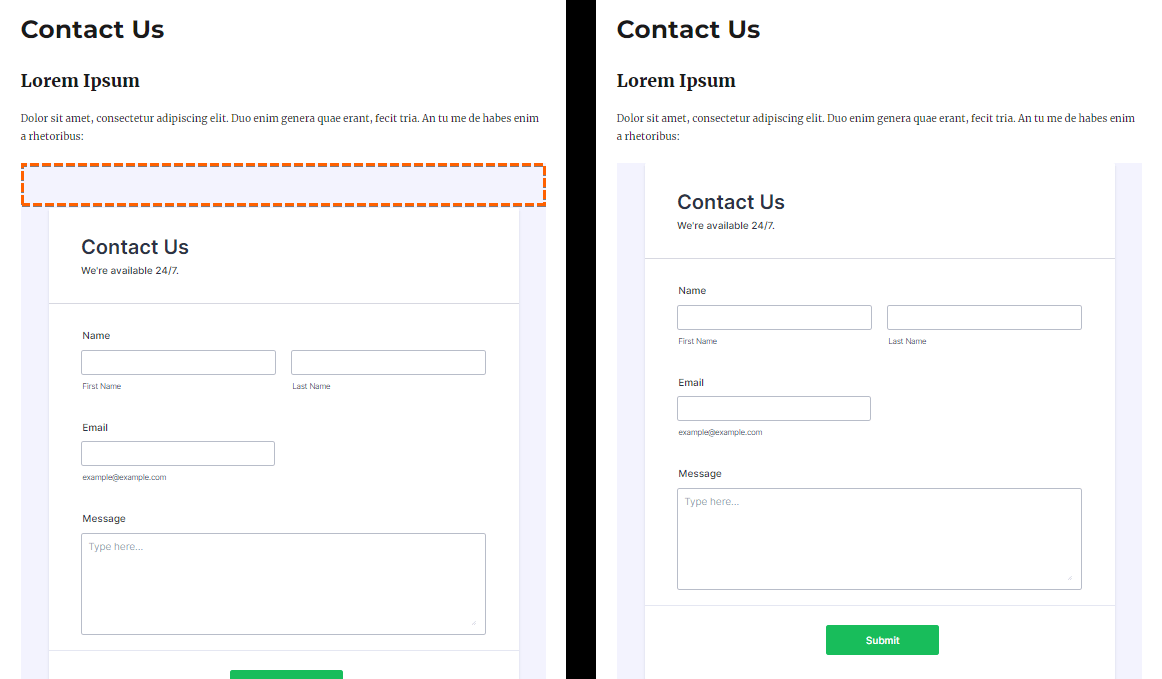
body, .form-all {
	margin-top: 0;
}
Change the Heading Background Color
Use the following code to change the background color of all the Heading elements on your form.
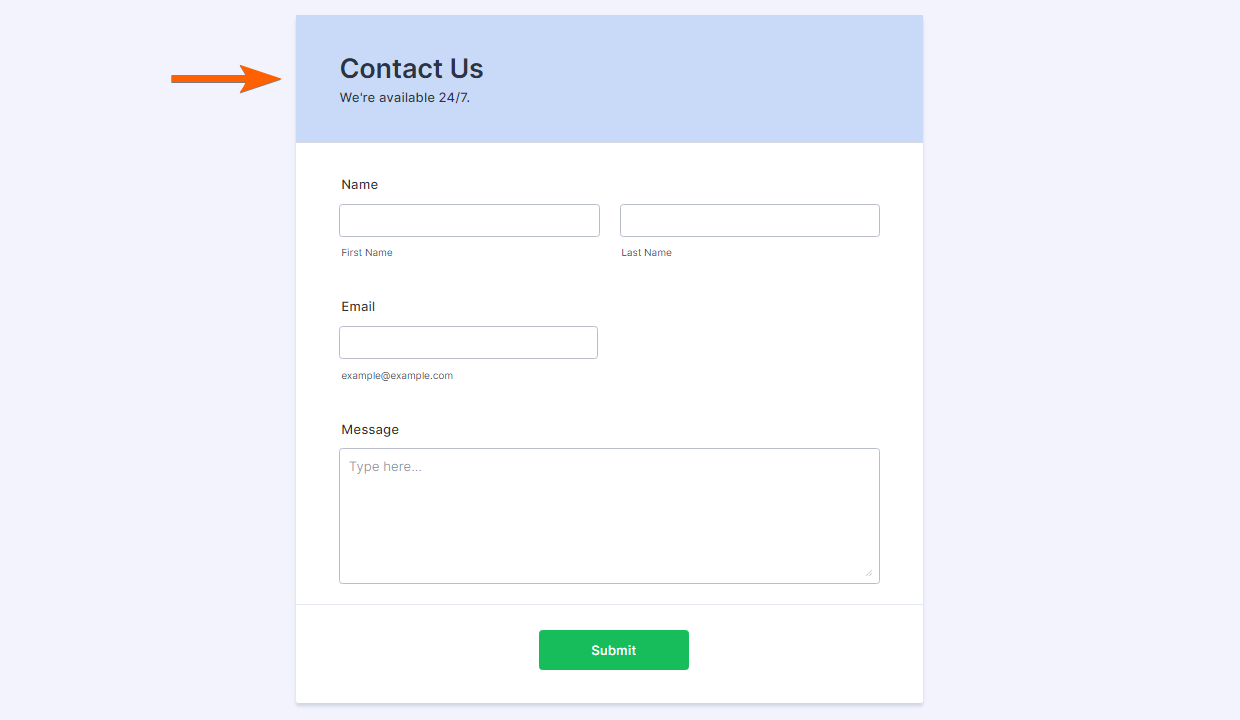
.form-header-group, [data-type="control_head"] {
	background-color: #c9daf8;
}
Protip
For color-related properties, you can use an online color picker to generate your color’s hex value (i.e., #a1b2c3).
Change the Subheading Color
The following code changes the text color of all your Heading elements’ subheaders.
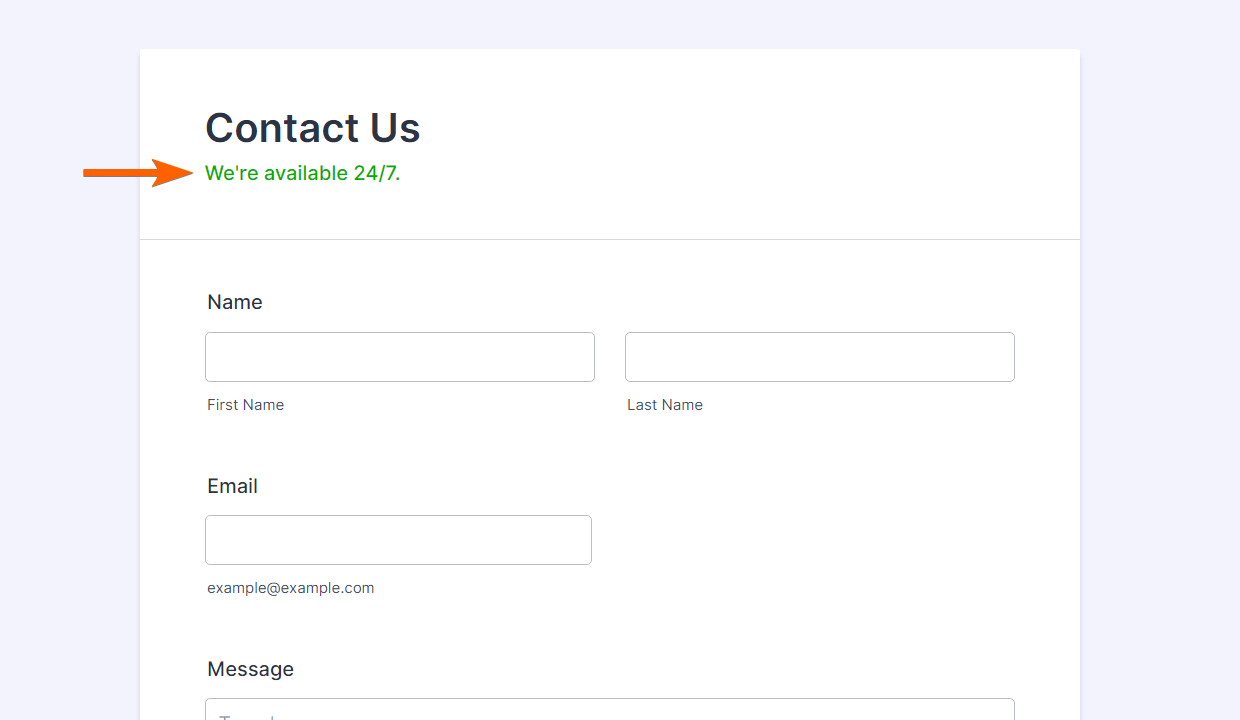
.form-subHeader {
	color: #00b000 !important;
}
Change All the Sub Label Color
Use the following CSS code to change the color of all the sub-labels on your form.

.form-sub-label {
	color: #ffb21d;
}
Change the Highlight Effect Color
You can use the following code to change the background highlight on input fields.
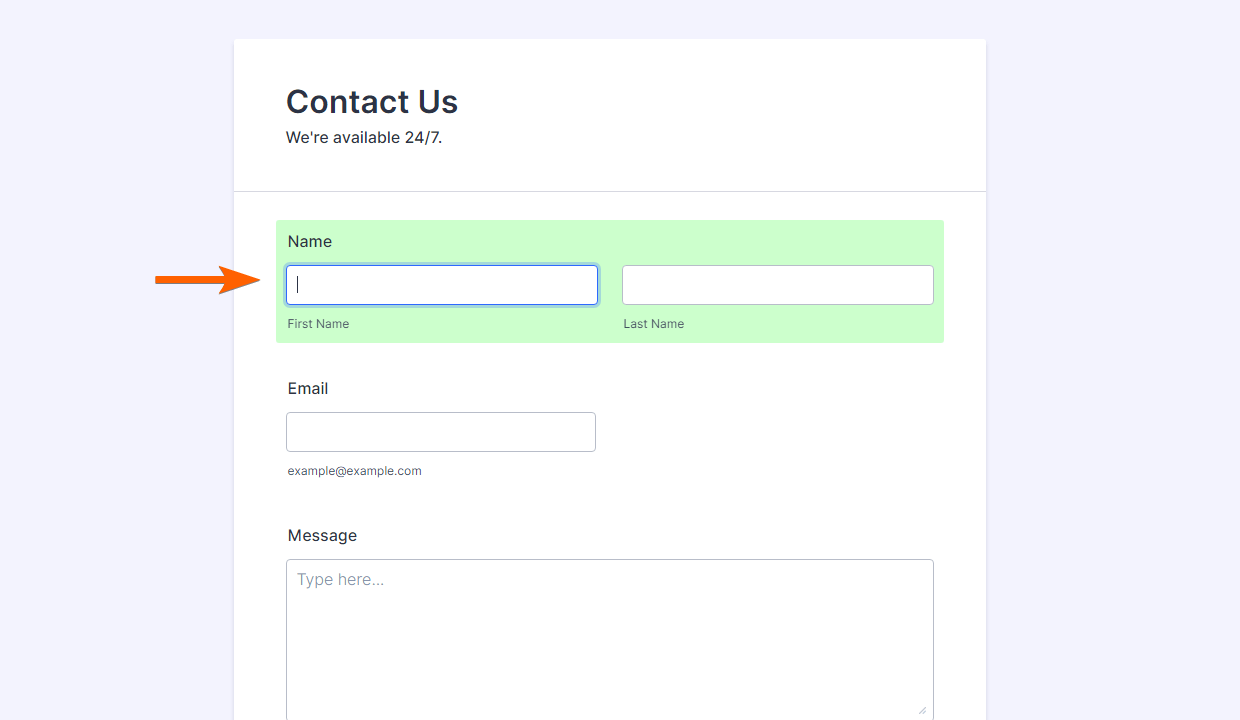
.form-line-active {
	background: #ccffcc;
}
Change the Form Required Star Color
Red by default, the code below changes the fields’ “required” indicator.
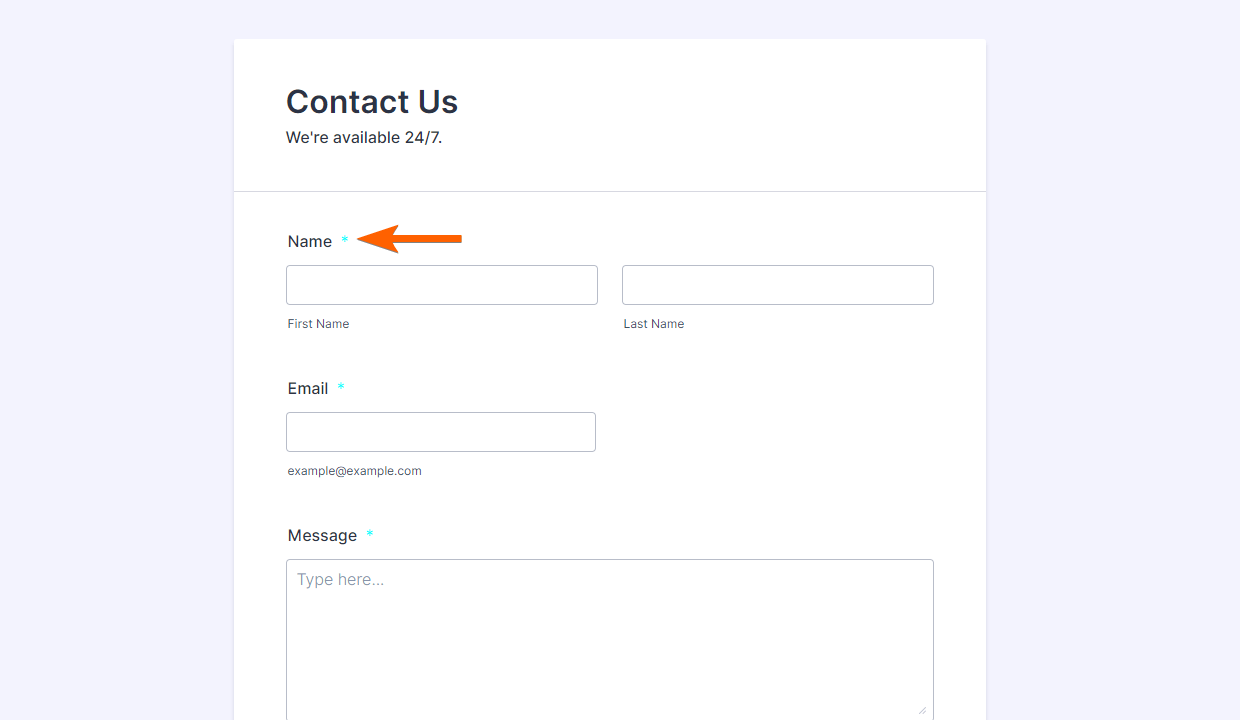
.form-required {
	color: cyan !important;
}
Align the Form to the Left
Useful on embedded forms, you can use the following code to move your form to the left.

.form-all {
	margin: 0;
}
Send Comment: