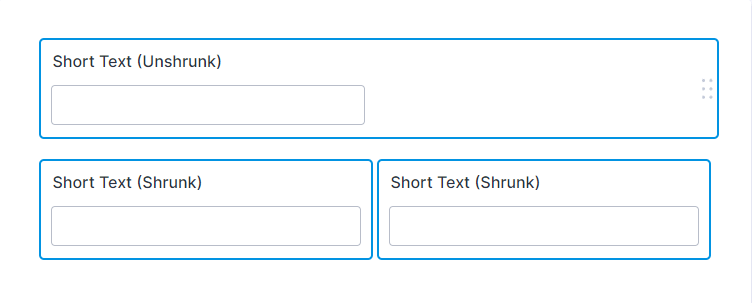
When a field is shrunk, its width is reduced to the minimum possible size. This means the field no longer spans the full width of the form. The example below illustrates the difference between a regular and a shrunk field.

You can position fields side by side by shrinking them with just a few steps. Here’s how:
- In Form Builder, select the element you want to shrink and click on Gear icon.
- Then, in the Properties window that opens on the right side of the page, under the Advanced tab, scroll down and toggle Shrink to On.
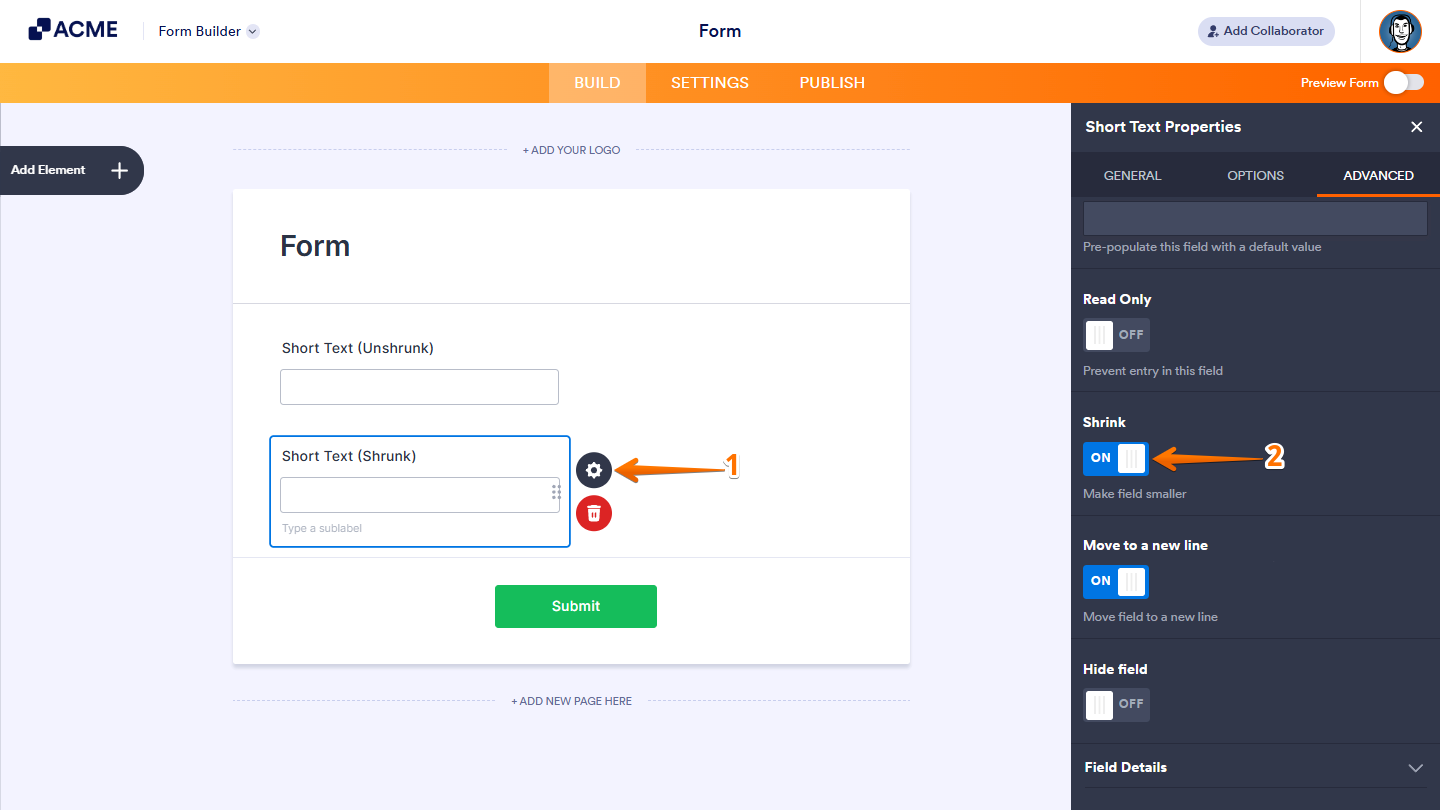
Repeat the same process for another field. The shrunk fields will automatically align on the same line, depending on the available form width.
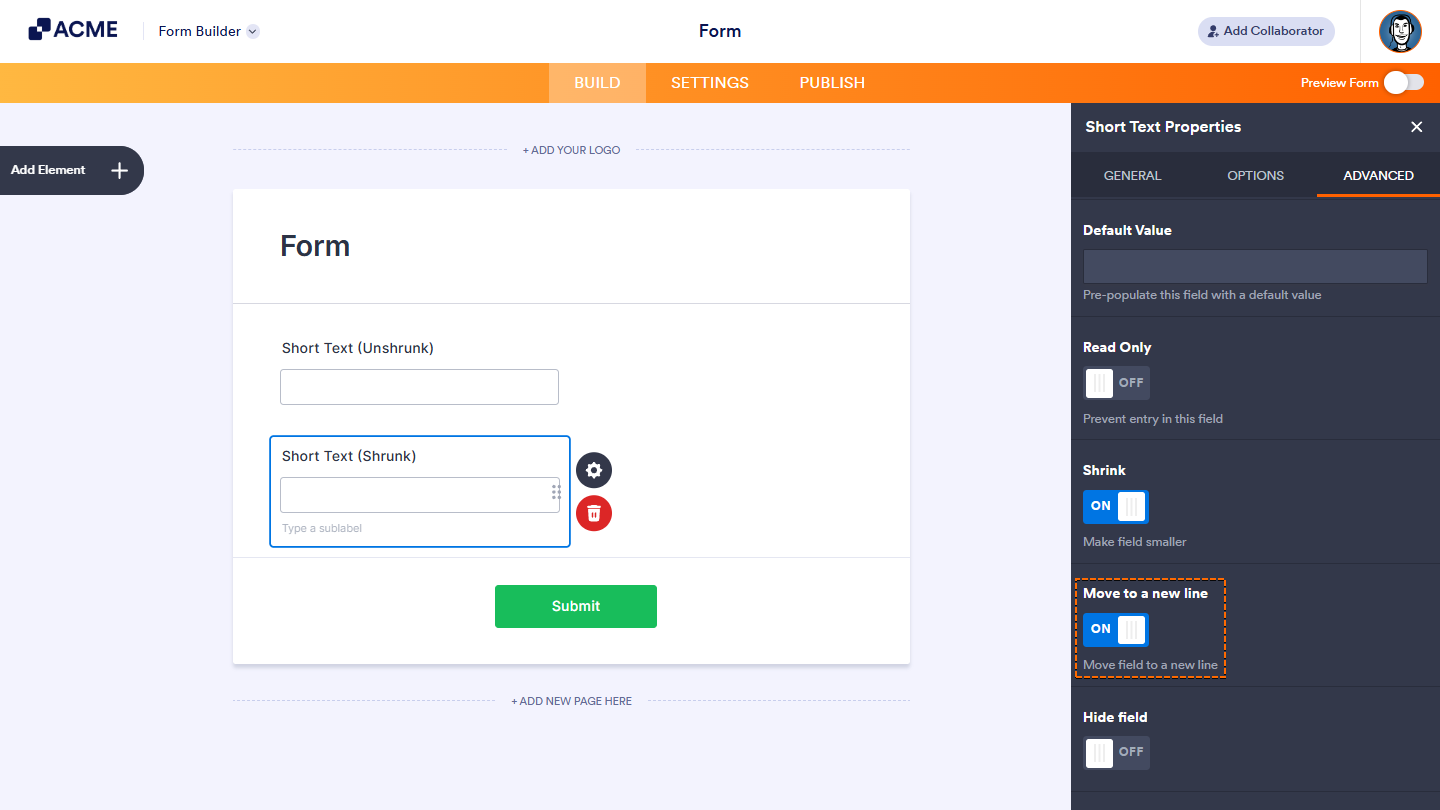
If you want a shrunk field to appear on a new line, toggle Move to a New Line to On.
All done! Shrinking fields is a simple way to organize form layouts and create a clean, well-structured design.

Send Comment: