Jotform’s Dice Game widget lets you add an interactive dice roller to your website for games, activities, and other fun experiences. You can configure different dice types, display custom results, and create a rolling experience that fits your own rules or use case.
Whether you’re creating a classroom activity, tabletop game, promotional campaign, or interactive website, the widget includes several customization options to match your needs. Once everything is set up, simply copy the embed code and add it to your website.
To add a Dice Game on your website, you’ll first need to configure the Dice Game widget and copy its embed code. Here’s how to get going:
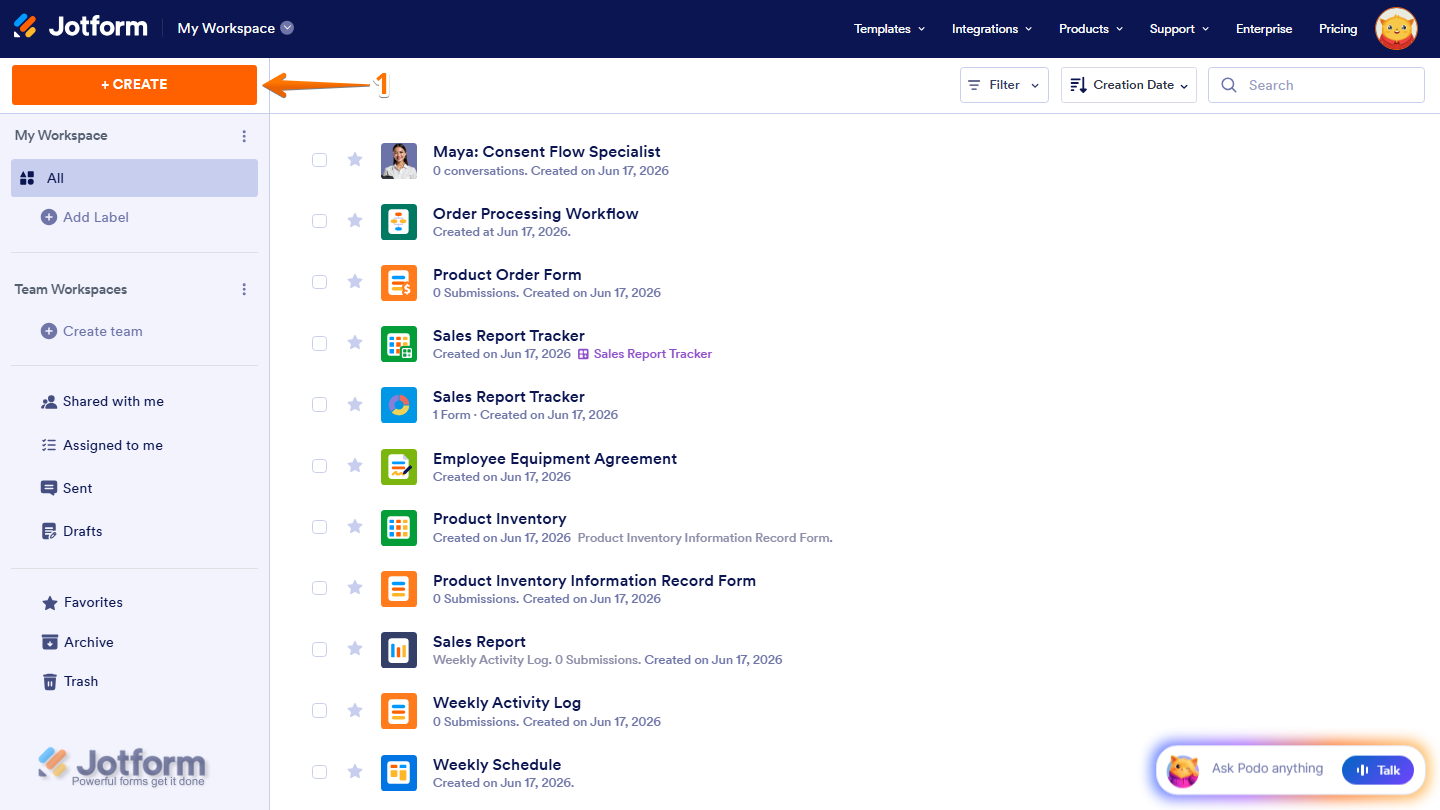
- On the top-left side of your Workspace page, click on Create.
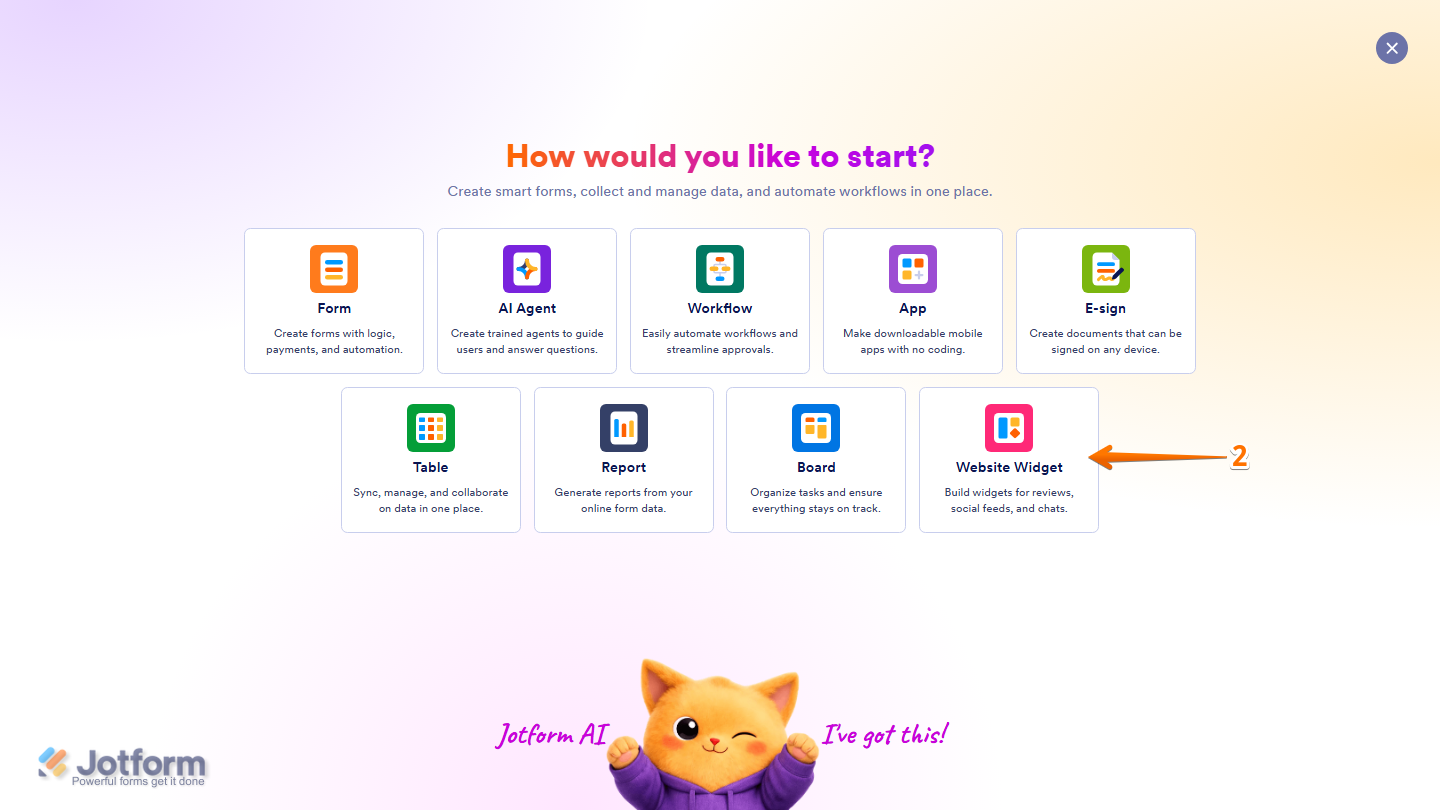
- Then, in the menu that opens up, select Website Widget.
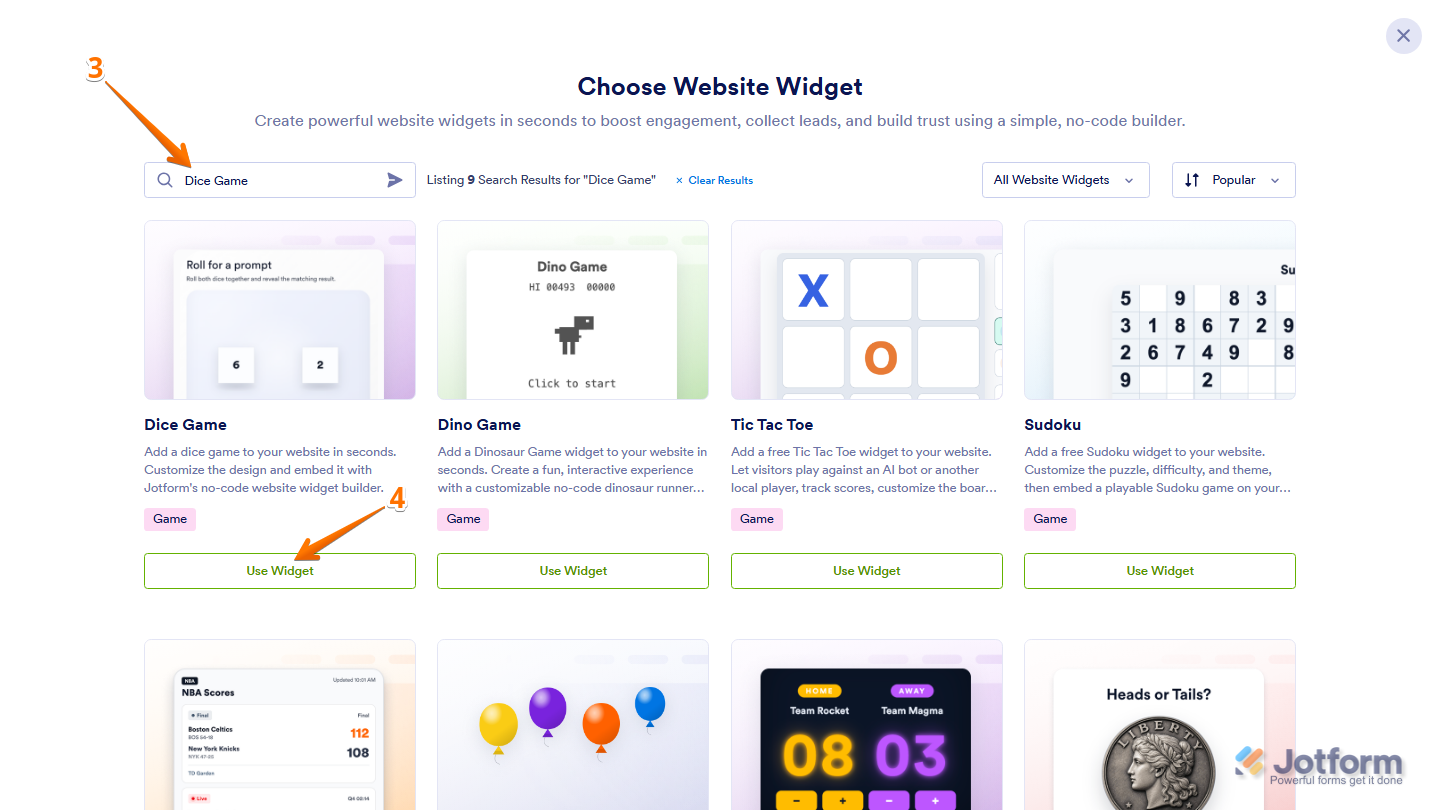
- Next, in the Search bar in the upper-left corner of Choose Website Widget, enter Dice Game.
- Then, at the bottom of the Dice Game widget in the search results, click on Use Widget.
- Now, in the Widget Properties menu that opens on the right side of Website Widgets, under the General tab, set up these properties:
- Heading — Keep this on to display the heading above the dice board, or toggle it off to hide the heading.
- Heading Text — Delete the existing text in the input box and enter the heading you want to display.
- Description — Delete the existing description in the input box and enter the supporting text you want to display below the heading.
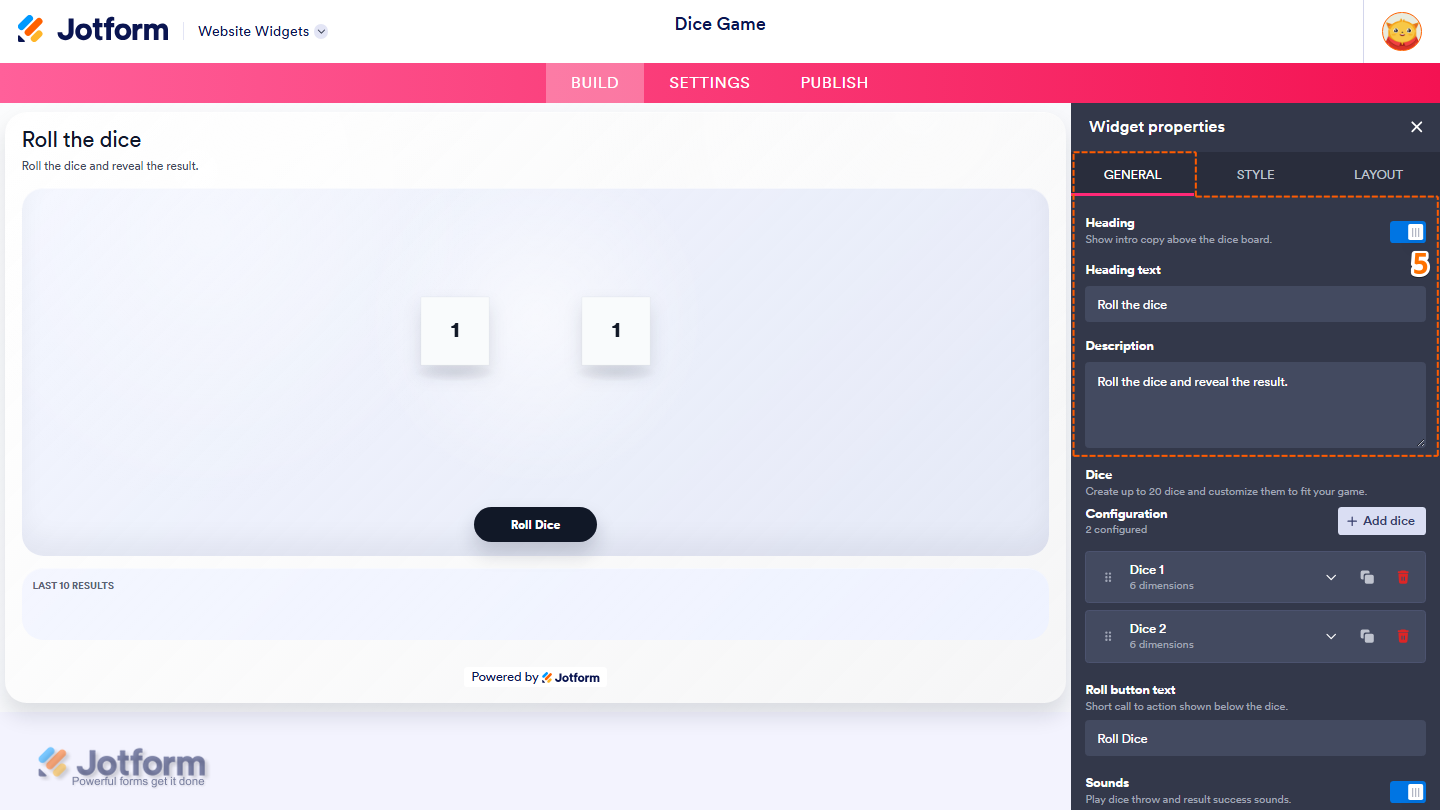
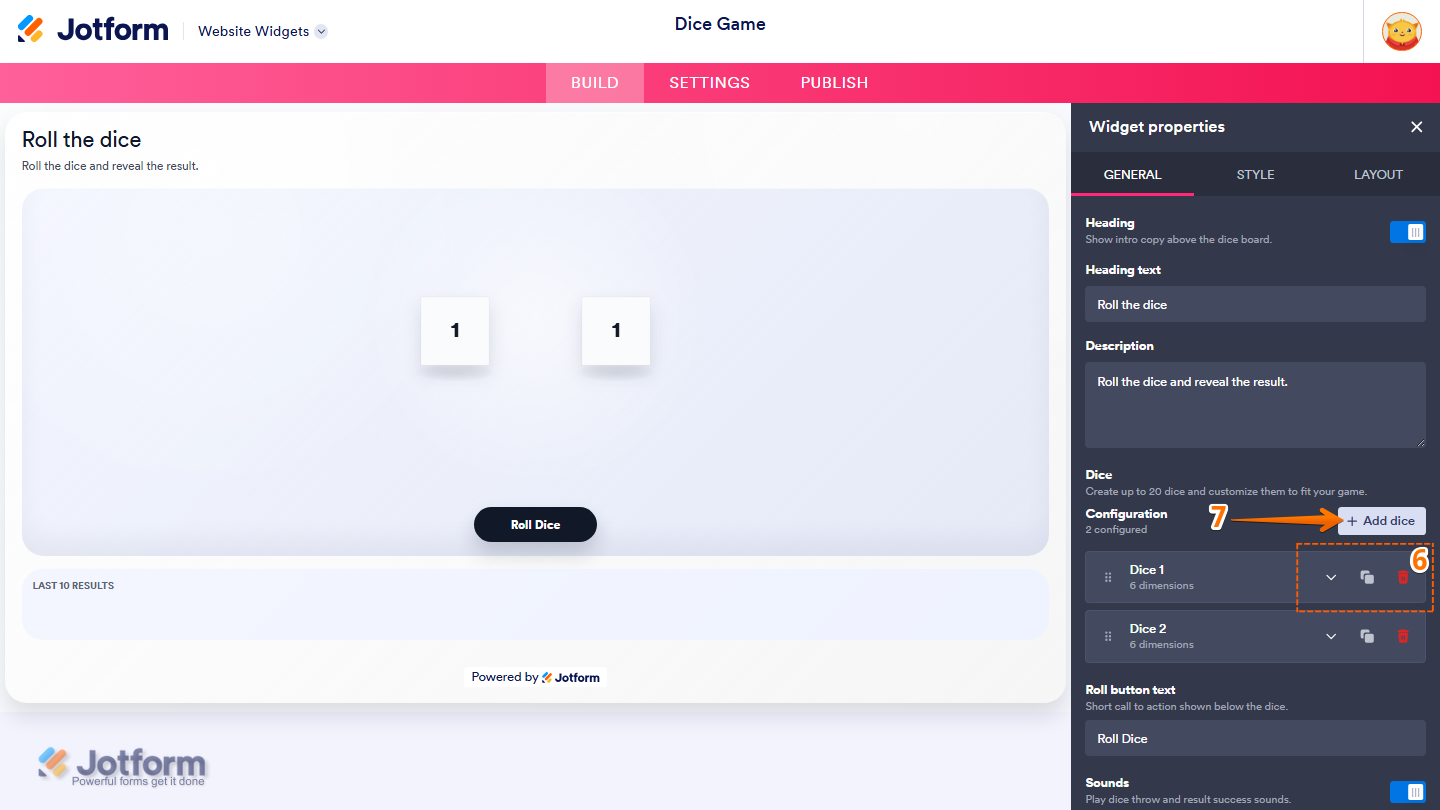
- Then, under the Dice section, you’ll notice that it already includes sample dice. You can manage them using the available action icons:
- Downward Arrow icon — Click on it to configure the dice’s dimensions and values.
- Duplicate icon — Click on it to create a copy of the dice.
- Trash Can icon — Click on it to remove the dice.
- To add another dice, click on Add Dice.
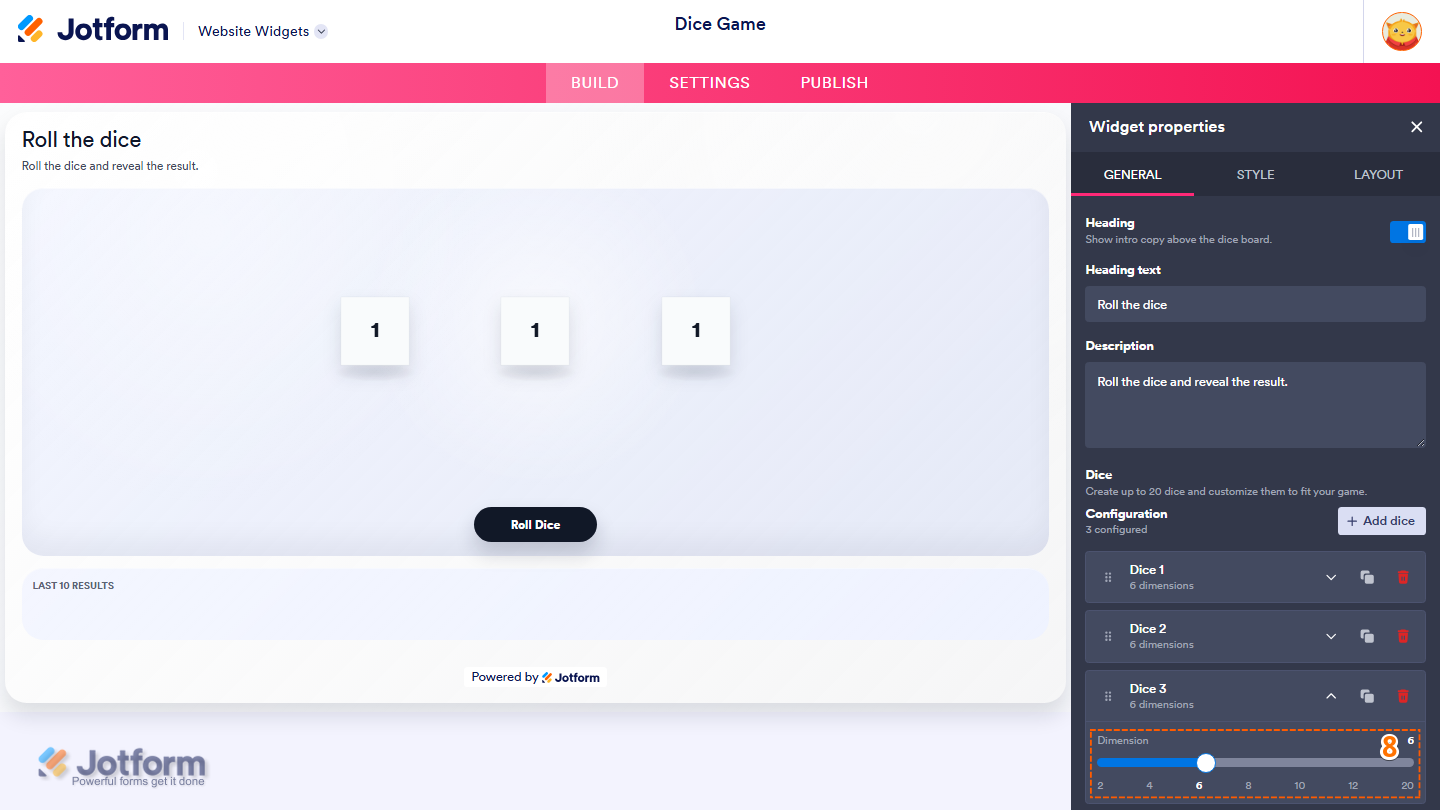
- Then, in the new dice that appears, click on and hold the Dimension slider handle, then drag it to set the number of sides for the dice.
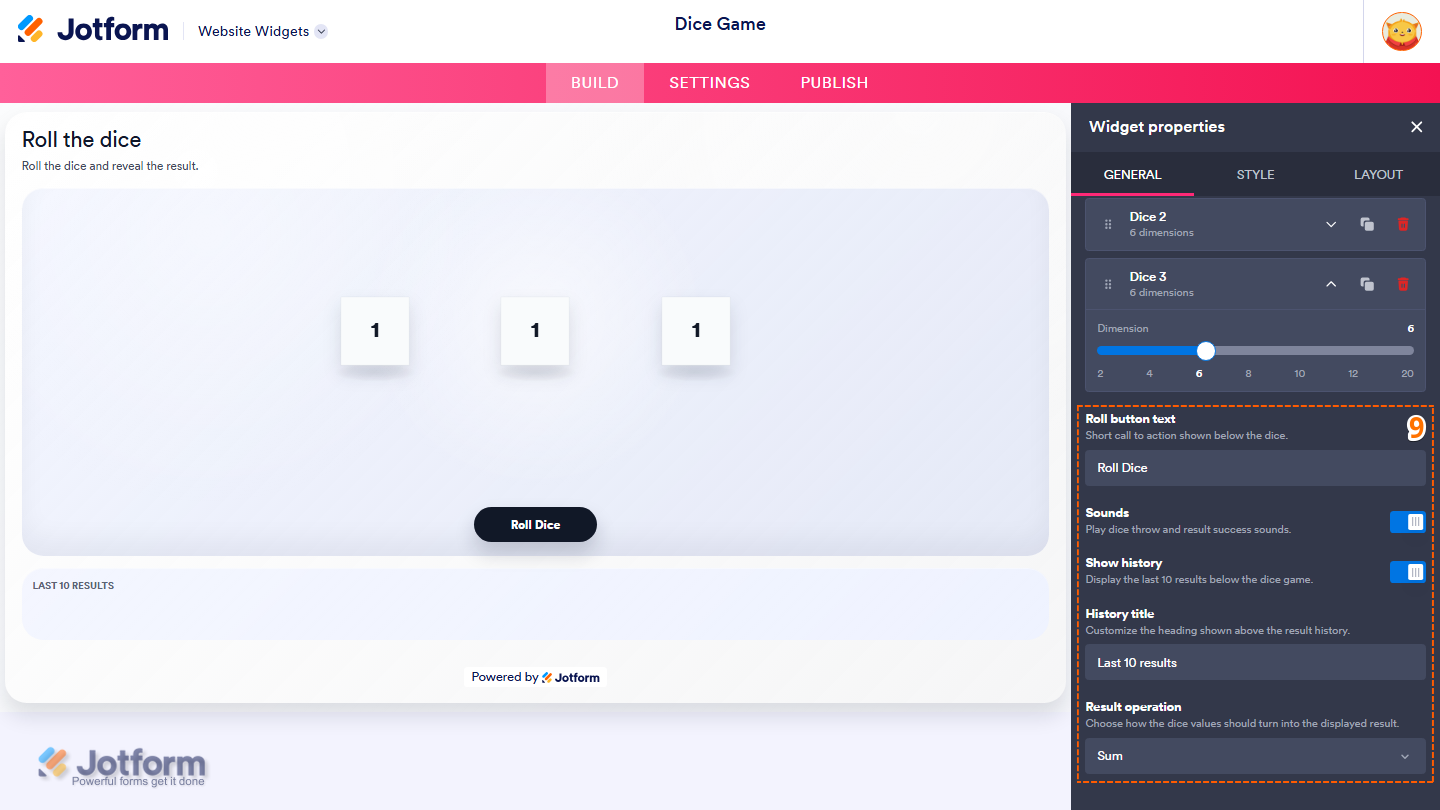
- Next, scroll down and adjust these settings:
- Roll Button Text — Delete the default button text in the input box and enter the text you want to display on the roll button.
- Sounds — Leave this enabled to play sound effects when the dice are rolled, or toggle it off to disable all sounds.
- Show History — Keep this on to display the result history below the dice, or toggle it off to hide it.
- History Title — This is only available when Show history is enabled. Replace the default title in the input box with the heading you want to display above the result history.
- Result Operation — Select how the dice values are calculated from the Dropdown menu.
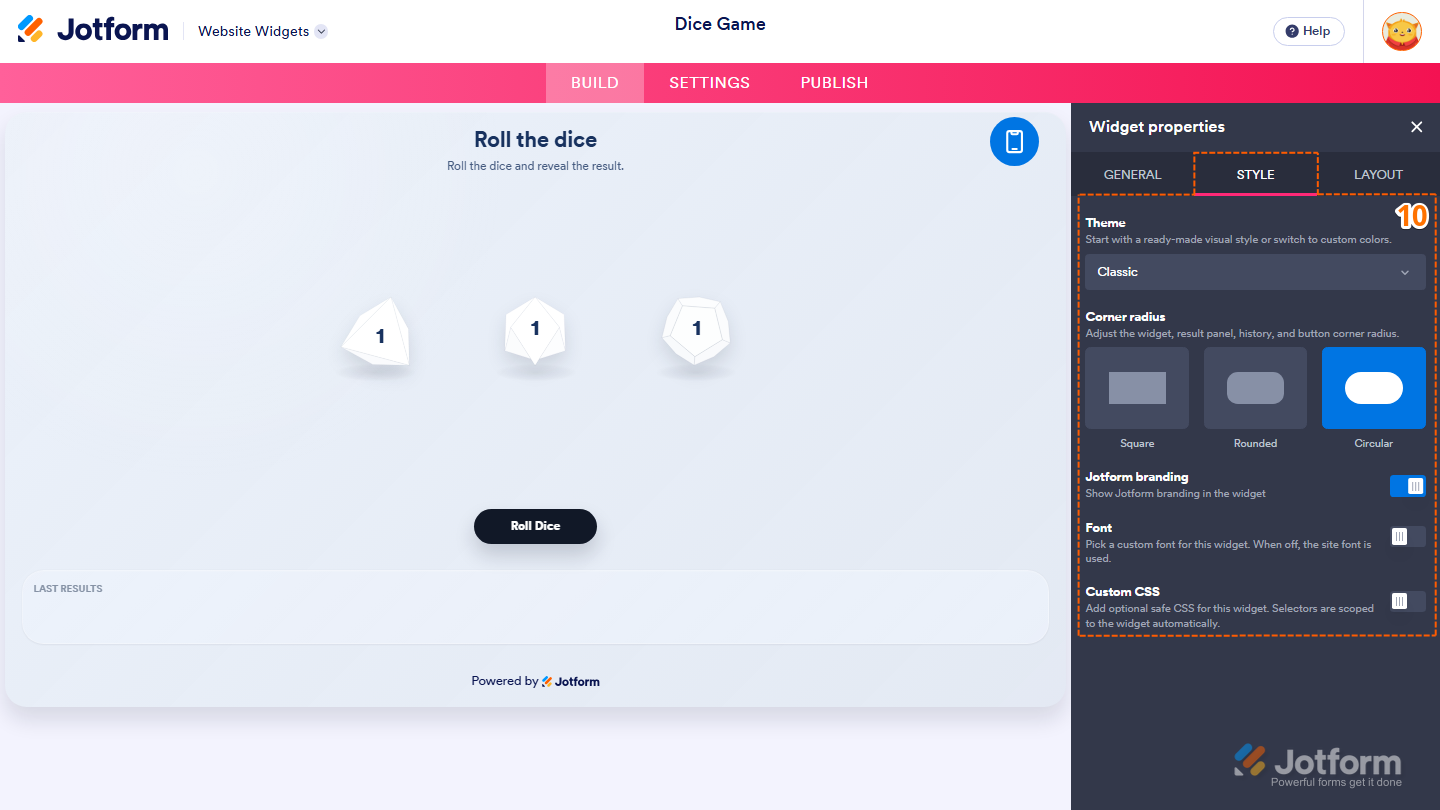
- Now, under the Style tab, customize these properties:
- Theme — Keep the default Classic option selected, or click on the Dropdown menu and select the visual style you want to use for the website widget.
- Corner Radius — Select one of the following options to choose the corner style for the website widget, result panel, history, and button:
- Square
- Rounded
- Circular
- Jotform Branding — Keep this on to display Jotform branding in the website widget, or toggle it off to hide it.
- Font — Toggle this on to select a custom font for the website widget. When this option is off, the website’s font is used.
- Custom CSS — Toggle this on to add custom CSS and apply advanced styling to the website widget.
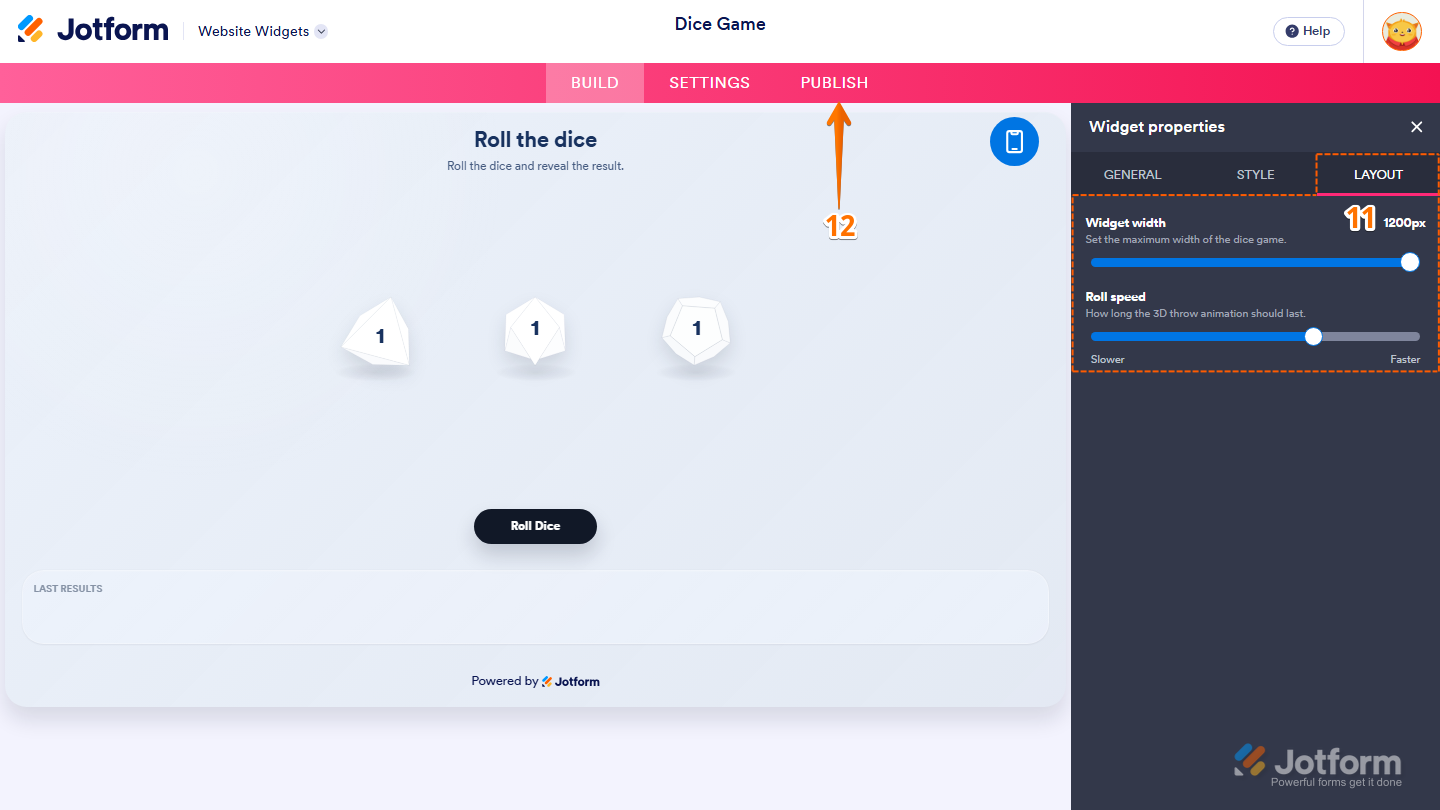
- Next, under the Layout tab, configure these properties:
- Widget Width — Drag the slider to adjust the maximum width of the dice game.
- Roll Speed — Drag the slider toward Slower or Faster to adjust the duration of the 3D dice roll animation.
- Once you’ve finished configuring the widget, in the pink navigation bar on the top of the page, click on Publish.
Note
If you’re not logged in, you’ll be asked to log in to your Jotform account or sign up for one. Once you’ve done that, you’ll be able to get the embed code for your widget.
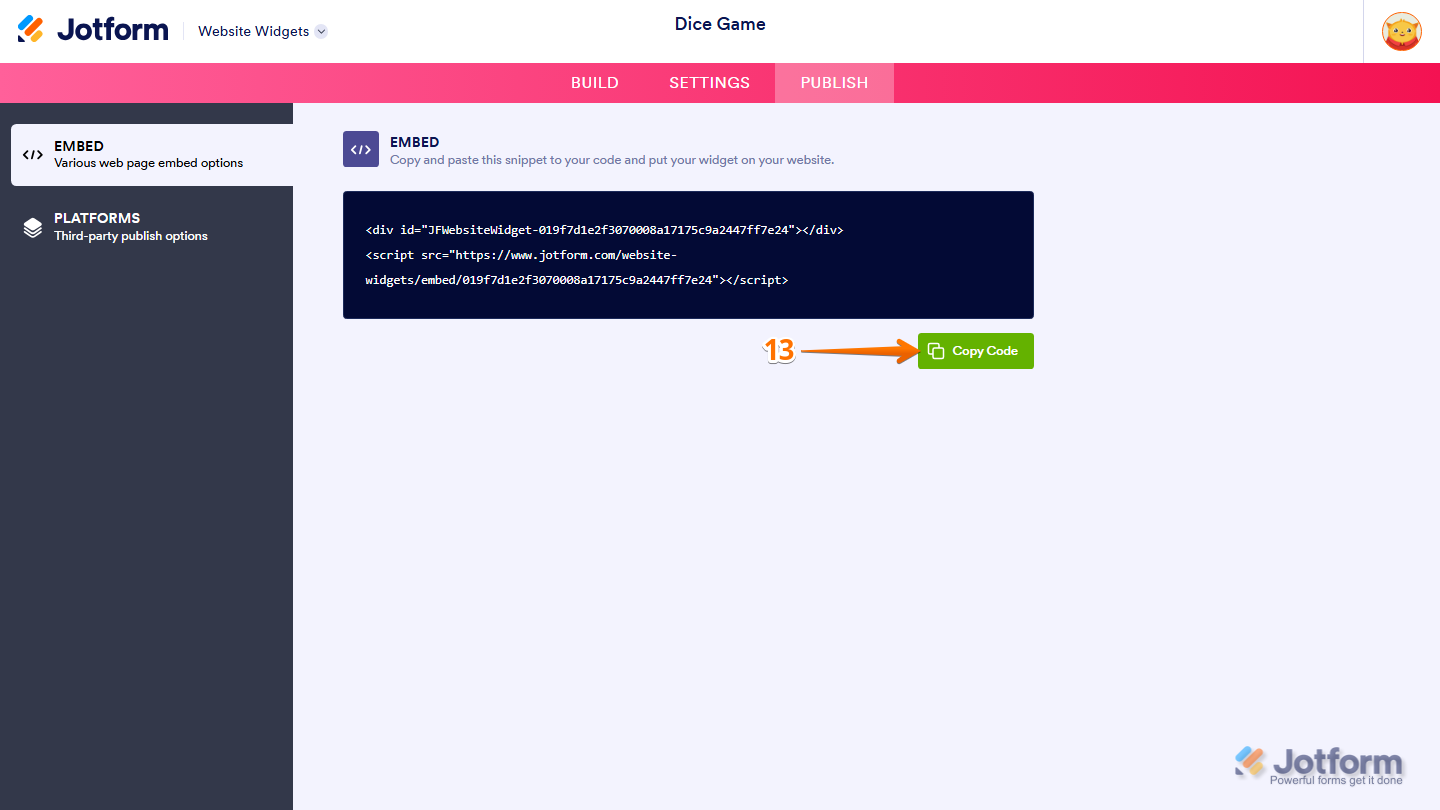
- Then, in the Embed section, click on Copy Code.
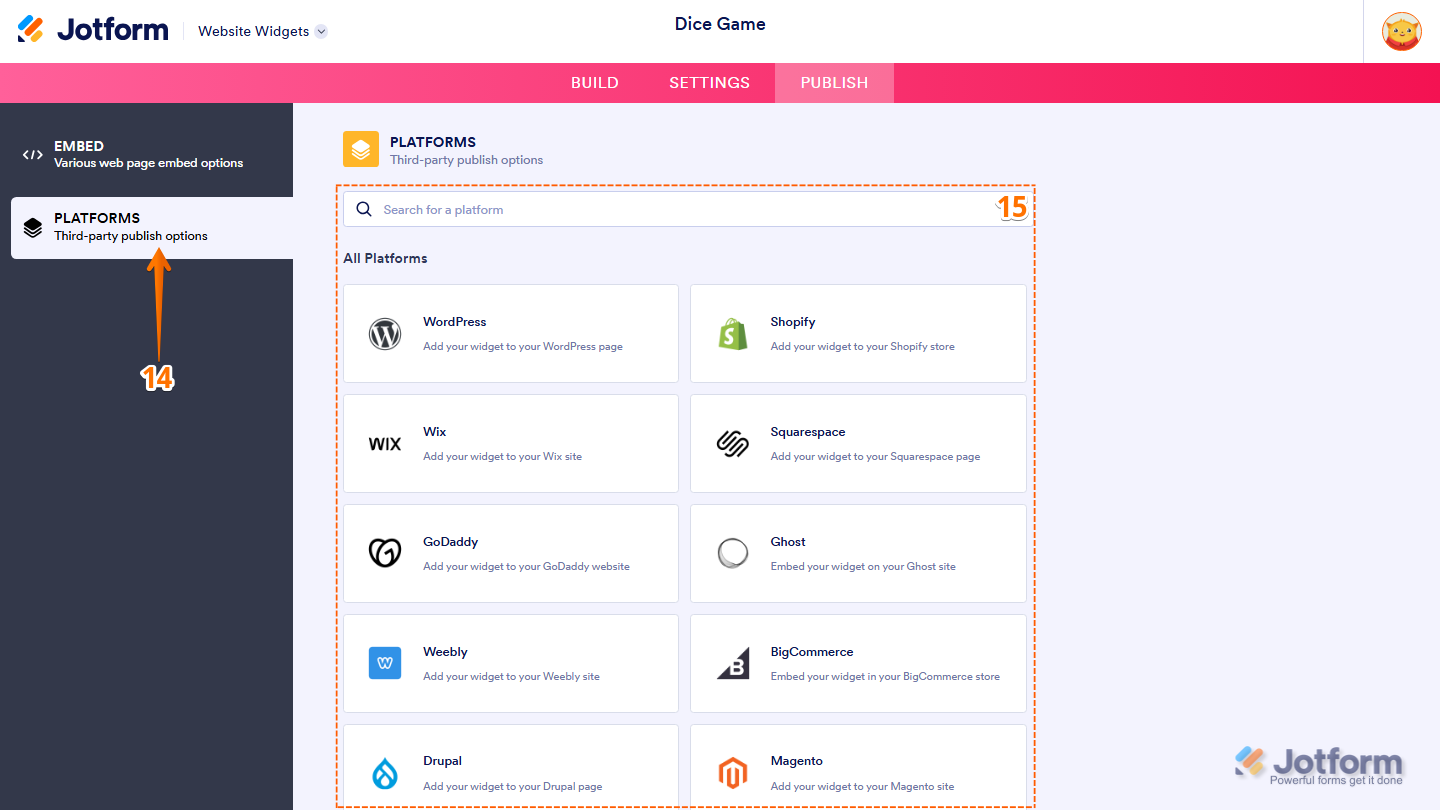
- To view embedding instructions for a supported website builder, click on Platforms in the menu on the left side of the page.
- Next, in the Platforms section on the right, select the platform you want to view embedding instructions for. Or, use the Search bar at the top of the section to find it easily.
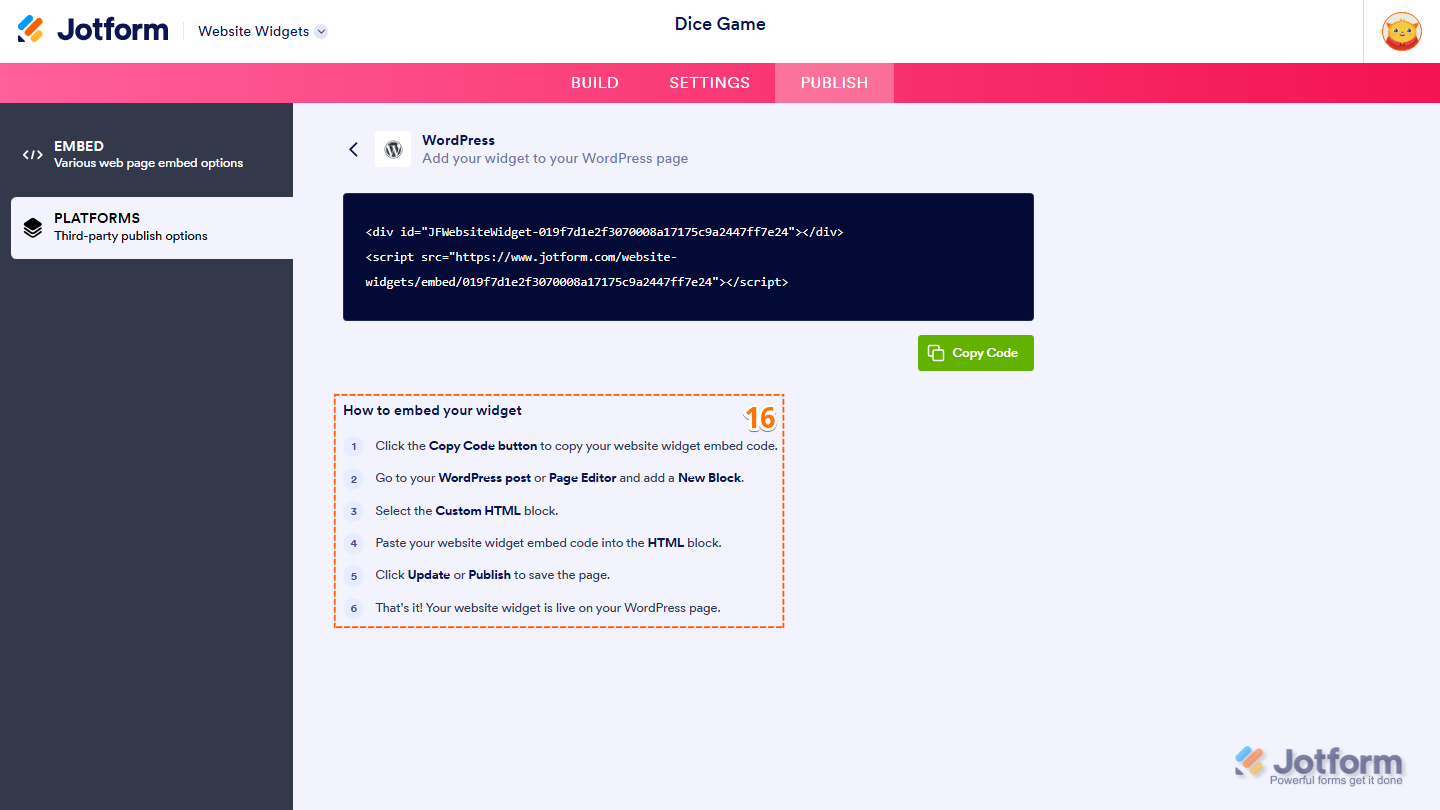
- Then, follow the steps in the How to Embed Your Widget section to add it to your website.
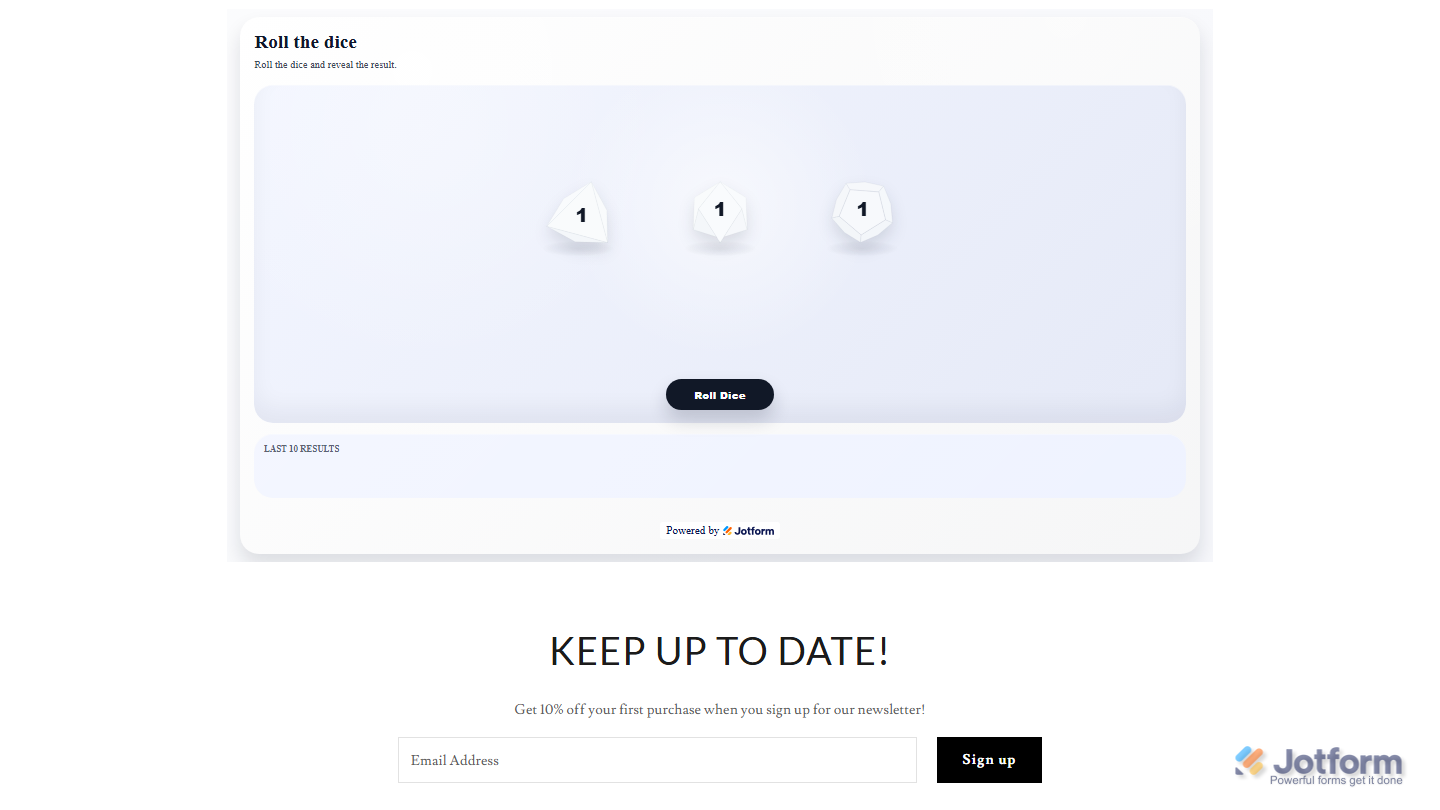
That’s it! Your Dice Game widget will appear on your website with all your customizations applied to it. See the screenshot below for an example of how it looks on a website.
Note
You can manage the website widgets you’ve created at any time from your account. For a full breakdown of how to do it, head over to our guide on How to Manage Website Widgets.


Send Comment: