Jotform’s Dynamic Text Widget lets you display text that automatically changes or rotates on your website. Whether you’re highlighting special offers, announcing important updates, or showcasing key features, dynamic text helps capture visitors’ attention and keep your content engaging.
Before you can add the Dynamic Text Widget to your website, you’ll first need to customize the text, choose how it will be displayed, and adjust its appearance. Here’s how to set it up:
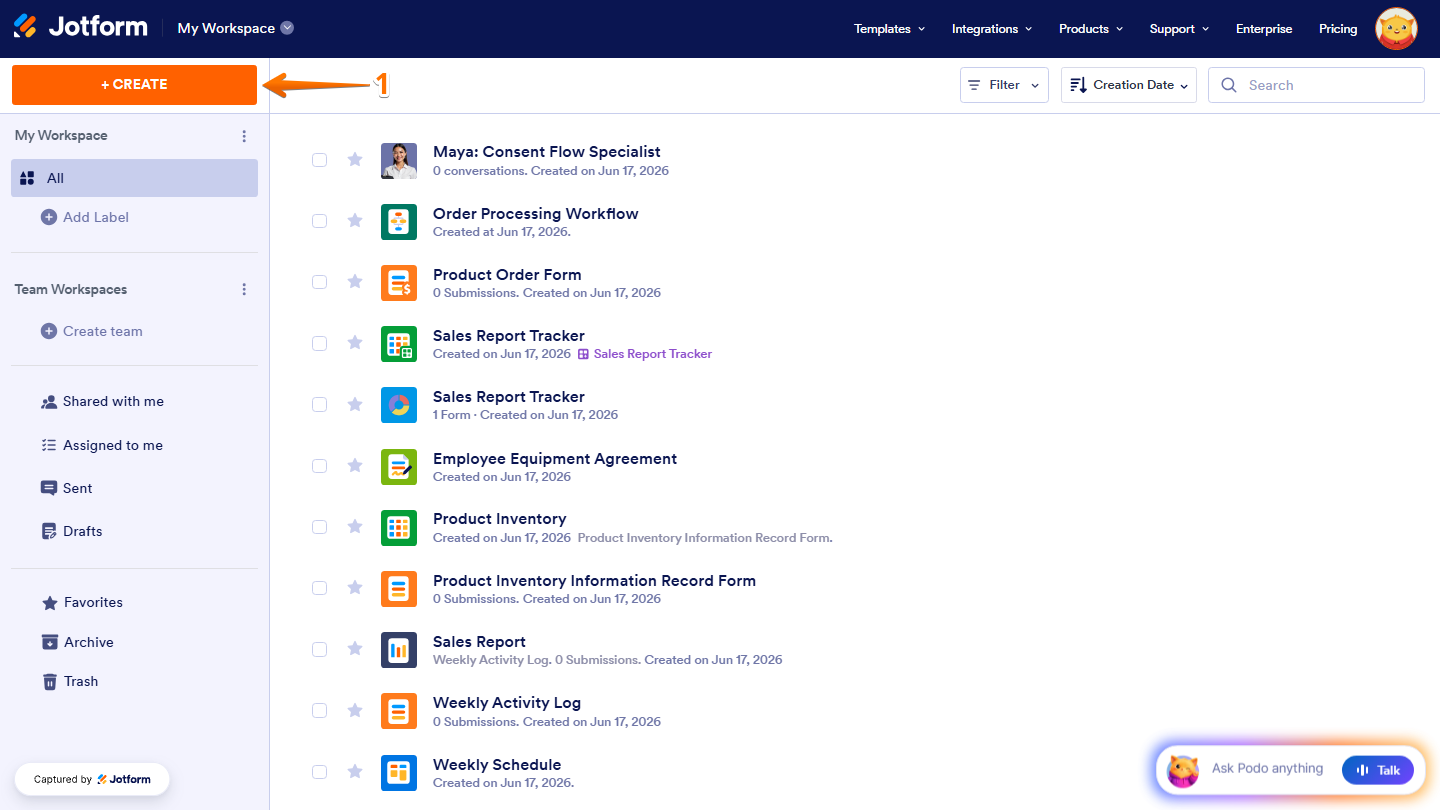
- On your Workspace page, click on Create on the top-left side of the screen.
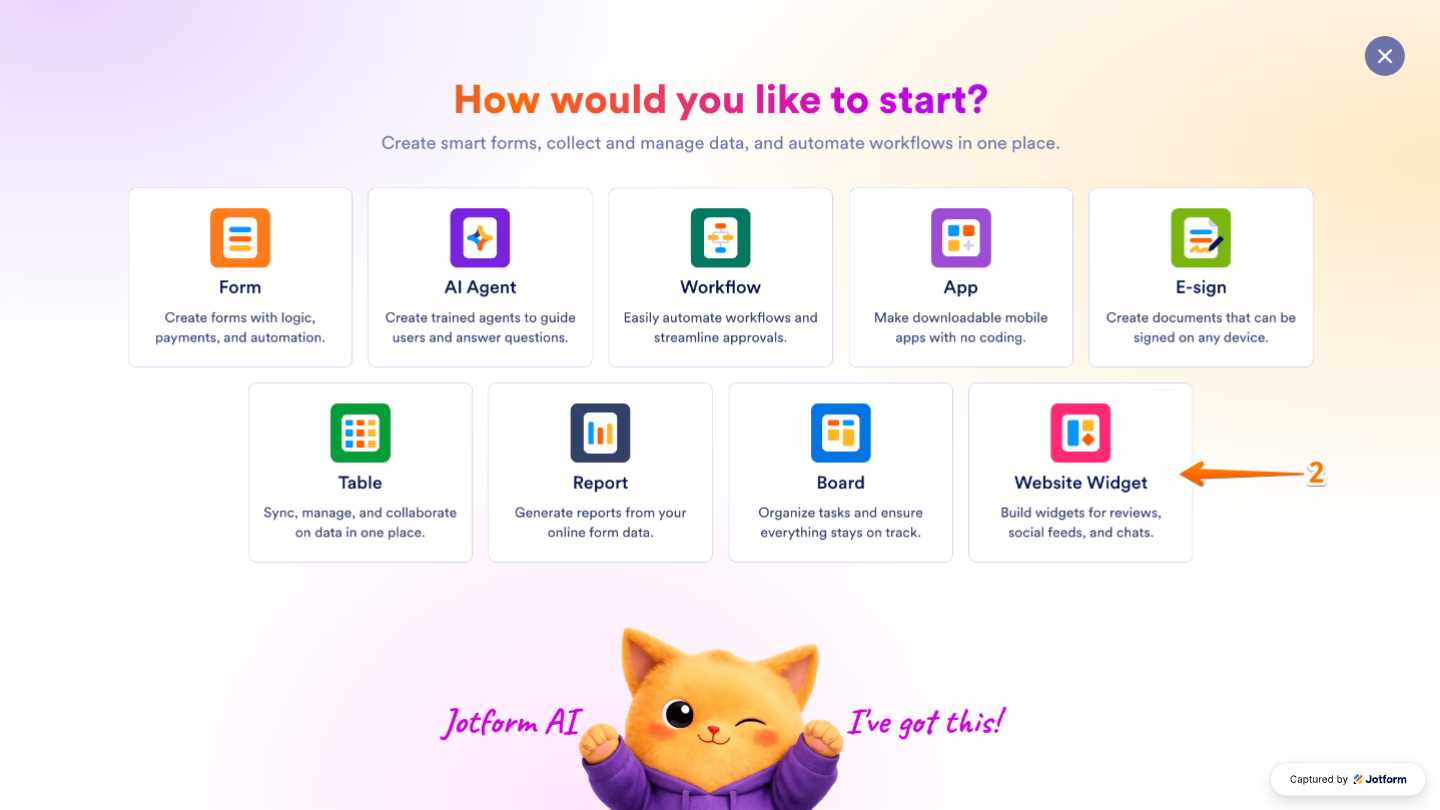
- In the menu that opens up, click on Website Widget.
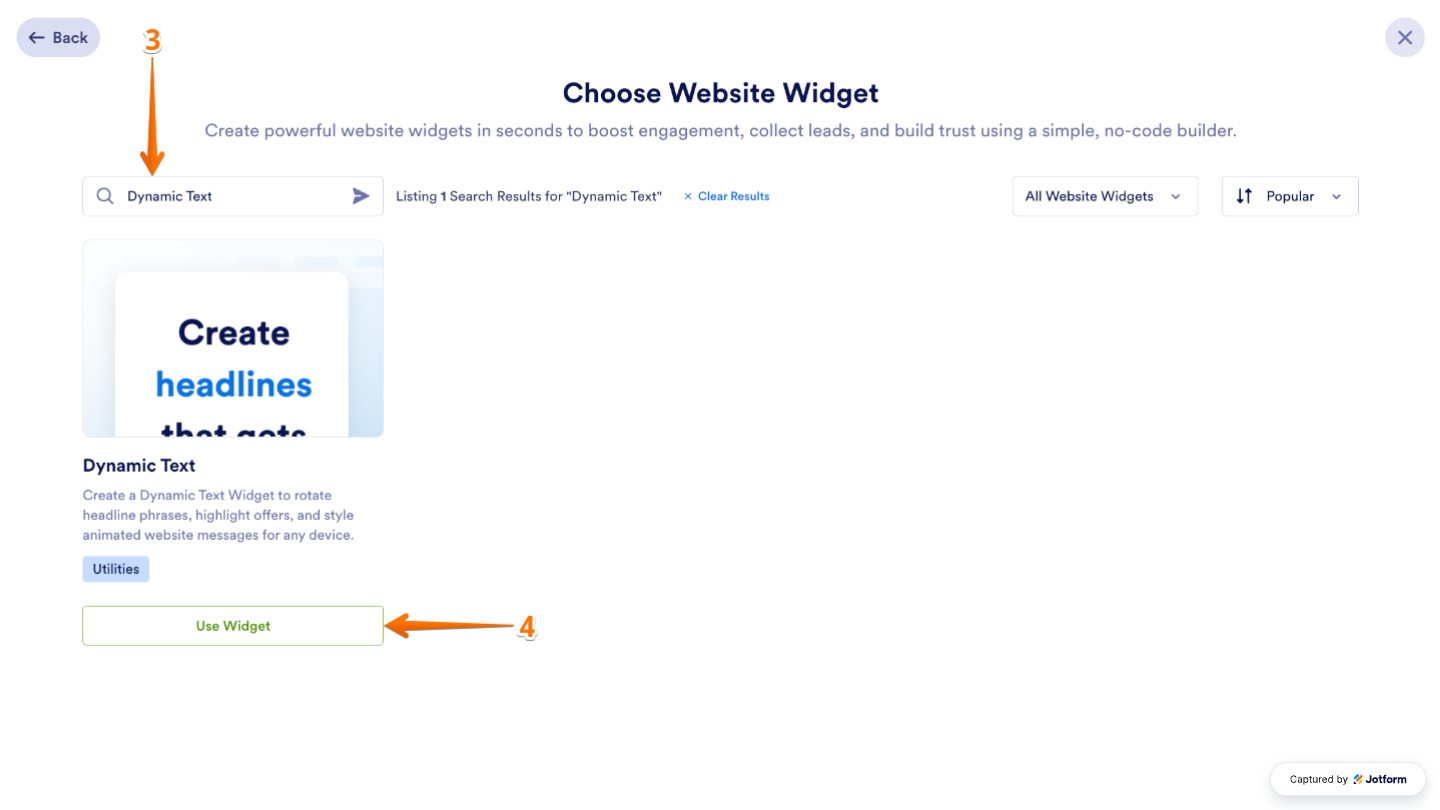
- Next, in the Search bar at the top of the Choose Website Widget page, search for the Dynamic Text.
- Then, in the search results, click on Use Widget.
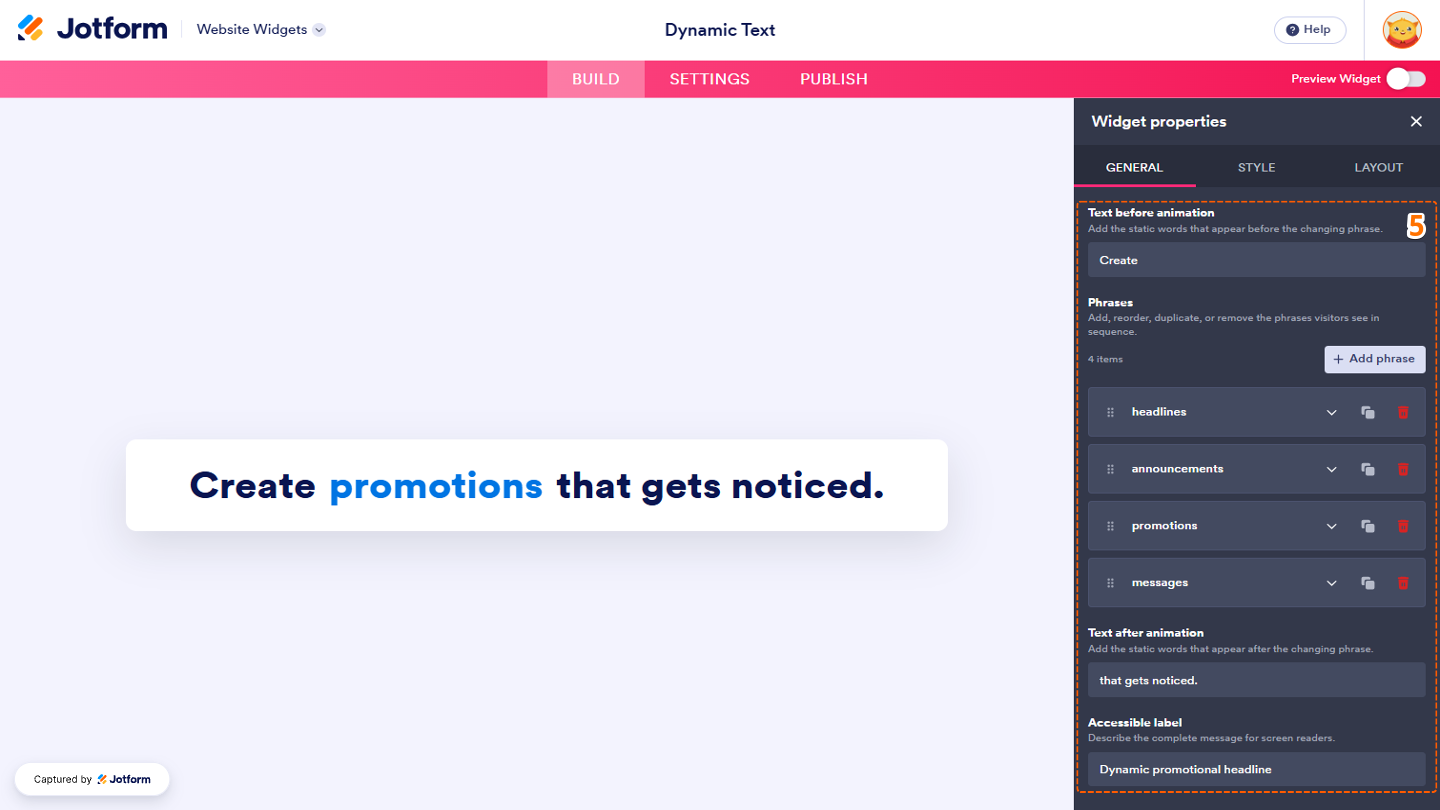
- Now, in Website Widgets, under the General tab in the Widget Properties panel on the right side of the page, configure the following options:
- Text Before Animation — Add the text that appears before the animated or rotating phrase.
- Phrases — Manage the phrases displayed in the animation.
- Add Phrase — Add a new phrase to the animation.
- Downward Arrow icon— Click on it to edit the phrase name.
- Duplicate icon — Create a copy of the selected phrase.
- Trash Can icon — Delete the selected phrase.
- Text After Animation — Add the text that appears after the animated phrase to complete your message.
- Accessible Label — Provide a descriptive label to improve accessibility for visitors using screen readers.
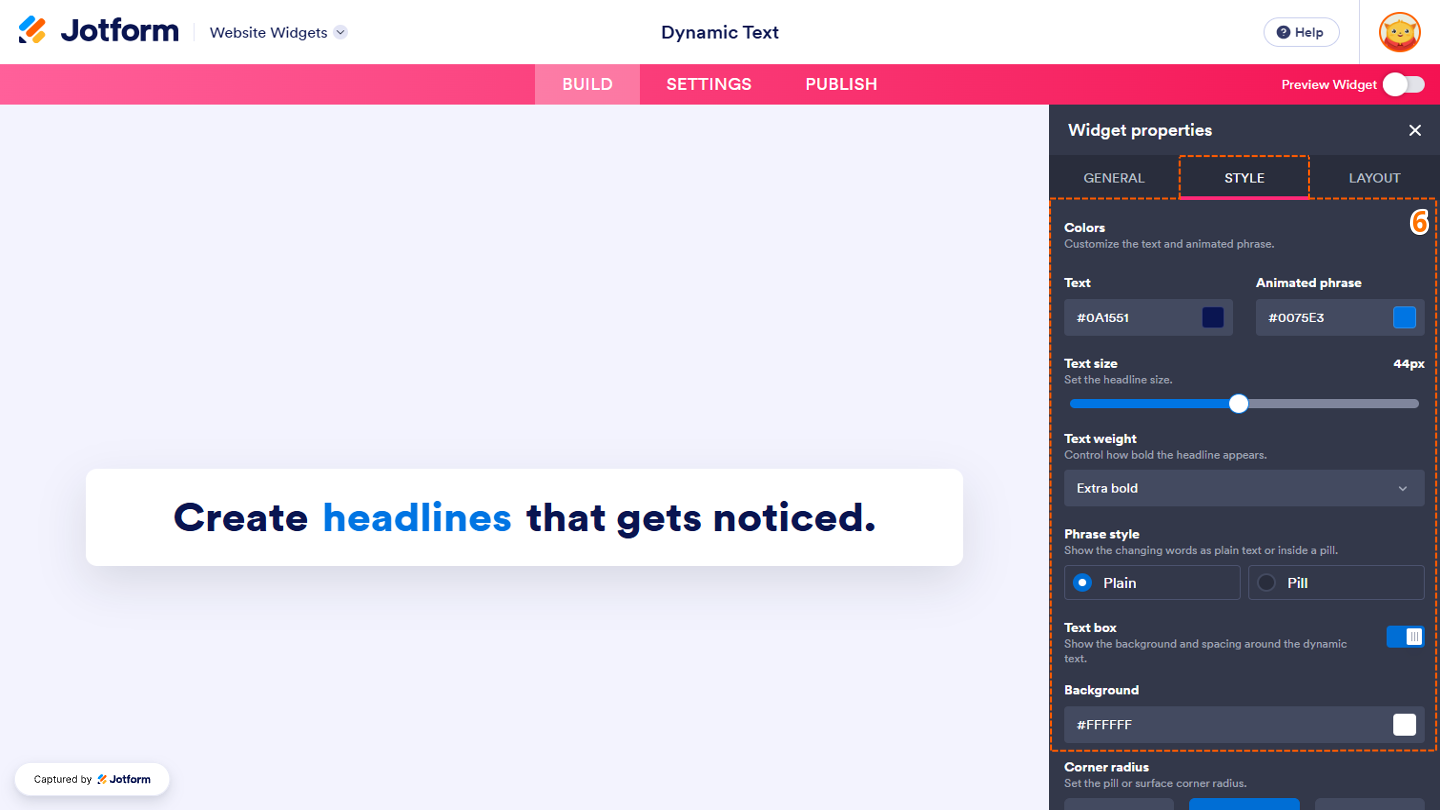
- Next, under the Styles tab, customize these properties:
- Colors
- Text — Choose the color of the static text displayed before and after the animated phrase.
- Animated Phrase — Set the color of the rotating or animated text to make it stand out.
- Text Size — Adjust the size of the text displayed in the widget.
- Text Weight — Choose how bold or light the text appears.
- Phrase Style — Select the animation style or visual effect used for the rotating phrases.
- Text Box — Keep this turned on to show the background and spacing around the dynamic text.
- Background — Choose the background color of the widget.
- Colors
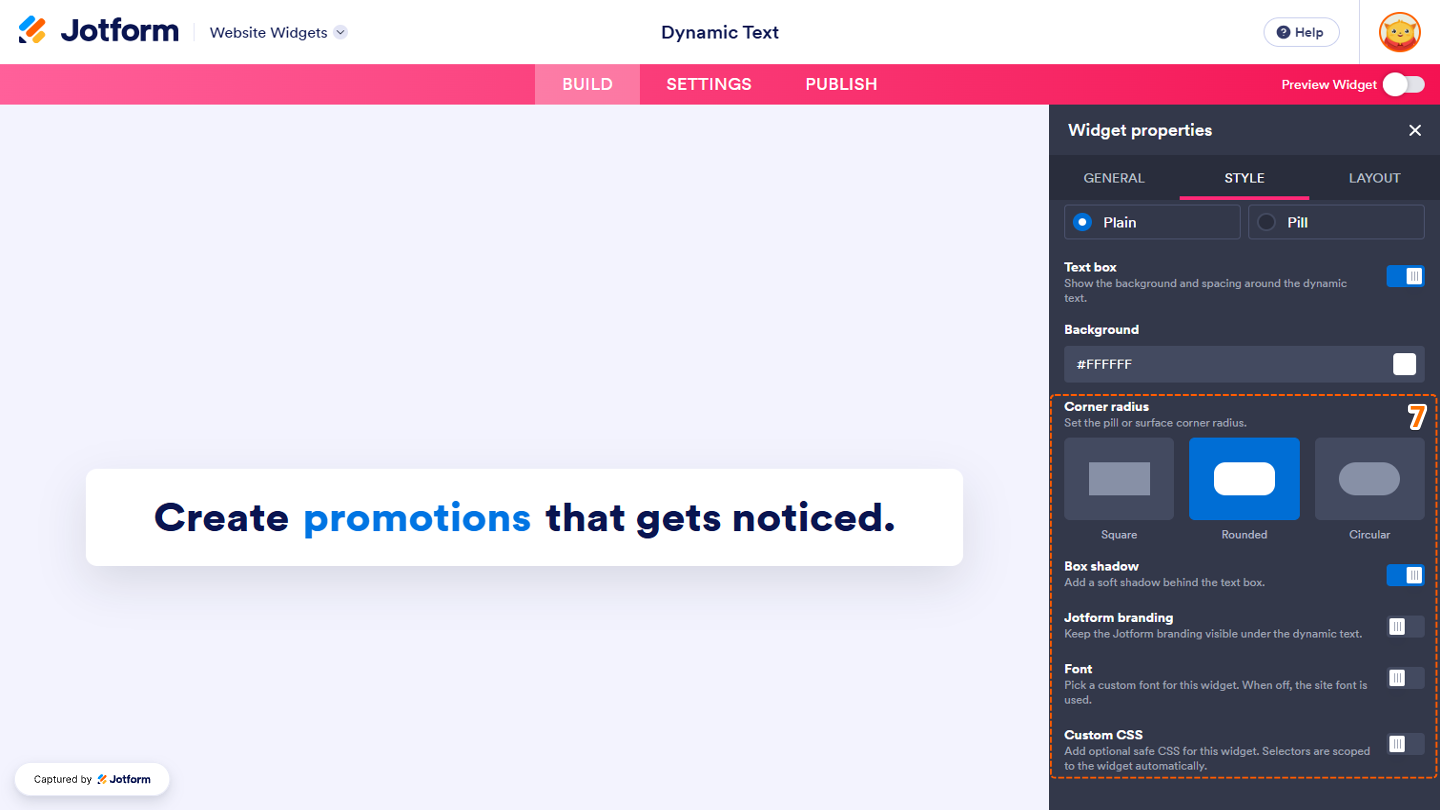
- Then, scroll down to the bottom and set up these other options:
- Corner Radius — Control how rounded the corners of the widget appear.
- Box Shadow — Keep this turned on to add a soft shadow behind the text box.
- Jotform Branding — Show or hide Jotform branding on the widget, depending on your plan and preferences.
- Font — Toggle this on to select and match your website’s font.
- Custom CSS — Apply your own CSS styles for advanced customization beyond the built-in settings.
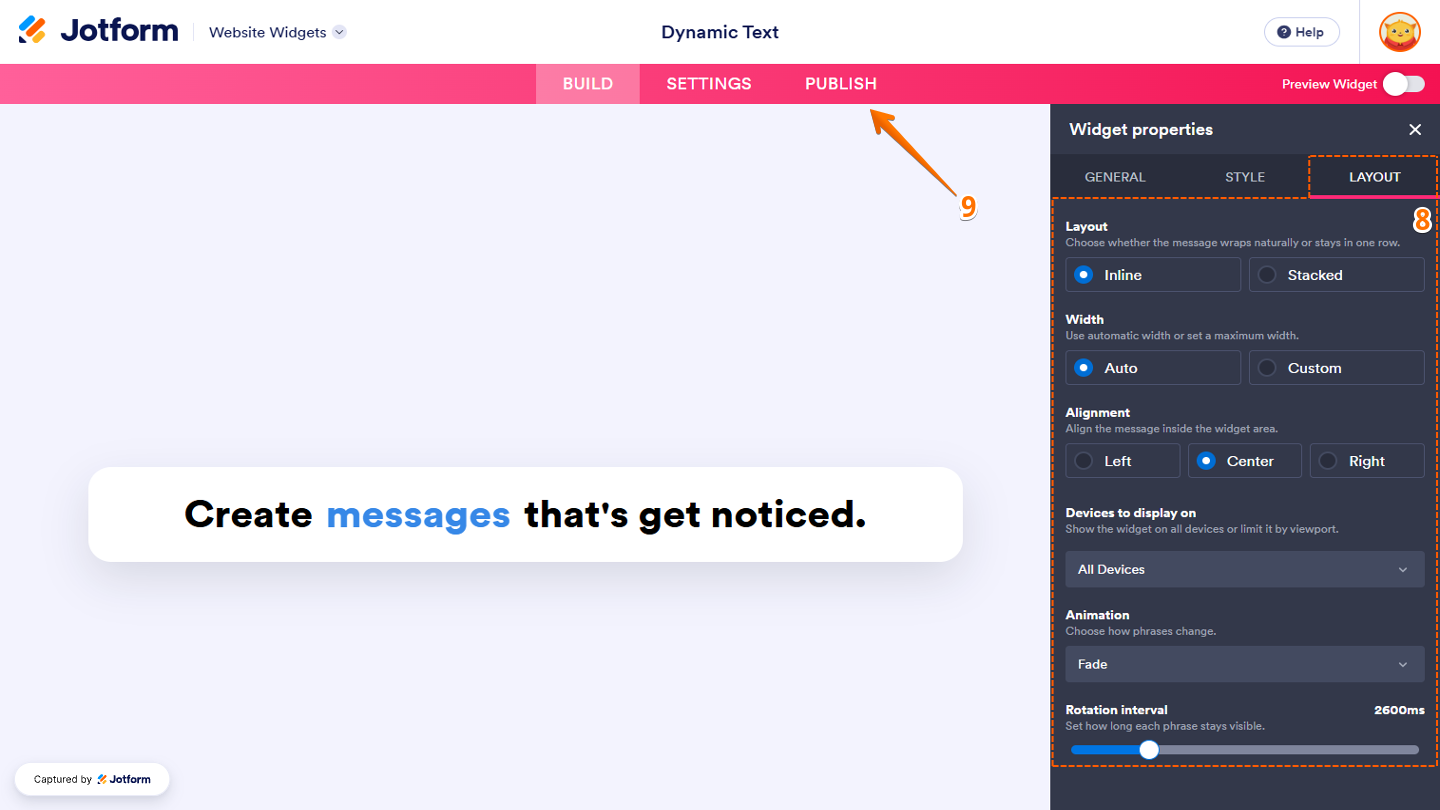
- Now, under the Layout tab, configure these properties:
- Layout — Choose how the text is arranged within the widget.
- Width — Adjust the overall width of the widget to fit your website’s layout.
- Alignment — Set how the text is aligned, such as left, center, or right.
- Devices to Display On — Click on the Downward Arrow icon and select whether the Announcement bar appears on desktop devices, mobile devices, or both.
- Animation — Select the animation effect used when rotating between phrases.
- Rotation Interval — Set how long each phrase remains visible before the widget switches to the next one.
- Once you’ve finished configuring the widget, in the pink navigation bar at the top of the page, click on Publish.
Note
You’ll be asked to log in to your Jotform account, if you’re not already, or sign up for one. Once you’ve done that, you’ll be able to get the embed code for your widget.
- Then, in the Embed section, click on Copy Code, and, if you already know how, paste that into the Embed section on your platform, and you’re good to go.
- To view embedding instructions for your widget, click on Platforms in the menu on the left side of the page.
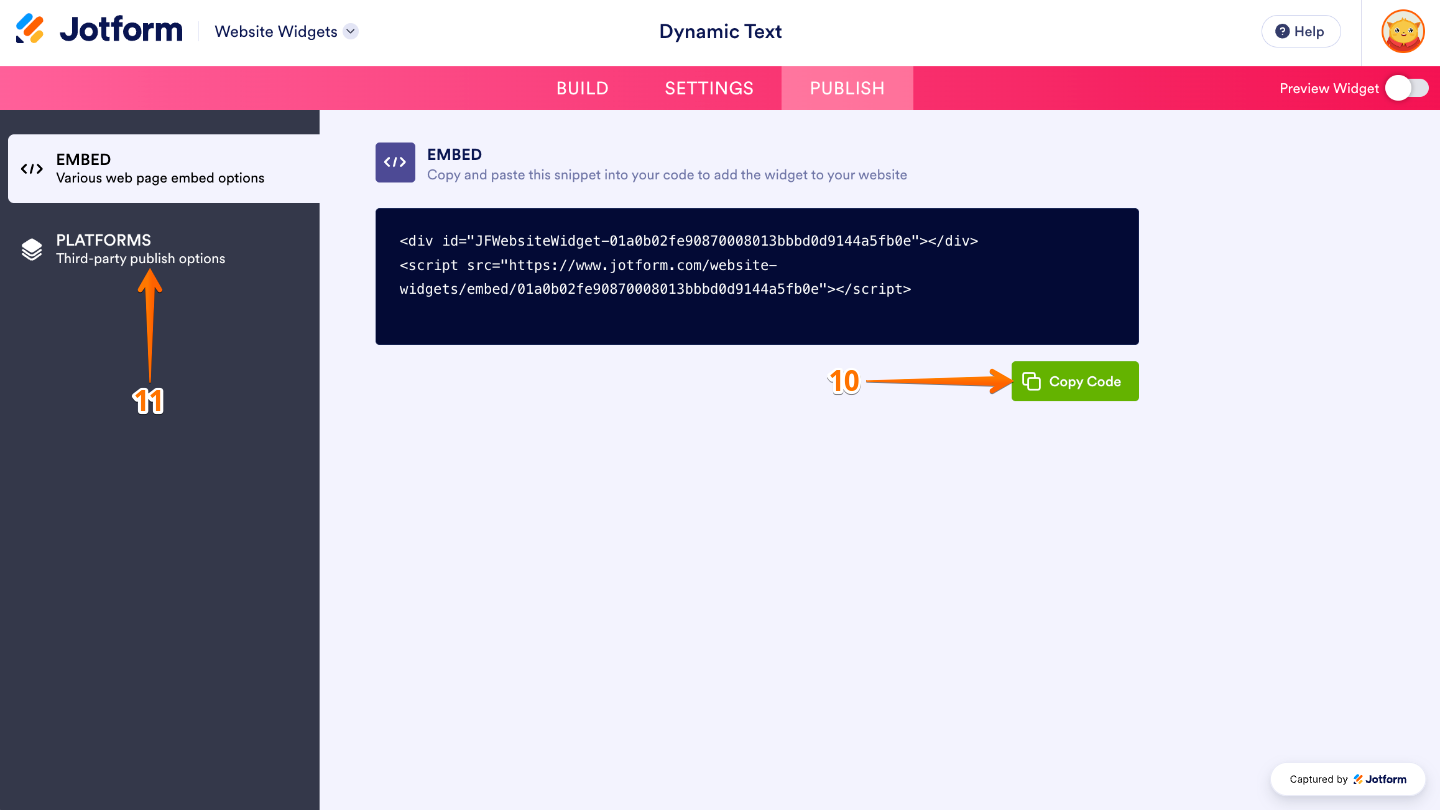
- Next, in the Platforms section on the right, select the platform you want to view embedding instructions for. Or, use the Search bar at the top of the section to find it easily.
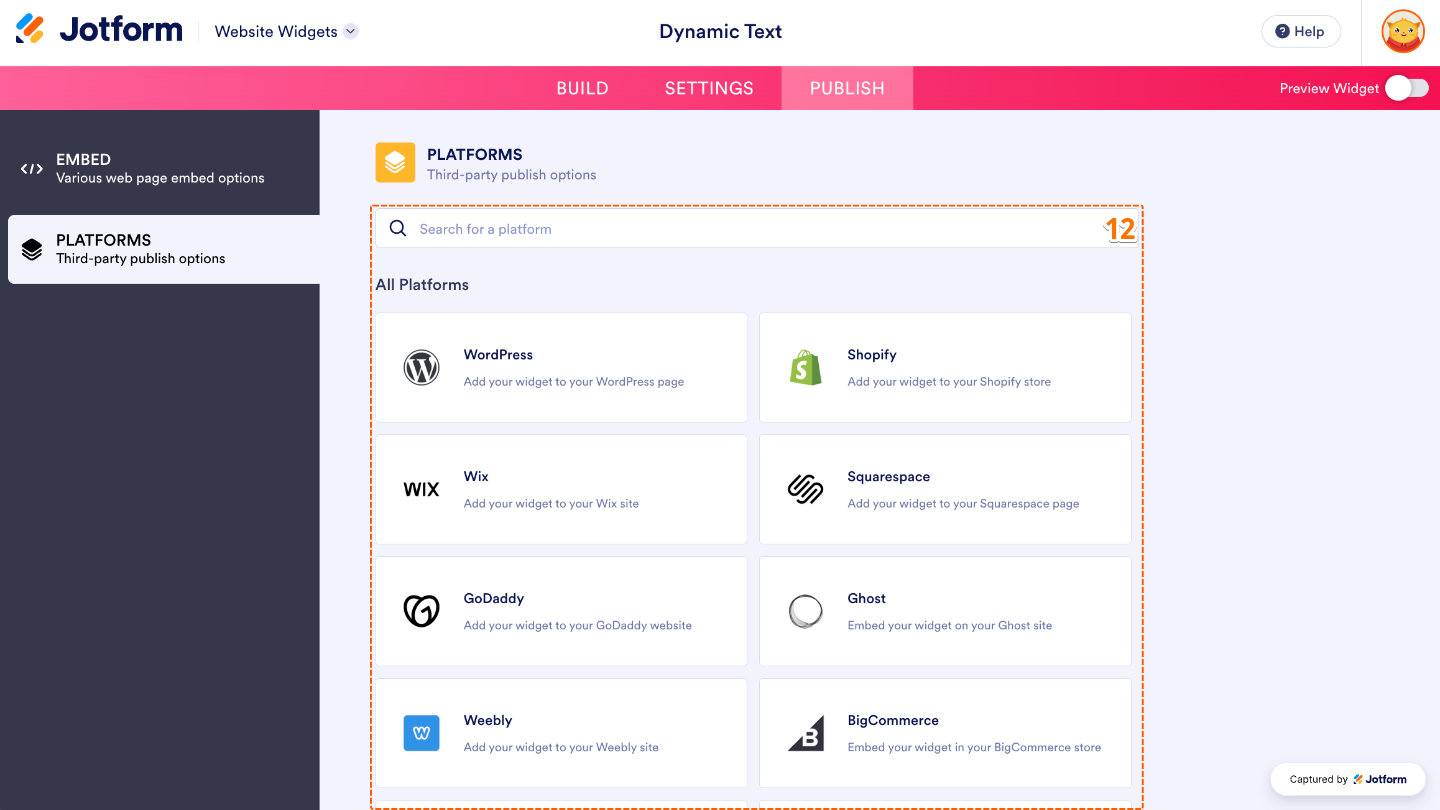
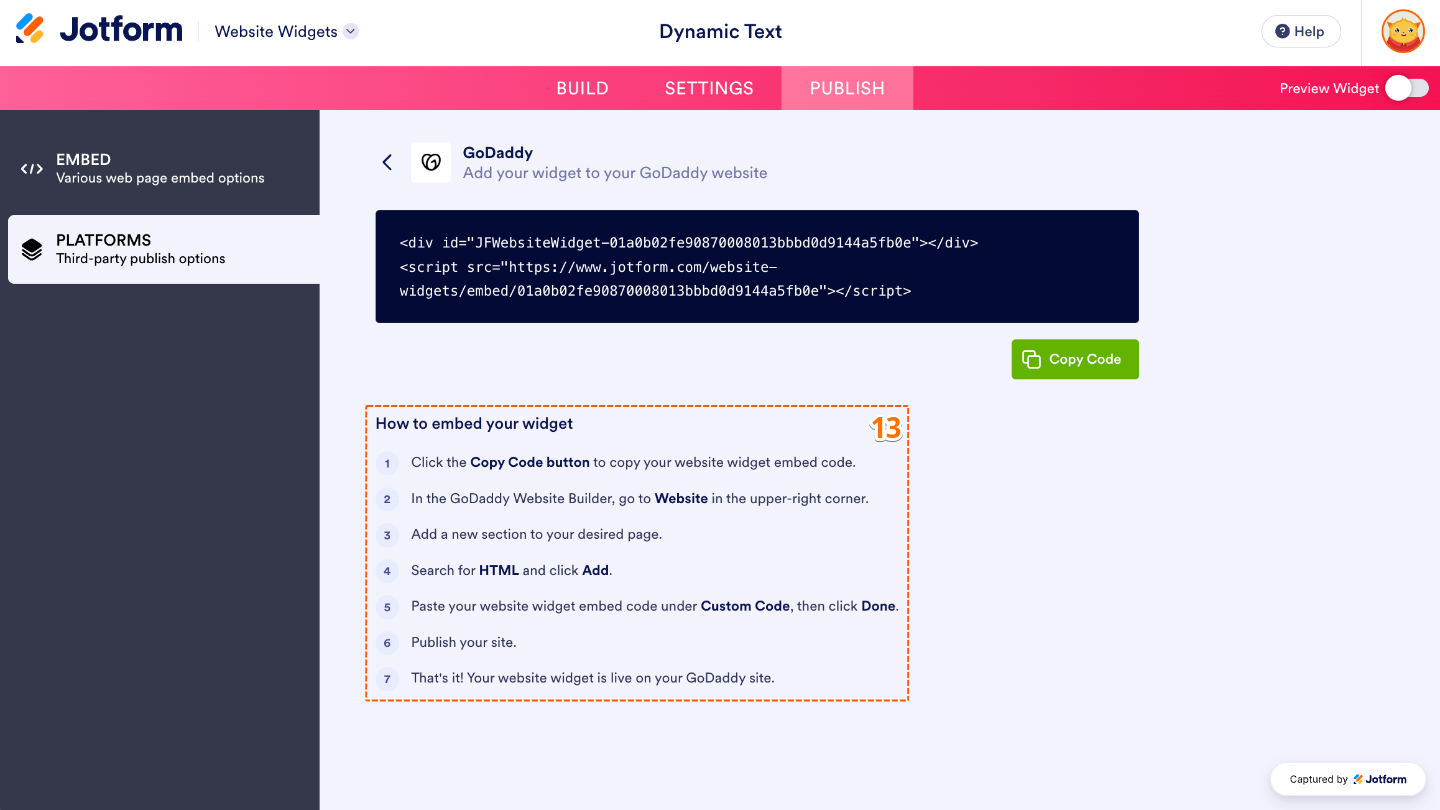
- Then, follow the steps in the How to Embed Your Widget section to add it to your website.
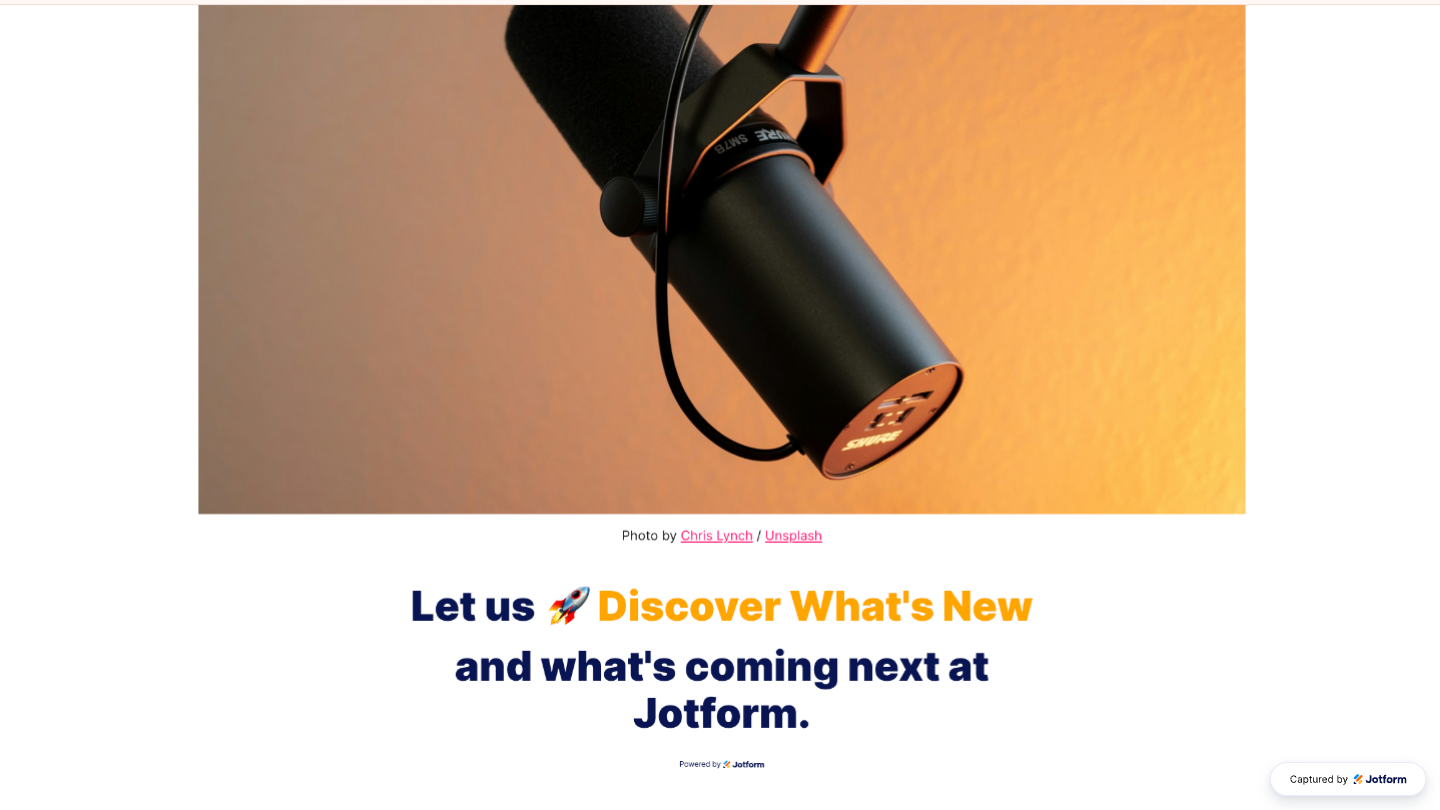
That’s it! Your Dynamic Text Heading widget will appear on your website with all your customizations applied to it. The screenshot below shows how it’ll look:
Note
You can manage the website widgets you’ve created at any time from your account. For a full breakdown of how to do it, head over to our guide on How to Manage Website Widgets.
Pro Tips
- Use dynamic text to highlight promotions, key features, announcements, or calls to action that you want visitors to notice right away.
- Keep your static text consistent and use the rotating phrases to emphasize the parts of your message that change, making the content more engaging and easier to follow.

Send Comment: