For forms like contracts or agreements, you may need to make sure that form fillers accept your licensing terms. Jotform makes that easy using a License Agreement checkbox. Just use the Terms & Conditions widget to display your terms and require users to agree before they can submit the form. It’s a simple way to keep things clear and legally sound.
Adding the Terms & Conditions widget to your form is pretty simple. Here’s how to do it:
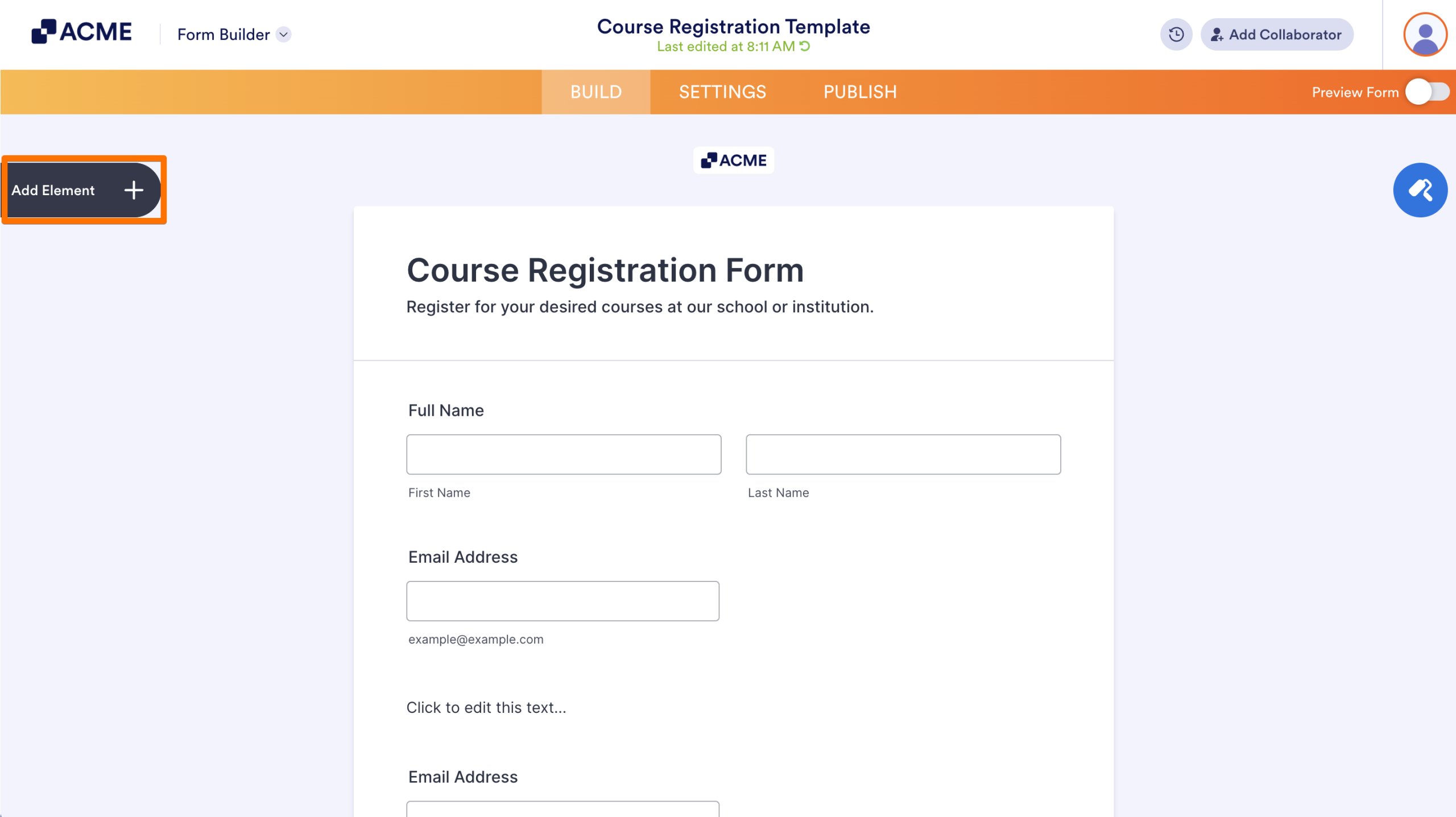
- In Form Builder, click on Add Element on the left side of the page.
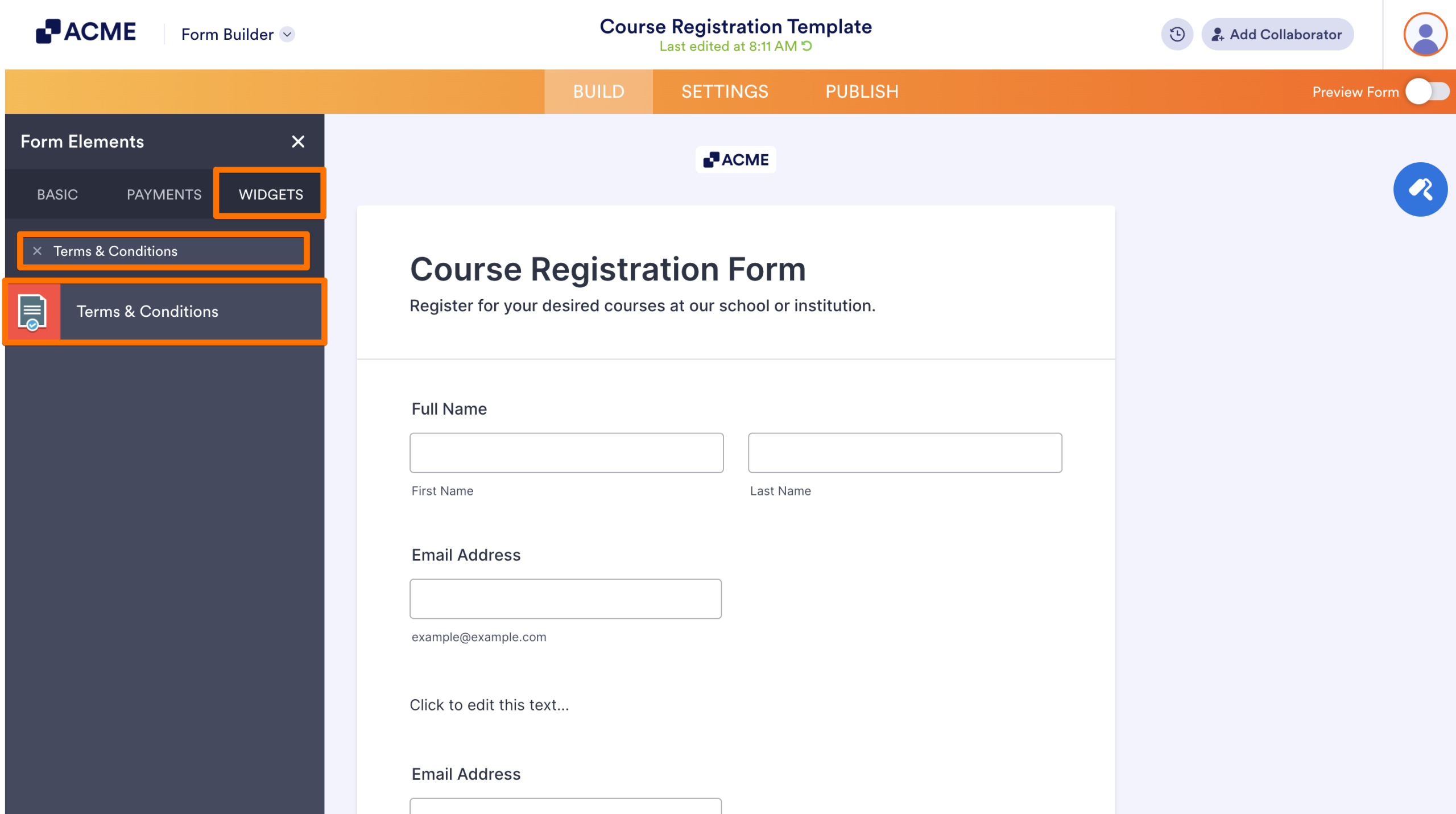
- Now, in the Form Elements menu, under the Widgets tab, search for Terms & Conditions and click on it to add it to your form.
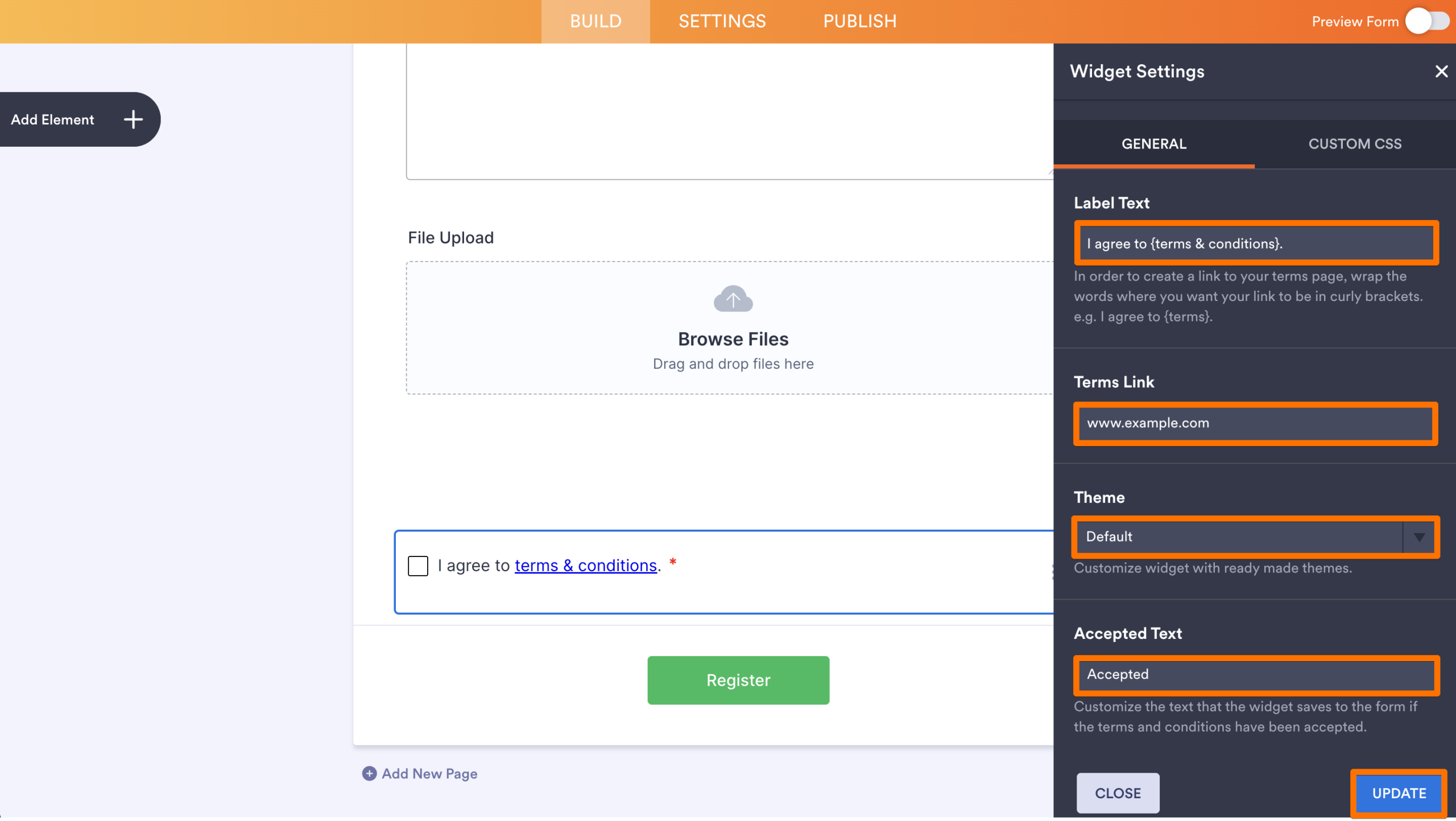
- Next, in the Widget Settings window that opens on the right side of the page, set up the following things:
- Label Text — Edit the main text shown next to the Agreement Checkbox.
- Terms Link — Add the URL to your license agreement or terms and conditions.
- Theme — Select the default theme for white backgrounds, and use the light theme for dark backgrounds.
- Accepted Text — Customize the message displayed after the user accepts the agreement.
- Then, click on Update, and you’re all set.

Send Comment: