Jotform AI makes it easier to find the integrations you need for your workflows. Instead of manually browsing through available integrations, you can ask AI to locate the right one for your workflow. Once it finds a match, you can proceed with the setup yourself and configure how the integration should process your workflow data.
Whether you want to send data to another platform, automate tasks, or streamline what happens after a form is submitted, Jotform AI helps you get started with less effort. By making integrations easier to find, it saves you time searching through options so you can focus on setting up workflows that meet your needs.
Adding an integration to your workflow with Jotform AI takes only a few steps. Here’s how to get started:
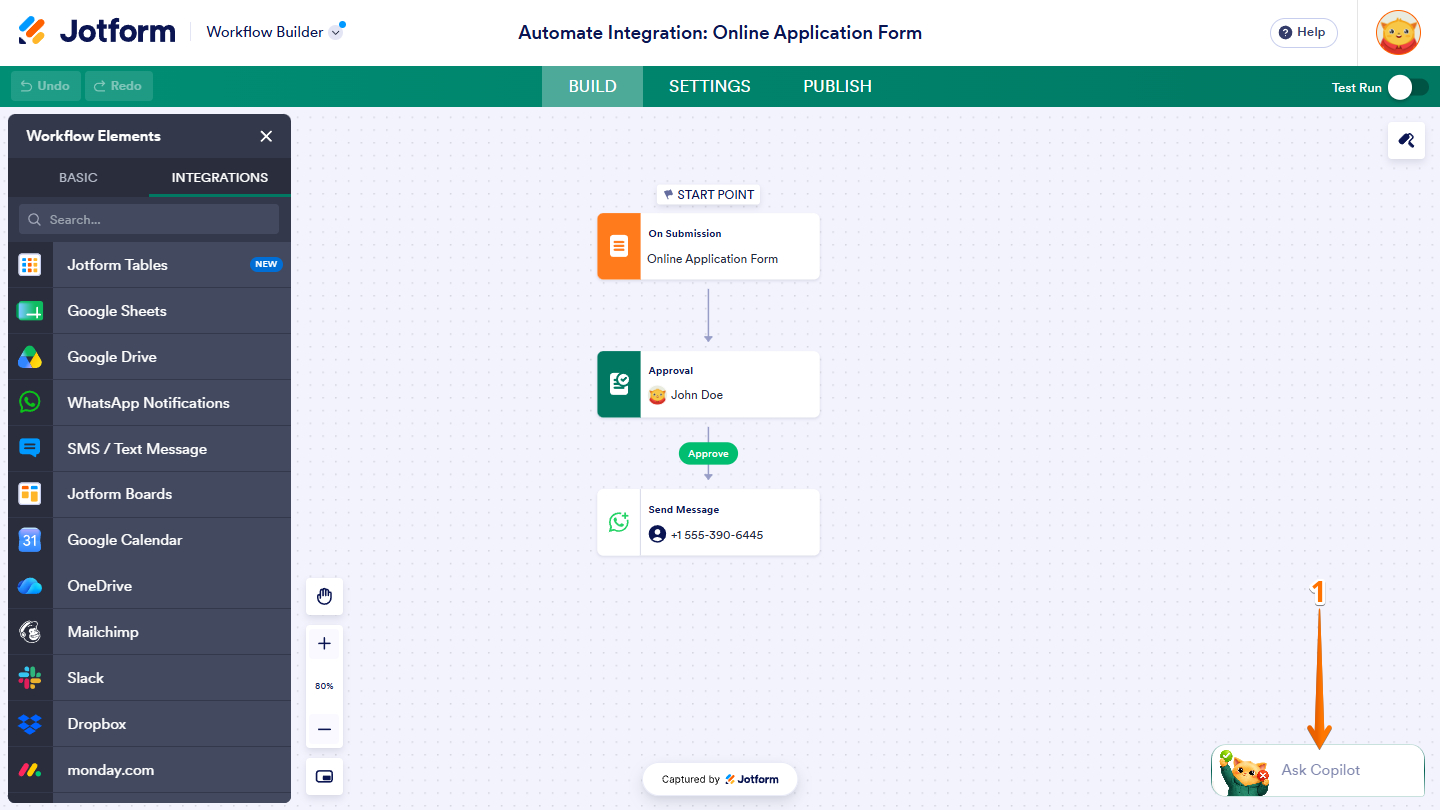
- In Workflow Builder, click on the Jotform AI Chatbot in the bottom-right corner of the screen.
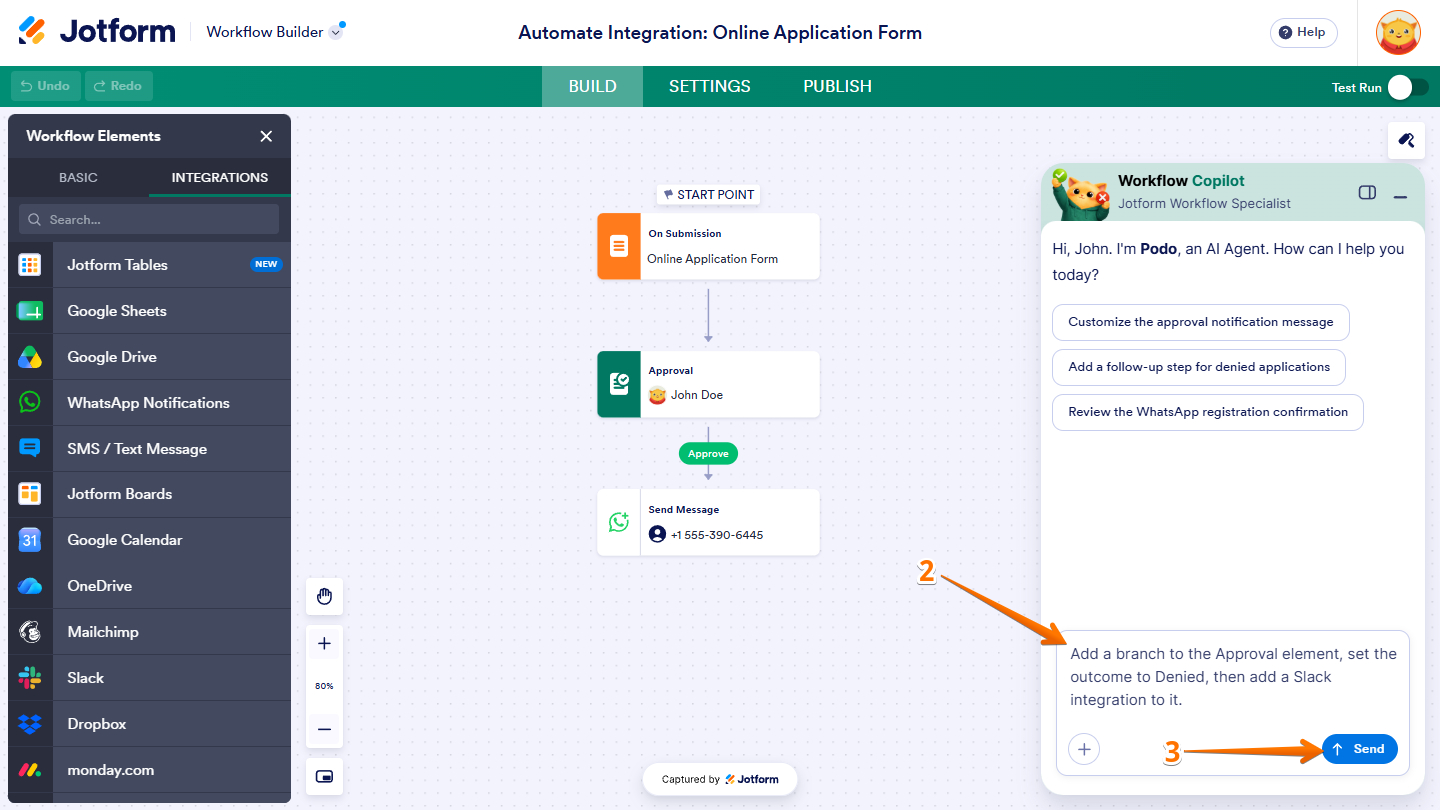
- Then, in the Workflow Copilot Chat window that opens, enter your prompt with the integration name. Here are a few simple and detailed prompts you can try:
- Add Slack integration to the workflow.
- Add WhatsApp Business to the workflow.
- Add SMS/Text Message to the workflow.
- Add a branch to the Approval element, set the outcome to Denied, then add a Slack integration to it.
- Add another branch to the Approval element, select Approve as the outcome, then add the SMS/Text Message integration.
- Next, click on Send. Jotform AI will now start thinking and processing your request.
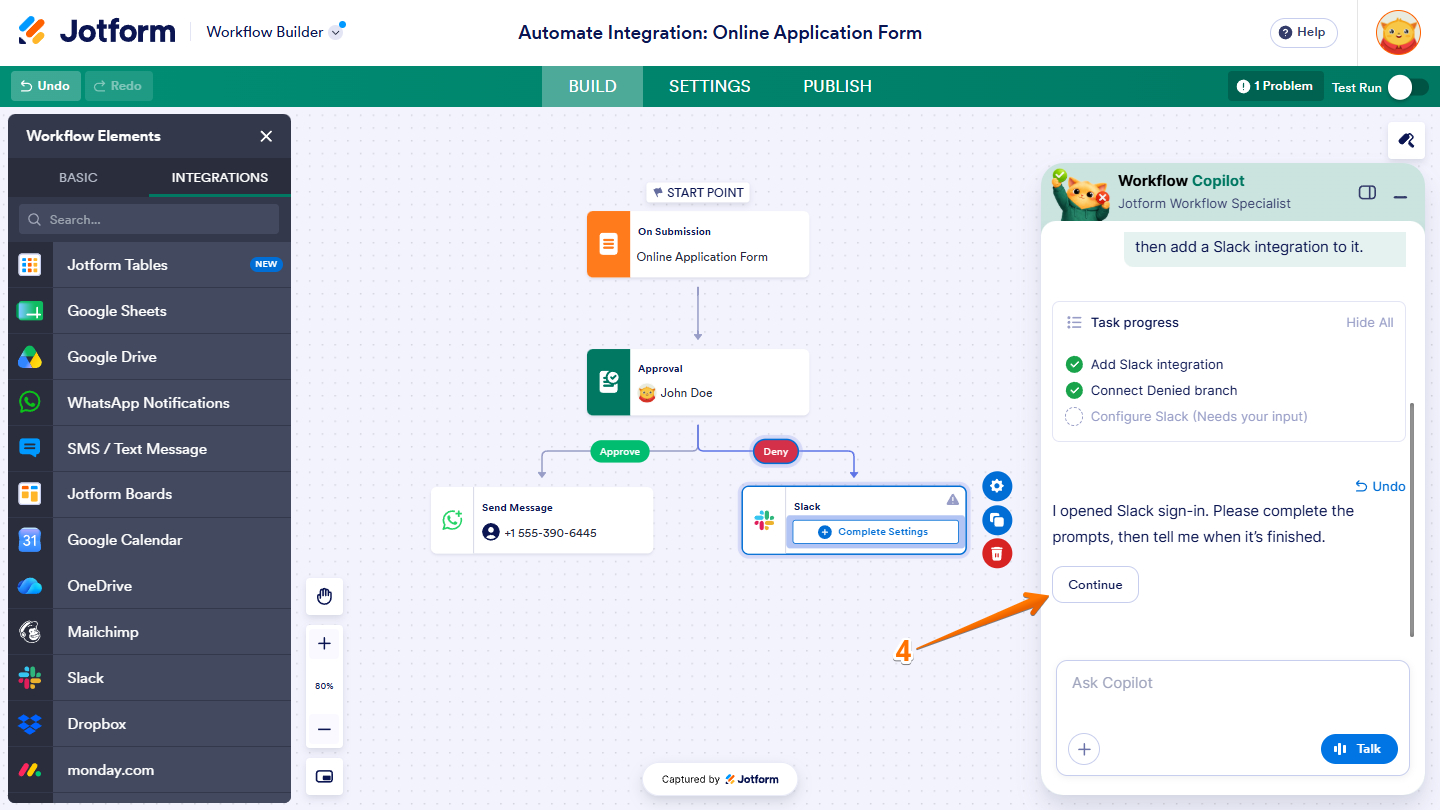
- Now, click on Continue.
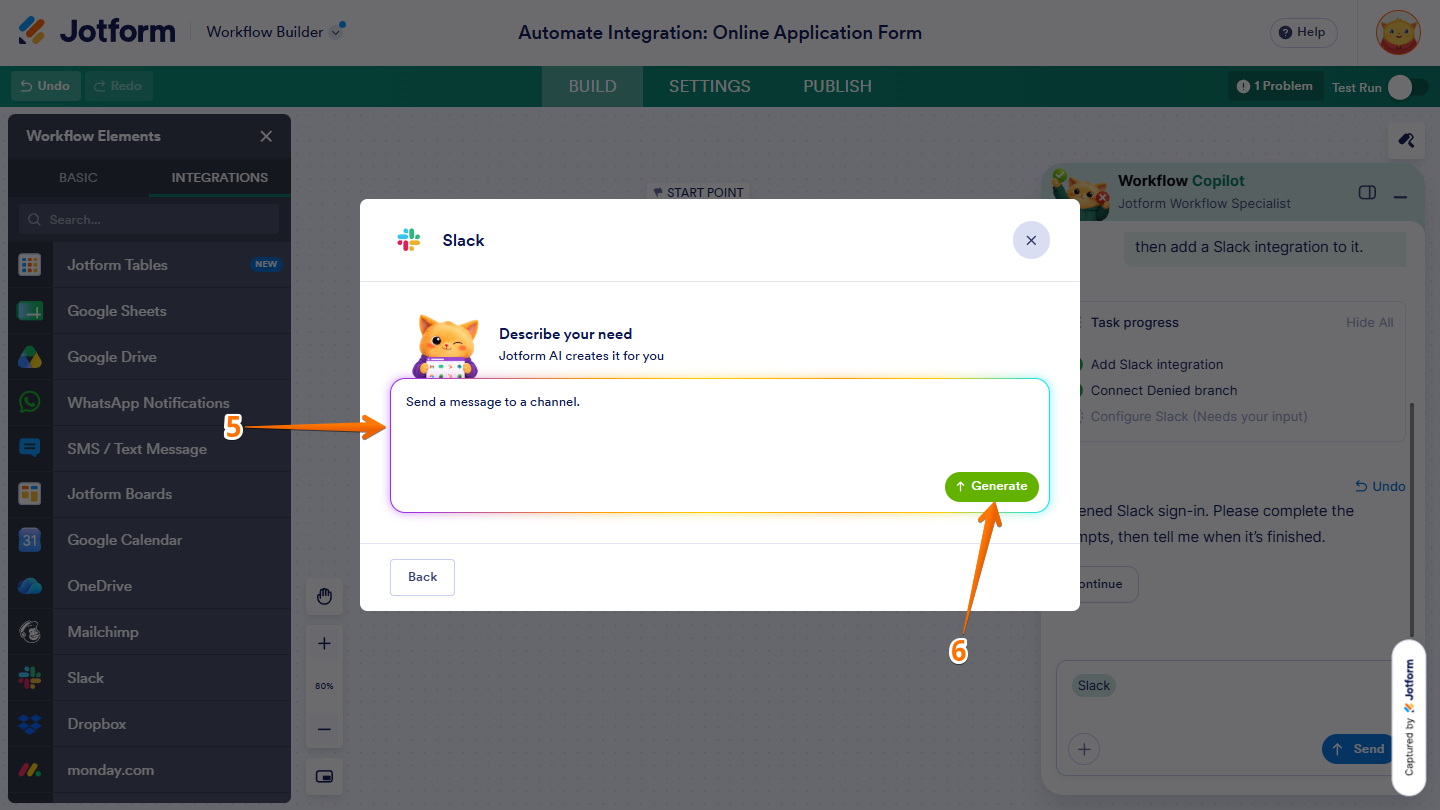
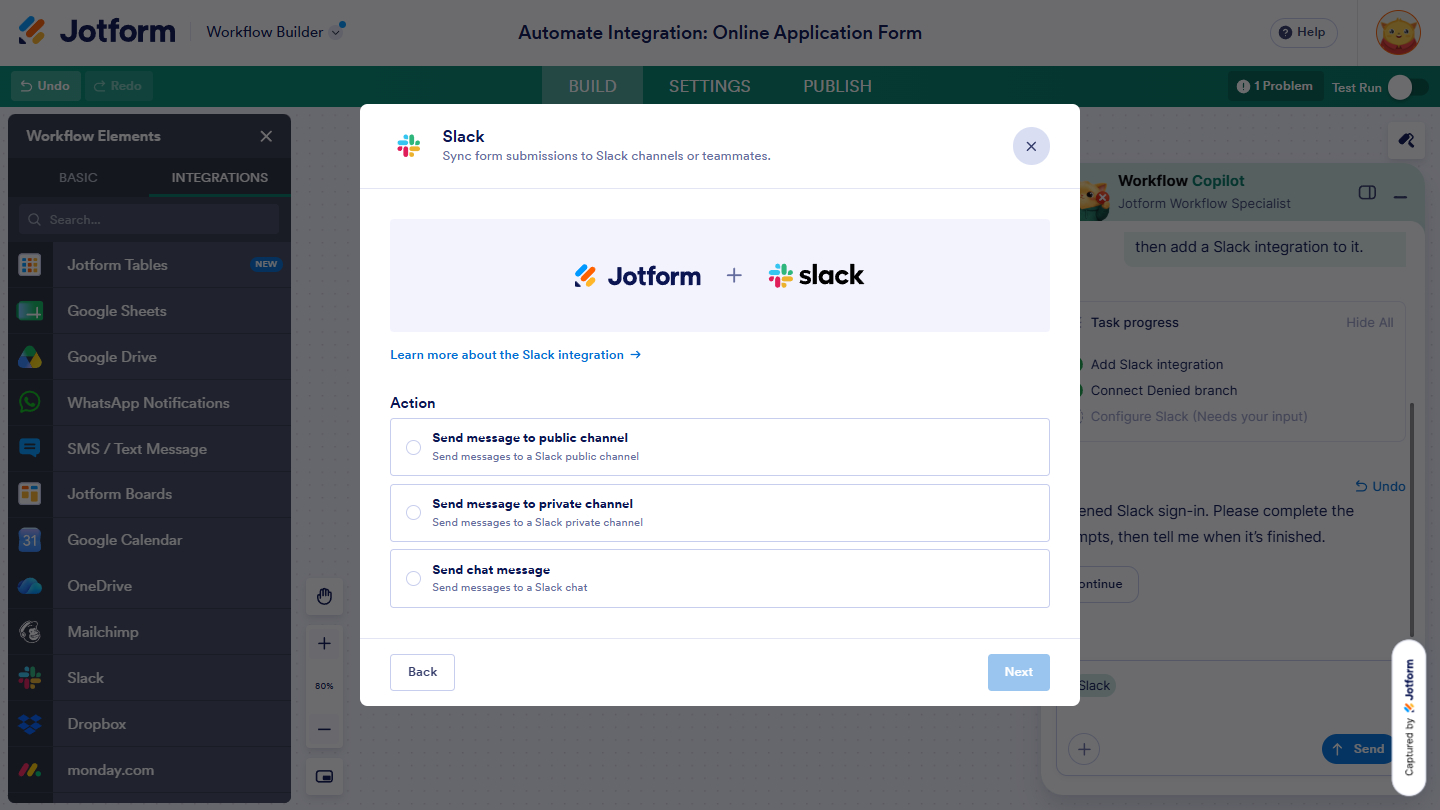
- Then, in the Slack window that opens, enter the prompt that tells Jotform AI what you would like to do with the integration. Here are prompts you can use:
- Send a message to a specific person.
- Send a message to a channel.
- Next, click on Generate.
That’s it! Your form now opens the integration page, where you can select the next step and complete the integration.

Send Comment: