Labels give you a simple and powerful way to organize your Workspace by grouping related assets together. You can add labels to all asset types, not just Forms, allowing you to manage your entire Workspace more efficiently. Labels can also help streamline Workflows, improve discoverability, and keep everything structured as your Workspace grows.
Before applying Labels to assets, you’ll need to create them. Each Workspace supports up to 100 labels.
Creating a Label
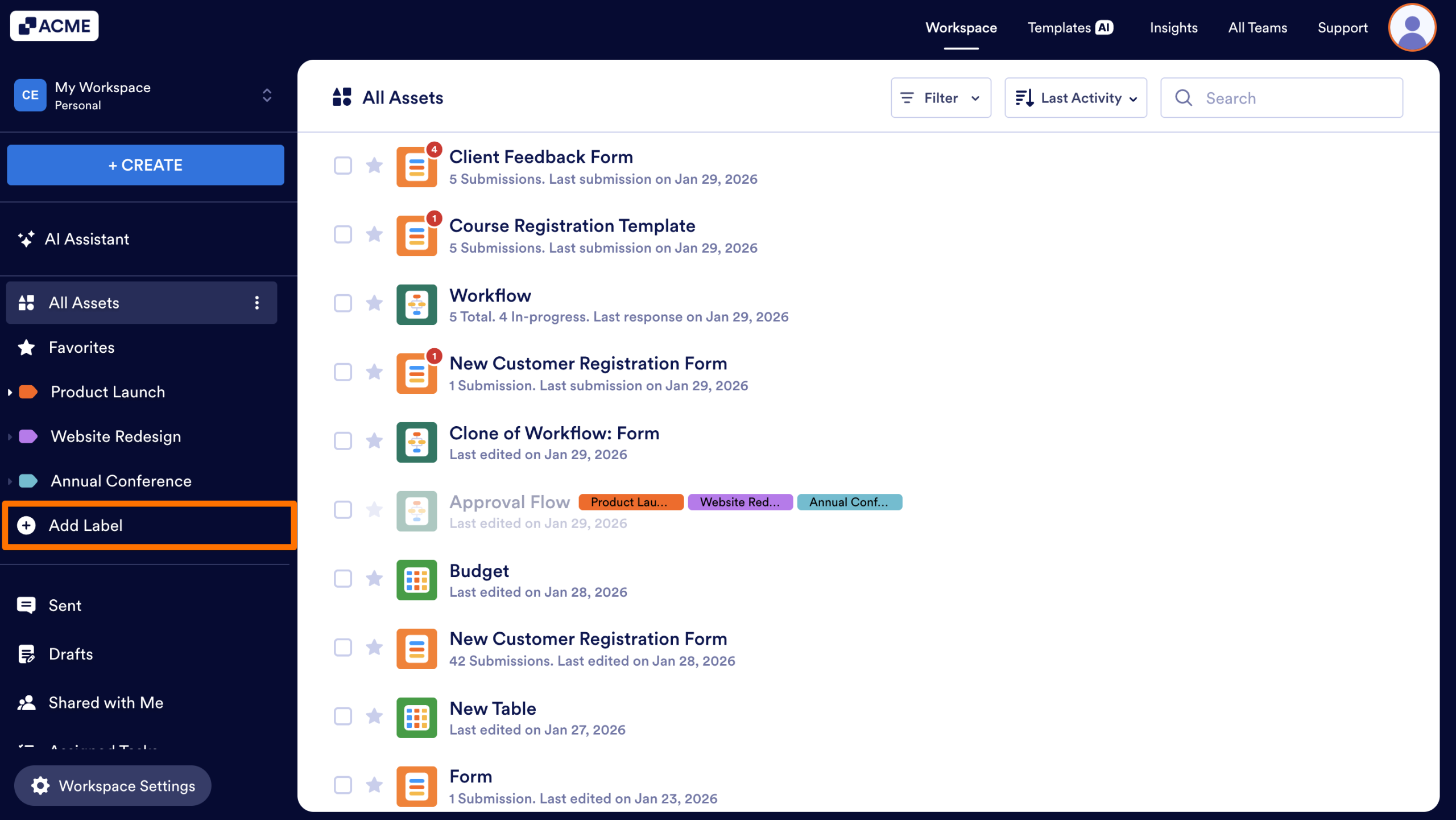
- First, in My Workspace, select Add Label from the sidebar on the left side of the screen.
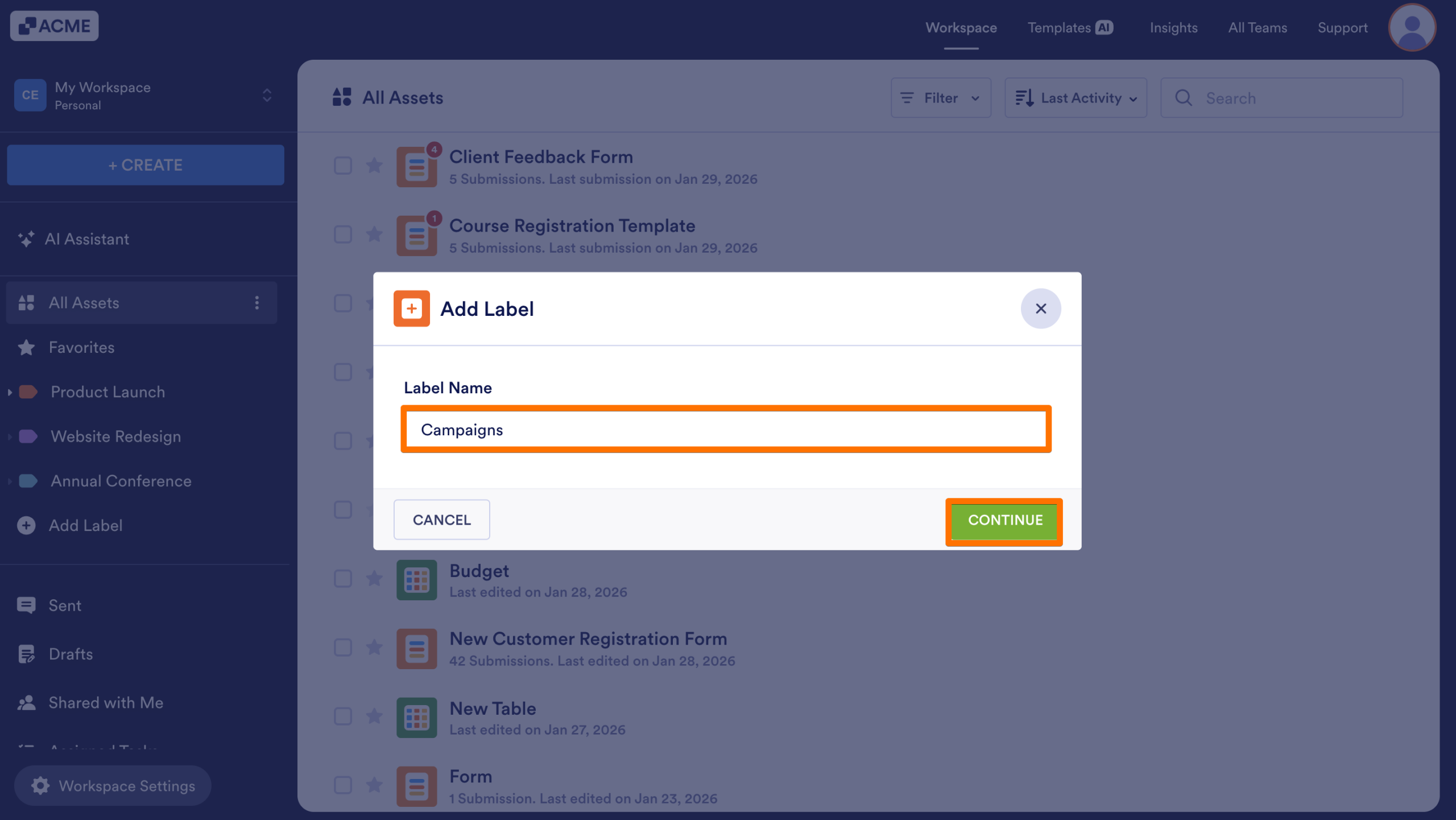
- Next, enter a name for your Label.
- Finally, click Continue.
Adding a Sublabel
Sublabels allow you to organize labels into a clear hierarchy, making it easier to manage complex or large Workspaces.
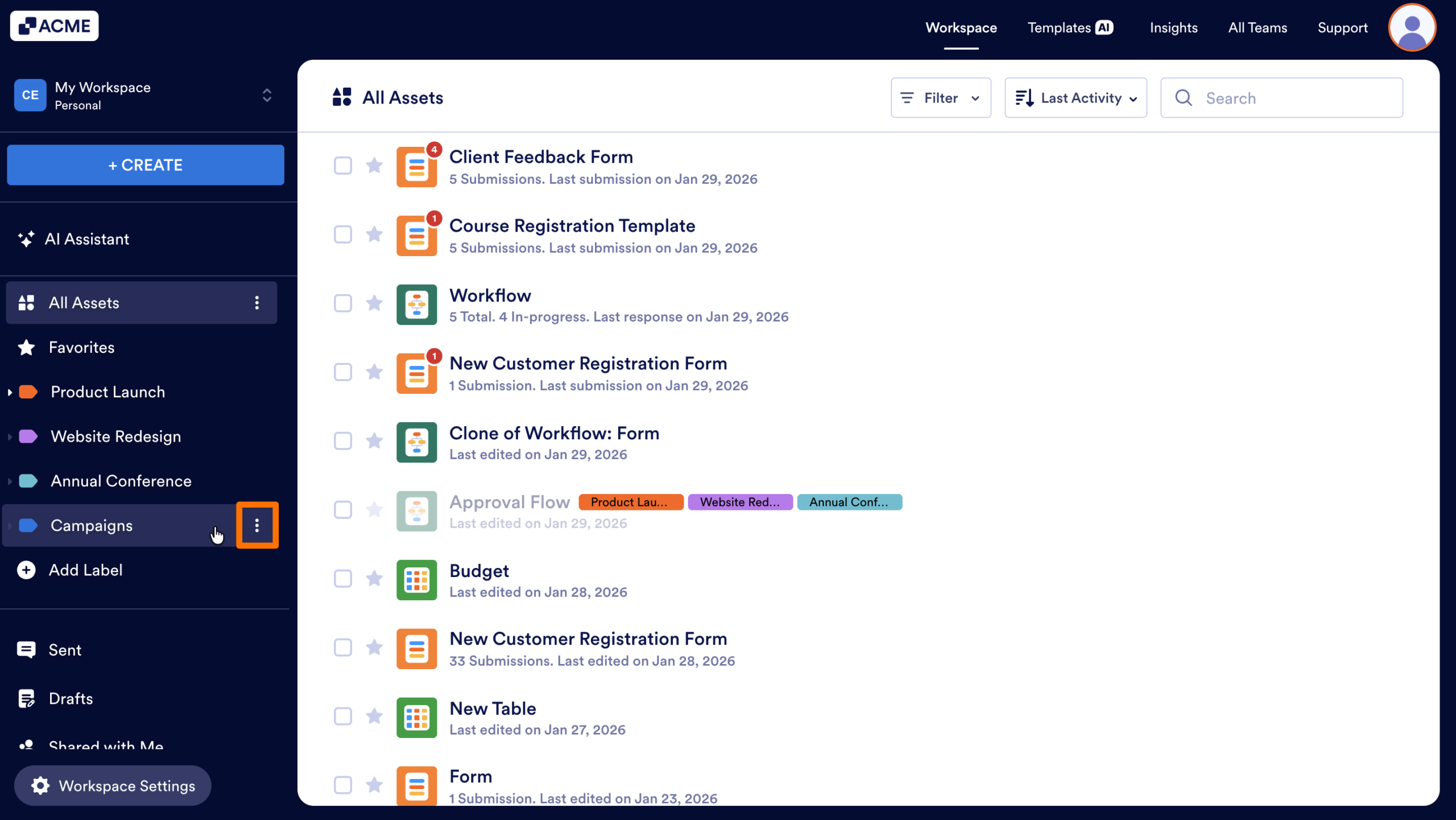
- First, in My Workspace, hover over the label you want to add a sublabel to and click on the Three Dots icon.
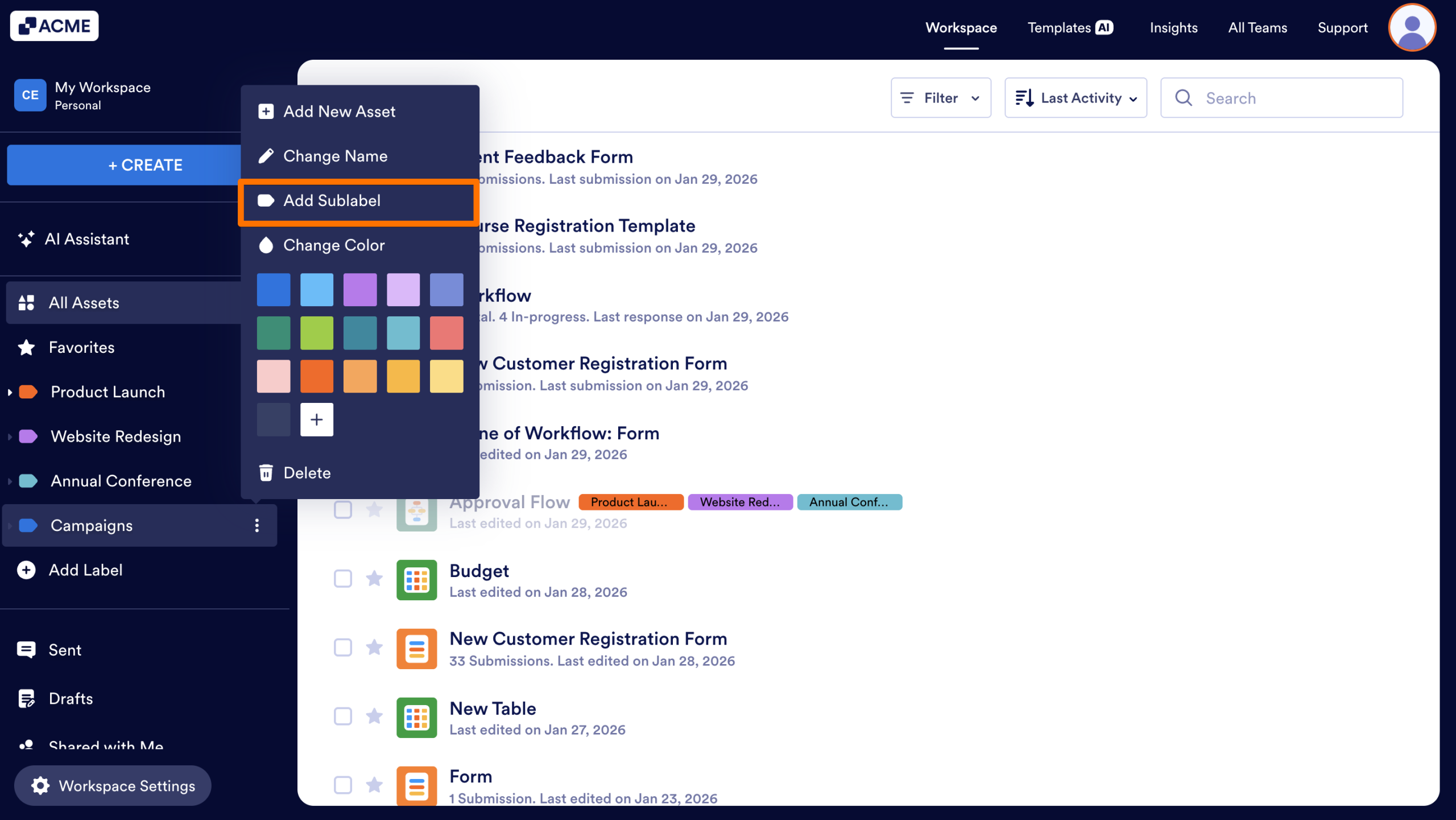
- Then, select Add Sublabel.
- Next, enter a name for your Sublabel.
- Finally, click Continue.
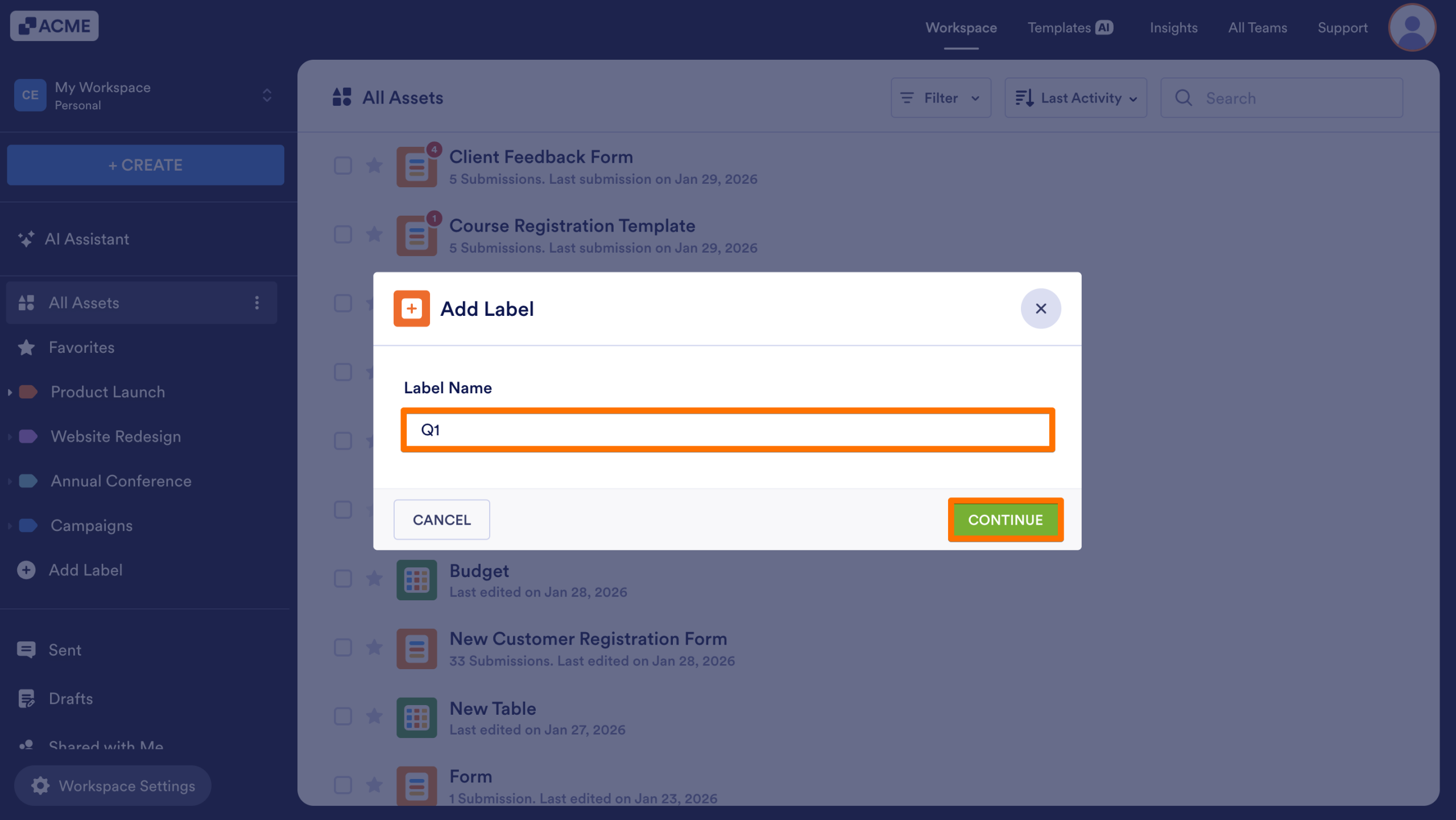
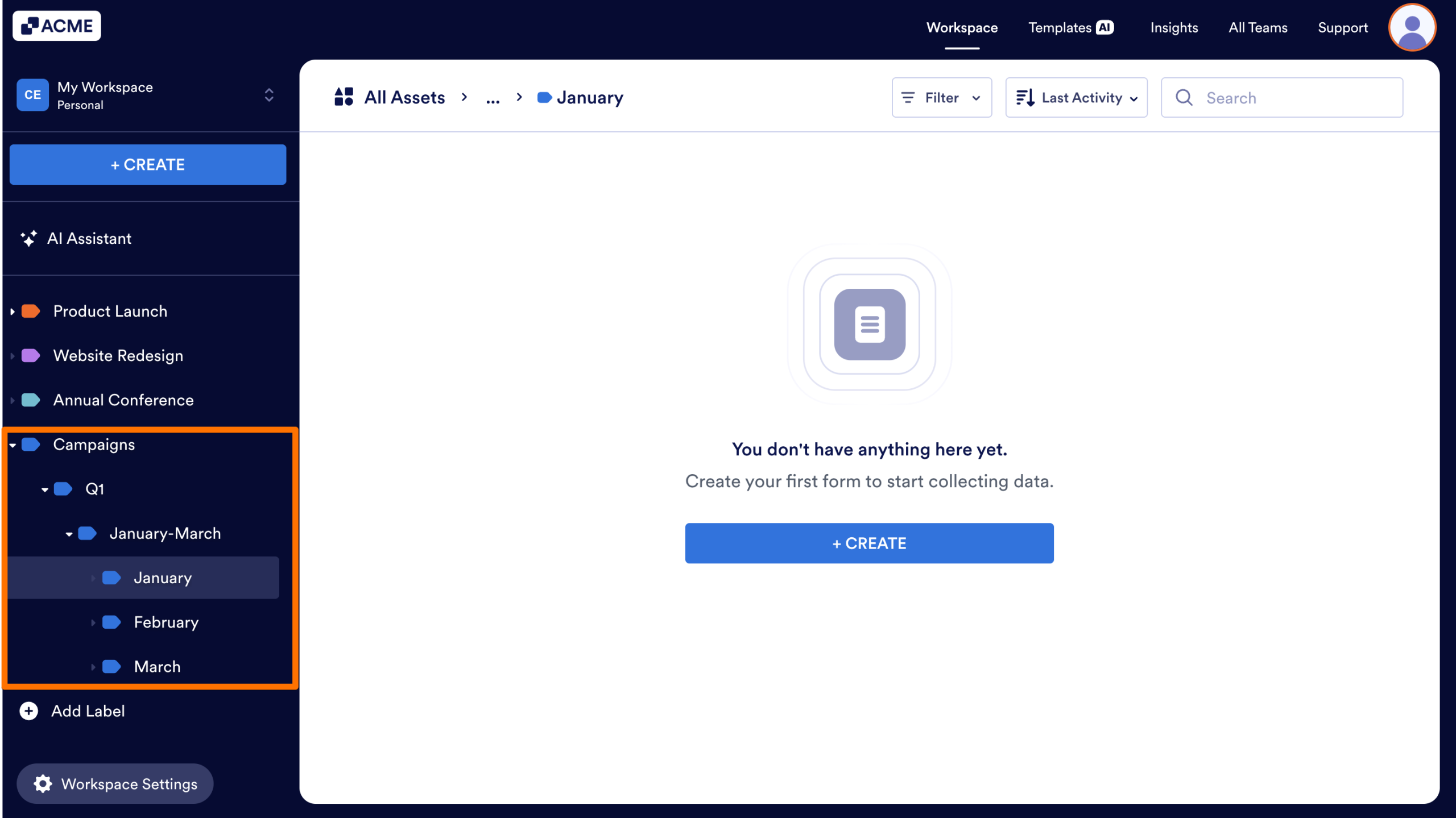
The Label will now appear as a Sublabel. You can continue grouping labels up to four levels deep—consisting of one main label and three sublabels—and use the navigation at the top to easily see where you are in the label path.
Adding a Label to an Asset
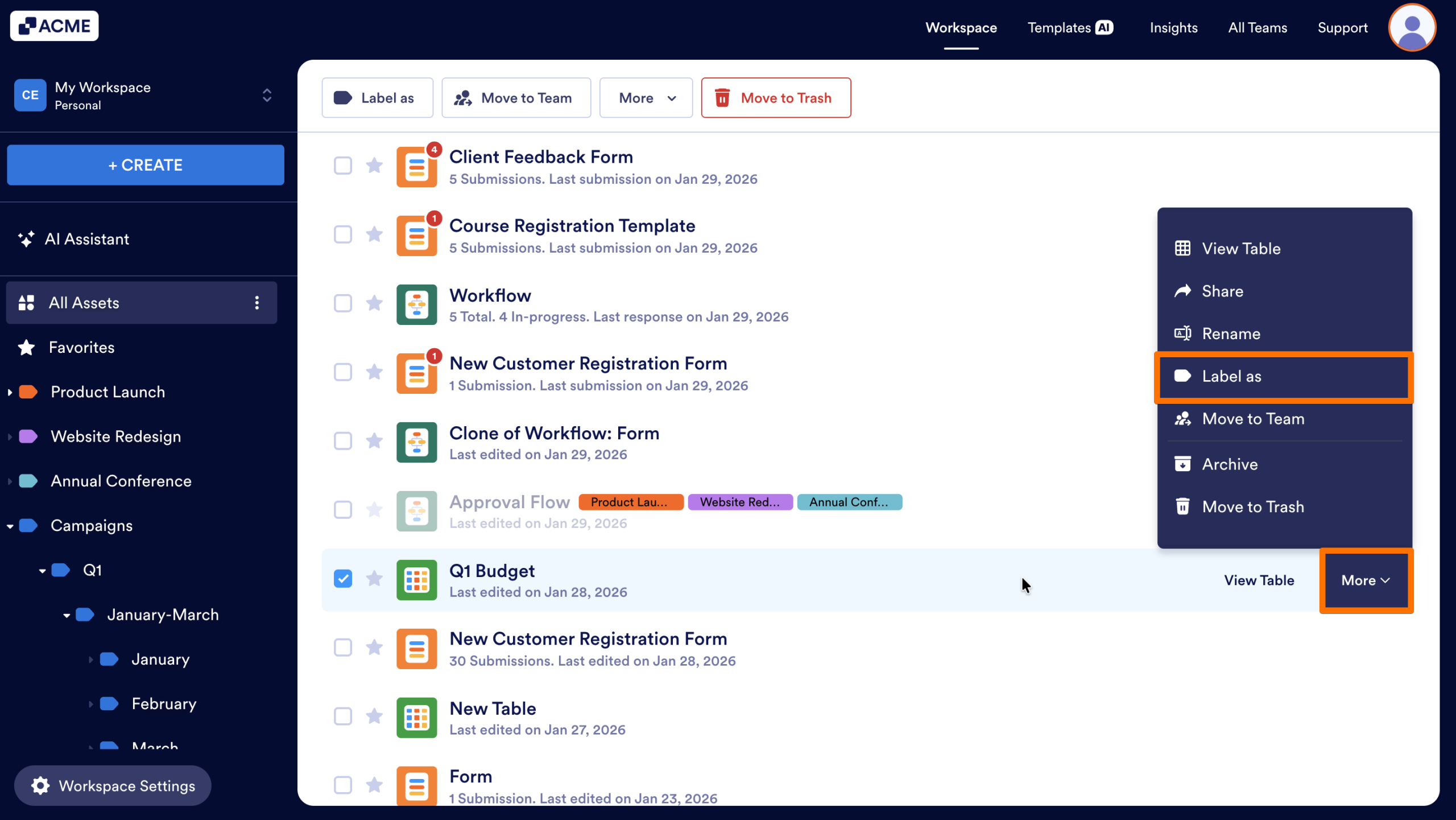
- In My Workspace, hover your cursor over the asset you want to label.
- Next, click on More to the right of the asset.
- Then, select Label as in the menu that appears.
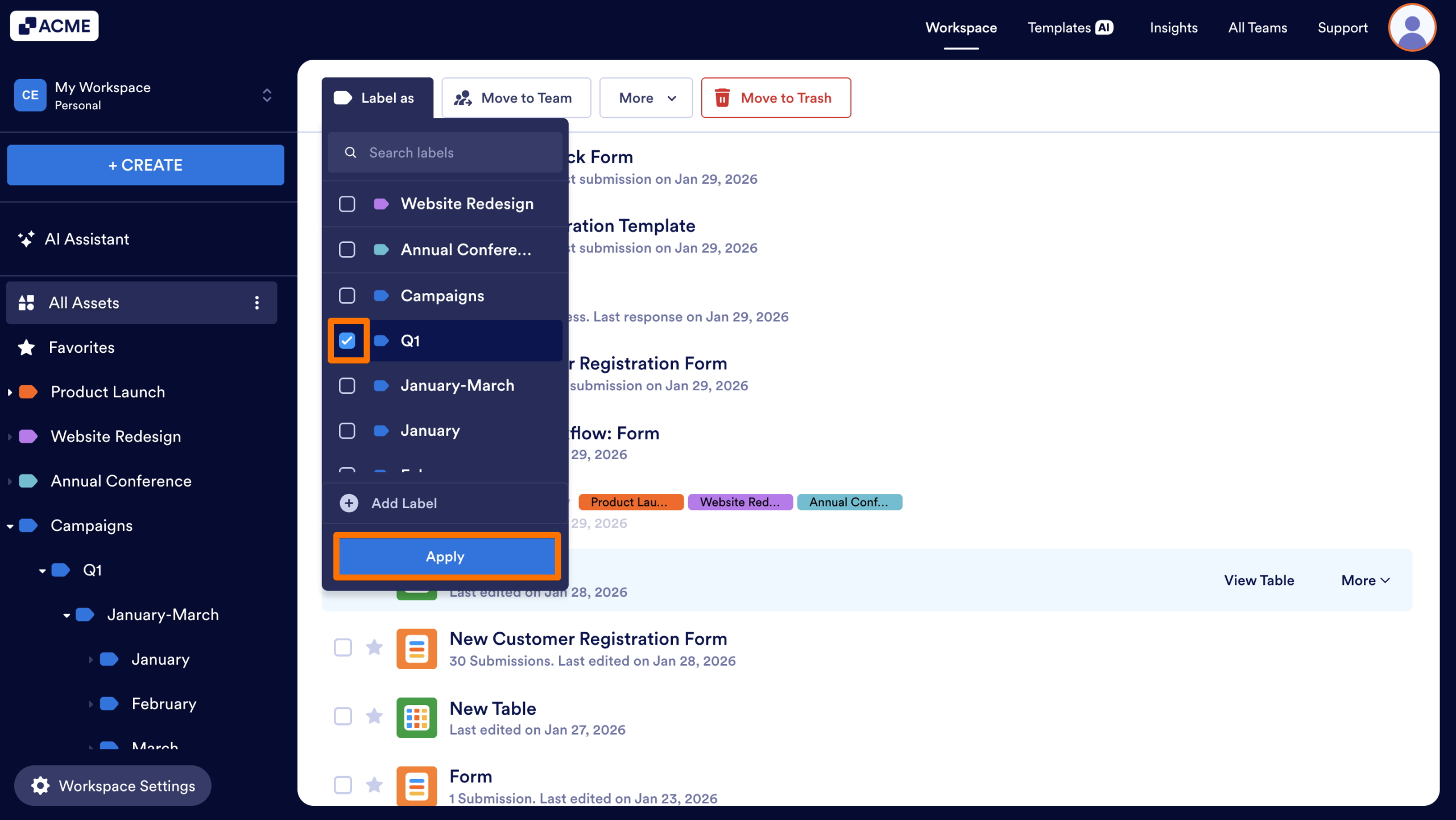
- Now, check the checkbox next to any existing labels you want to apply.
- Finally, click on Apply.
Adding Labels to Assets in Bulk
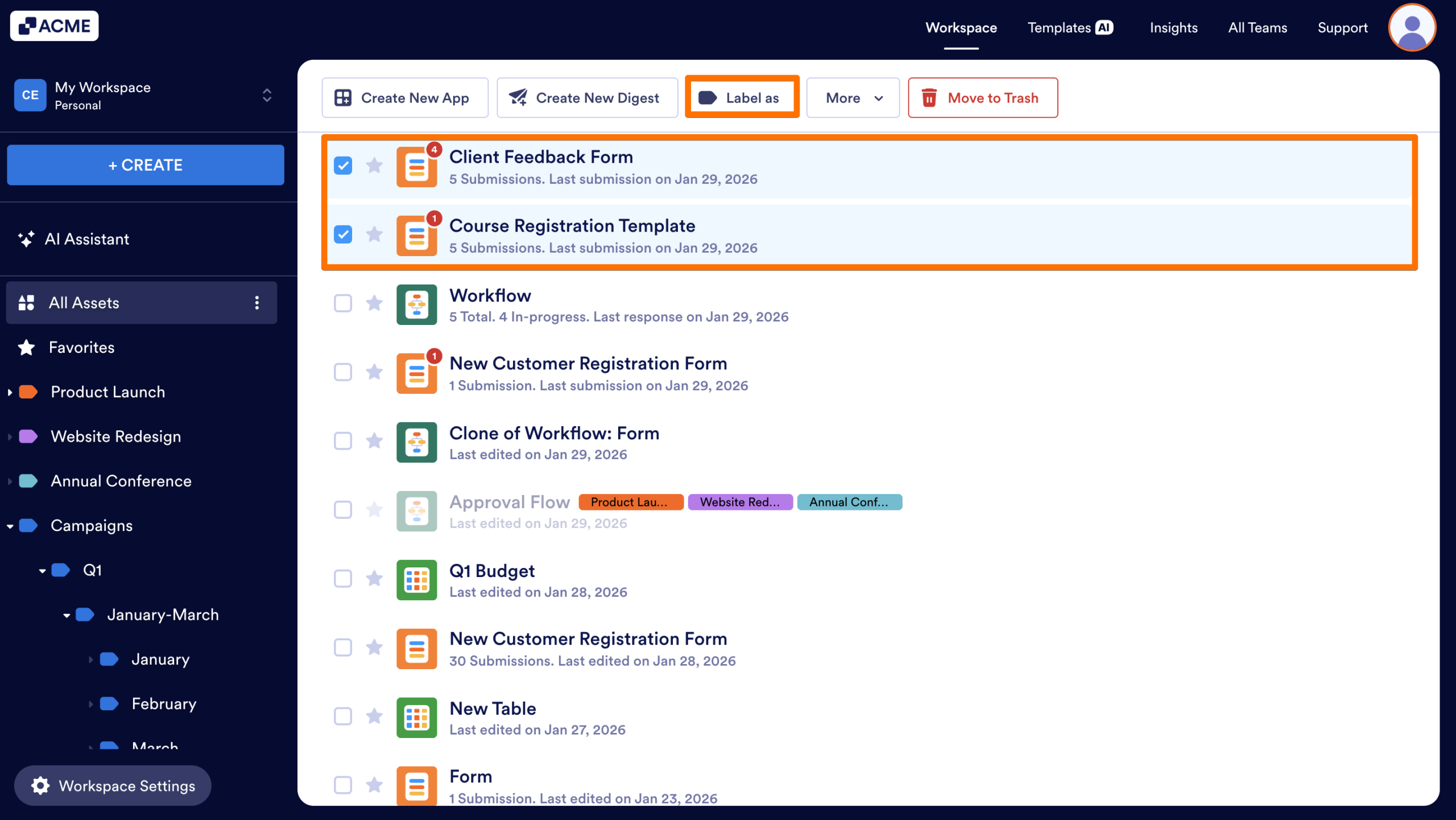
- First, in My Workspace, click on the assets you want to label.
- Next, click on Label as on the toolbar at the top of your screen.
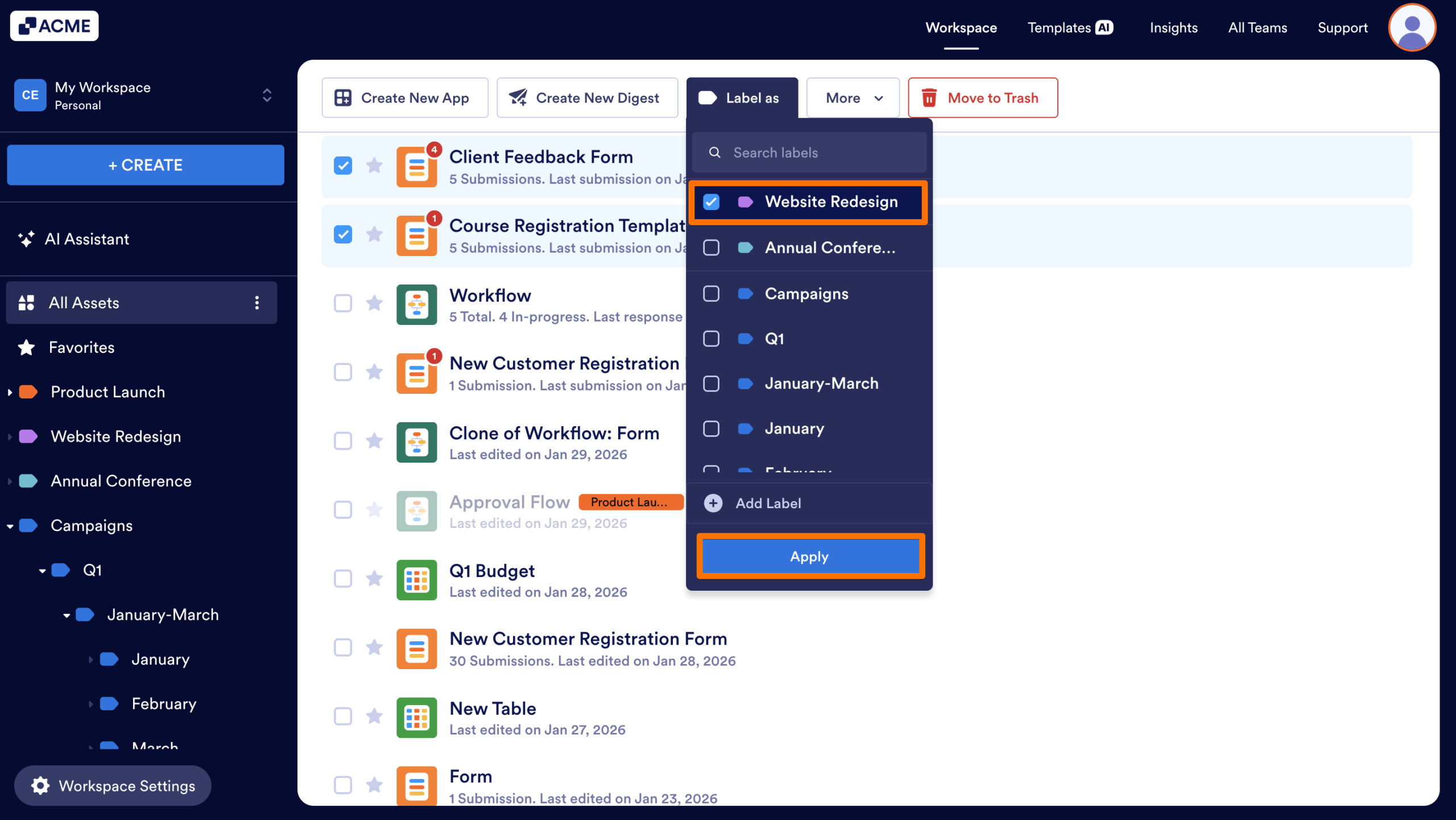
- Then, choose the Labels you want to apply to the selected assets.
- Finally, click on Apply.
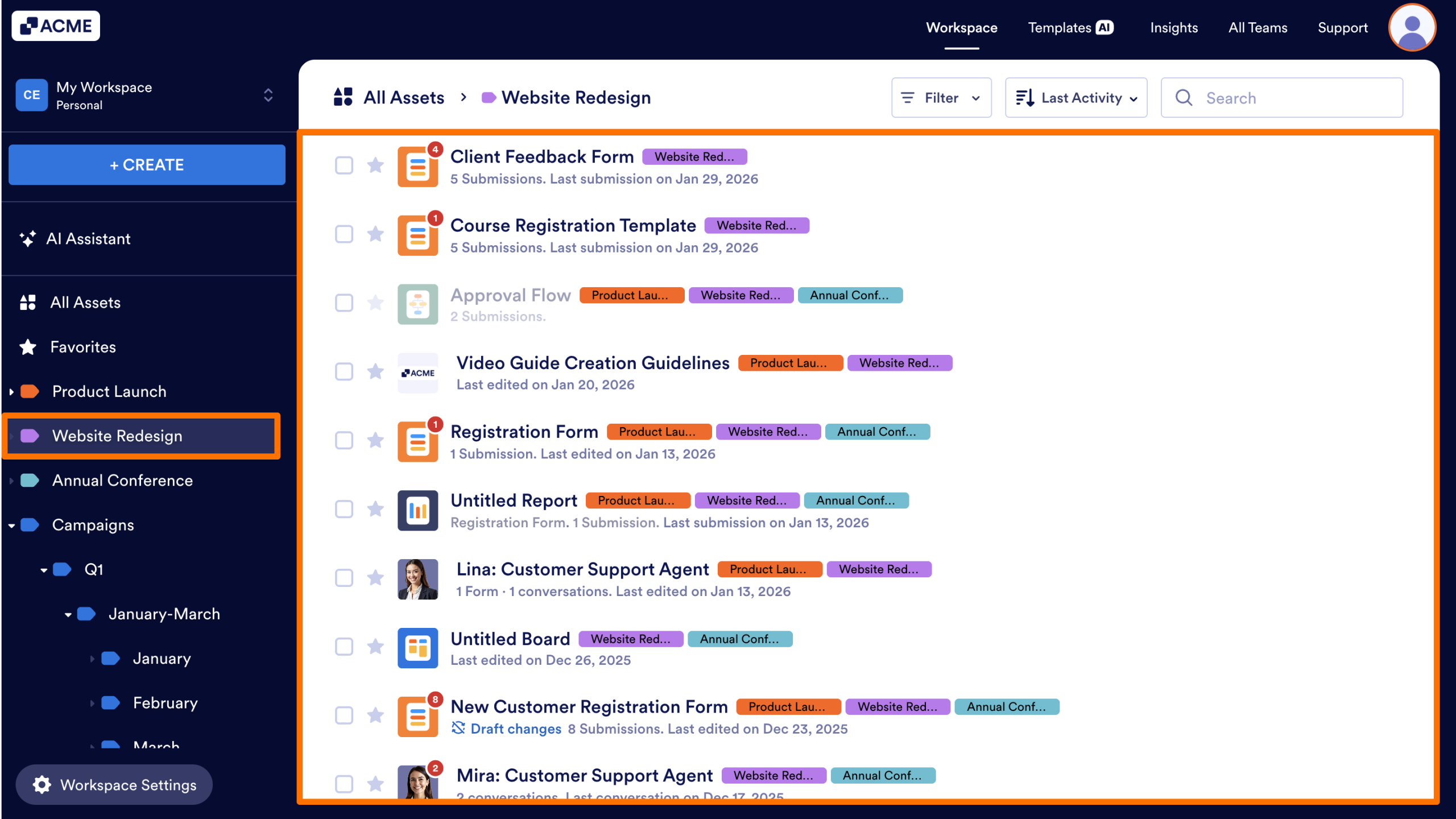
Once Labels are applied, you can select any Label from the sidebar on the left side of the screen to view all associated assets.
Tip
You can also simply drag and drop the assets into a Label or Sublabel.
Managing and Removing Labels
Labels are designed to be flexible and easy to manage as your Workspace evolves.
- Labels are sorted alphabetically for easier navigation.
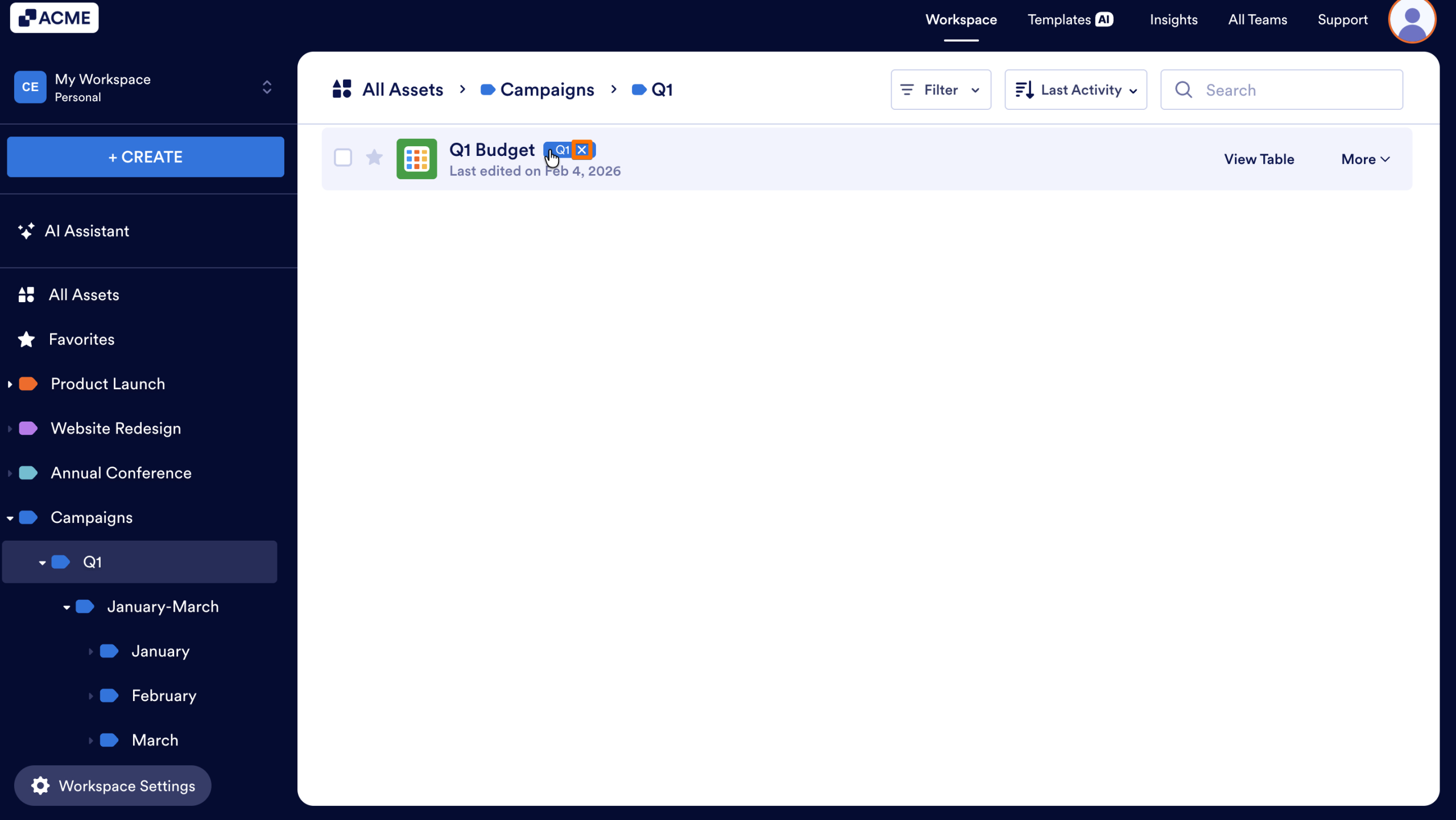
- You can remove Labels from an asset at any time. Simply hover over the asset’s label indicator and click on the X icon.
By combining Labels, Sublabels, and bulk actions, you can maintain a clean, scalable structure that keeps all your assets easy to find and manage.

Send Comment: