Jotform helps you quickly track and display website traffic with the Visitor Counter widget. Show page views, unique visitors, and visitor activity over different time periods to give you and your audience a clear look at how much traffic your website receives.
Whether you’re running a blog, business website, online store, or community page, the Visitor Counter widget makes it easy to highlight your website activity and show visitors how many people are checking out your content.
Adding a Visitor Counter feature to your website only takes a few steps. Here’s how to set it up:
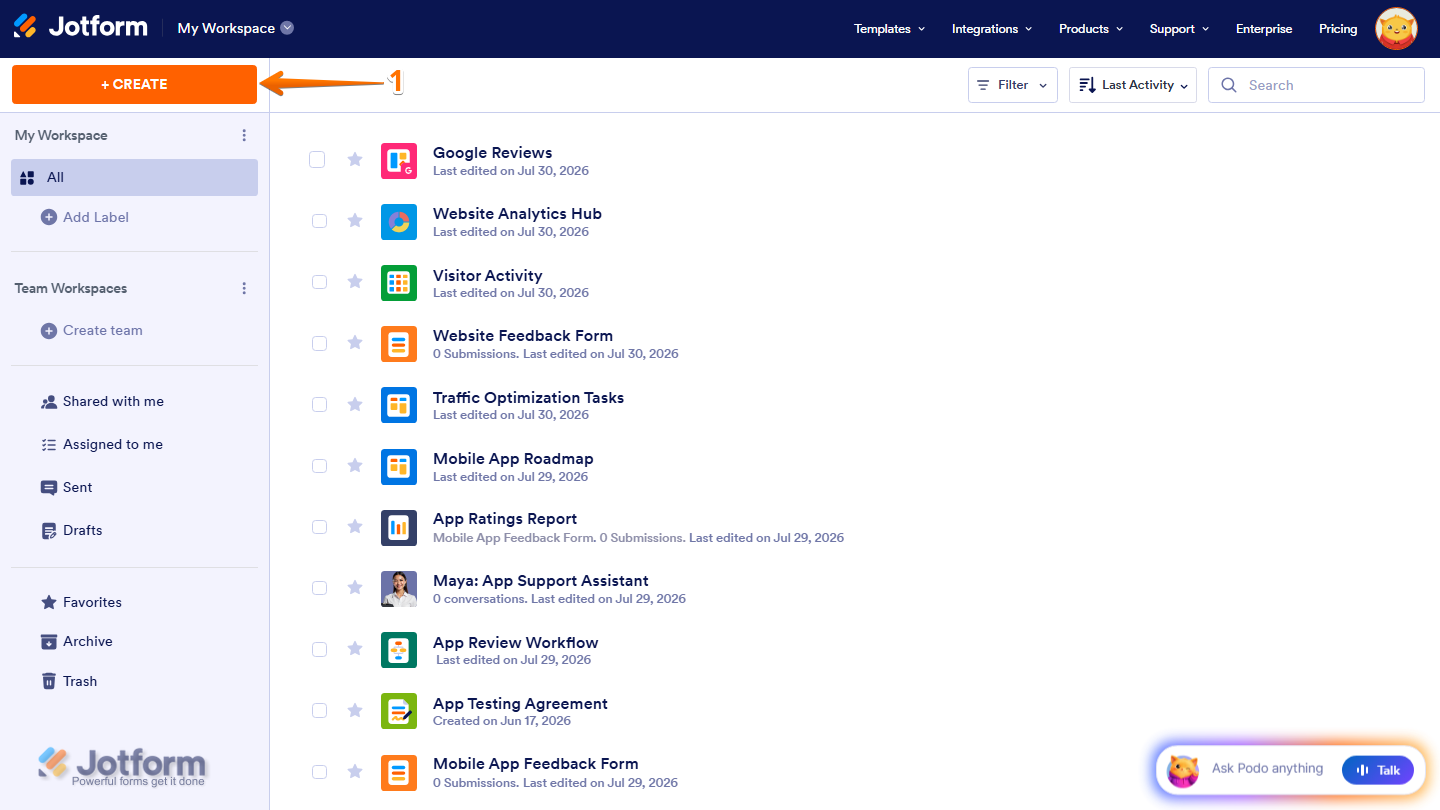
- On the top-left side of your Workspace page, click on Create.
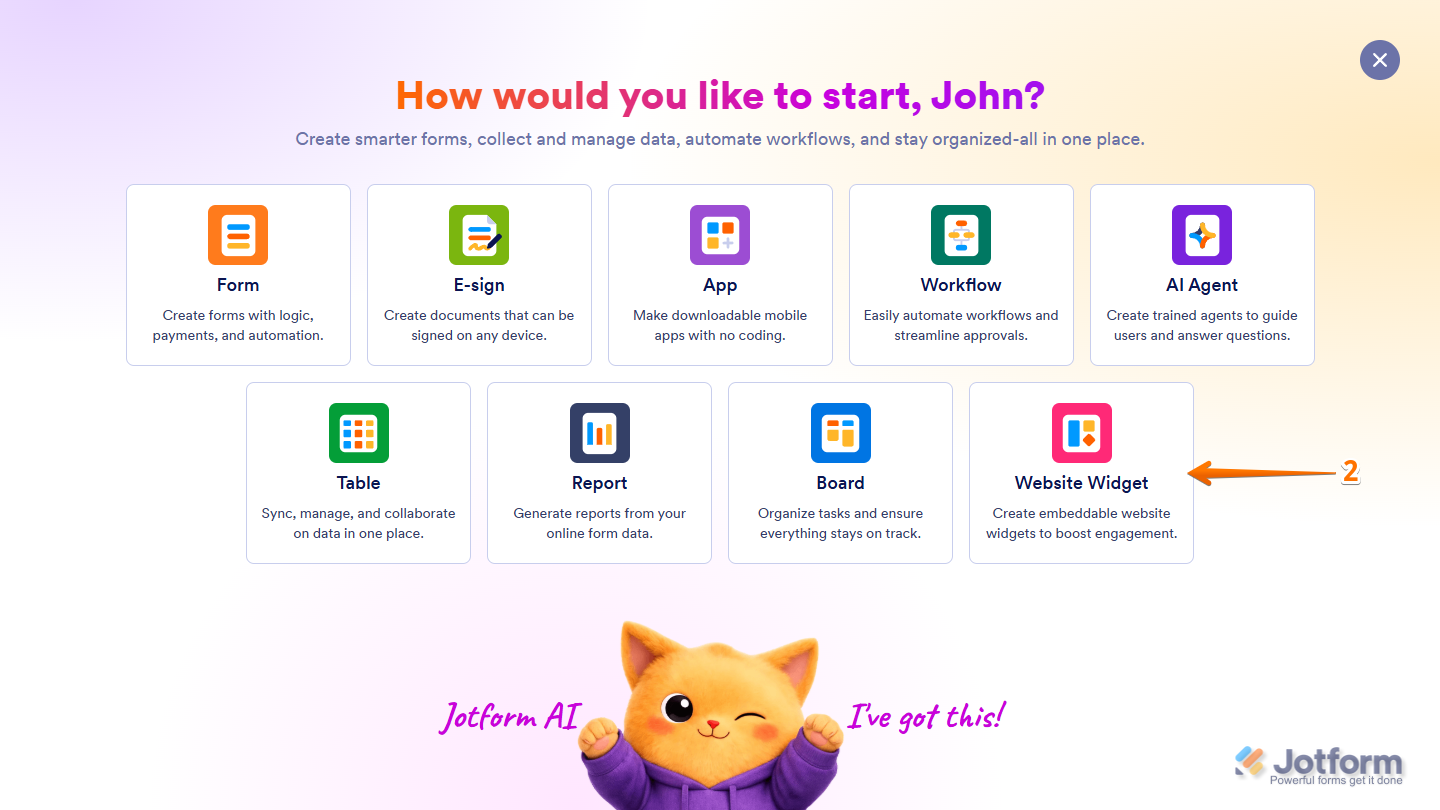
- Then, in the menu that opens up, select Website Widget.
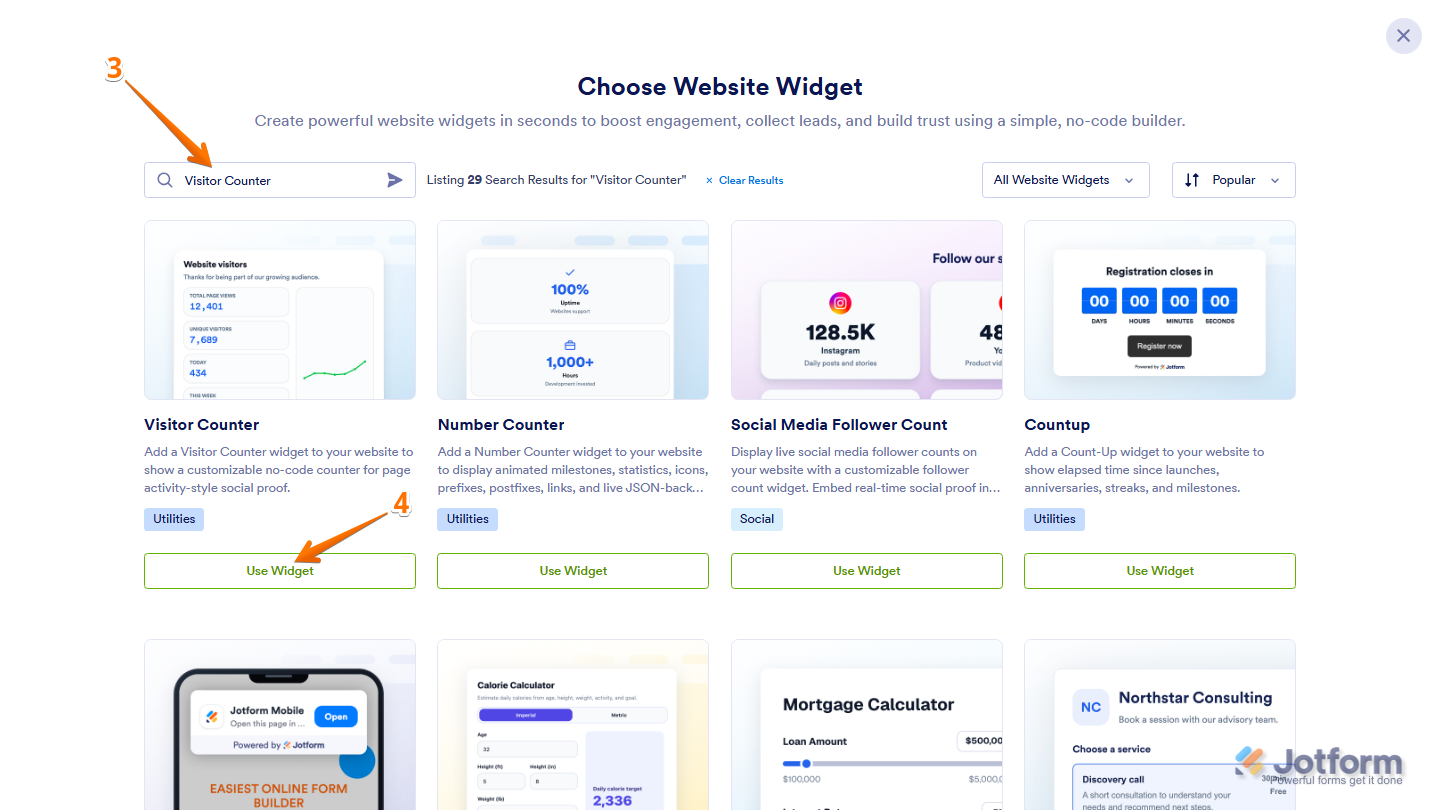
- Next, in the Search bar in the upper-left corner of the Choose Website Widget menu, enter Visitor Counter.
- Then, at the bottom of the Visitor Counter widget in the search results, click on Use Widget.
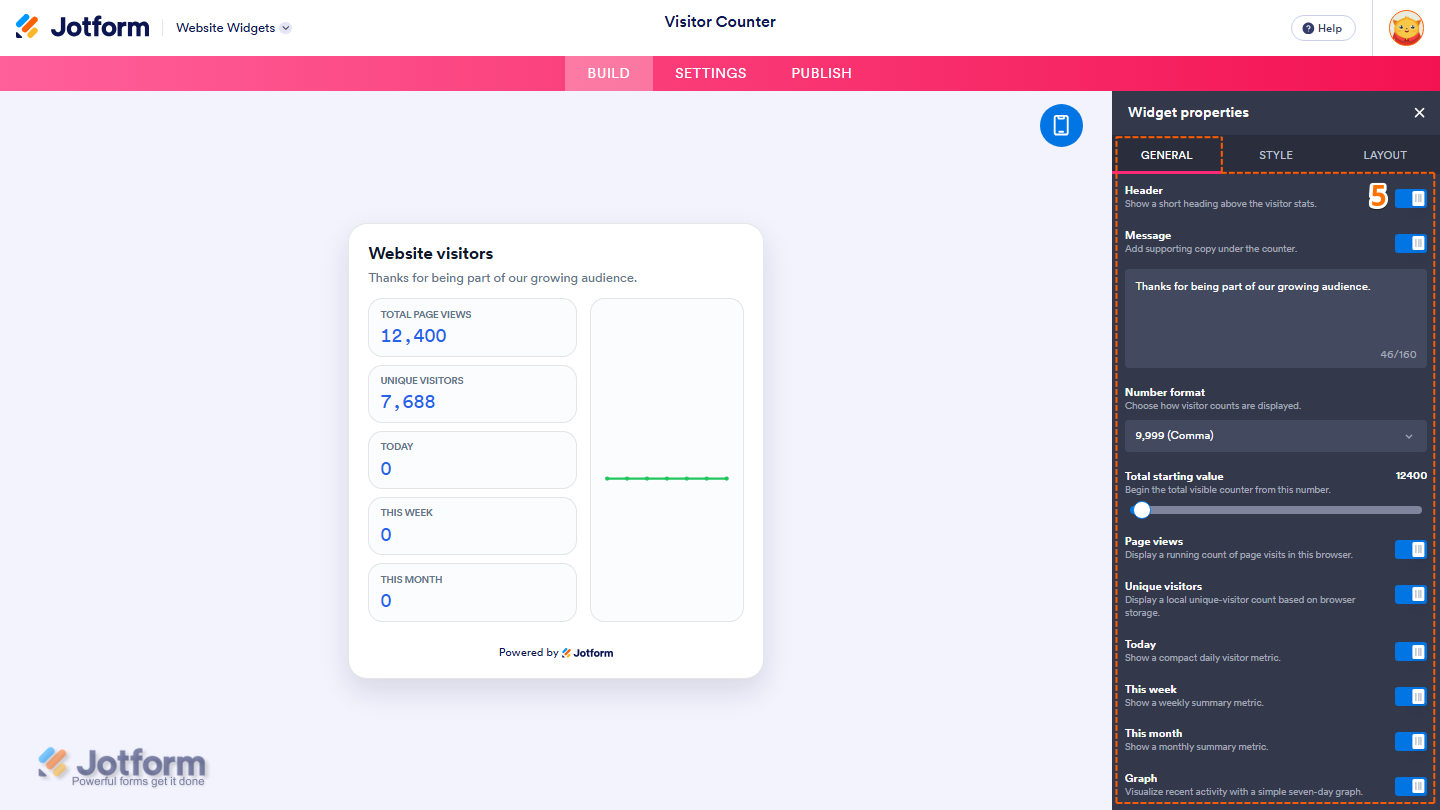
- Now, in the Widget Properties menu that opens on the right side of Website Widgets, under the General tab, set up these properties:
- Header — Keep this on to display a short heading above the visitor stats, or toggle it off to hide it.
- Message — Keep this on to display supporting text below the header, or toggle it off to hide it. Delete the existing text in the input box and enter the message you want to display.
- Number Format — Keep the default 9,999 (Comma) option selected, or click on the Dropdown menu and select a different format to change how visitor counts are displayed.
- Total Starting Value — Keep the default value, or click on and hold the slider handle, then drag it to set the starting number for the total visible counter.
- Page Views — Keep this on to display a running count of page visits in the visitor’s browser, or toggle it off to hide it.
- Unique Visitors — Leave this on to display a local unique-visitor count based on browser storage, or toggle it off to hide it.
- Today — Keep this on to display the daily visitor metric, or toggle it off to hide it.
- This Week — Leave this on to display the weekly visitor metric, or toggle it off to hide it.
- This Month — Keep this on to display the monthly visitor metric, or toggle it off to hide it.
- Graph — Leave this on to display recent visitor activity in a seven-day graph, or toggle it off to hide it.
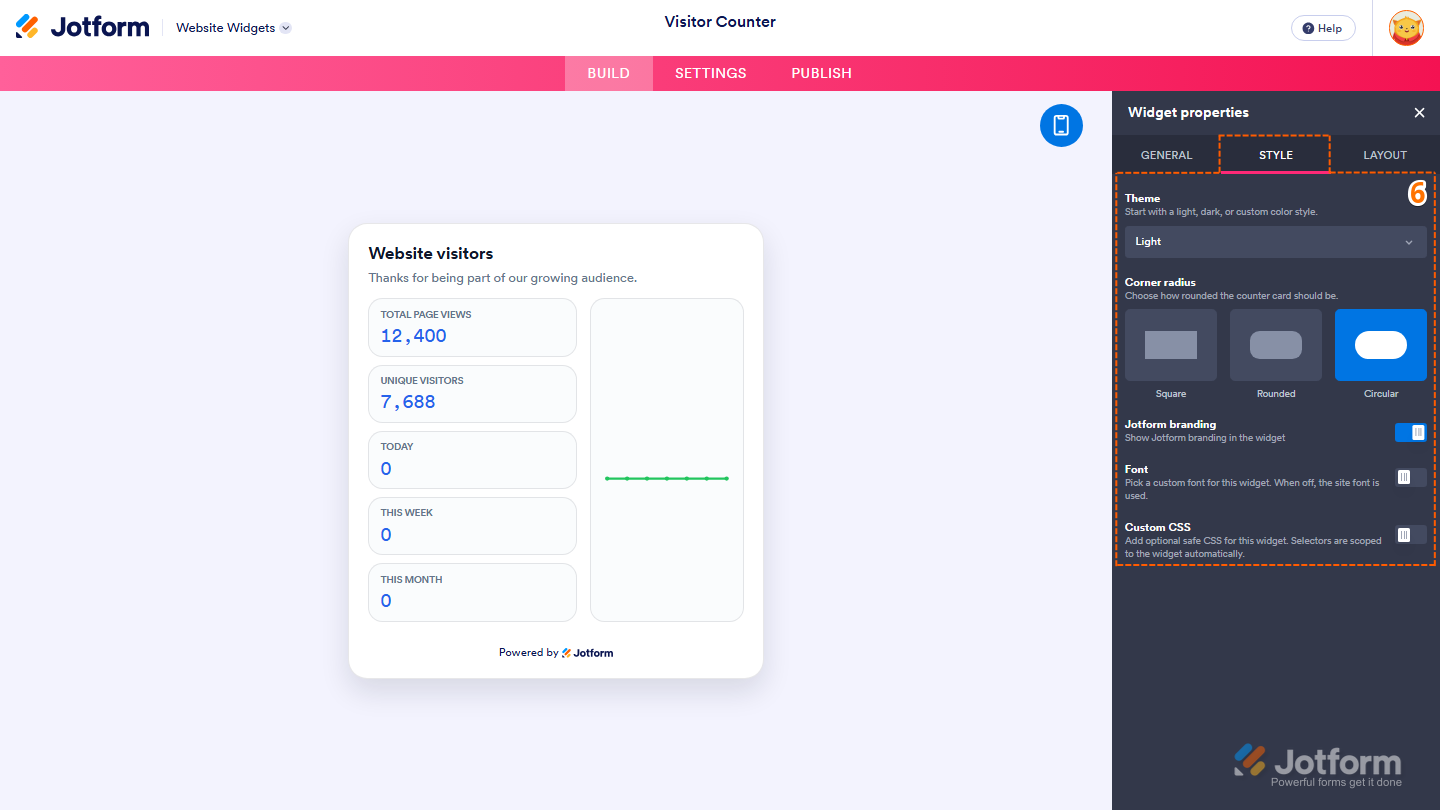
- Next, under the Style tab, customize these properties:
- Theme — Keep the default Light option selected, or click on the Dropdown menu and select a different theme for the Visitor Counter.
- Corner Radius — Select one of the following options to choose how rounded the team cards and website widget frame should be:
- Square — Display sharp corners.
- Rounded — Display moderately rounded corners.
- Circular — Display fully rounded corners.
- Jotform Branding — Keep this on to display Powered by Jotform in your widget, or toggle it off to hide it.
- Font — Toggle this on, then in the Dropdown menu that appears below it, keep Site Font selected to match the font used on your website, select System to use the font from each visitor’s device, or select another available font. Leave this off to continue using your website’s font.
- Custom CSS — Toggle this on, then in the code editor that appears below it, enter custom CSS to apply advanced styling to your widget.
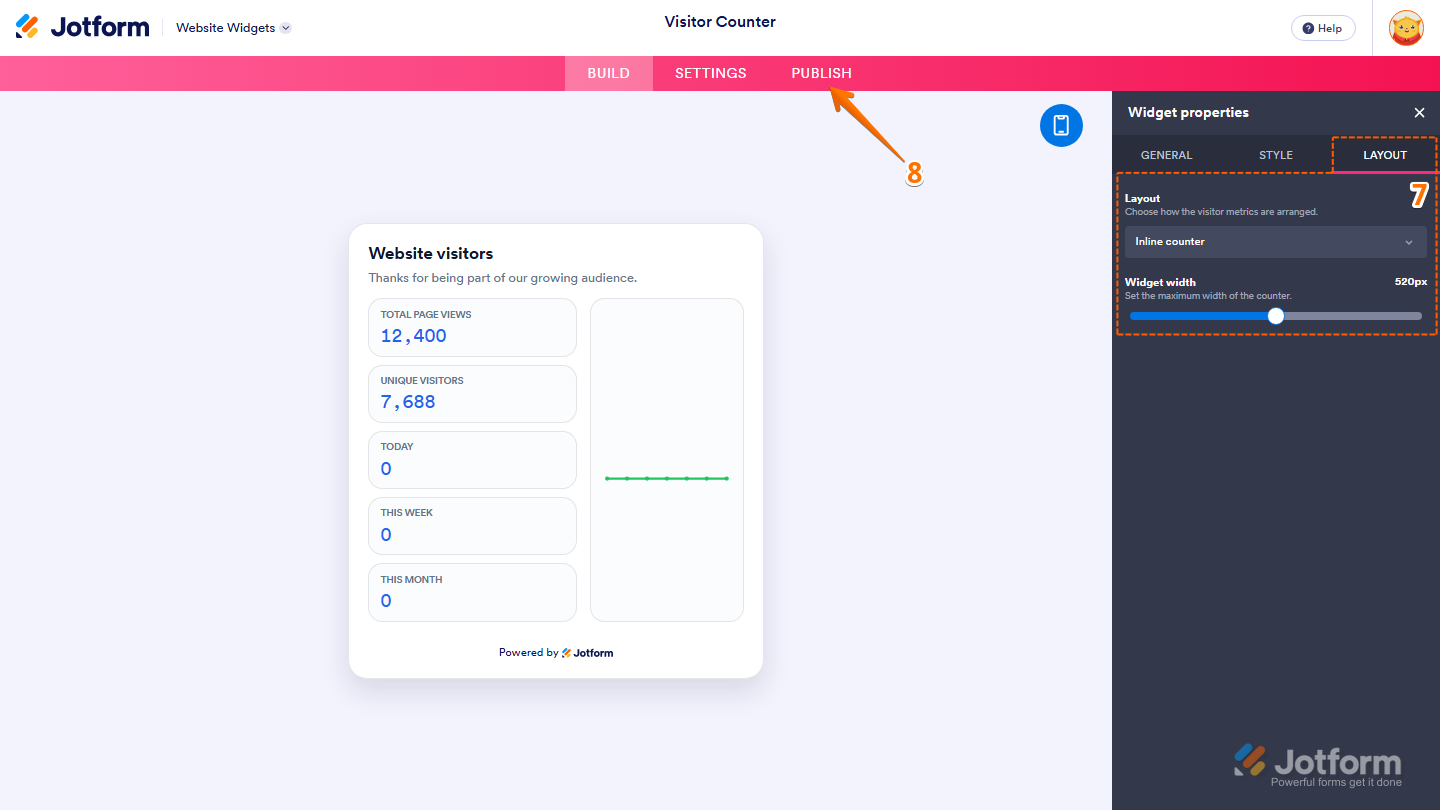
- Then, under the Layout tab, configure these properties:
- Layout — Keep the default Inline Counter option selected, or click on the Dropdown menu and select a different layout to change how the visitor metrics are arranged.
- Widget Width — Keep the default 520 px value, or click on and hold the slider handle, then drag it to adjust the maximum width of the visitor counter.
- Once you’ve finished configuring the widget, in the pink navigation bar at the top of the page, click on Publish.
Note
You’ll be asked to log in to your Jotform account or sign up for one. Once you’ve done that, you’ll be able to get the embed code for your widget.
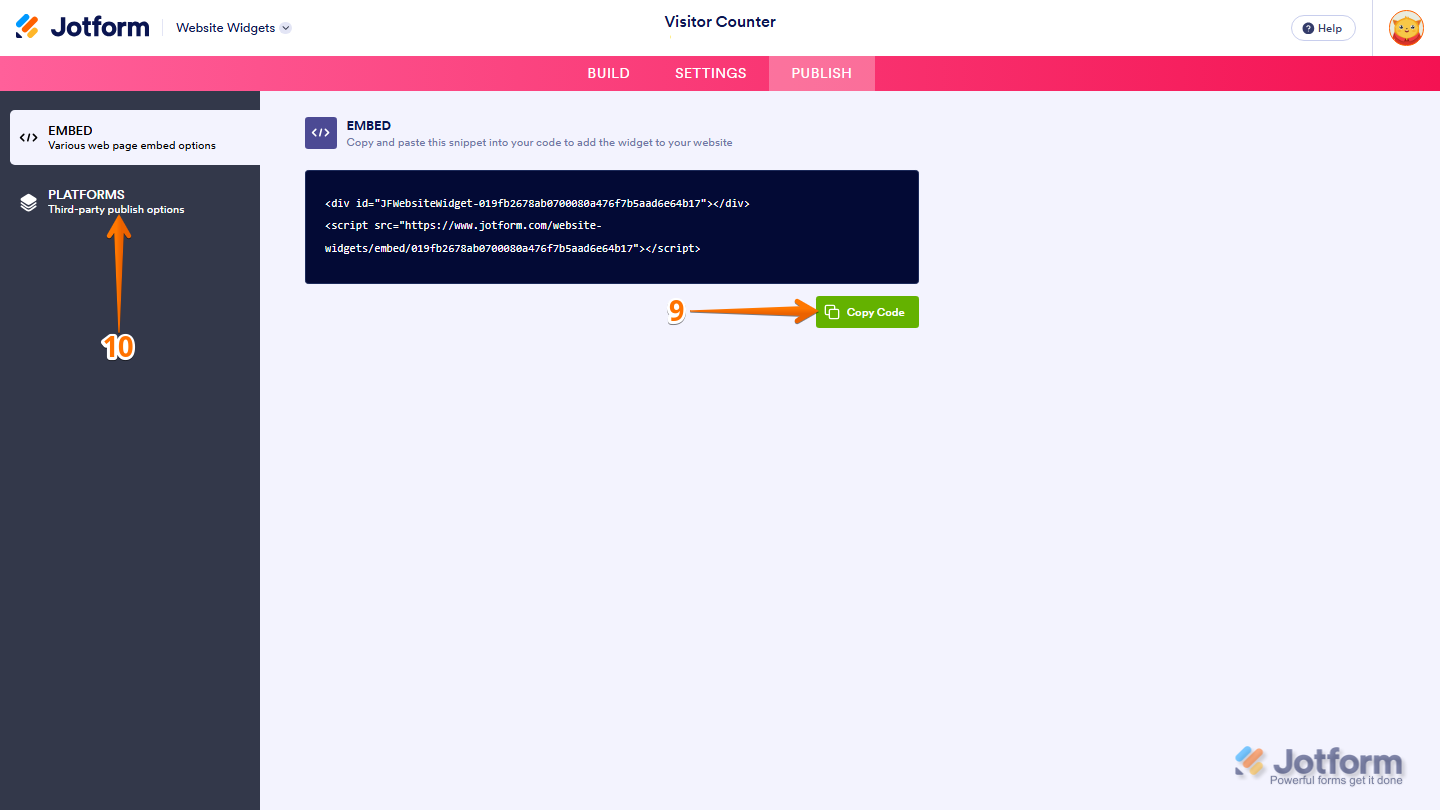
- Then, in the Embed section, click on Copy Code, and, if you already know how, paste that into the Embed section on your platform, and you’re good to go.
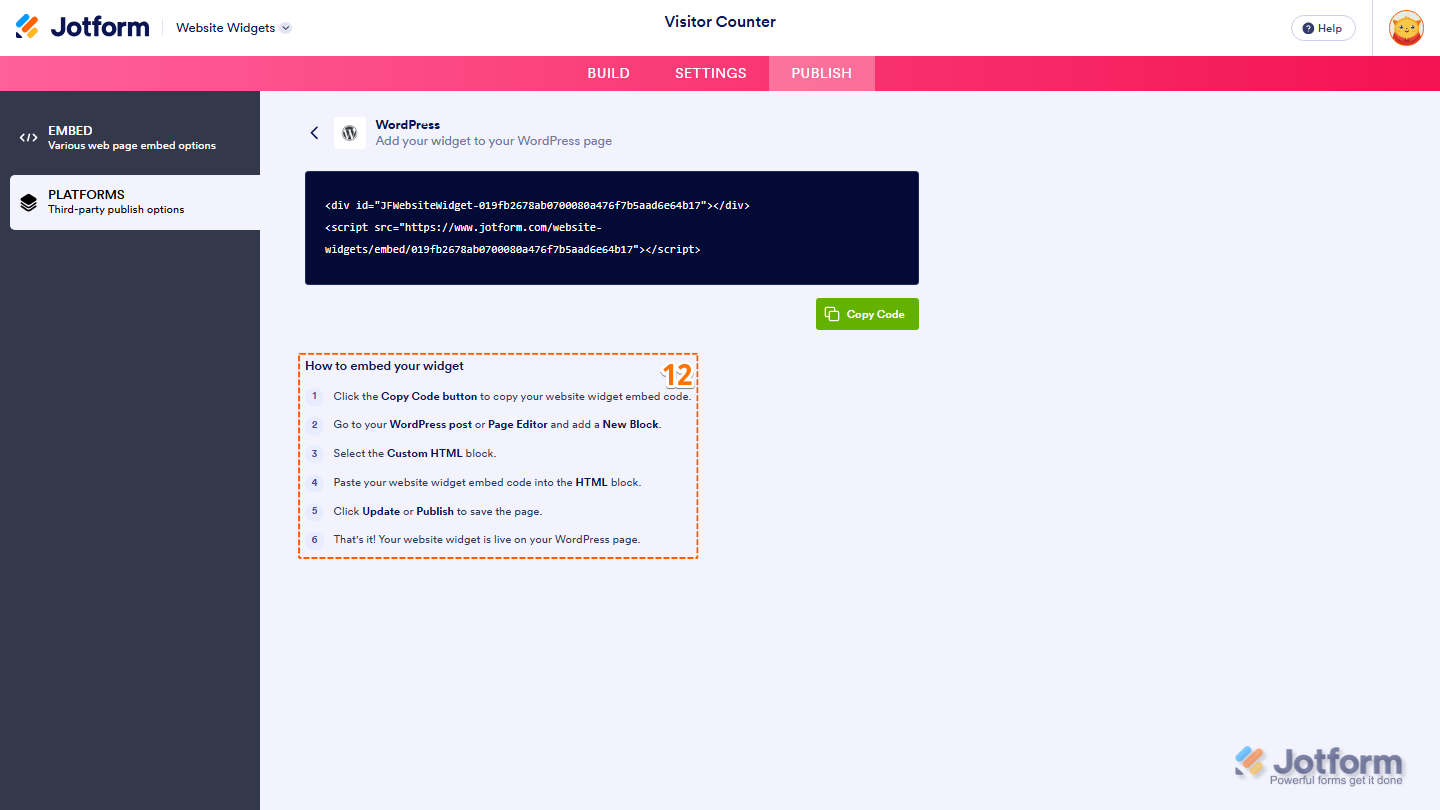
- To view embedding instructions for your widget, click on Platforms in the menu on the left side of the page.
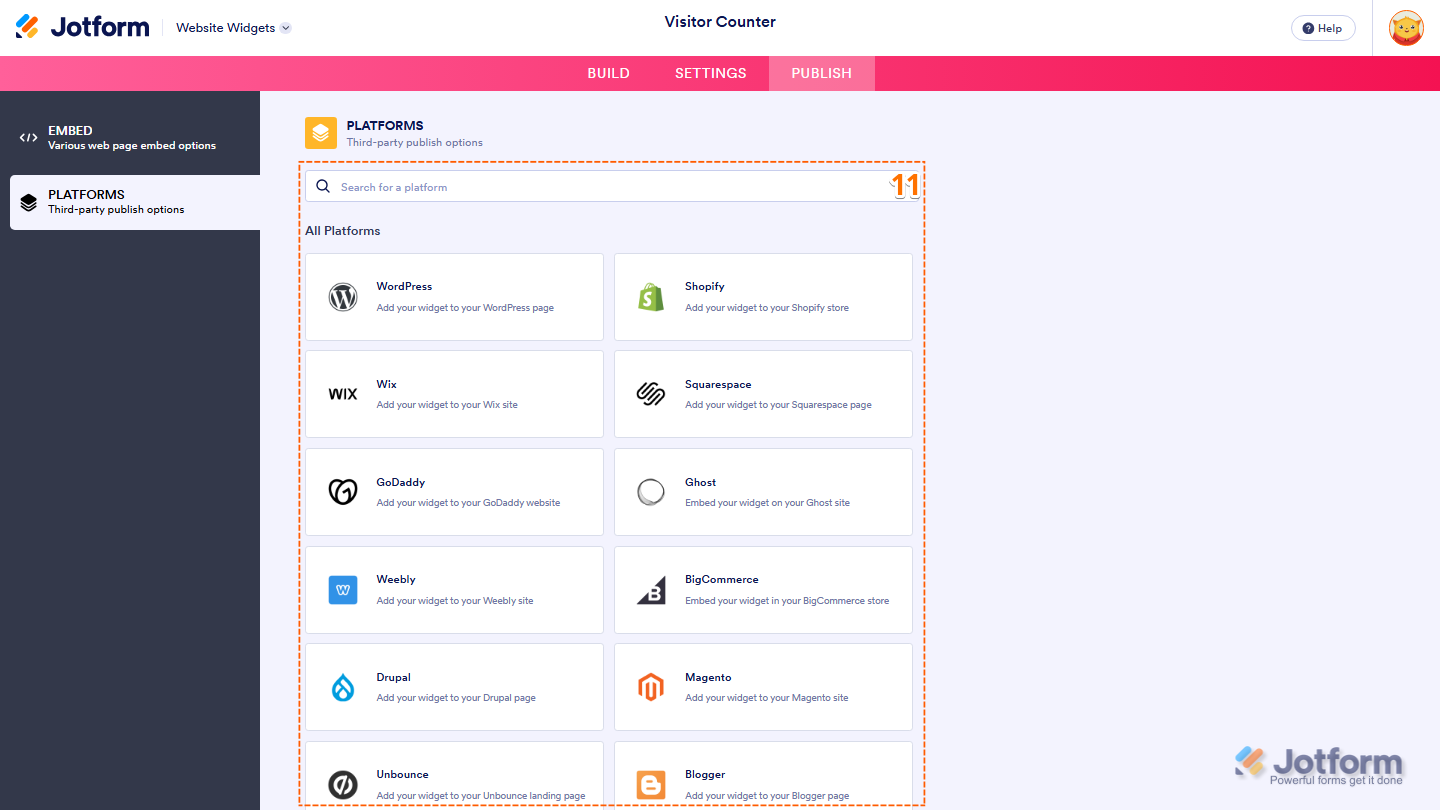
- Next, in the Platforms section on the right, select the platform you want to view embedding instructions for. Or, use the Search bar at the top of the section to find it easily.
- Then, follow the steps in the How to Embed Your Widget section to add it to your website.
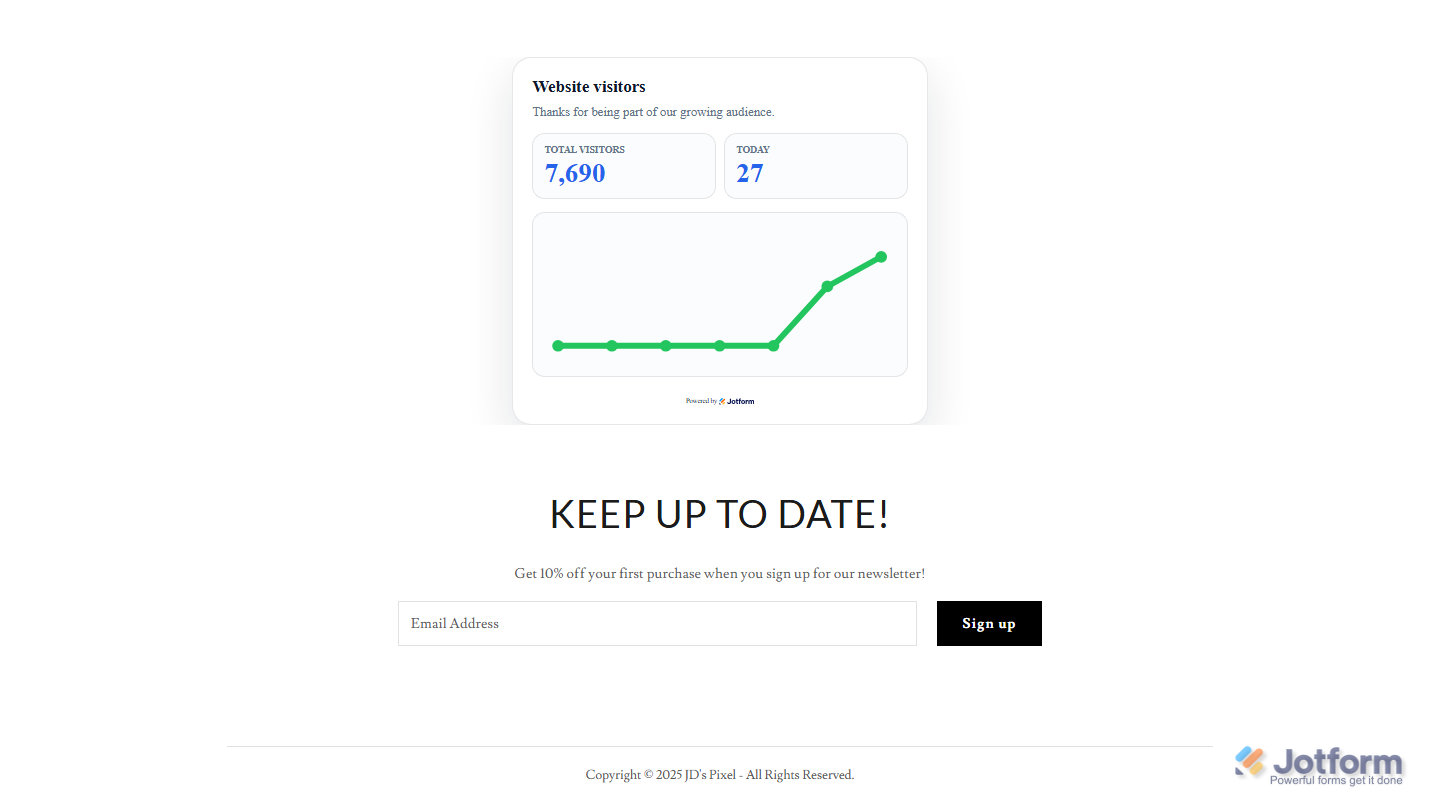
That’s it! Your Visitor Counter widget will appear on your website based on how you set it up. The screenshot below shows how it looks on a website.
Note
You can manage the website widgets you’ve created at any time from your account. For a full breakdown of how to do it, head over to our guide on How to Manage Website Widgets.


Send Comment: