When your form is in Draft Mode, any edits or changes are not visible to form fillers. To update your Live form, you must apply your changes. Let’s walk through the different ways to apply your draft changes, starting with My Workspace.
How to Apply Draft Changes
From Workspace
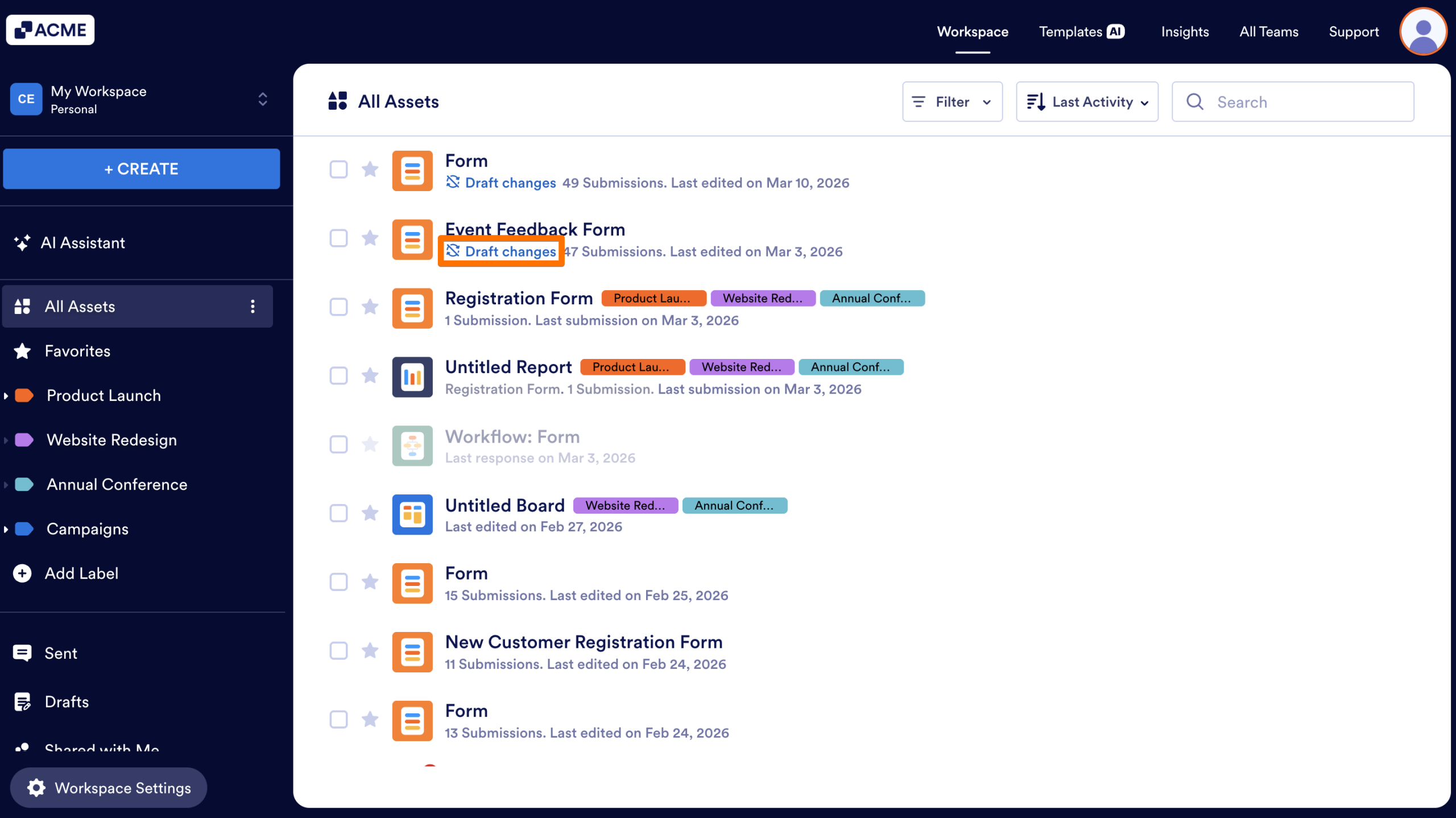
- In My Workspace, click on Draft changes under the form you’d like to apply changes to.
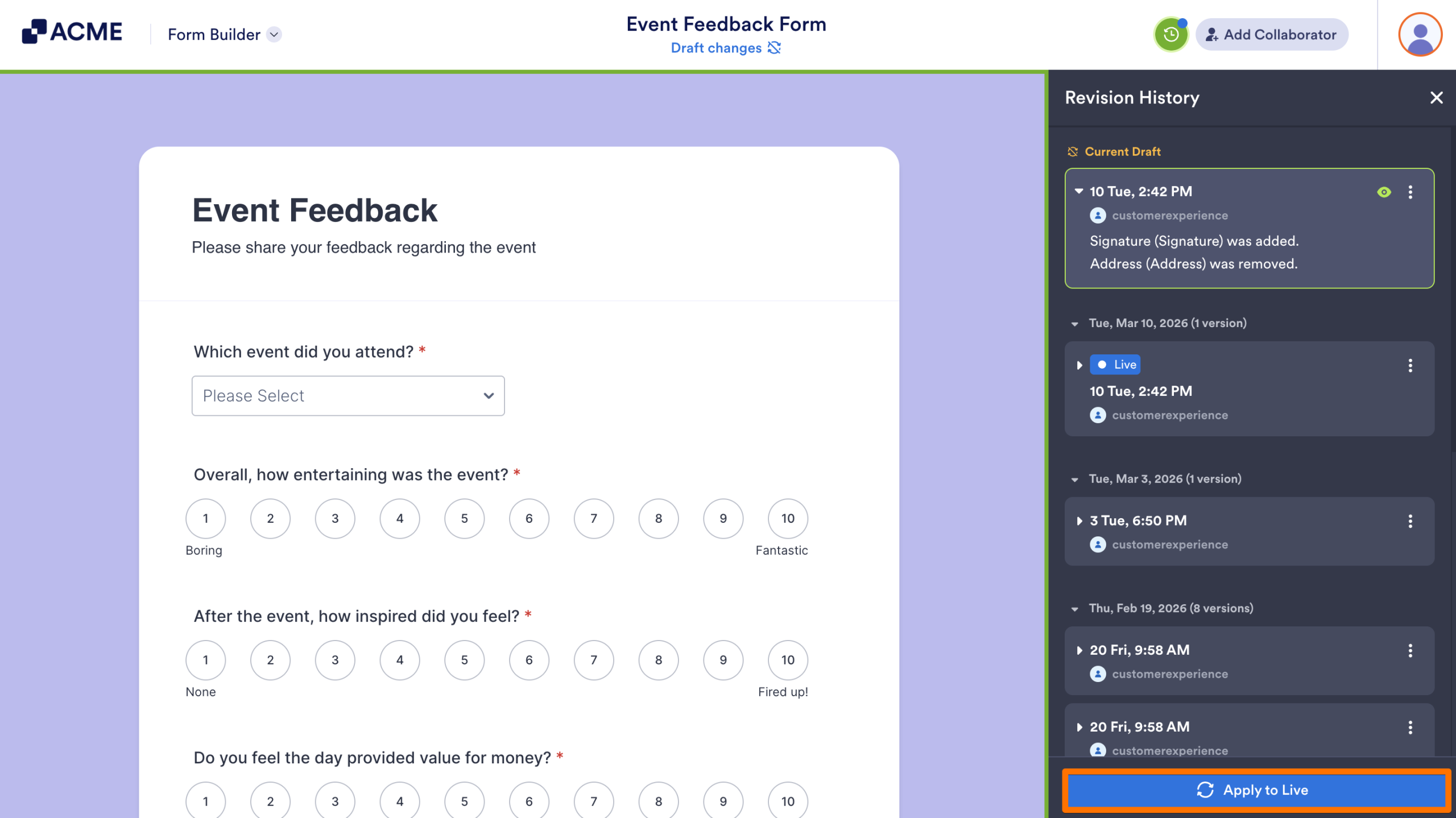
- On the next page, click on Apply to Live in the bottom right-hand corner of the page.
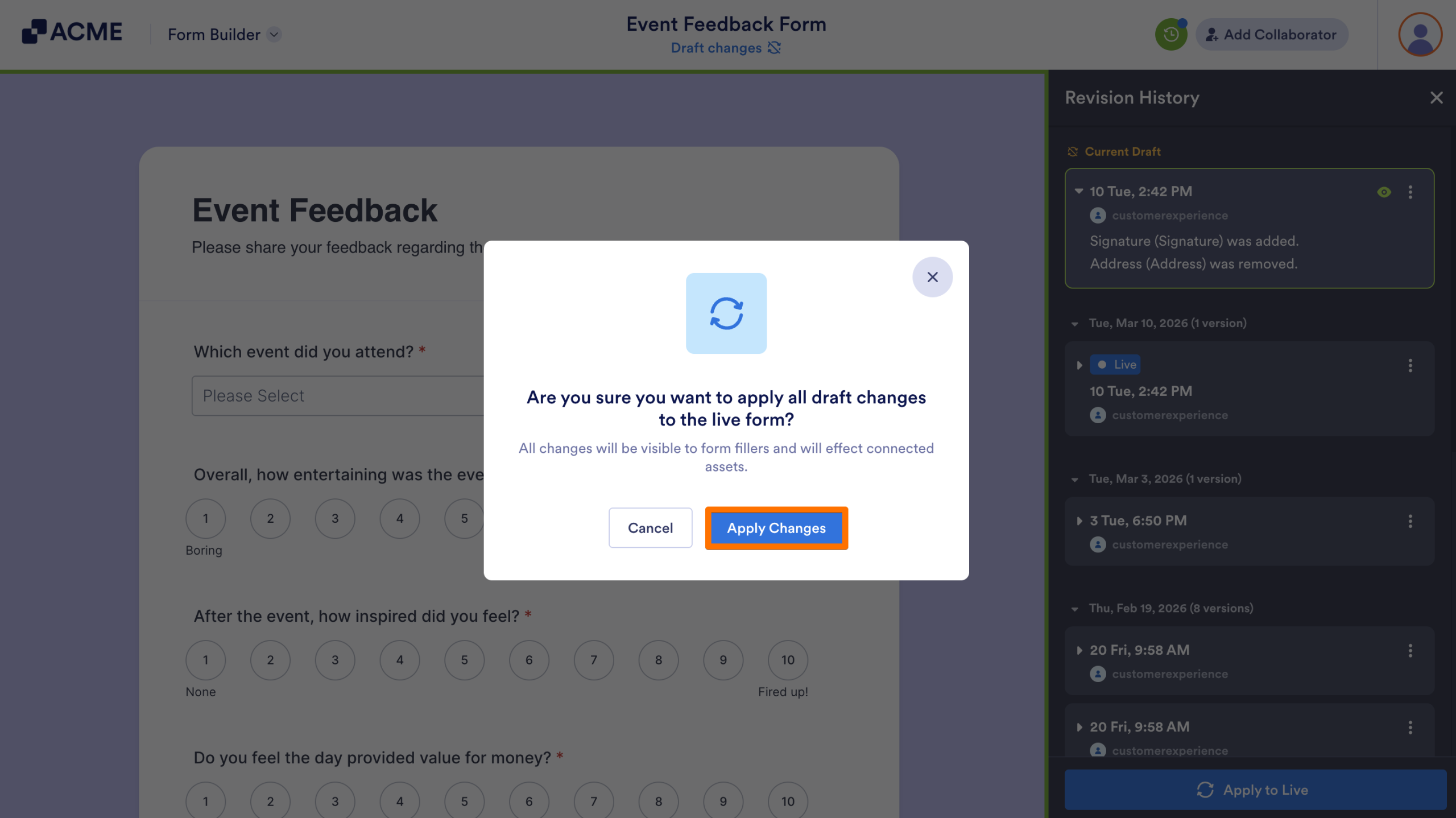
- Finally, select Apply Changes in the pop-up window
From the Revision History
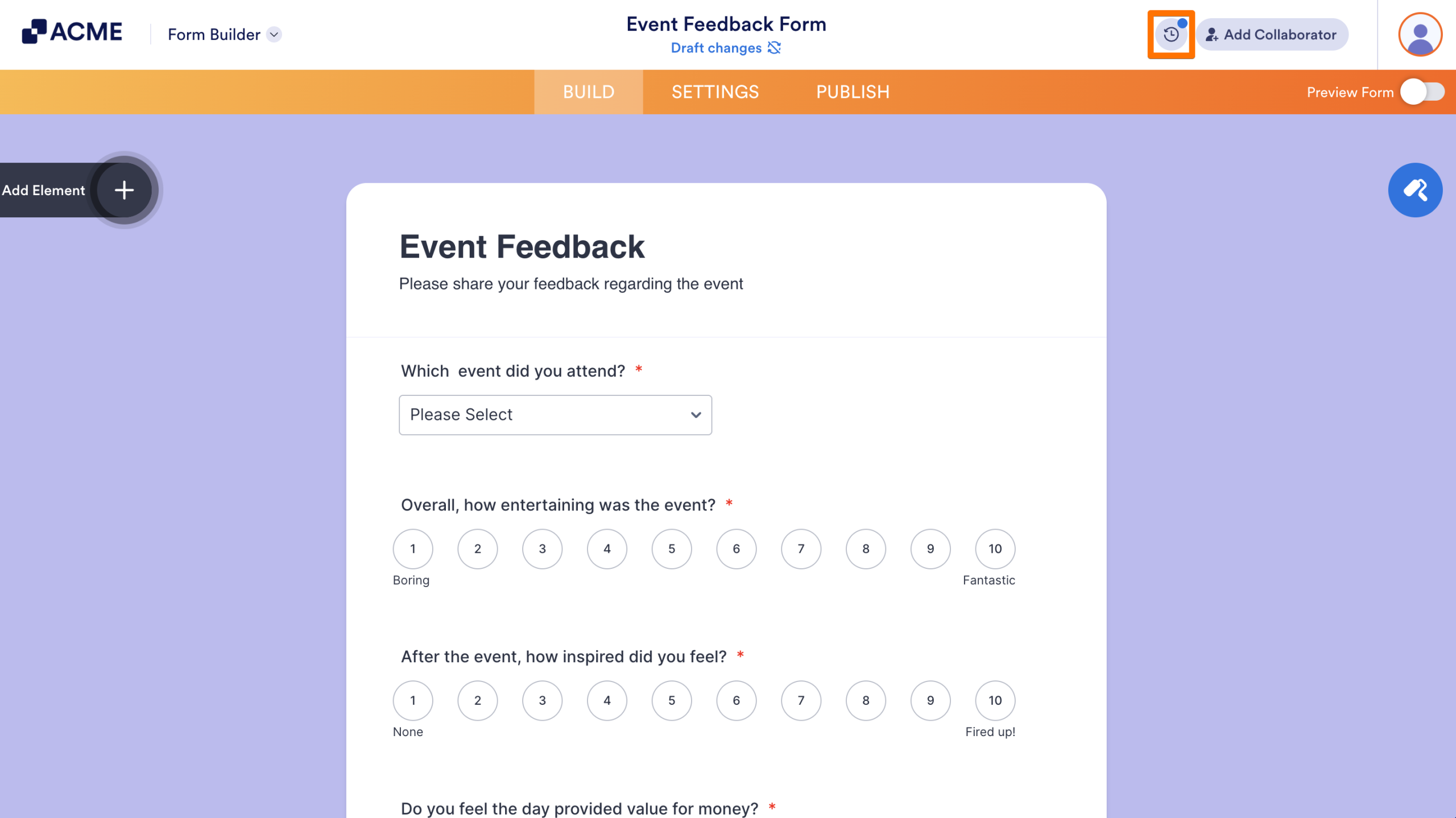
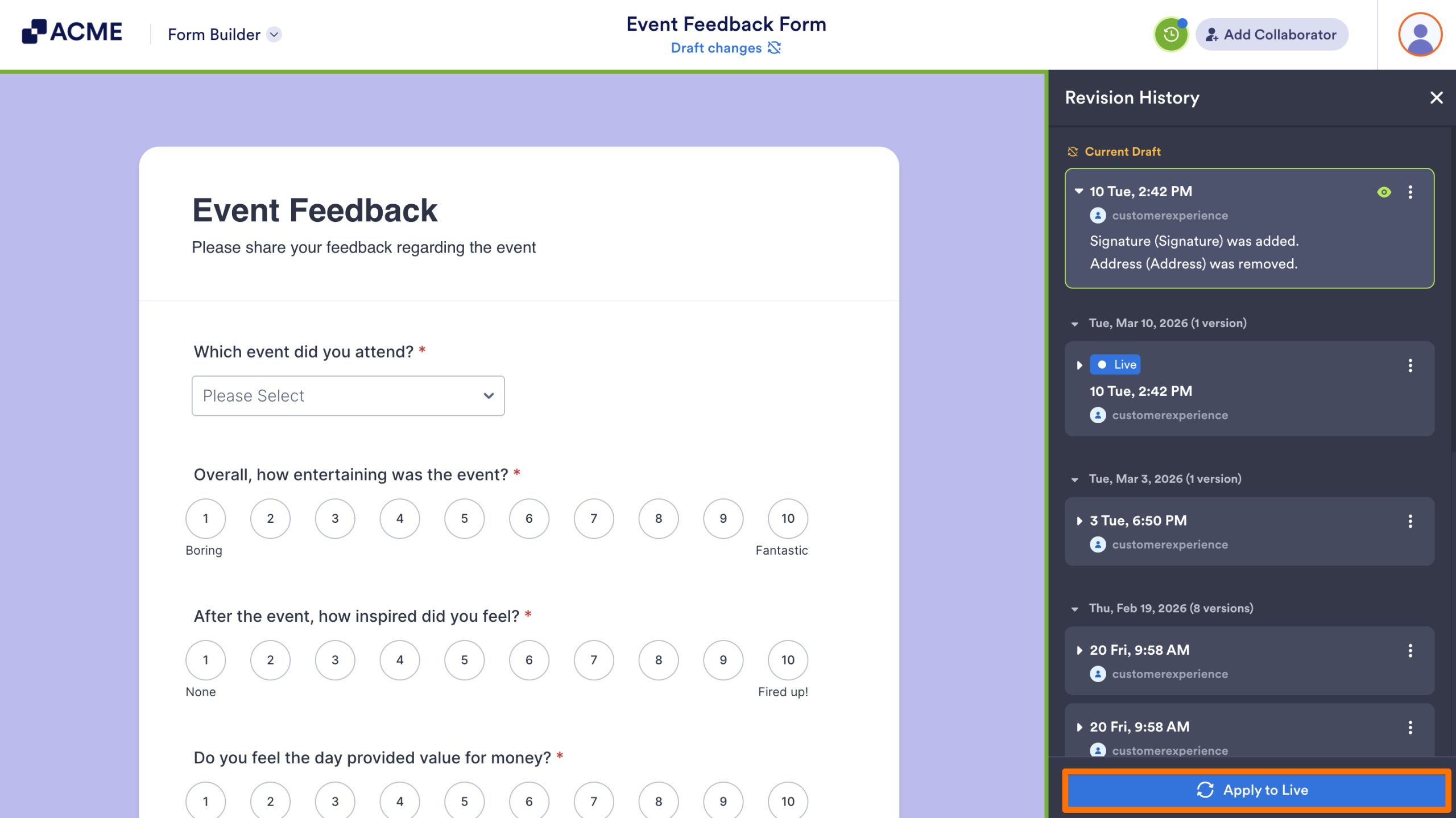
- In the Form Builder, click on the Clock icon in the upper right-hand corner of the page.
- Click on Apply to Live in the bottom right-hand corner of the page.
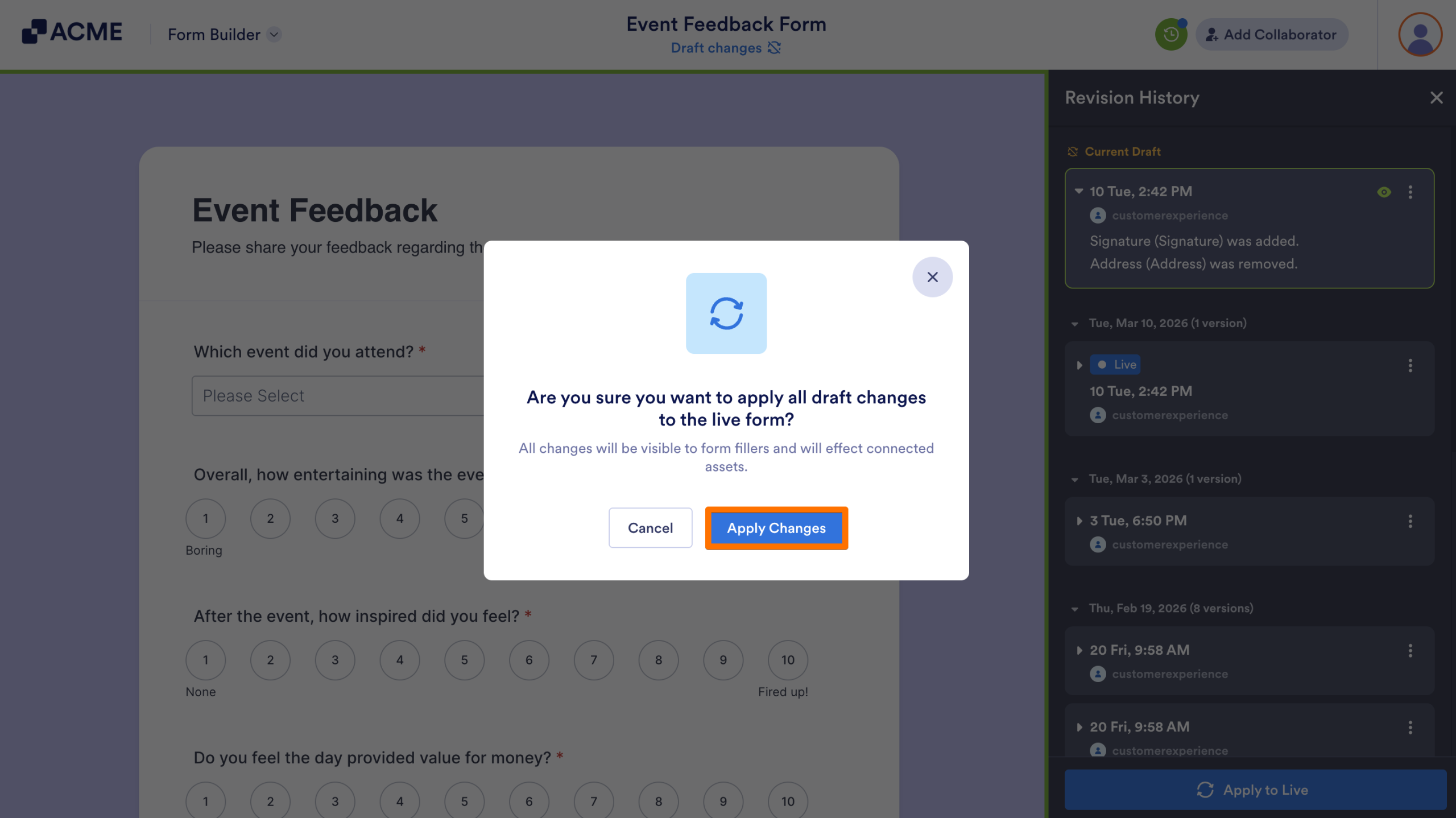
- Finally, select Apply Changes in the pop-up window
From the Floating Bar
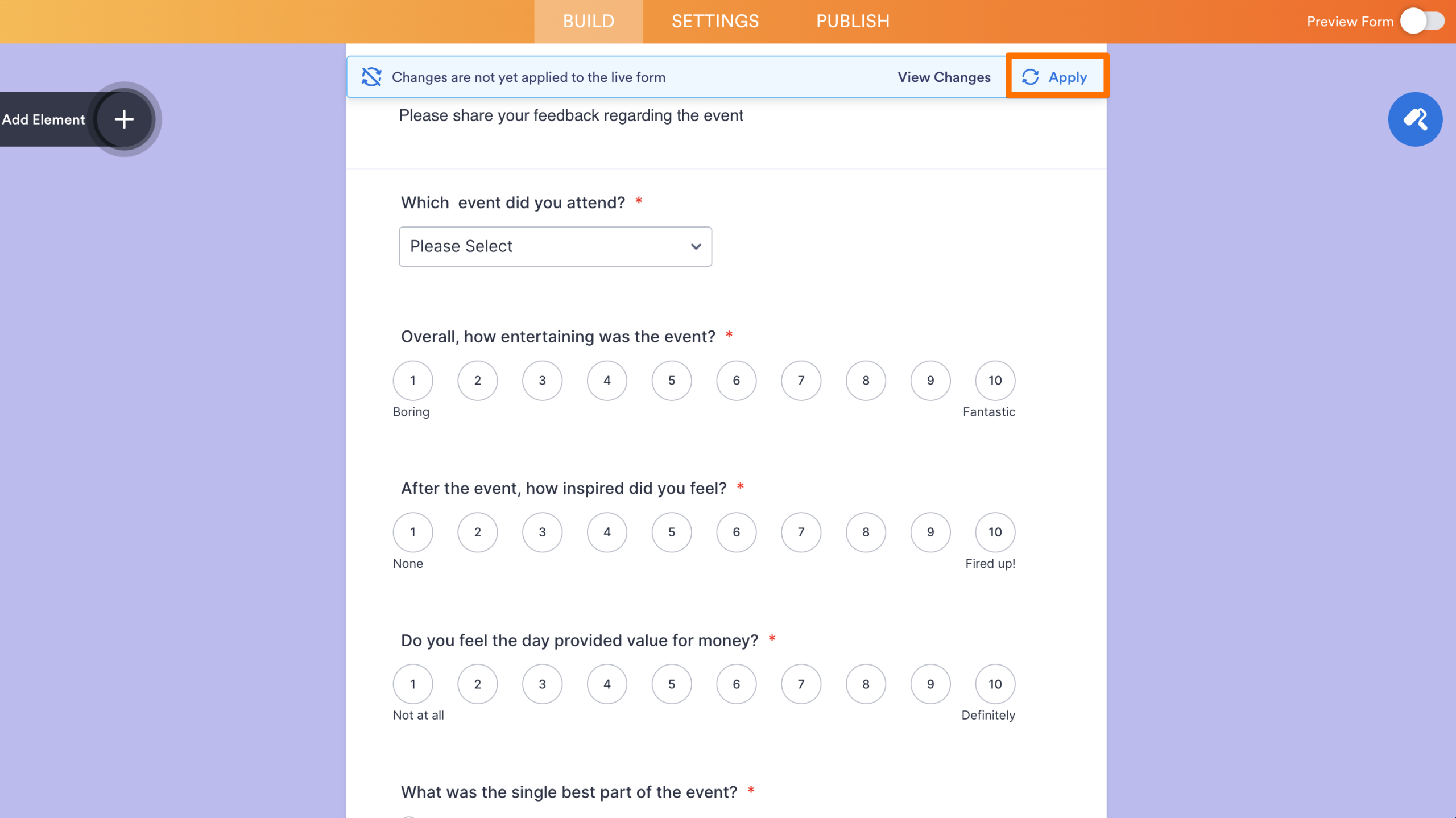
When your form has unapplied changes, a floating bar will appear under the Build tab in the Form Builder when you scroll.
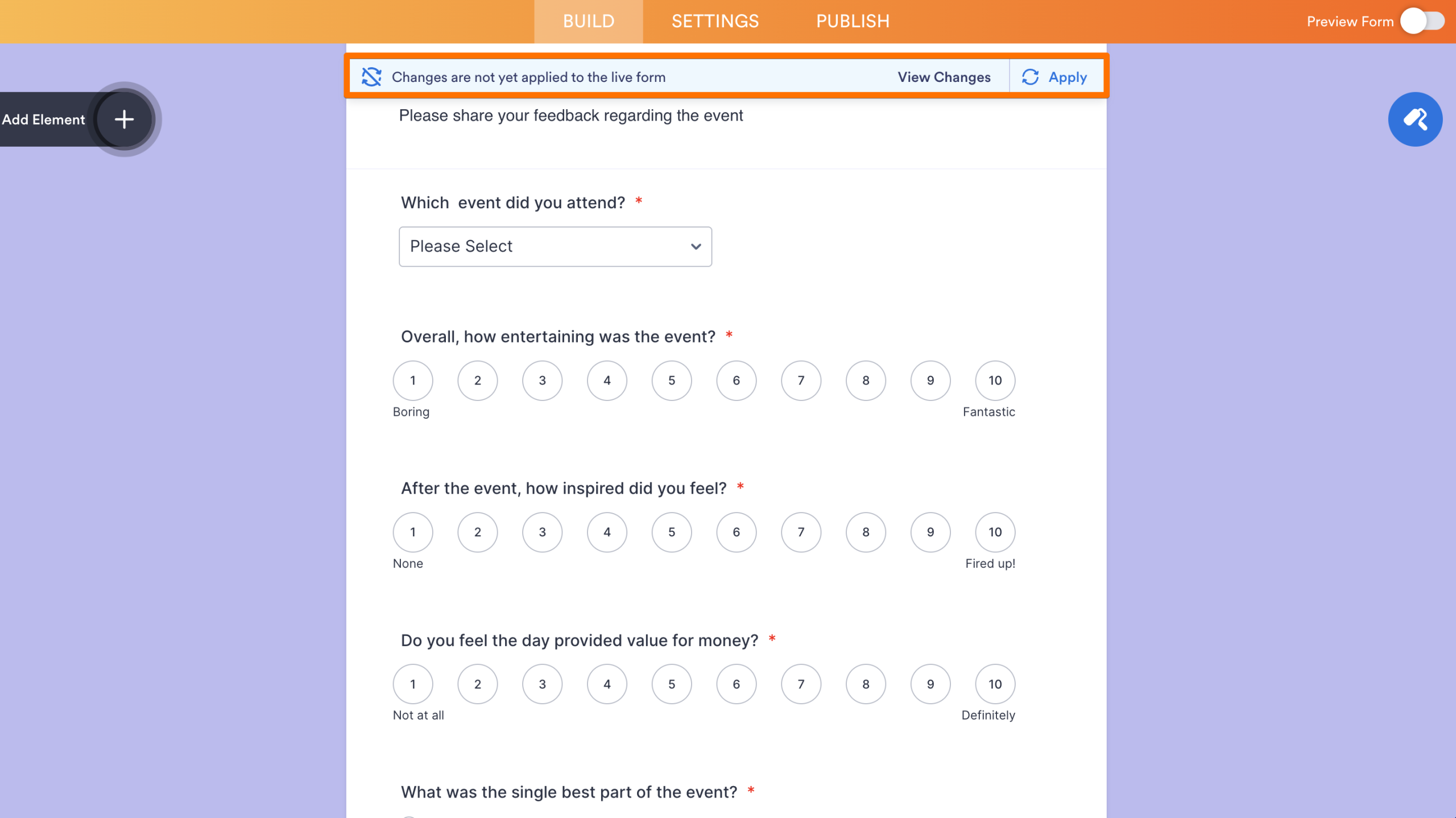
- Click on Apply on the bar to publish your changes.
From the Draft Status Indicator
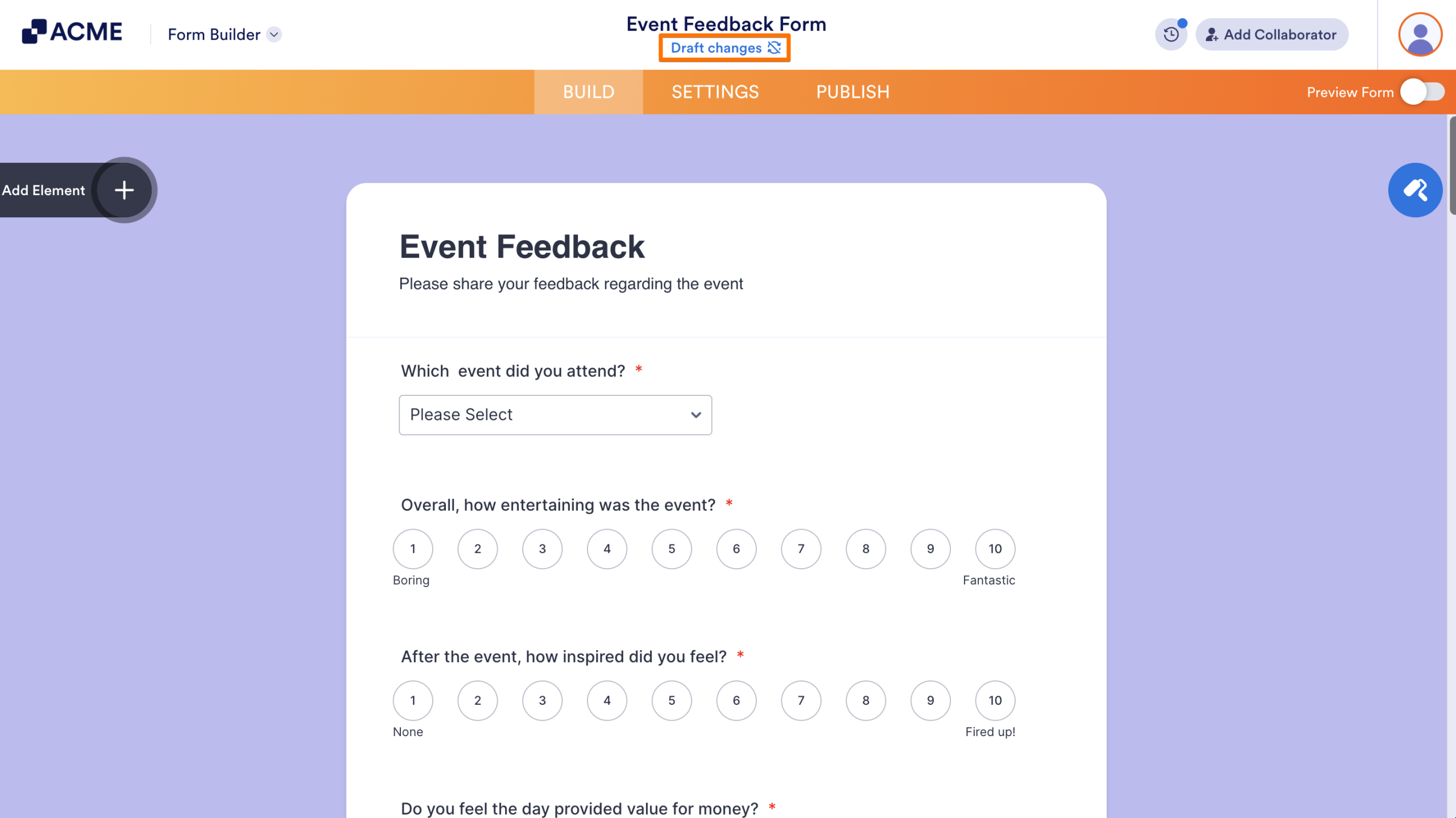
- In Form Builder, click on Draft changes under the Form Title.
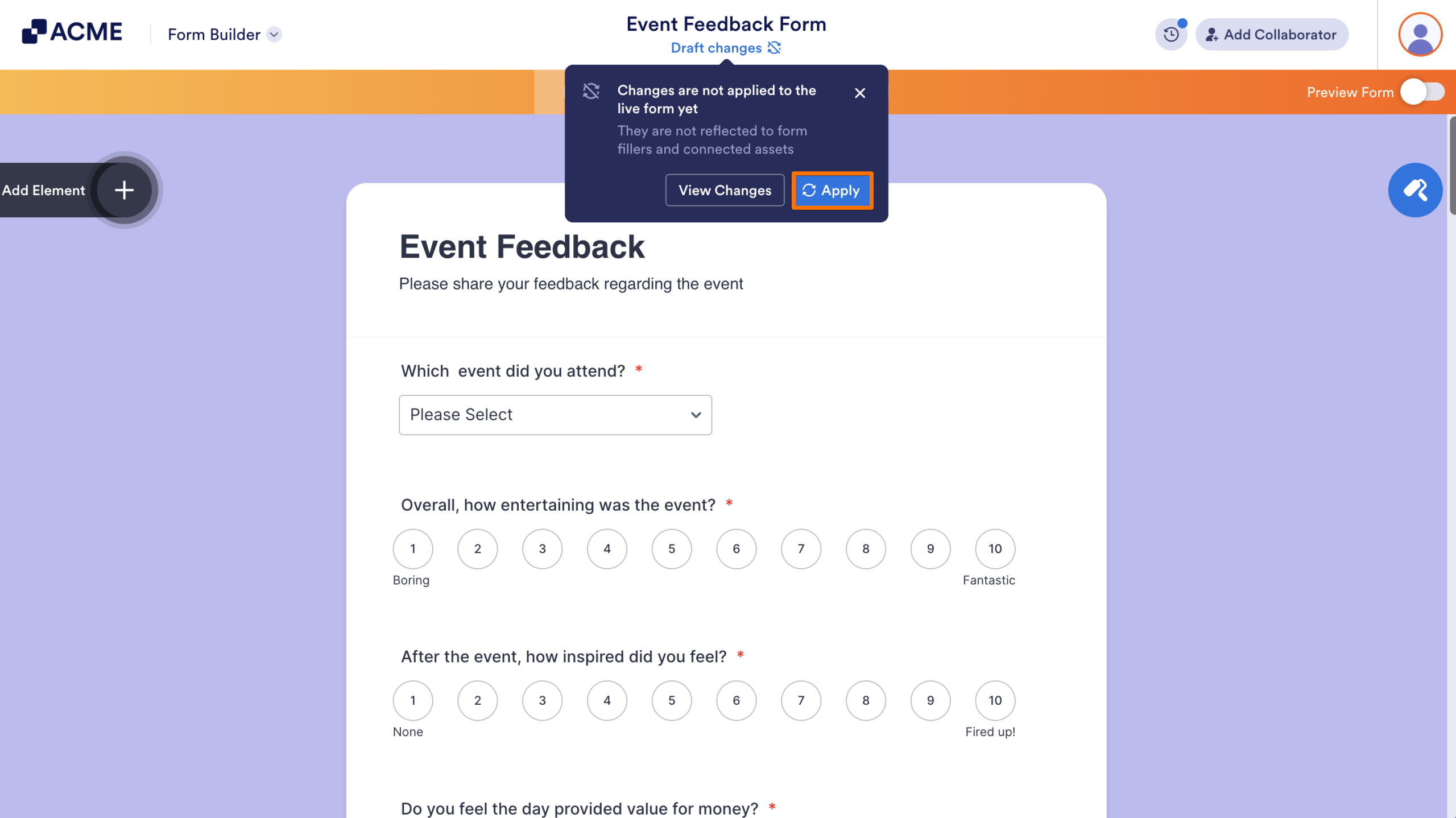
- Then, click on Apply to push your draft changes live.
From the Publish tab
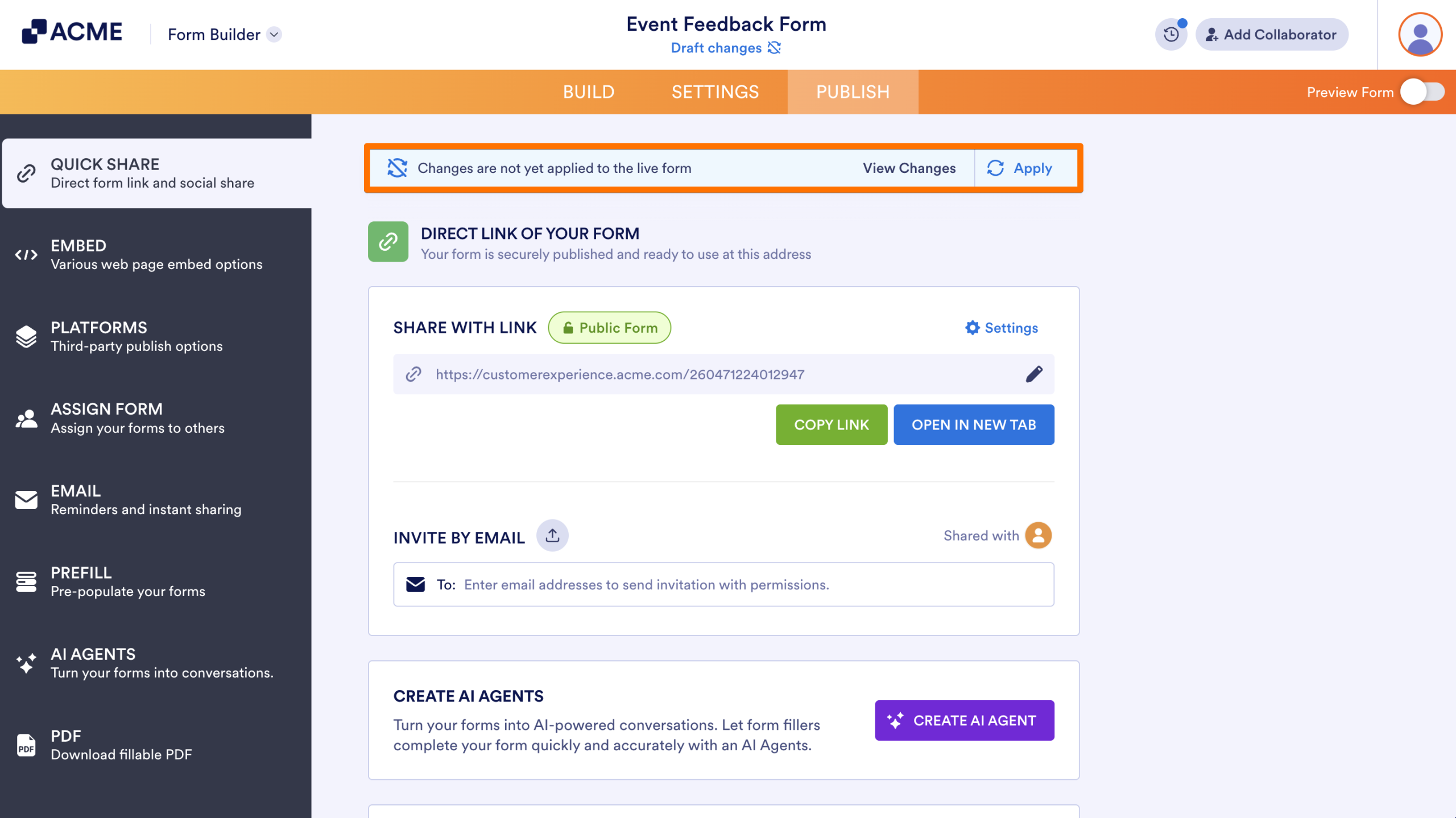
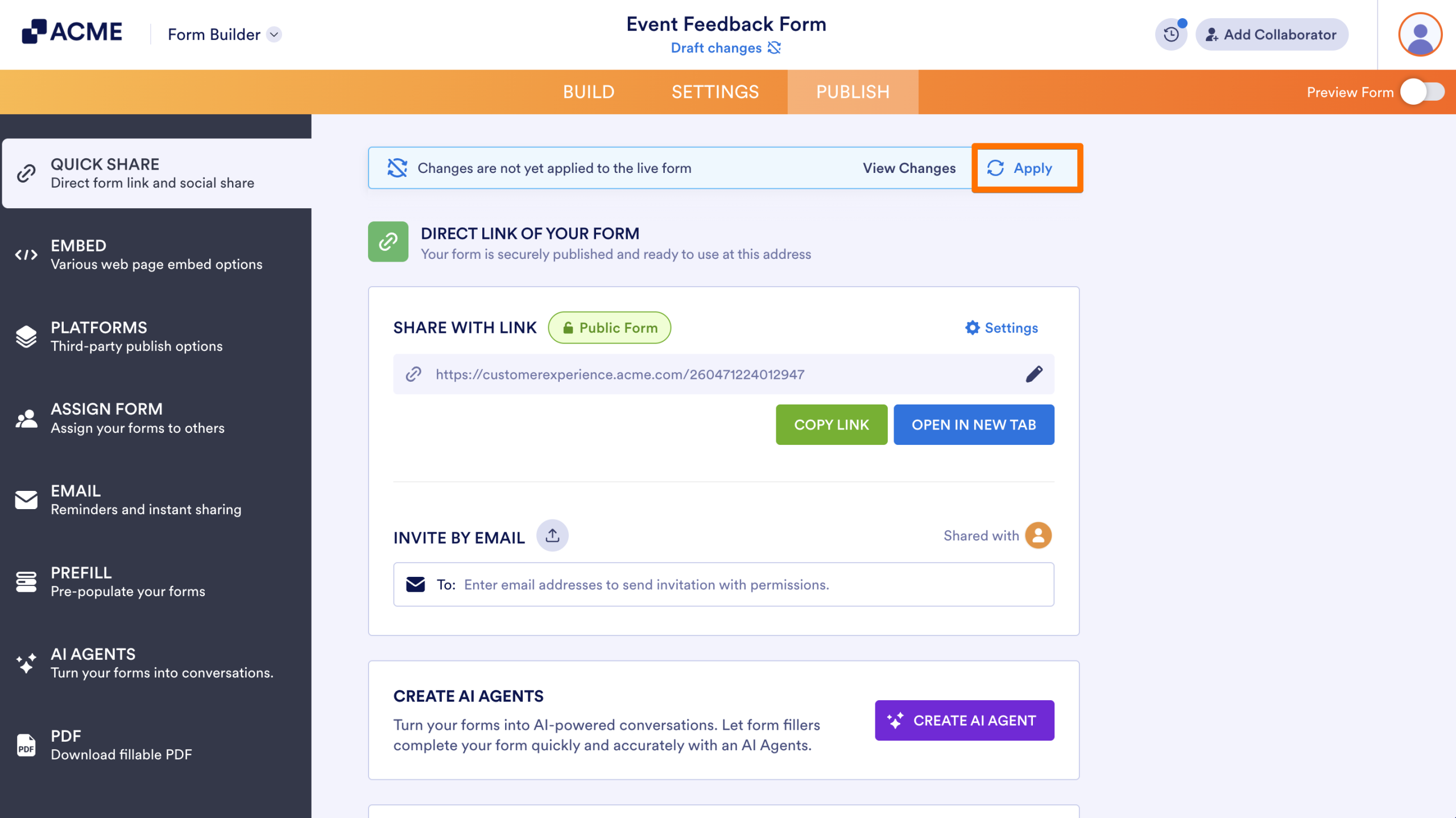
When your form has unapplied changes, a floating bar will appear to notify you in the Publish tab of the Form Builder.
- Click on Apply on the bar to publish your changes.
From the Form Preview
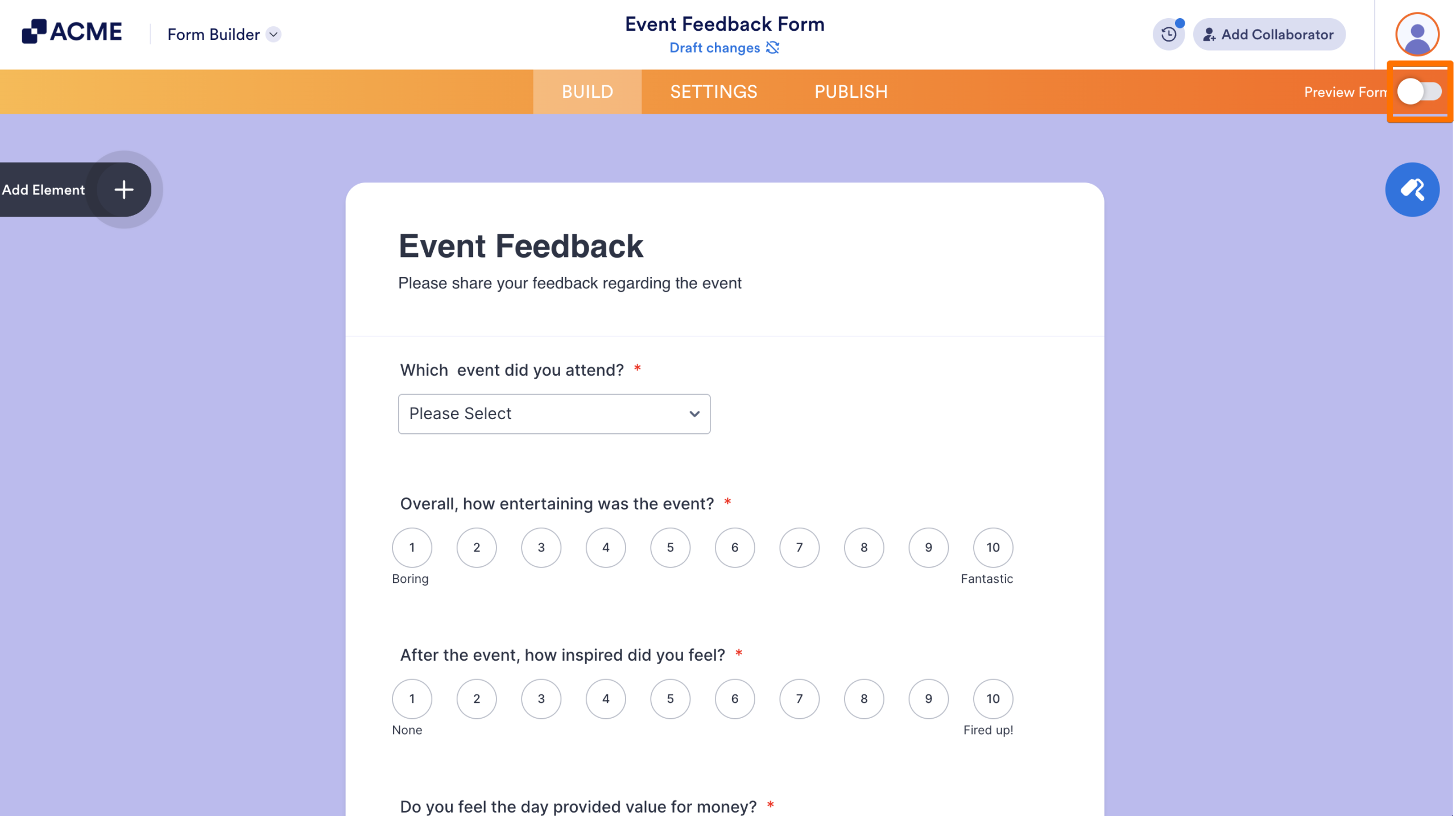
- In Form Builder, toggle on the switch next to Preview Form.
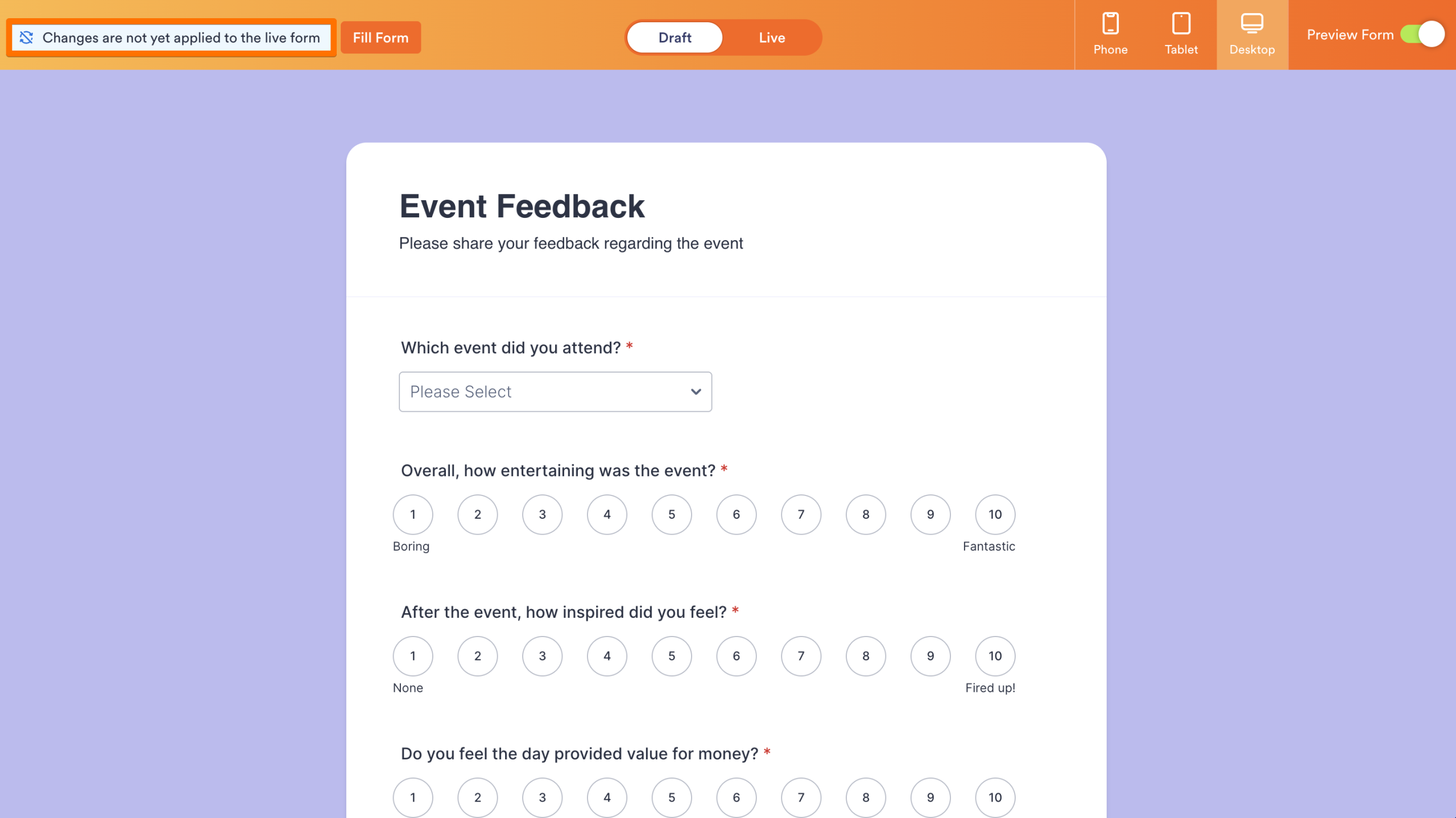
- In the Form Preview, click on the blue Changes are not yet applied to the live form box in the left-hand corner of the page.
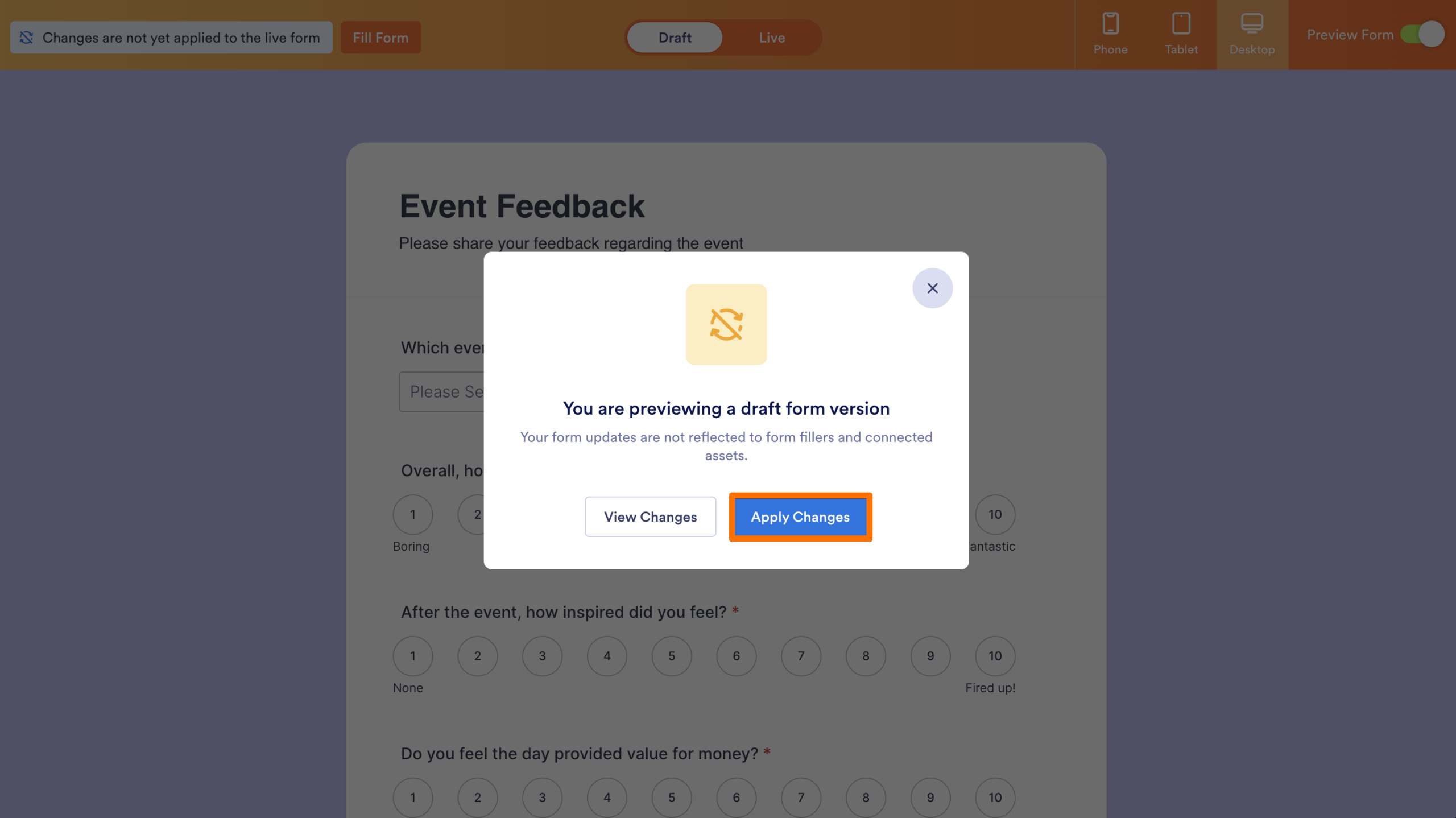
- In the pop-up window, select Apply Changes.
What Happens When You Apply a Draft
When you apply your form changes:
- The current draft becomes the new Live version.
- Form Fillers will see the updated form.
- The Draft and Live versions are the same until you make new edits.
- A new entry is added to Revision History, allowing you to restore the older version, if needed.
Best Practices
- Always preview your draft using Preview Form before you Apply your changes. This is the best way to test your layout, styling, and any conditional logic without affecting your live audience.
- Apply changes during periods of low form activity to minimize any potential disruption for respondents who might be filling out the form at that exact moment.

Send Comment: