Workflows can be archived or unarchived one by one or in bulk, giving admins simple control over which workflows are active and visible. Archiving helps keep your workspace organized by hiding workflows that are not currently in use, without deleting them. When needed, you can easily unarchive them and make them available again. Bulk actions make it quick and easy to manage multiple workflows at the same time.
Archiving a Workflow
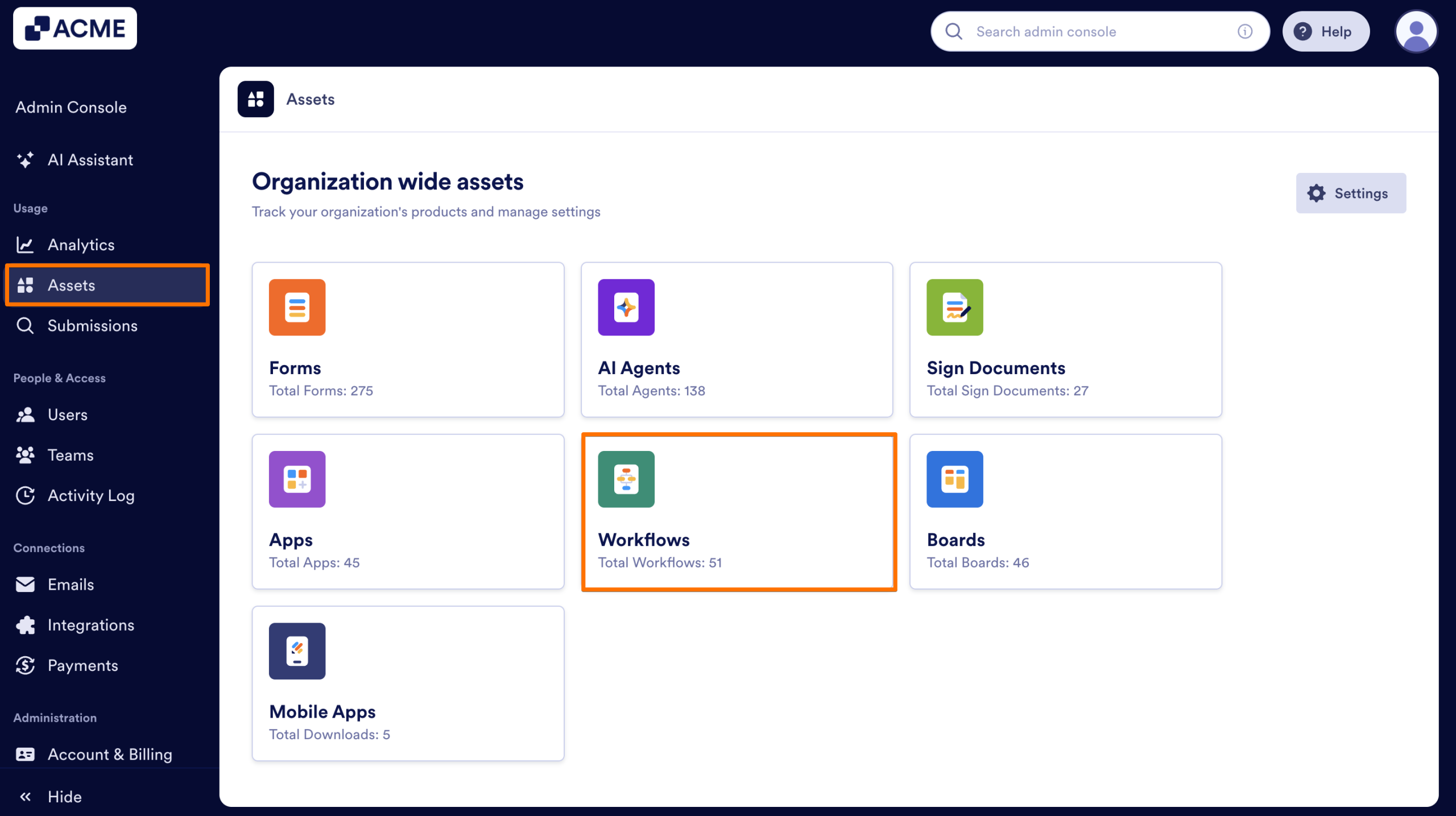
- In your organization’s Admin Console, on the left side of the page, click on Assets.
- Then, select Workflows.
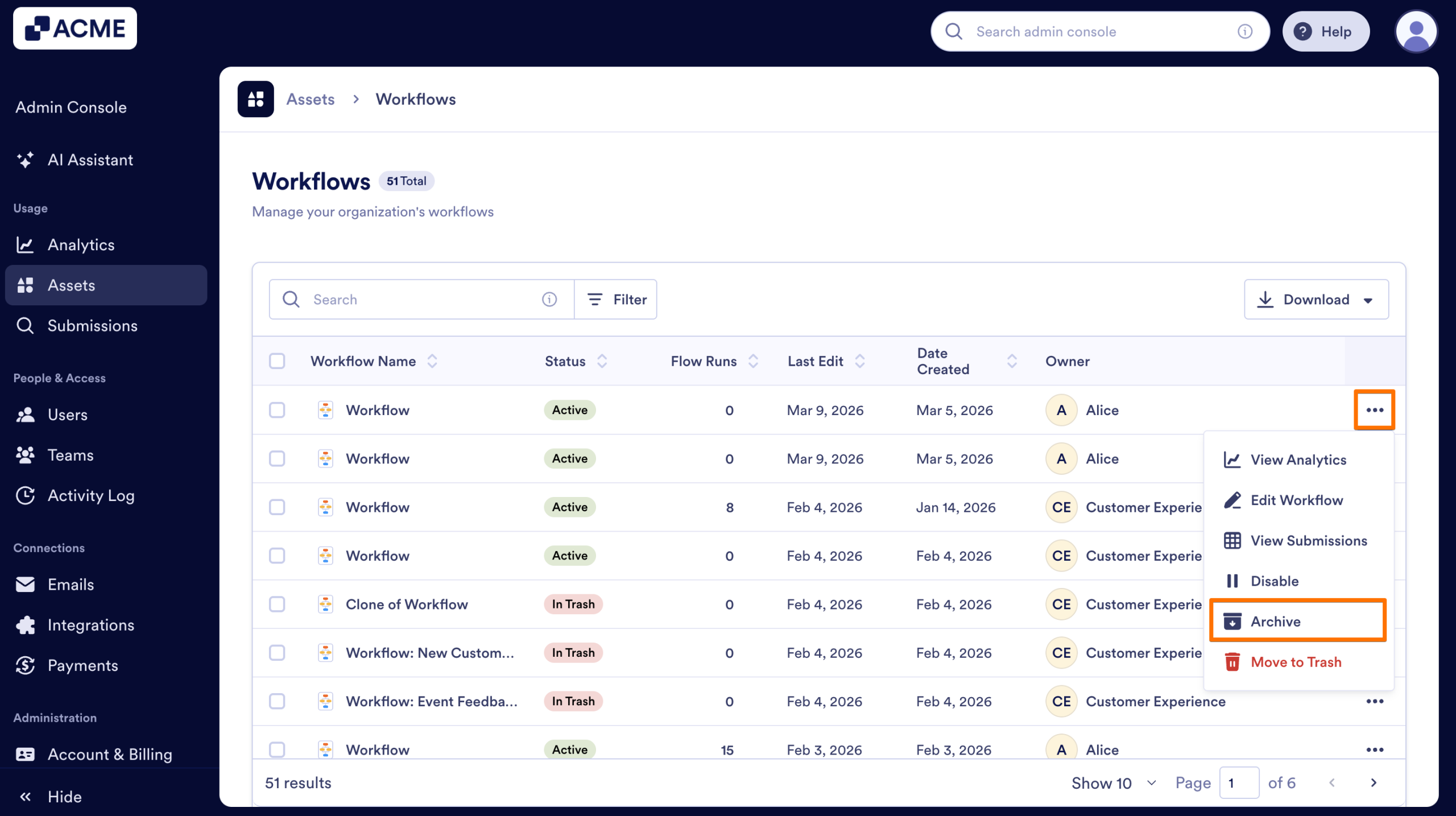
- Next to the Workflow you want to archive, click on the Three dots icon to open the menu.
- From the menu, select Archive.
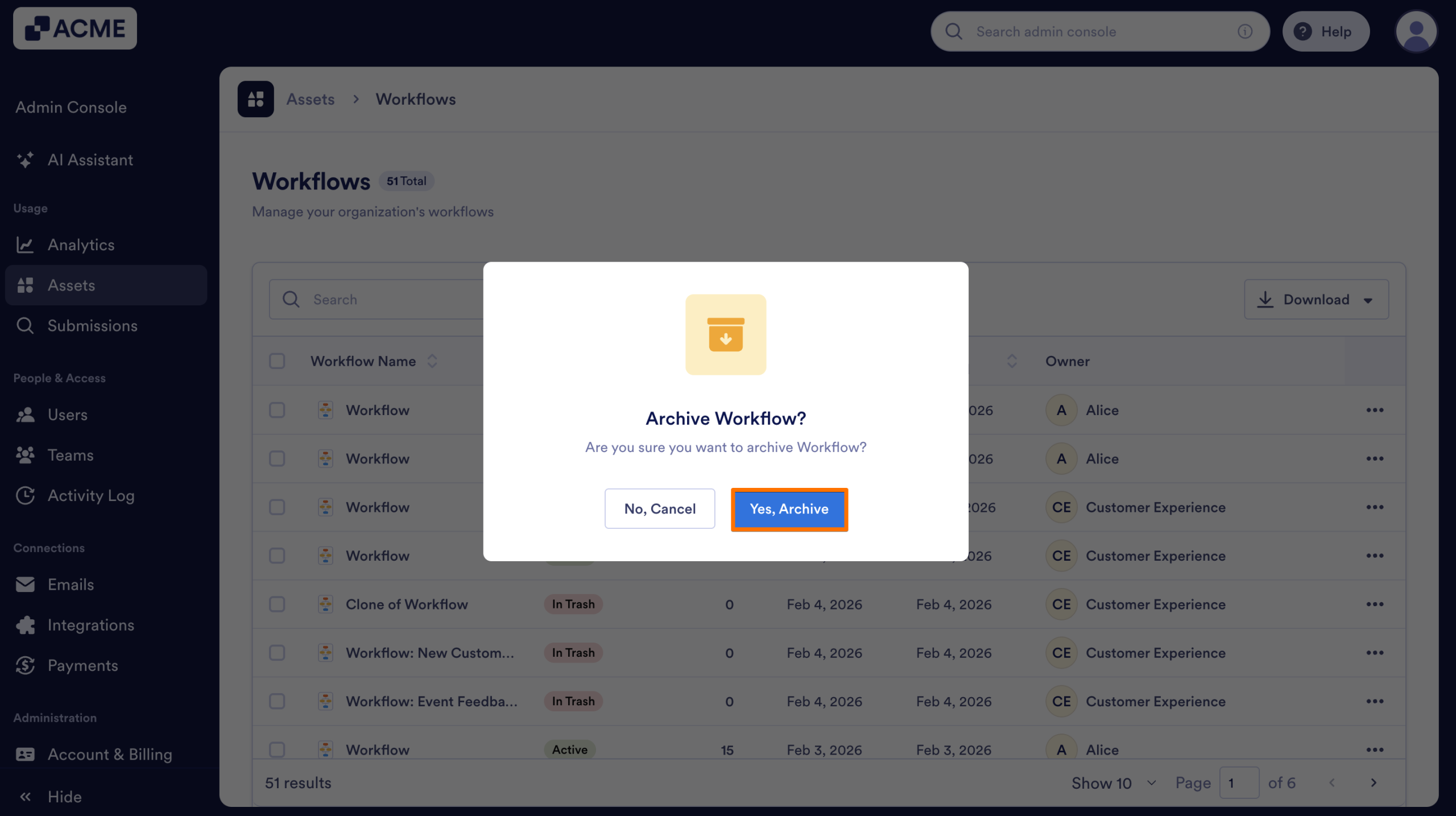
- In the pop-up window that comes up, click on Yes, Archive to confirm.
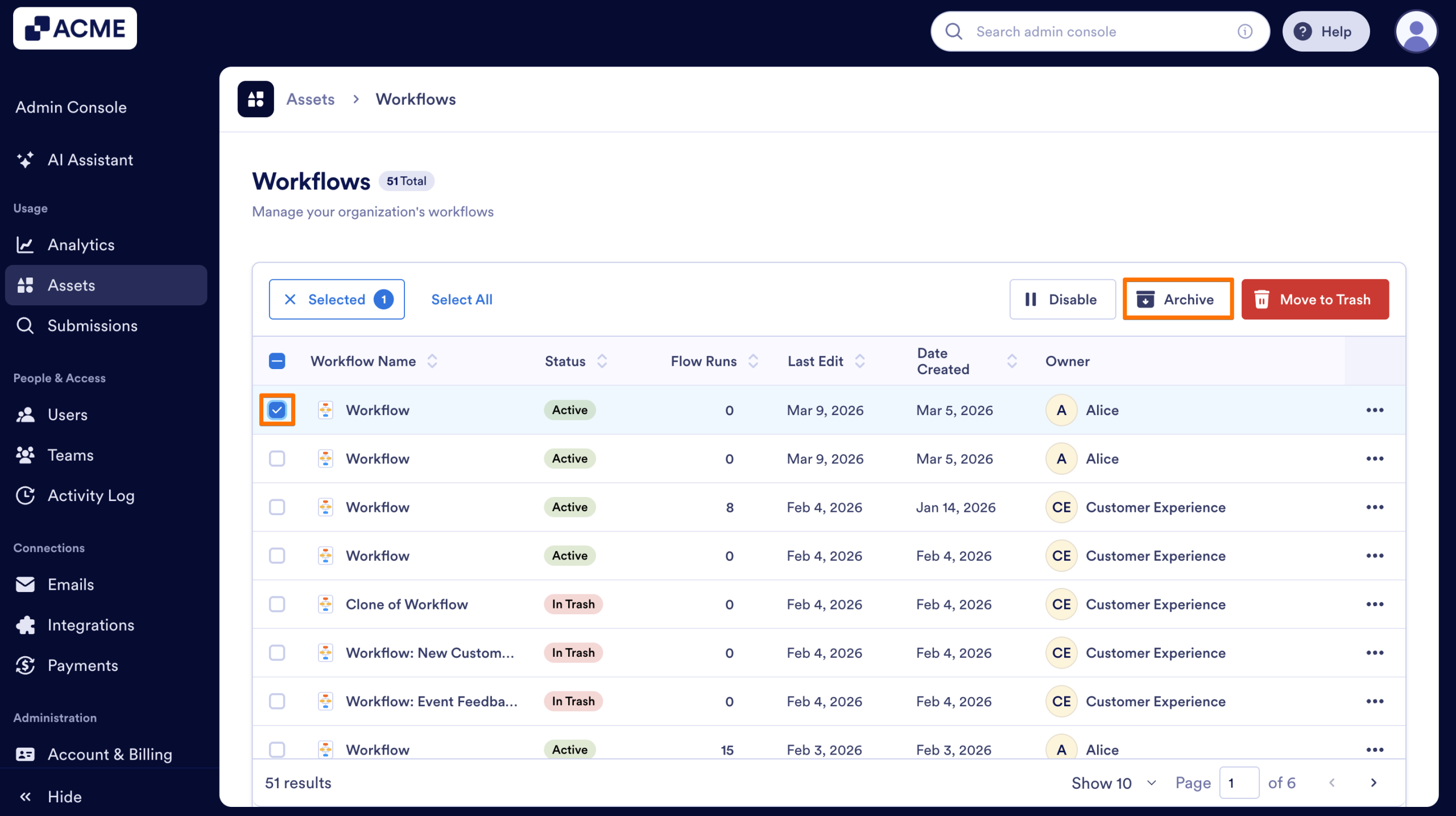
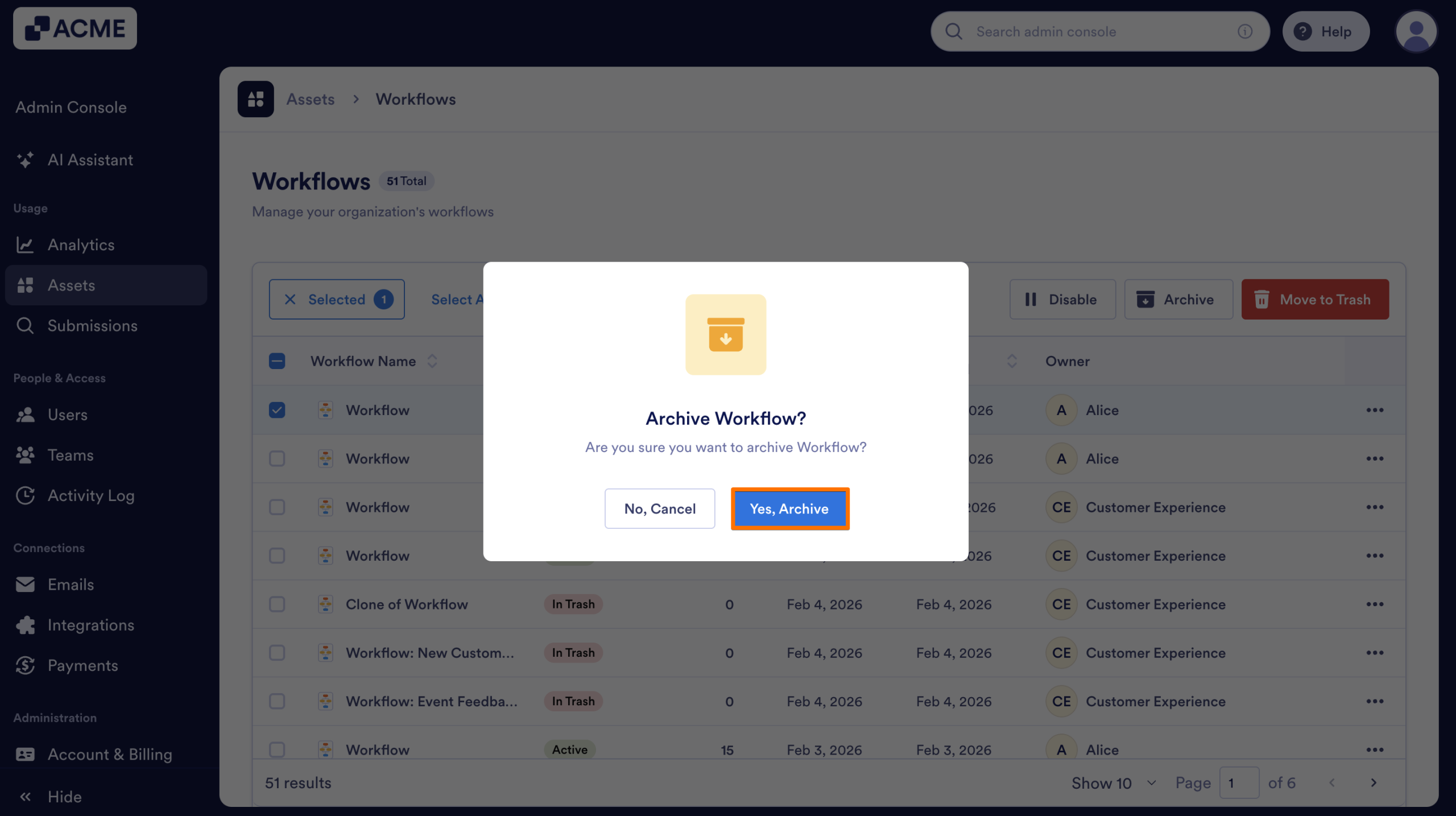
You also have the option to archive a Workflow by selecting it from the list and clicking the Archive button. Let me show you how:
- In your organization’s Workflows Assets page, on the left side of the workflow, click on the Checkbox.
- Then, at the top of the list, click on the Archive button.
- Finally, in the pop-up window, select Yes, Archive.
Unarchiving a Workflow
- On the Workflows Assets page, click on the Three dots icon next to the workflow that was archived before.
- In the menu, click on the Unarchive option.
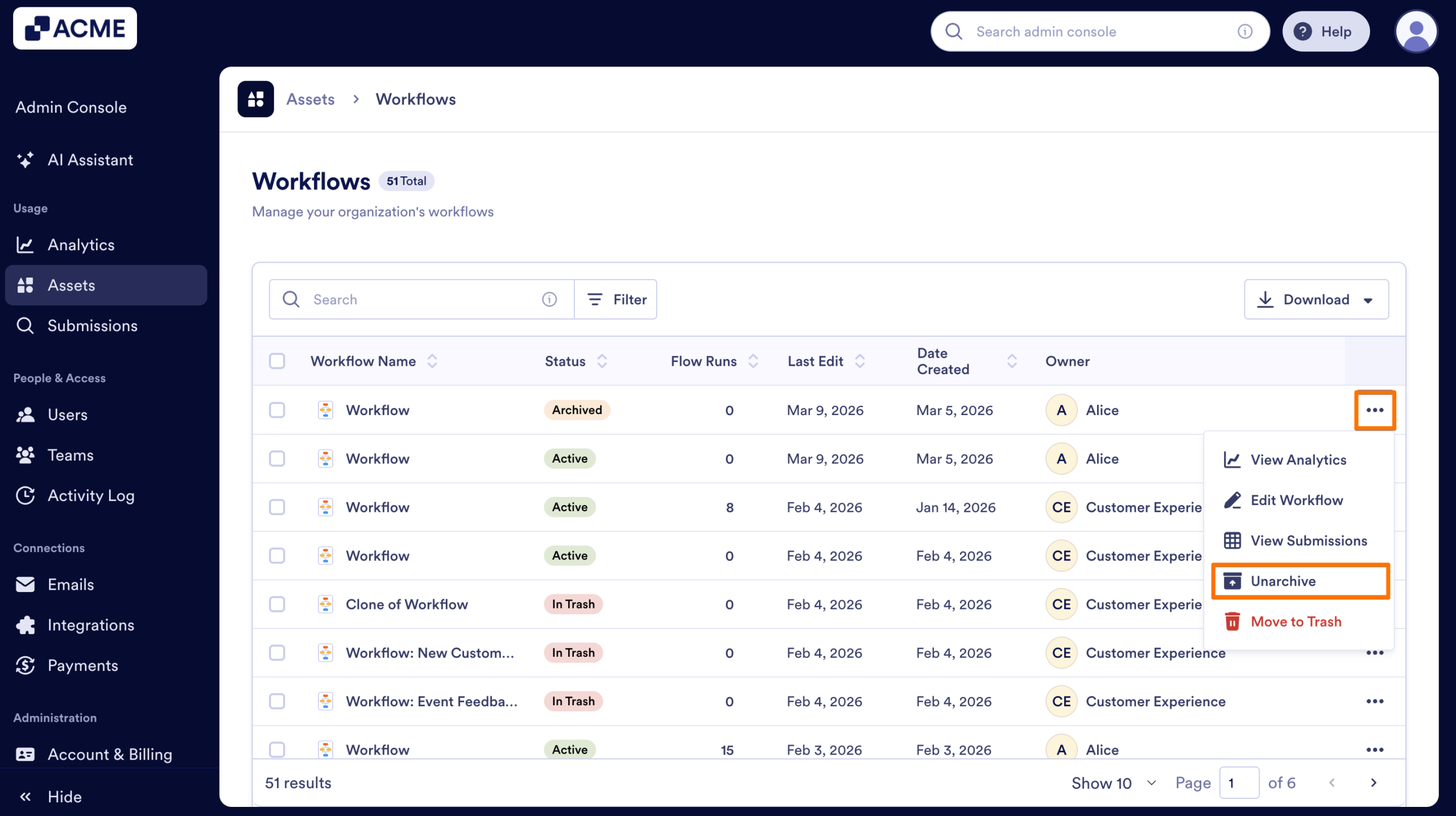
- Then, on the pop-up window, select Yes, Unarchive to confirm.
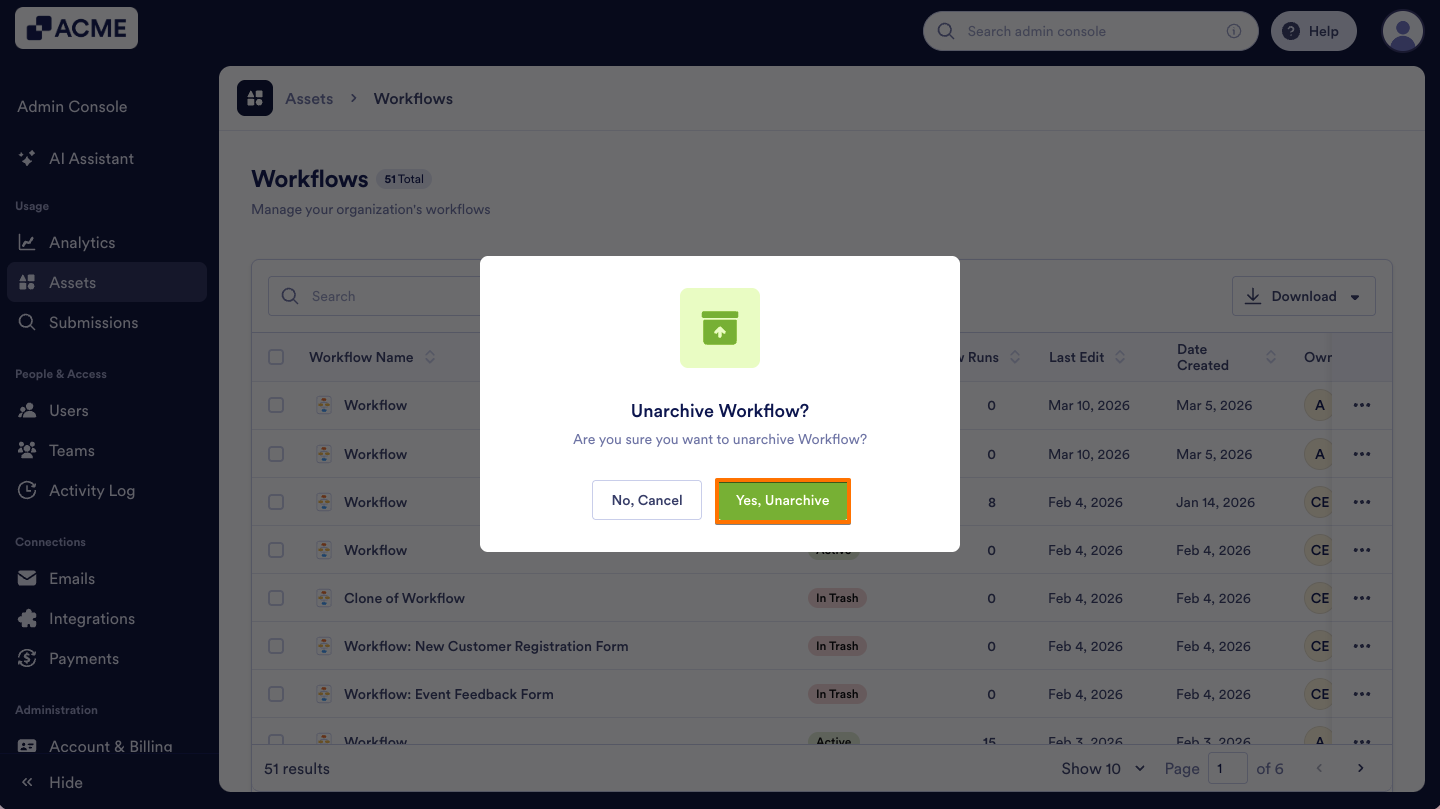
Another way to unarchive a workflow is by clicking the Unarchive button that appears after selecting the workflow from the list. Here’s how:
- In your Admin Console’s Workflows Assets page, select the Checkbox next to the workflow that was archived before.
- Next, at the top of the list, click on the Unarchive button.
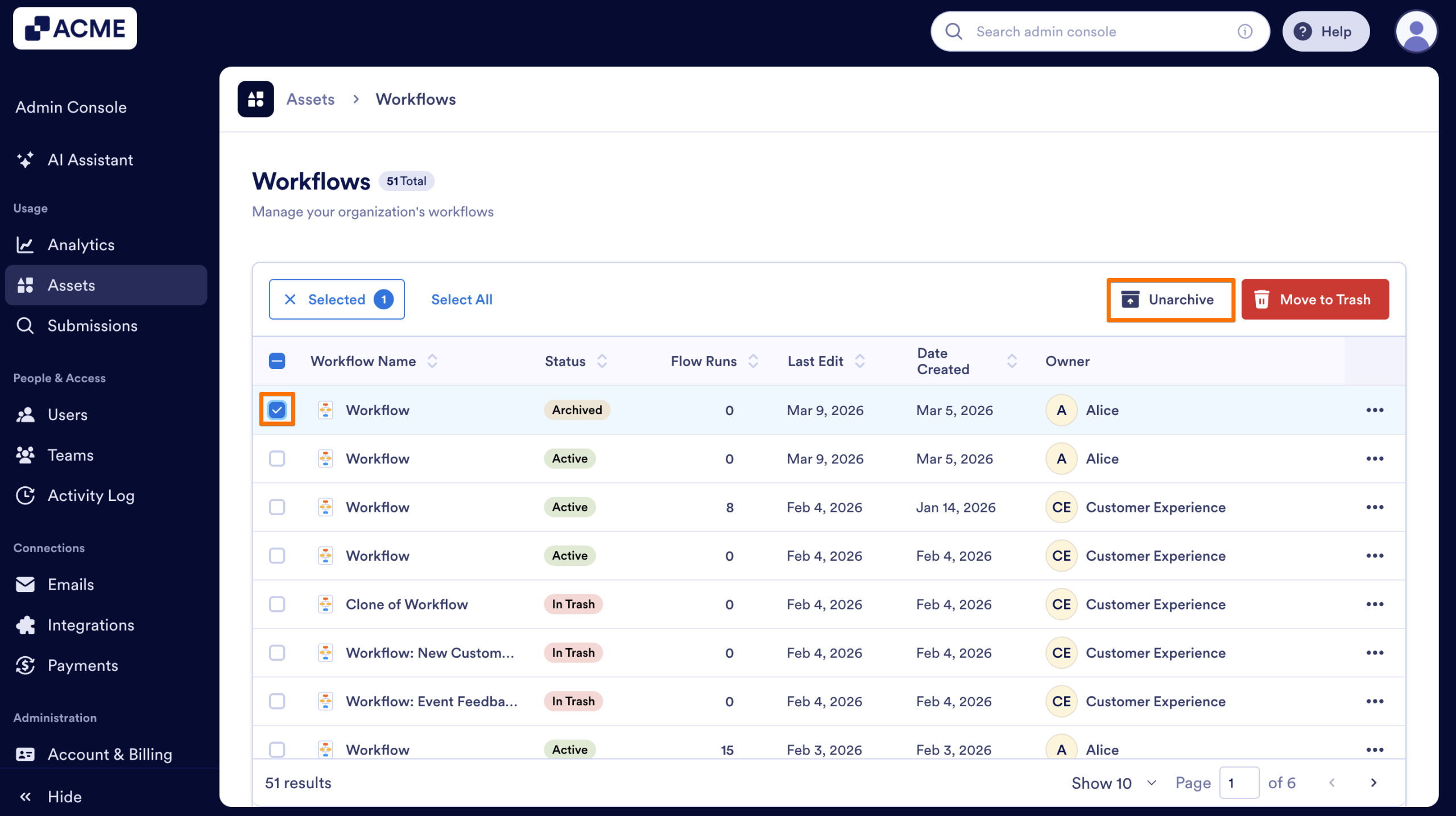
- In the pop-up window, select Yes, Unarchive to confirm.
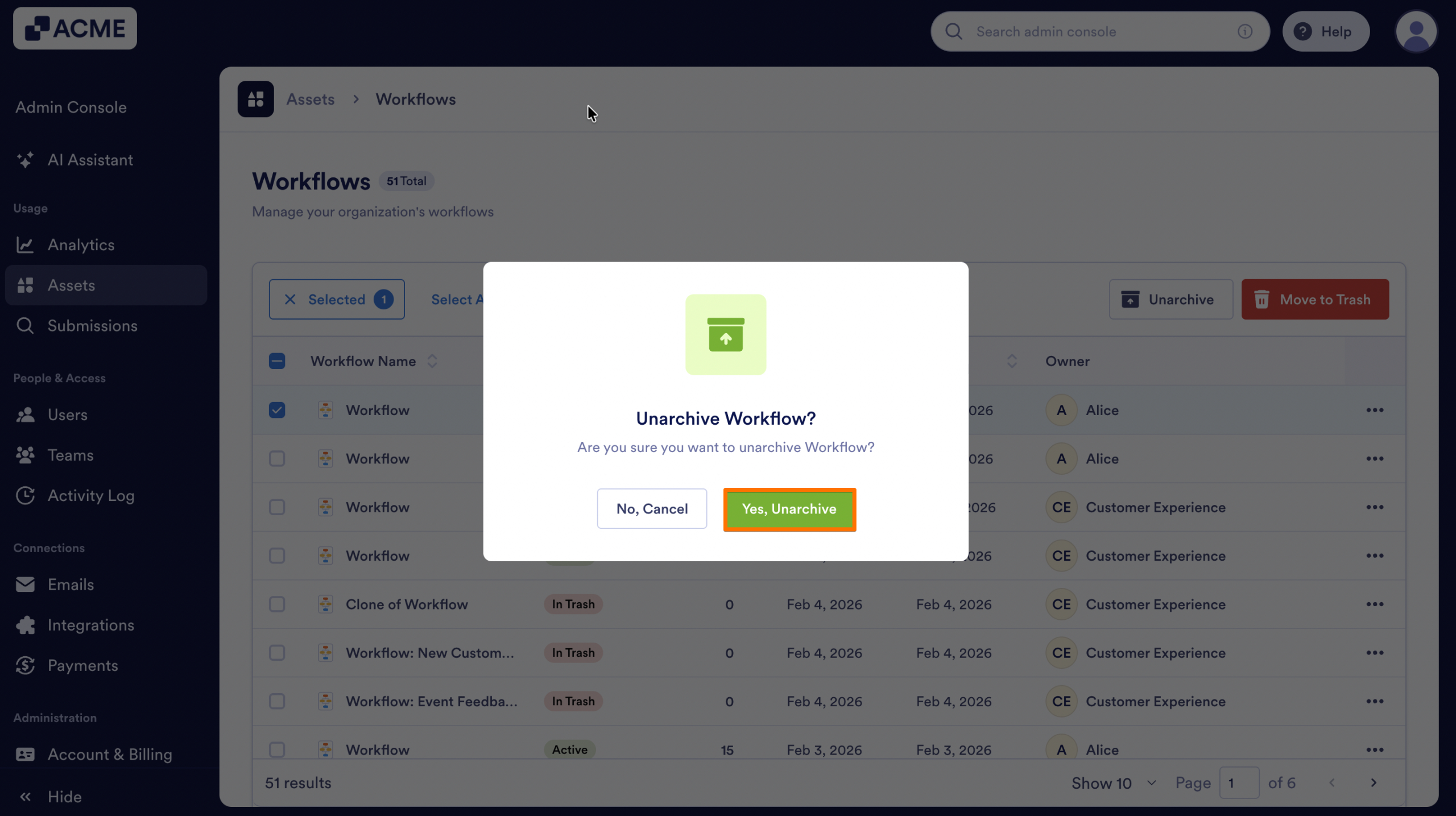
Archiving Workflows in Bulk
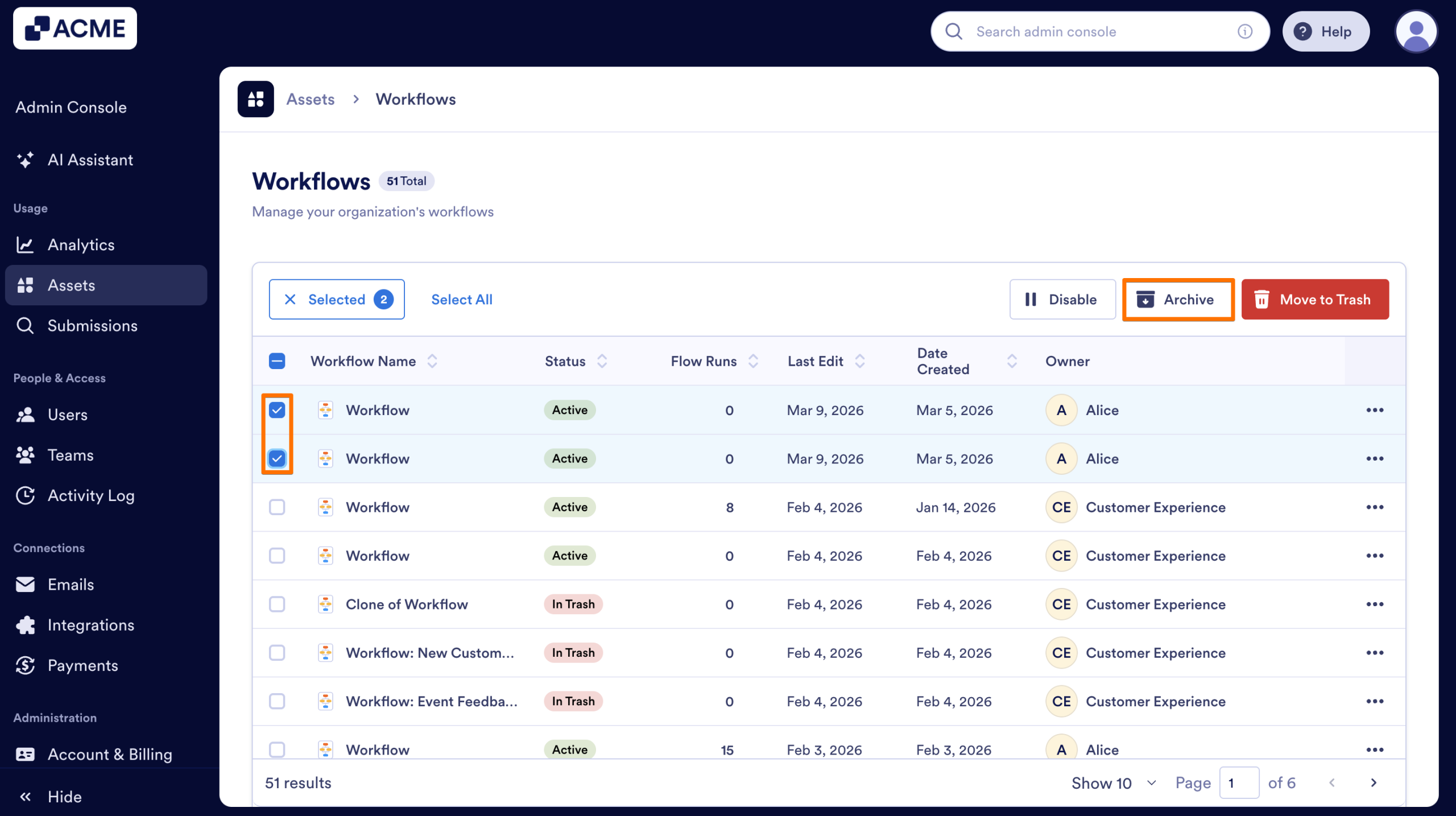
- On the Workflows Assets page, on the left side of the workflows you want to unarchive, select the Checkboxes.
- Then, on the top of the list, click on the Archive button.
- On the pop-up window, select Yes, Archive to confirm.
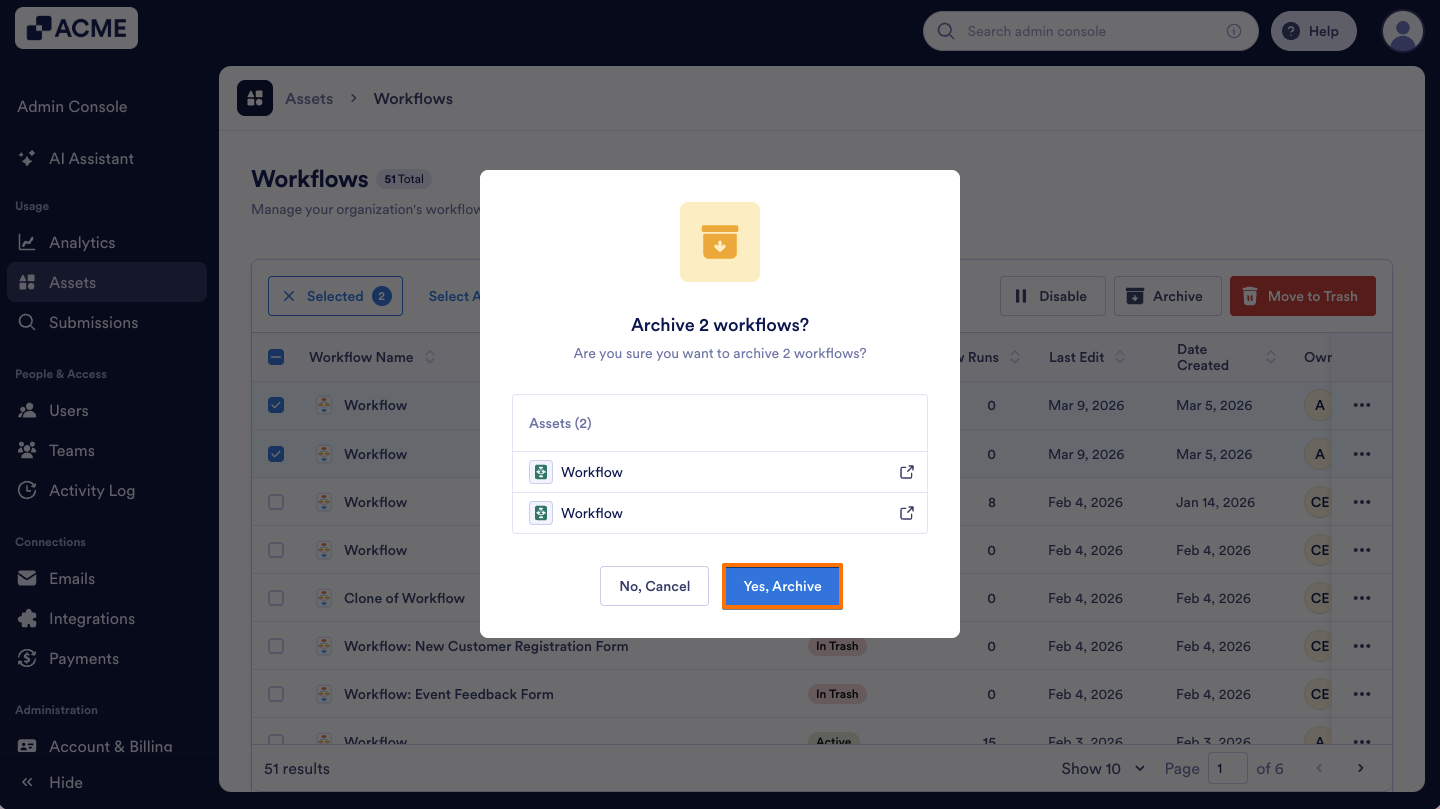
Unarchiving Workflows in Bulk
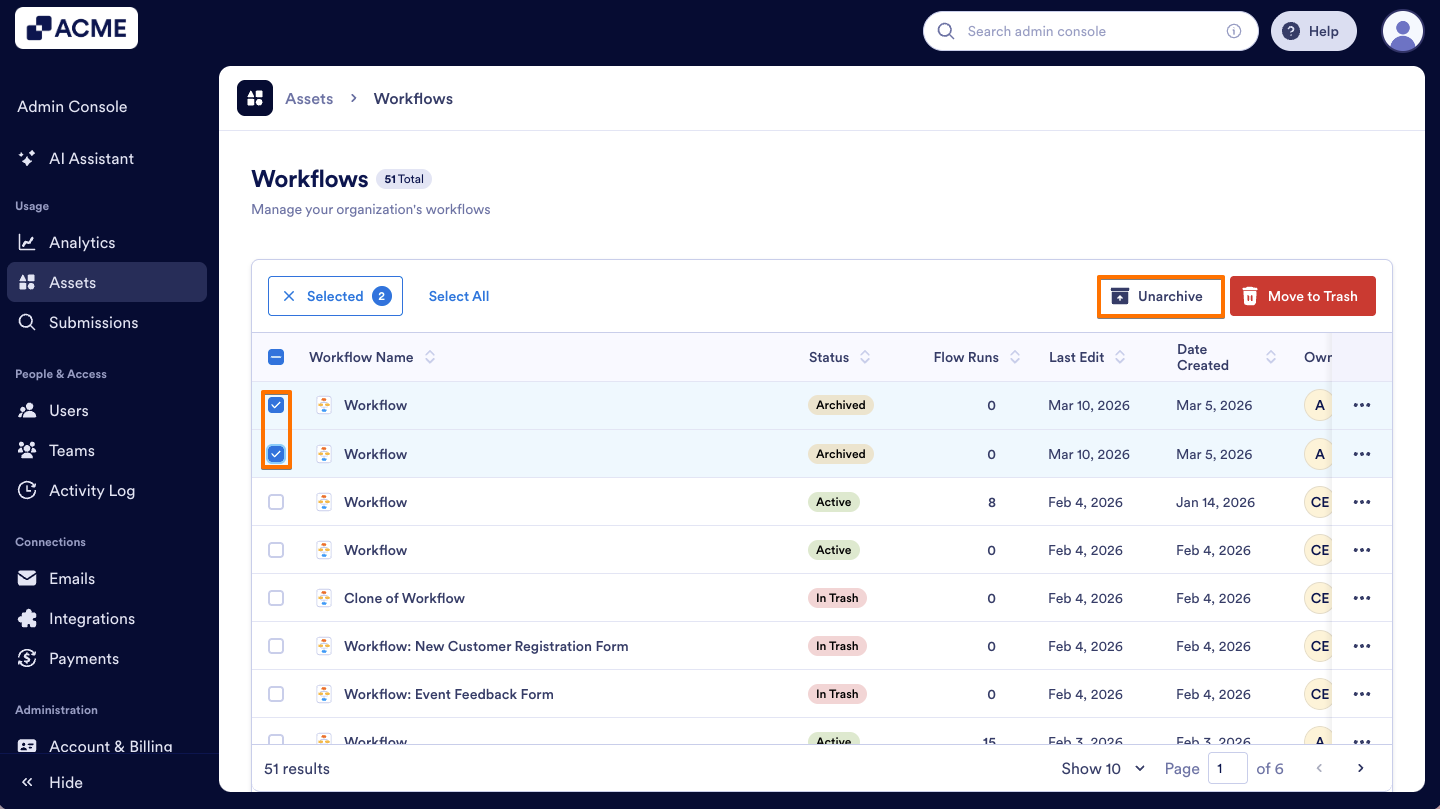
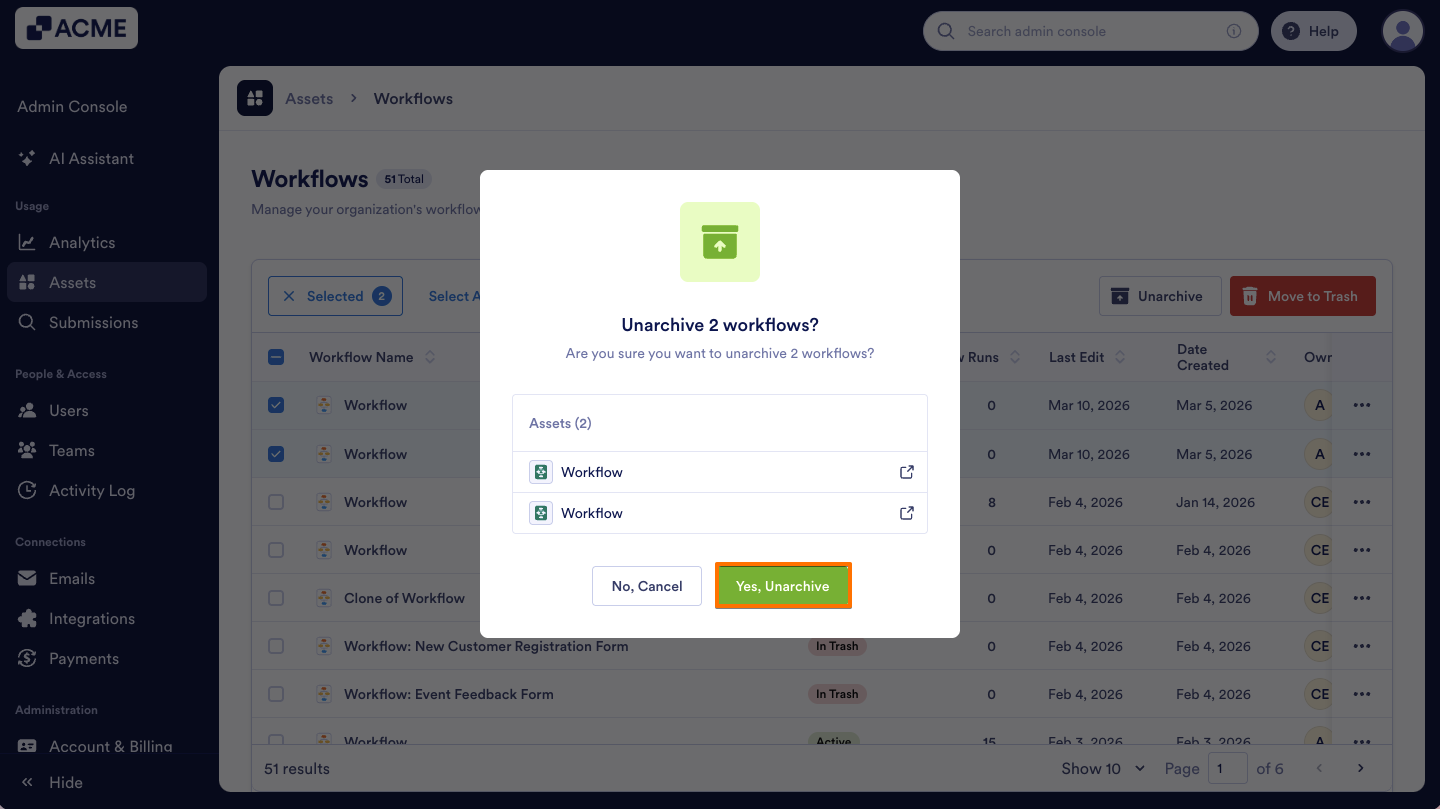
- On the Workflows Assets page, on the left side of the workflows you want to unarchive, select the Checkboxes.
- Next, click on the Unarchive button above.
- On the pop-up window that opens, select Yes, Unarchive.
How to View Archived Workflows Using Filters
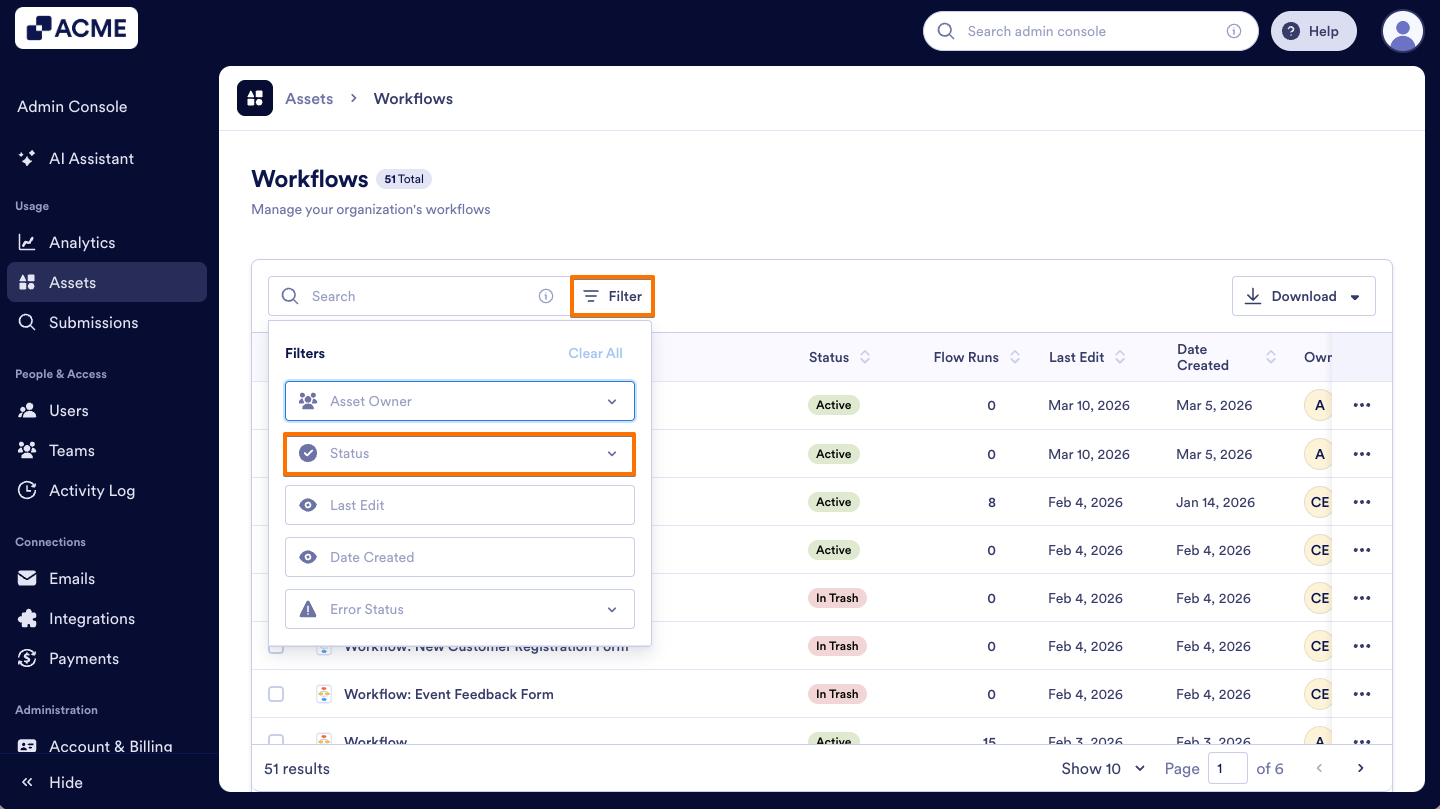
- On the Workflows Assets page, on the right side of the Search bar, click on Filter.
- Click on the Status dropdown menu.
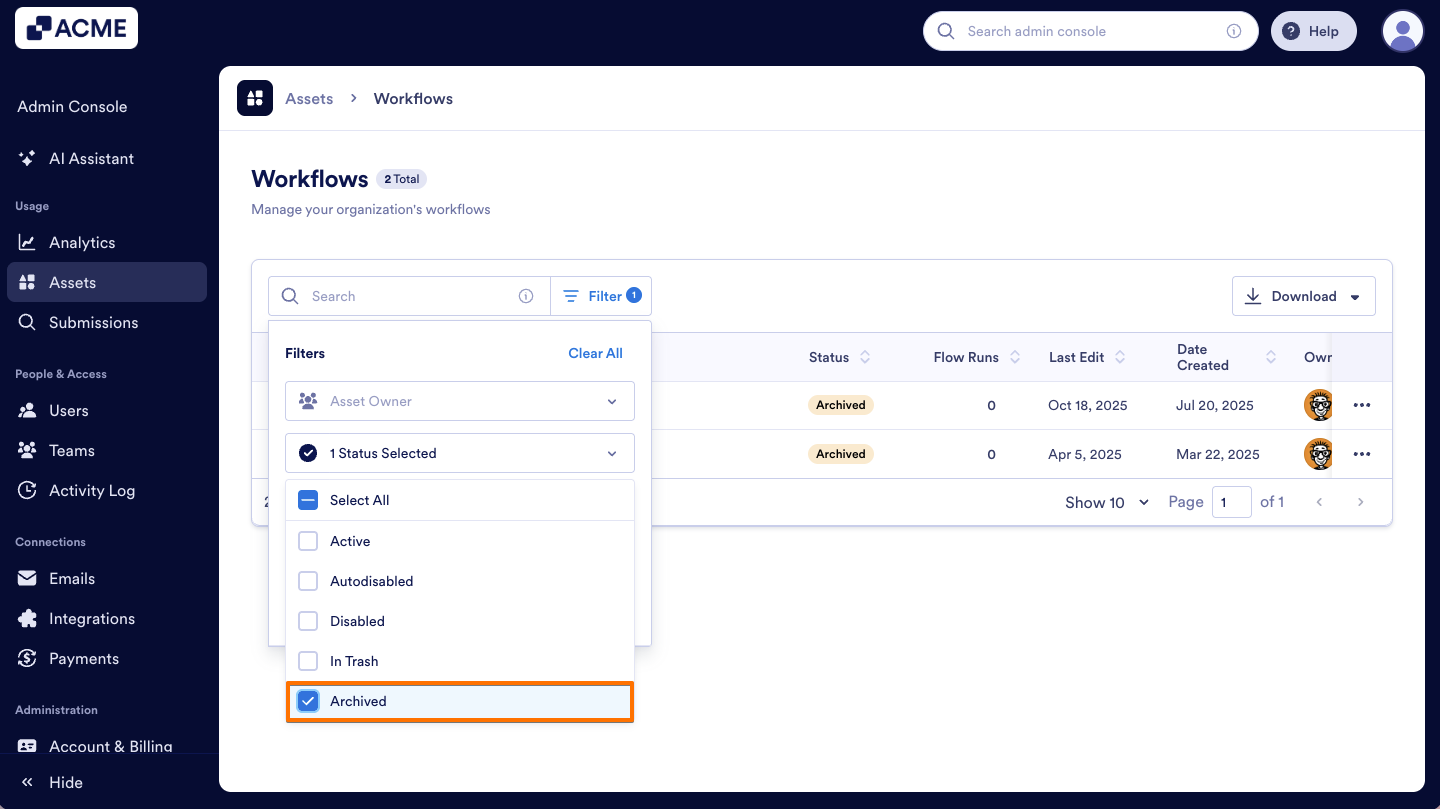
- From the menu, select the Archived option to view all archived workflows in your organization.

Send Comment: