Boards allows you to assign tasks to team members, ensuring clear ownership, accountability, and streamlined collaboration. By assigning tasks, you can track progress, delegate responsibilities effectively, and ensure that each task is completed efficiently.
Assigning a Task to People
Assigning a task to people you already shared your Boards with is easy. Here’s how to do it:
- On your Board, hover your mouse over the task you want to add an assignee to, and click on the Three Dots icon.
- Then, click on View Task.
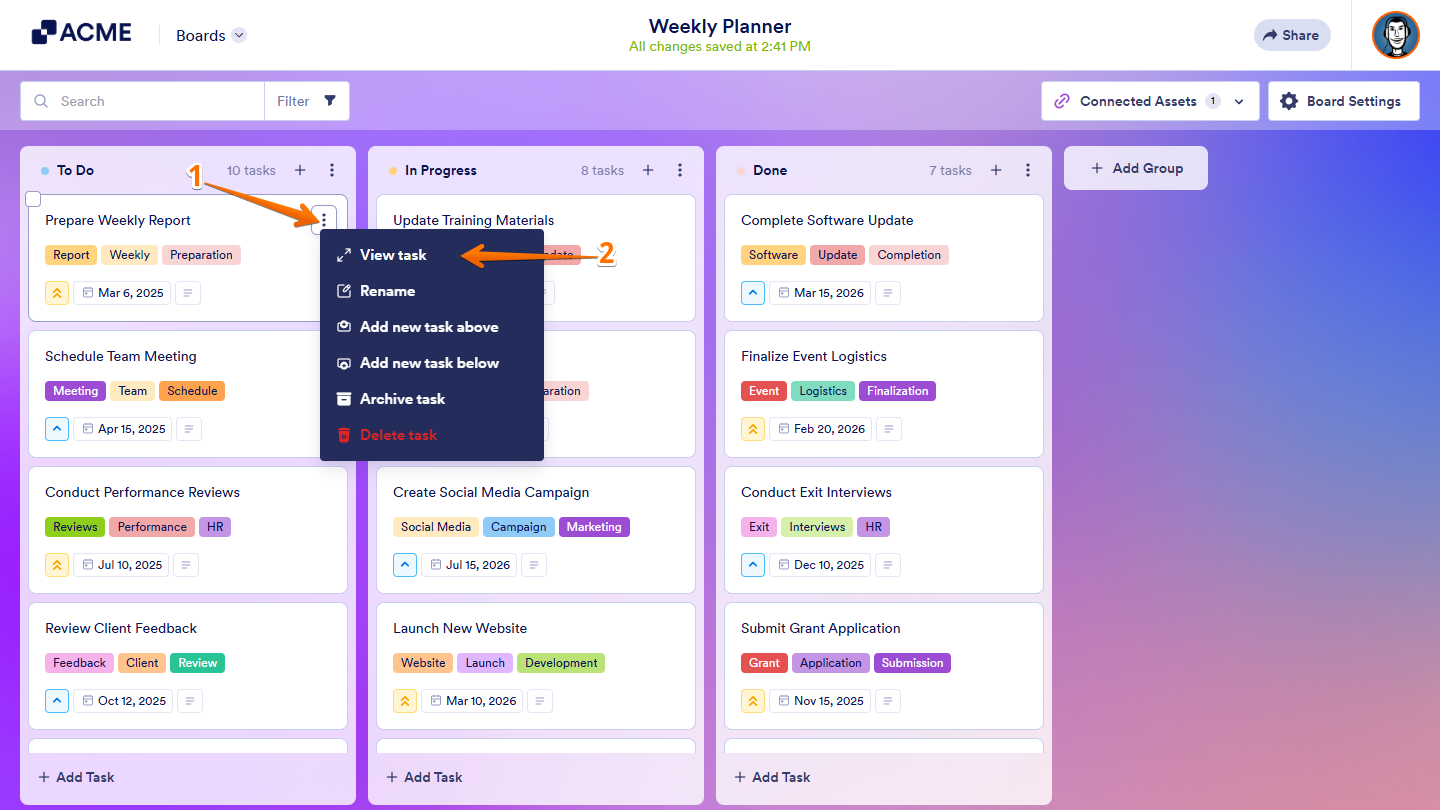
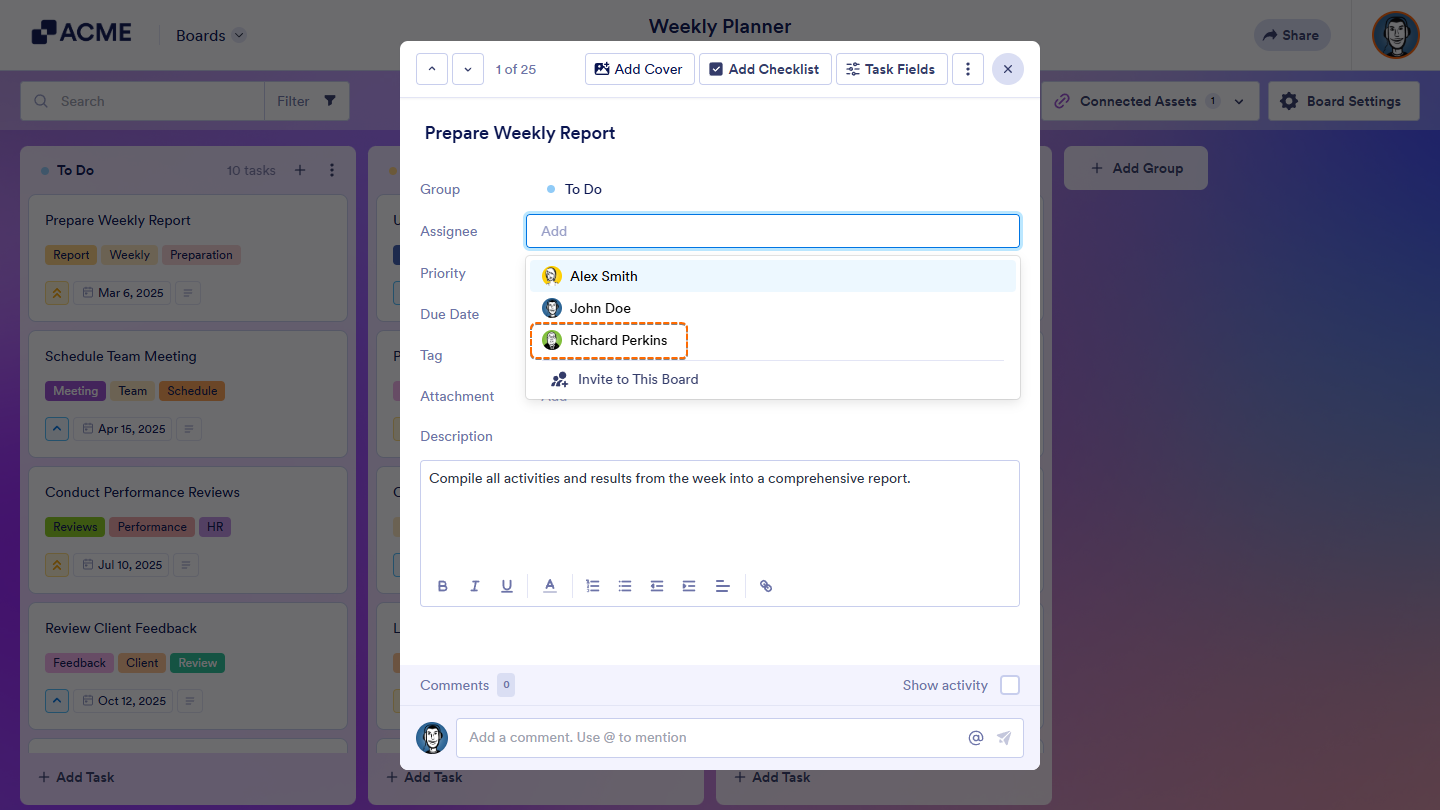
- In the Task window that opens, click on the Assignee field and select one of the existing assignees you’ve added.
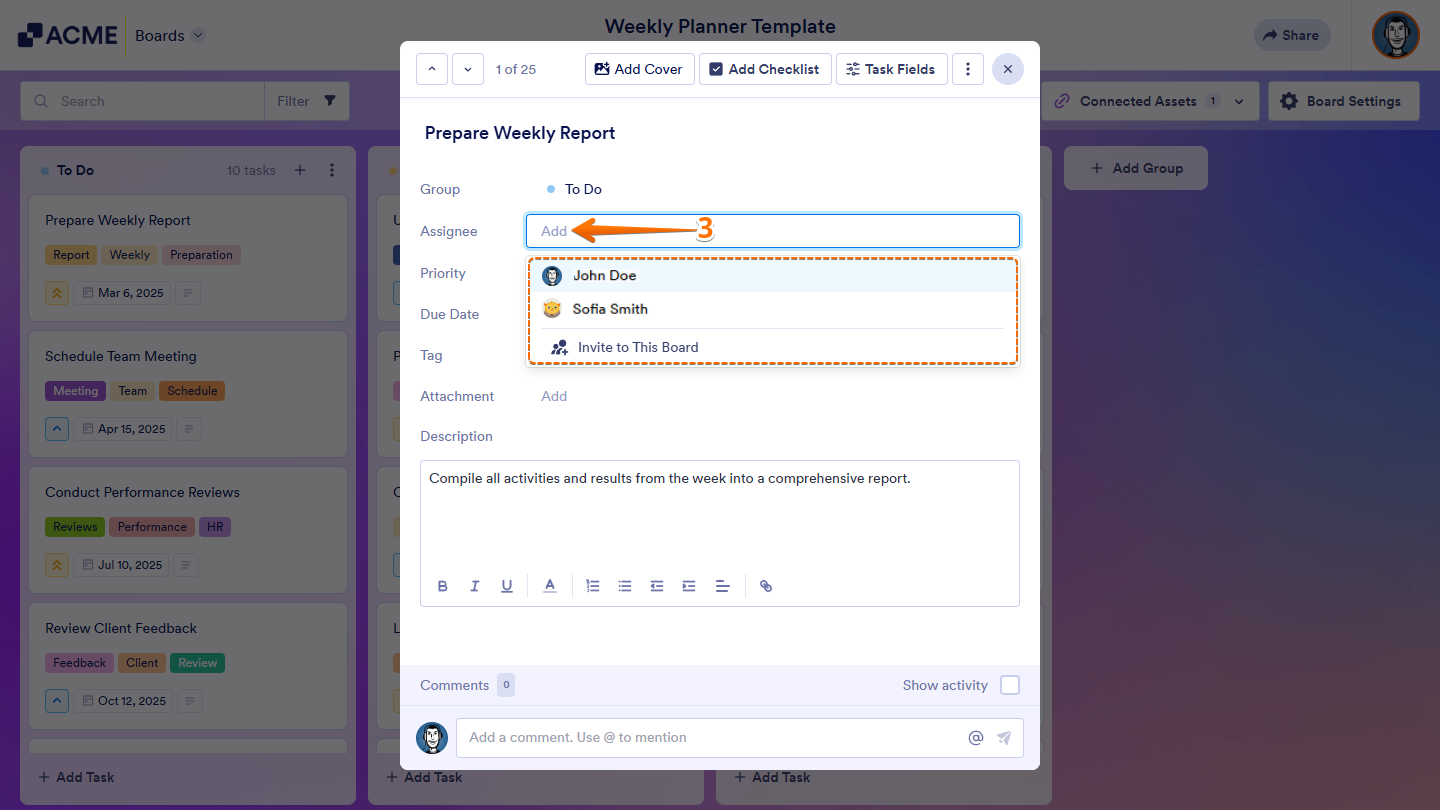
And that’s it! The assignee will get an email notification that a task has been assigned to them.
Pro Tip: Double-clicking on the task will take you directly to the task window.
Inviting and Assigning a New Member to Boards
If you haven’t invited an assignee yet, you can easily do that by adding them as a new member. Here’s how:
- On your Board, hover your mouse over the task you want to add an assignee to, and click on the Three Dots icon.
- Then, click on View Task.
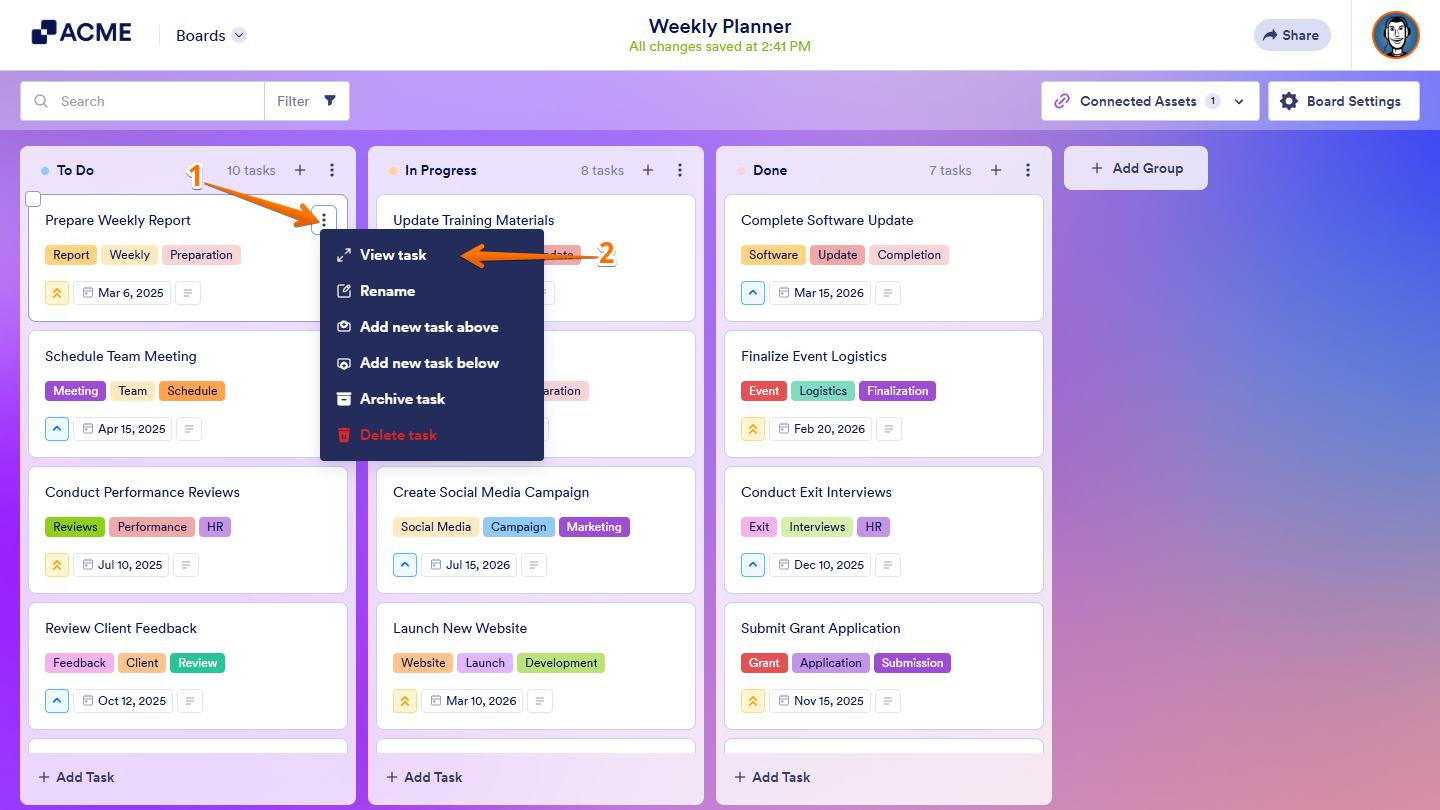
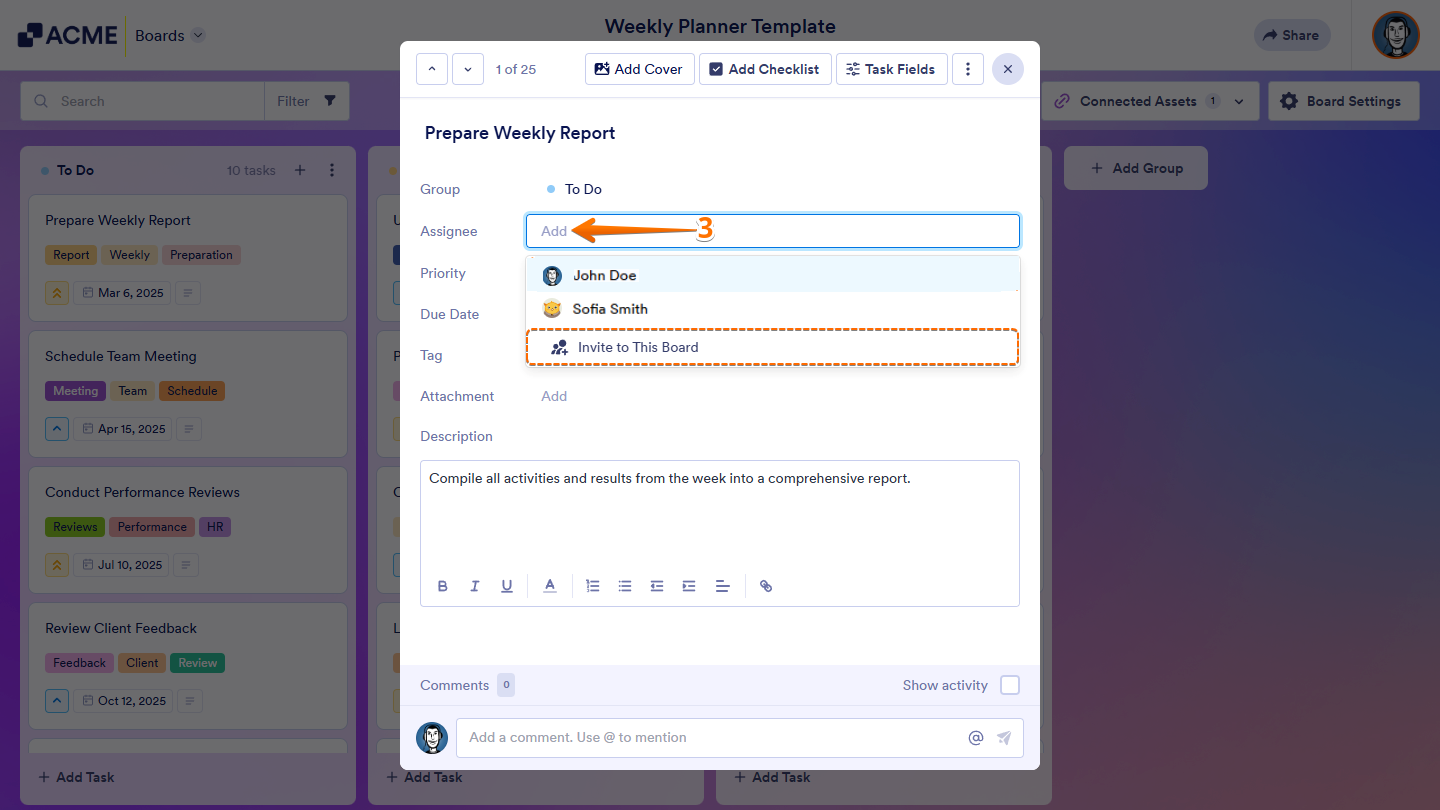
- In the Task window that opens, click on the Assignee field and then click on Invite to this Board.
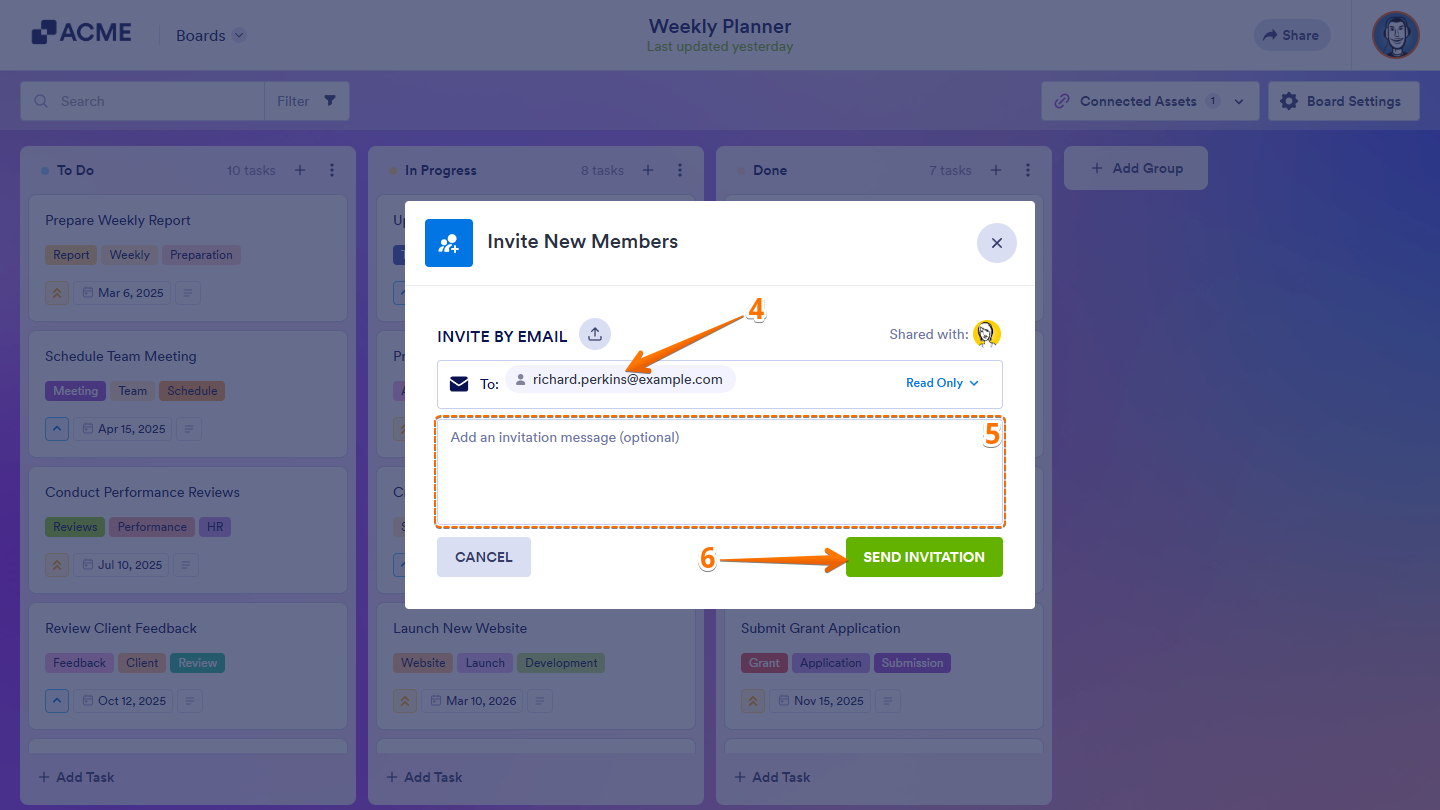
- In the Recipient field, enter the email address of the person you want to invite.
- Optionally, add a personalized Invitation Message.
- Then, click on Send Invitation.
Now, they’ll be added to the existing list of shared members. Simply select their name, and you’re all set!
Notes:
- You can share your board with up to 100 people. Assignees are selected from the shared members, and each task can be assigned to a maximum of 10 people.
- You can also set your member access settings by clicking the Dropdown menu beside the recipient email field, where you can select Read-Only, Editor, or Collaborator.

Send Comment: