Replying to Instagram comments instantly, without being glued to your phone all day, is now possible with Jotform’s Instagram Agent. This smart tool makes it easy to set up personalized auto-replies that not only keep conversations flowing but also show your followers that you’re attentive and engaged—even when you’re offline.
Whether you’re managing a growing brand, running a small business, or simply trying to stay on top of your community, the Instagram Agent helps you save time, boost engagement, and build stronger connections with your audience.


Note
Ensure your auto-replies sound natural. This helps keep your audience engaged and avoids making your responses feel like they’re coming from a bot.
Setting Up Auto-Reply to Comments in AI Agent Builder
Setting up auto-replies in Jotform’s AI Agent Builder is quick and easy. With just a few steps, your Instagram Agent can automatically reply to comments and help keep your audience engaged. Here’s how:
- In AI Agent Builder, in the Channels menu on the left, click on the Instagram icon.
- Now, on the right side of the Example Instagram DM box, click on the Gear icon.

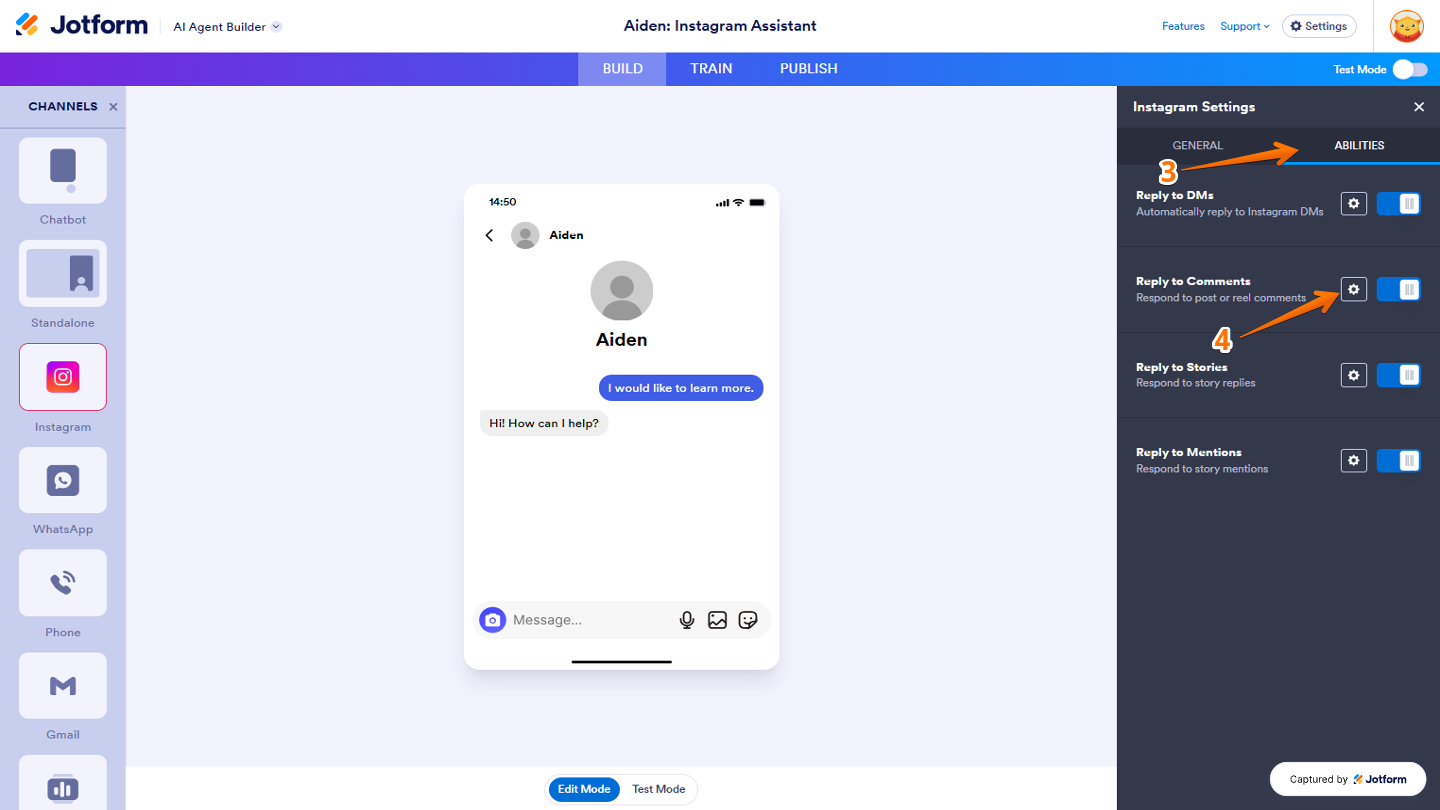
- Then, in the Instagram Settings menu that opens on the right side of the page, click on the Abilities tab.
- Now, click on the Gear icon next to Reply to Comments.
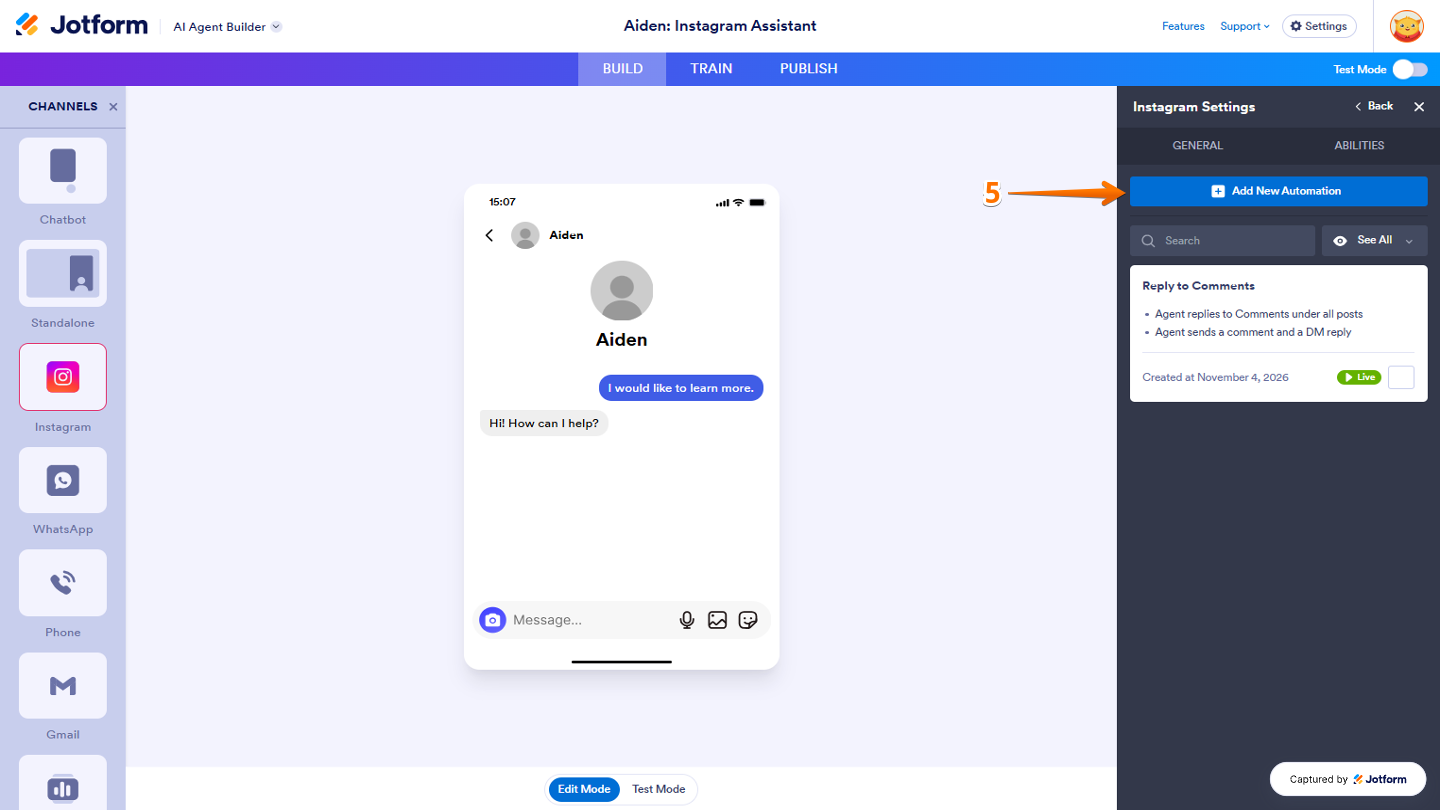
- Next, click on Add New Automation to create a new auto-reply.
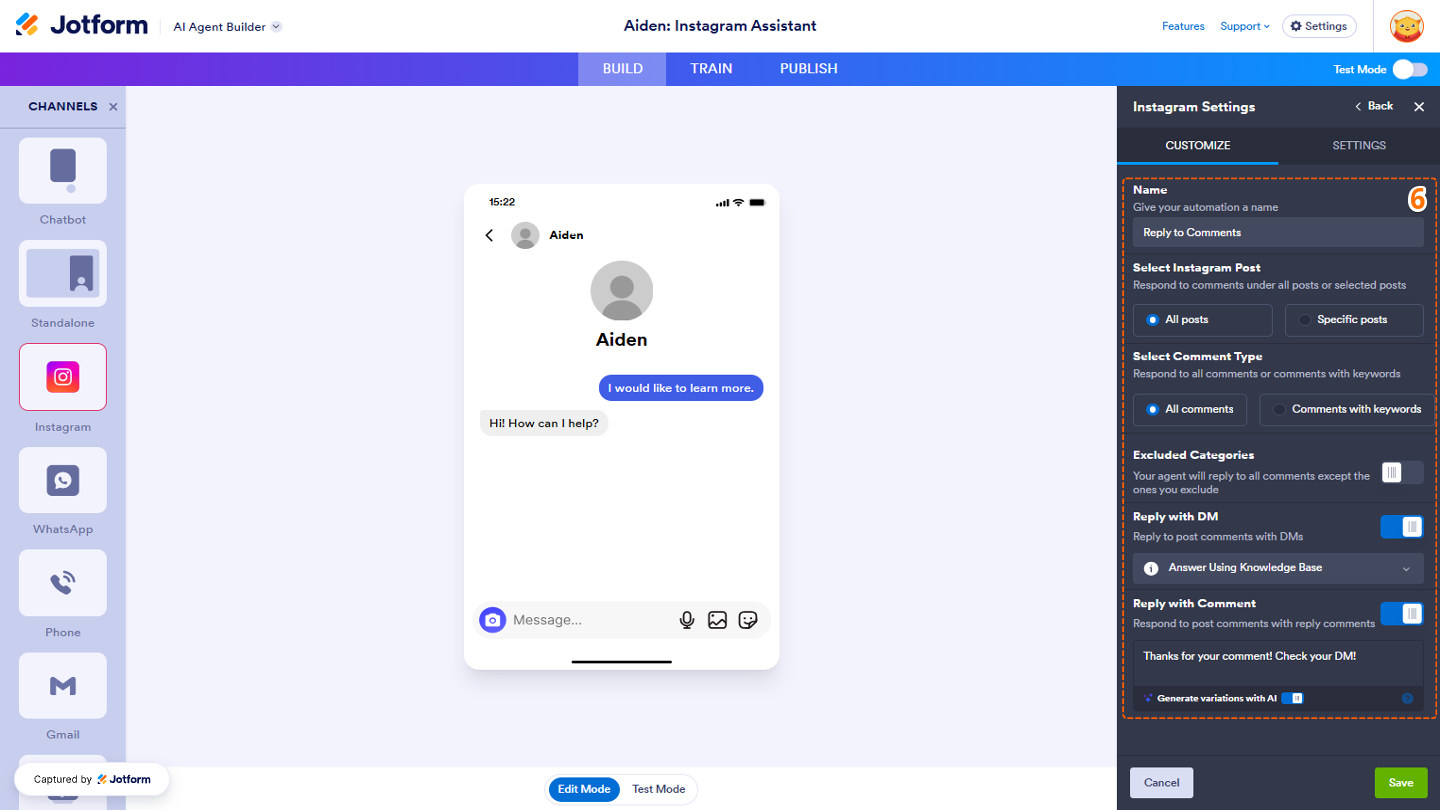
- Then, customize the following options to control how your agent responds:
- Name — Enter a name for the automation.
- Select Instagram Post — Select if replies should go to all your Posts or only to certain ones.
- Select Comment Type — Select whether you want your agent to respond to every comment or only when certain keywords are in them.
- Excluded Categories — Toggle this on to stop your agent from replying to excluded categories.
- Reply with DM — This is enabled by default and sets your agent to answer using its knowledge base. If you want your agent to reply with a specific message, select Say Exactly in the Dropdown menu and enter your message in the box that pops up below it.
- Reply with Comment — This is enabled by default and sets your agent to answer “Thanks for your comment! Check your DM!” If you want your agent to reply with a specific message, simply change it to that in the box that pops up below it.
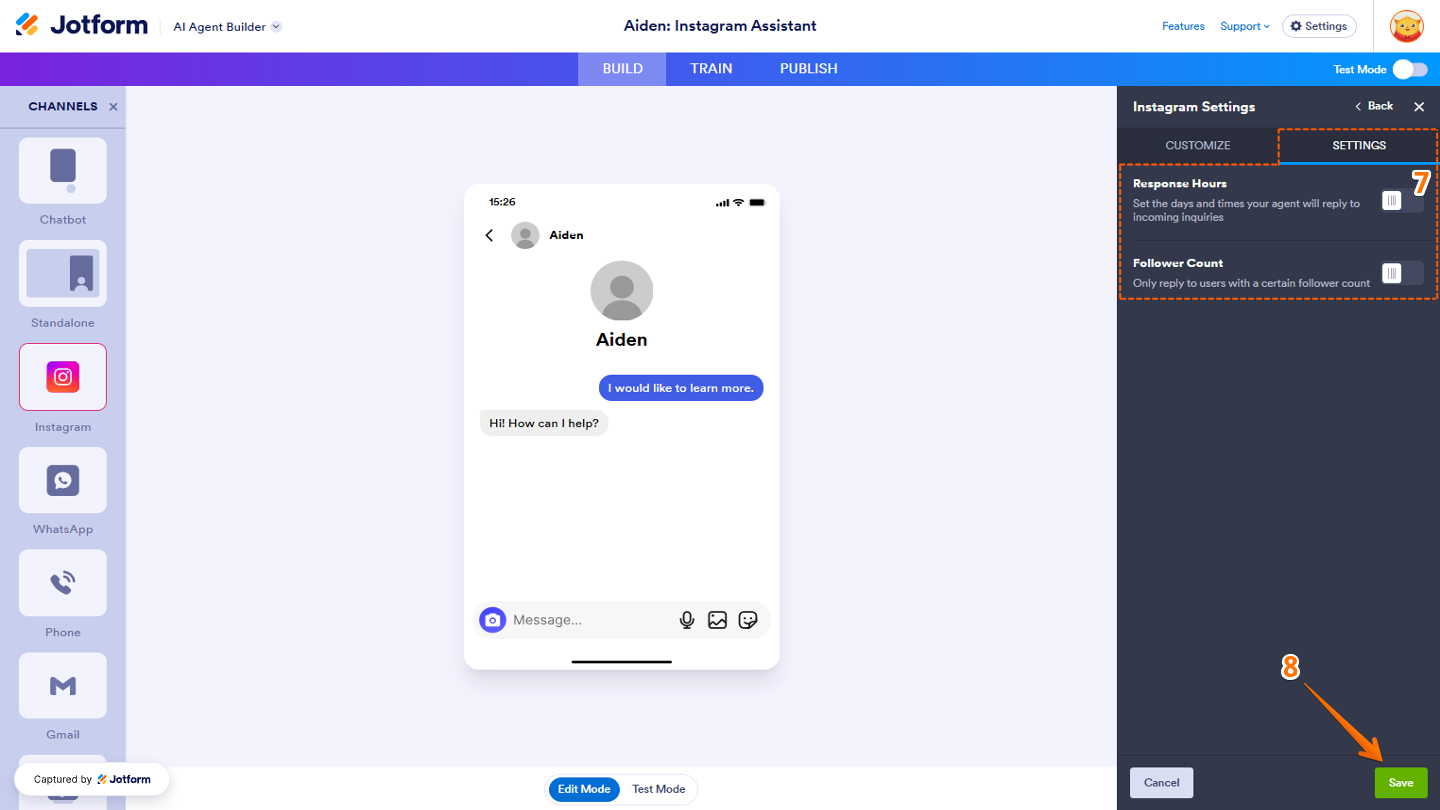
- Now, click on the Settings tab and configure the following options:
- Response Hours — Toggle this on to control when your agent responds to Stories.
- Follower Count — Turn this on if you only want your agent to reply to people with a certain number of followers. Select Above or Below, then enter the number in the field that pops up below it.
- Once you’re done, click on Save at the bottom of the page.
That’s it. You’ve now set up your Instagram Agent’s auto-replies to comments in AI Agent Builder, so it’s ready to keep conversations going and save you time while staying connected to your audience.
Setting Up Auto-Reply to Comments from the Publish Tab
After connecting your Instagram account, from the Publish tab, you can put the finishing touches on your setup and enable auto-replies for Instagram comments. This way, your agent is ready to jump in and respond to your audience right when they reach out. Here’s how to do it:
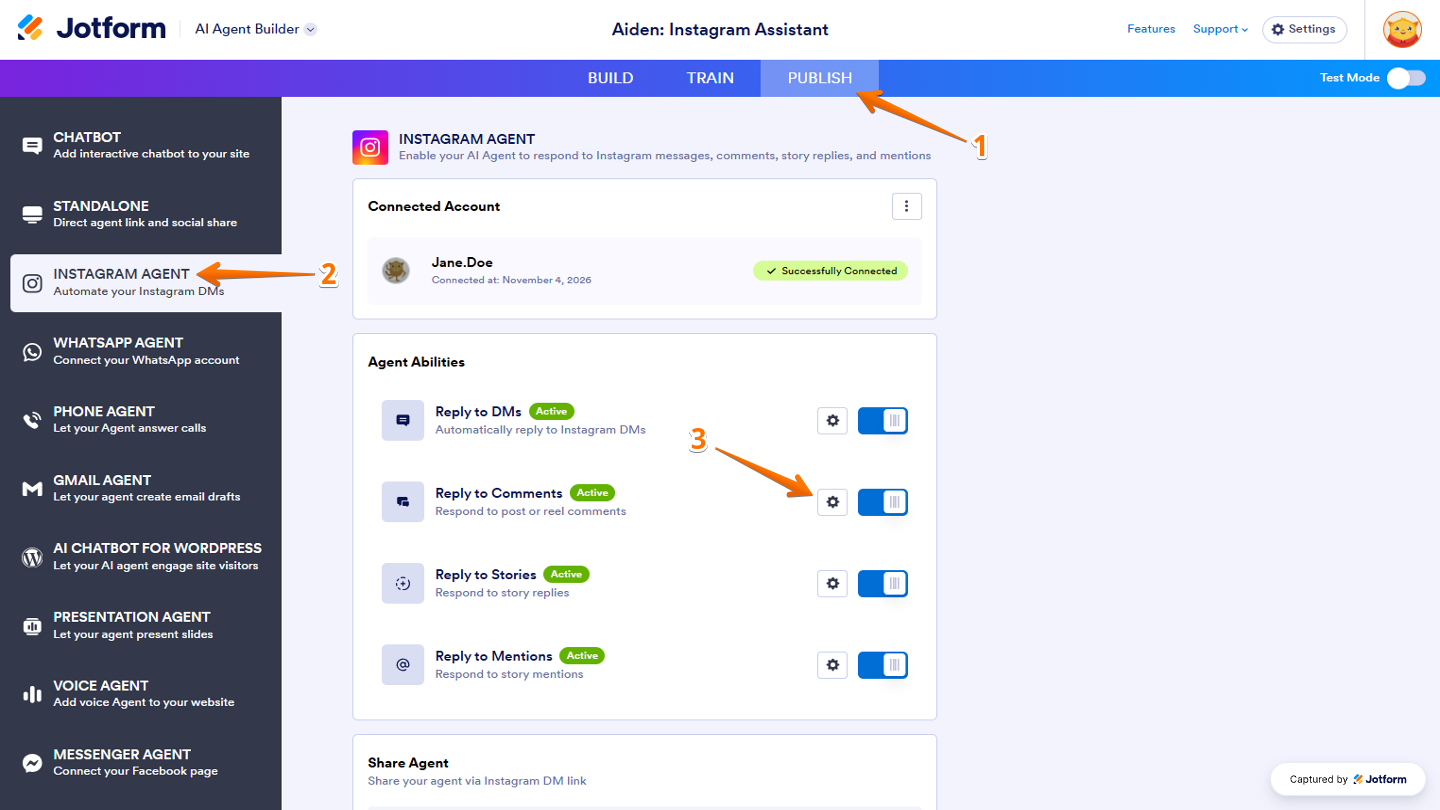
- In AI Agent Builder, in the blue navigation bar at the top of the page, click on Publish.
- Now, in the menu on the left, click on Instagram Agent.
- Then, in the Instagram Agent section on the right, under Agent Abilities, click on the Gear icon next to Reply to Comments.
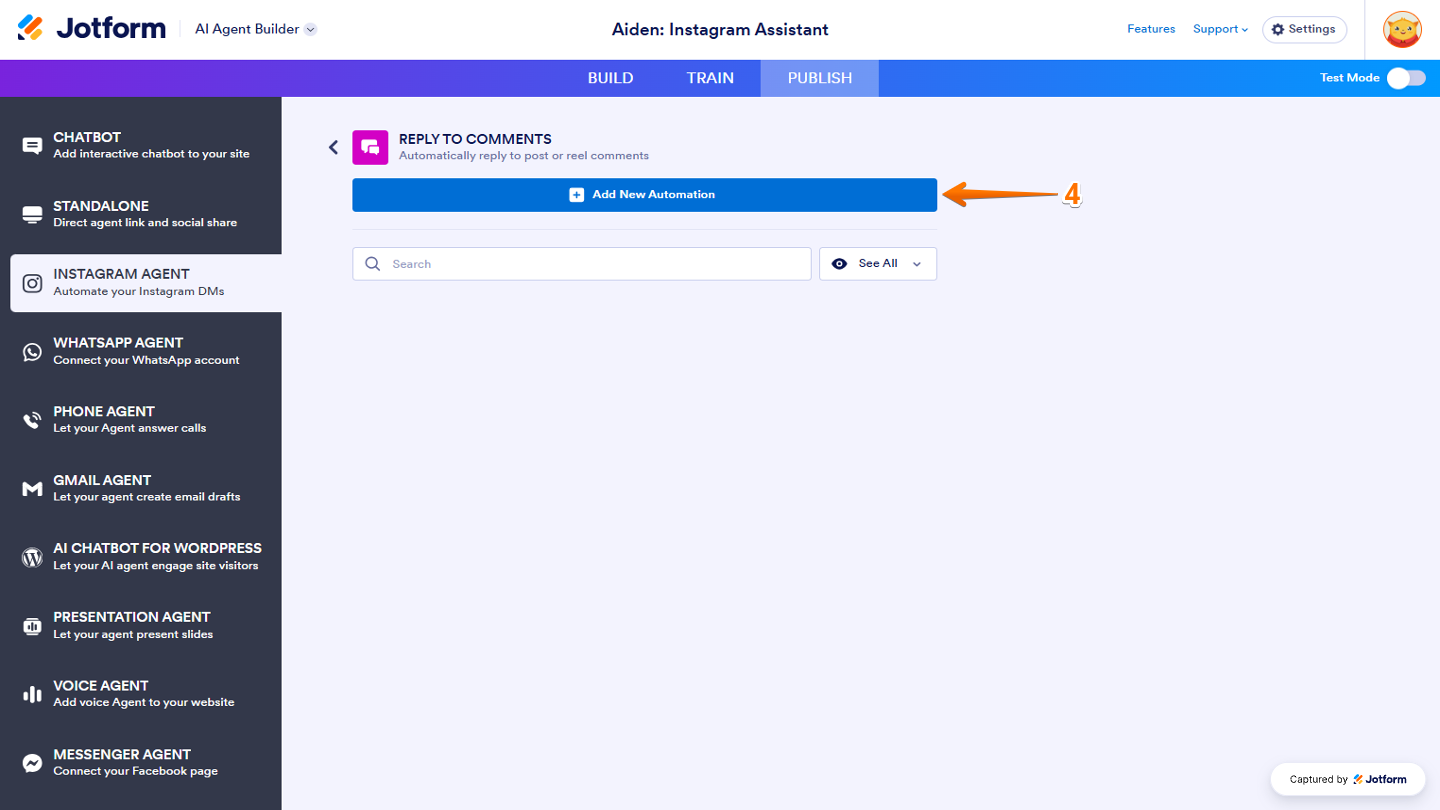
- Next, in the Reply to Comments section, click on Add New Automation to create a new auto-reply.
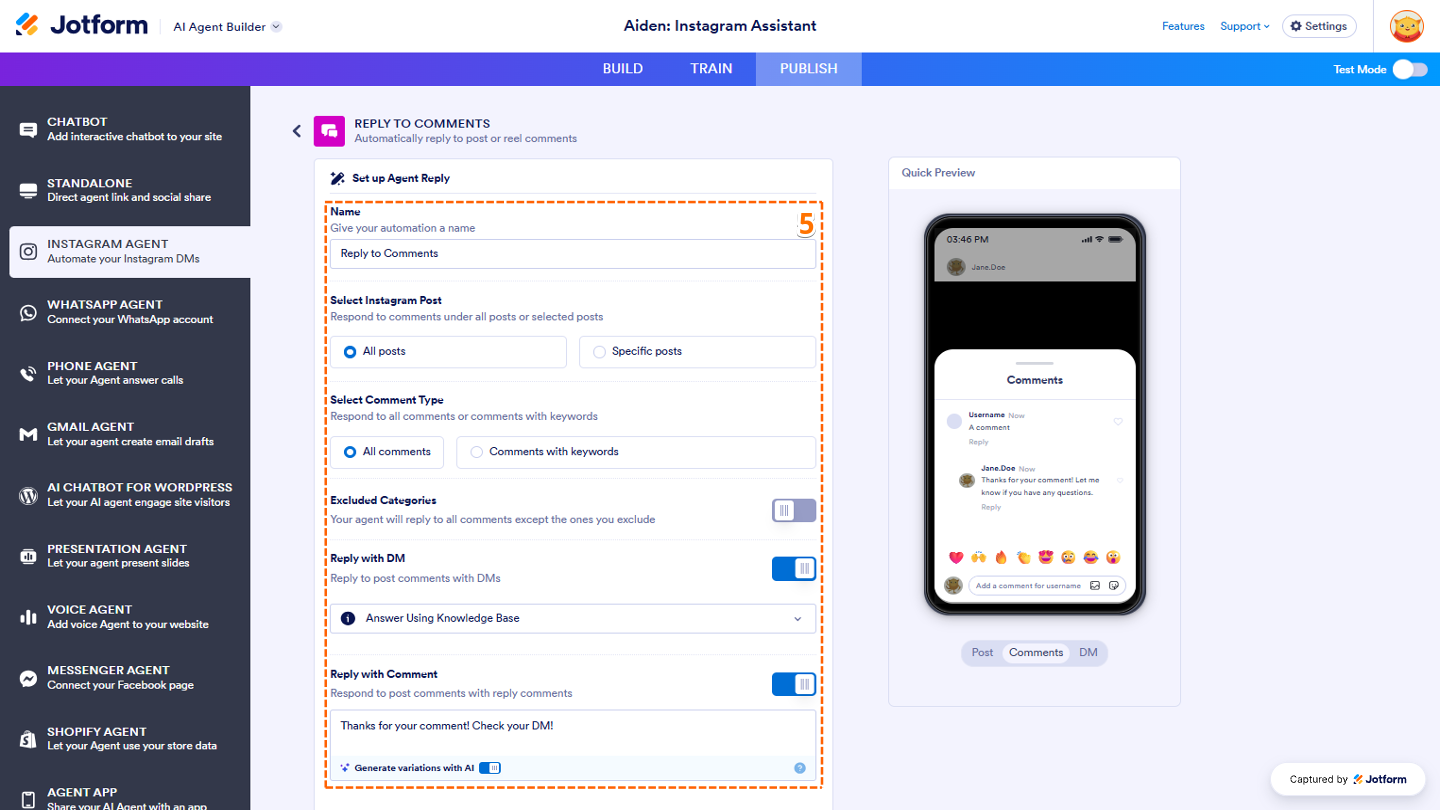
- Then, in the Setup Agent Reply section, customize the following options to control how your agent responds:
- Name — Enter a name for the automation.
- Select Instagram Post — Select if replies should go to all your Posts or only to certain ones.
- Select Comment Type — Select whether you want your agent to respond to every comment or only when certain keywords are in them.
- Excluded Categories — Toggle this on to stop your agent from replying to excluded categories.
- Reply with DM — This is enabled by default and sets your agent to answer using its knowledge base. If you want your agent to reply with a specific message, select Say Exactly in the Dropdown menu and enter your message in the box that pops up below it.
- Reply with Comment — This is enabled by default and sets your agent to answer “Thanks for your comment! Check your DM!” If you want your agent to reply with a specific message, simply change it to that in the box that pops up below it.
- Generate Variations with AI — Keep this turned on to let AI create different versions of your replies.
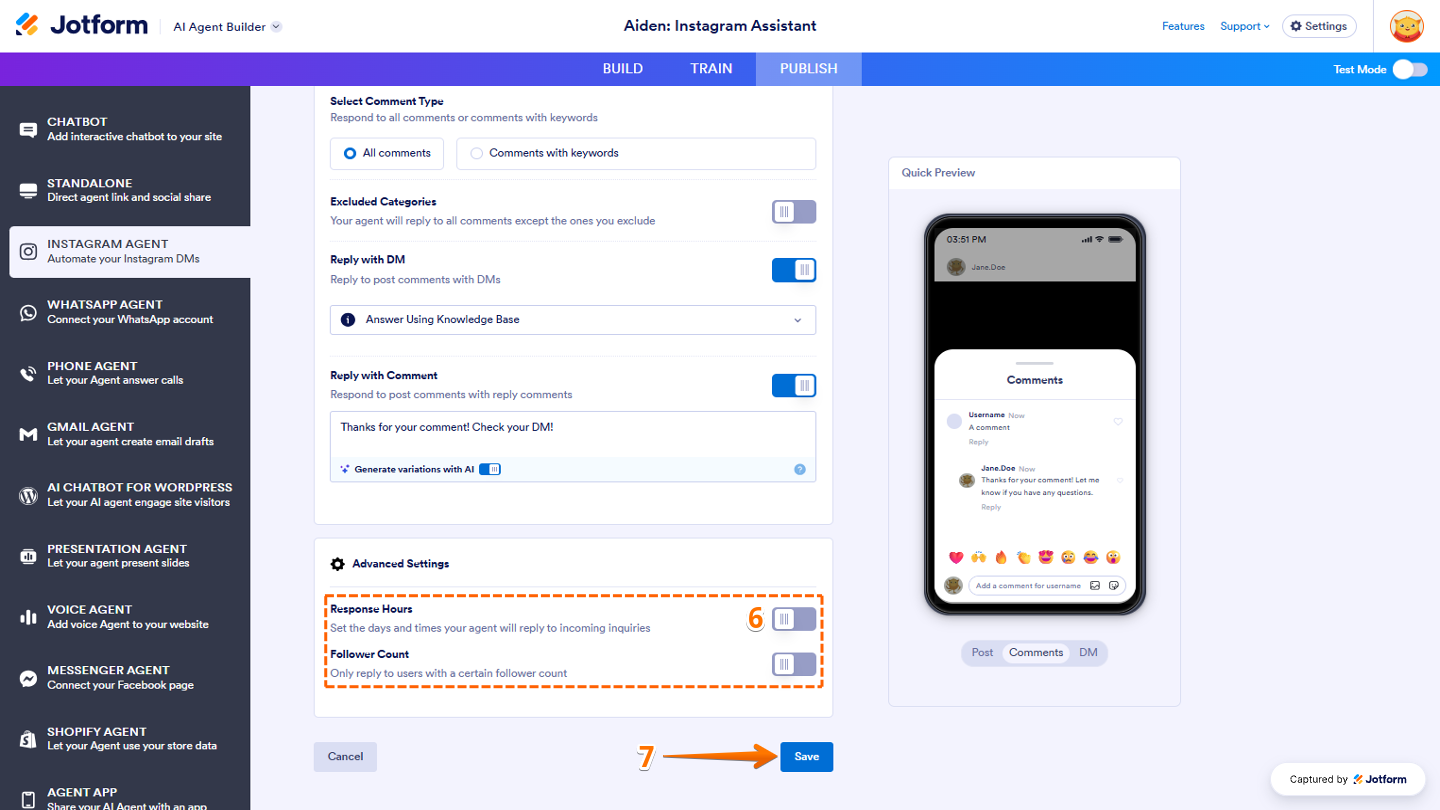
- Now, scroll down to the bottom and continue to customize the Advanced Settings options:
- Response Hours — Turn this on to control when your agent responds to Stories.
- Follower Count — Toggle this on if you only want your agent to reply to people with a certain number of followers. Select Above or Below, then enter the number in the field that appears below it.
- Once you’re done, click on Save.
You’re all set! You’ve now set up your Instagram Agent’s auto-replies to comments from the Publish tab, so it’s ready to jump in, keep conversations flowing, and engage with your audience while you focus on what matters most.
Pro Tips
- Try testing your setup by leaving a comment on your own post—this lets you see exactly what your followers will experience.
- Rotate or personalize your replies to keep things feeling fresh and less repetitive.

Send Comment:
1 Comment:
May 8, 2026
there is no mechanism to manage reply only once to a handle.
if the same instagram handle comments multiple times on different o same post it keep son sending same DM's giving a SPAM feel
Please fix this