If you want to calculate a total amount in your form, there are several ways to set it up depending on your needs. You can use conditional logic to create custom calculations based on user selections, or use a form calculation field to automatically add, subtract, multiply, or divide values from different fields. Both methods are effective — the best option depends on how you want your total to be calculated and displayed to users.
Calculate a Total with Conditional Logic
You can use conditional logic to perform calculations based on specific answers or selections in your form. This method is ideal when you want to apply custom rules — for example, adding different values depending on which options a user chooses — giving you greater control over how totals are determined dynamically. Here’s what to do:
- In Form Builder, in the orange navigation bar at the top of the page, click on Settings.
- In the menu on the left side of the page, click on Conditions.
- Then, click on Update/Calculate Field.
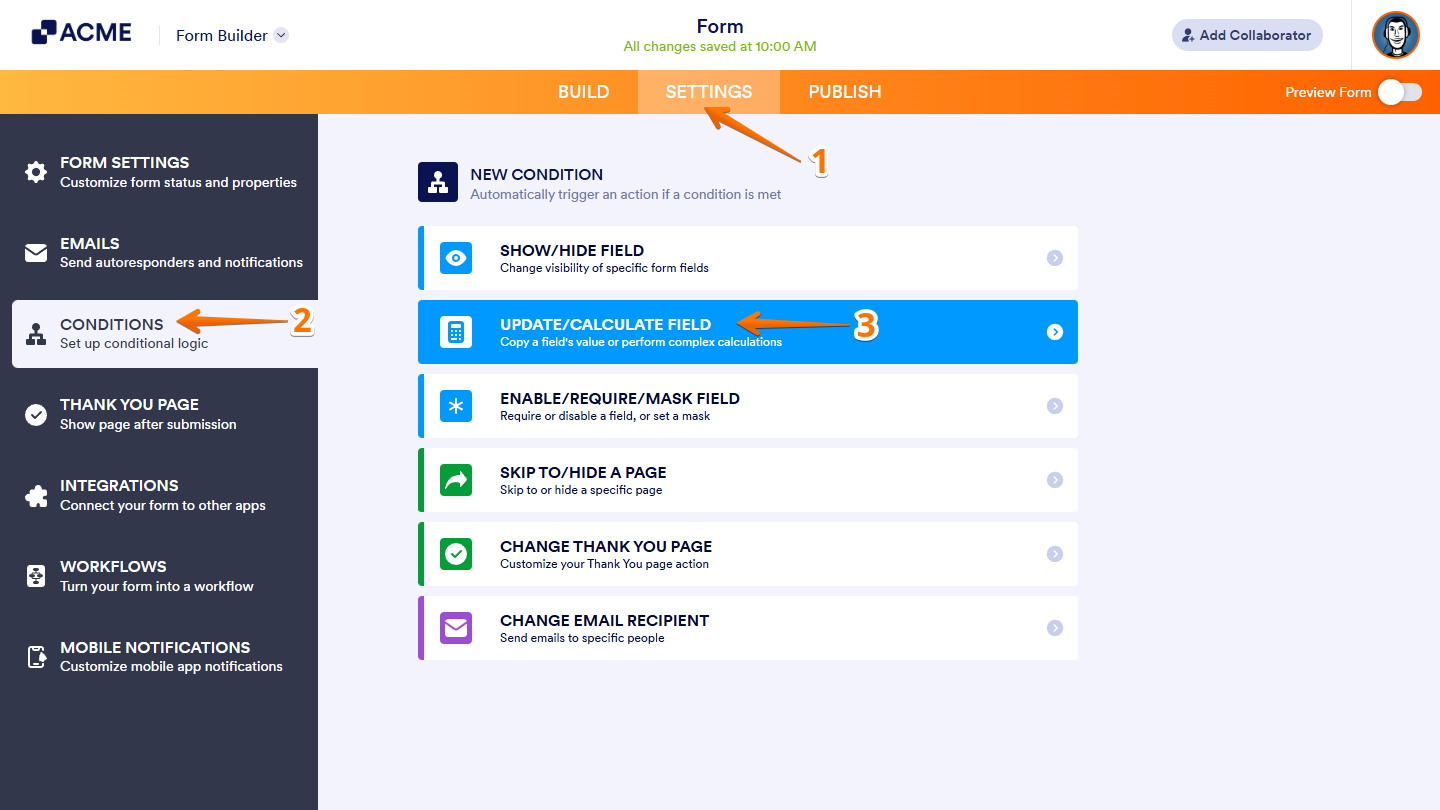
- Next, set up these things:
- IF — Select the field that will trigger the condition. In this example, the Quantity field (a Number element) is used as the trigger.
- STATE — Define the condition that determines when the rule should run. In this example, the Is Filled state is selected to trigger the calculation whenever the Quantity field has a value.
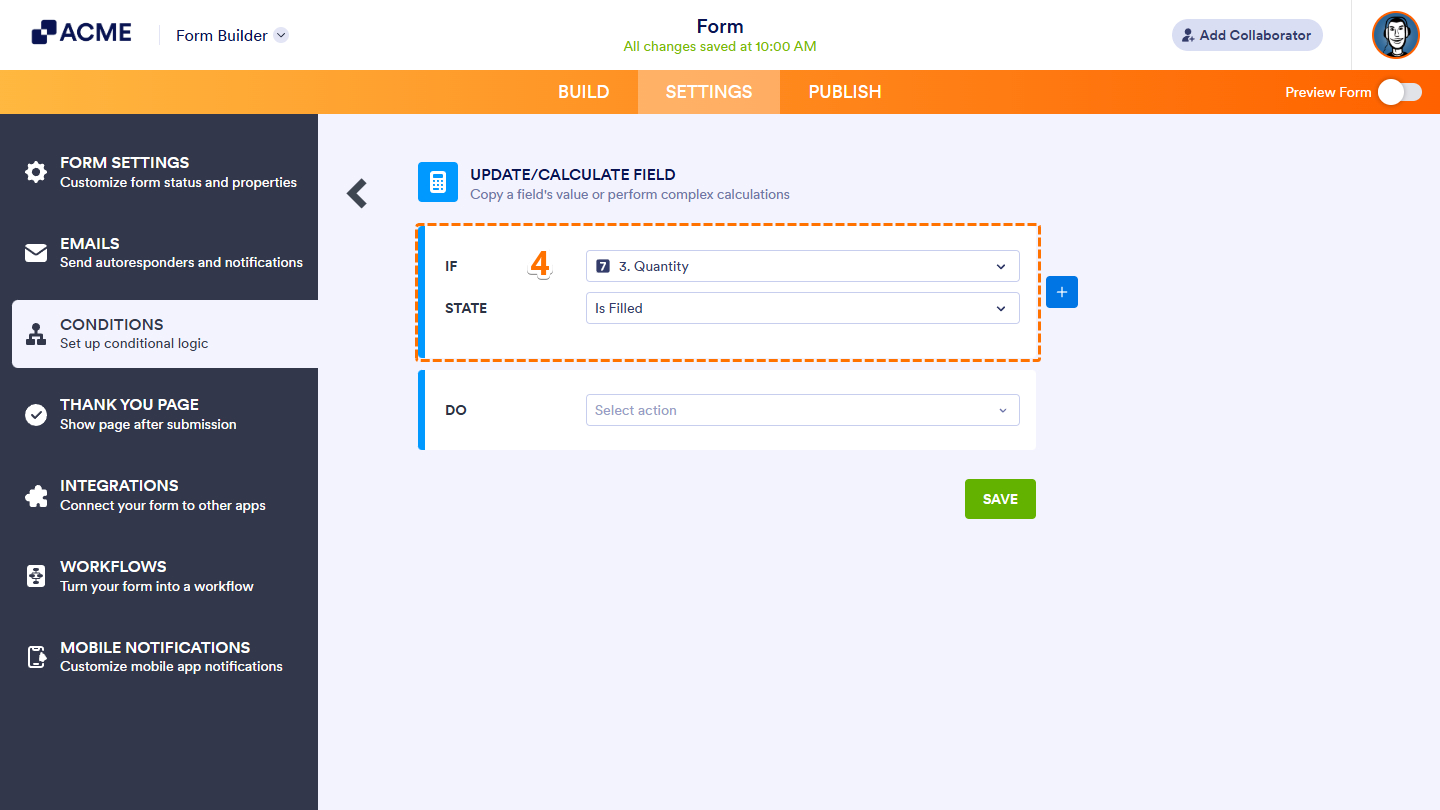
Notes:
- Depending on the type of field you choose in the IF statement, the State dropdown will show different options.
- The Target dropdown and Value/Field box may also appear, depending on the option selected from the State dropdown. For example, if you choose Is Equal To, these fields will display so you can specify the value or field to compare against.
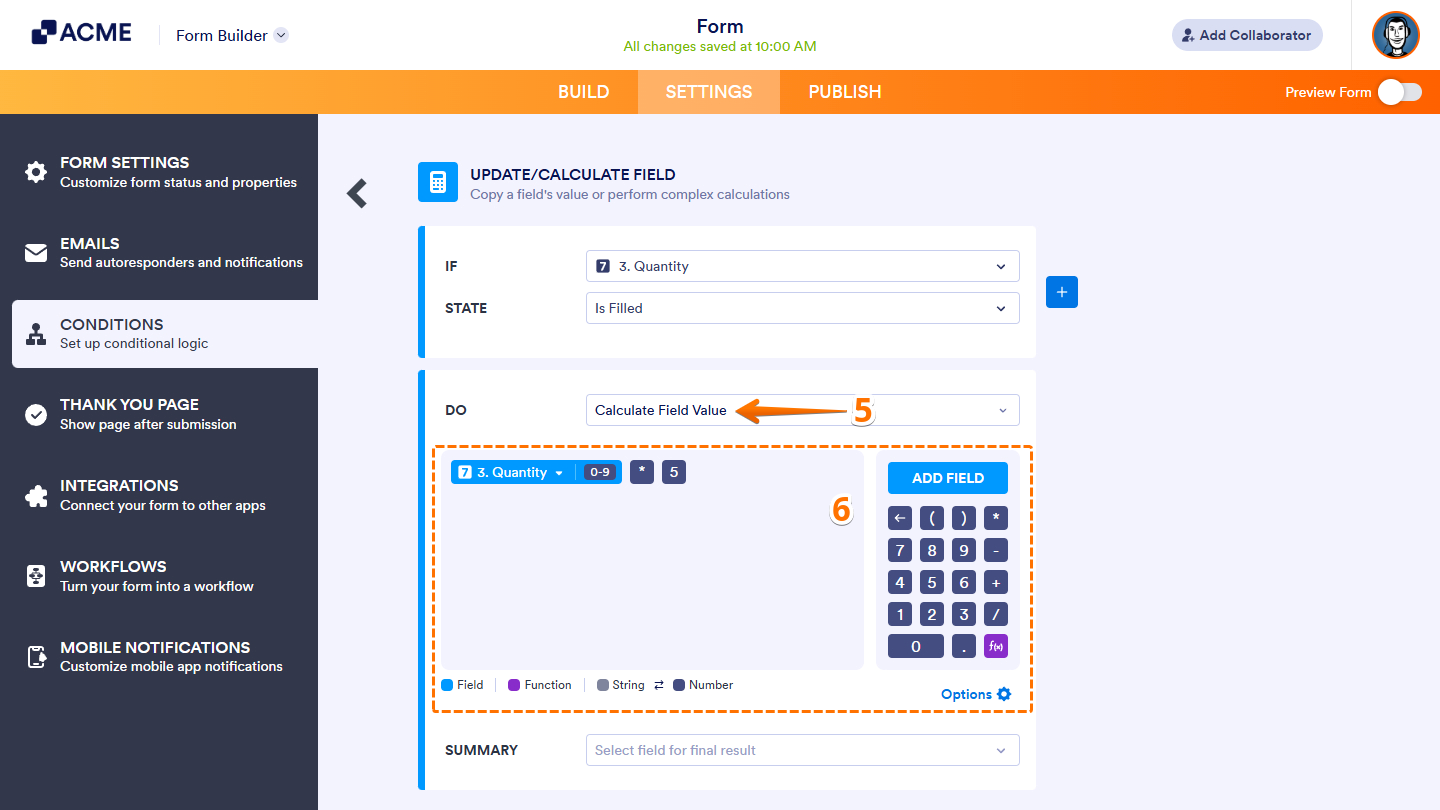
- In the DO dropdown menu, select Calculate Field Value.
- Then, click the Add Field button to add your form fields to the calculation, or use the Formula Keypad to build your formula with numbers and operators.
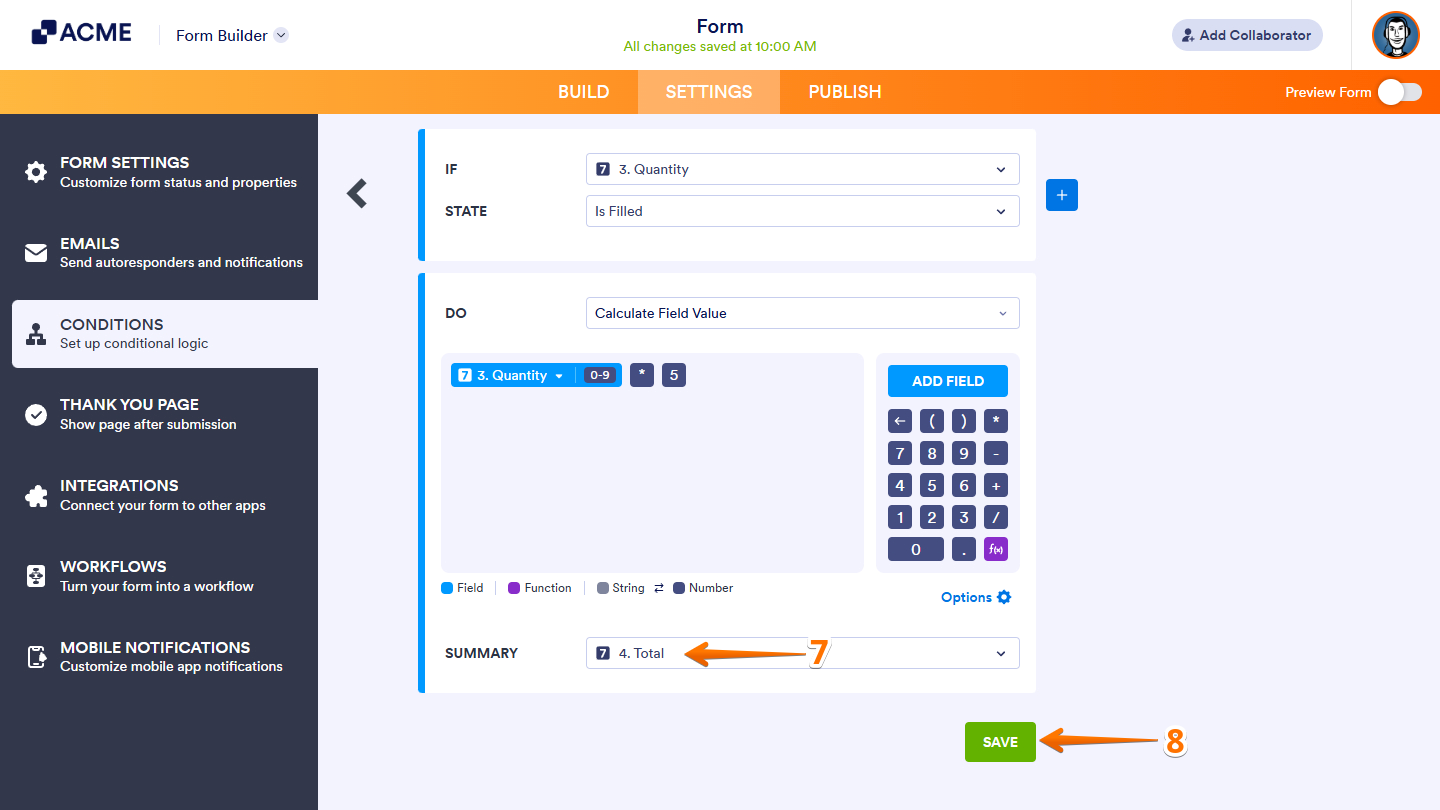
- Next, in the Summary dropdown menu, select the output field.
- Finally, click on Save, and that’s it!
Calculate a Total Using the Form Calculation Widget
You can also calculate a total automatically by using the Form Calculation Widget. This tool enables you to combine values from different fields, apply mathematical operations, and display the results instantly. It’s a flexible way to perform calculations directly within your form without setting up complex conditions. This is how it’s done:
- In Form Builder, click on Add Element on the left side of the page.

- Now, in the Form Elements menu, under the Widgets tab, search for Form Calculation and click on it. Or, just drag and drop it to where you want it to be on your form.

- Next, in the Form Calculation Widget menu that opens on the right side of the page, add your calculation accordingly using the following properties:
- Add Field – This button lets you include form fields in your calculation. When clicked, it displays a list of all available form fields. For longer forms, use the search bar to quickly find the field you need.
- Formula Keypad – Use this section to add numbers and mathematical operators to your calculation.
- f(x) – Located in the Formula Keypad, this purple icon opens a list of prebuilt functions and mathematical properties you can include in your formula. A search bar is also available here to help you easily find specific functions.
- Once you’re done, click on Save.
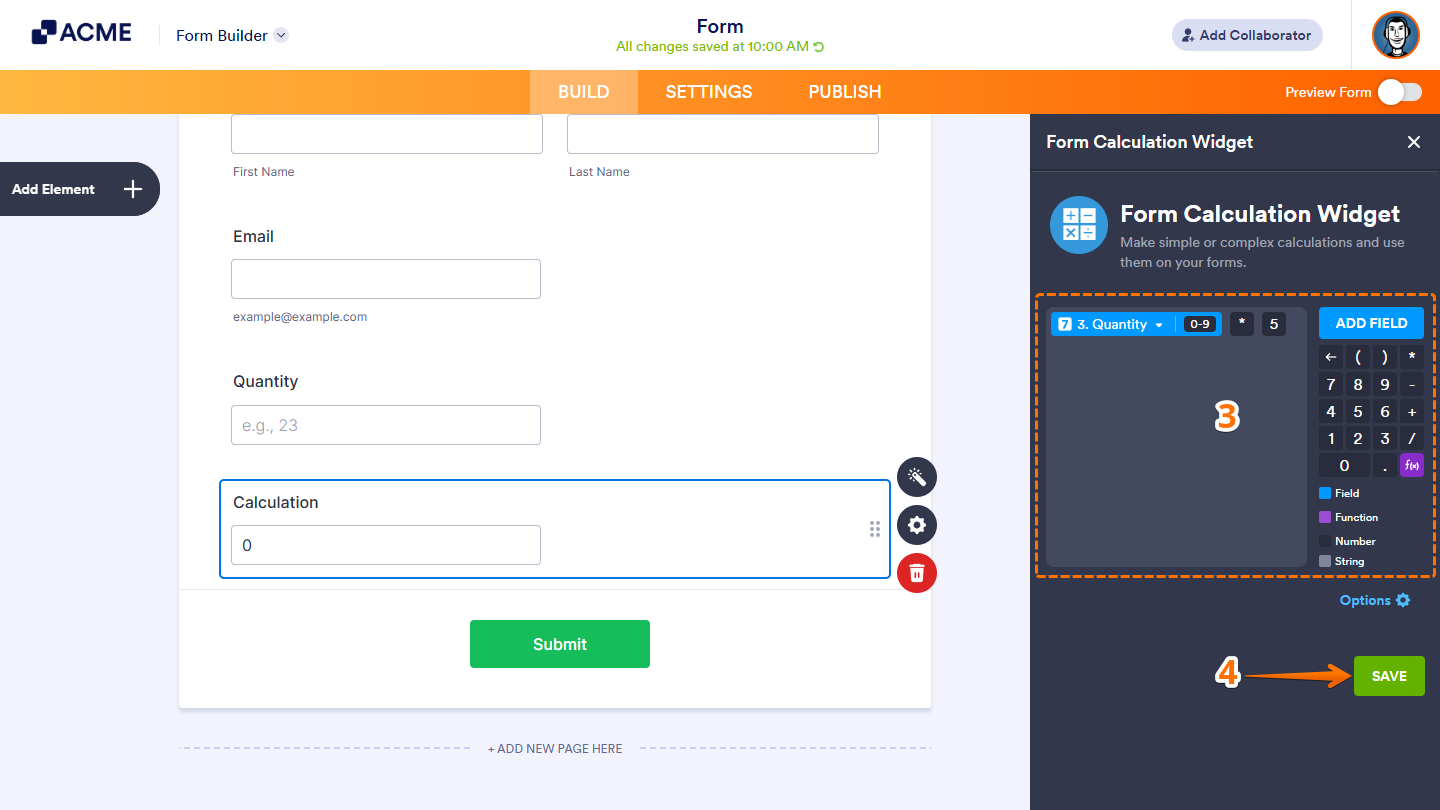
That’s it! Once everything is set up, your form will automatically calculate and display the total based on the fields and formulas you’ve configured.

Send Comment: