Updating your account email address ensures you never lose access to your account and continue receiving important security notifications, billing updates, and system alerts. Whether you have changed your primary email, rebranded your business, or simply want to consolidate your logins, updating your contact details only takes a few steps, here’s how to do it:
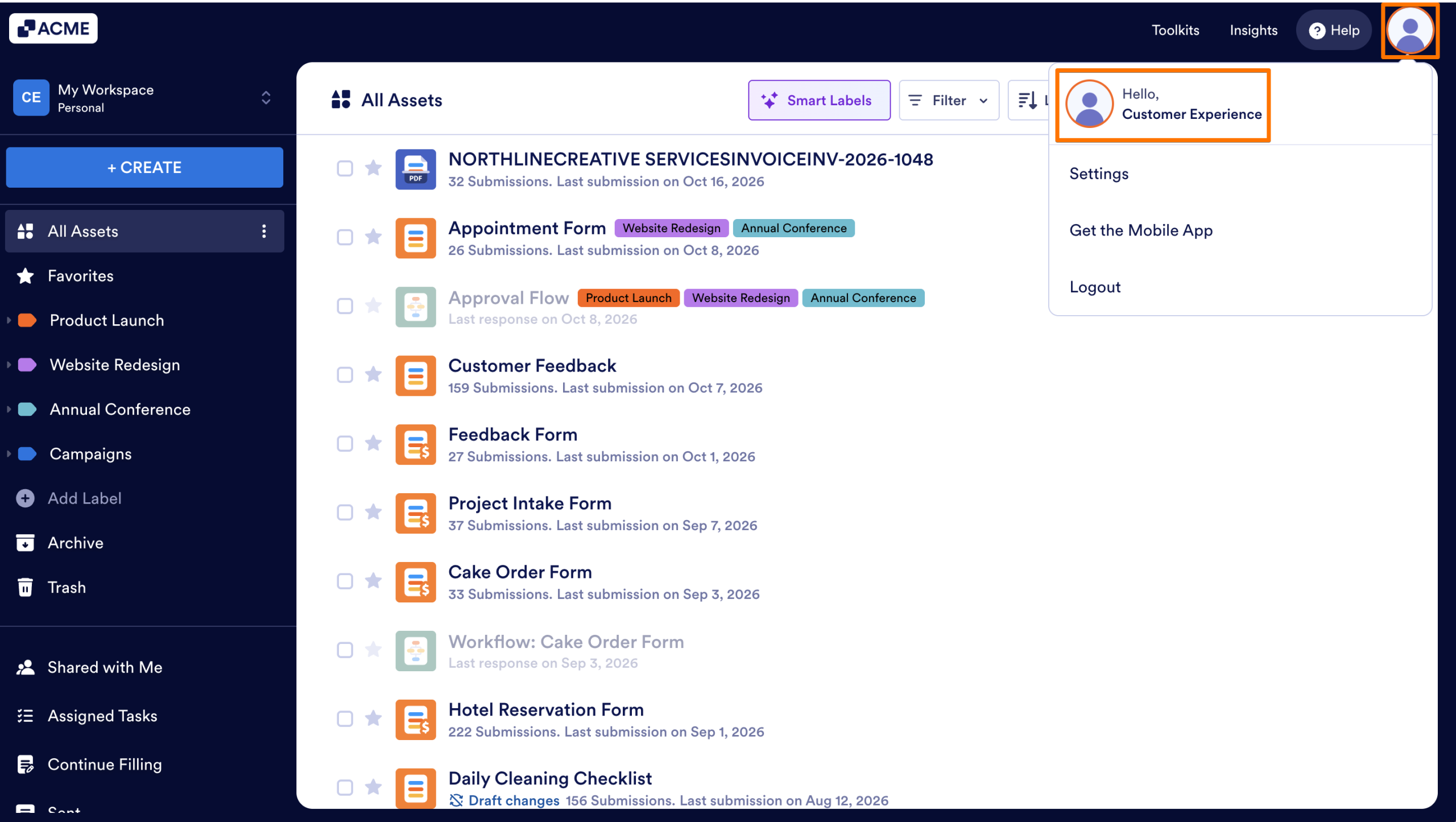
- On your Workspace page, click on your Profile Picture/Avatar on the top-right side of the screen.
- In the menu that opens up, click on your name to open your Account Page in a new browser tab.
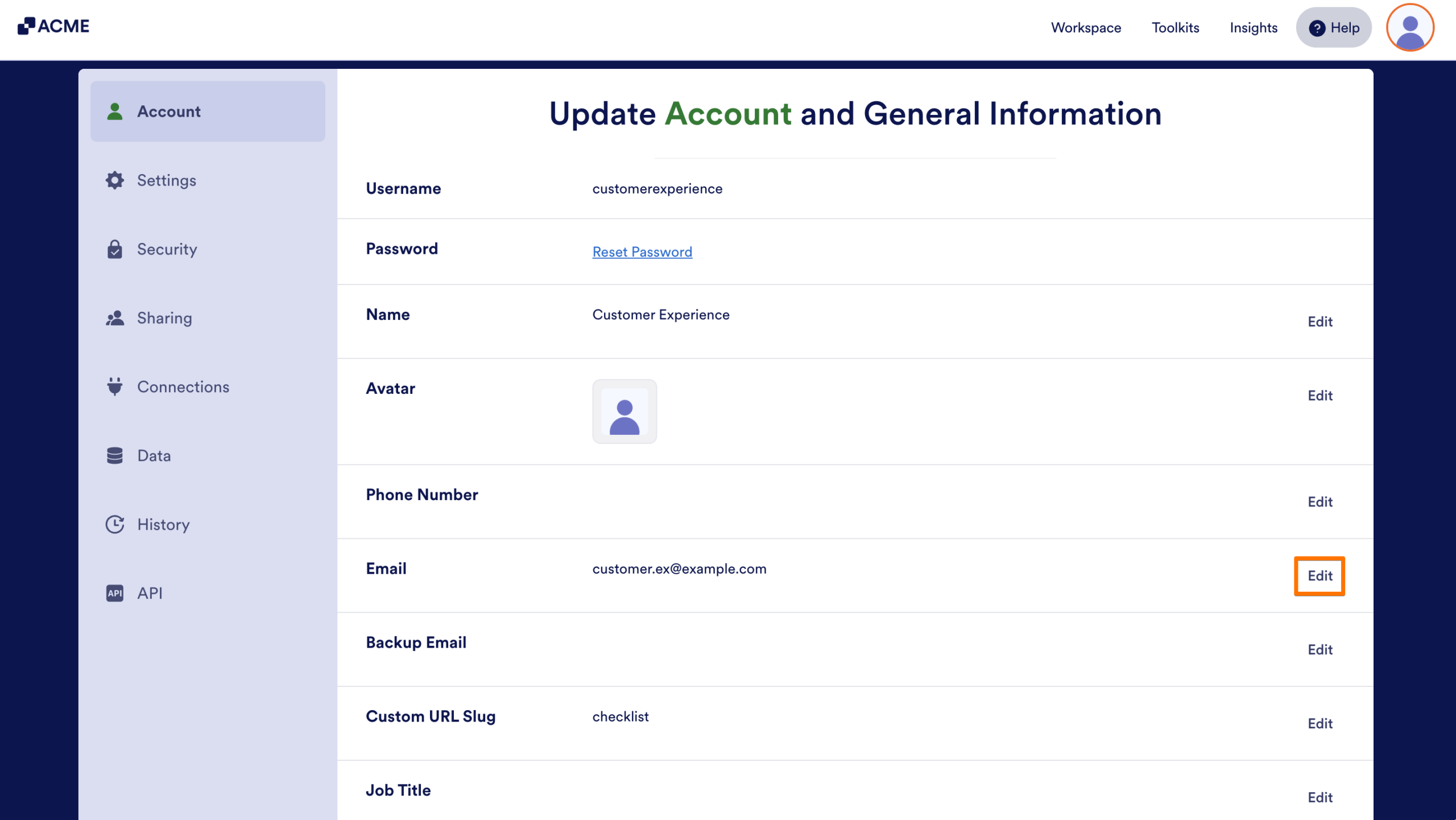
- Now, click on Edit on the right side of your current email address.
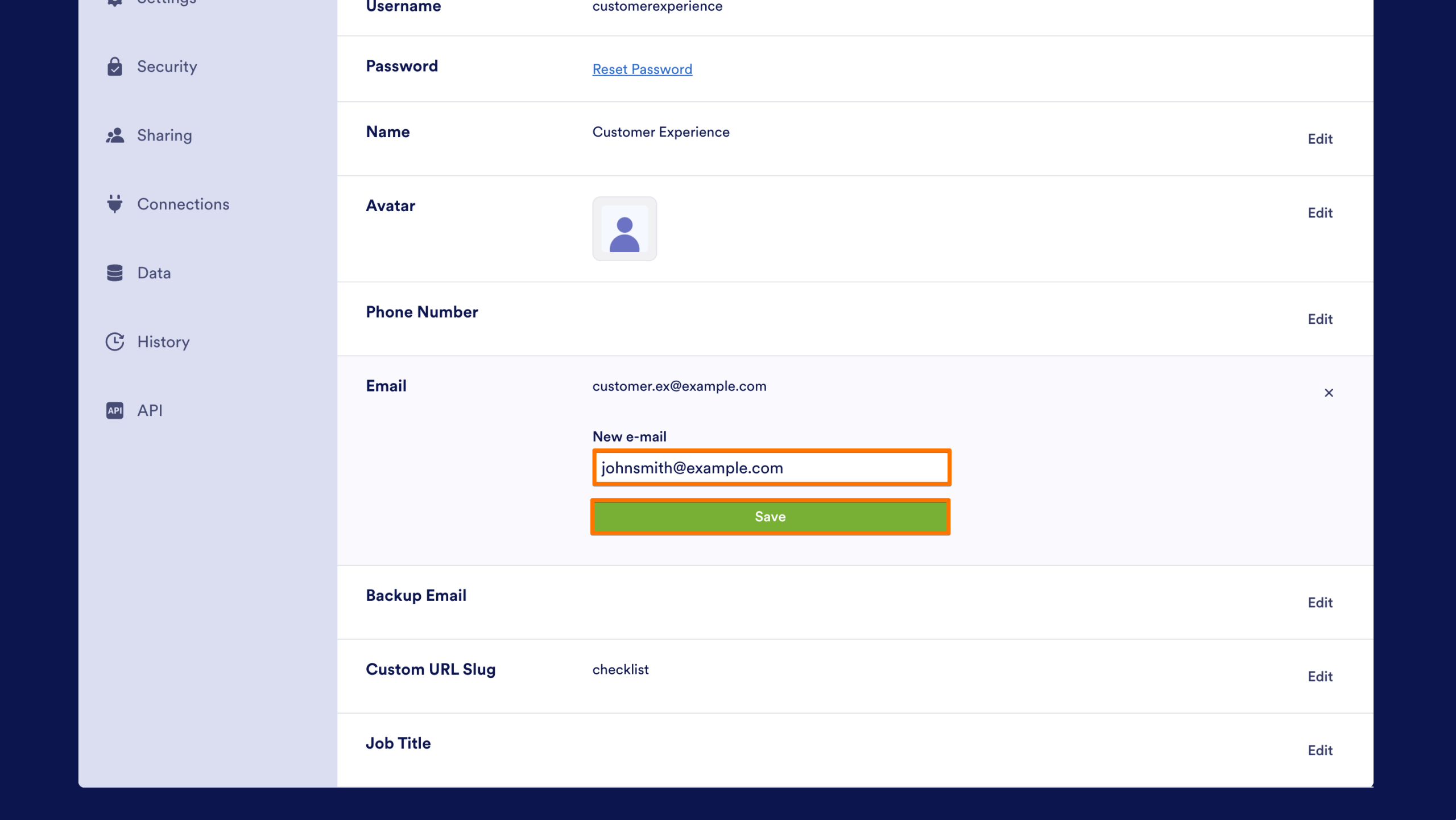
- Then, enter your new email address and click on Save.
Then, you’ll receive an email sent to your new email address to verify it.
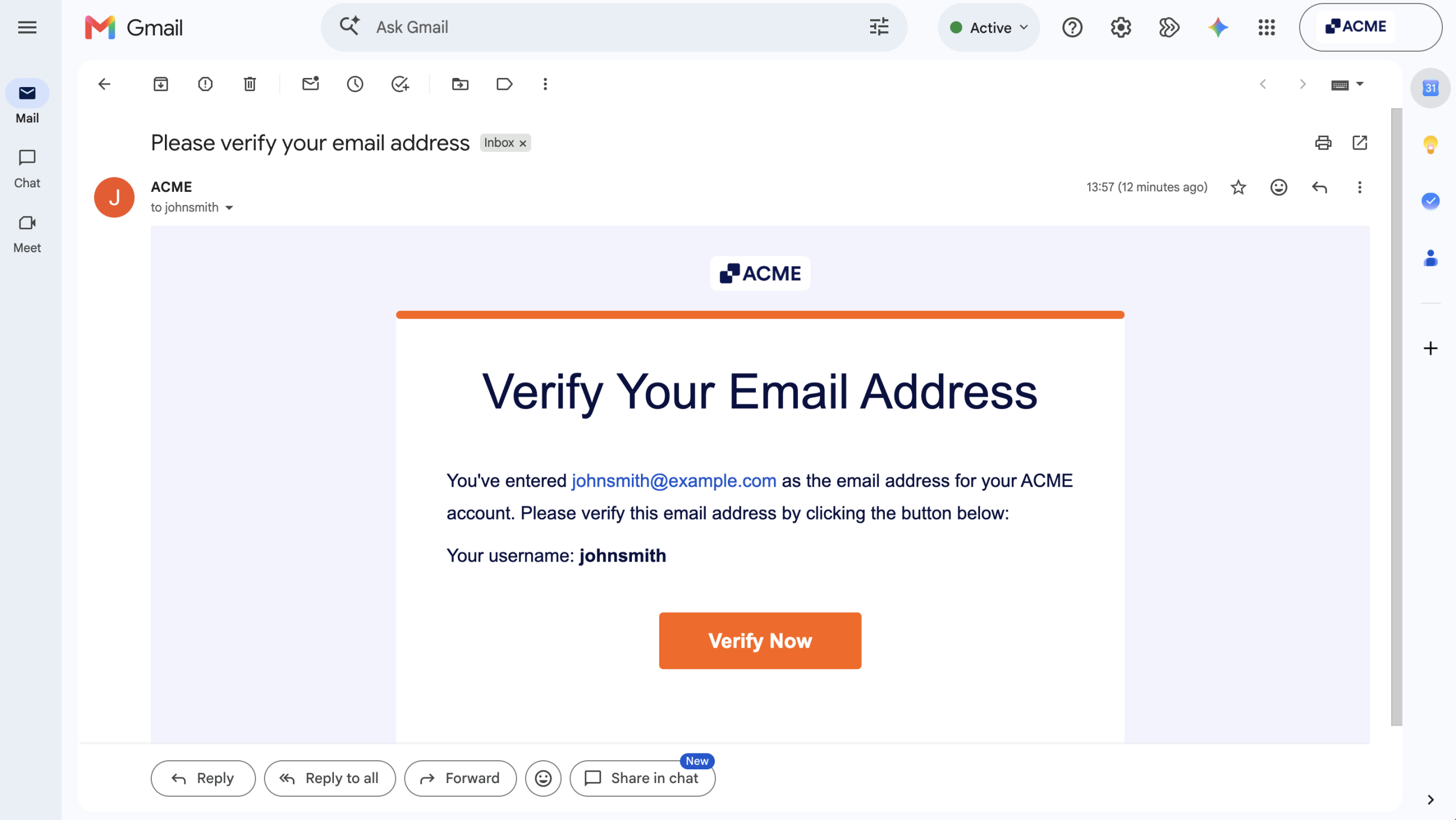
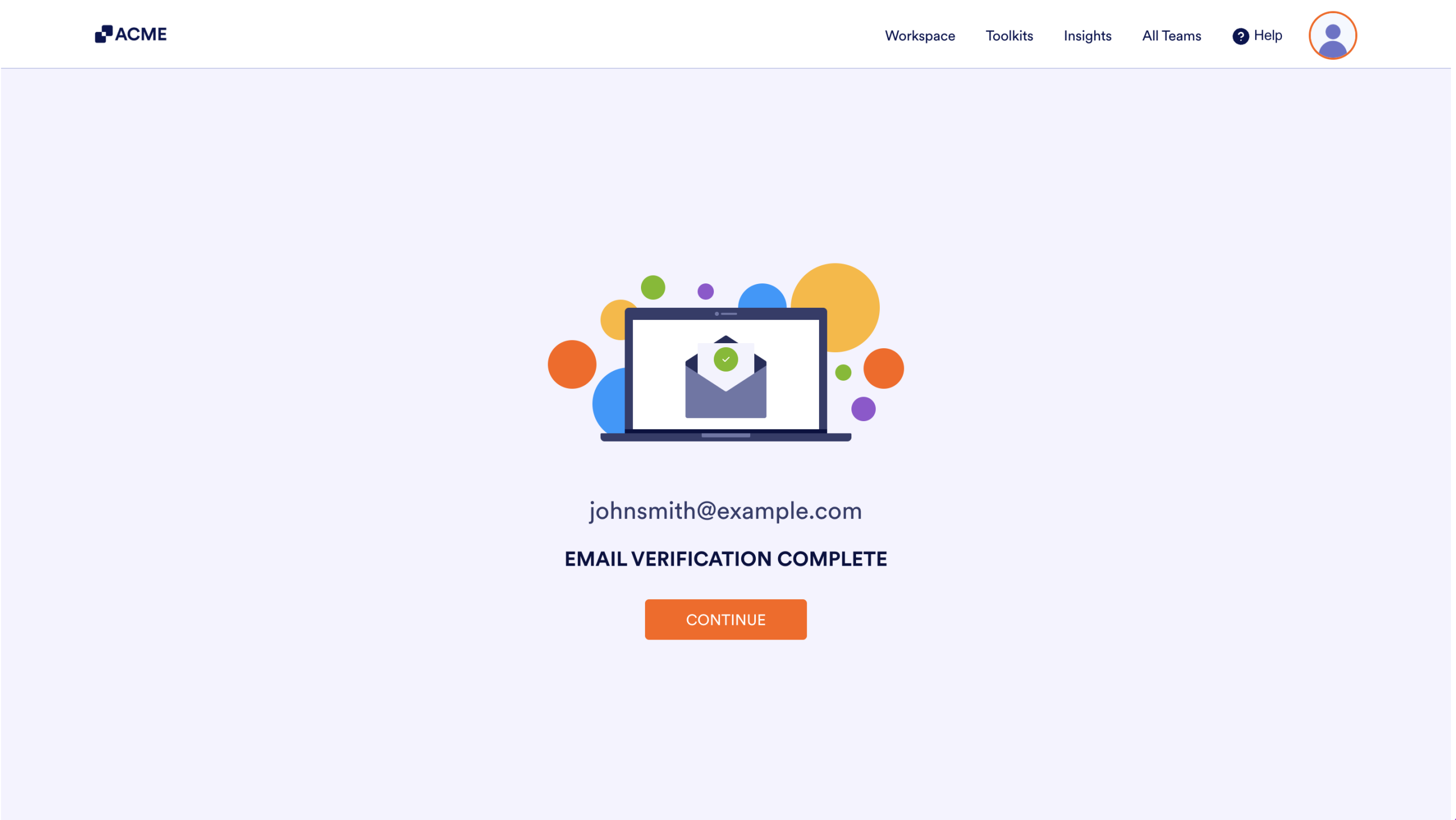
Clicking on the Verify Now button in the email will redirect you to a page saying your new email address has been verified.
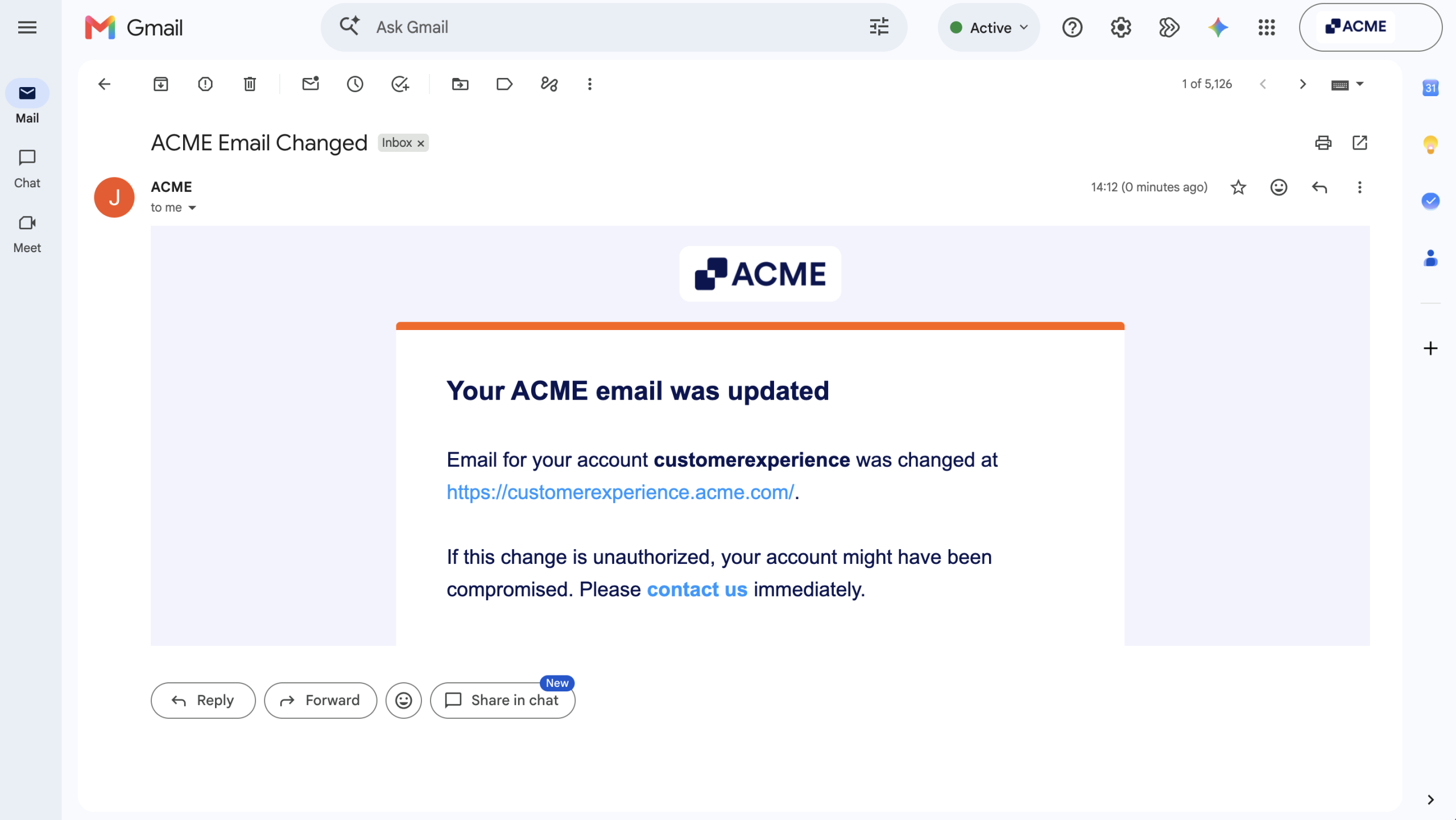
At the same time, a message will be sent to your old email address confirming that your account email address has been updated.
Note
If you only want to change the Email Notification recipients for a form, check out our guide about How to Change the Email Address Used for Email Notification to see how to do that.

Send Comment: