You can easily clone forms in your account whenever you need a backup, a duplicate, or a starting point for a new project. Cloning is useful if you want to keep the same design, settings, and layout across multiple forms without rebuilding them from scratch. It’s also a quick way to update an old form for a new purpose while keeping most of the original structure intact.
You can clone a form in your account in just a few easy steps. Here’s how to do it:
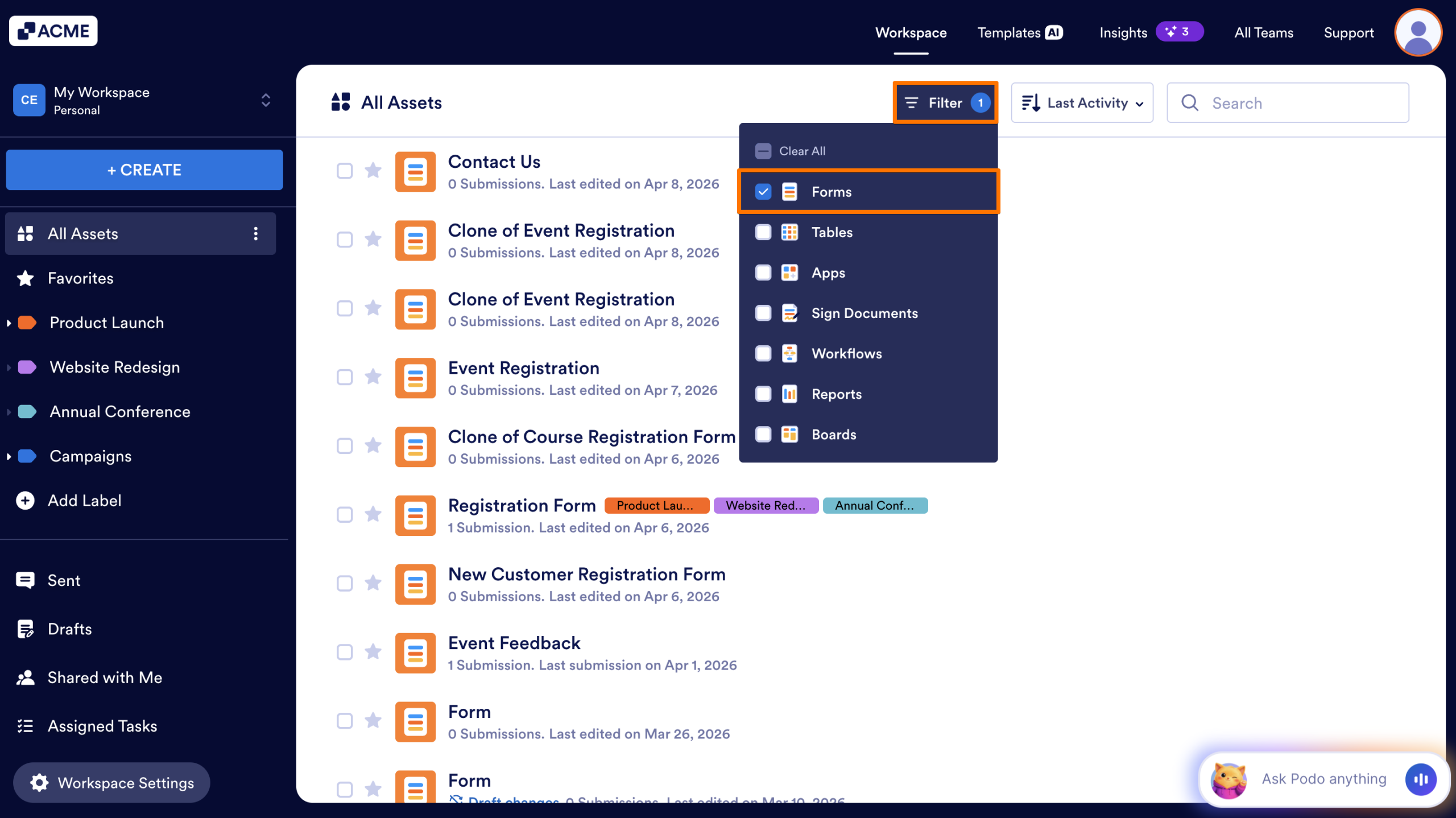
- On your My Workspace page, click on Filter at the top of the page, and in the Dropdown menu that opens, uncheck the boxes next to all the assets except Forms, so only they’ll be shown on the page.
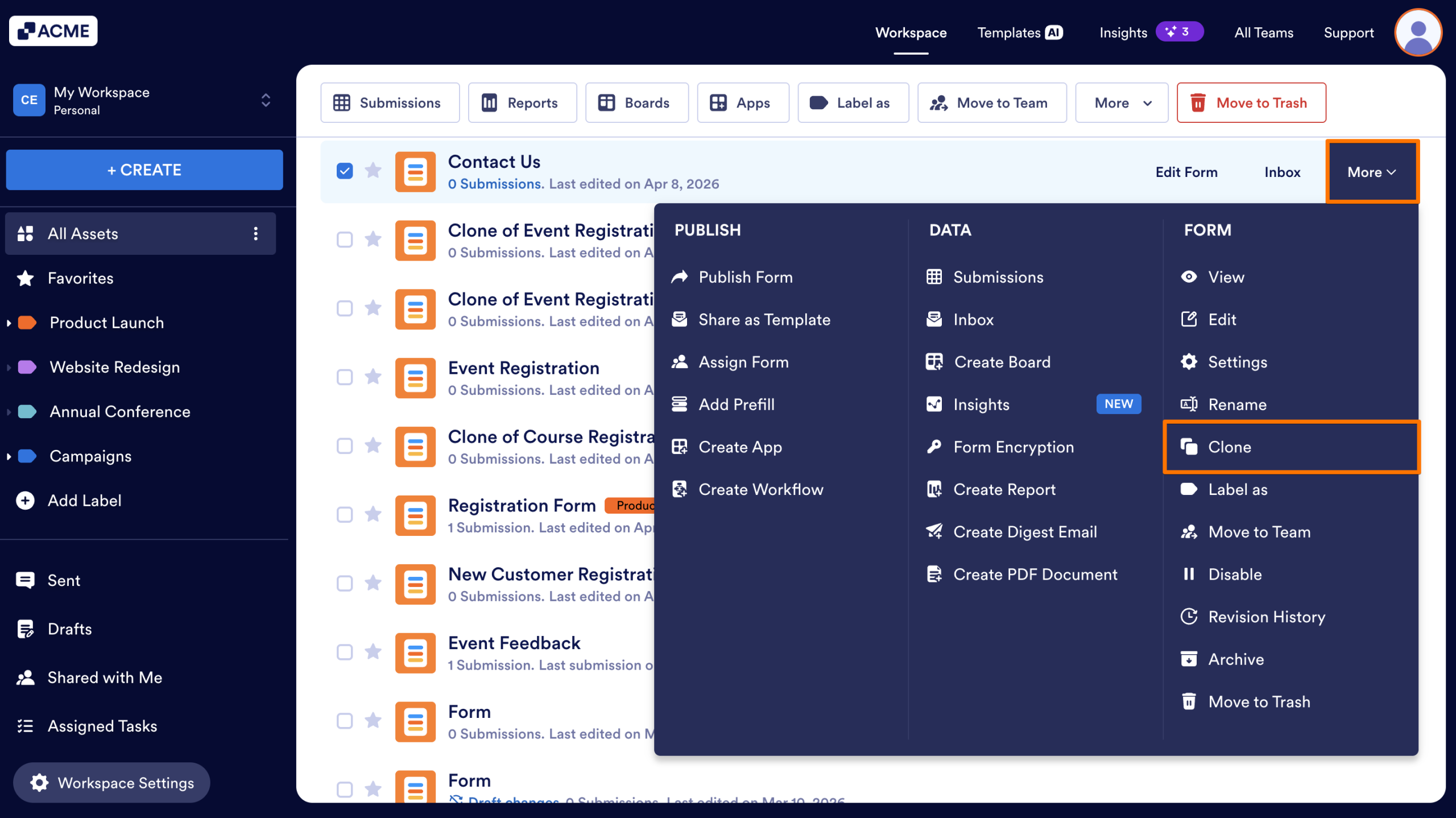
- Now, hover your mouse over the form you want to clone, and click on More on the right side of the page.
- Then, in the Dropdown menu, under the Form column, click on Clone.
This creates a new form in your account and redirects you to Form Builder, where you can Customize the Style, Set up the Fields, and Configure the Settings.
Notes
- The cloned form is an exact copy of the original but works independently, so any changes you make won’t affect the original.
- When you clone a form from another account, everything related to the form itself is copied, including the logo, basic fields, payment fields, widgets, pages, sections, color, style, theme, and layout.
- Most form settings are also copied, such as the Conditionally Enabled Form Status, Form Warnings, Form Languages, Password Protection, Auto-Delete Submissions, Save and Continue Later, Unique Submission, Unique Field, Form Accessibility, Page Title, Clear Hidden Field Values, Highlight Effect, Form Layout, Show Error Navigation, Prevent Cloning, and Allow Browser Autocomplete. Encryption is automatically disabled.
- Notification and Autoresponder Emails, along with their subject, content, recipients, and other settings, are copied as they are. Conditions, Thank-You Page settings, Jotform Sign Automation setup, Workflows, Fillable PDFs, and PDF Documents are also copied, but integrations, prefills, and reports are not.
- Third-party accounts connected to widgets are disconnected, while payment gateways remain connected to payment processing fields in the cloned form.
- Form submission data aren’t copied when you clone a form. To copy submissions to the cloned form, export them from the original form and import them into the new one.
- The cloned form keeps the same name as the original but is prefixed with “Clone of.”
Beyond the “More” menu on your workspace, you can also clone forms from your account using the dedicated Import Form tools. Here are three additional ways to clone your forms:
Clone Your Form
This is the most direct way to duplicate an existing asset within your account through the creation menu.
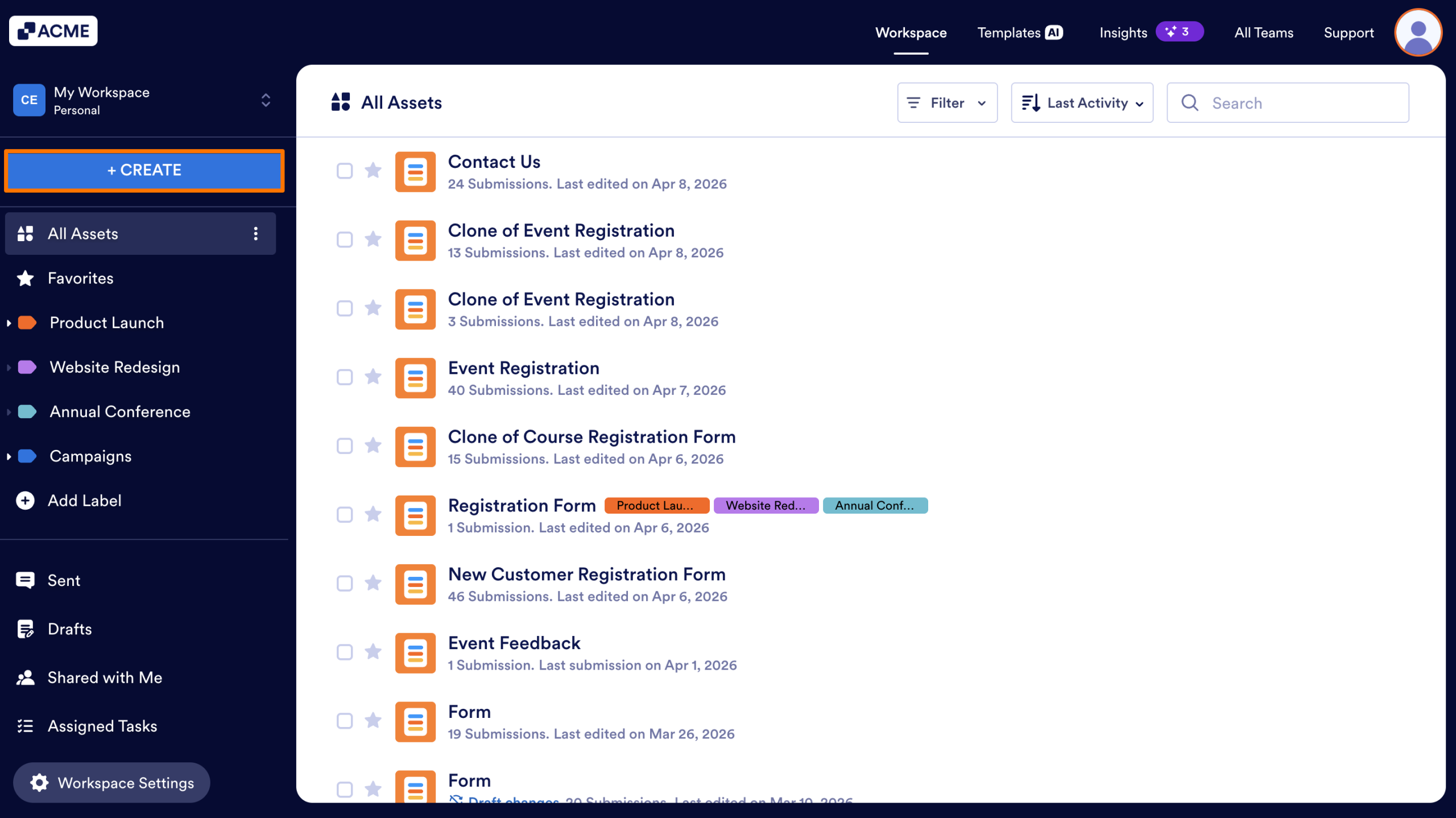
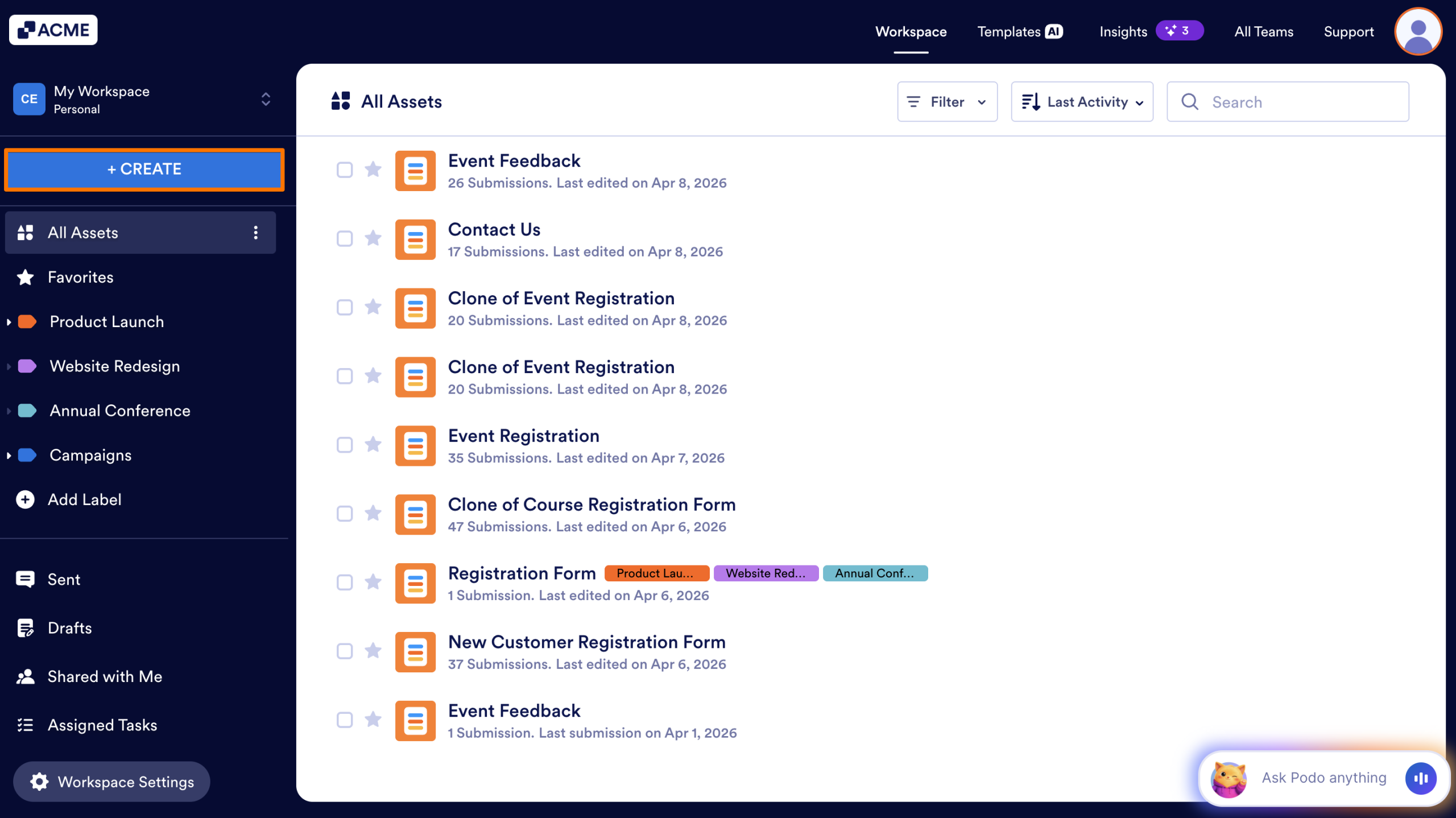
- On your My Workspace page, click the Create Form button at the top left.
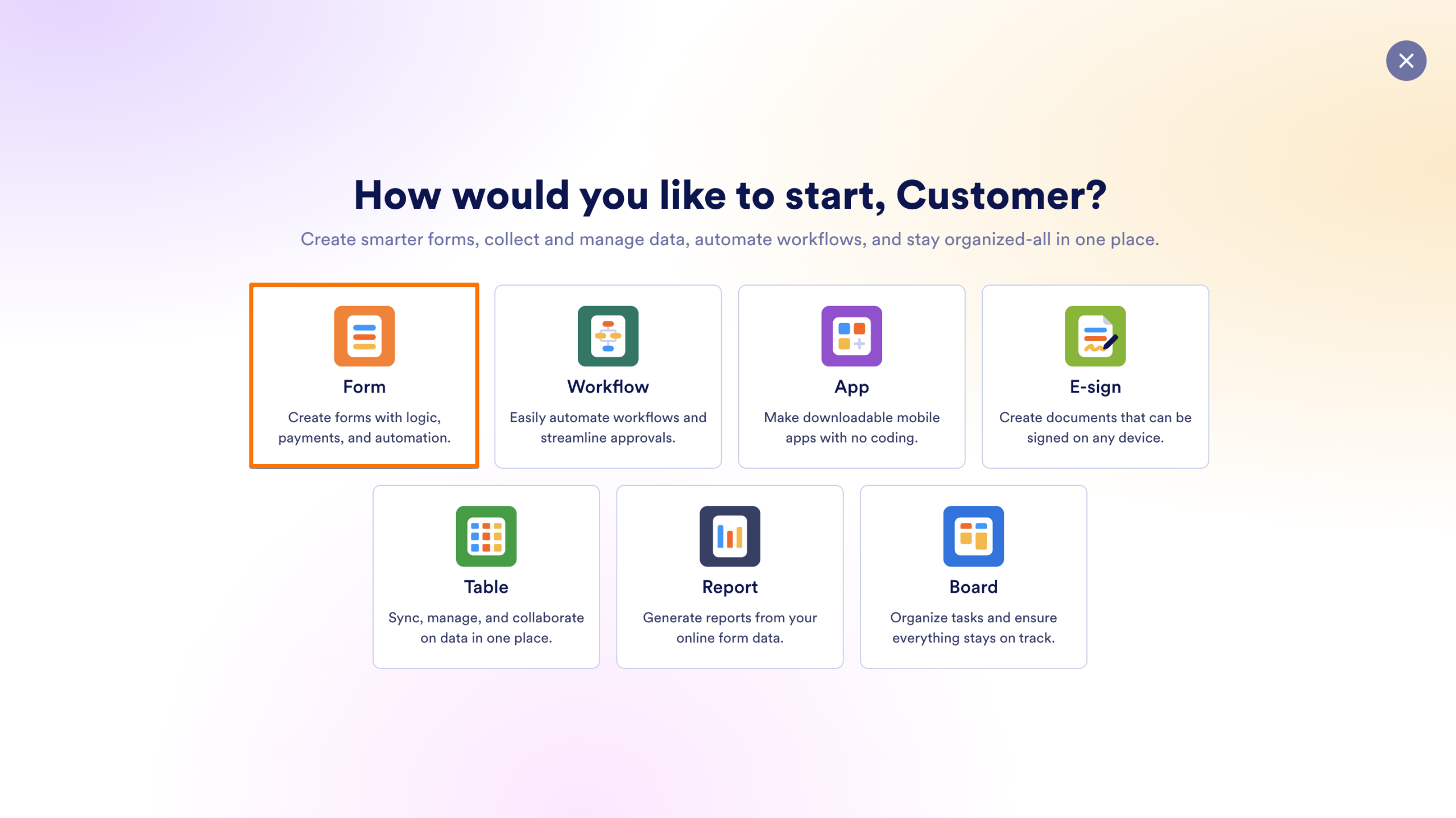
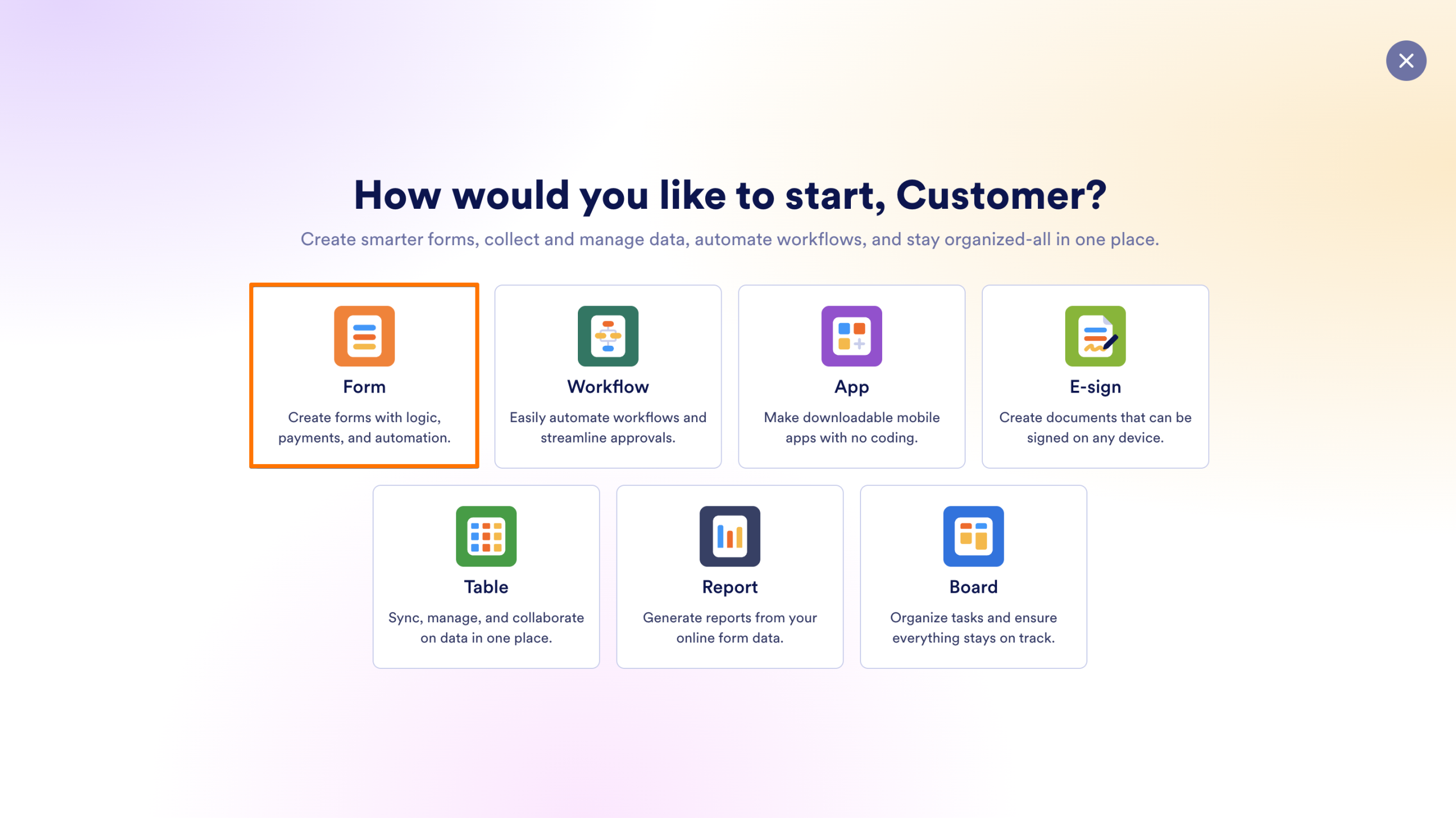
- Select Form from the available assets.
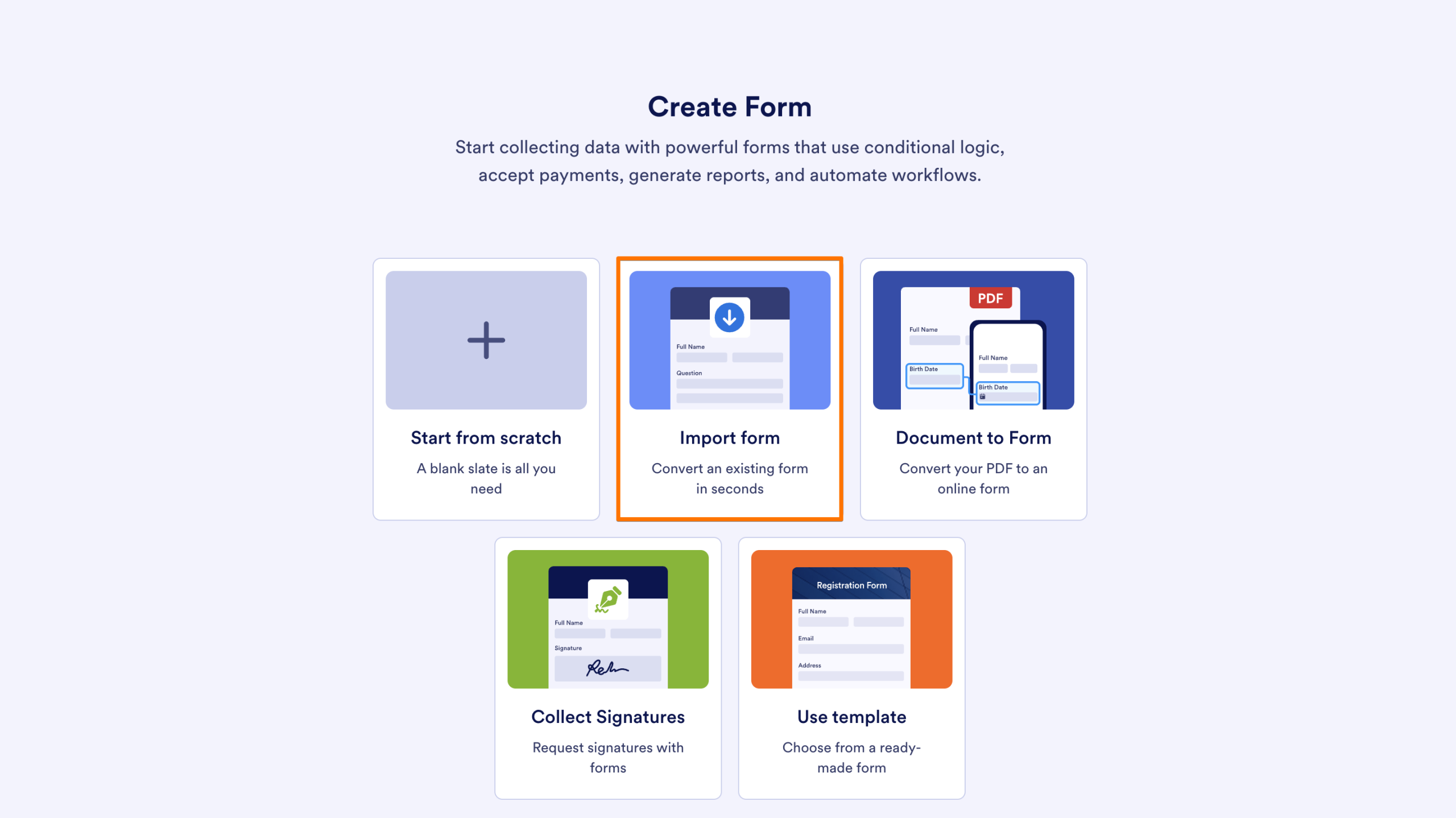
- Then, click on Import Form.
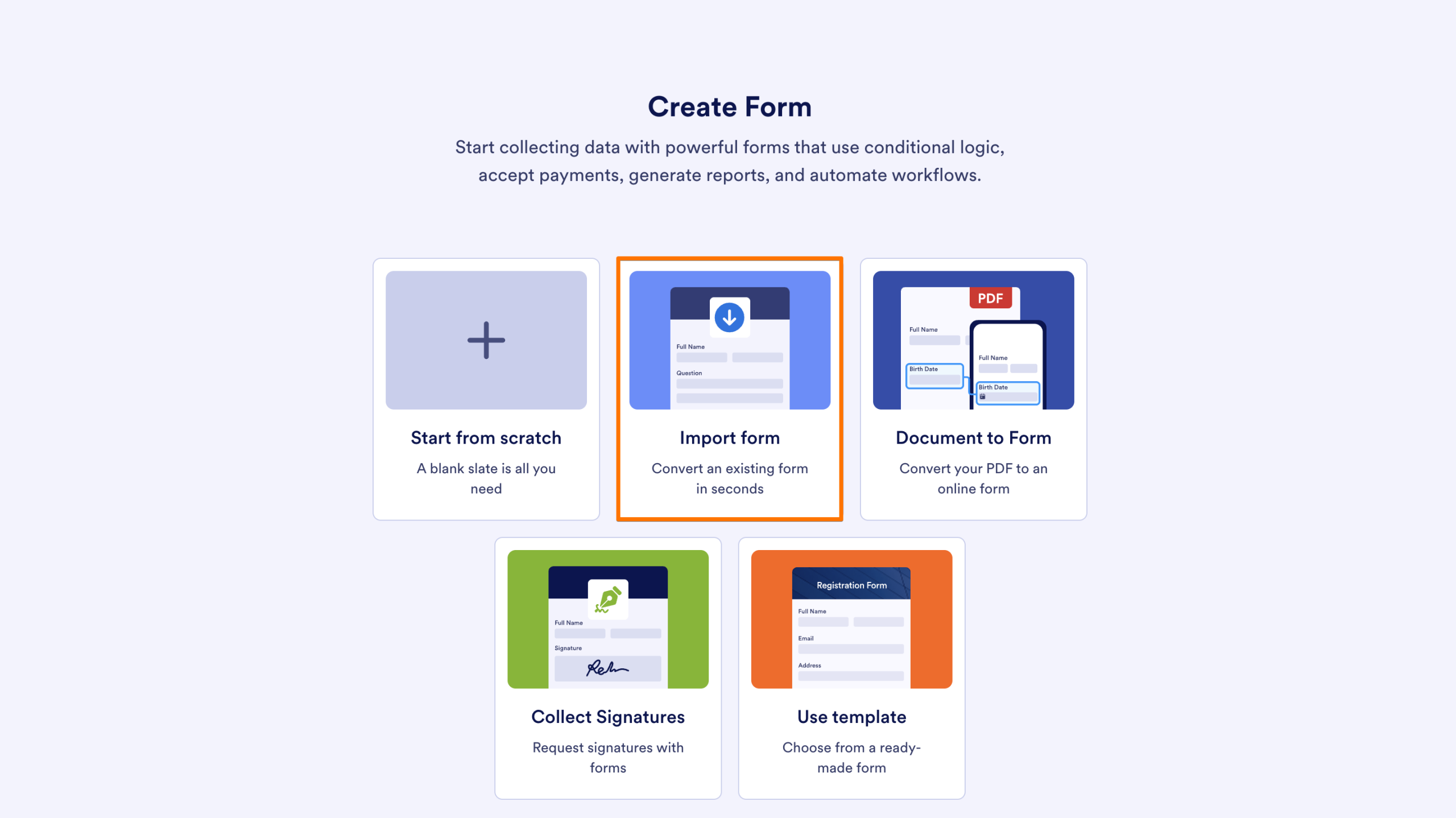
- Next, choose Clone your form.
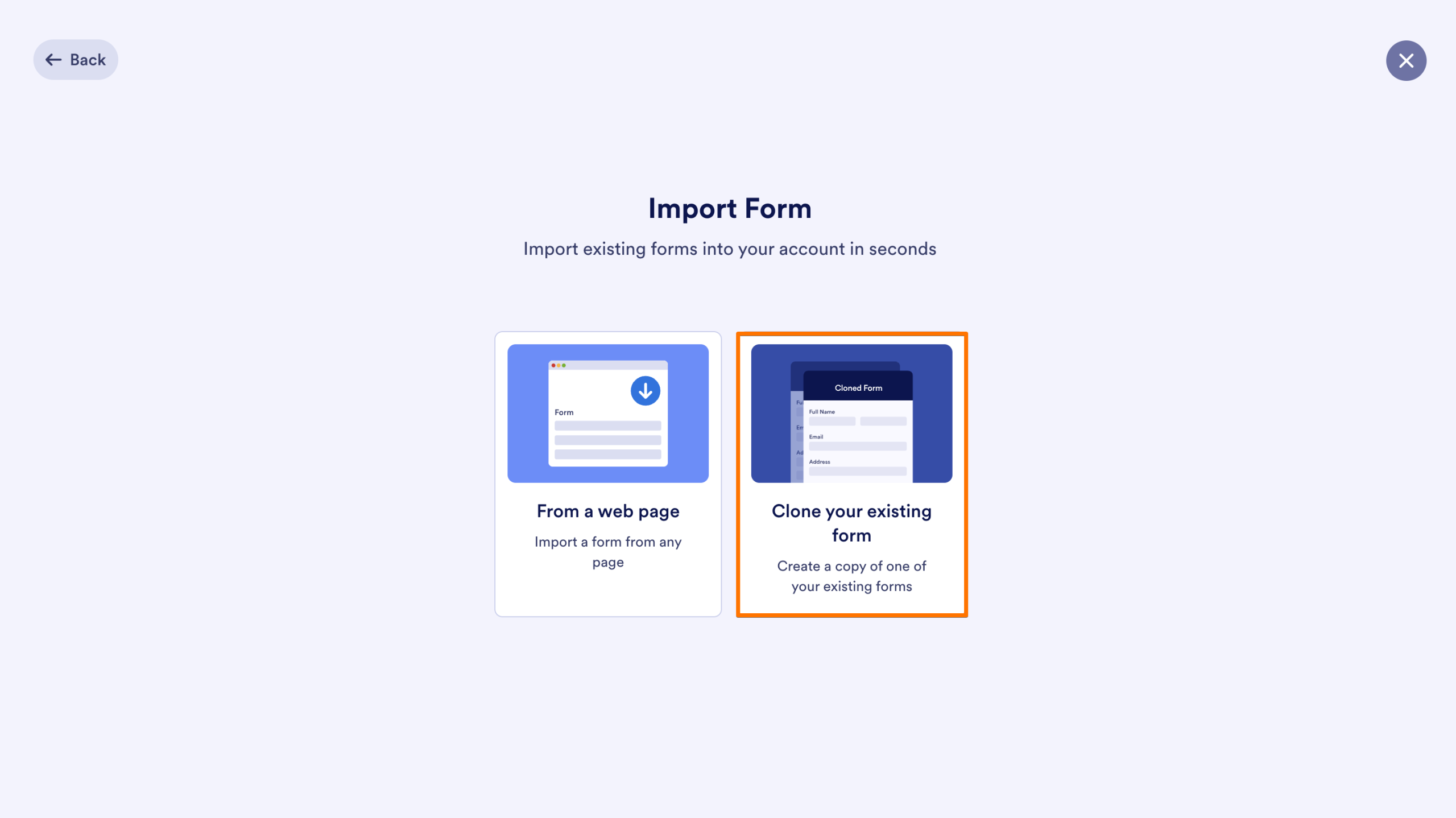
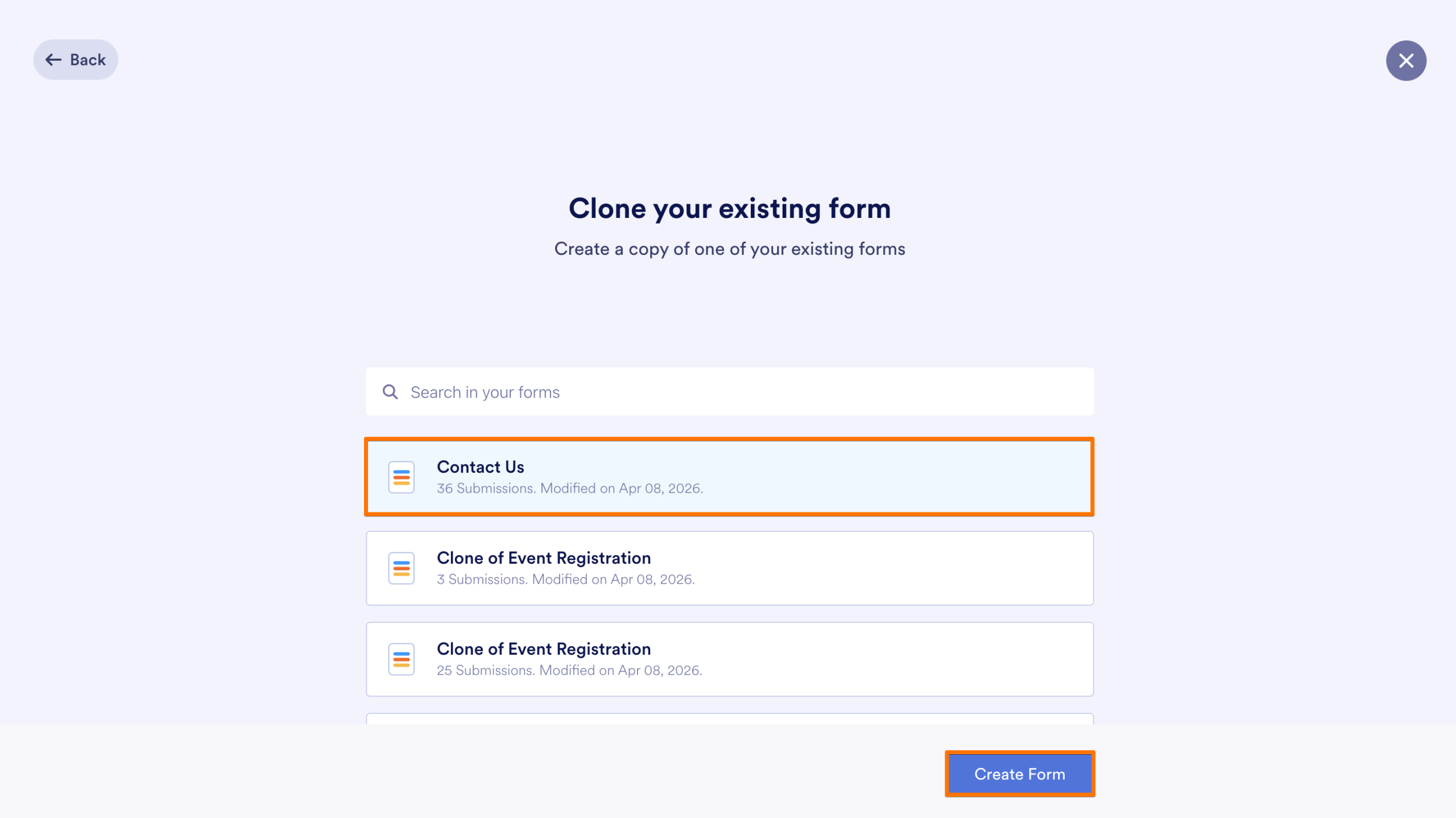
- Then, pick the specific form you want to duplicate from the menu.
- Finally, click on the Create Form button to generate the copy and enter the Form Builder.
Import from web page
You can clone any form in your account using its web address.
- On your My Workspace page, click the Create Form button at the top left.
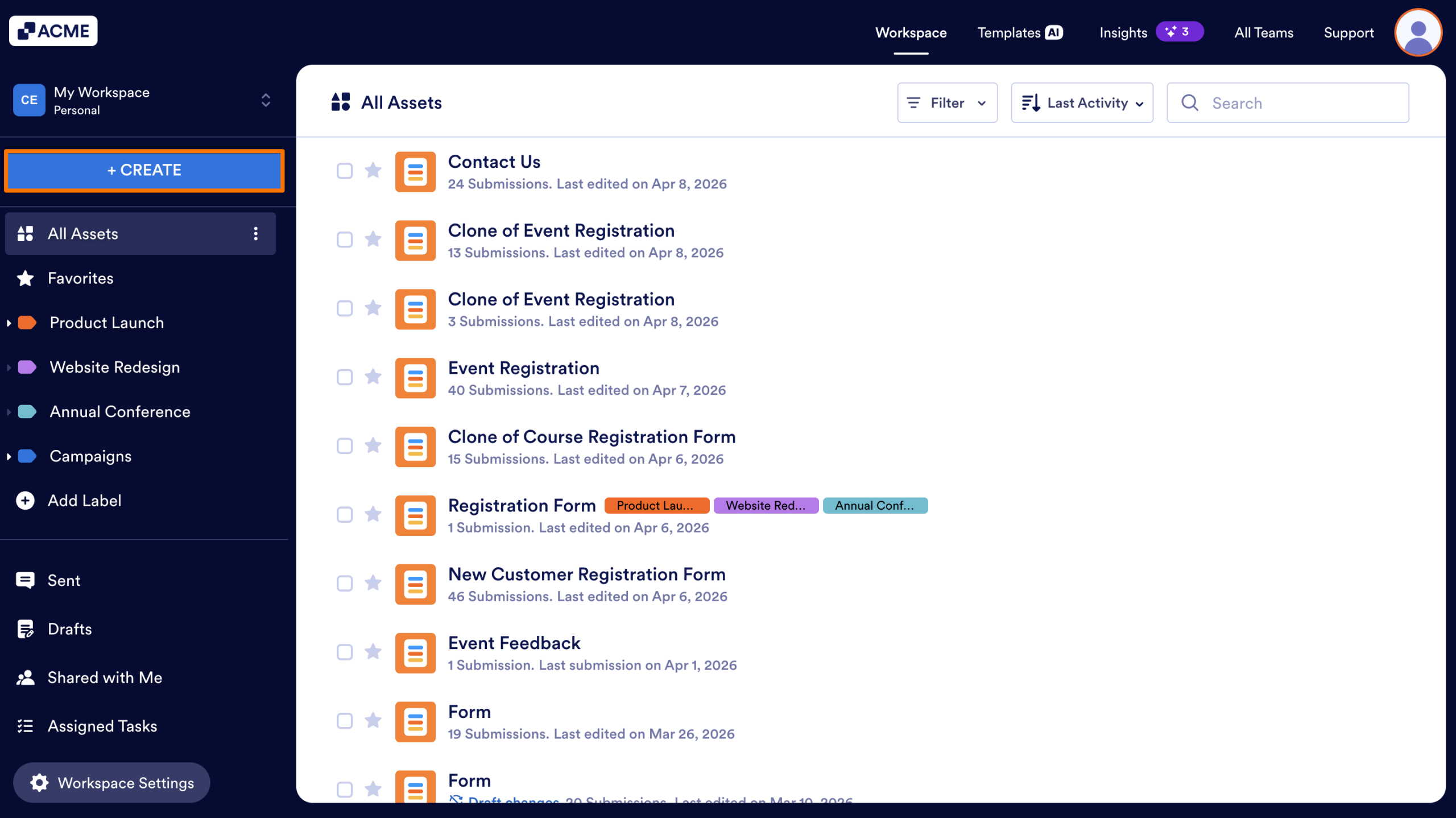
- Select Form from the available assets.
- Then, click on Import Form.
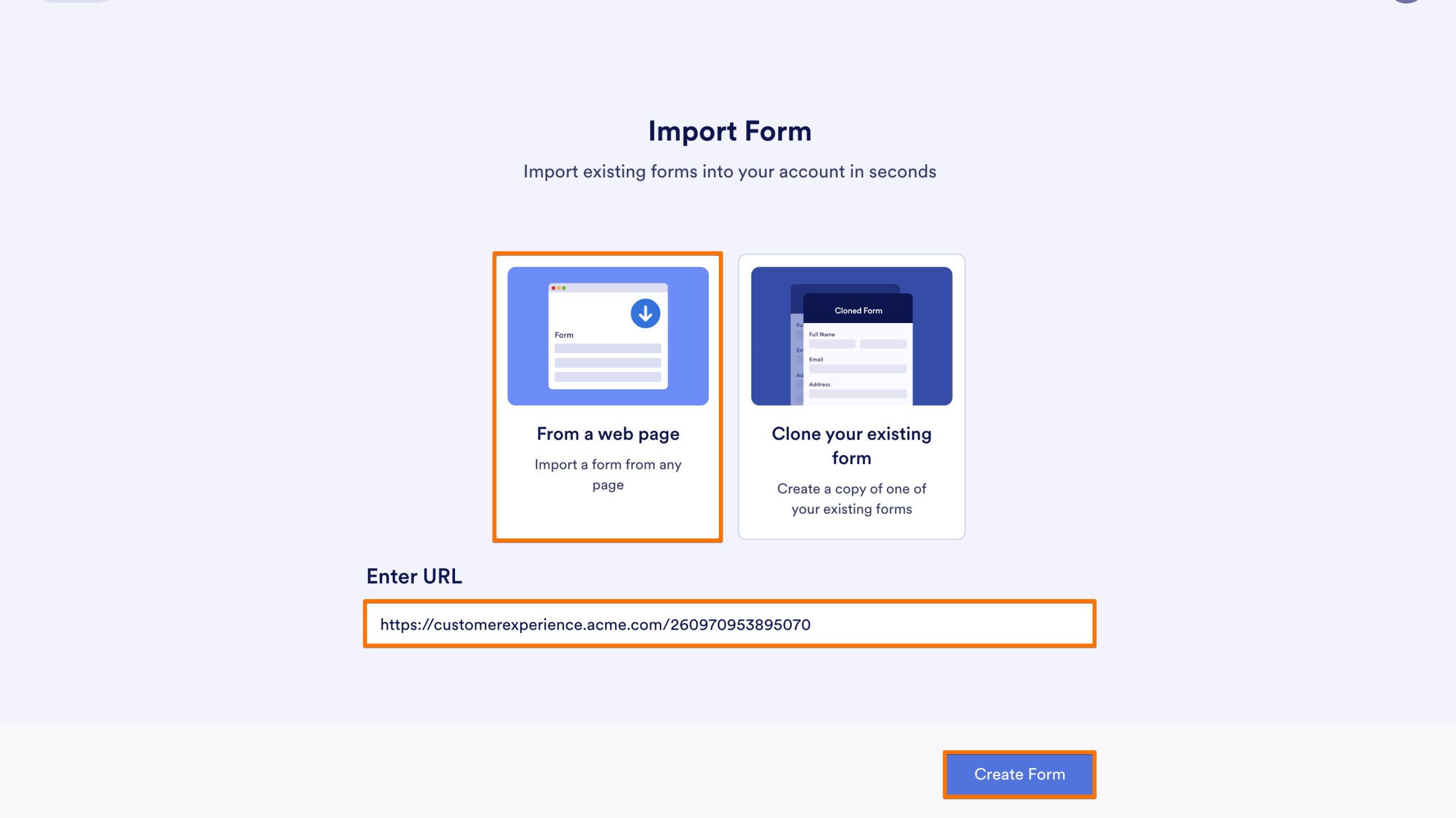
- Next, choose From a web page.
- Paste the direct URL link of the form you want to clone and click Create Form to pull the design and settings into a new form in your account.
Import with AI
If you have Jotform AI turned on, and you want to clone an existing form but want the AI to help you modify it during the process, this is the best route.
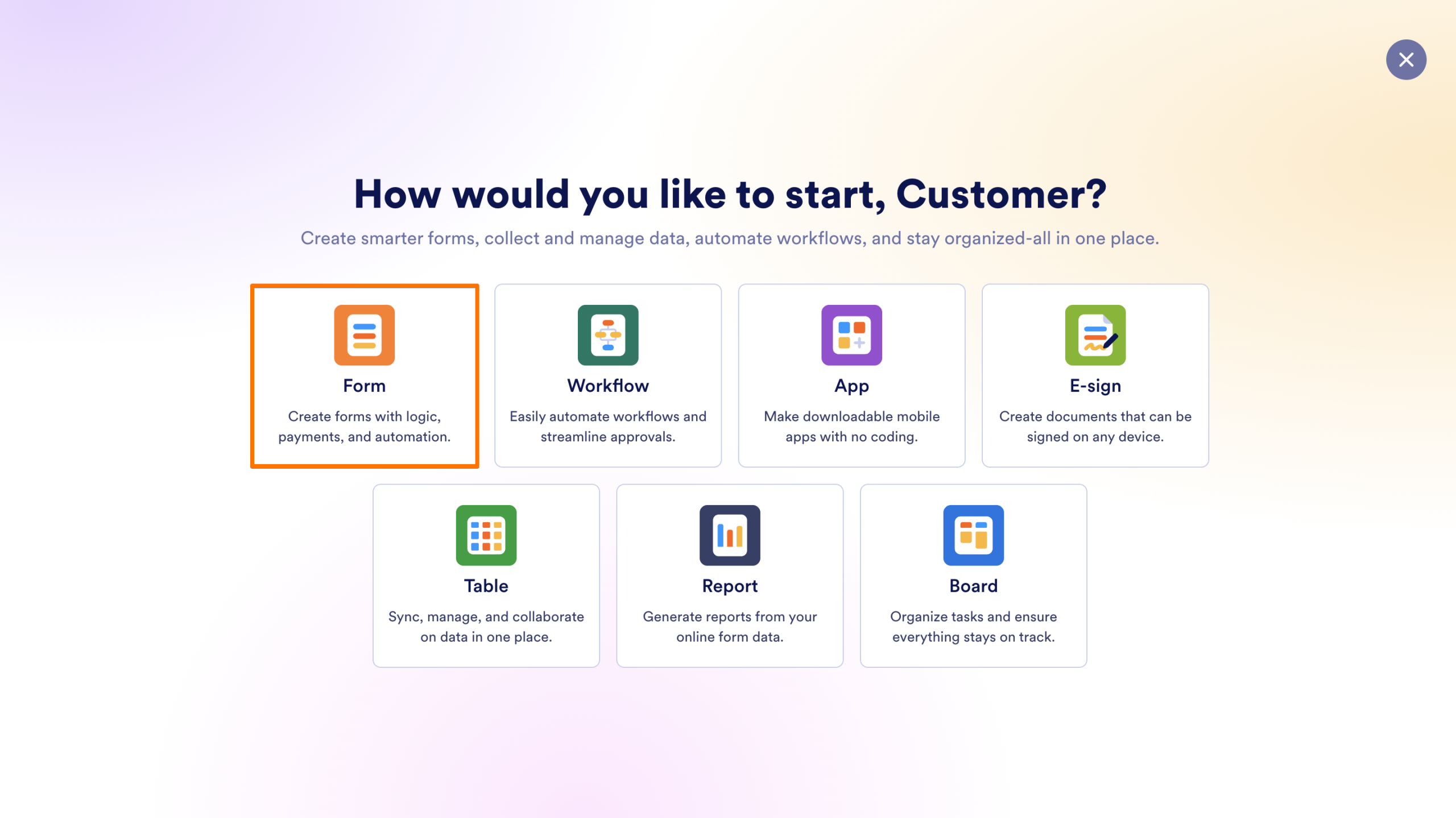
- On your My Workspace page, click the Create Form button at the top left.
- Select Form from the available assets.
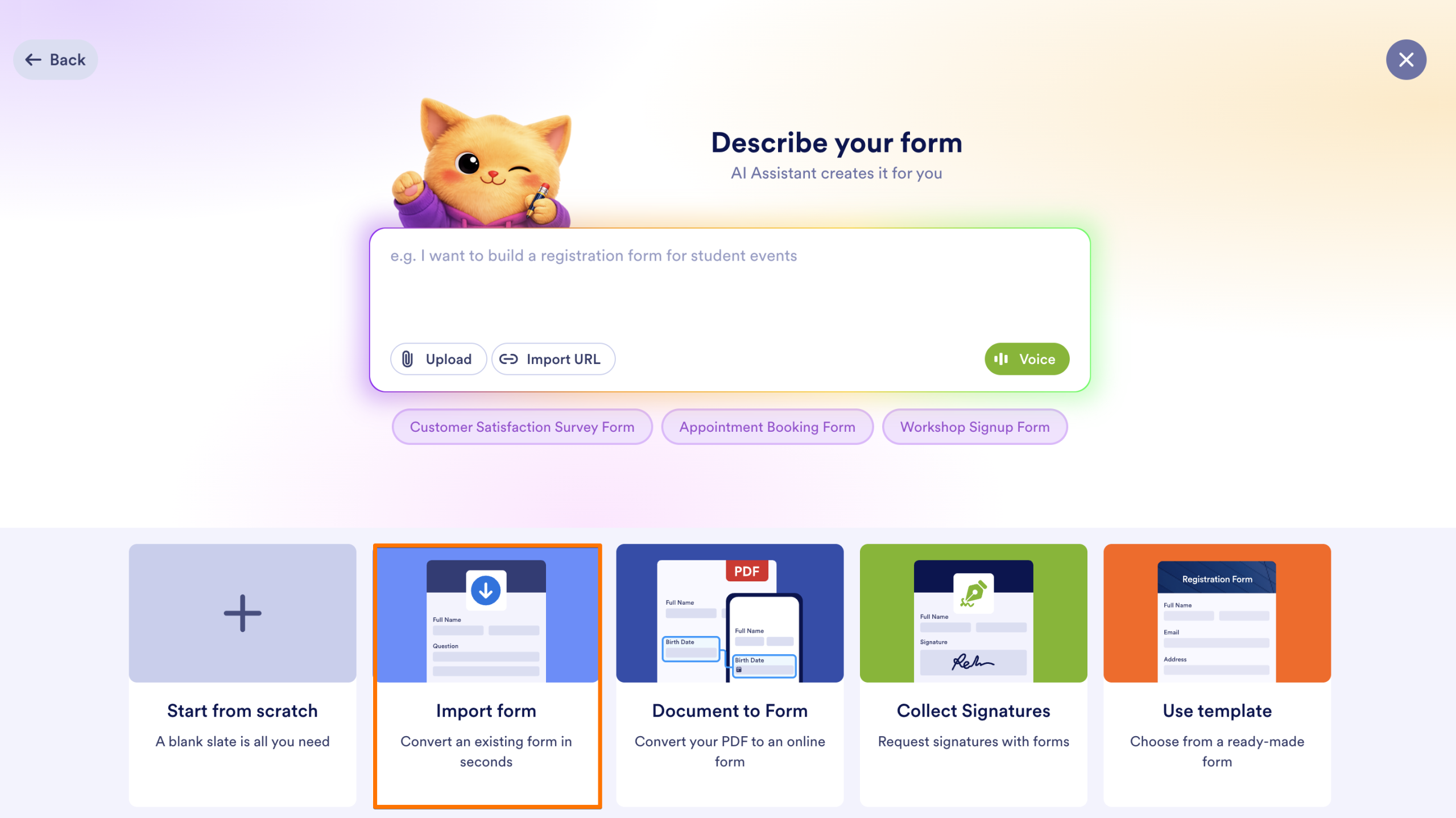
- Then, click on Import Form.
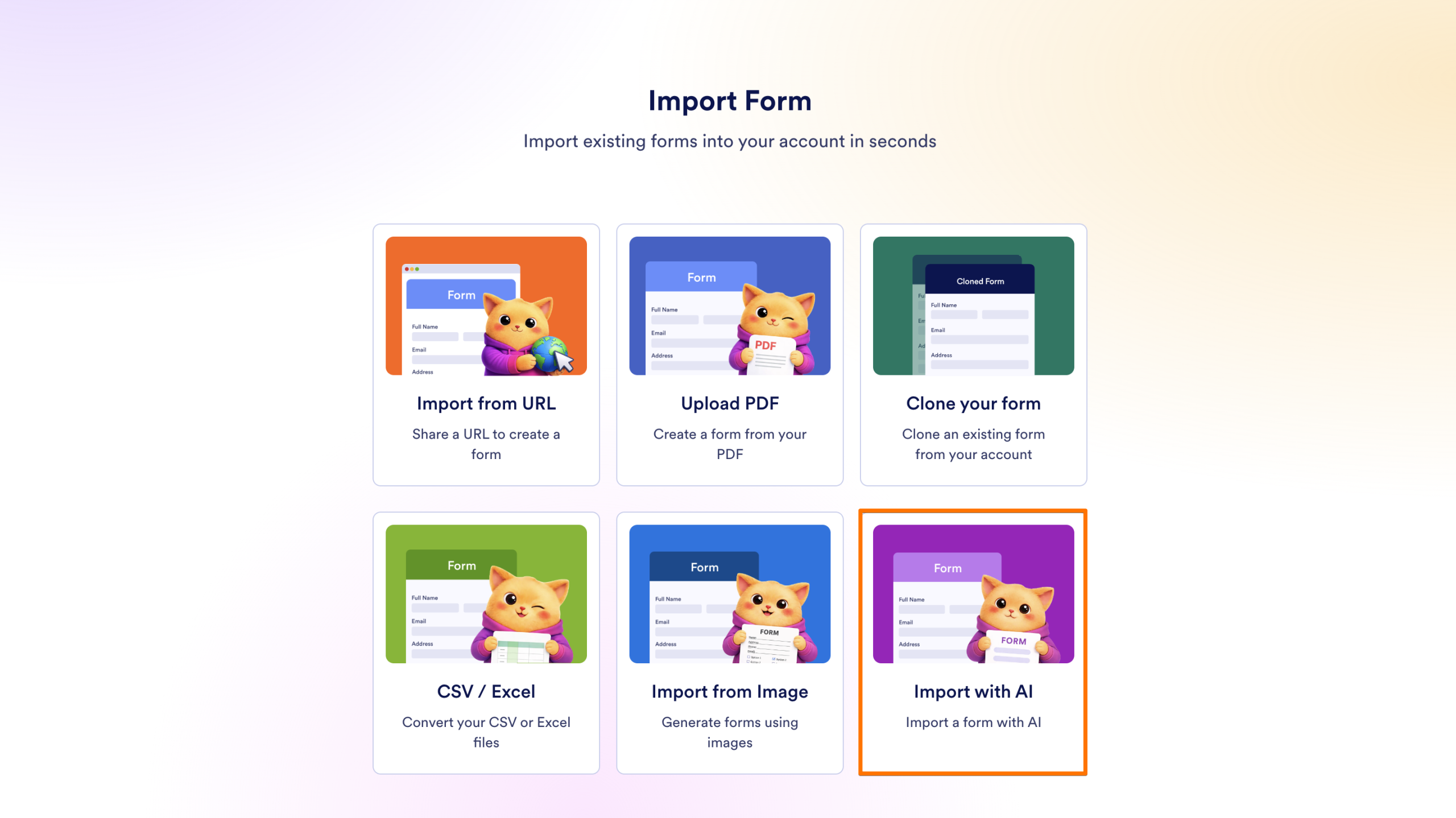
- Next, choose Import with AI.
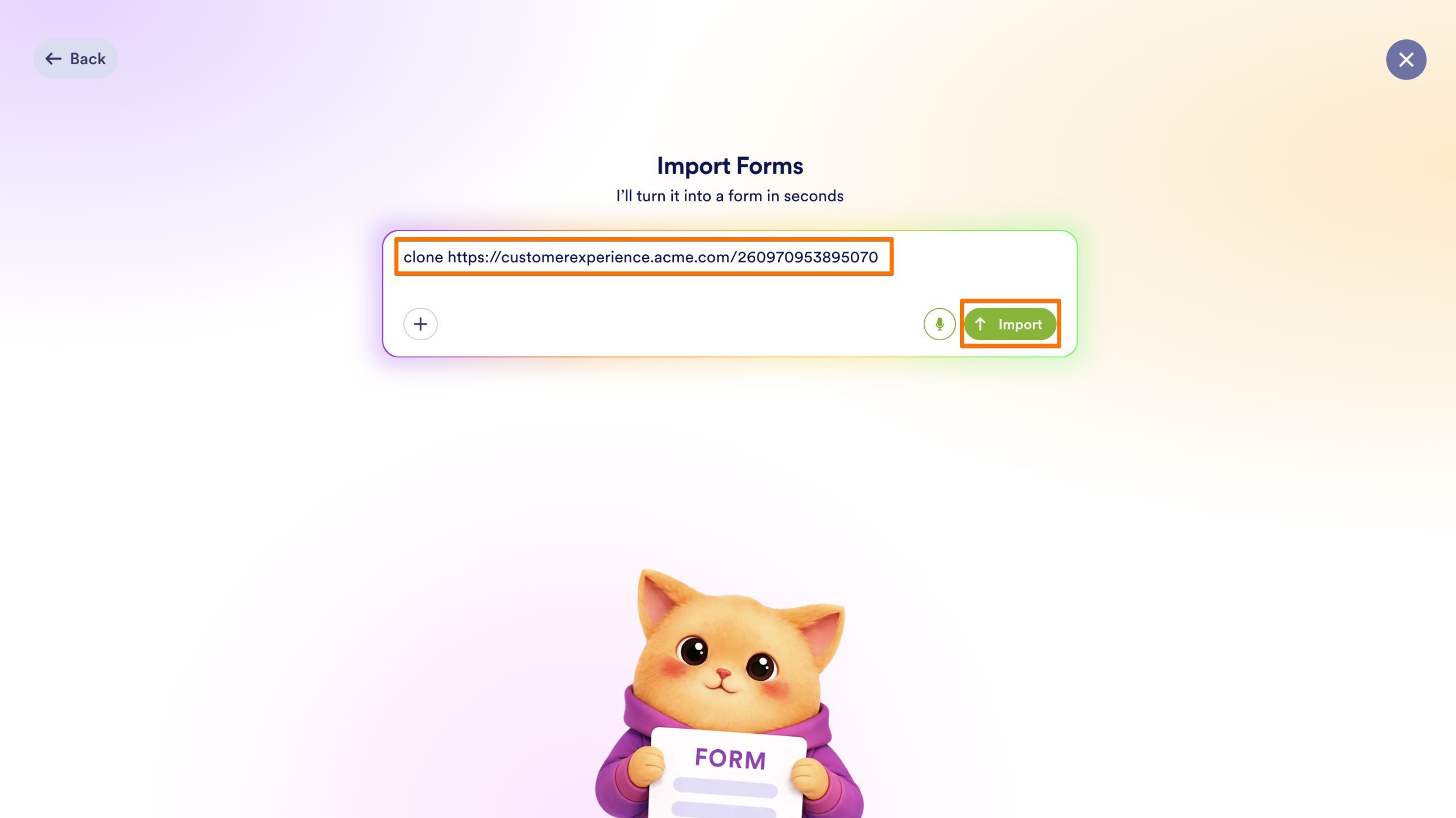
- Enter the prompt clone {your form URL} and click on Import.

Send Comment: