You can prefill forms using data from Google SSO. To get started, you’ll first need to set up SAML Attribute Mapping. This ensures user details—like the name, email, and phone number—are passed to your form fields correctly. Once everything’s mapped, users can log in and see their information automatically filled in.
Notes
- Before setting up SAML Attribute Mapping, be sure you’ve already created and configured your SAML app in Google Workspace. For steps on getting started, check out our guide on How to Set Up Google SSO in Your Organization.
- You can now let users log in using either Single Sign-On (SSO) or their email and password. You also have the option to require SSO for guest users.
Configuring SAML Attributes for Google Workspace
To send info like the user’s name and email from Google Workspace to your organization, you’ll need to set up SAML Attribute Mapping in your Google Admin Console. Getting started is simple—here’s what to do:
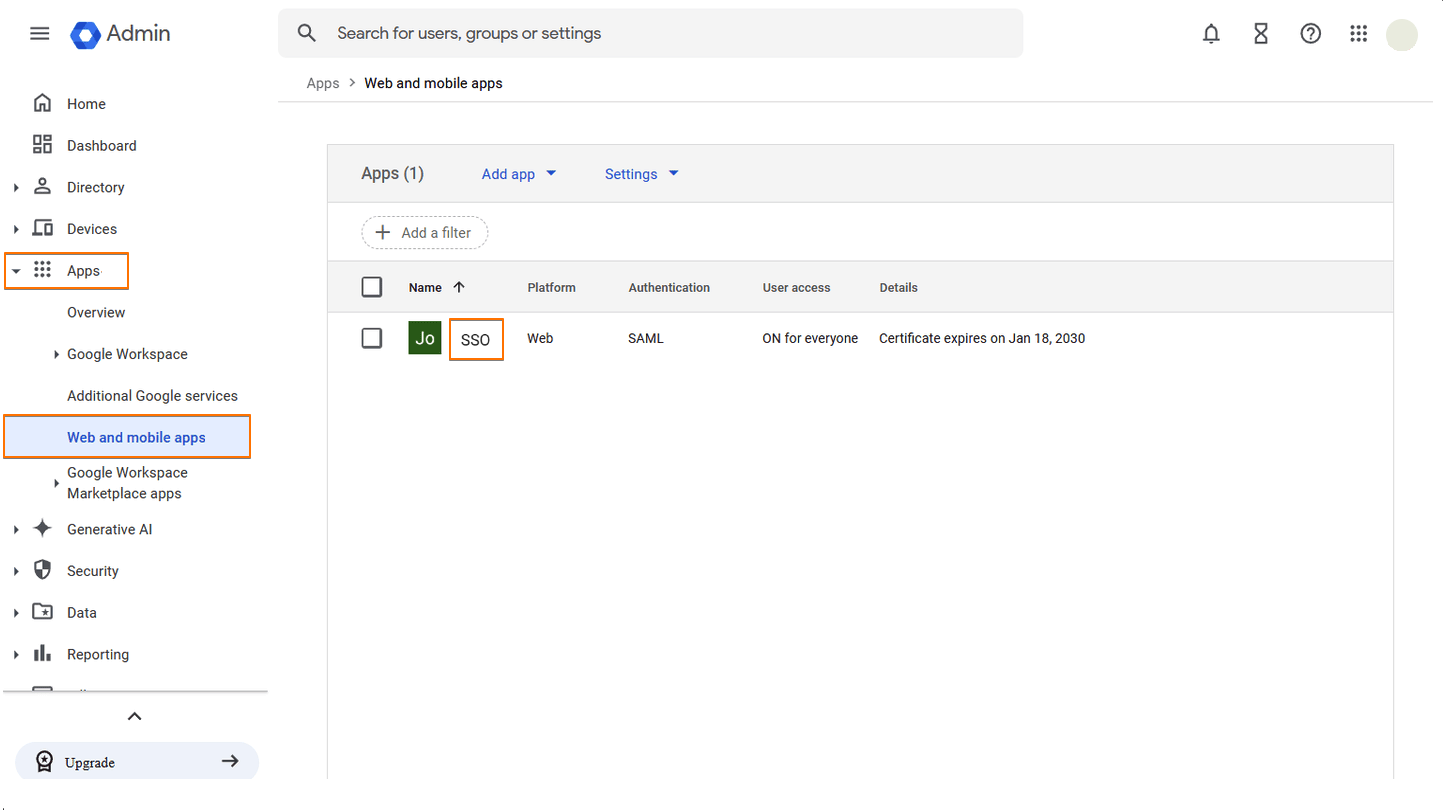
- Log in to your Google Workspace Admin Console, then, in the menu on the left, click on Apps.
- Now, in the menu that comes up, click on Web and Mobile Apps.
- Next, click on the SAML App you created for your organization.
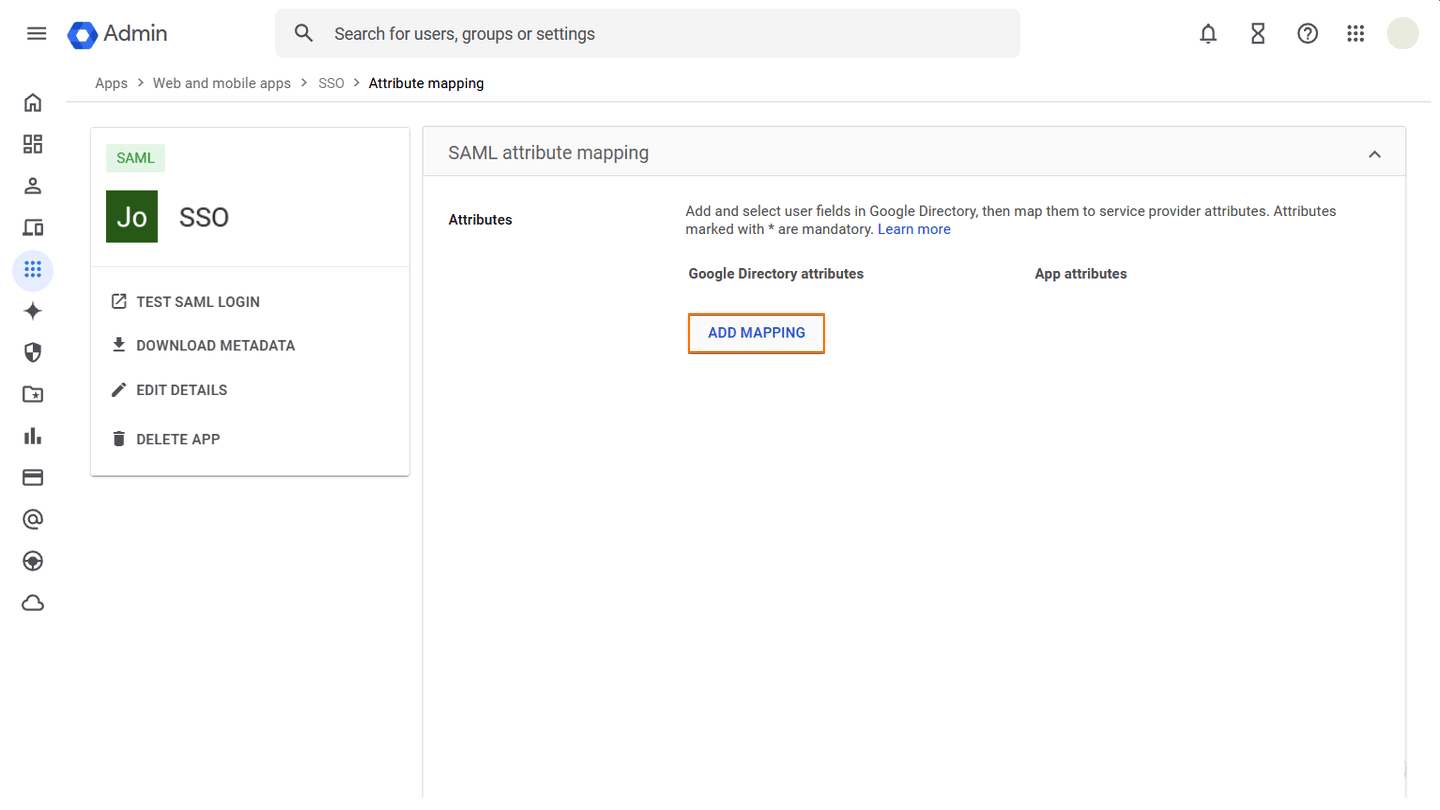
- Then, under the SAML Attribute Mapping section, click on Configure SAML Attribute Mapping.

- Next, click on Add Mapping.
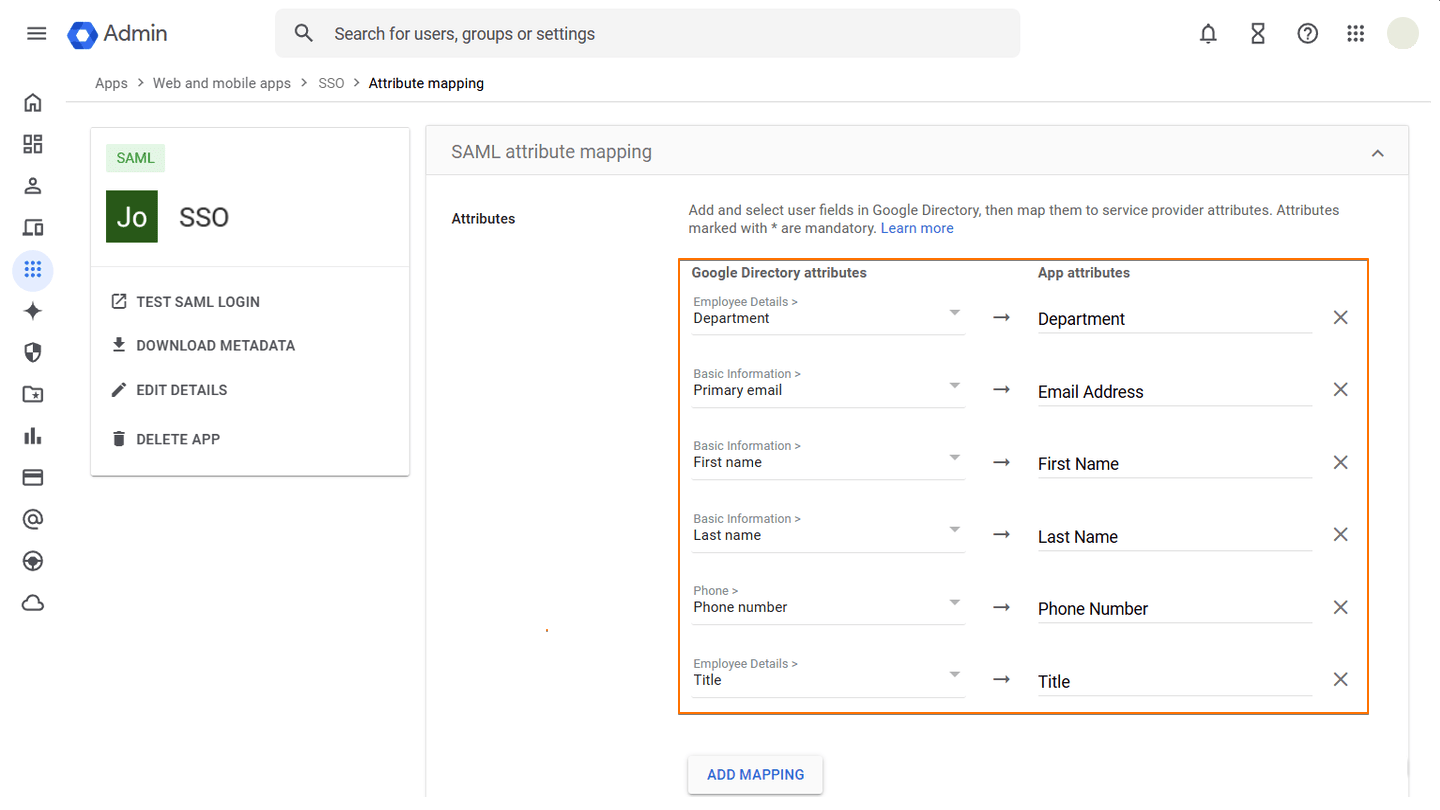
- Now, map your SAML Attributes like you see below, and you’re all set.
Pro Tip
The attributes above are just the basic ones from Google’s directory. To add more, just click the Add Mapping button and map additional fields as needed.
That’s it! Now you can move on to setting up SAML Attribute Mapping in your organization.
Setting Up SAML Attribute Mapping in Your Organization
Once you’ve mapped the attributes in Google, the next step is to set up the same mappings on your organization. This links the data between systems, ensuring user information is passed correctly through SSO. Here’s how to do it:
- On your My Workspace page, click on your Avatar/Profile picture in the top-right corner of the screen.
- Then, in the Dropdown menu that comes up, click on Admin Console to open your Admin Dashboard page.

- Click on the Security in the menu on the left to open your Security Settings.

- Scroll down to the Single Sign-On (SSO) section and click on the Three Dots icon for the SSO Connection.

- Then, select SAML Prefill.

- Log into your Google SSO Account.

- Add New Mapping to start mapping the SAML Attribute Values to the Corresponding Name on Form Builder boxes and Attribute Type Dropdown menus.

- Now, click on Save, and you’re ready to go.

Note
Attribute Types for first name, last name, and email are automatically provided. If you need to map additional fields, you can manually enter both the SAML attribute values and the matching field names from the Form Builder—no need to select an Attribute Type.

Send Comment: