Jotform’s Apps Connector for Claude lets you create and customize fully functional apps by describing what you want to build. You can refine your app through conversation, customize its layout, manage users and permissions, automate workflows, and publish it without writing code or leaving Claude.
Whether you’re creating a CRM app, a customer portal, an event app, or an internal tool, you can use it to build an app that fits your needs.
Connecting Jotform App Builder to Claude
Before you can create and manage apps through Claude, you’ll need to add the Jotform App Builder connector to your Claude account. Just follow these steps to get started:
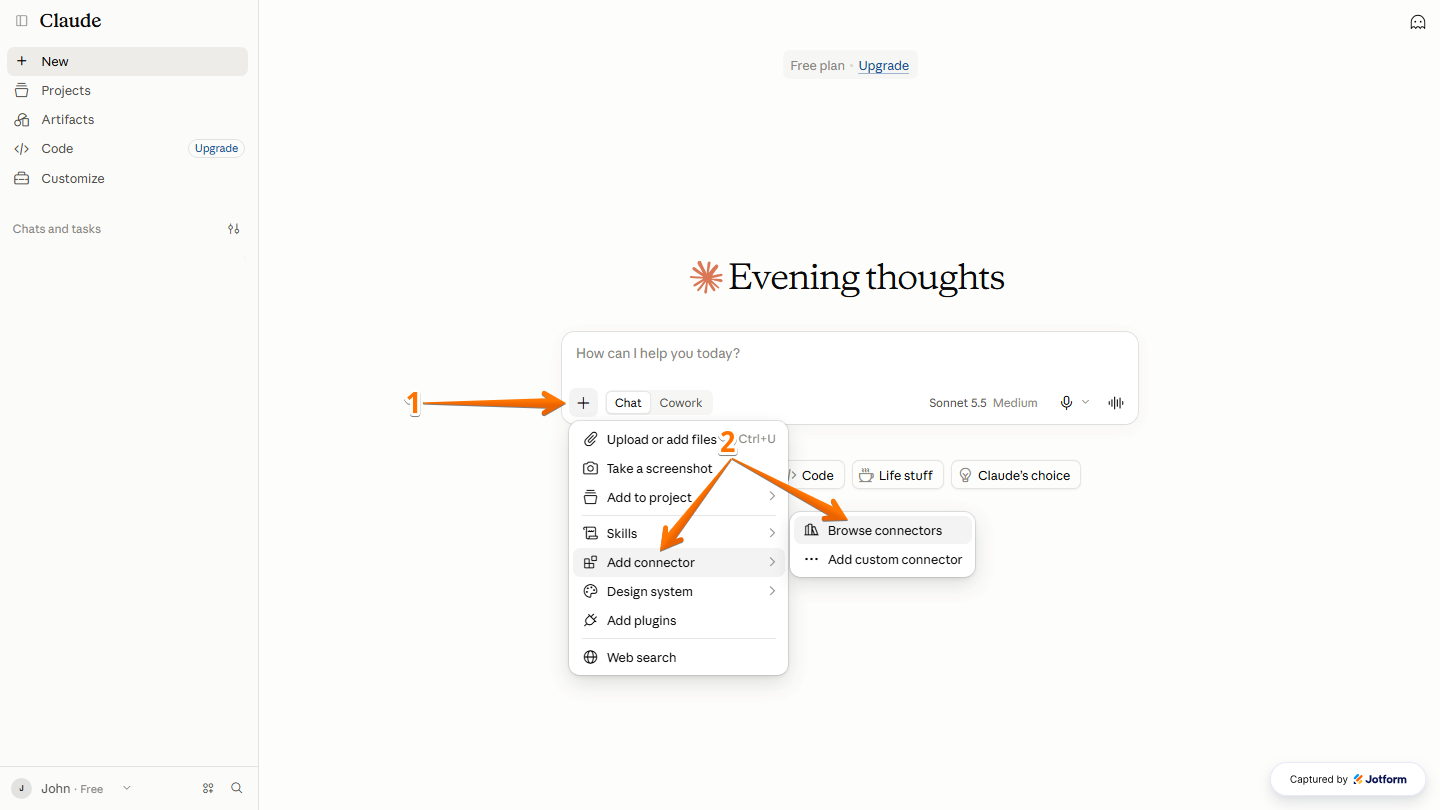
- In Claude, open a new chat, and then click on the Plus icon in the bottom-left corner of the Claude Chat box.
- Next, in the menu that opens, hover your mouse over Add Connector, and then select Browse Connectors.
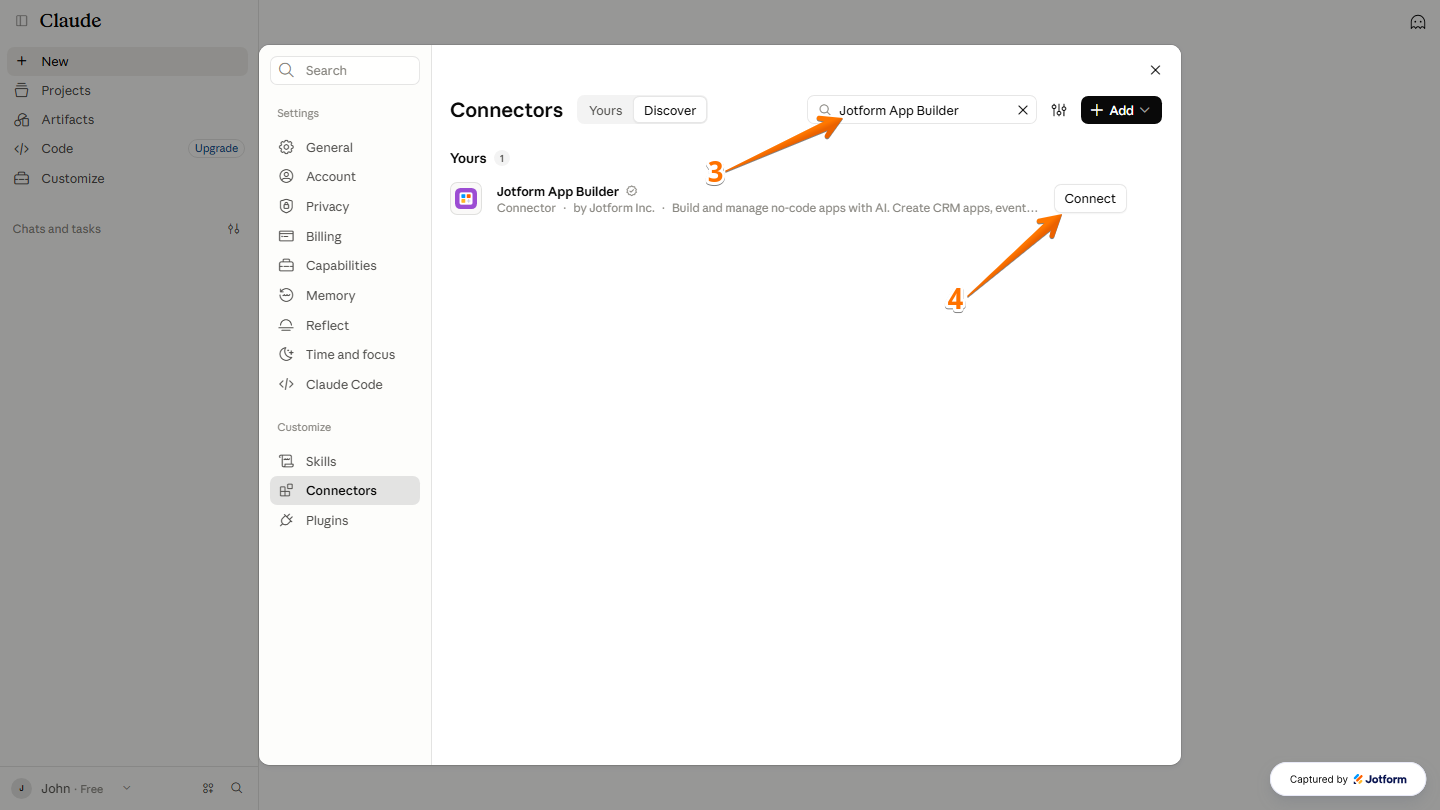
- Now, in the Search bar at the top of the Connectors window, enter Jotform App Builder.
- Then, click on Connect next to Jotform App Builder to add the connector.
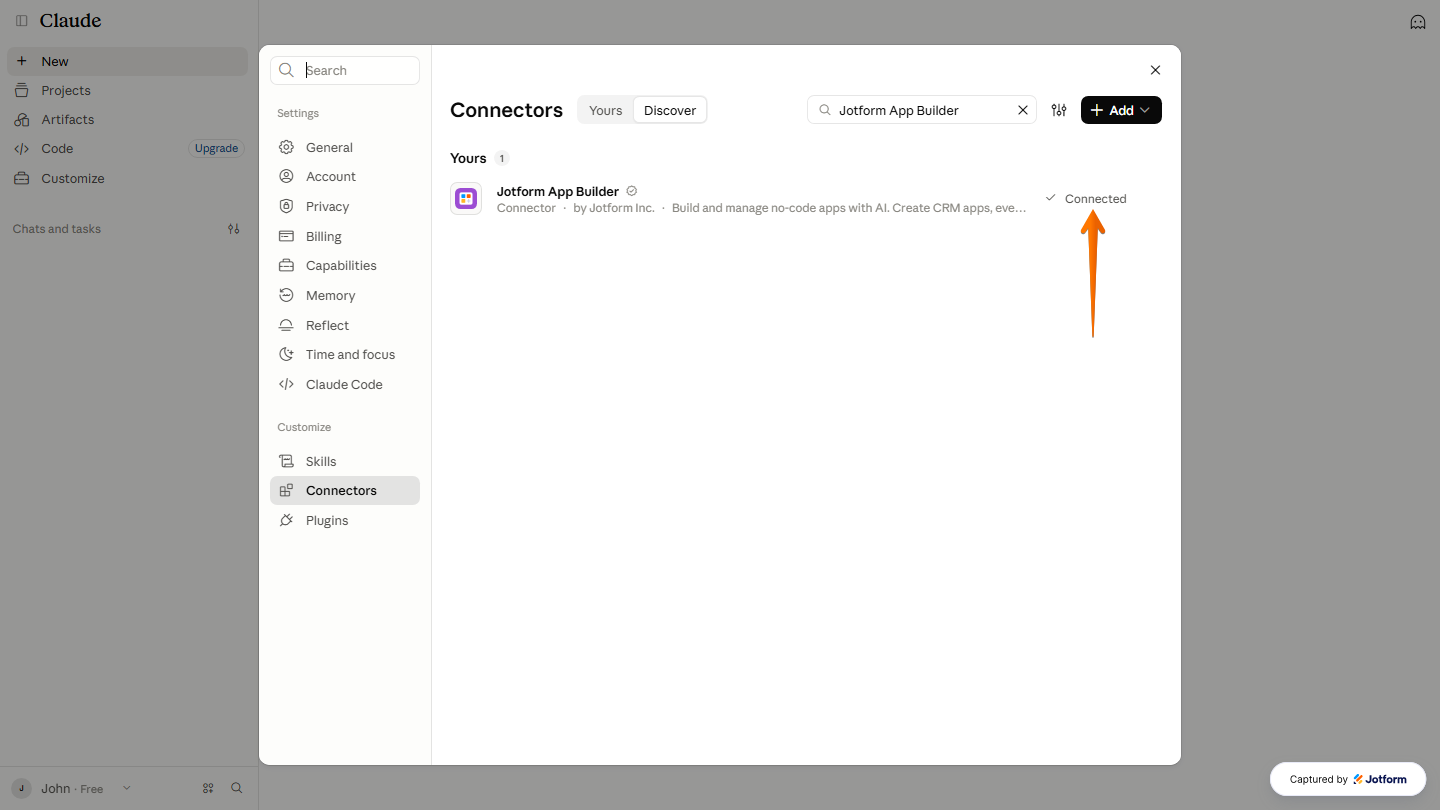
Once everything’s set, the Jotform App Builder connector will display a checkmark to confirm that it’s been connected.
Creating an App
Once the Jotform App Builder is connected to Claude, you can describe the app you want to create in the Claude Chat box. Here’s how:
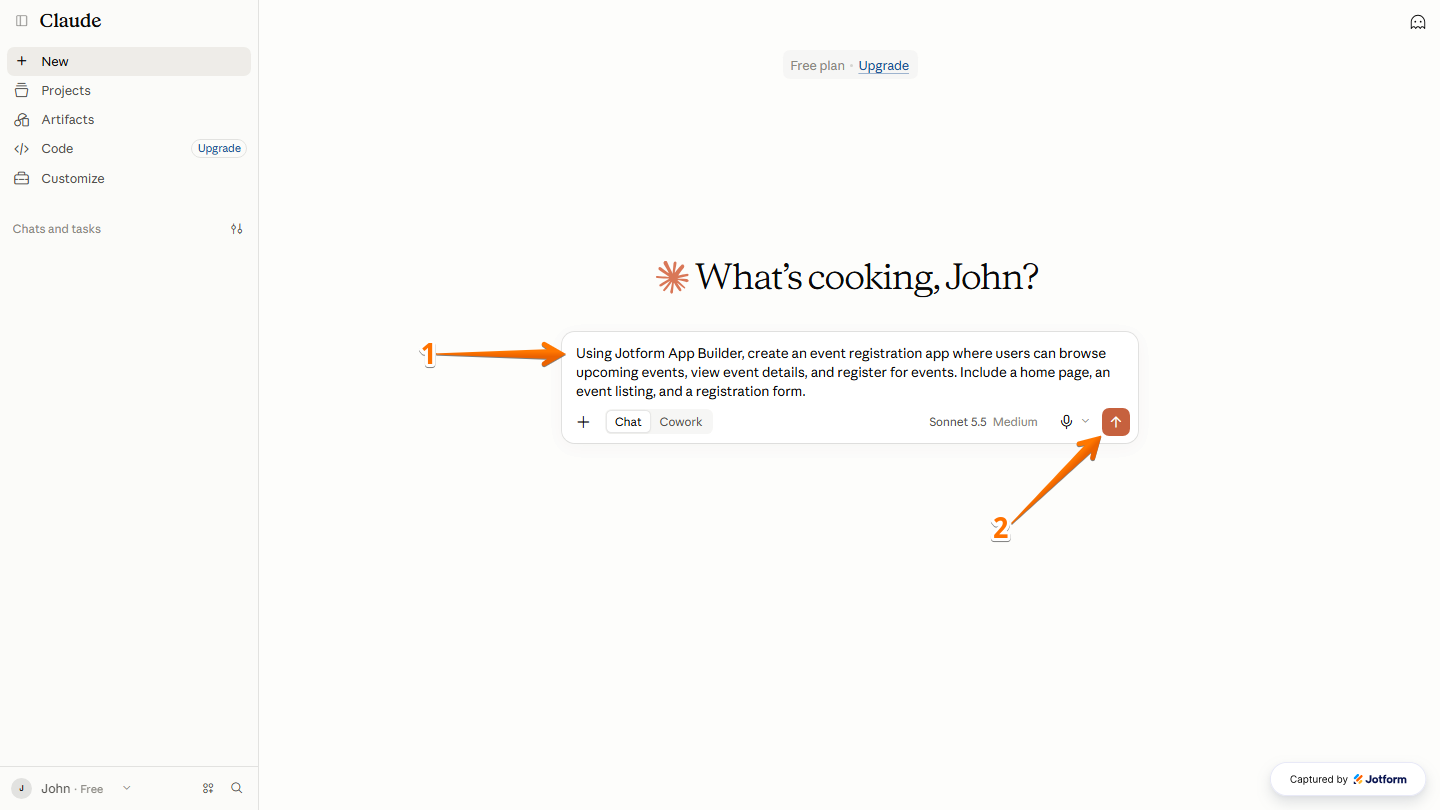
- In the Claude chat box, enter a prompt describing the app you want to create. For example: “Using Jotform App Builder, create an event registration app where users can browse upcoming events, view event details, and register for events. Include a home page, an event listing, and a registration form.”
- Now, press the Enter key on your keyboard or click on the Upward Arrow icon on the right side of the Claude Chat box.
Note
When writing your prompt, make sure to mention Jotform App Builder so Claude uses the connector to create your app.
- Then, in the Permission prompt that appears, click on Allow Once or Always Allow to let Claude use Jotform App Builder.
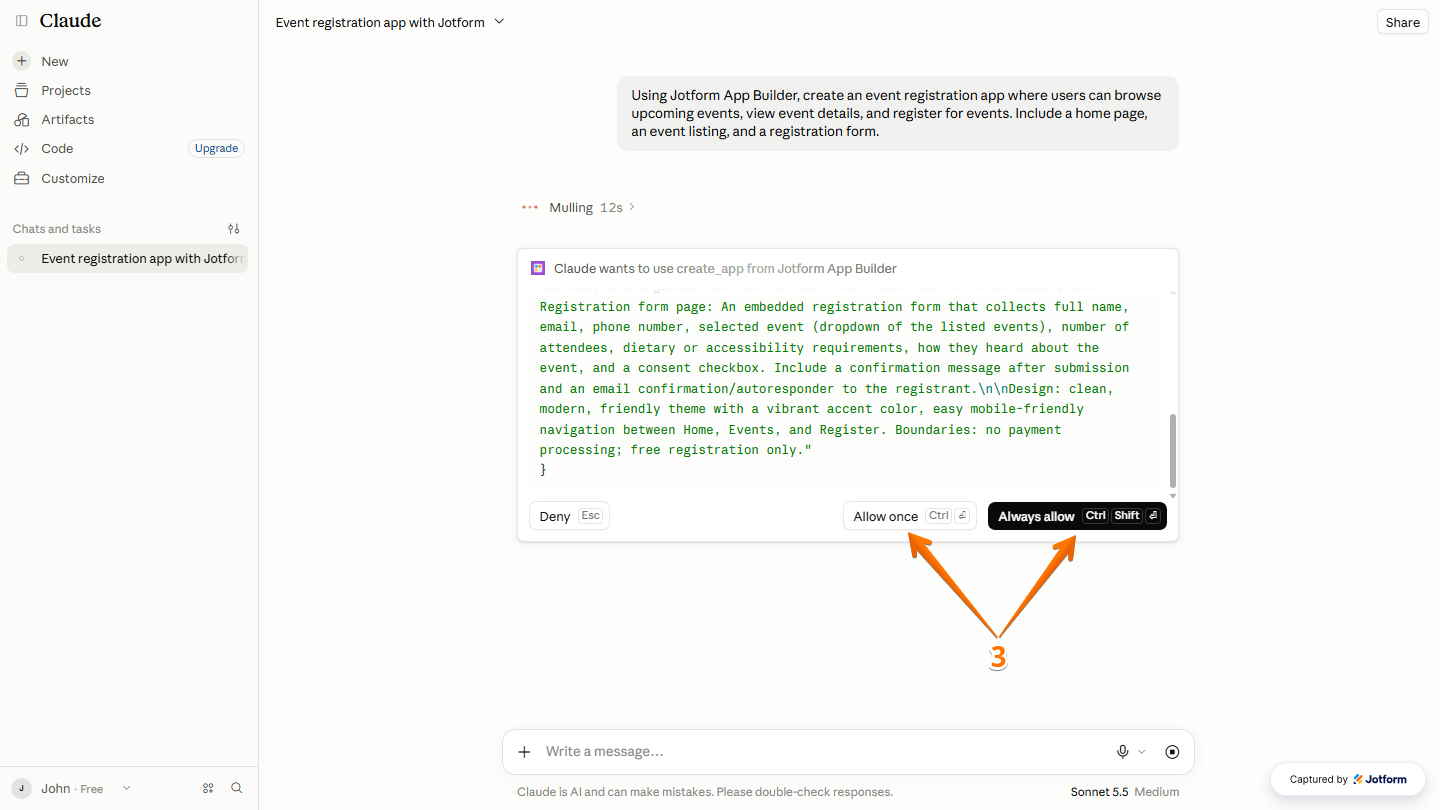
- Once your app has been generated, click on Edit in Jotform to continue customizing it in Jotform App Builder, or click on Share App to choose how you want to share your app.
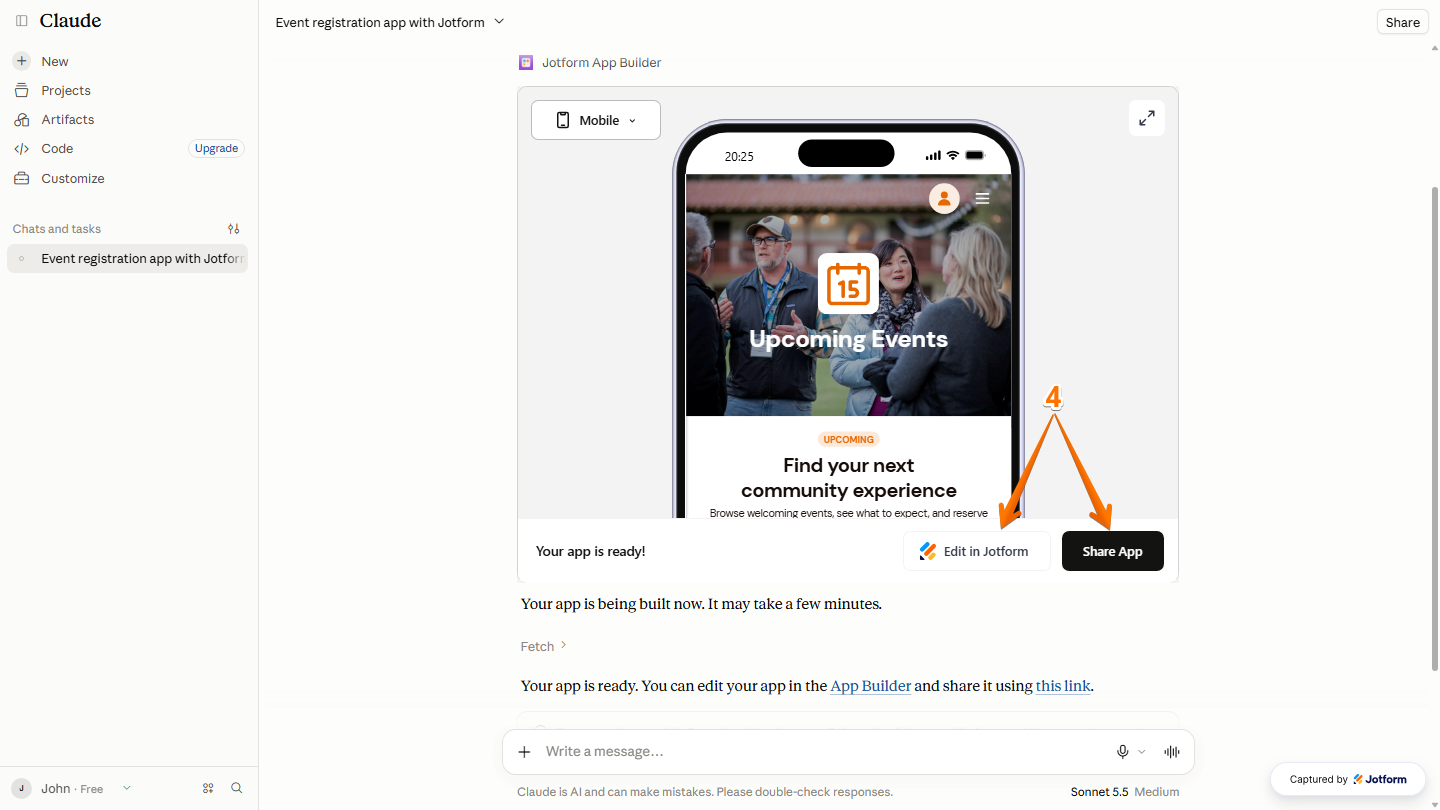
Your app has been created successfully and is ready to use.
Note
If you select Always Allow, Claude won’t ask for permission the next time you use Jotform App Builder.
Customizing your App
After creating your app, you can use Claude to customize its layout, content, and features by describing the changes you want. This is how it’s done:
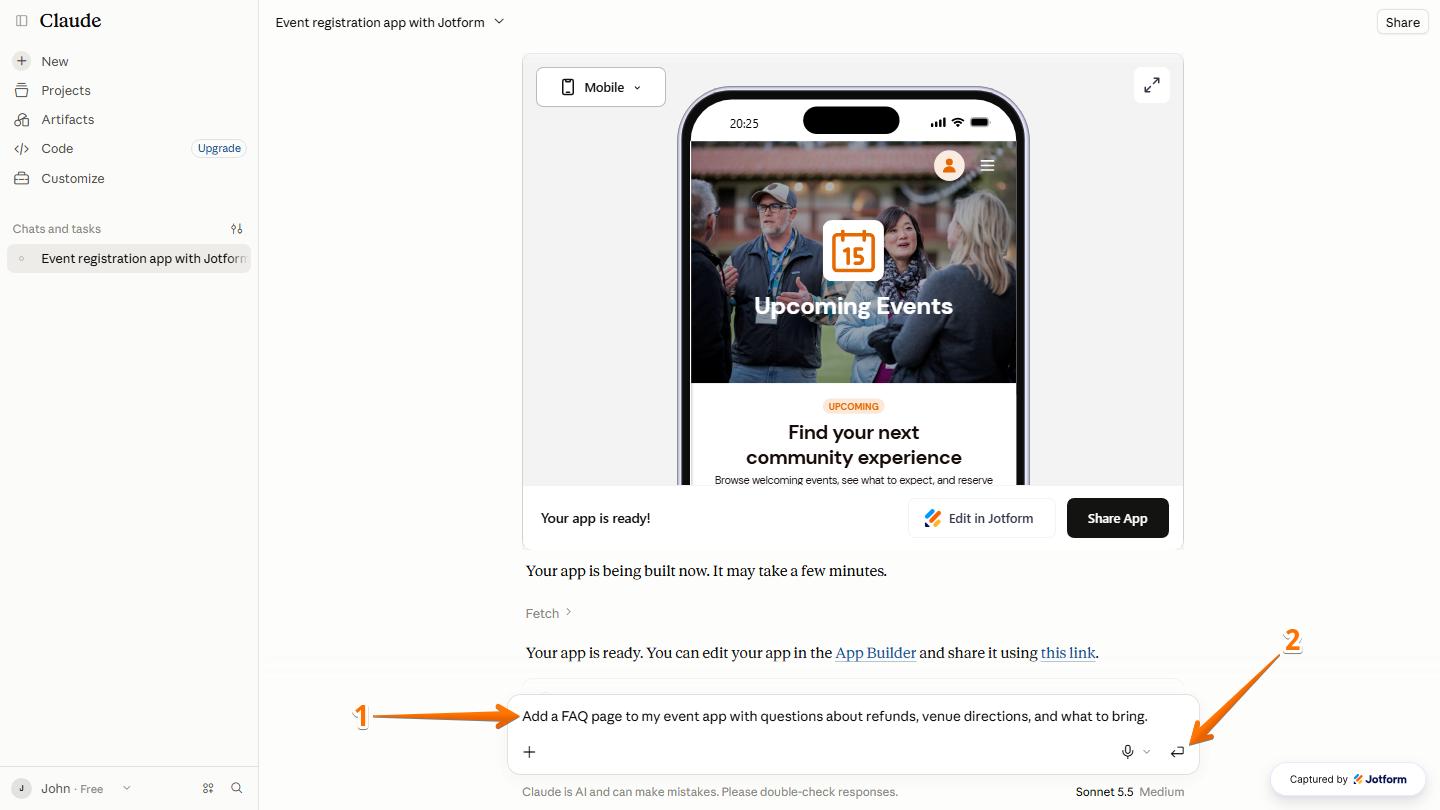
- In the Claude Chat box, enter a prompt describing the changes you want to make. For example: “Add a FAQ page to my event app with questions about refunds, venue directions, and what to bring.”
- Then, press the Enter key on your keyboard or click on the Backward-Turning Arrow icon on the right side of it to submit it.
That’s it! Your app has been updated, and you can now share it using the link provided by Claude.
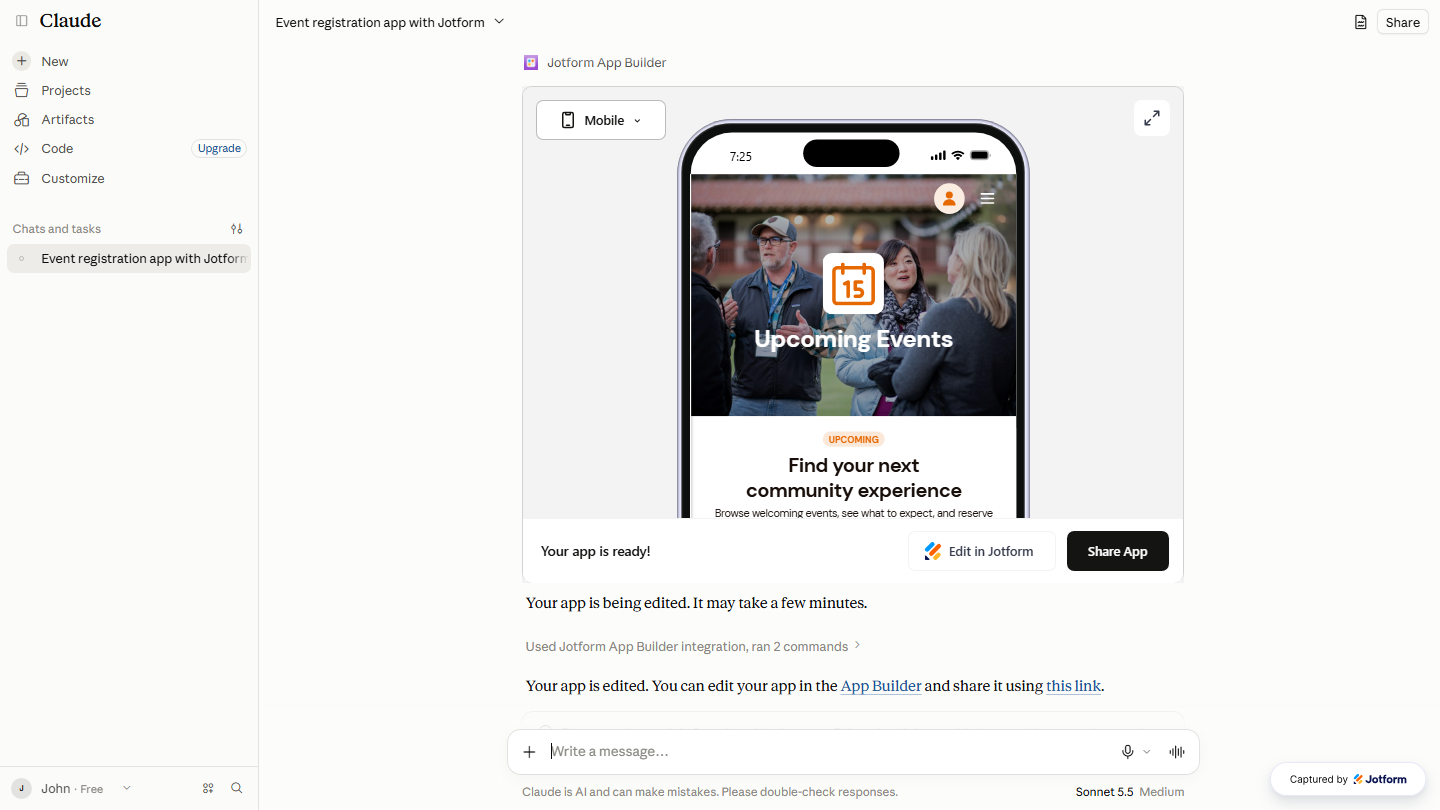
You can keep making changes to your app by sending more prompts. Here are a few more examples of changes you can request:
- “Change the app’s theme to a green and white color scheme.”
- “Add a required Company Name field and a T-shirt size dropdown to the registration form.”
- “Add a Speakers page with names and short bios for each event.”
Note
Edits can change or remove existing content, so be specific about what you want to add, update, or remove.
Sharing your App
Once you’re happy with how your app looks and works, you can share it with others so they can start using it right away. Here’s how:
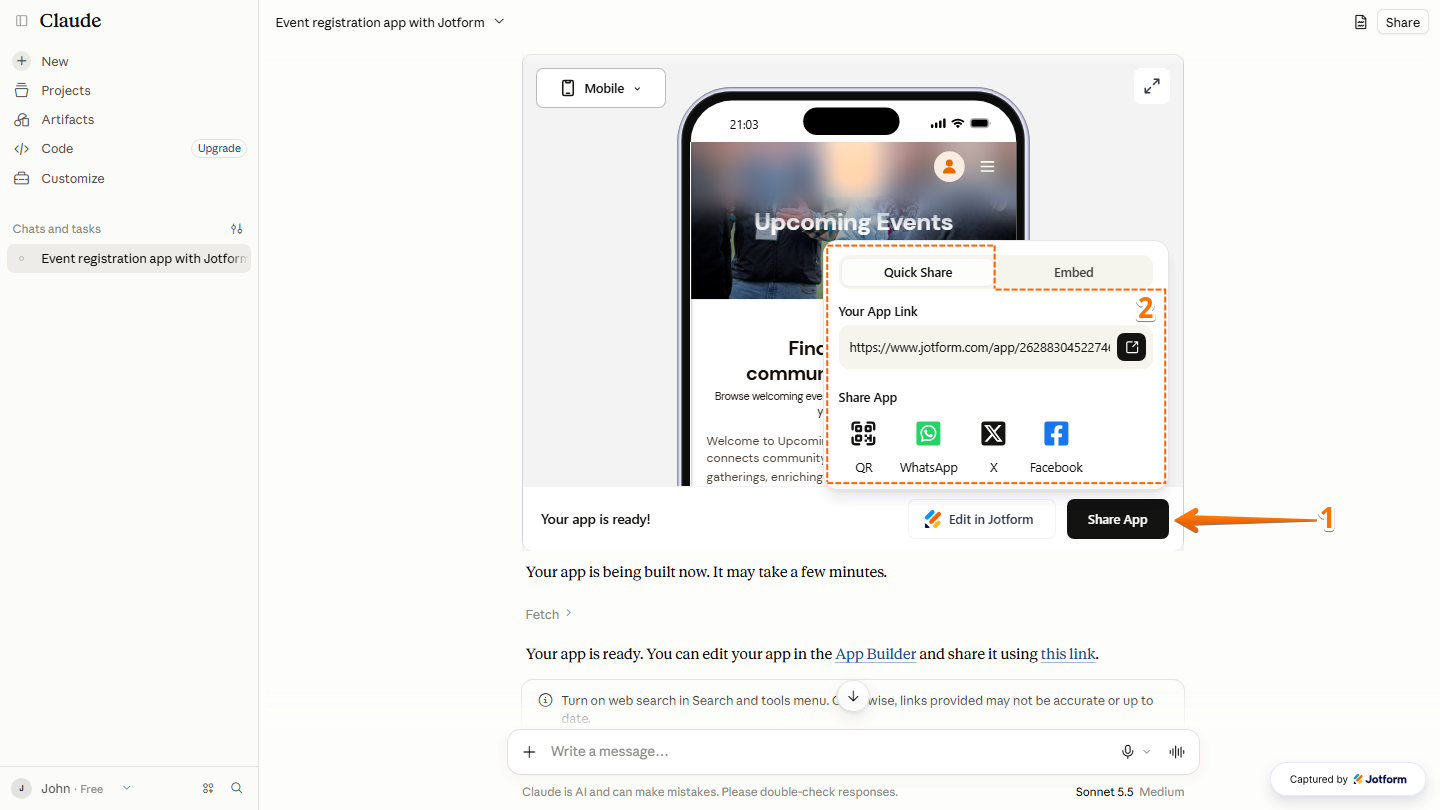
- Below your App Preview in the Claude Chat, click on Share App.
- Then, under the Quick Sharetab, choose how you want to share your app:
- Click on Copy Your App Link to copy the link and send it to anyone you’d like.
- Click on QR to share your app using a QR code.
- Click on WhatsApp, X, or Facebook to share your app on that platform.
- To embed your app on a website, click on the Embed tab, then click on Copy Code. You can then paste the code into your website builder.
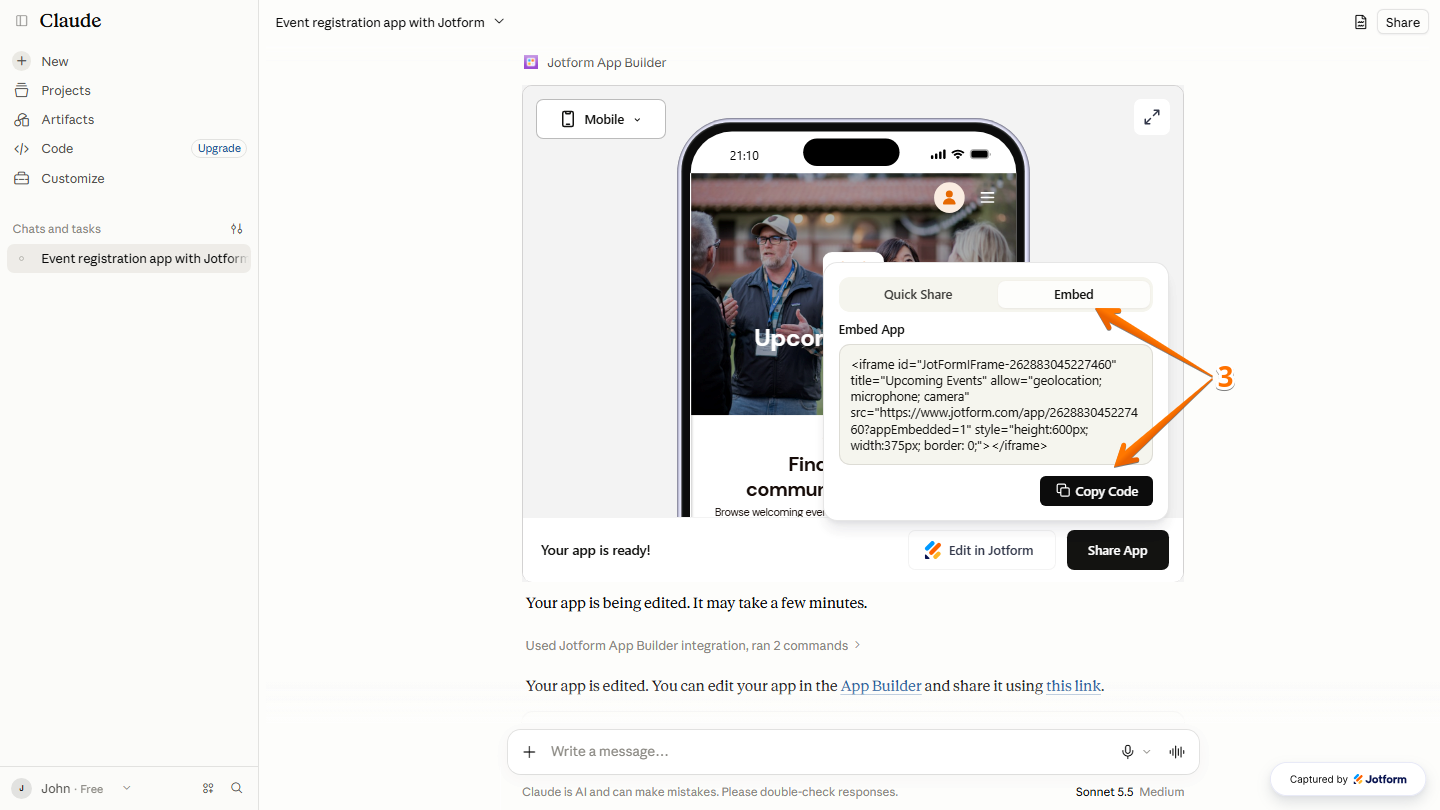
You can now share your app with others through a link, QR code, social media, or by embedding it on your website.

Send Comment: