QuickBooks integration offers a seamless way to automate your invoicing process. With this integration, you can instantly generate invoices in your QuickBooks Online account based on form submissions — whether you’re collecting orders, service requests, or payment details. Invoices can be created using a payment integration or through basic form elements like Single Choice, Dropdown, or Multiple Choice fields, giving you flexibility in how you gather billing information. It’s a powerful solution for businesses that want to eliminate manual invoicing, reduce errors, and keep their billing system organized.
By connecting your forms to QuickBooks, you ensure that each transaction is accurately captured and invoiced—saving you time and helping you get paid faster.
Before creating an invoice with the QuickBooks integration, check that everything’s set up properly—and keep in mind there are a few extra steps to complete after the invoice is created:
- Product or Service Items — For a smooth sync, ensure that the items listed on your form line up with the corresponding product or service items in your QuickBooks account.
- Payment Status Handling — If your form is connected to a payment gateway and customers complete their payments through it, the corresponding invoices in QuickBooks won’t be marked as paid automatically. You’ll need to manually update the payment status in QuickBooks.
- Tax Configuration (for users outside the US) — Before integrating with QuickBooks, set up the applicable tax rates in your QuickBooks account. These include:
- Sales VAT – for the United Kingdom.
- GST – for Australia.
- Sales Tax Rate – for Canada.
- Sales Tax Rate – for India.
Creating an Invoice with a Product List
Whether you’re setting up a new form or updating an existing one, integrating your form with QuickBooks to create an invoice takes no time—here’s how:
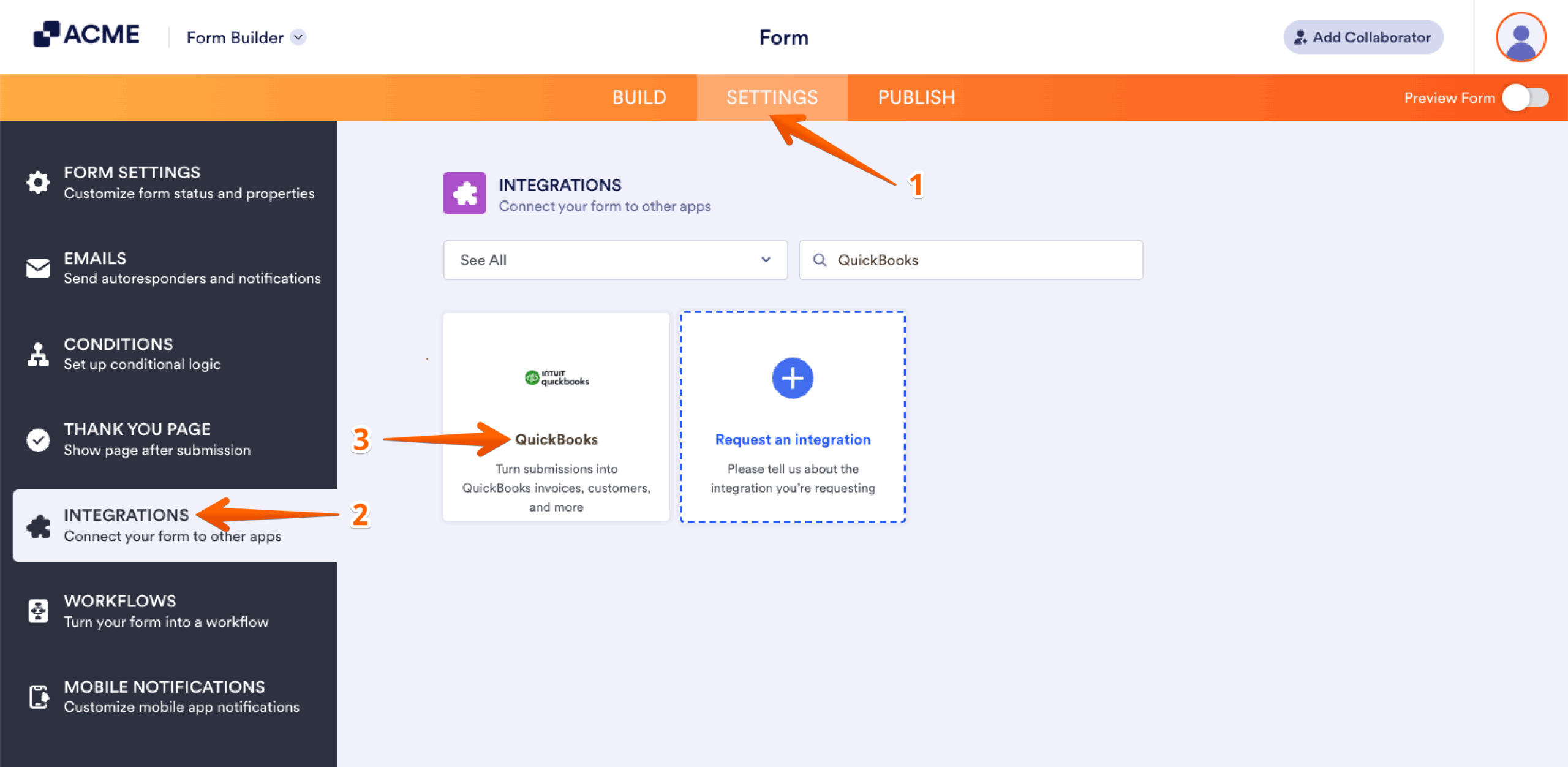
- In Form Builder, in the orange navigation bar at the top of the page, click on Settings.
- In the menu on the left, click on Integrations.
- Then, search for QuickBooks and click on it.
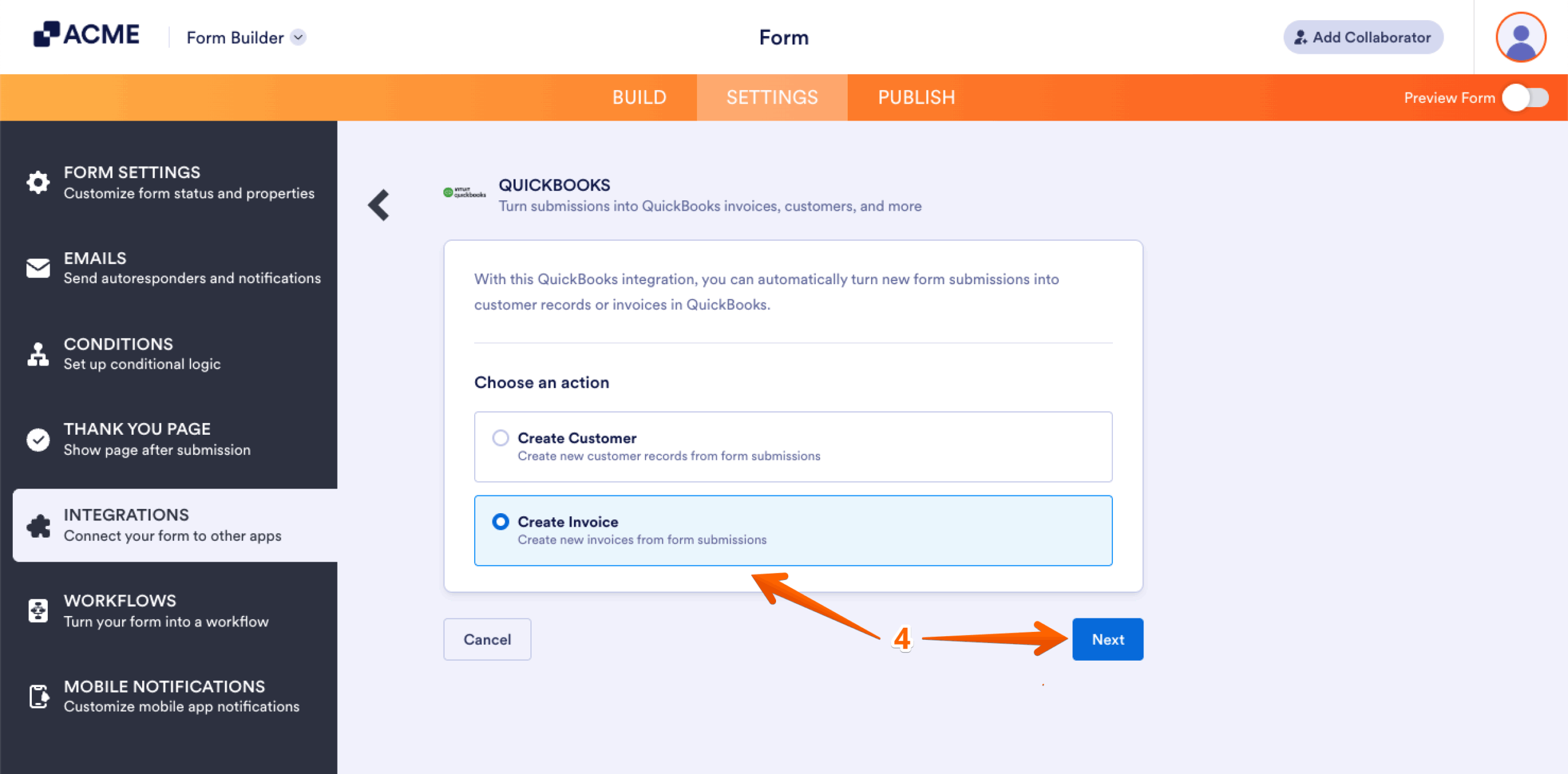
- Now, under the Choose an Action section on the right, select Create Invoice and click on Next.
- Next, under the QuickBooks Mode Type, choose either Production or Sandbox Mode, and then click on Connect to QuickBooks.
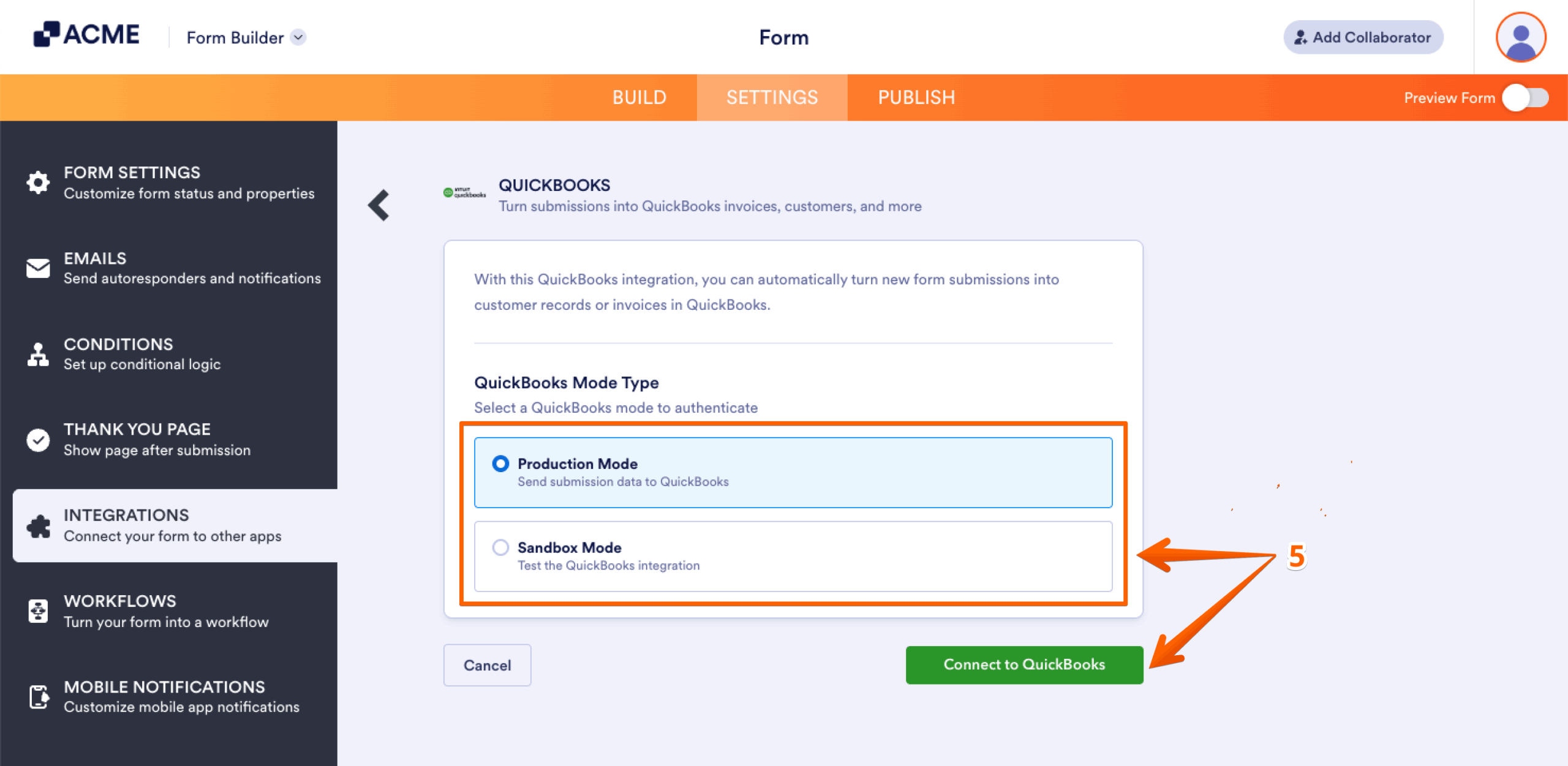
Note: Production Mode means you’re connecting and sending data to a real company account, while Sandbox Mode is for testing the QuickBooks integration. The QuickBooks guide on Create and Test with a Sandbox Company has more details about that.
- In the new browser window that opens, log in with your Email or User ID or by Phone.

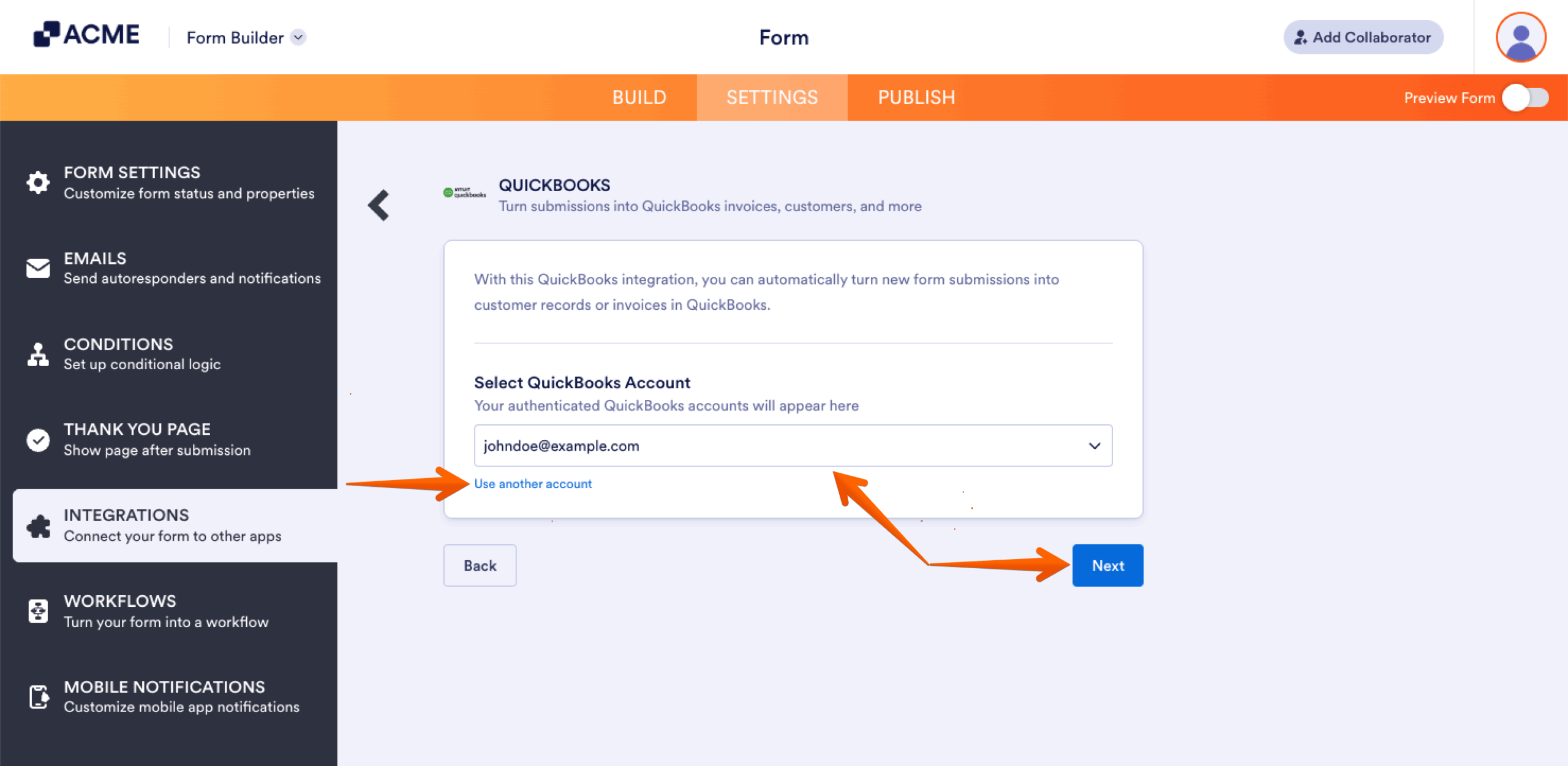
- Then, on the next screen, click on Connect to finally link your QuickBooks accounts. If you’ve logged in before, just pick your QuickBooks account from the dropdown and click on Next. To use a different one, click on Use another account link.
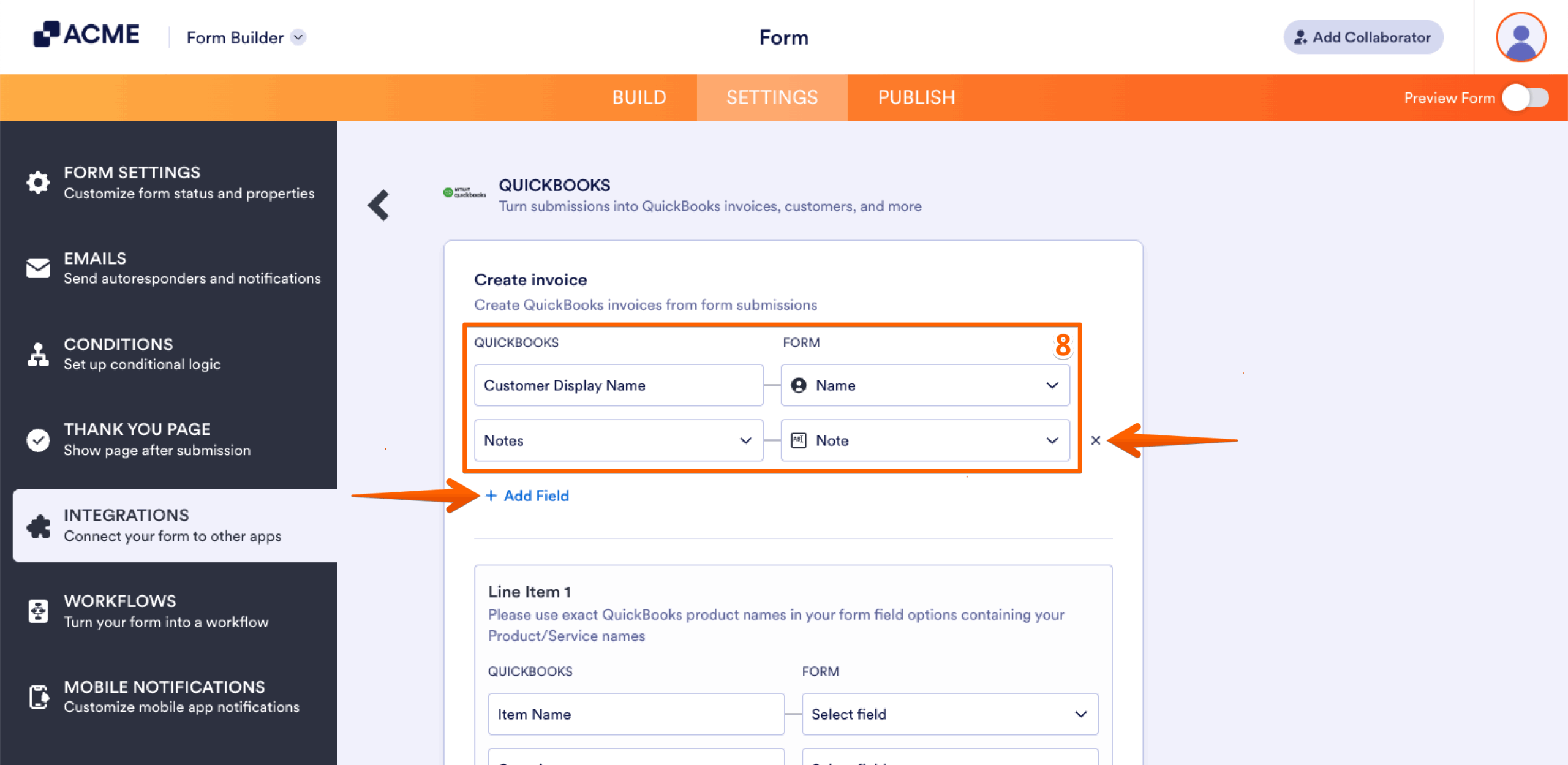
- Now, in the Create invoice on the right, select your QuickBooks fields in the first column and your Form fields in the second to map them accordingly.
Notes:
- If invoicing a returning customer, make sure the Customer Display Name in QuickBooks matches the Full Name in the form to avoid creating a duplicate record.
- To map more fields, just click + Add Field at the bottom of the section. If you need to remove a mapped field, click the X icon on the right side of the field.
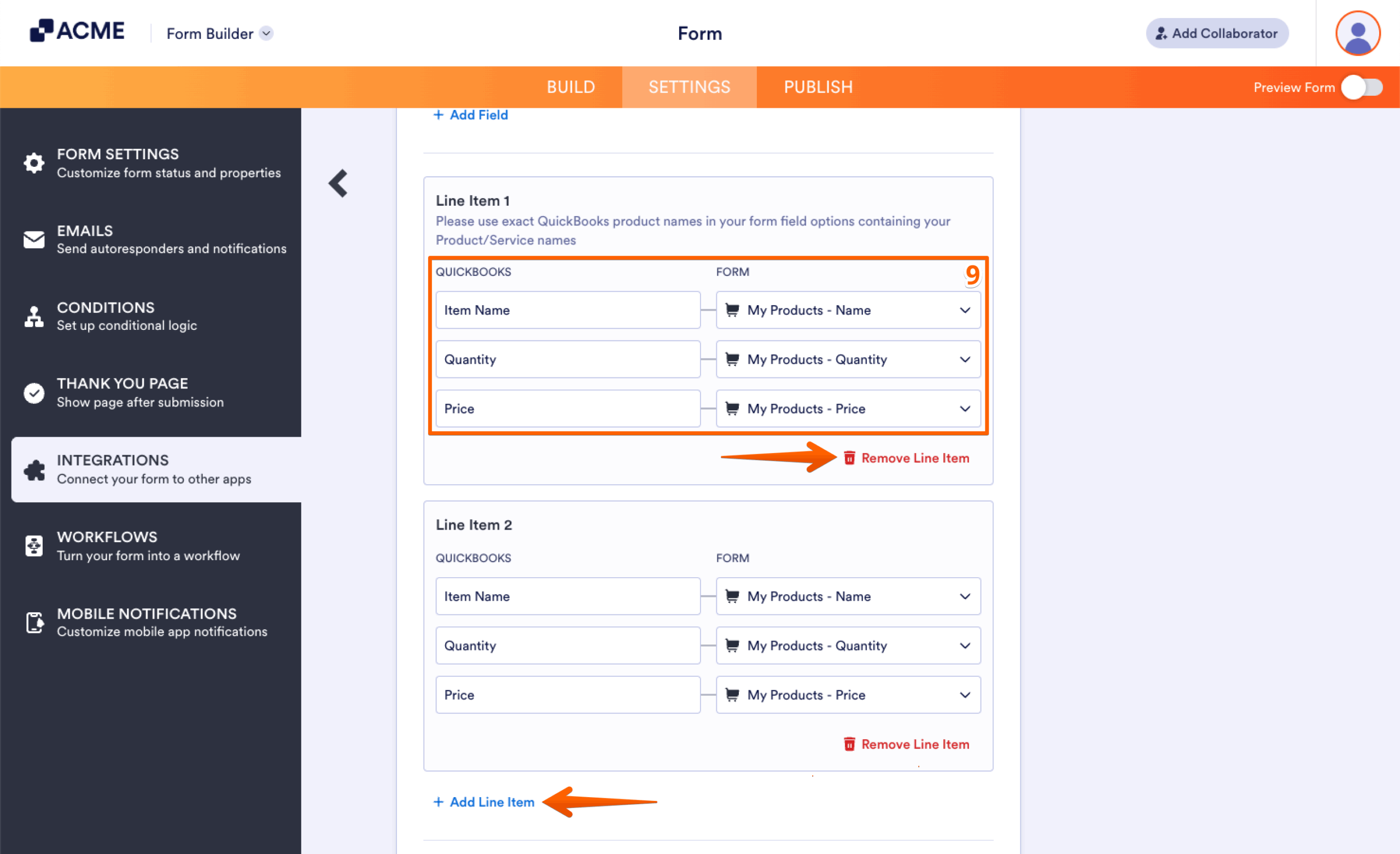
- Now, in the Line Item section, match the following fields:
- Item Name — Select the Product Item from your form’s Product List element or Payment Integration.
- Quantity — Select a fixed quantity from the dropdown or choose the Quantity field from your form’s Product List or Payment Integration.
- Price — Choose the Price field from your form’s Product List element or Payment Integration.
Notes:
- Click the +Add Line Item at the bottom part of this section to add more items, or click on Remove Line Item to delete the added or existing line item.
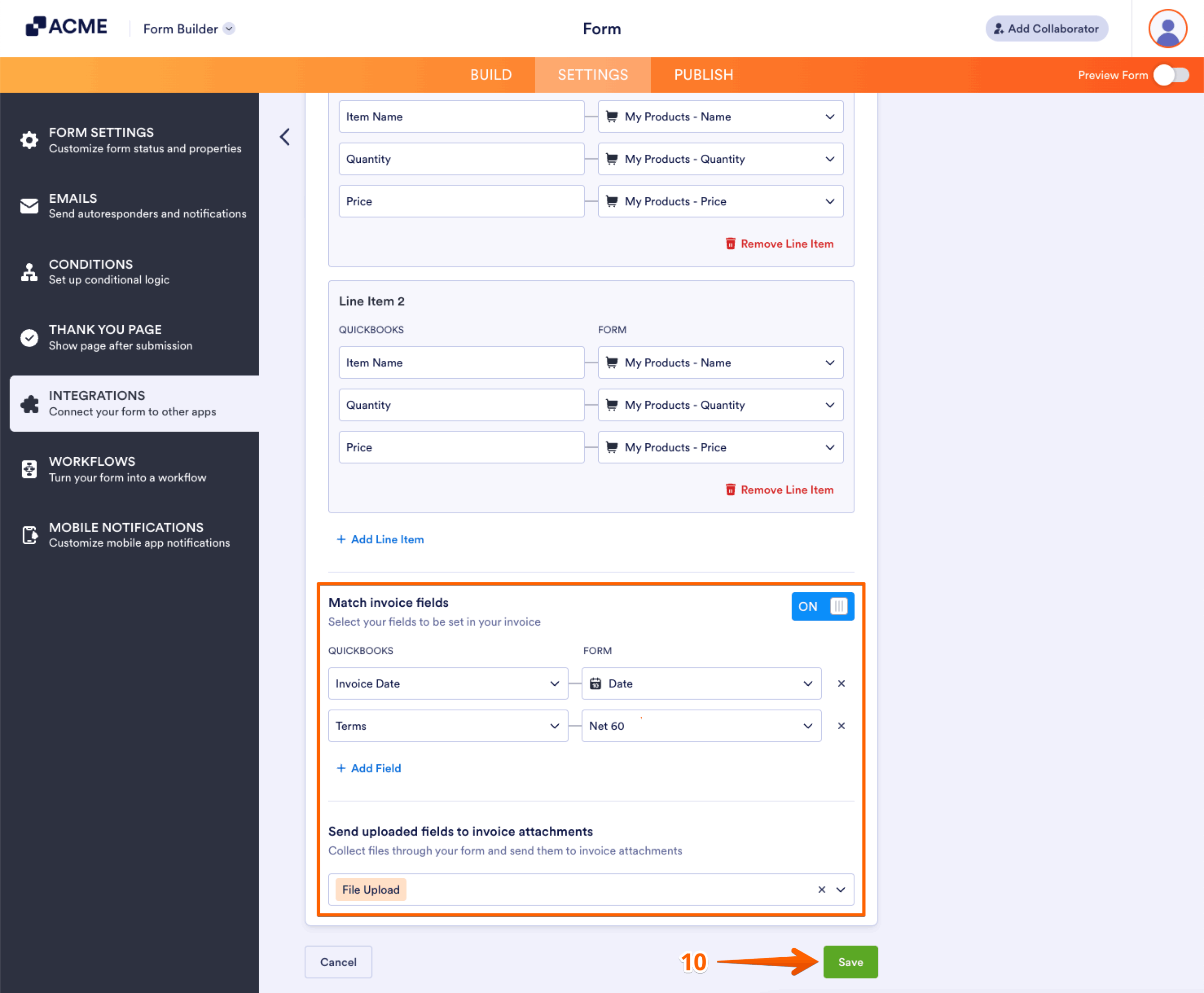
- Optionally, you can toggle the Match invoice fields to map the Invoice Date, Exchange Rate, Terms, and Tax fields and include them on the invoice. You can also select the File Upload fields through the Send uploaded fields to invoice attachments to send the uploaded files as attachments to your invoice(s).
- Once you’re done, click on Save to finally save your integration.
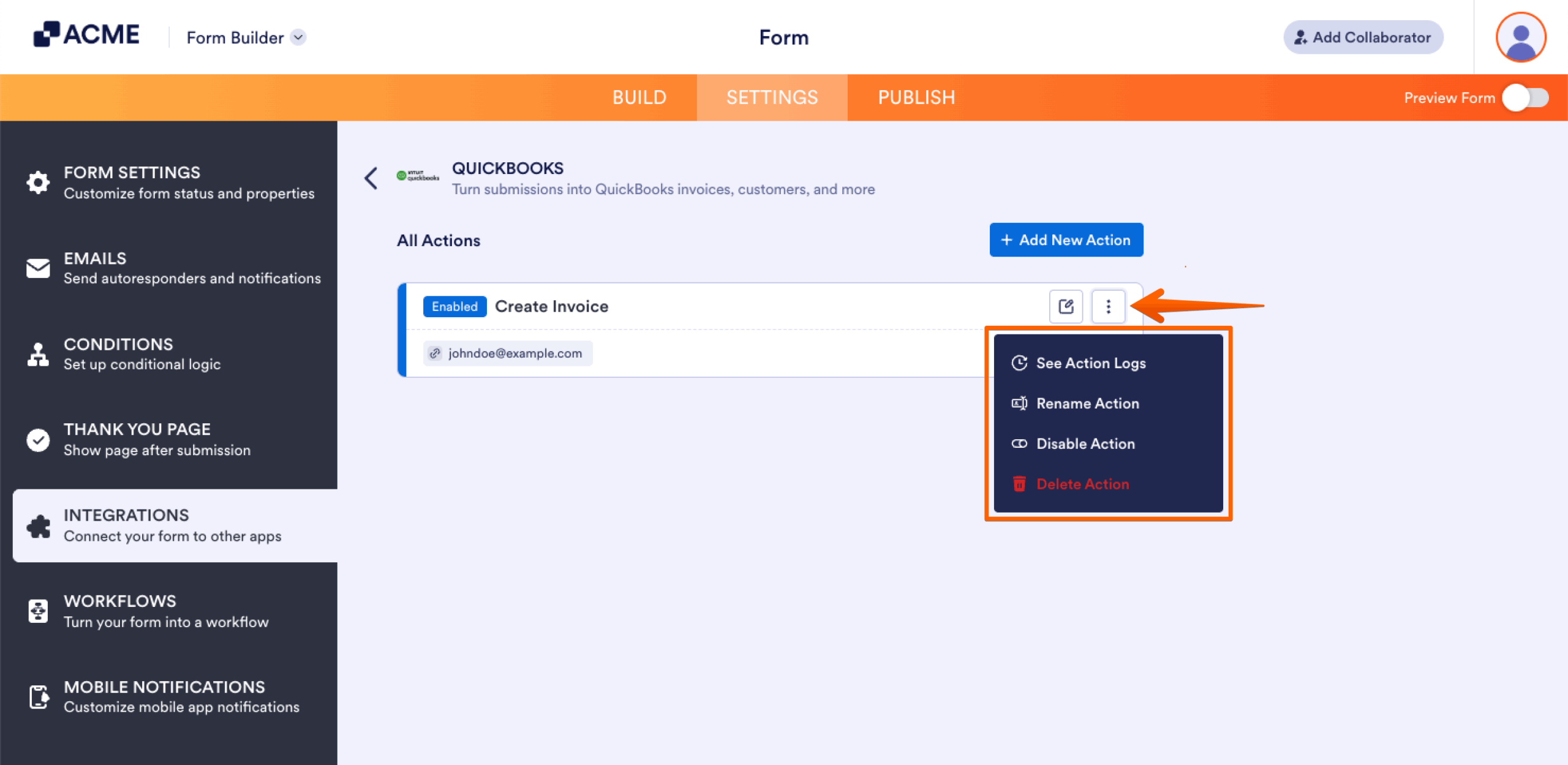
And that’s it! You’ve now successfully integrated your form with QuickBooks to create an invoice. After saving the integration, you’ll see the list of actions you’ve set up and the Add New Action button on the main page. Hover your mouse over an action and click on the Three Dots icon next to it on the right side to access more options:
- See Action Logs — View successful and failed runs, helpful for troubleshooting.
- Rename Action — Change the action’s title.
- Disable Action — Temporarily stop the integration from sending data.
- Delete Action — Remove the action from your form.
Creating an Invoice with a Dropdown, Single Choice, or Multiple Choice Fields
You can use Dropdown, Single Choice, or Multiple Choice fields to link your inventory to QuickBooks invoicing. Like the Product List element or payment integration, these fields must be mapped using the Line Item mapper.
As a prerequisite, you must ensure that Calculation Values are set for the field options.
Now, simply map the fields following the same steps above, then you’re all set.
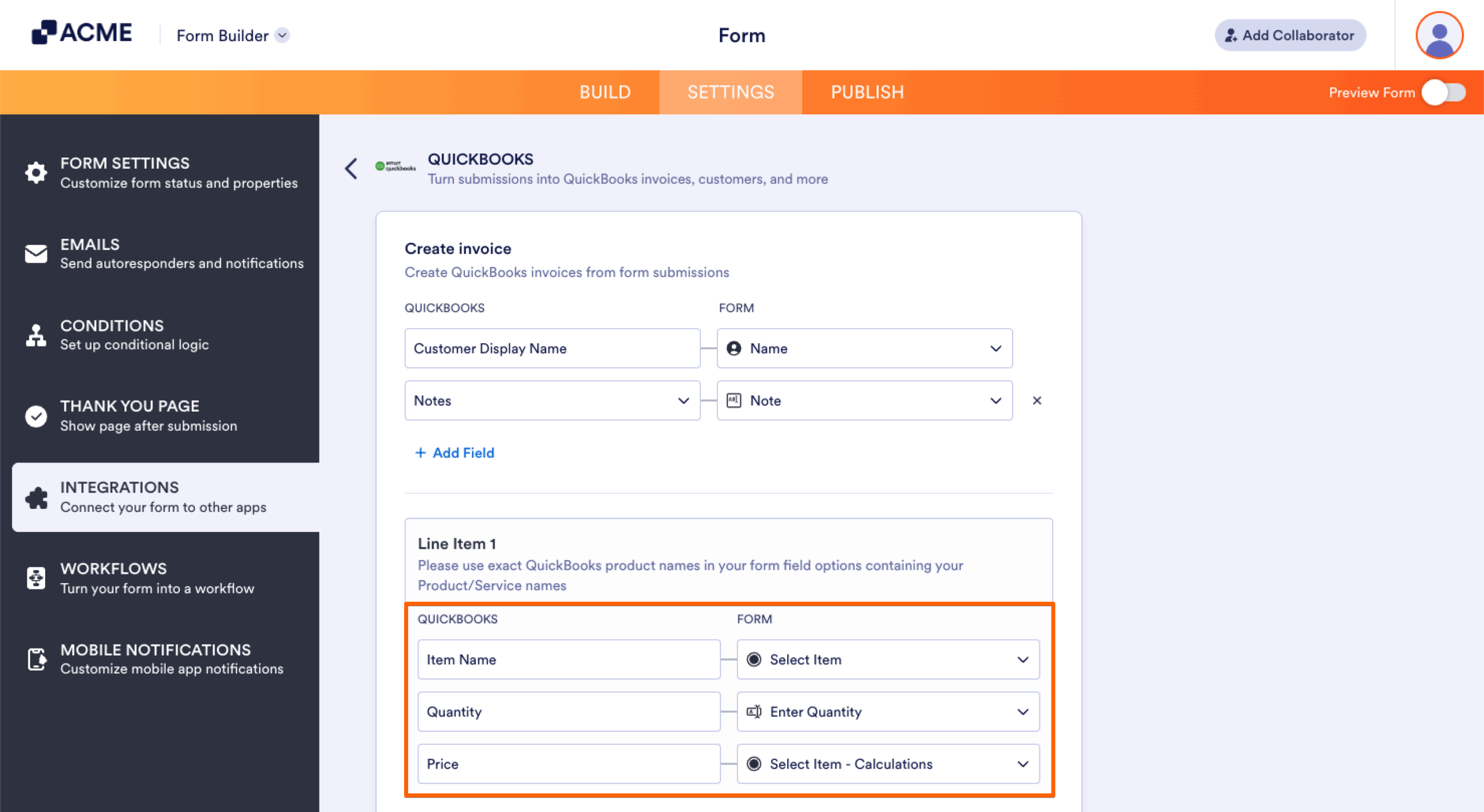
Note: The price is always calculated based on the quantity, whether it’s predefined in the Line Item mapper or entered through an input field.

Send Comment: