Jotform AI App Builder helps you create apps using simple prompts. If the functionality you need isn’t available through the existing app elements and widgets, AI App Builder can generate custom features using AI Widgets.
You can create AI Widgets while building an app, add them to an existing app, and continue refining them using additional prompts or voice commands.
How Do AI Widgets Work?
Jotform Apps includes a variety of built-in elements and widgets that you can use to create app experiences. When you describe the functionality you’d like to add to your app, AI App Builder analyzes your request and determines the best way to create it.
You can describe an entire feature, specific functionality, or the experience you’d like your users to have. If the requested functionality isn’t available through the existing app elements and widgets, AI App Builder can generate an AI Widget to provide the custom functionality you need.
Because AI Widgets are generated from prompts, they can support a wide range of use cases, including policy assistants, recommendation tools, compliance trackers, reporting dashboards, and more.
Note
AI-generated widgets are marked with a Wand icon, making them easy to identify within your app.
Creating AI Widgets While Building an App
AI Widgets can be generated automatically while creating a new app if your prompt requires functionality beyond the available app elements and widgets. Here’s how to get started:
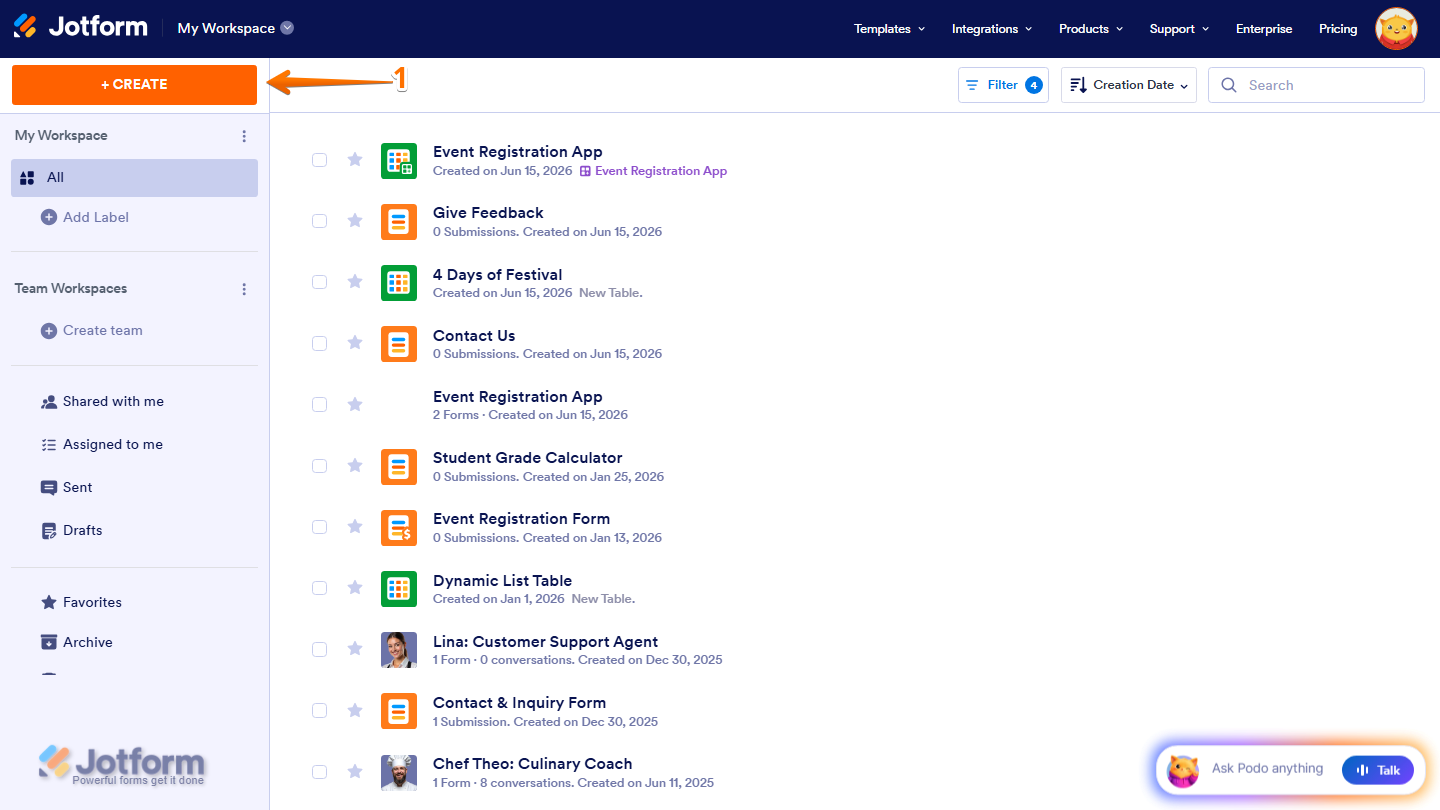
- On your Workspace page, click on Create on the top-left side of the page.
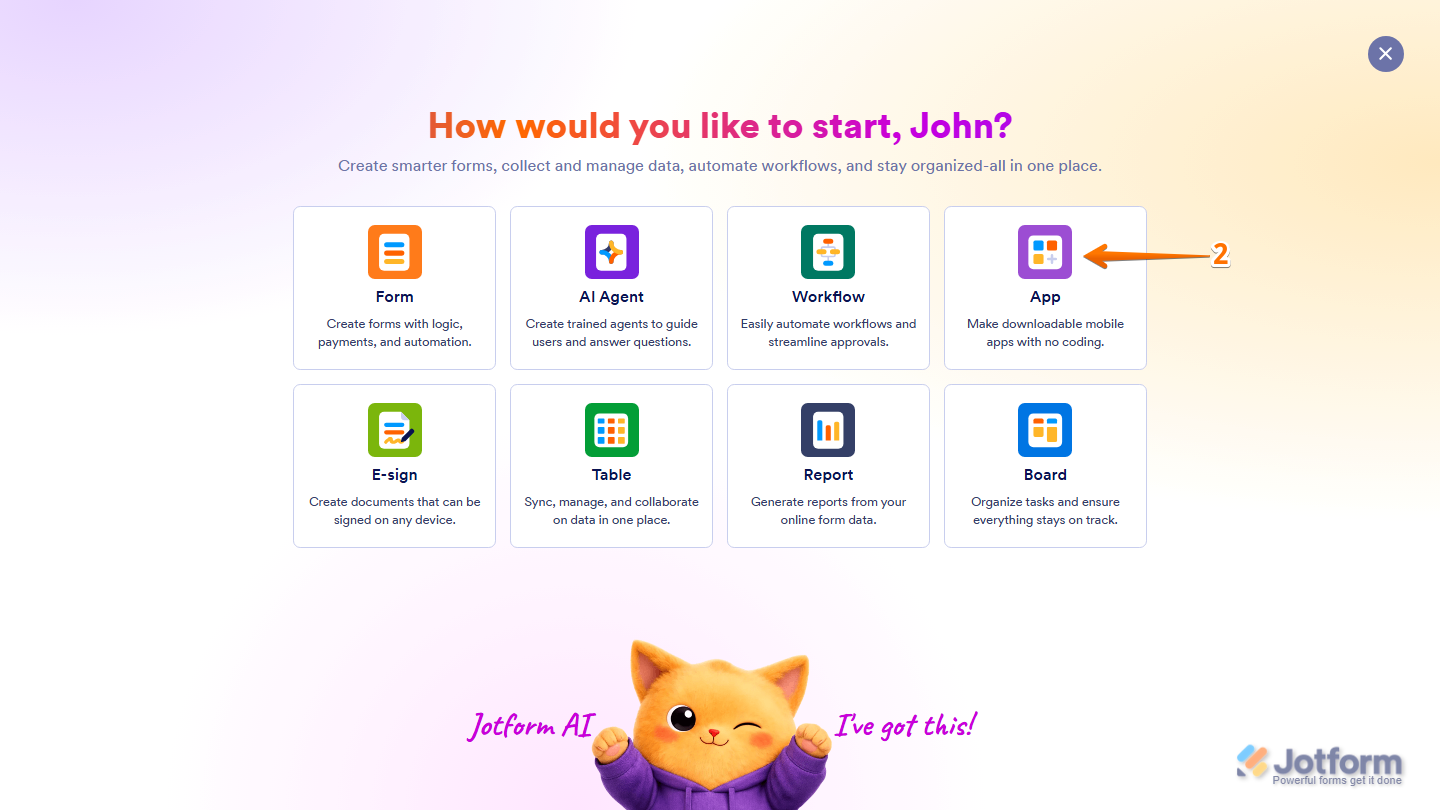
- Then, in the menu that opens, select App.
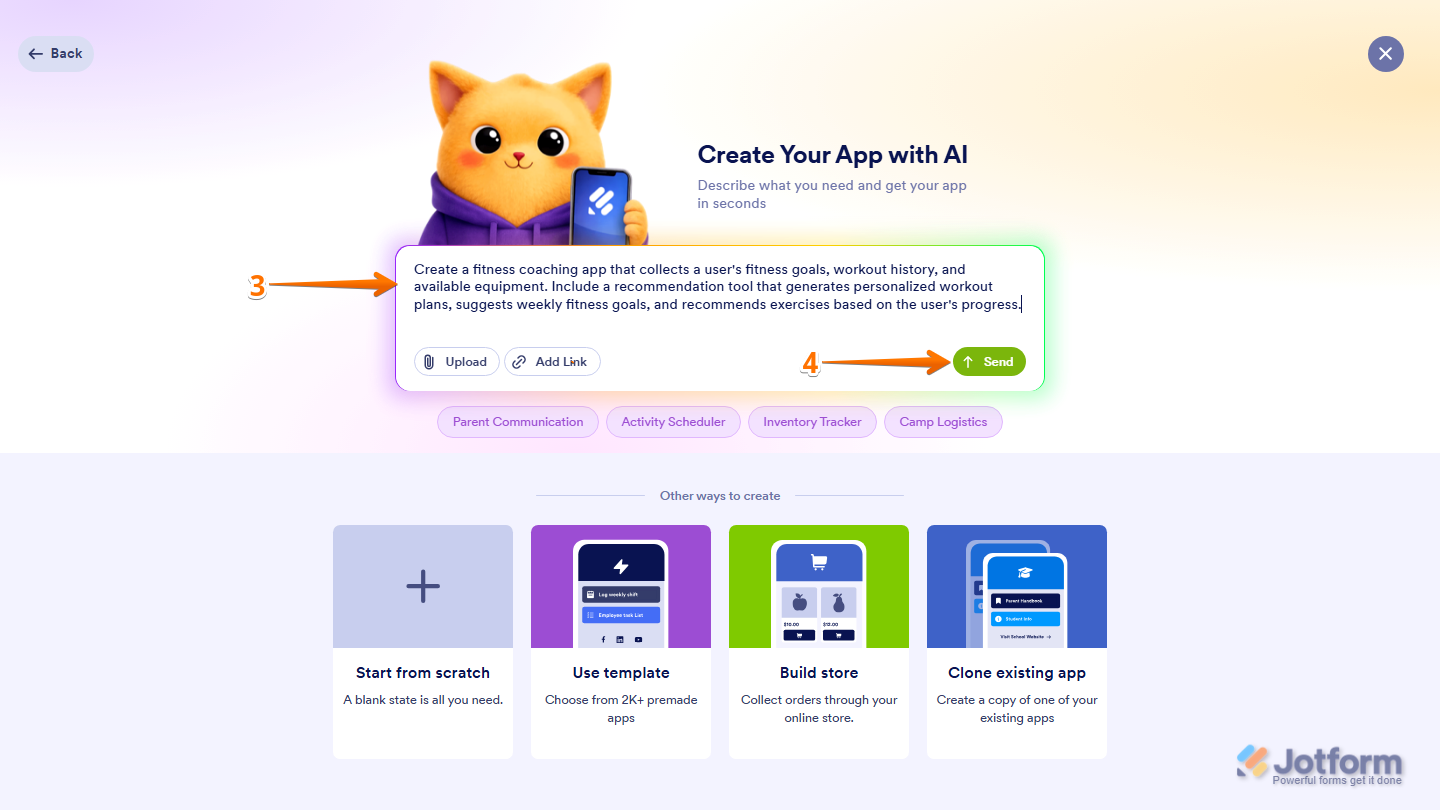
- Next, in the Create Your App with AI section, in the prompt box at the center of the page, enter your prompt. Here a few prompts you can try:
- Create a fitness coaching app that collects a user’s fitness goals, workout history, and available equipment. Include a recommendation tool that generates personalized workout plans, suggests weekly fitness goals, and recommends exercises based on the user’s progress.
- Create a summer camp registration app where parents can track registration progress for each child. Include a compliance tracker that identifies missing forms, highlights incomplete requirements, summarizes registration status, and recommends the next forms parents should submit to complete their child’s registration.
- Build an employee portal that includes a company policy assistant. Employees should be able to ask questions about workplace policies, benefits, time off, and onboarding procedures, and receive answers based on company documentation. Include a quick-access section for frequently asked questions.
- Design a travel planning app where users can enter their budget, travel dates, interests, and preferred destinations. Include a travel recommendation assistant that suggests destinations, activities, sample itineraries, and estimated travel costs based on the user’s preferences.
- Build a learning platform that helps students prepare for exams. Include a study assistant that recommends lessons based on completed coursework, identifies weak areas, suggests study plans, and generates personalized learning recommendations to help students improve their performance.
- Once you’re done, press Enter on your keyboard or click on Send to submit your prompt.
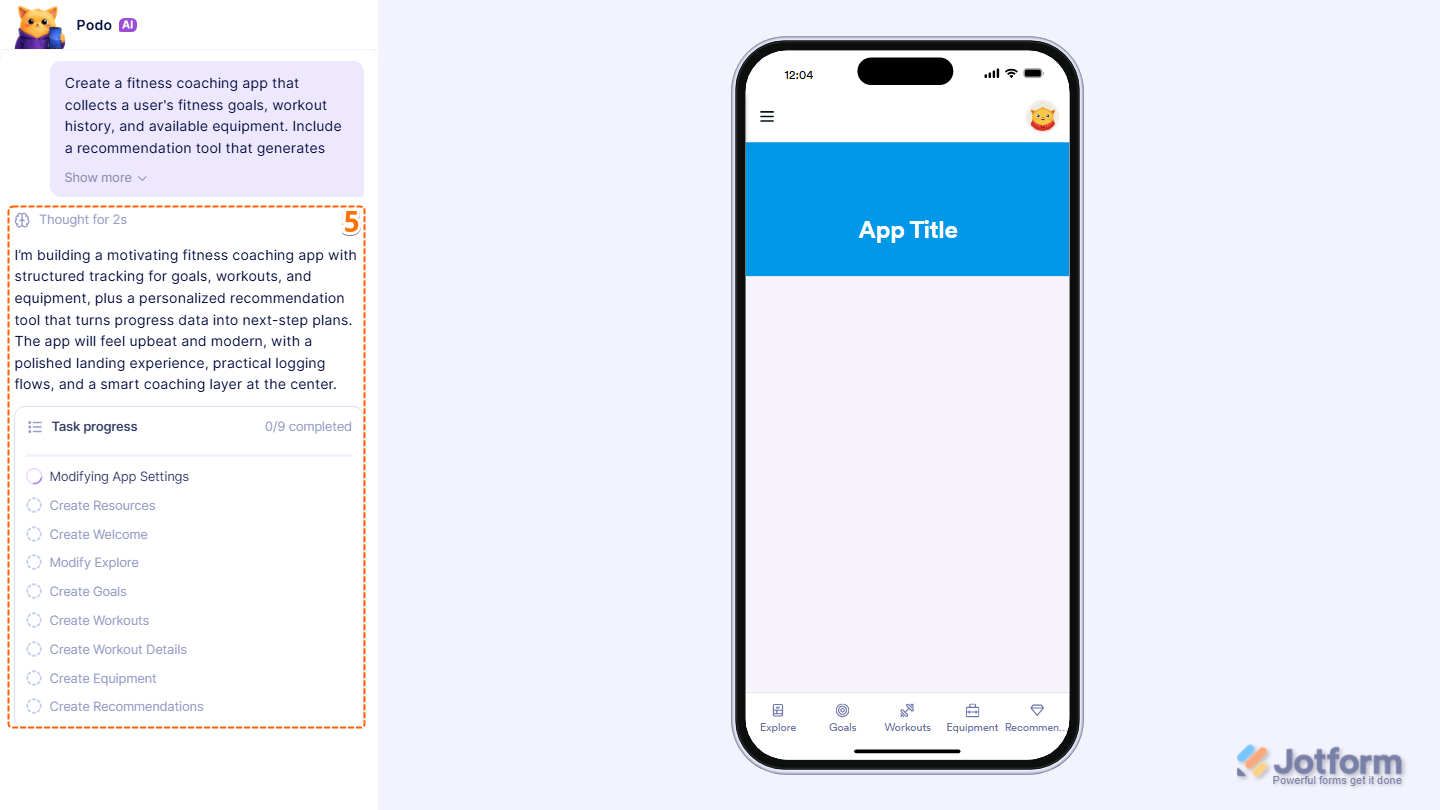
- Now, Podo AI will analyze the description you provided and begin creating your app along with any AI Widgets needed to support your requirements. While the app is being generated, you can track its progress and preview the app as it takes shape.
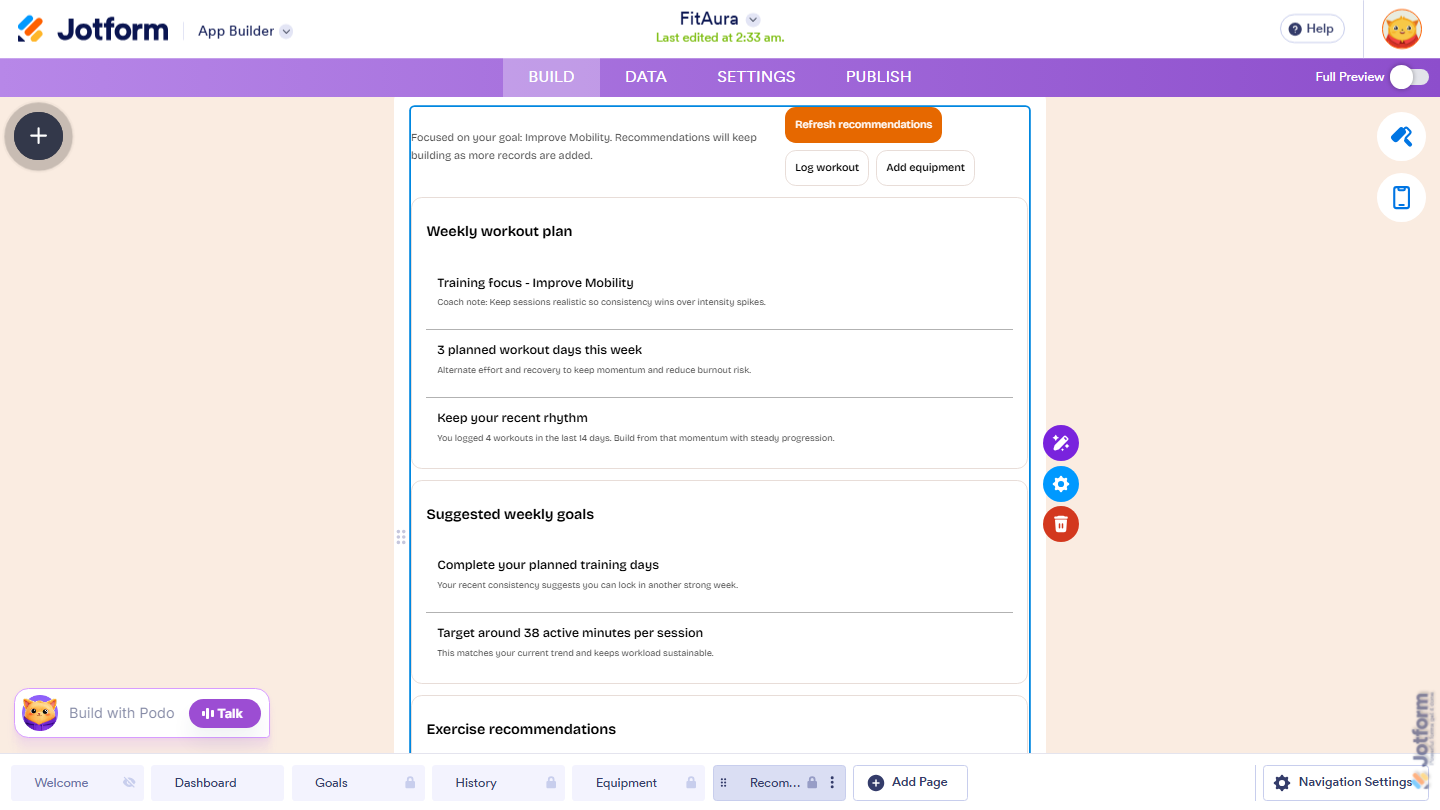
And that’s it! Your AI Widget has been added to your app. In this example, Podo AI generated a widget that provides personalized training recommendations based on workout preferences and fitness goals.
Pro Tip
You can use the Talk button when creating or customizing AI Widgets to describe your ideas instead of typing them manually. You’ll find more info in our guide on How to Build and Edit Your App Using Voice Commands with AI App Builder.
Creating AI Widgets from App Builder
If you’re already working on an app, you can use Build with Podo AI to generate additional functionality without starting over. It’s easier than you think:
- In App Builder, in the bottom-left corner of the page, click on the Build with Podo chatbox.
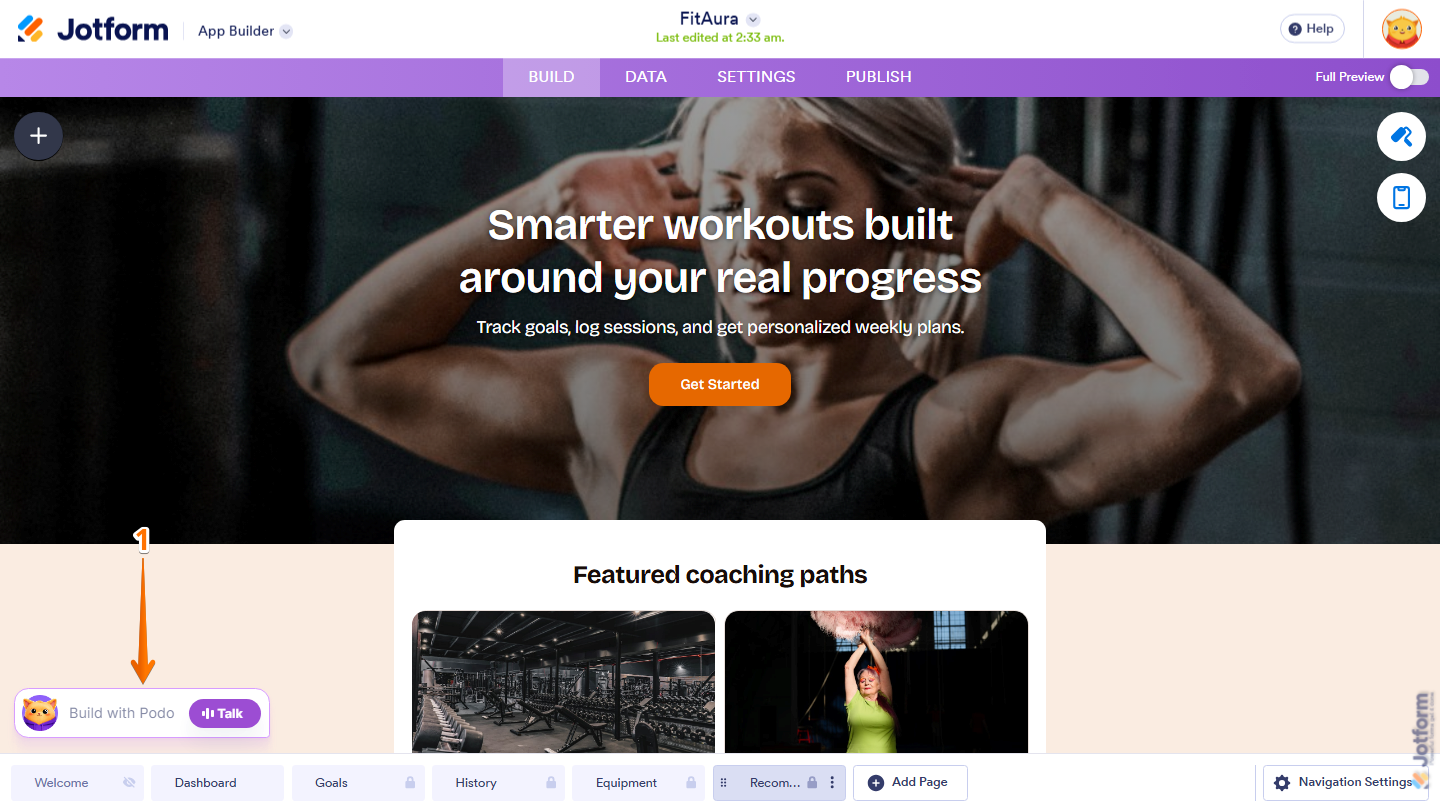
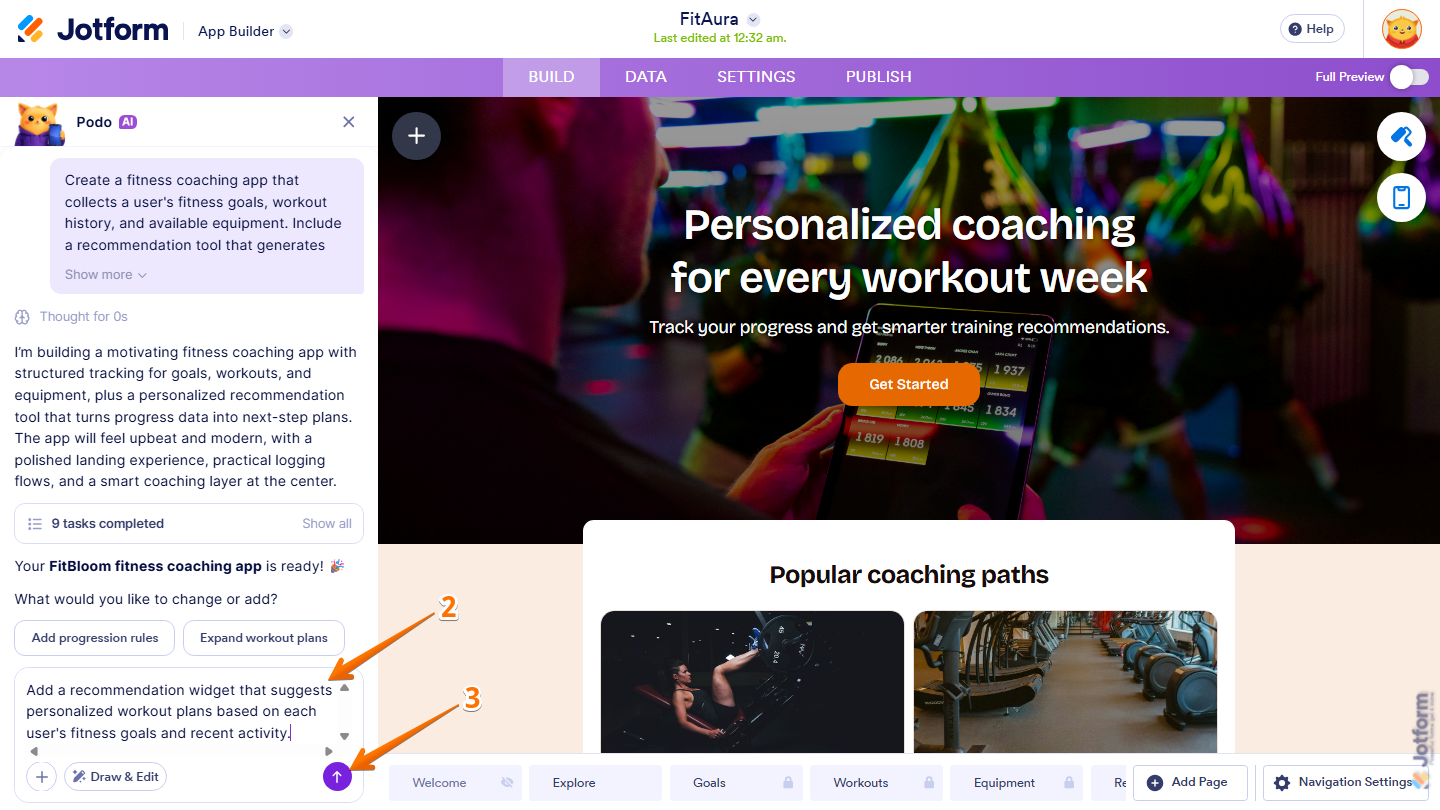
- Then, in the Build with Podo Chatbox that opens, enter your prompt. Here are a few prompts you can try:
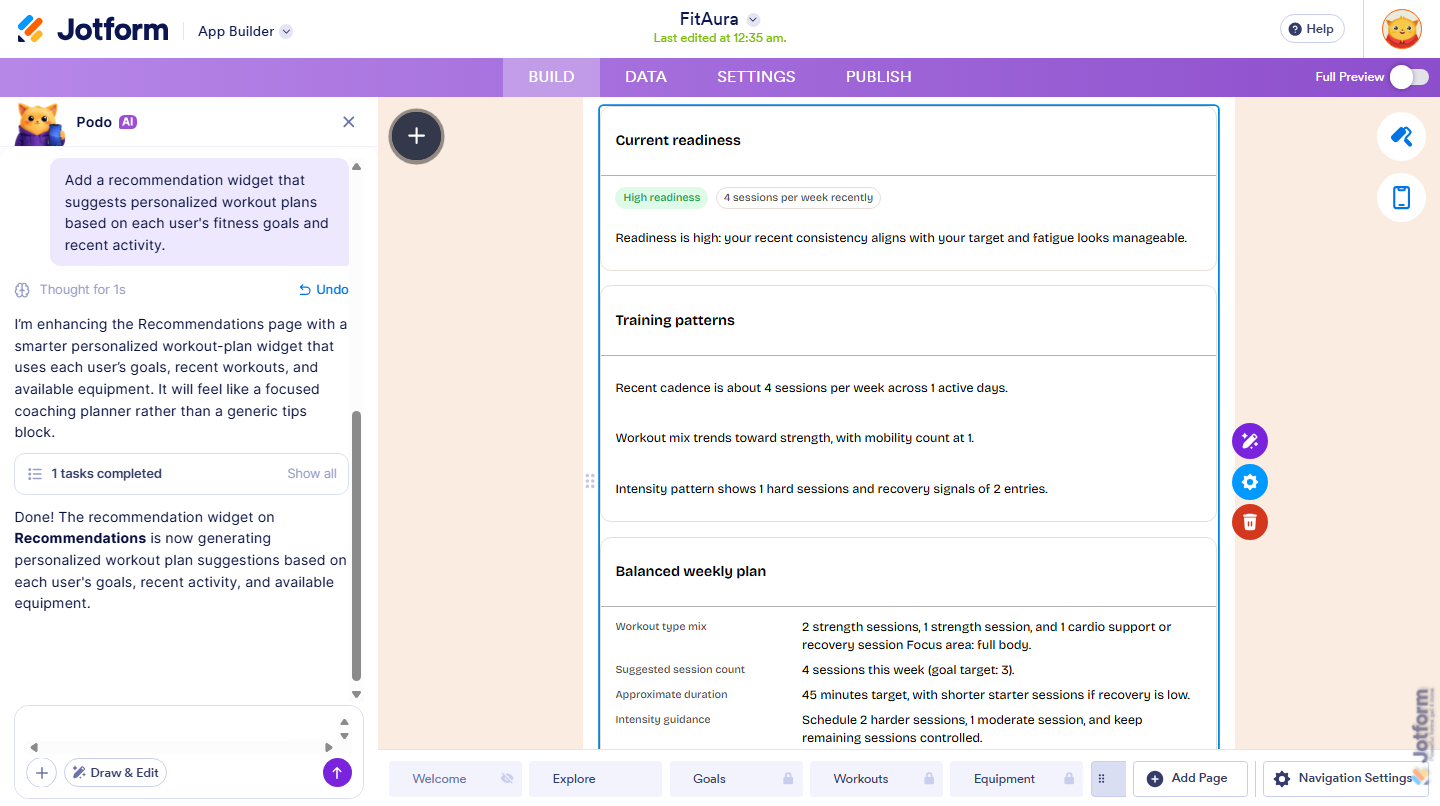
- Add a recommendation widget that suggests personalized workout plans based on each user’s fitness goals and recent activity.
- Create a company policy assistant that helps employees find information about workplace policies, benefits, and onboarding procedures.
- Add a travel recommendation tool that suggests destinations and activities based on a user’s budget and interests.
- Create a study assistant that recommends lessons and learning resources based on a student’s progress.
- Add a compliance tracker that identifies missing registration requirements and recommends the next steps users should take.
- Once you’re done, press Enter on your keyboard or click on Send to submit your prompt.
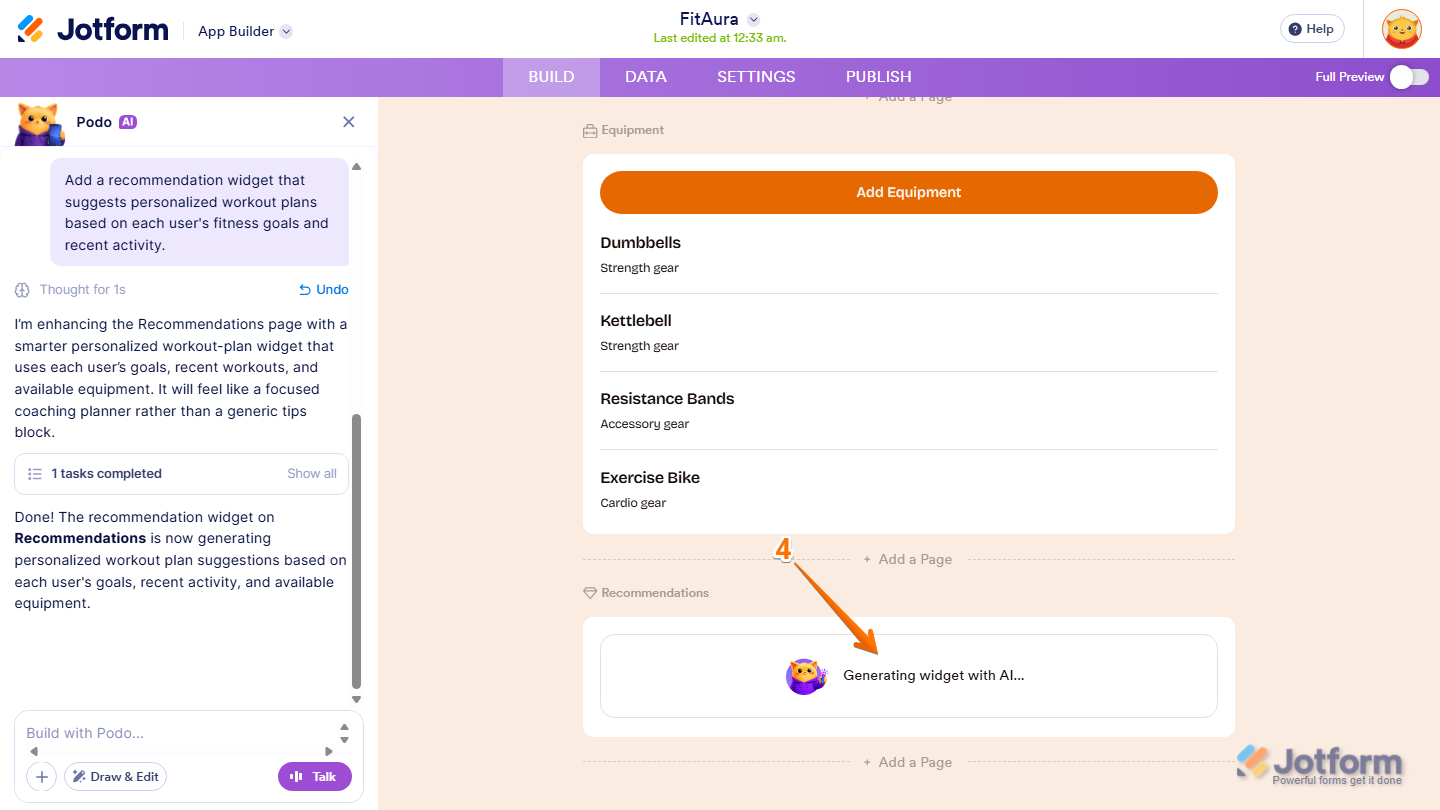
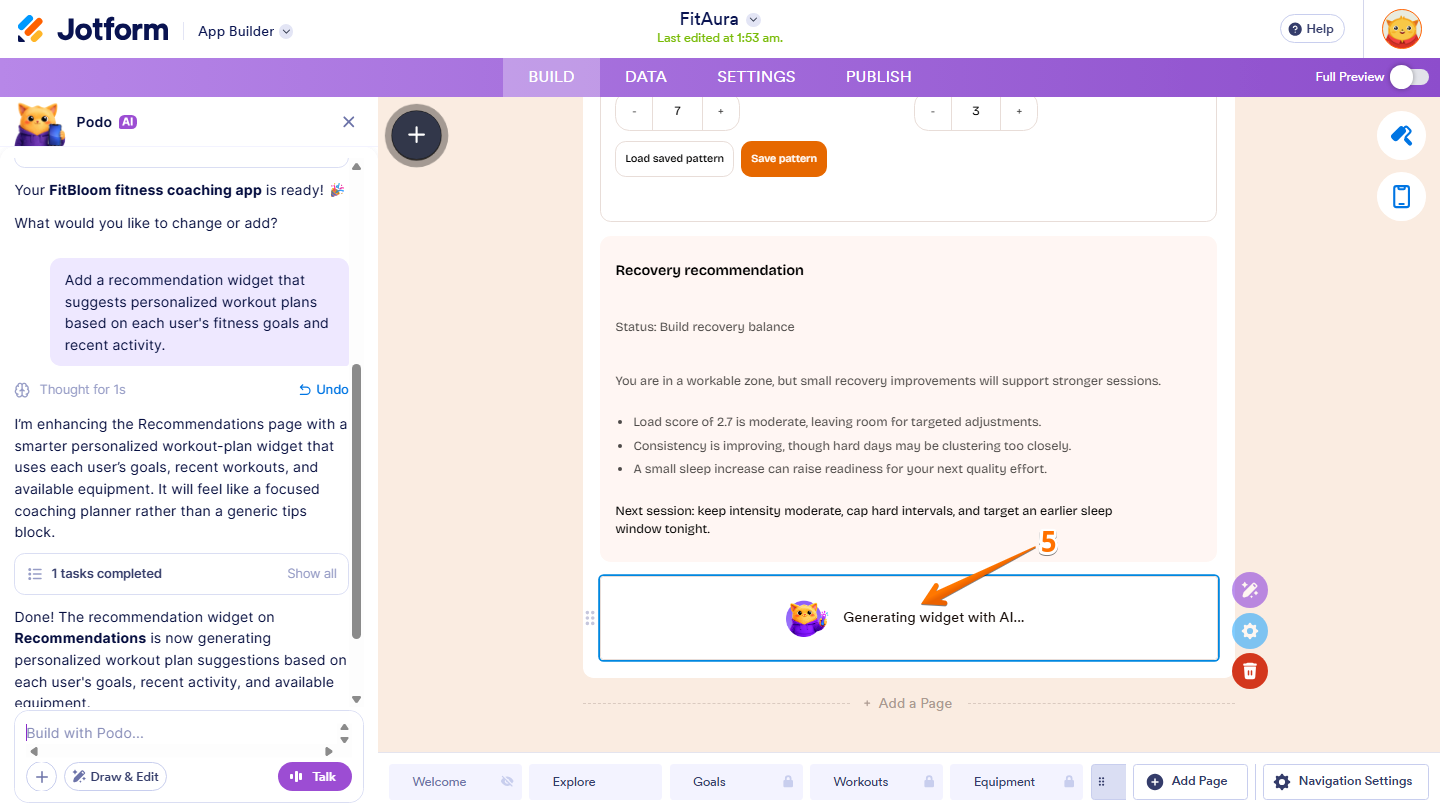
- Now, Podo AI will process your request and begin generating the AI Widget. While the widget is being created, a Generating Widget with AI message will appear in your app to indicate that the widget is still being generated.
Once the generation process is complete, the AI Widget will be added to your app and populated with AI-generated content based on the prompt you provided. Here, the widget generates a personalized weekly plan, goals, and exercise ideas using the user’s goal preferences, workout patterns, and available equipment.
Creating AI Widgets Using Create Widget with AI
If you’d like to generate an AI Widget directly, you can use the Create Widget with AI option from the App Elements menu. Here’s how to set it up:
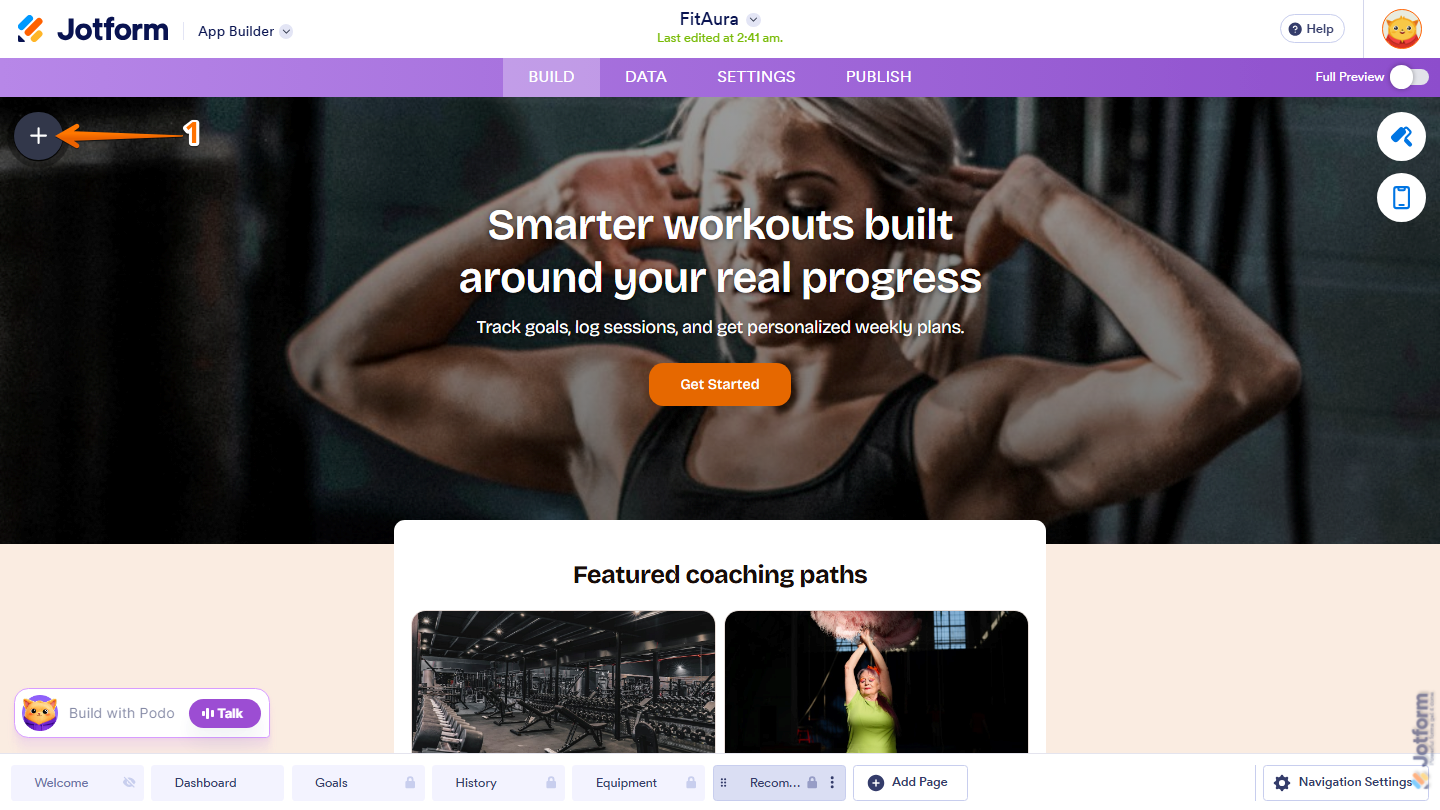
- In App Builder, click on Plus icon on the left side of the page.
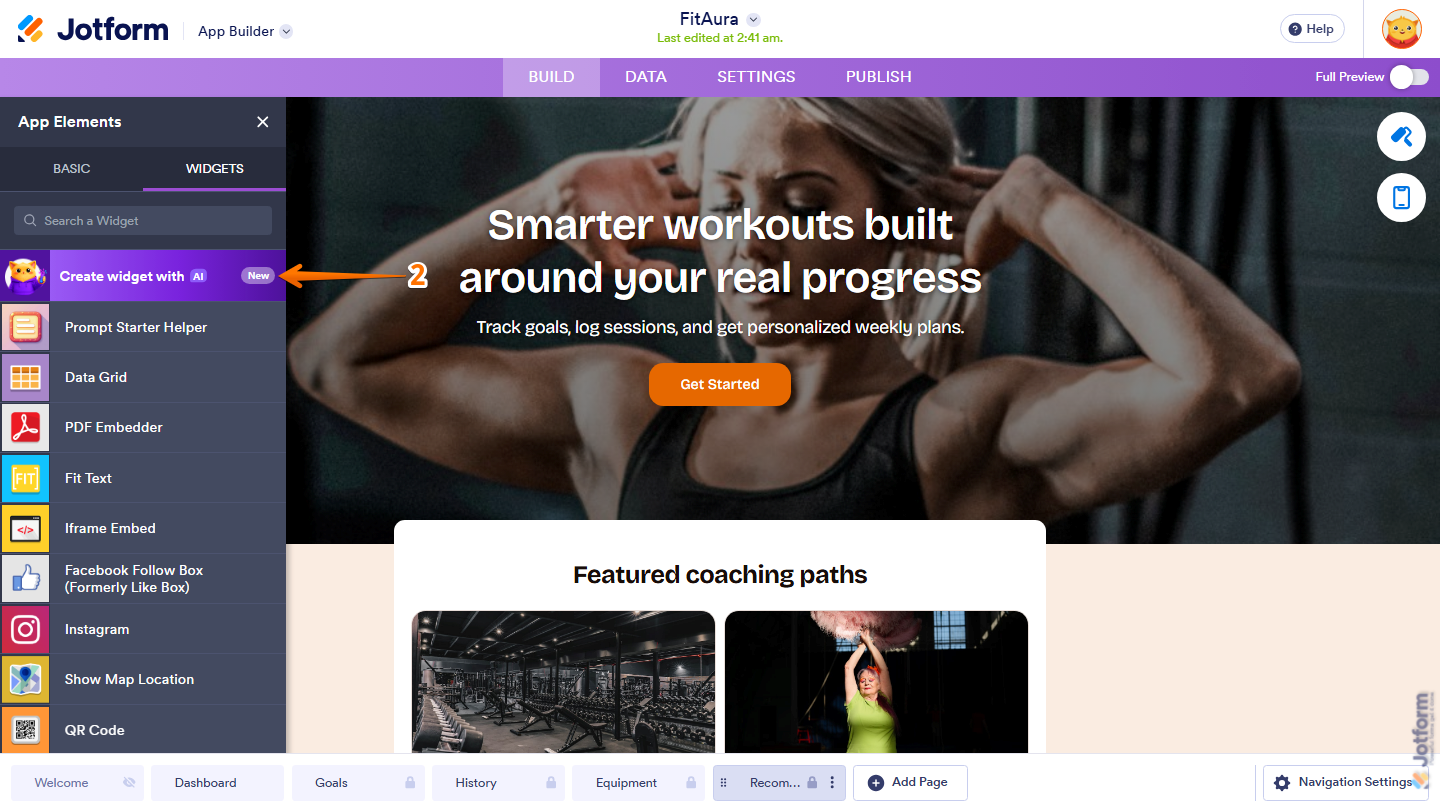
- Then, in the App Elements menu, under the Widgets tab, click on Create Widget with AI.
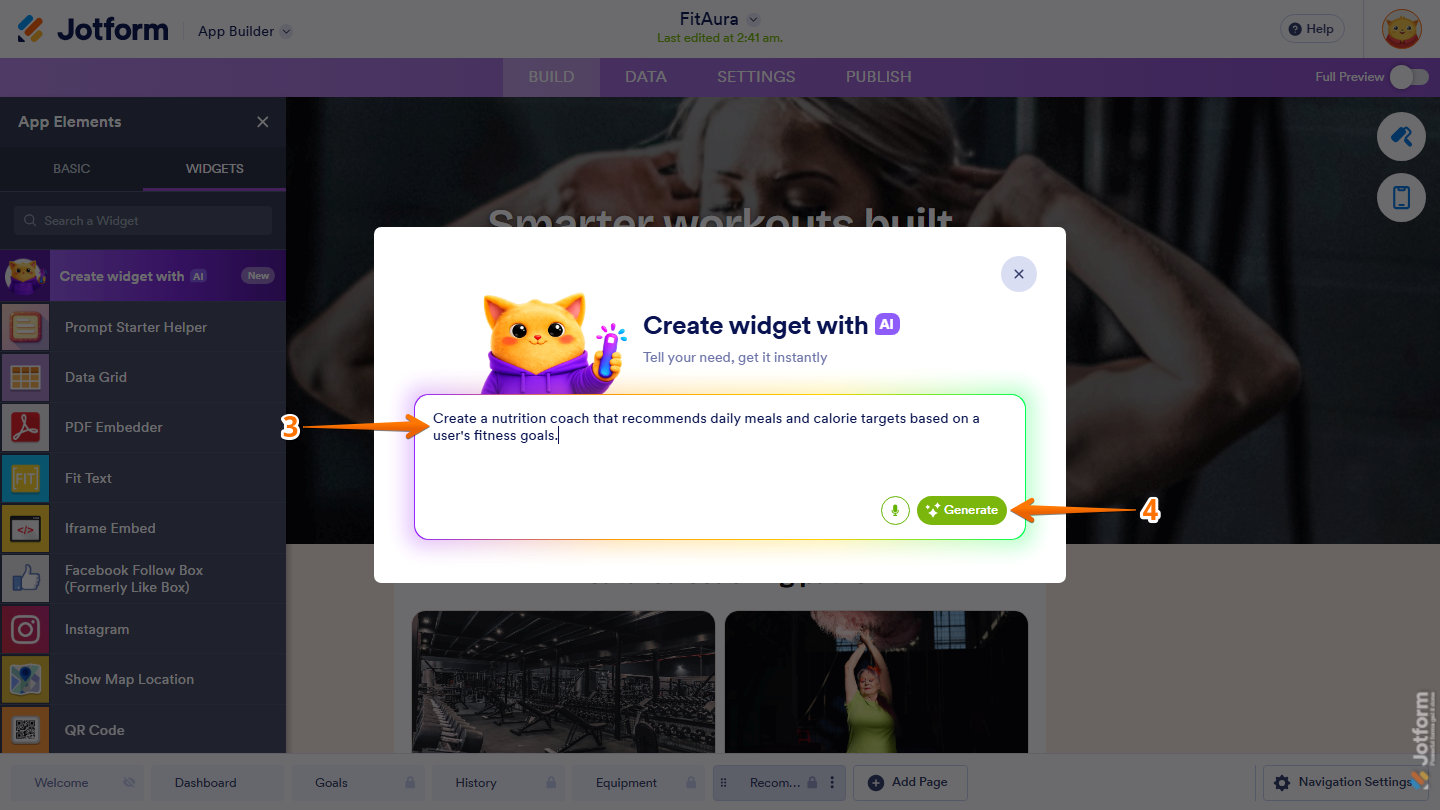
- Next, in the Create Widget with AI window that opens, in the Prompt box, enter a prompt describing the functionality you’d like to create. Here are a few prompts you can try:
- Create a dashboard that summarizes camp registration progress.
- Create a company policy assistant that answers employee questions about workplace policies, benefits, and onboarding procedures.
- Create a travel planner that recommends destinations, activities, and itineraries based on a user’s budget and interests.
- Create a study assistant that recommends lessons and learning resources based on a student’s progress and learning goals.
- Create a customer support assistant that helps users find answers to frequently asked questions and troubleshooting guides.
- Once you’re set, click on Generate.
- Now, the Create Widget with AI will process your request and begin generating the AI Widget. While the widget is being created, a Generating Widget with AI message will appear in your app to indicate that the widget is still being generated.
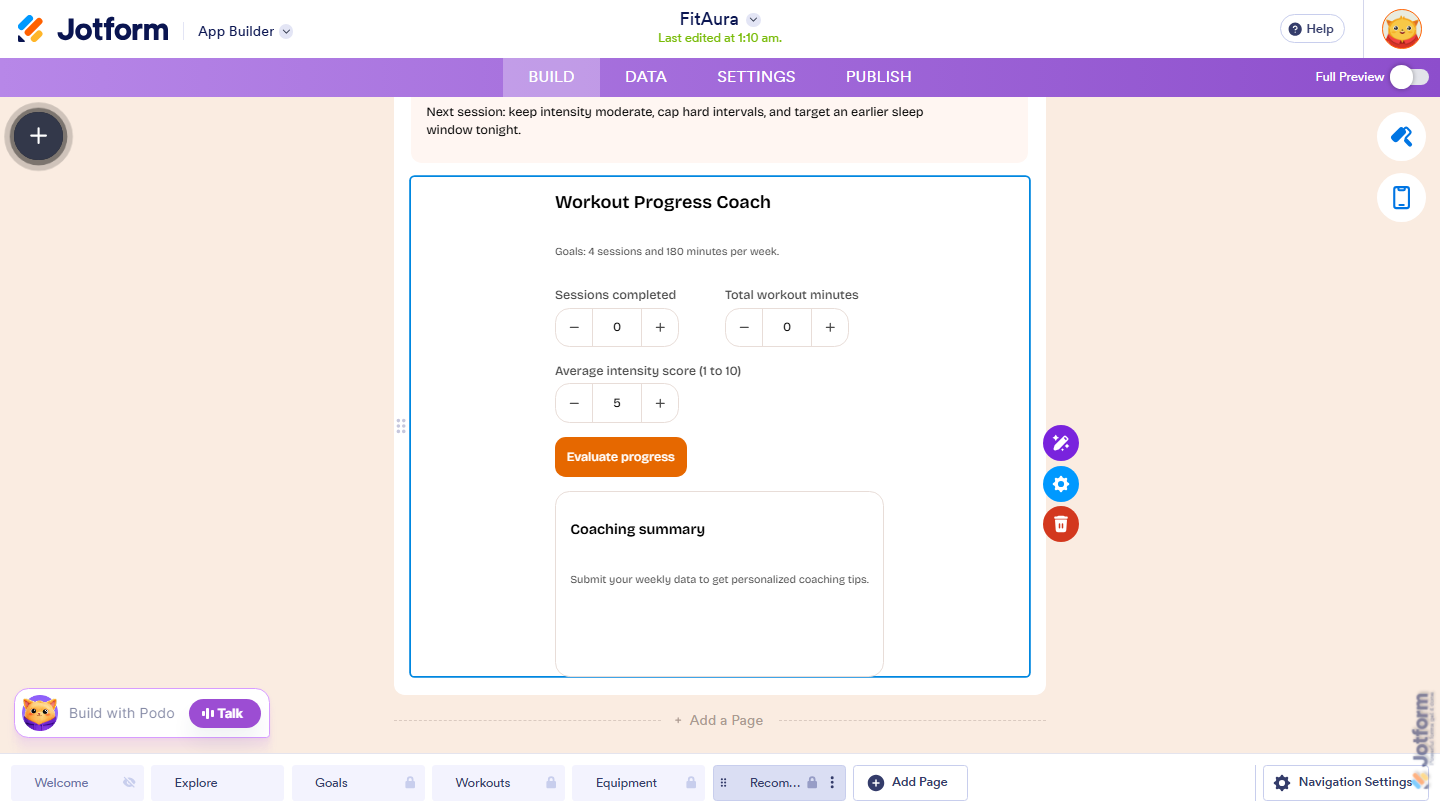
When the generation process is complete, the new AI Widget will automatically appear in your app. In this case, the generated Workout Progress Coach widget evaluates weekly workout progress and provides personalized coaching tips based on user-entered activity data.
Customizing an Existing AI Widget
Editing an AI Widget is just as simple as creating one. You can continue refining its functionality using additional prompts or voice commands. Here’s how to customize them:
- In App Builder, in the bottom-left corner of the page, click on the Build with Podo Chatbox.
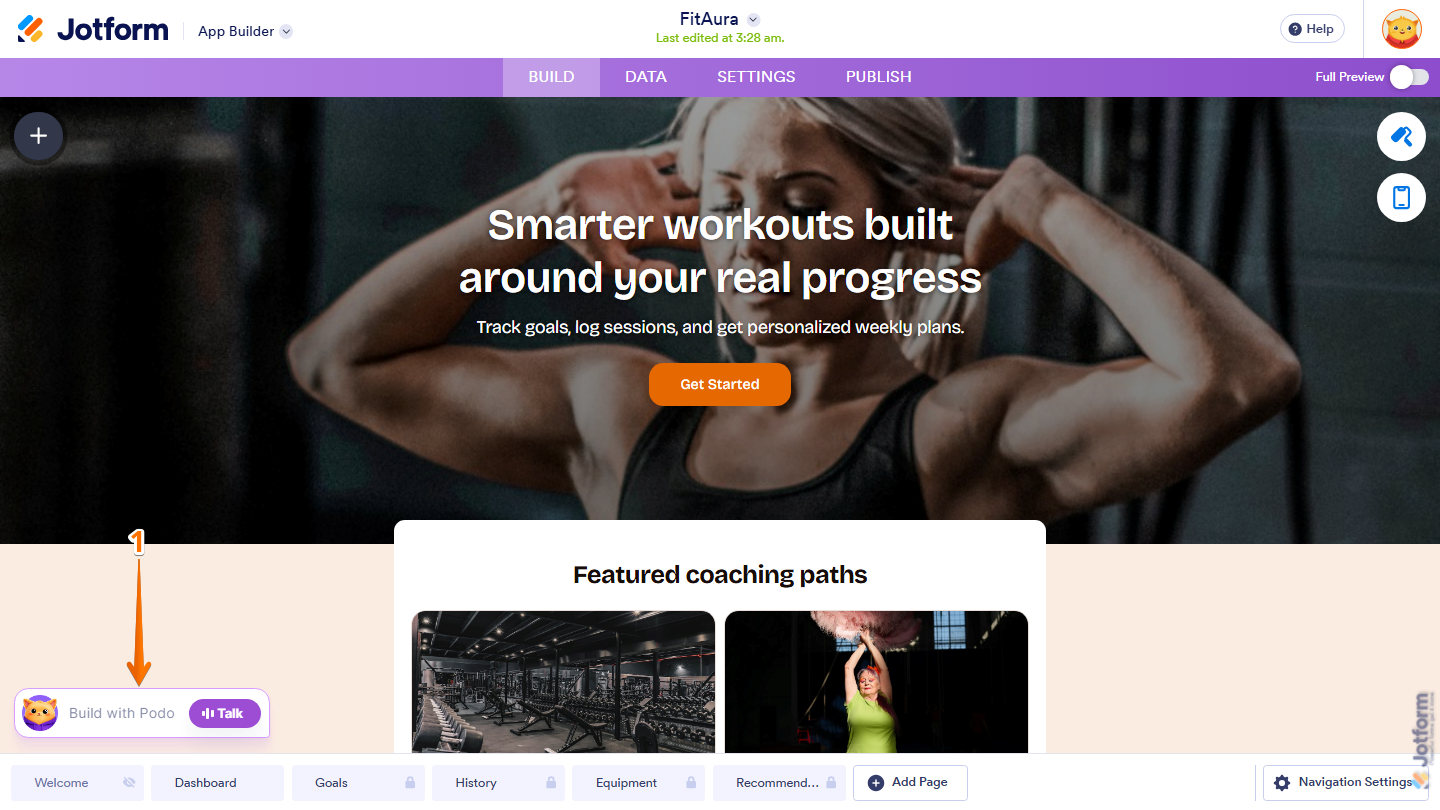
- Then, select the AI Widget you’d like to customize.
- Next, the AI Widget will automatically be added to the Build with Podo Chatbox, allowing Podo AI to understand which widget you’d like to update.
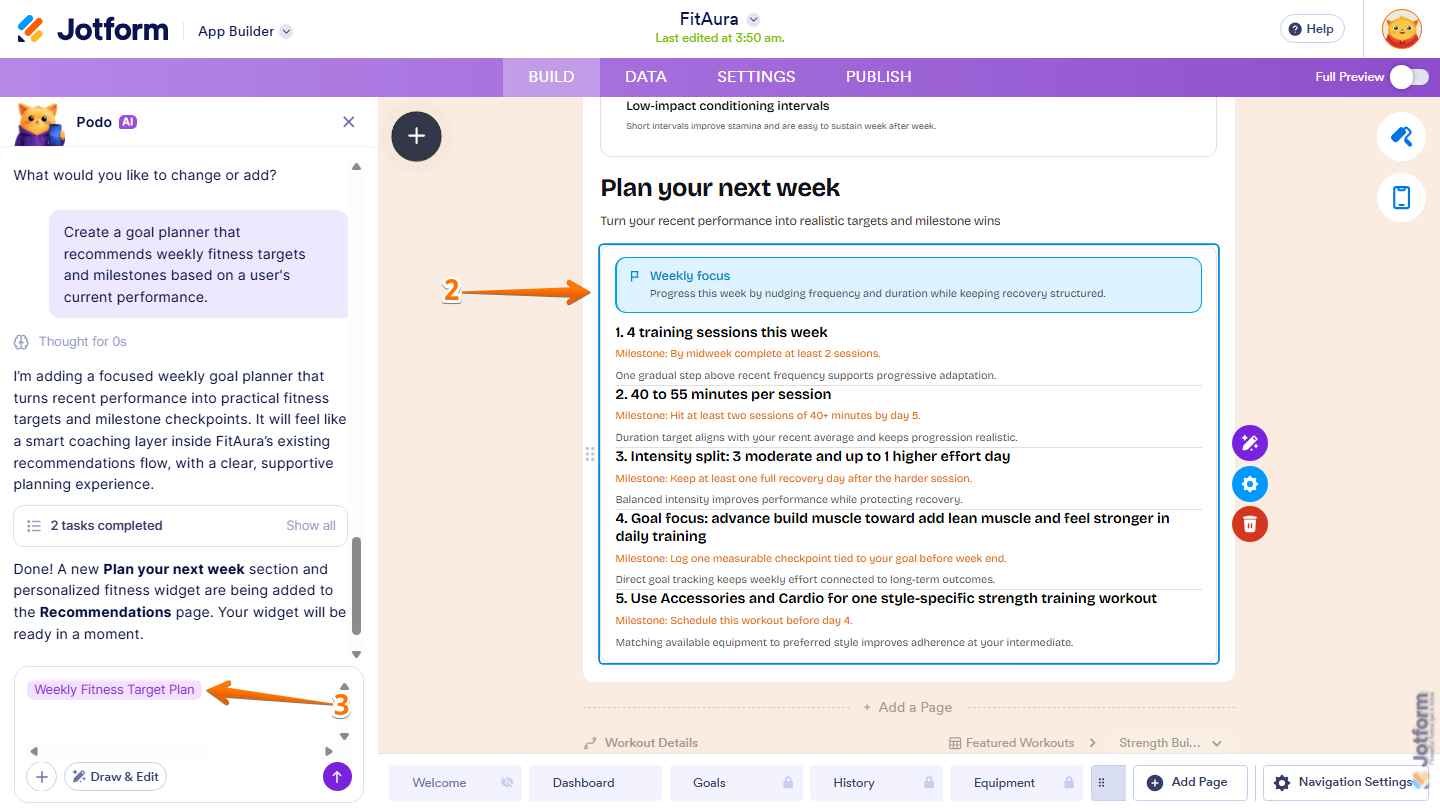
- Next, enter a prompt describing the changes you’d like to make. Here are a few examples:
- Add personalized meal recommendations for breakfast, lunch, dinner, and snacks based on the user’s calorie target.
- Make the design more modern and visually appealing.
- Add icons to each recommendation category.
- Simplify the widget for first-time users.
- Reorganize the information into separate sections.
- Make the recommendations more personalized.
- Now, press Enter on your keyboard or click on Upward Arrow icon to submit your prompt.
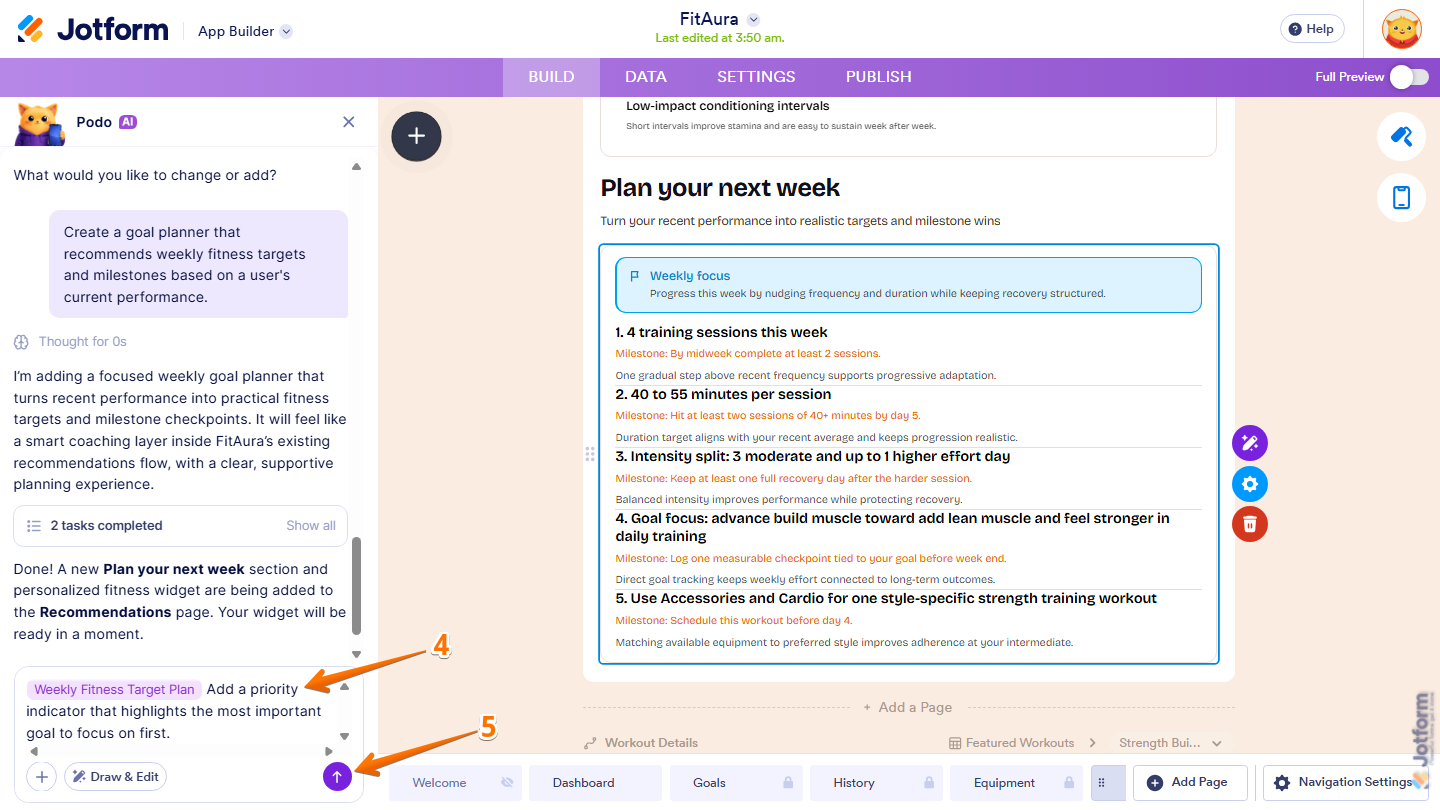
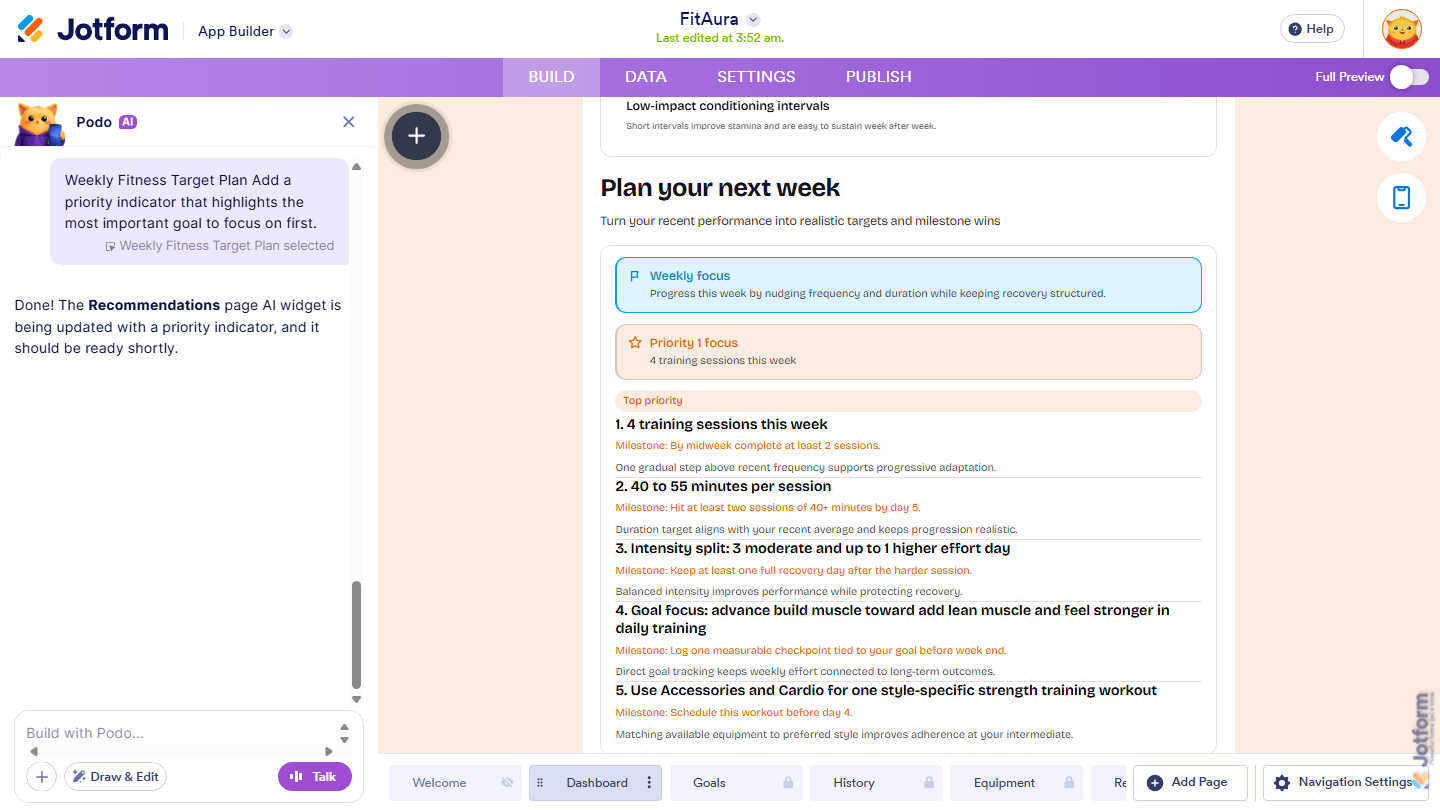
Once the update is complete, the selected AI Widget will reflect the changes you’ve requested. In this case, the Weekly Fitness Target Plan widget was updated with a priority indicator to help users quickly identify the most important goal to focus on first.
Pro Tip
You can also create apps that include AI Widgets directly from AI App Generator or Jotform Apps.

Send Comment:
1 Comment:
August 3, 2026
I like this!