Apps allow you to bundle multiple Forms, links, and documents into a single, mobile-ready interface. You can create an App from your Workspace or directly from your existing Forms. This guide covers every available way to build and manage your Apps.
Create an App from the Workspace
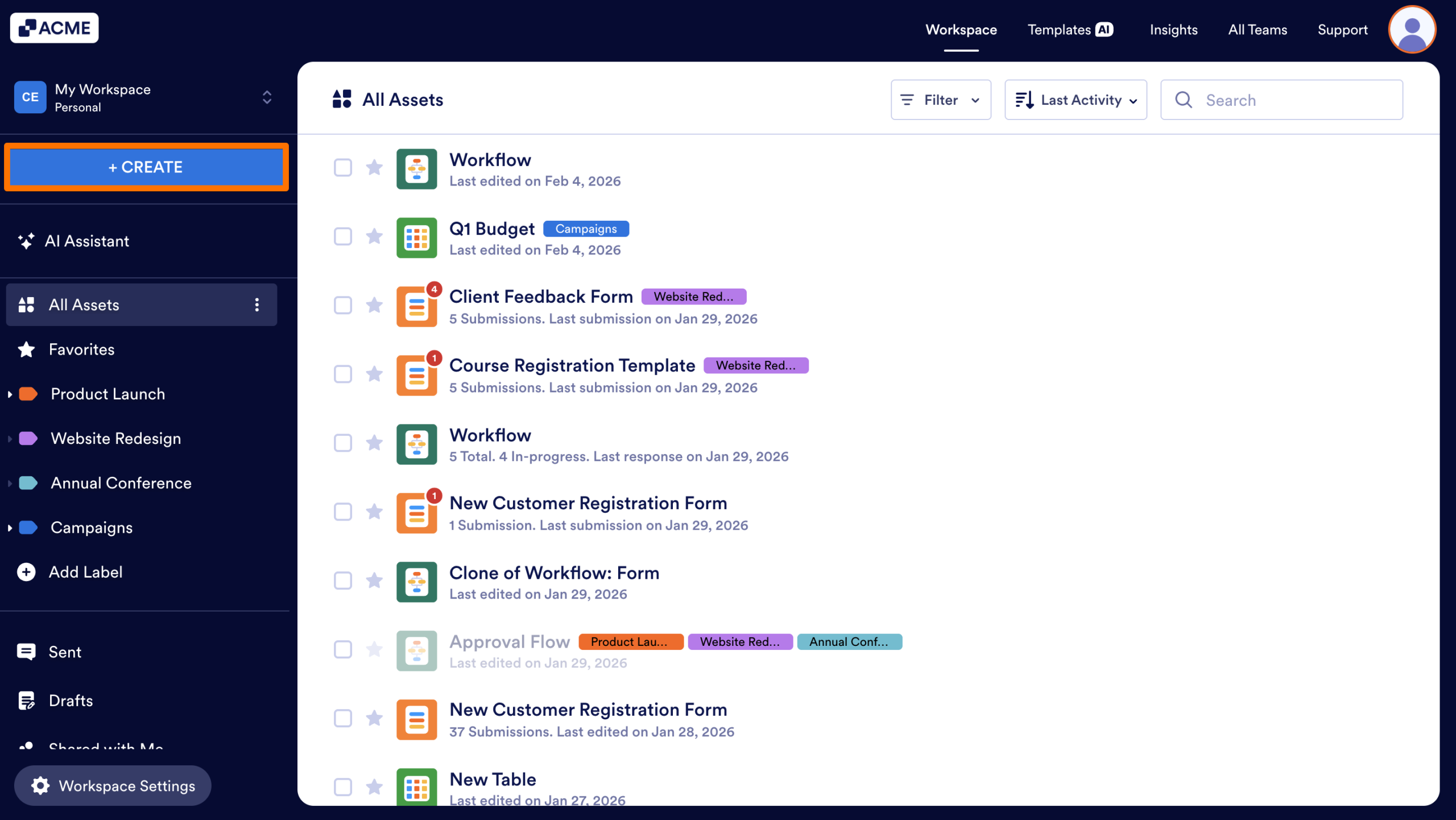
- First, in My Workspace, click the Create button in the upper left corner of the screen.
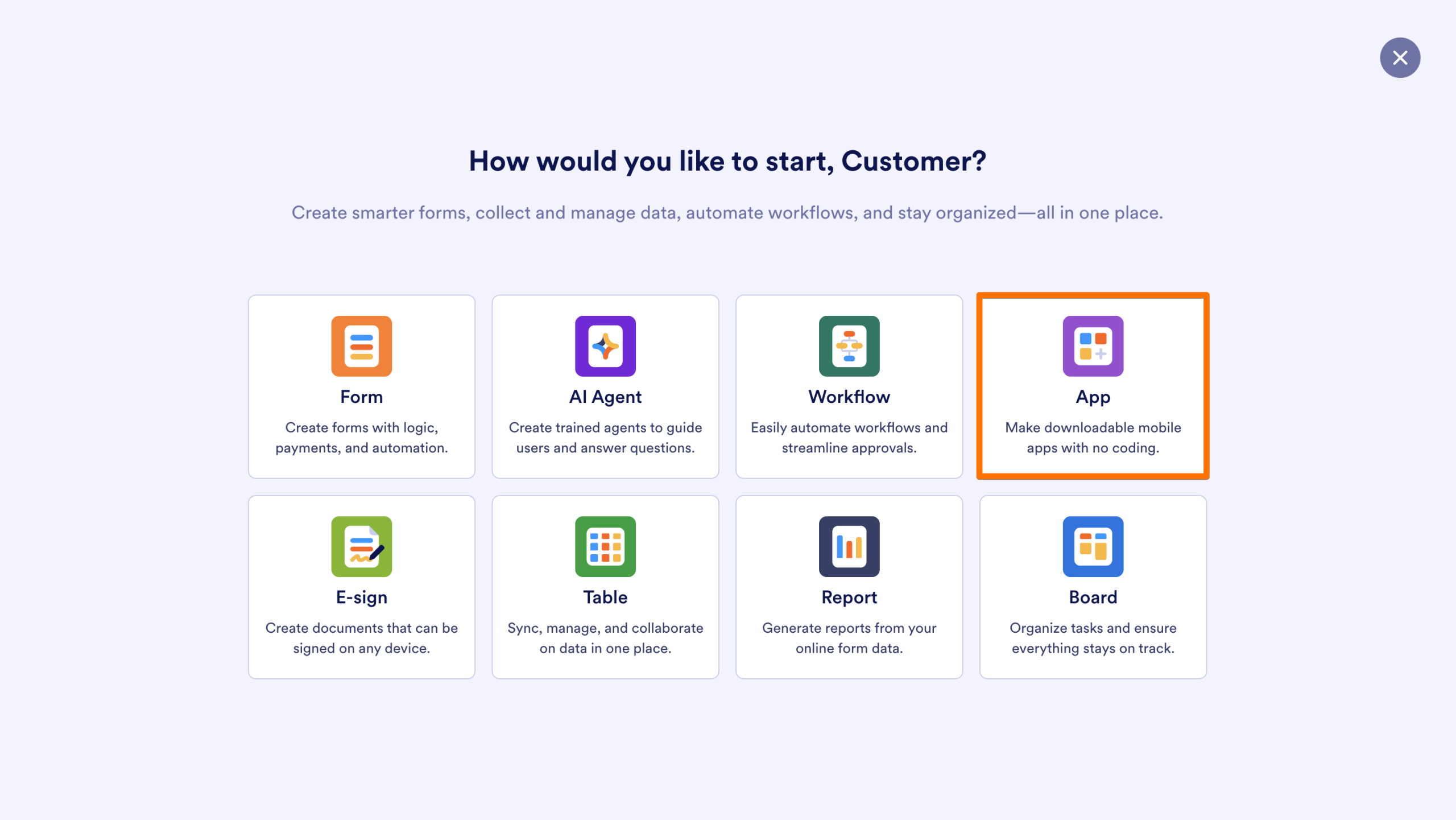
- Next, select App.
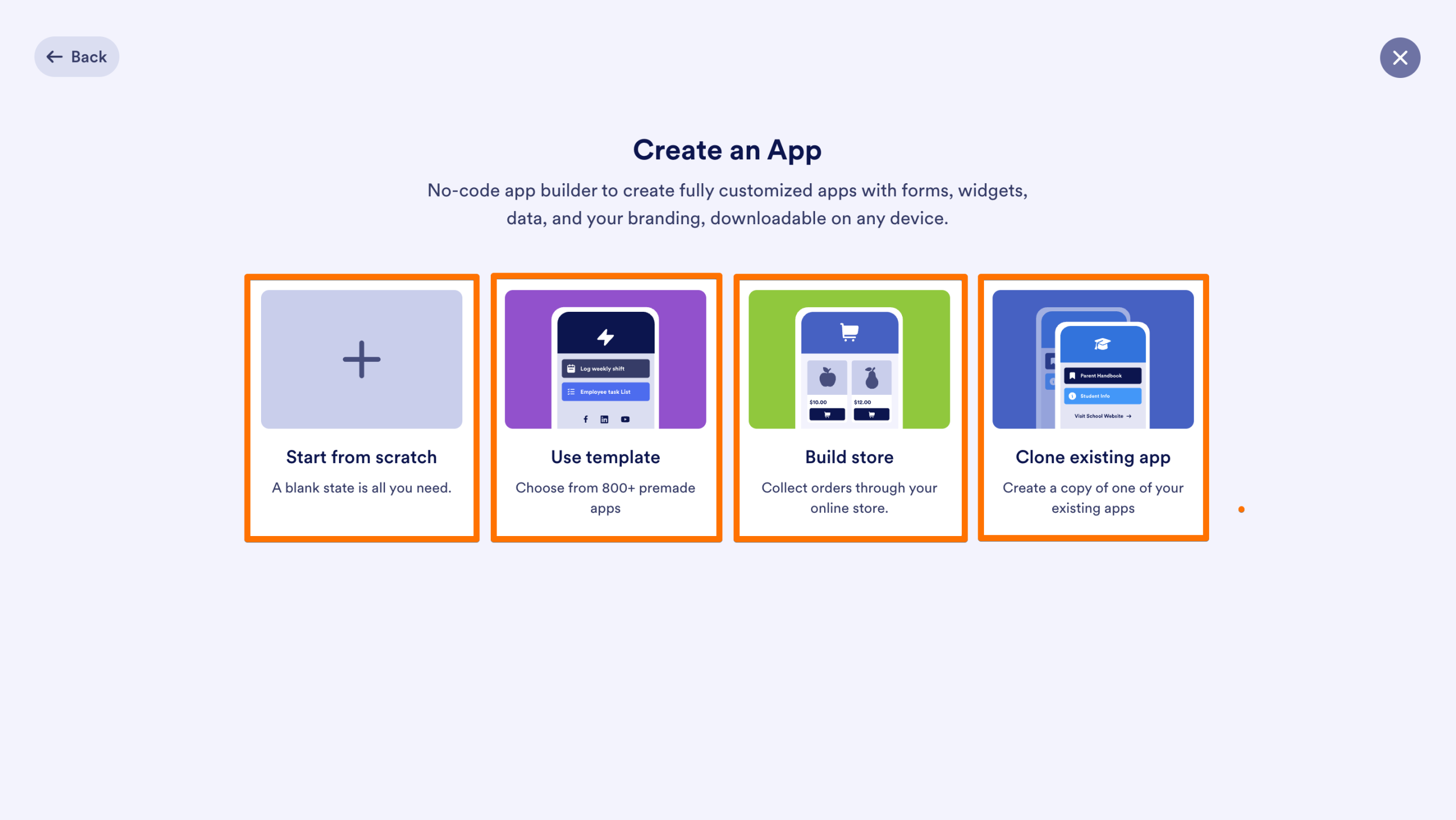
- Then, choose your starting point:
- Start from scratch: Build an App from a blank canvas.
- Use template: Choose from hundreds of pre-designed App layouts.
- Build store: Create an online store to collect orders.
- Clone existing app: Create a copy of an App you’ve already built.
The new App will be added to your personal Workspace.
Create an App from Existing Forms
If you already have Forms created, you can quickly turn them into an App several ways Here’s how to do it:
From the Toolbar
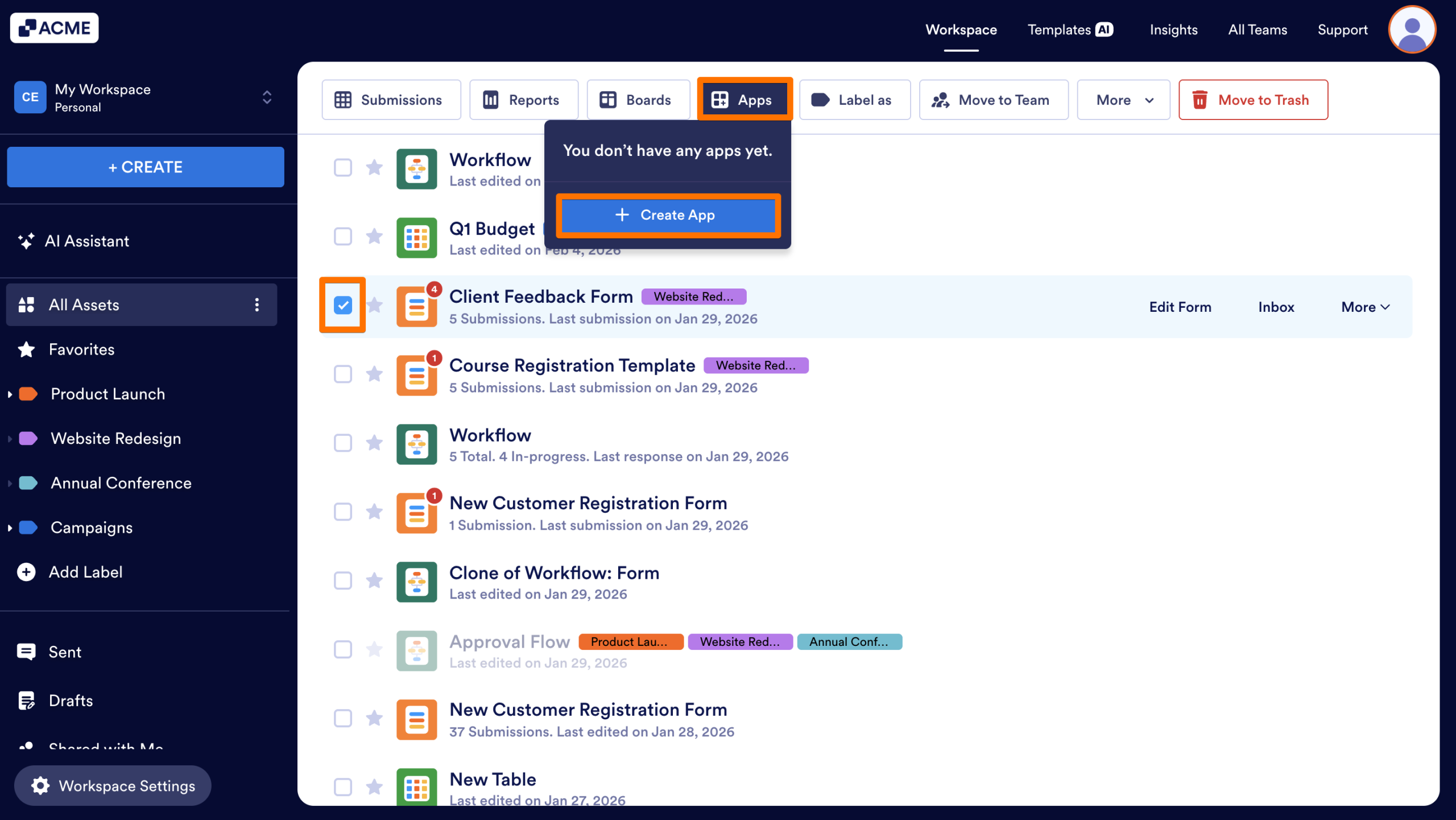
- In the Workspace, select a Form (or multiple Forms) by clicking on the checkboxes next to them.
- Next, in the toolbar at the top of the screen, click the Apps menu.
- Then, select Create App (if one Form is selected) or Create New App (if multiple Forms are selected).
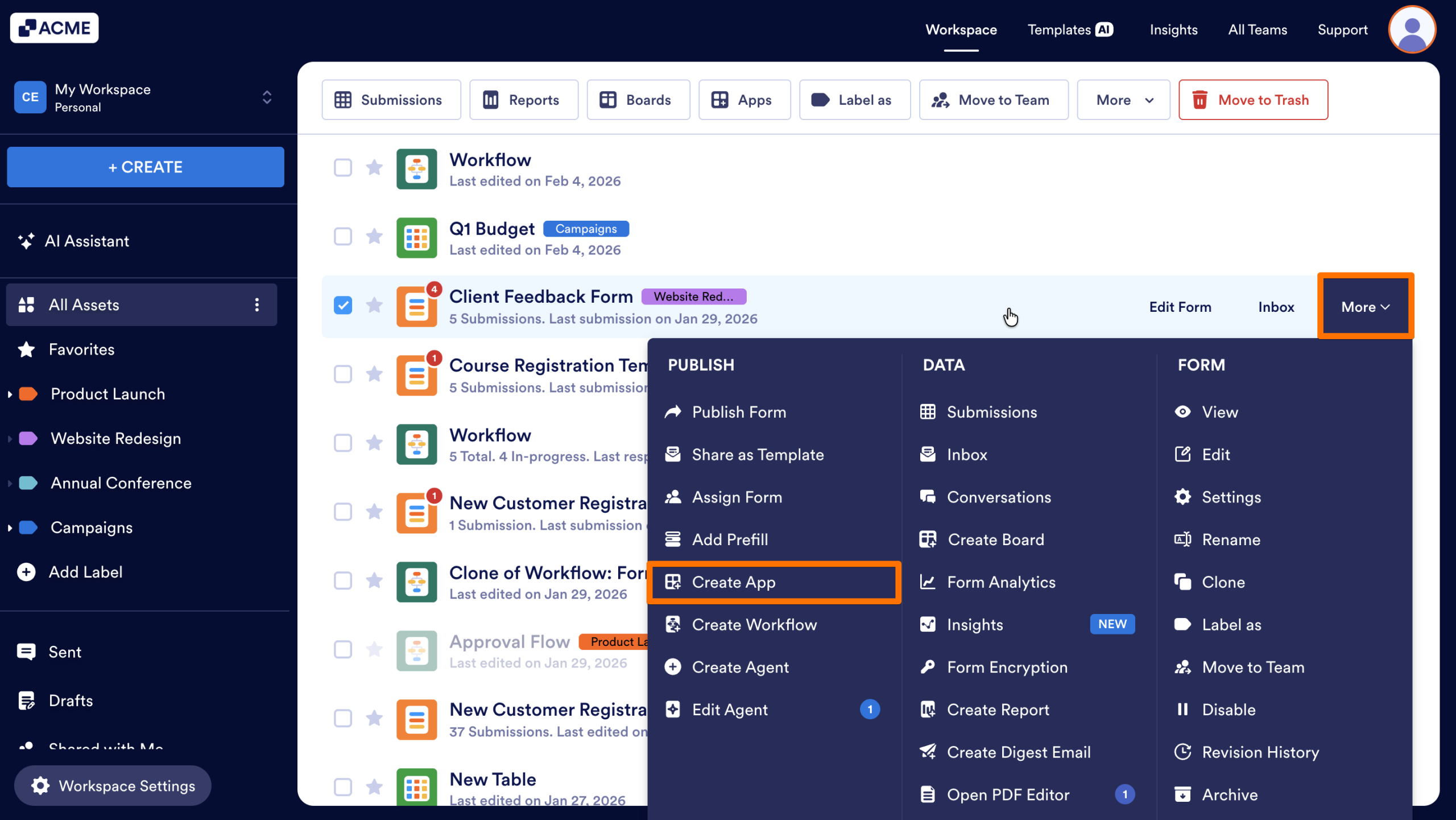
From the More Menu
- First, hover over a specific Form in your Workspace.
- Next, click the More dropdown.
- Then, under the Publish section, select Create App.
Create an App from the Form Builder
You can generate an App without leaving the design phase of a specific Form.
From the Quick Share Tab
- First, in the Form Builder, on the orange navigation bar at the top of the screen, click on Publish.
- Next, scroll down and click on Create App.
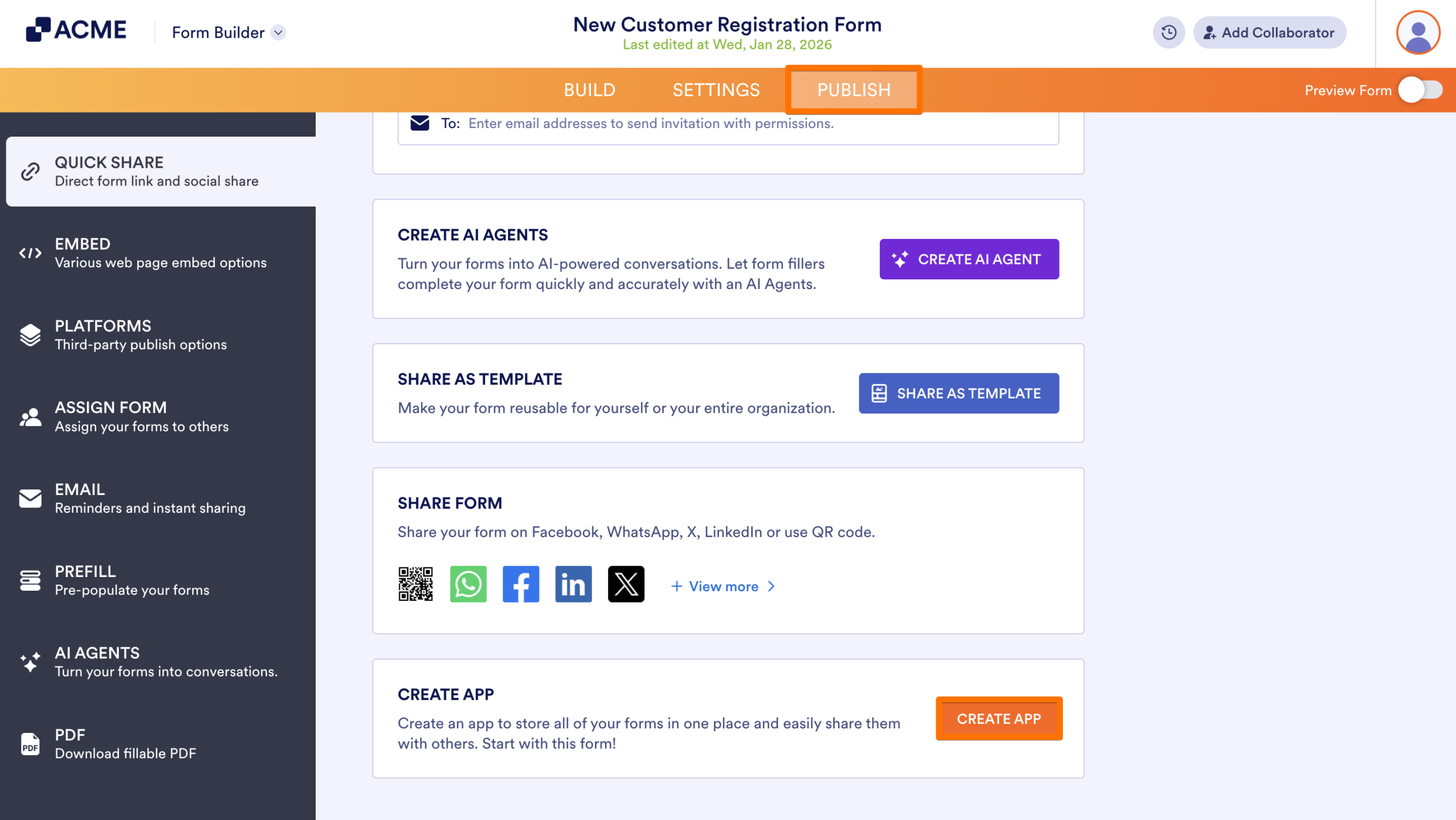
This will automatically wrap the current form into a new app.
From the List Picker
- First, in the Form Builder, click on the List Picker on the top left.
- Next, select App Builder from the menu.
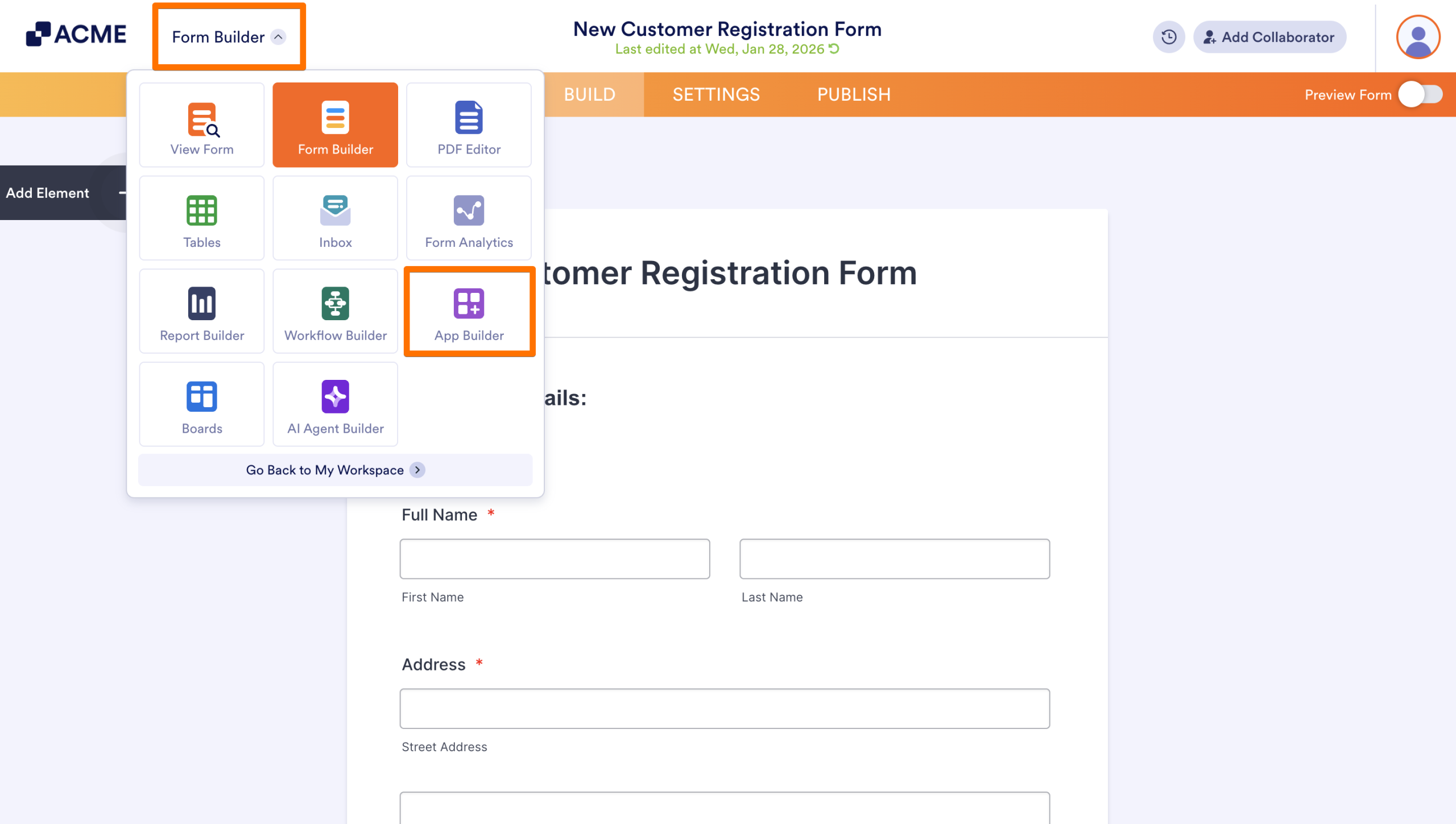
This opens the App Builder directly, allowing you to add the current Form or other elements.
Clone an Existing App
Cloning allows you to replicate an entire App structure so you can make changes to it without changing the original version.
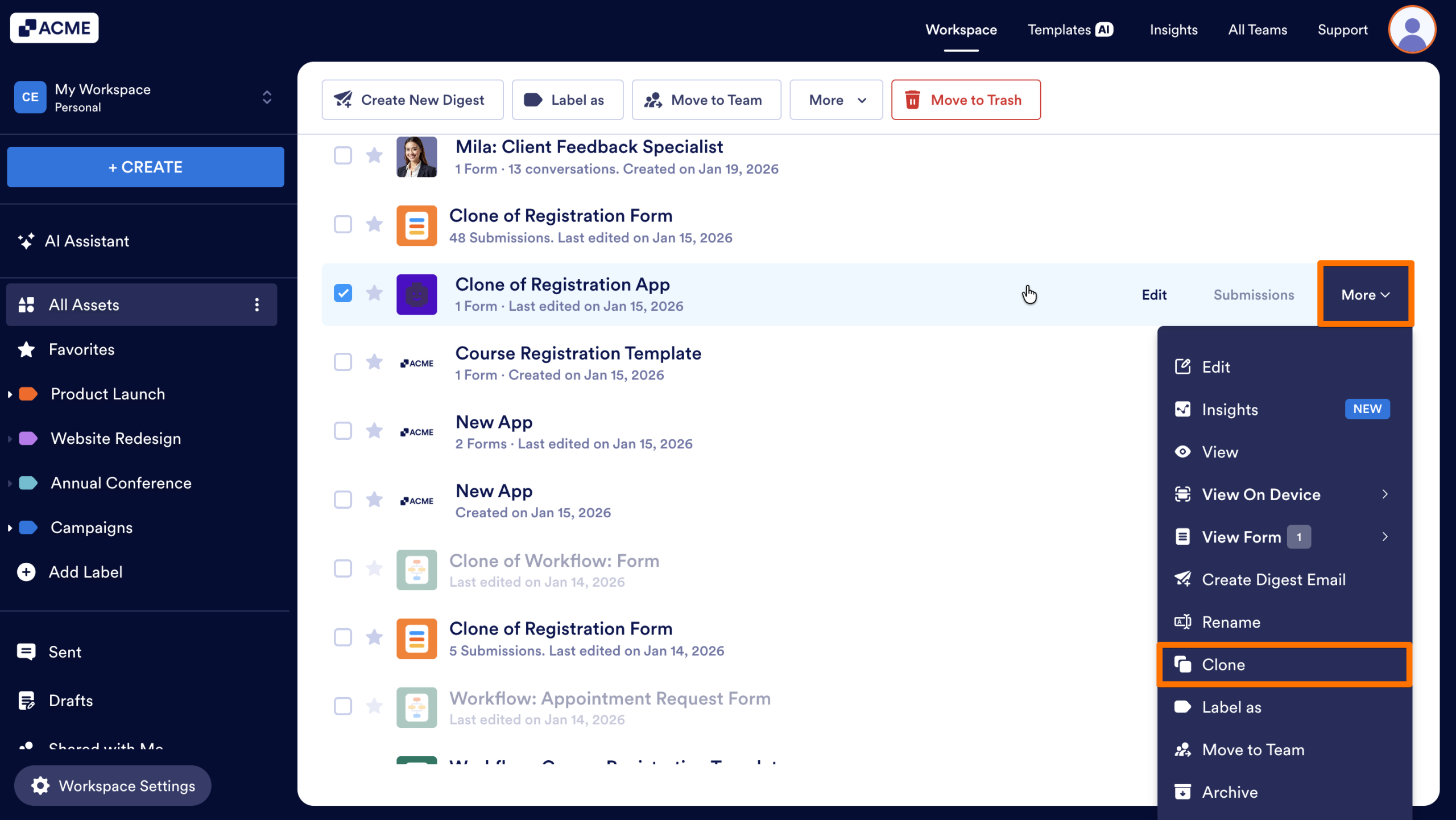
- First, in the Workspace where the App is located, hover over the App you want to clone.
- Next, click the More dropdown.
- Then, select Clone.
- Review or update the App Name.
- If your app is connected to a form, choose one of the following options:
- Clone App and Forms: Creates a copy of the App and all Forms it includes.
- Clone App and keep existing Forms: Creates a copy of the App structure without cloning the connected Forms.
- Finally, click on Clone App.
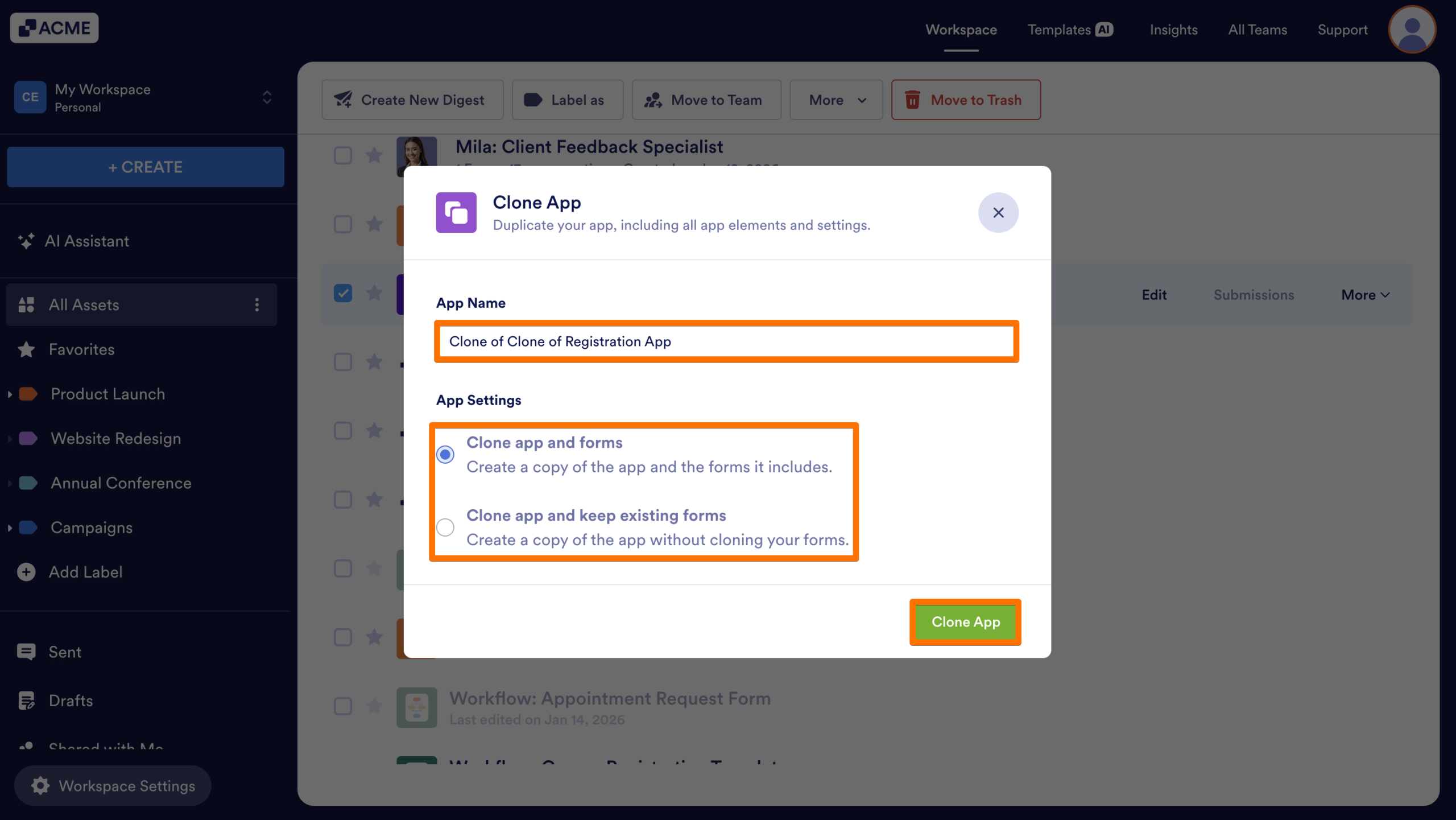
A copy of the App will be created in the same Workspace and can be edited independently.

Send Comment: