Within the AI Agent Insights page, you can download the performance and conversation results of your agents as a list with detailed breakdowns and helpful metrics in Excel or CSV format for further analysis and reporting. This guide will show you how to export performance and conversation data of your AI Agents.
How to Download Performance Metrics of AI Agents
Performance Breakdown List
This list contains all of the AI Agents you have selected and includes metrics such as the total sessions, number of conversations, average conversation duration, and average user interactions.
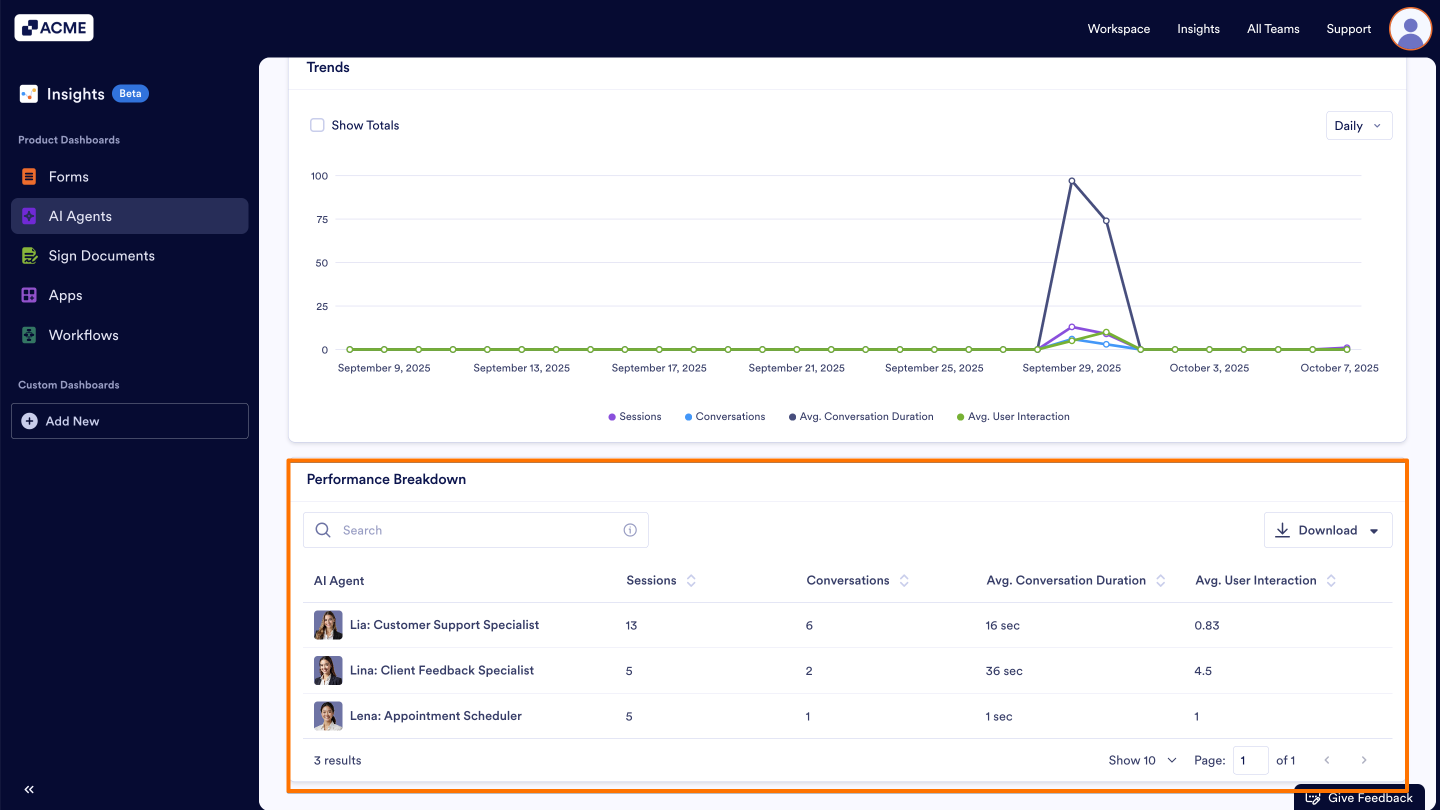
Let’s walk through the process of downloading this together:
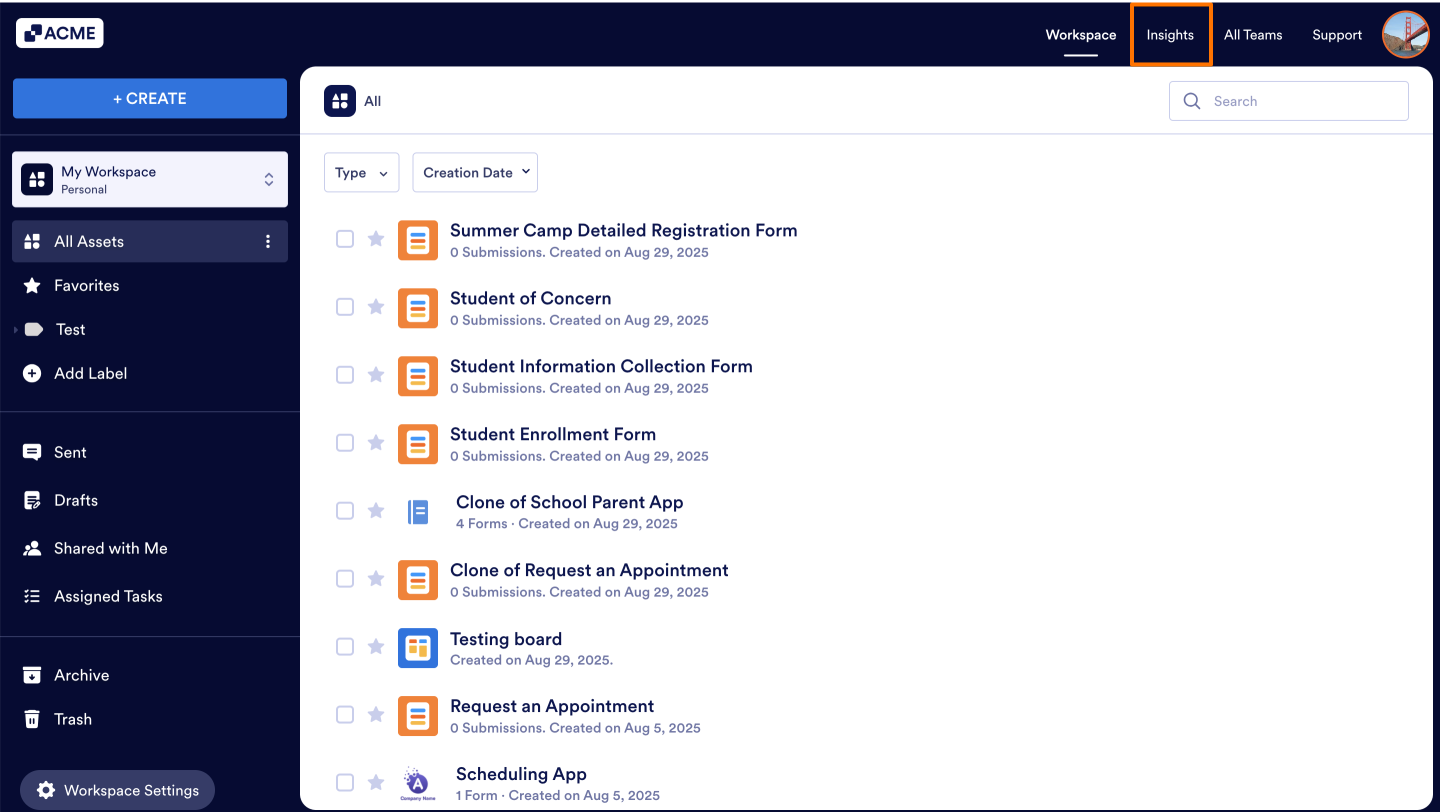
- In My Workspace, click on Insights in the upper-right hand corner of the page.
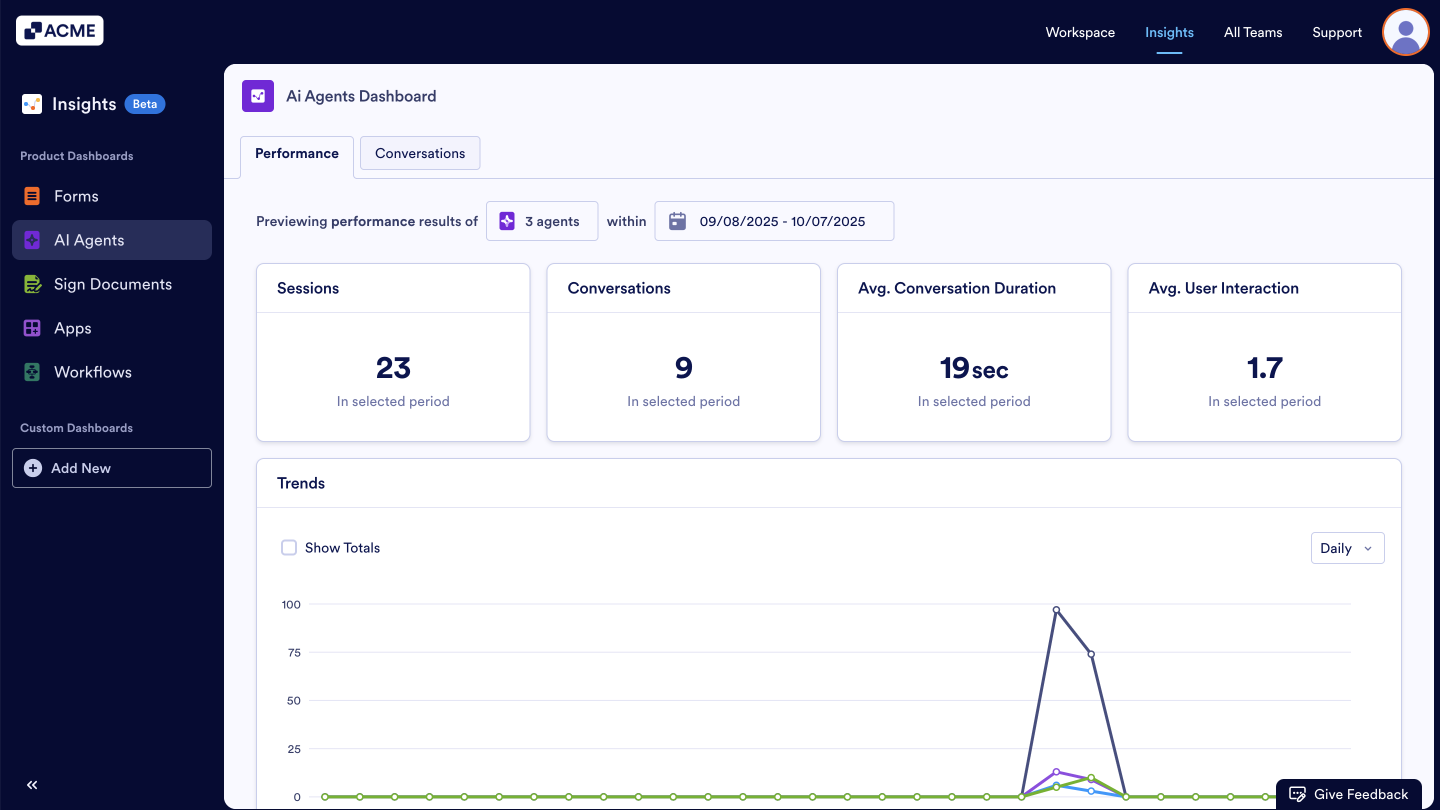
- Next, click on AI Agents on the left-hand side of the page.
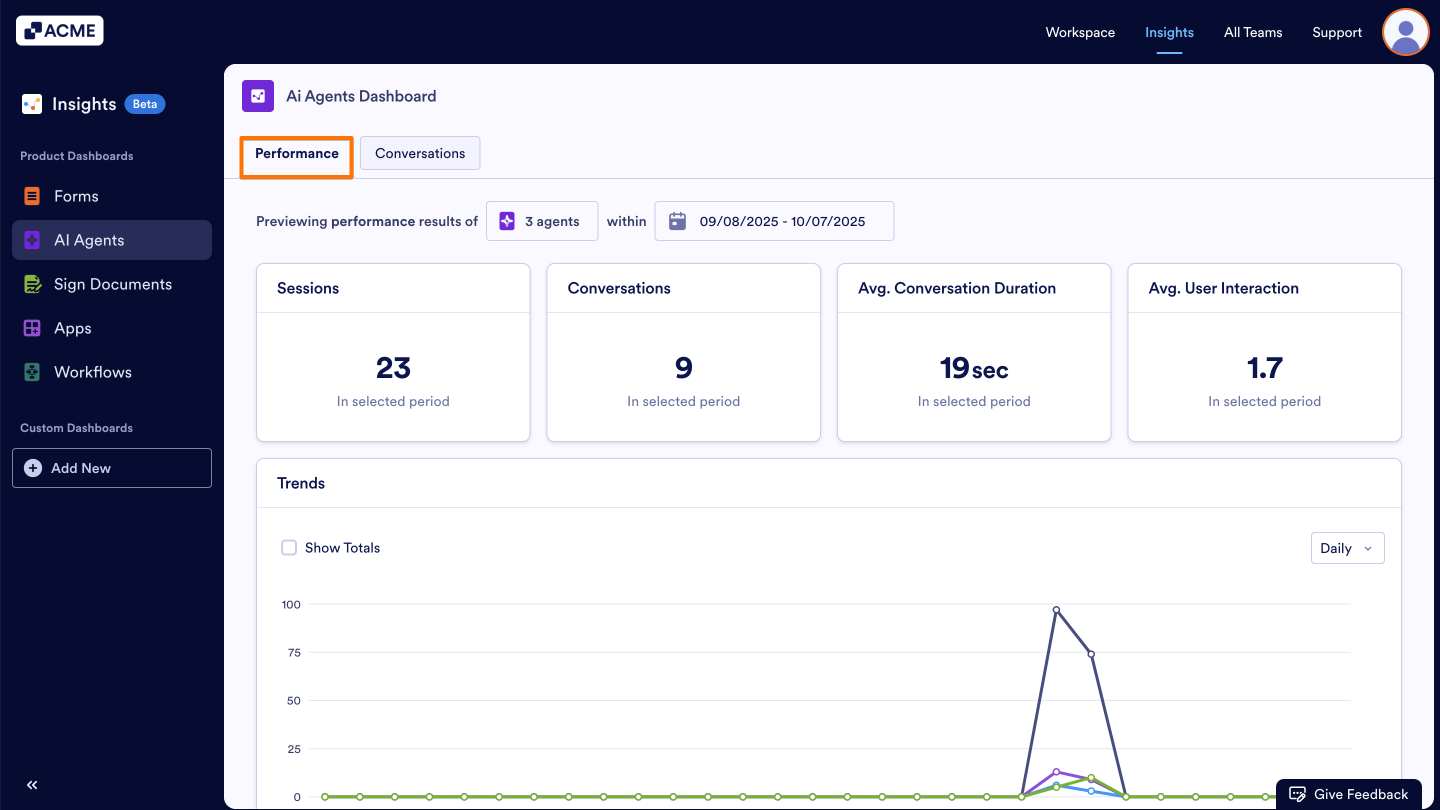
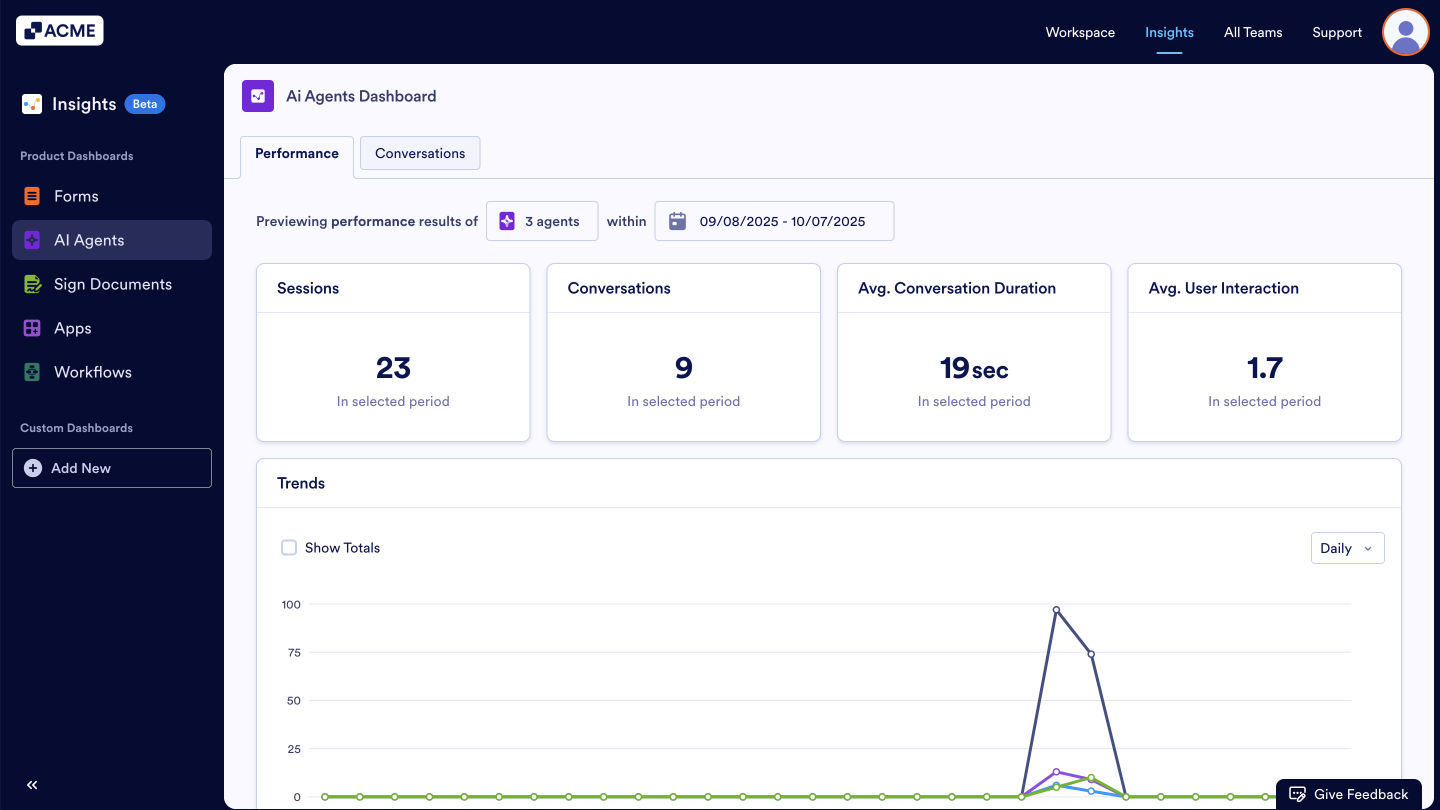
- Go to the Performance tab within the AI Agent Insights.
- Scroll down to the Breakdown List and click on Download on the right side of the list.
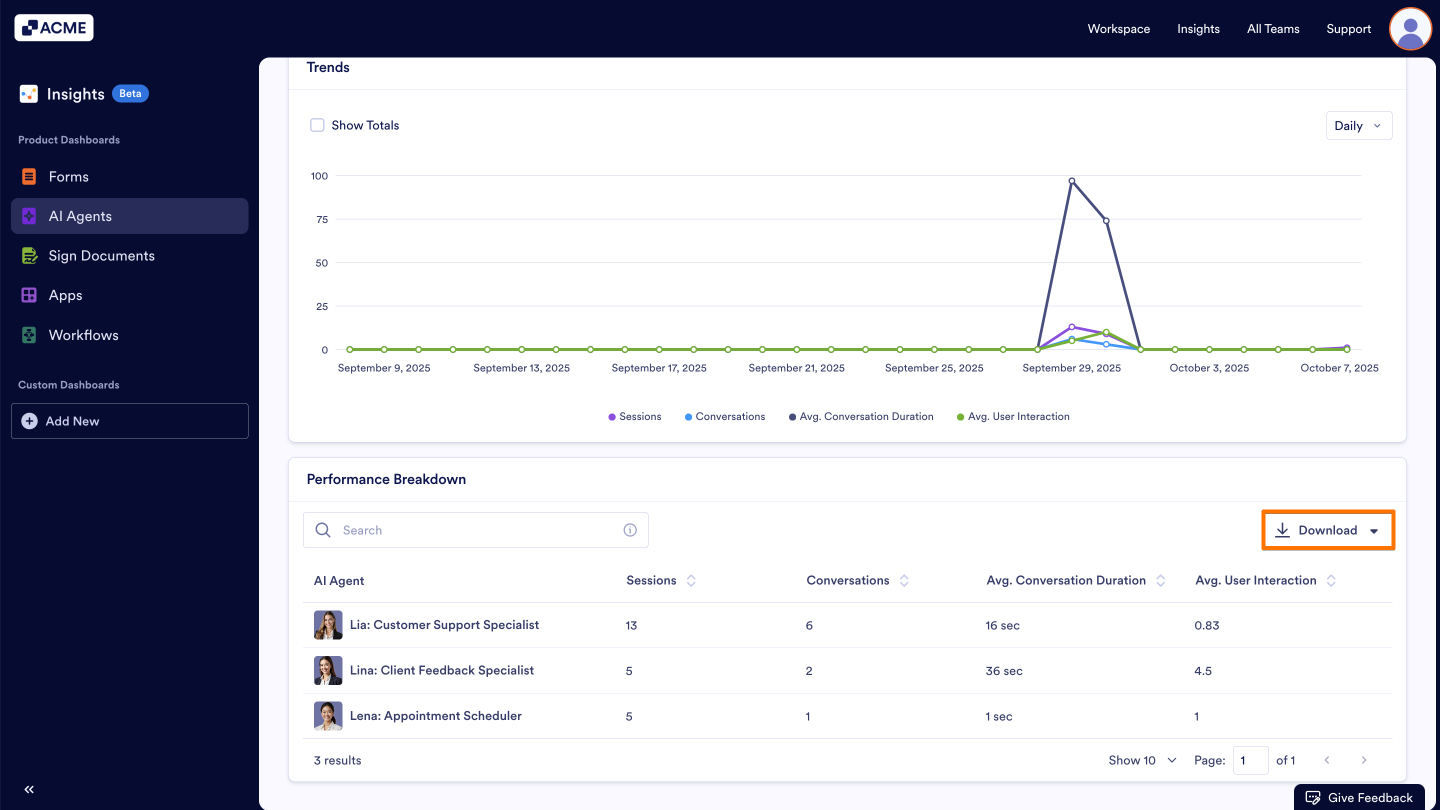
- Select your preferred download format.
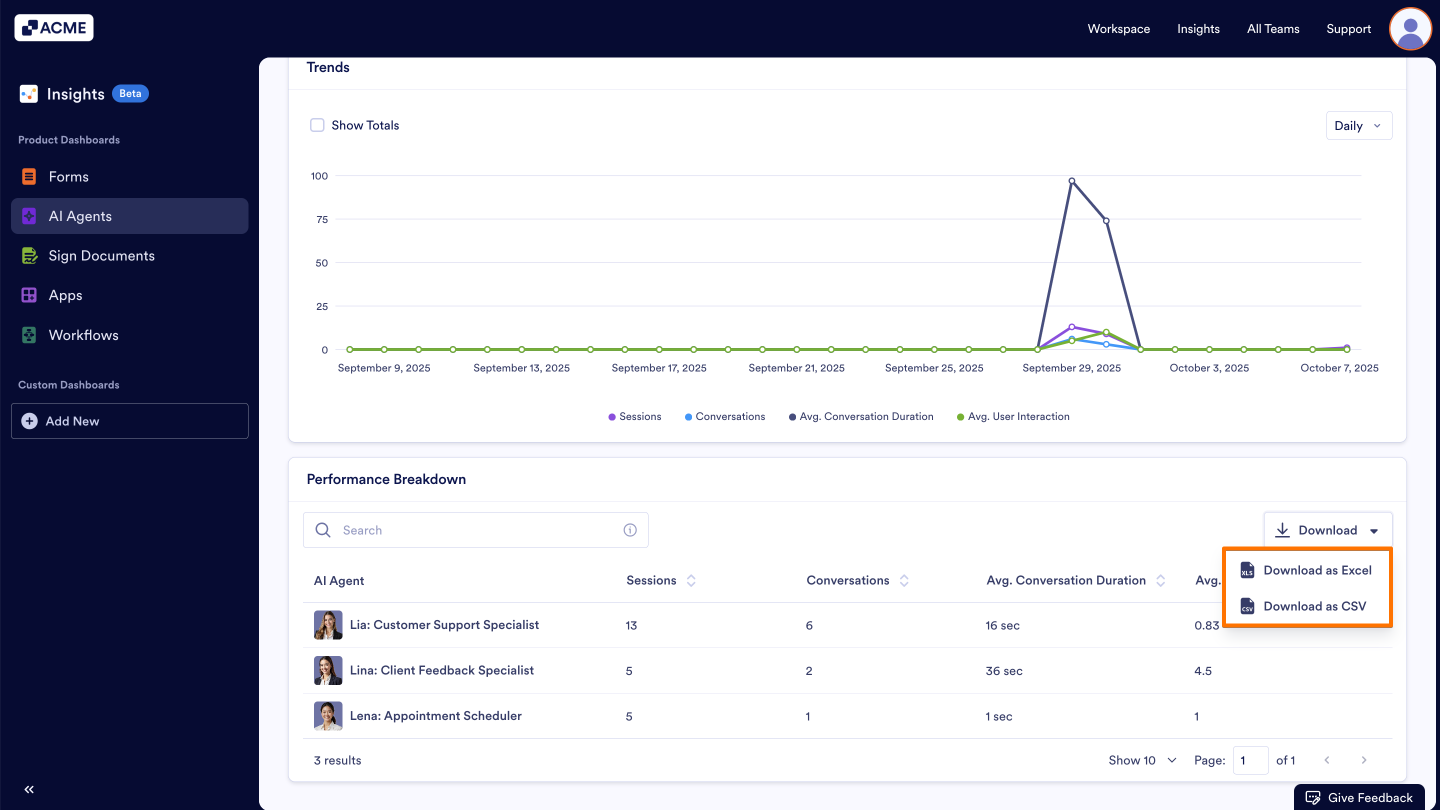
Note: Once you select the format, the download will begin automatically. The downloaded file will contain the breakdown of the AI Agent data by the metrics for the currently viewed date range.
How to Download Conversation Metrics of AI Agent
Conversations List
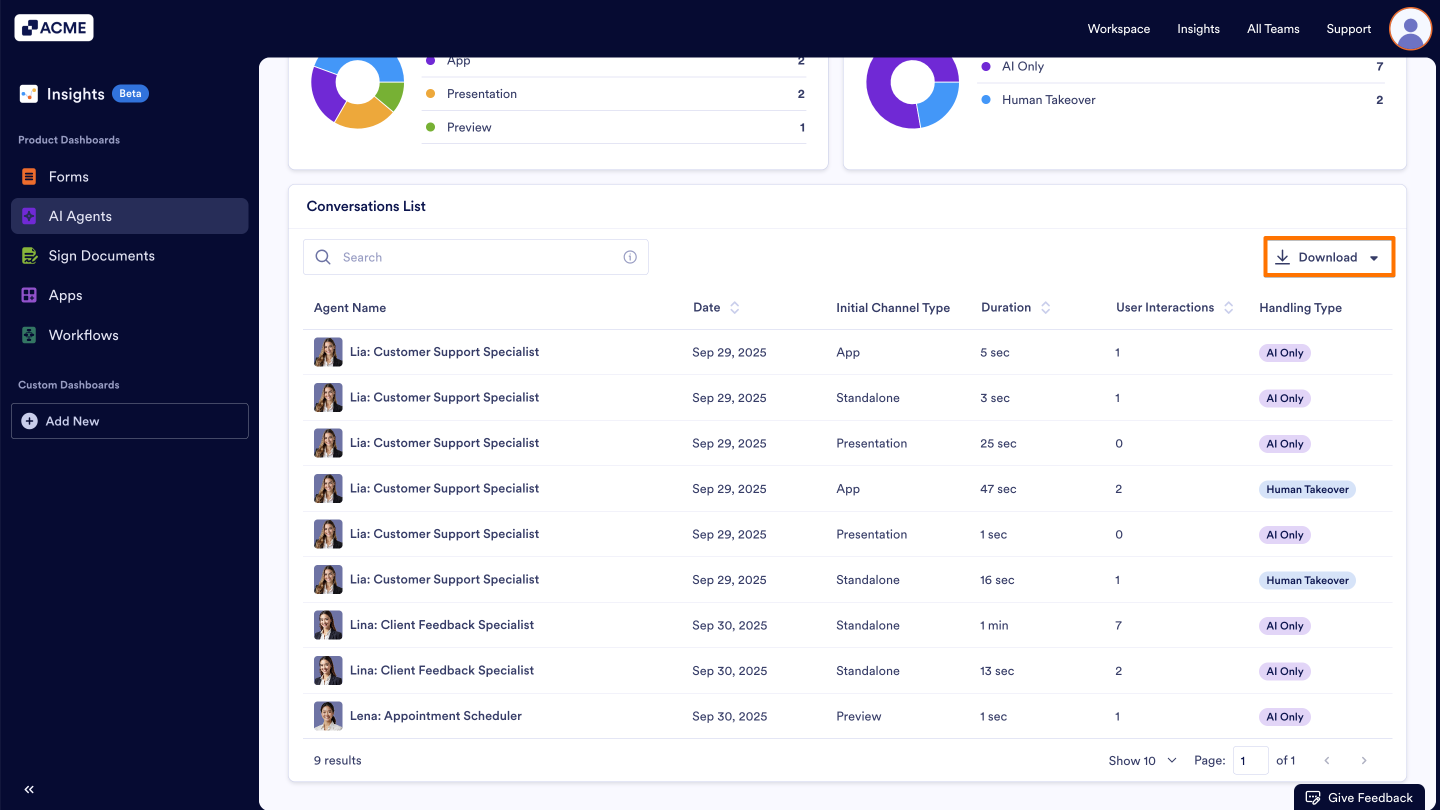
The Conversation List contains each conversation your AI Agents handled. For each conversation, you can view metrics including Date, Initial Channel Type, Agent Name, Duration, User Interactions, and Handling Type.
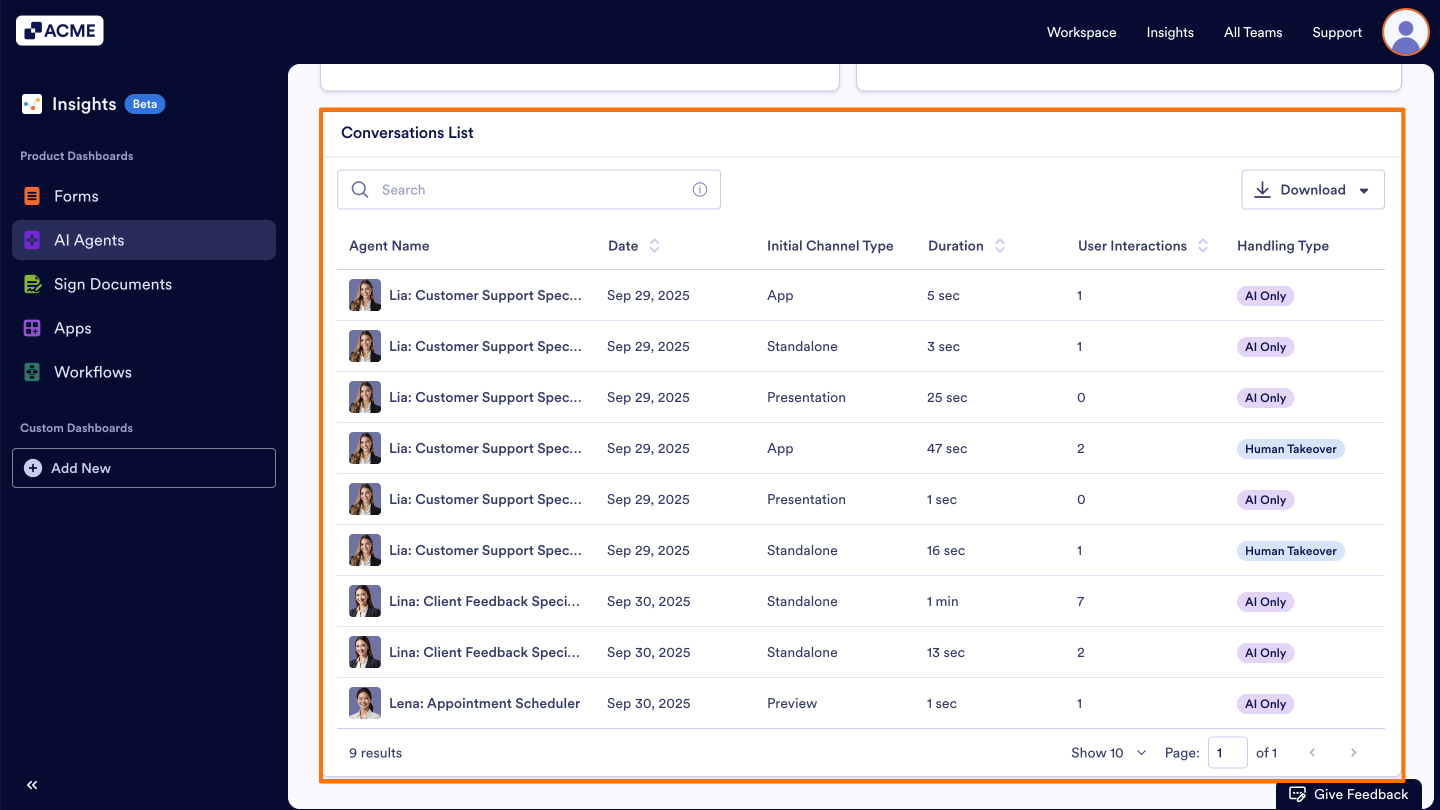
Let’s walk through the downloading steps together:
- In My Workspace, click on Insights in the upper-right hand corner of the page.
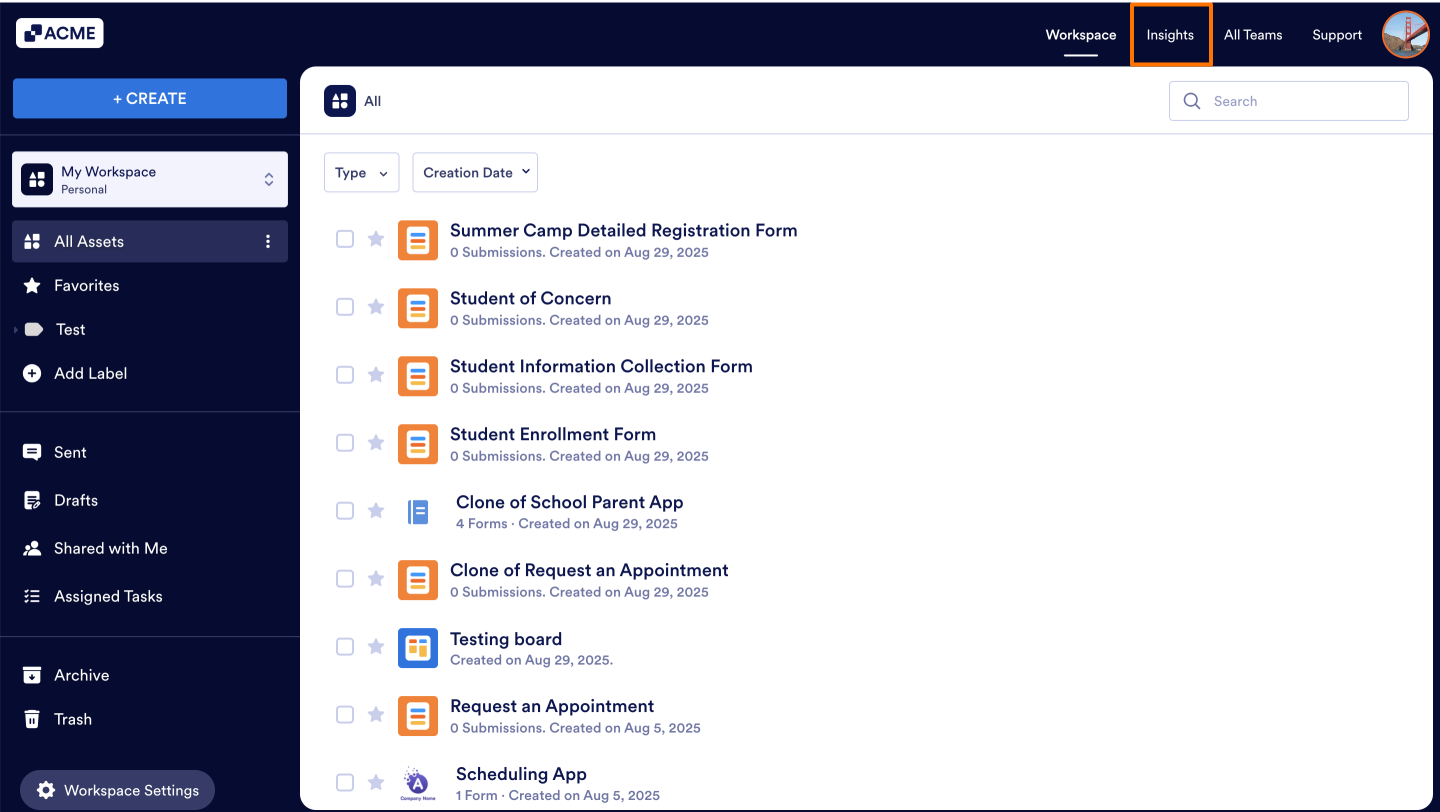
- Next, click on AI Agents on the left-hand side of the page.
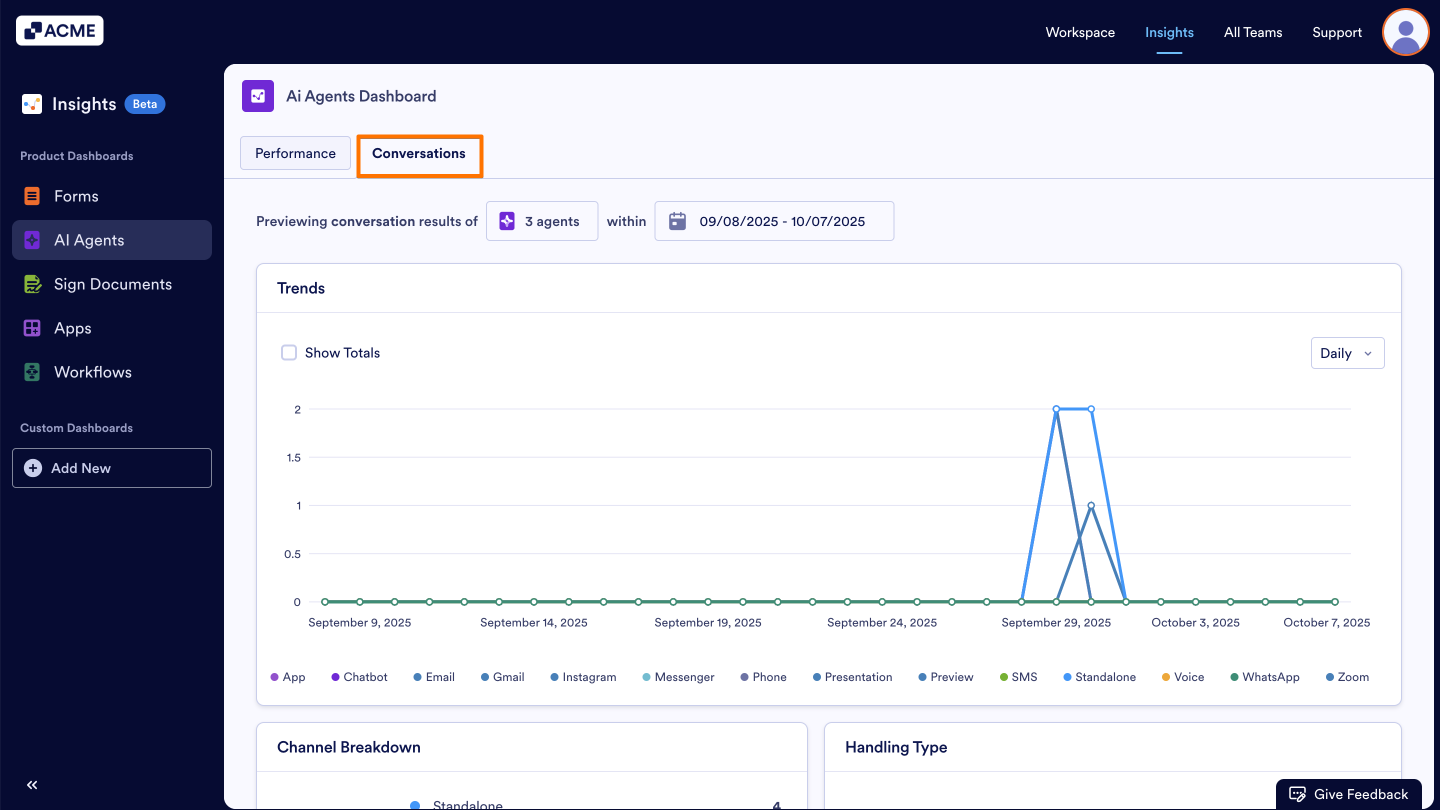
- Go to the Conversations tab within the AI Agent Insights.
- Scroll down to the Conversations List and click on Download on the right side of the list.
- Select your preferred download format.
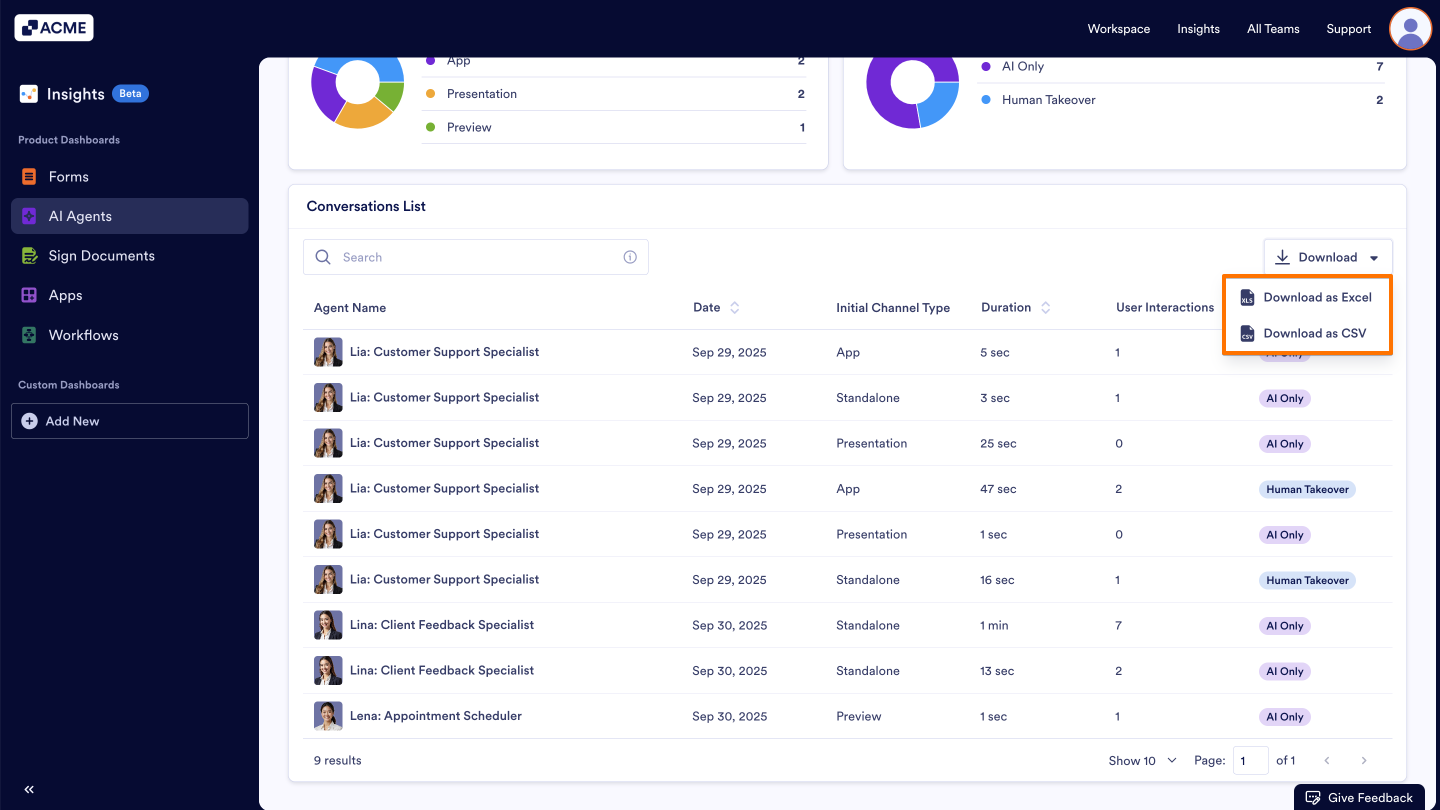
The downloaded file will contain the breakdown of the agent data by the metrics for the currently viewed date range.
Troubleshooting Tips
- Ensure you have selected the correct date range for the data you wish to download. For more information, you can check out our guide How to filter and view AI Agent Metrics in a specific date range in Insights.
- If the download fails or the file is empty, verify that there is data for the selected agent and date range in Insights.
See also:

Send Comment: