Within the Form Insights page, you can download your forms’ performance and audience results as a list including breakdowns with helpful metrics in Excel or CSV format for further analysis or reporting. This guide will show you how to export your form’s performance and audience data.
How to Download Form Performance Metrics
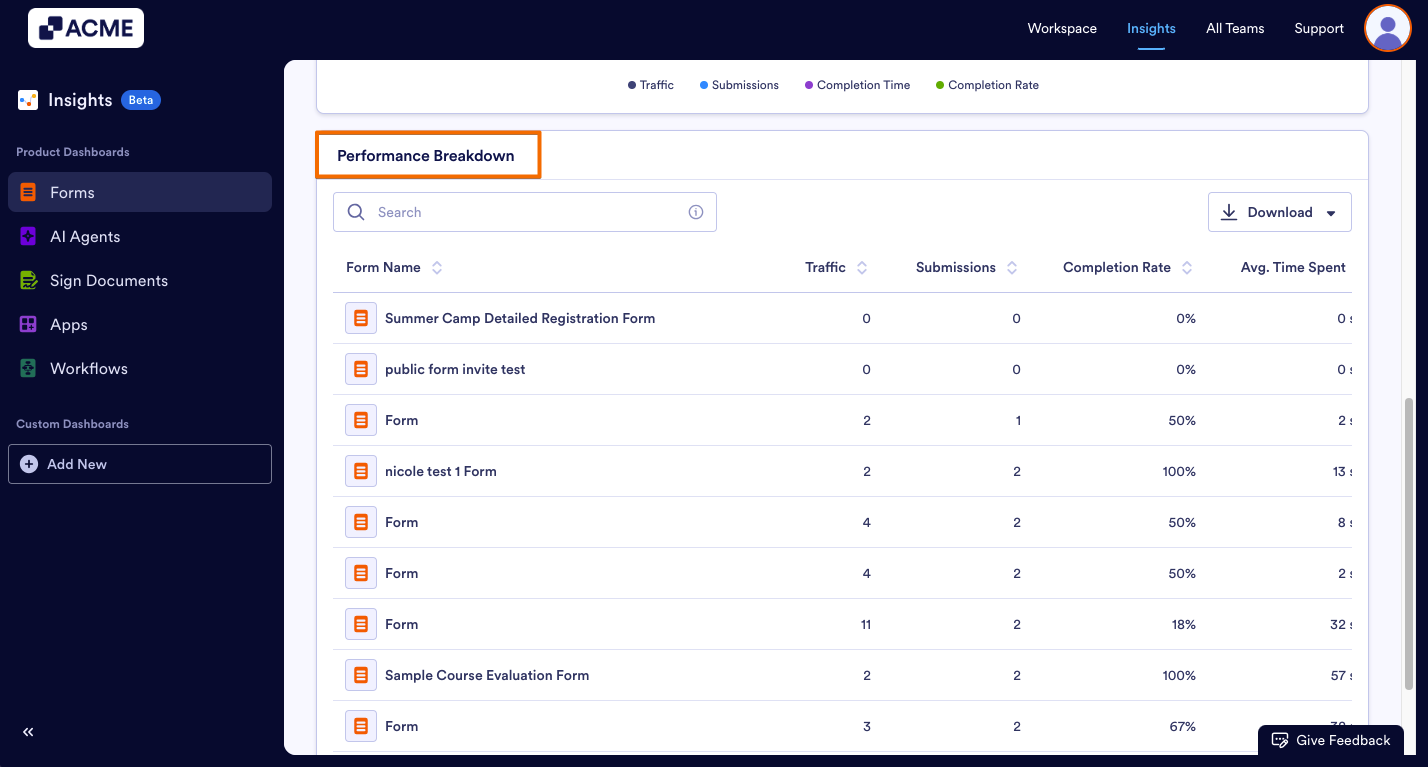
In the Performance Breakdown section of the Performance Insights, you’ll find a list of all the forms, including traffic, submission count, the completion rate, and the average time spent per form.
Let’s walk through the process of downloading this report:
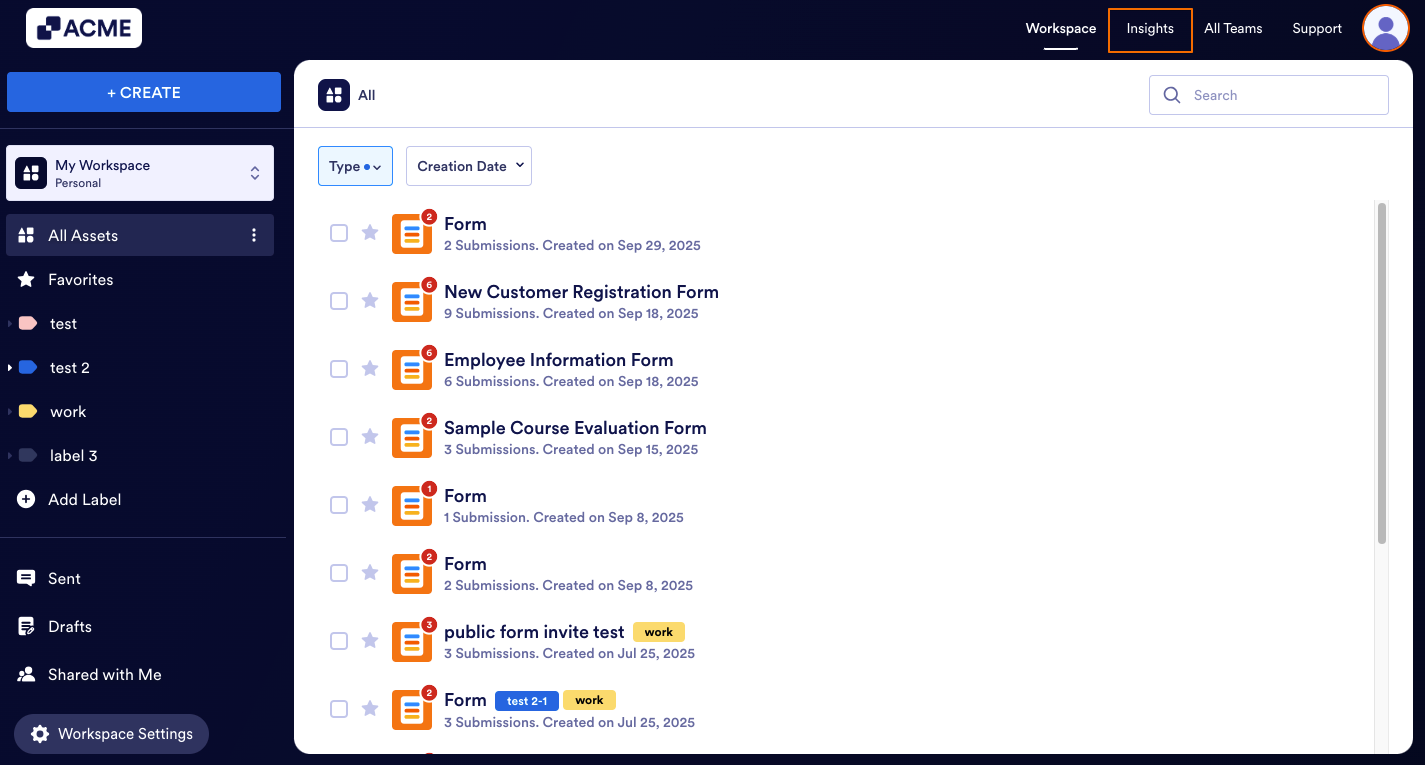
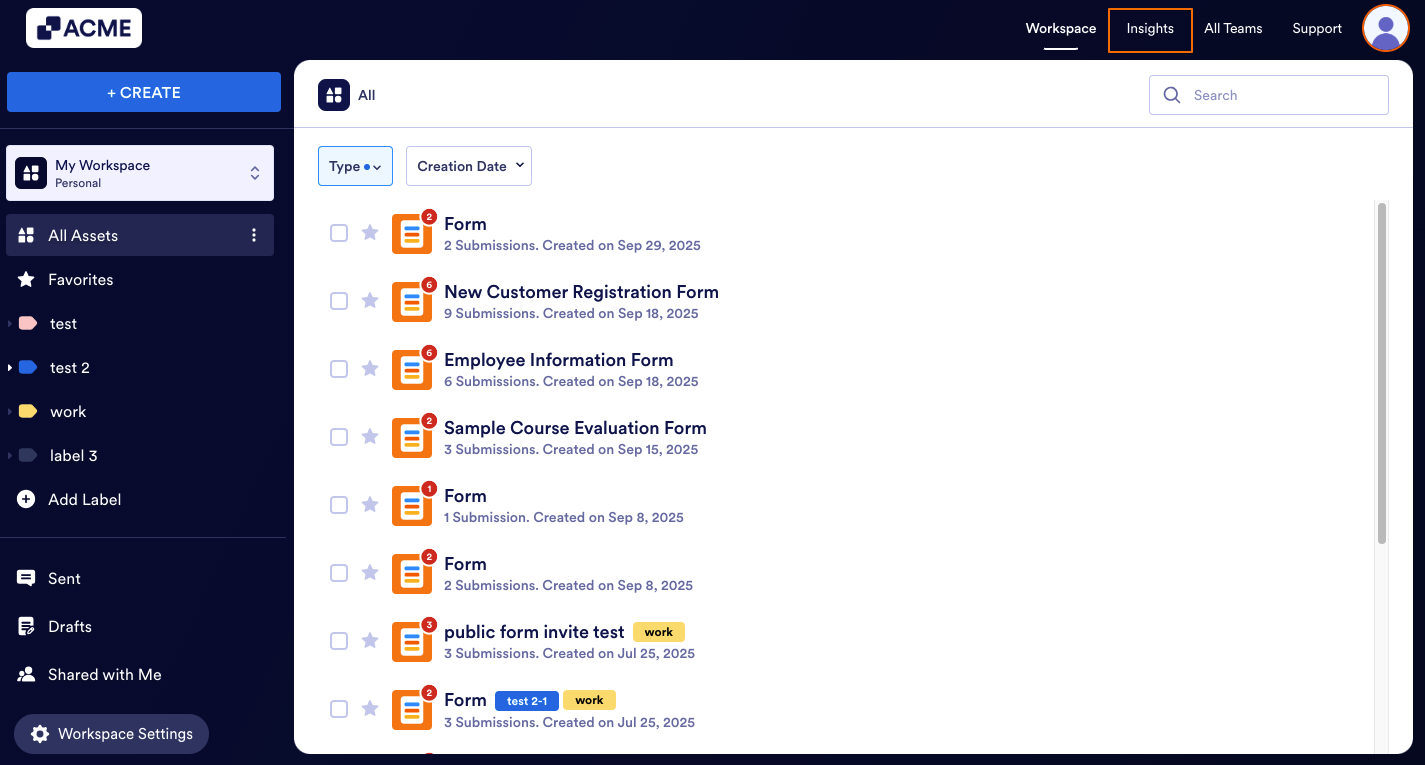
- In My Workspace, click on Insights in the upper-right hand corner of the page.
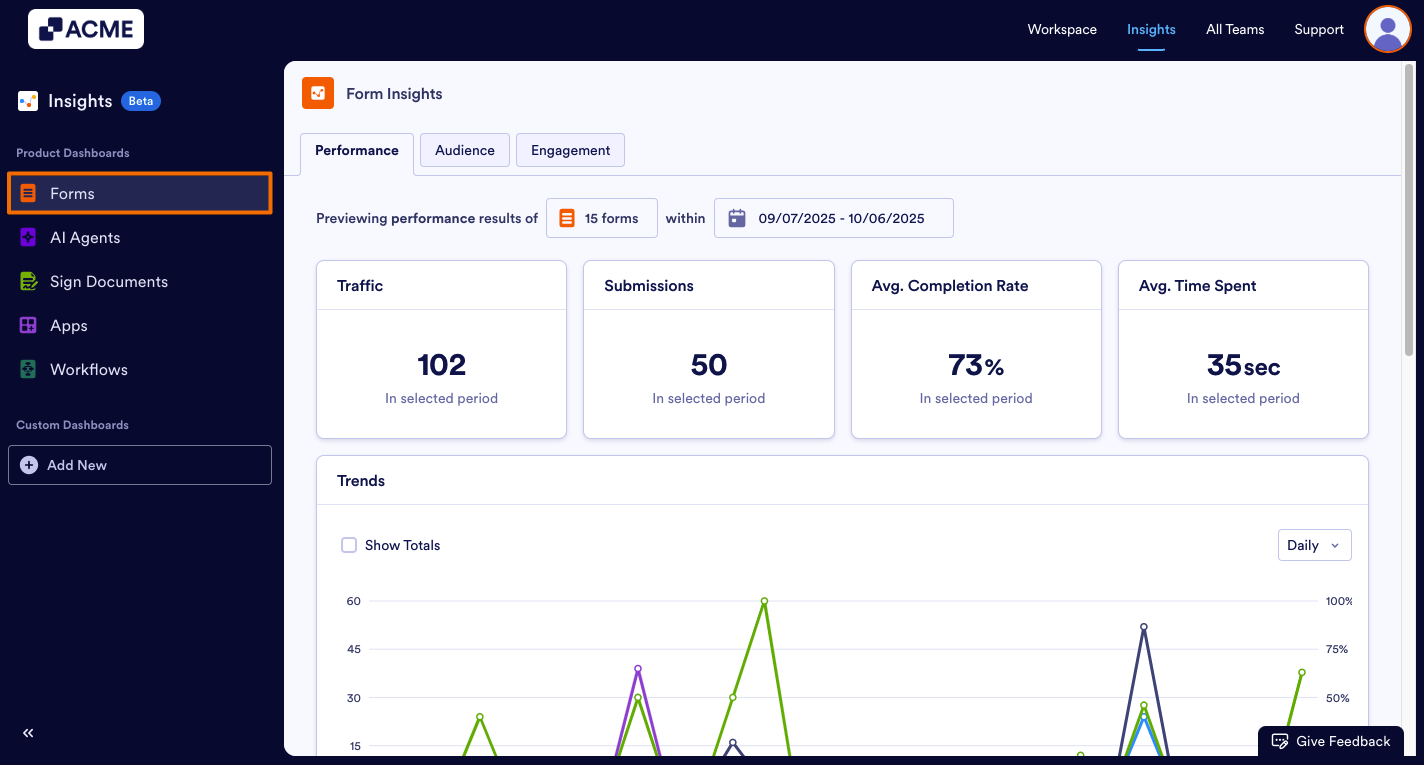
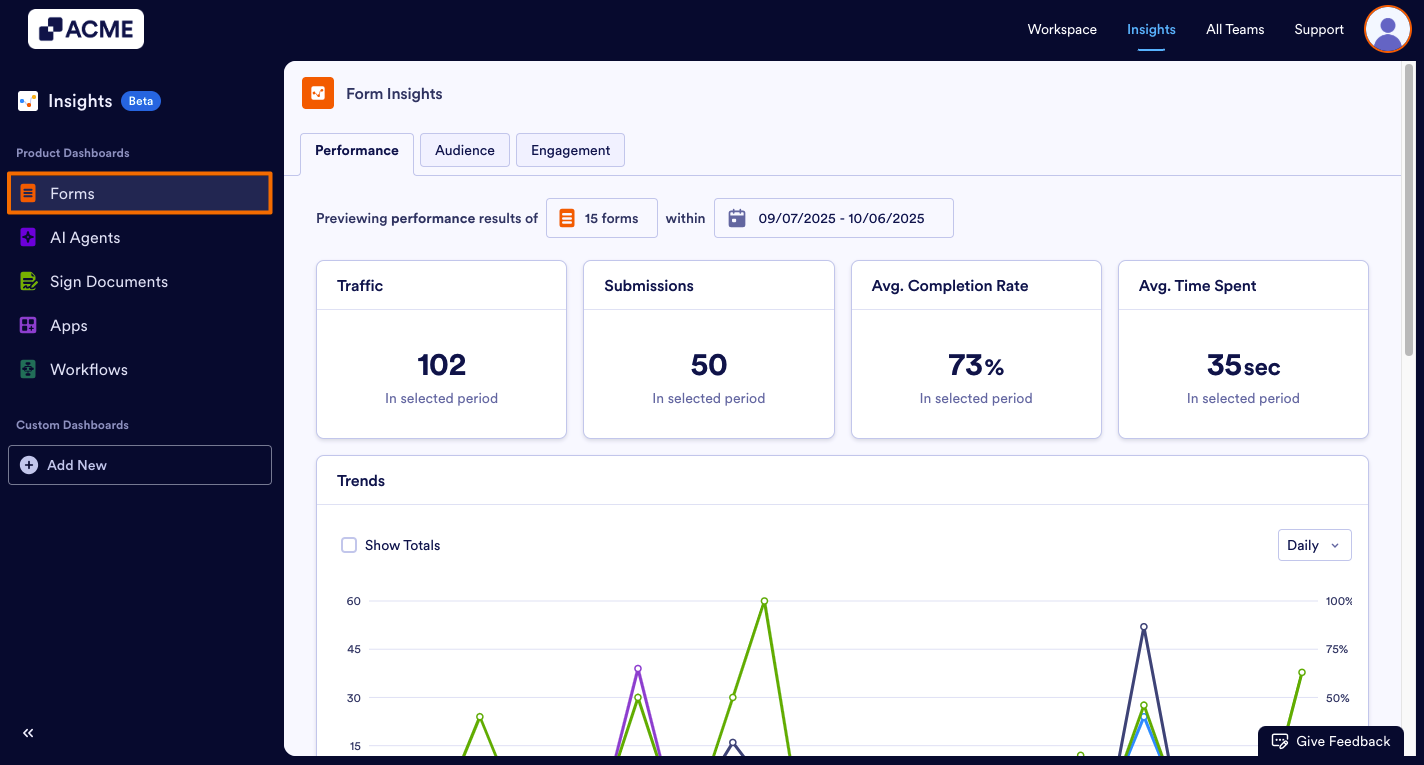
- Next, click on Forms on the left-hand side of the page.
- Click on the Performance tab and scroll down to the Performance Breakdown section.
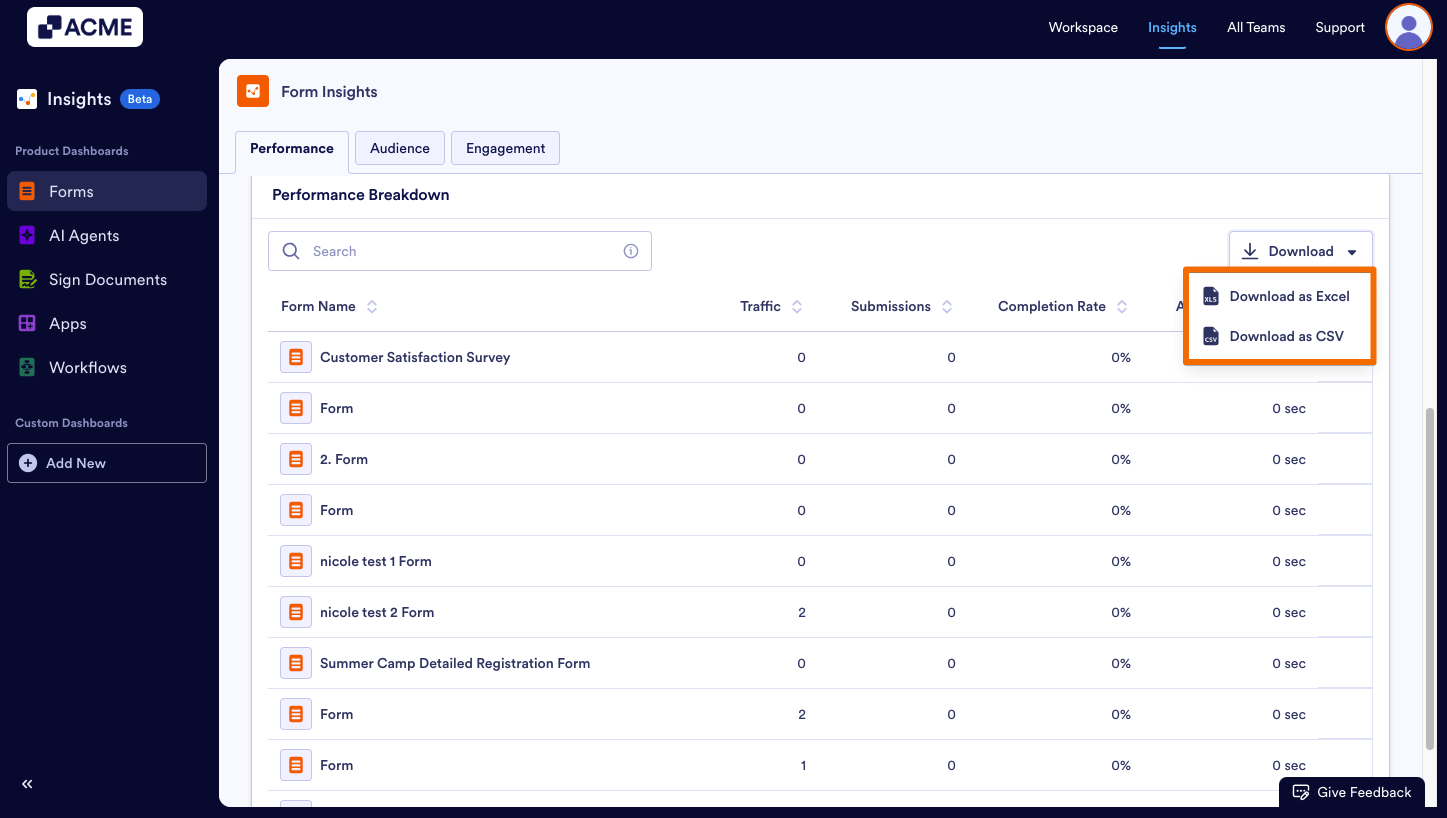
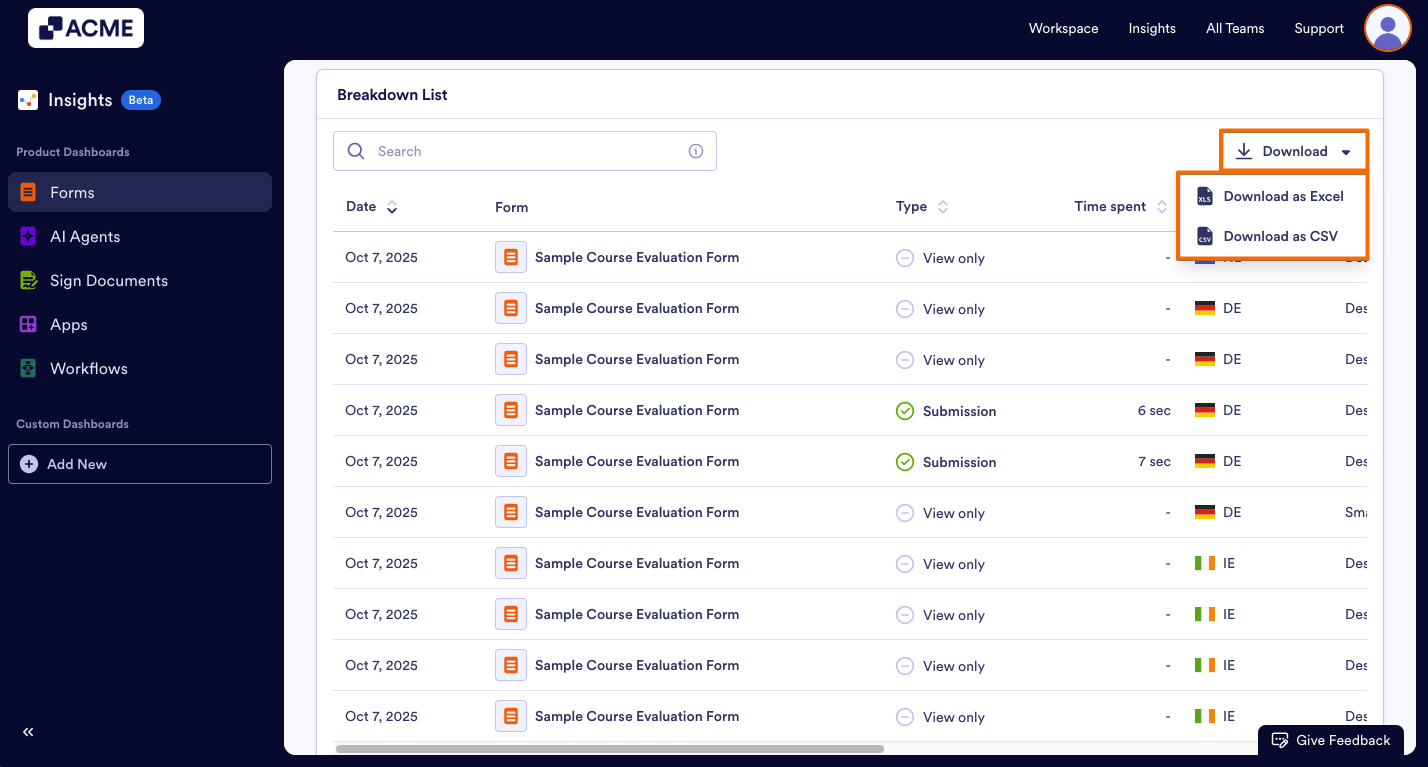
- Finally, click Download and select either Download as .CSV or Download as Excel.
How to Download Form Audience Metrics
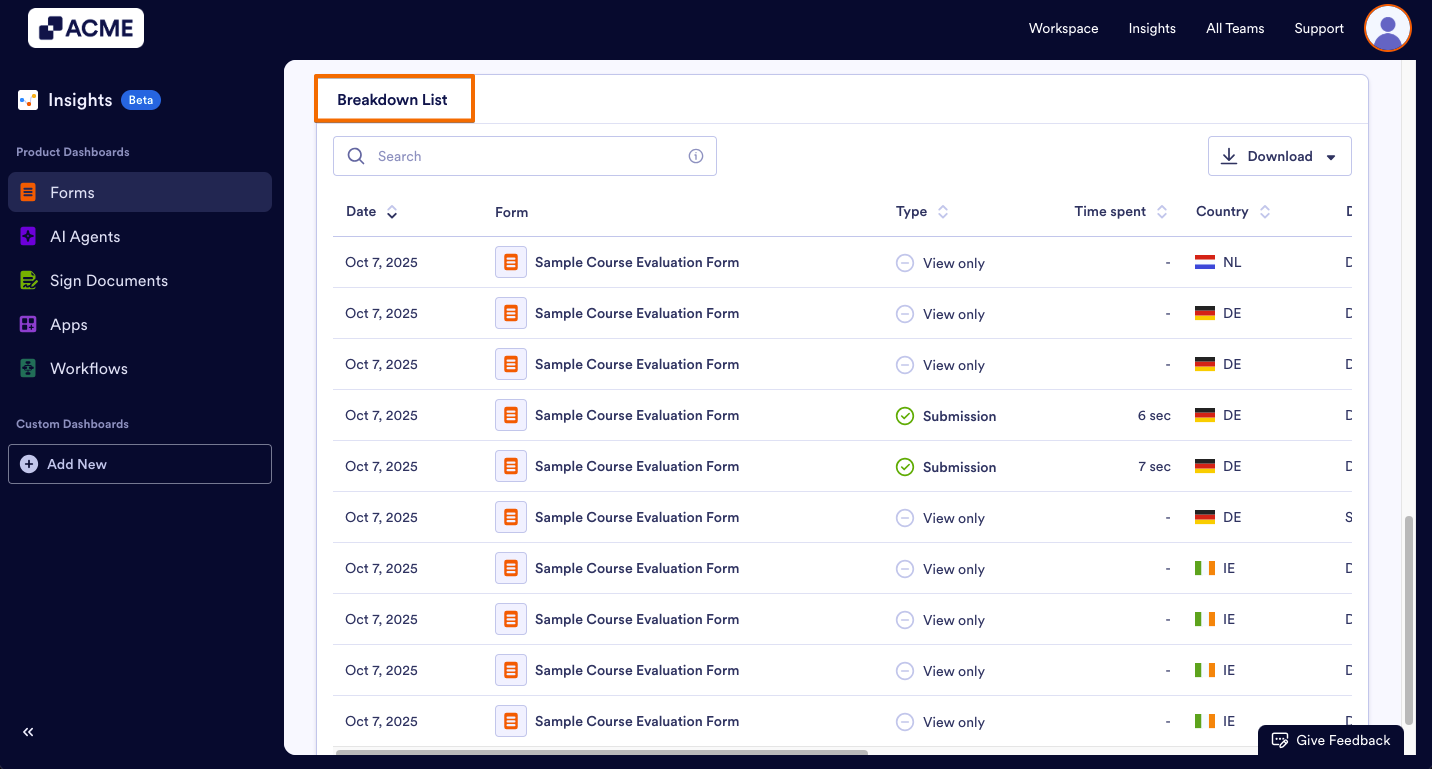
In the Audience Breakdown List, you’ll find information for each view on a form, whether there was a submission. Here, you can find whether it was a view or a view with submission, what country the viewer is from, along with the device type, browser, operating system, and much more.
Let’s walk through the downloading steps together:
- In My Workspace, click on Insights in the upper-right hand corner of the page.
- Next, click on Forms on the left-hand side of the page.
- Select the Audience tab and scroll down to the Breakdown List.
- Finally, click Download and select either Download as .CSV or Download as Excel.
Troubleshooting Tips:
- Only data from the date range selected at the top of the page will be included in the report. If you aren’t seeing expected information, make sure to check there first. For help updating the date range, check out our How to Filter and View Form Metrics in a Specific Date Range in Insights guide.
- If the download fails or the file is empty, make sure there is data for the selected form and date range in Insights.
See also:

Send Comment: