Within the Sign Insights page, you can download your documents’ performance and audience results as a list including breakdowns, with helpful metrics in Excel or CSV format for analysis or reporting. This guide will show you how to export your document’s performance and audience data.
How to Download Sign Performance Metrics
Performance Breakdown List
This list contains all of your documents you have selected to display and includes numbers about pending, completed, and incomplete document counts along with the average completion time.
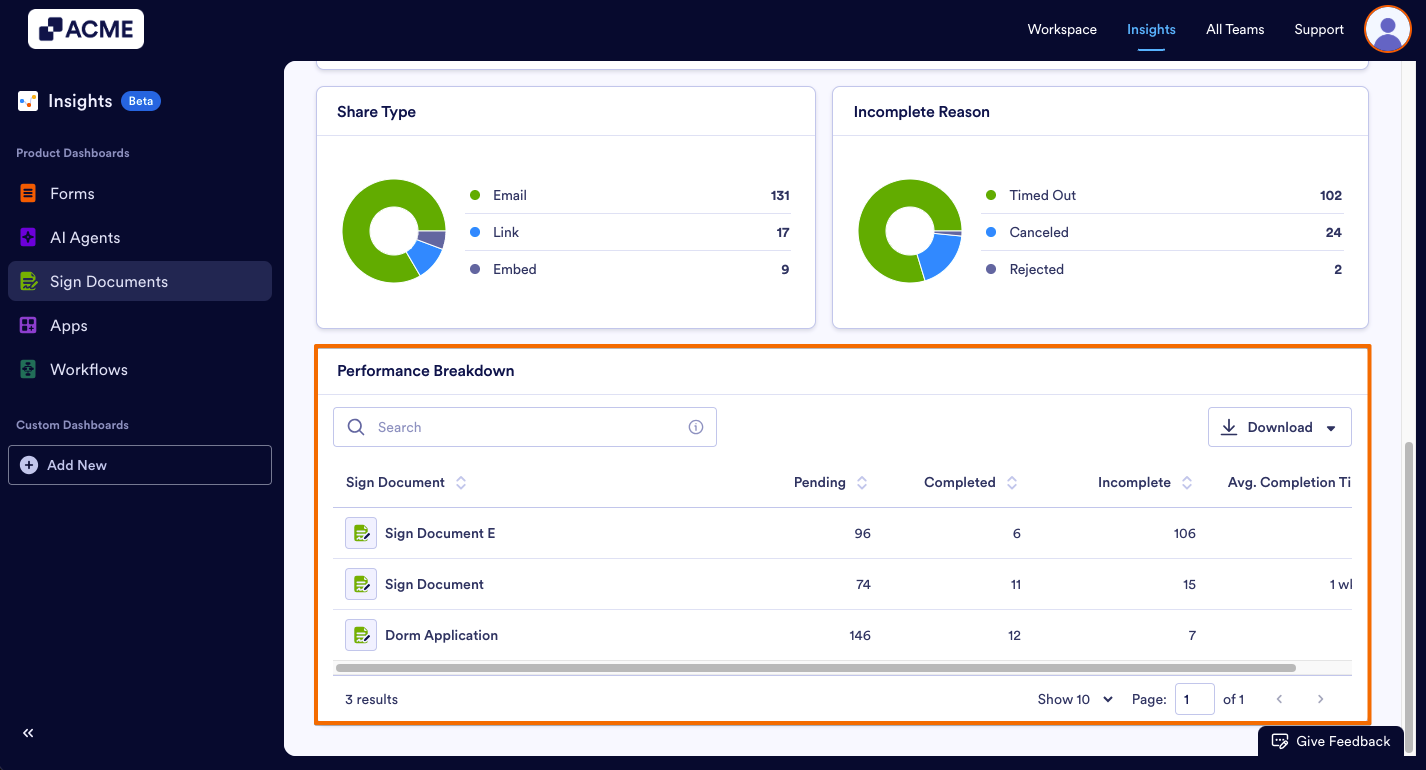
Let’s continue with the downloading steps:
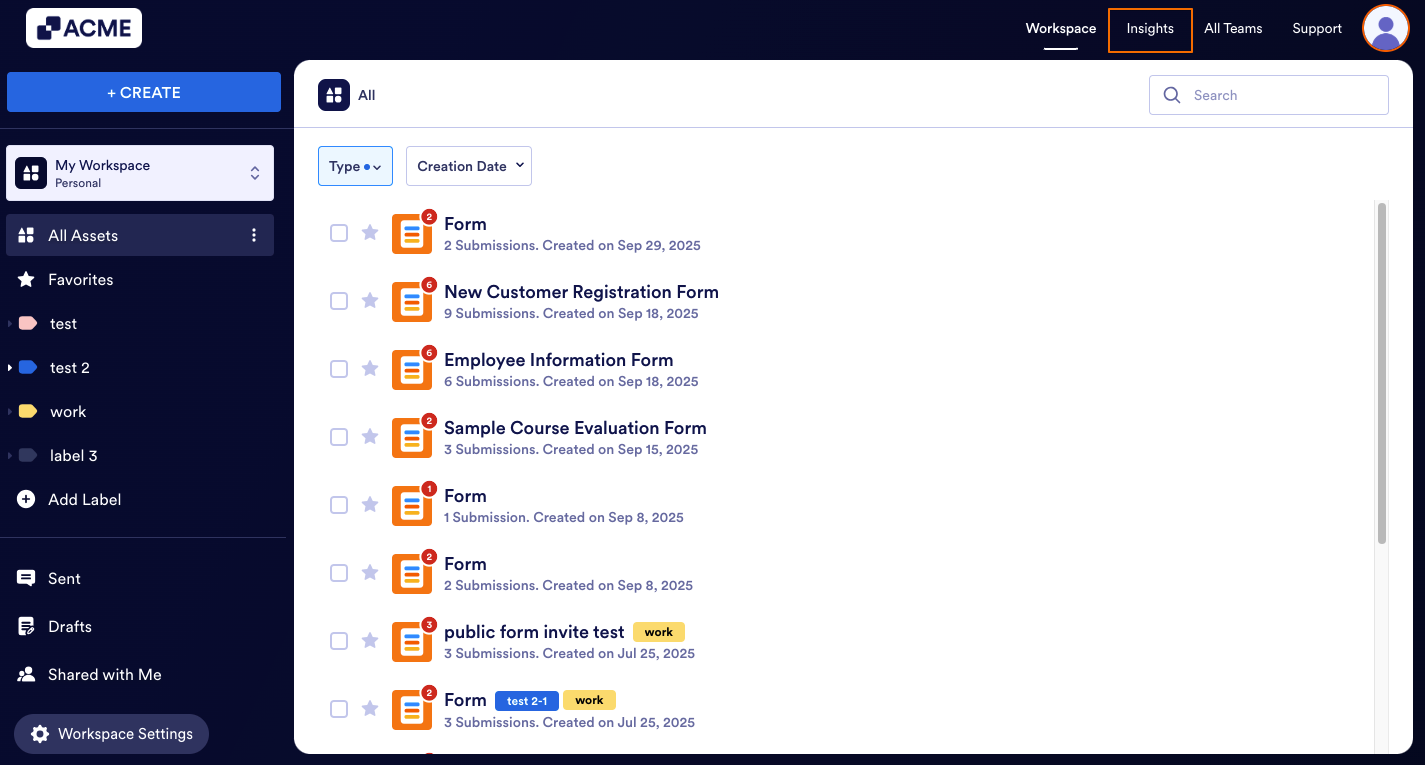
- In My Workspace page, click on Insights in the upper right corner of the screen.
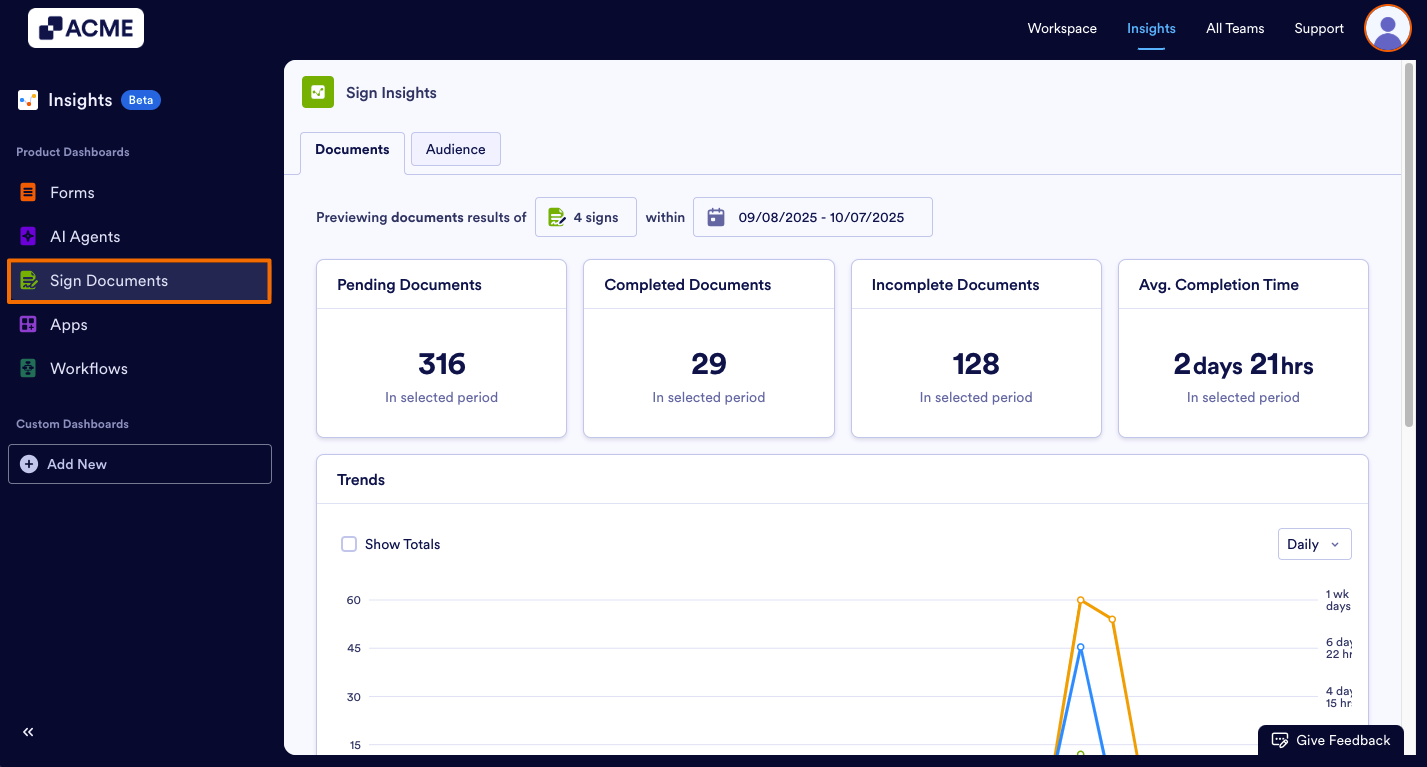
- Select Sign Documents from the menu on the left side of the screen.
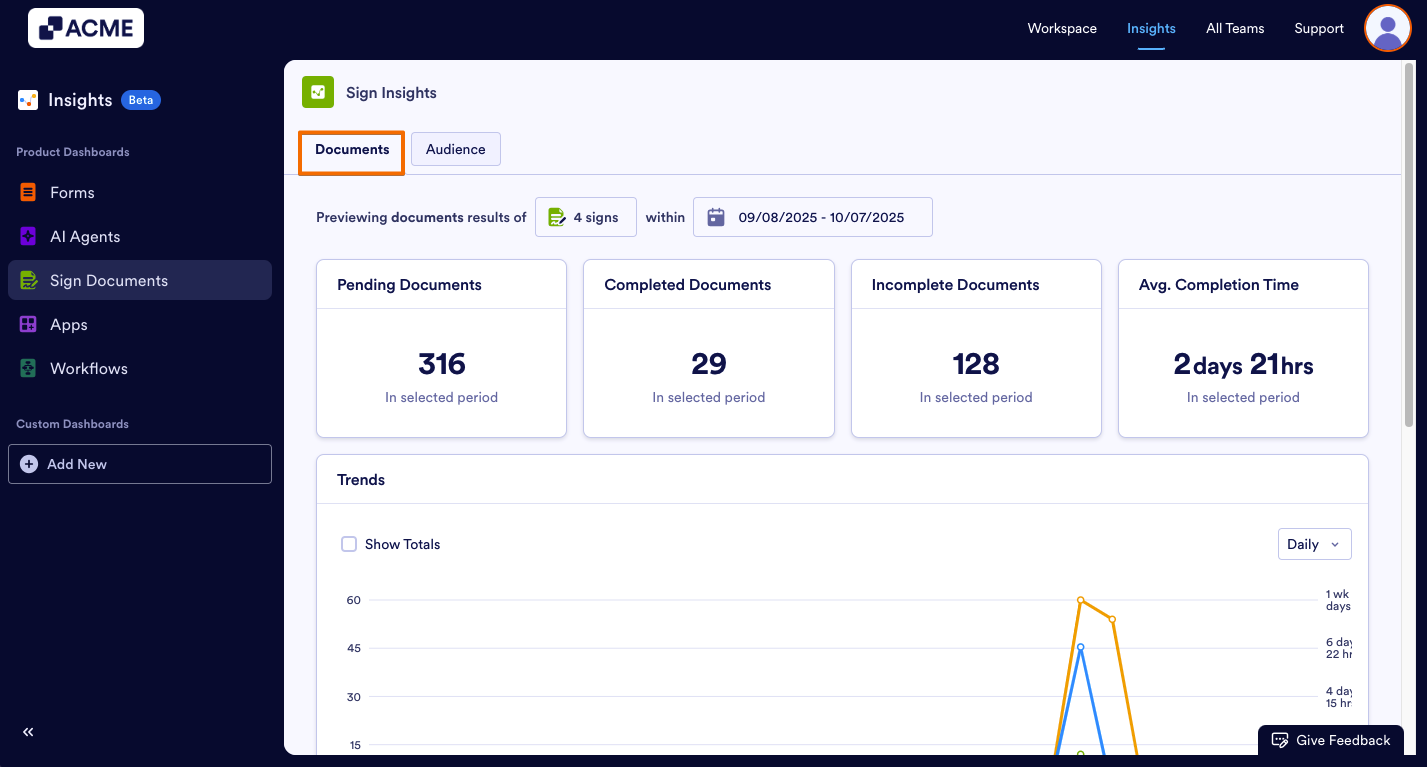
- Go to the Documents tab within the Sign Insights.
- Scroll down to the Performance Breakdown List and click on Download and select either Download as .CSV or Download as Excel.
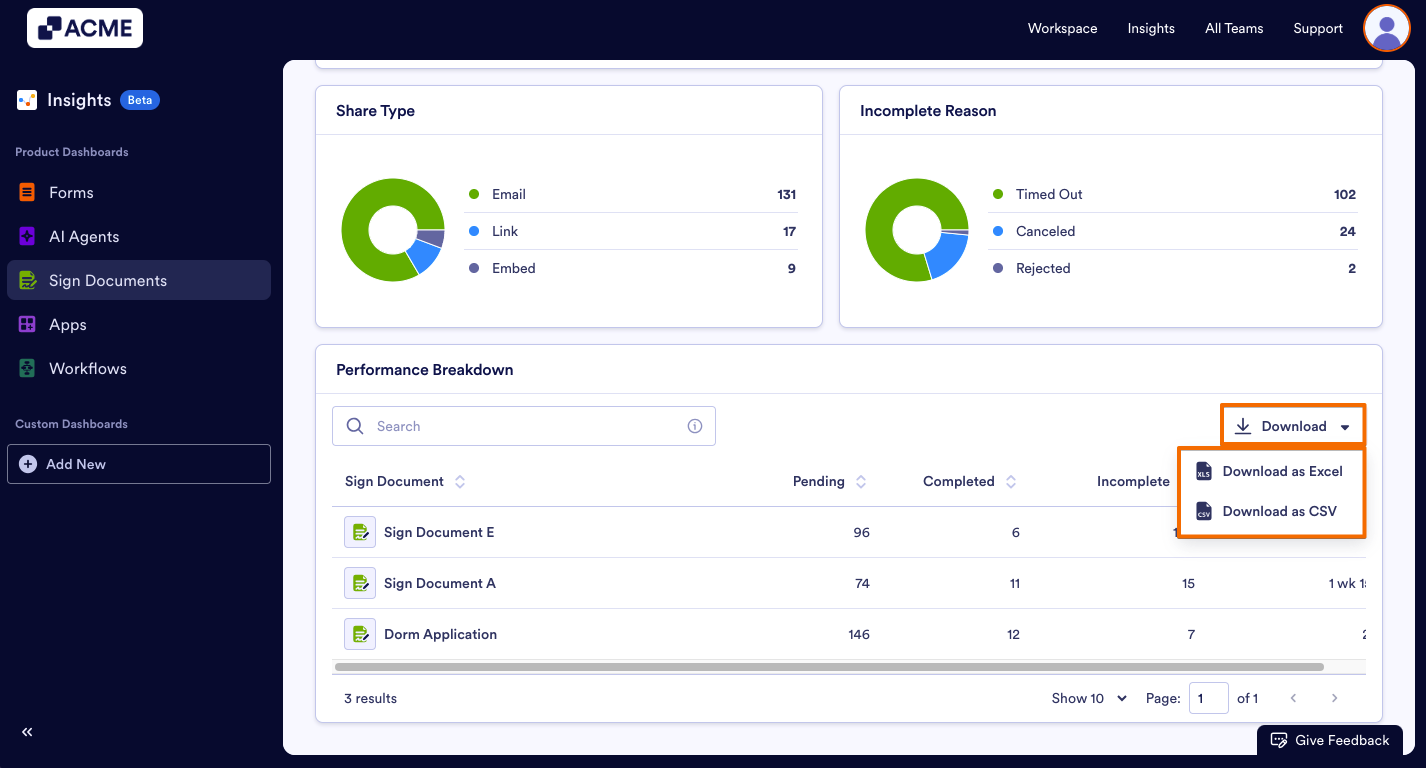
Once you select the format, the download will begin automatically. The downloaded file will contain the breakdown of the Sign Documents data by the metrics for the currently viewed date range.
How to Download Sign Document Audience Metrics
Signer Details List
Signer Details list contains your completed Sign Documents. You can find information about signers such as Time Spent, Country, Device, Browser, Operating System, IP, and ID as you scroll to the sides.
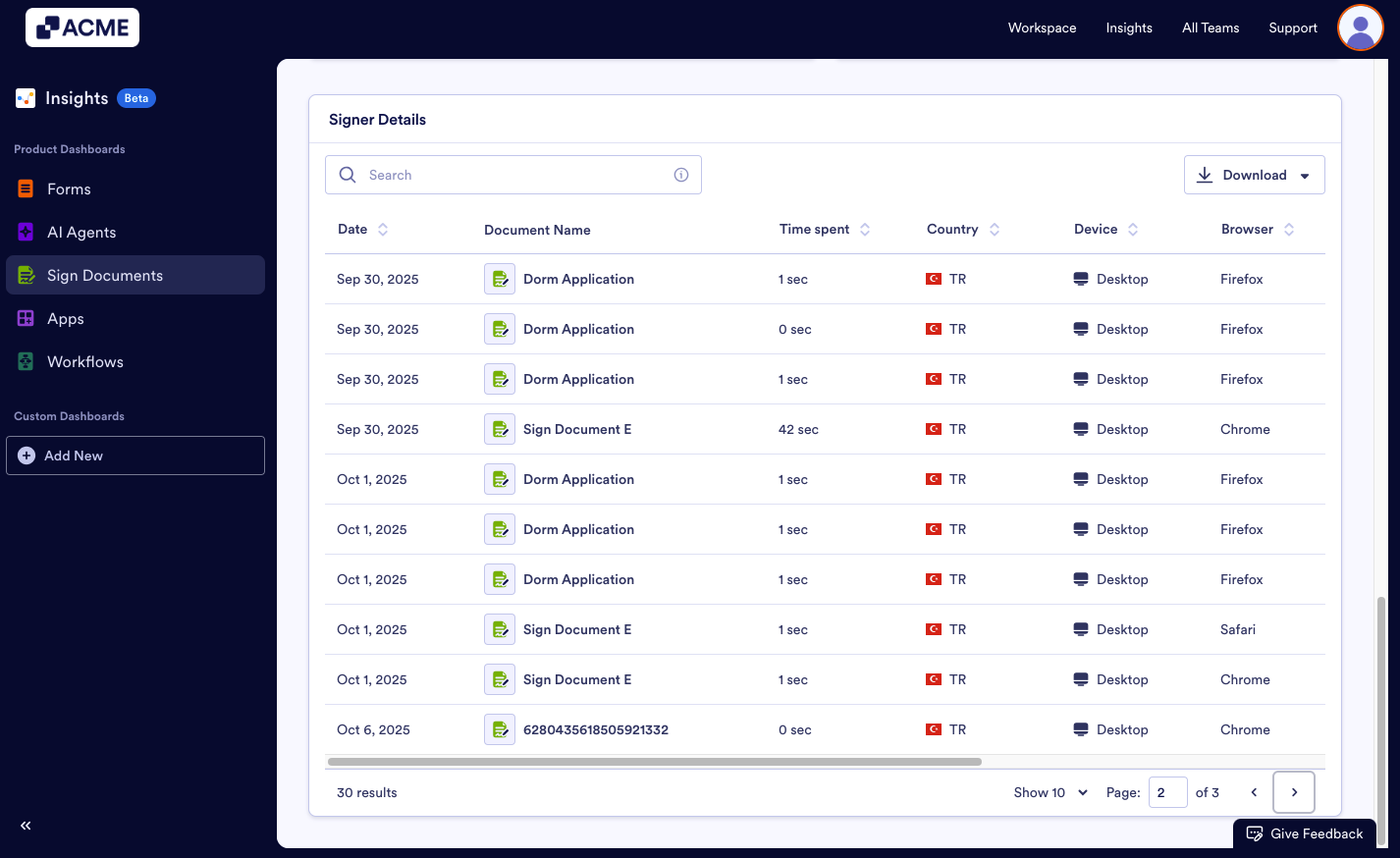
Let’s walk through the downloading steps together:
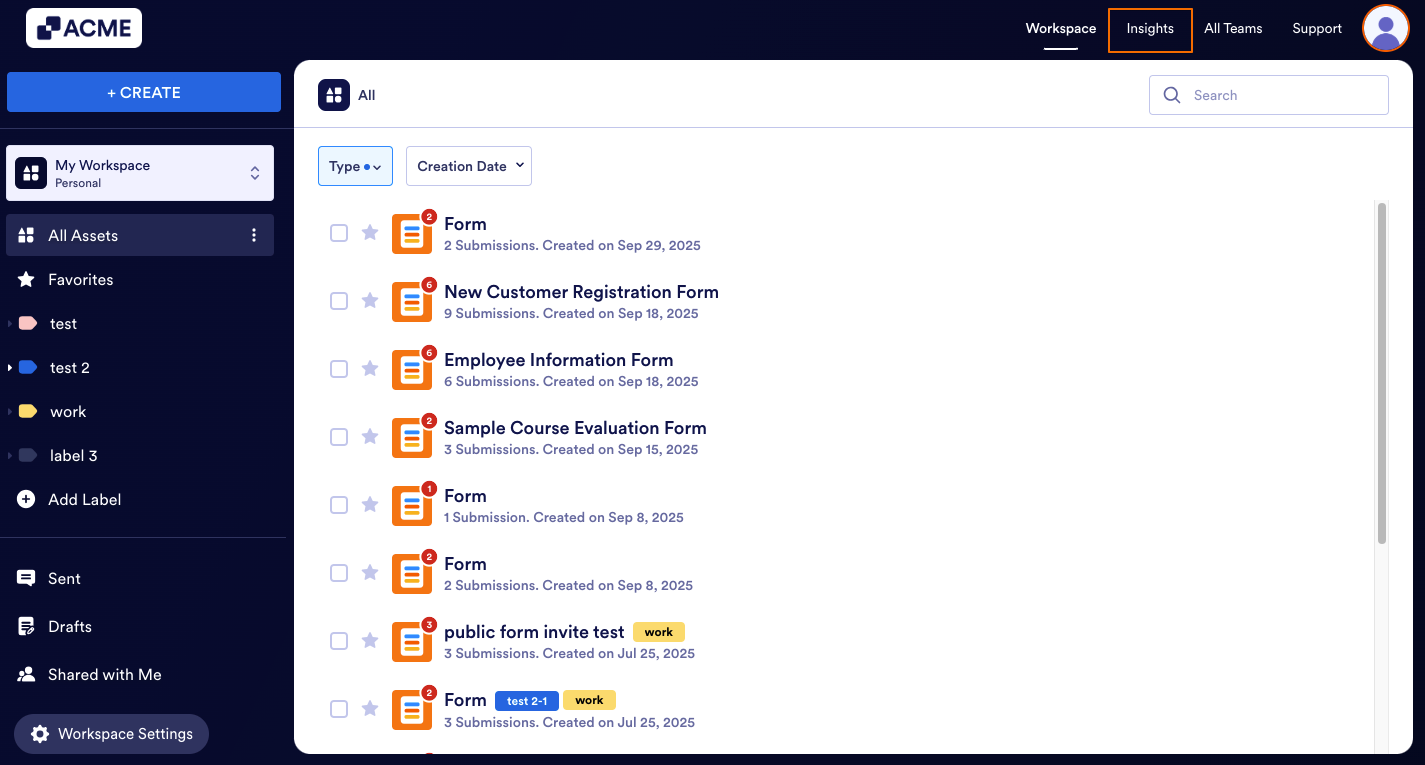
- In My Workspace page, click on Insights in the upper right corner of the screen.
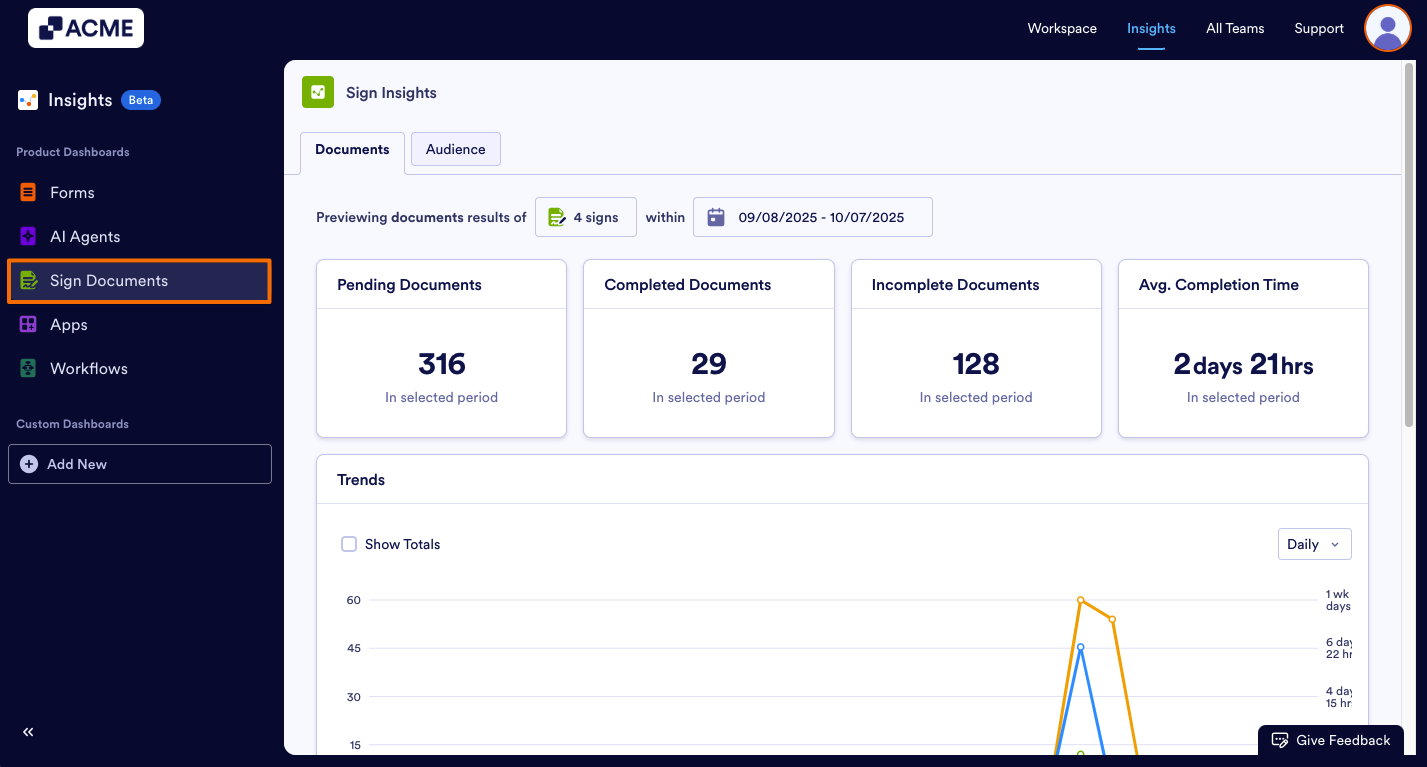
- Select Sign Documents from the menu on the left side of the screen.
- Go to the Audience tab within the Sign Insights.
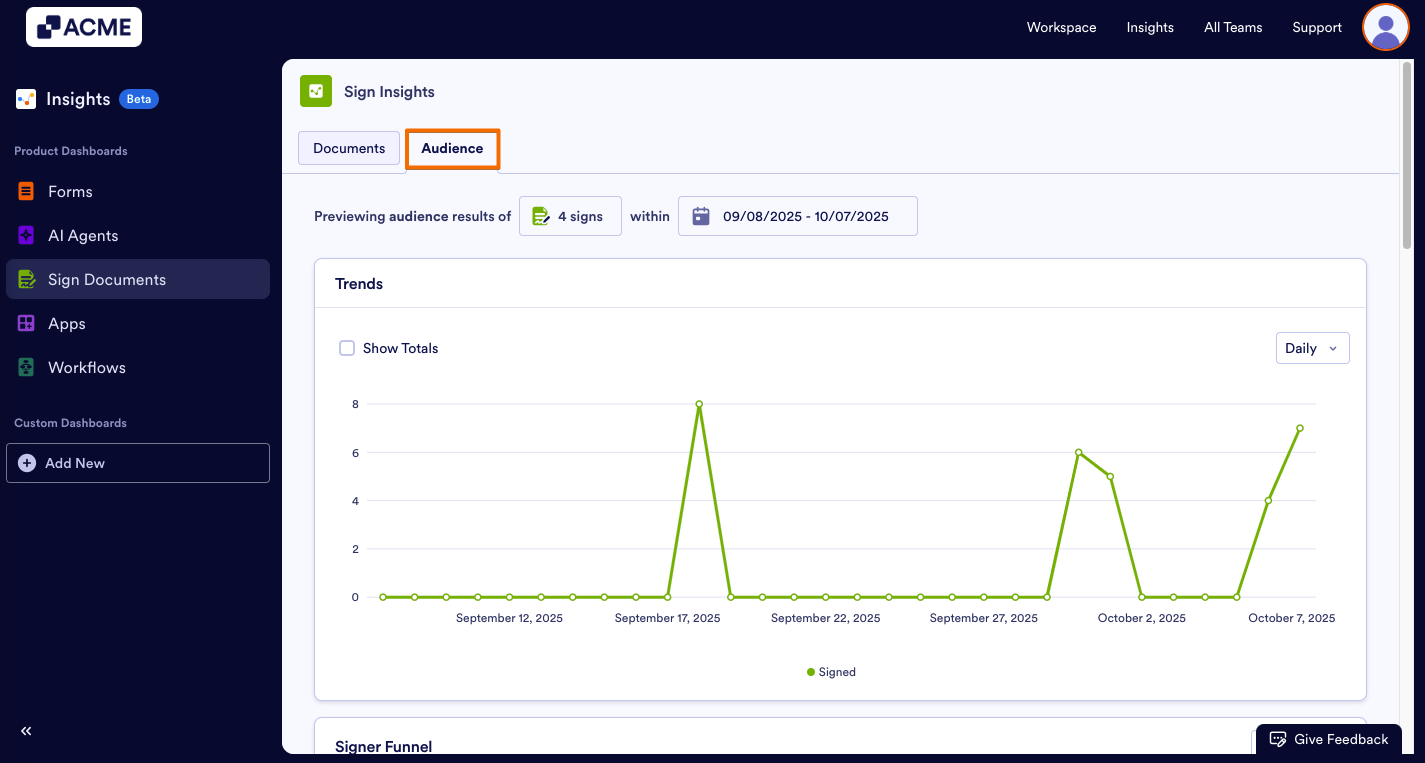
- Scroll down to the Signer Details and click on Download and select either Download as .CSV or Download as Excel.
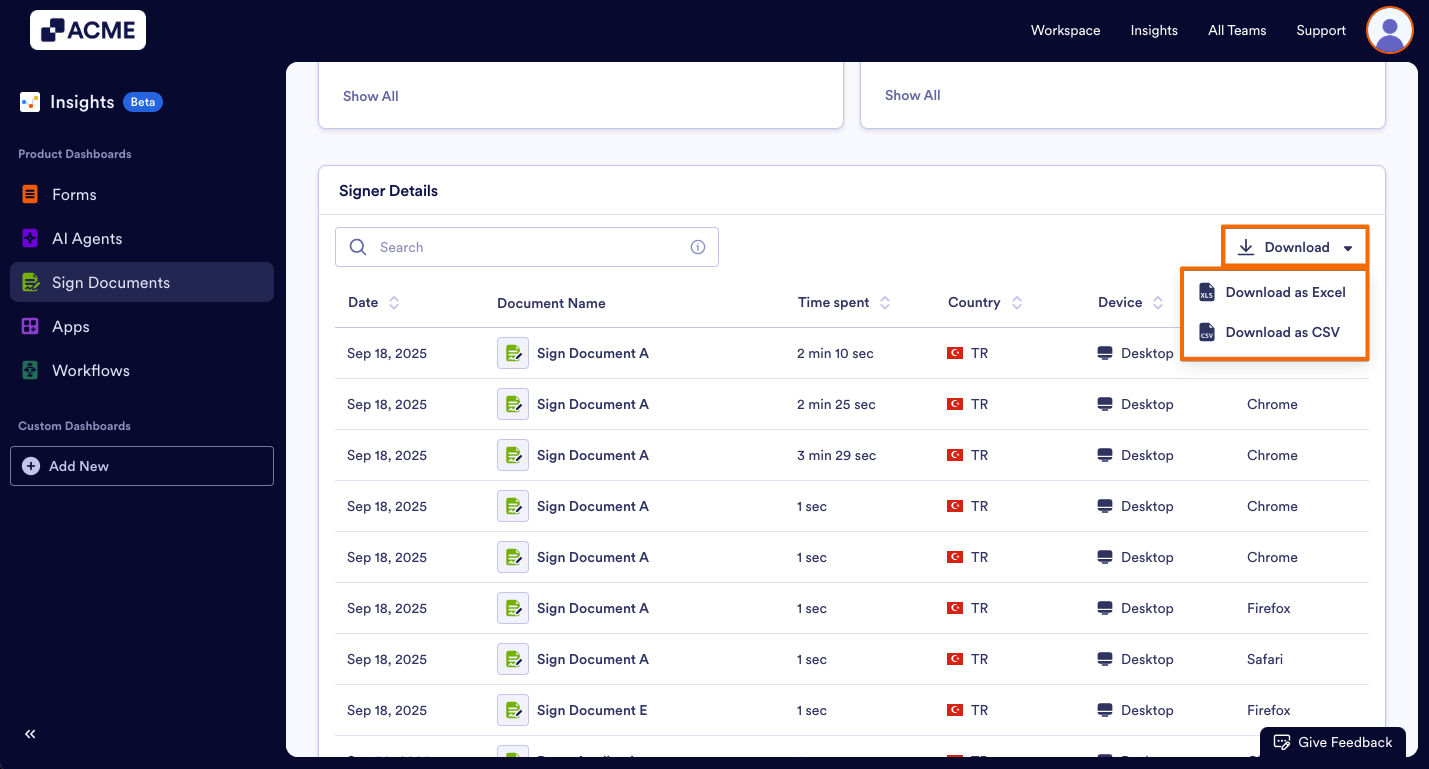
The downloaded file will contain the breakdown of the sign data by the metrics for the currently viewed date range.
Troubleshooting Tips
- Ensure you have selected the correct date range for the data you wish to download. Refer to How to filter Sign Document metrics in a specific date range in Insights for guidance on filtering by date.
- If the download fails or the file is empty, verify that there is data for the selected document and date range in Insights.
See also:
How to View Individual Sign Document Metrics in Insights?
How to Filter Sign Document Metrics in a Specific Date Range in Insights?

Send Comment: