What is Draft Mode?
Sometimes, you need a bit of time between making a change on a form and publishing that change. Draft Mode separates your work-in-progress from your live form.
When it is turned on, any edits made to the form are stored as a draft and your form users continue to interact with the last published version of the form. When turned off, any changes made to your form are published as soon as they’re made.
Turning Draft Mode On or Off
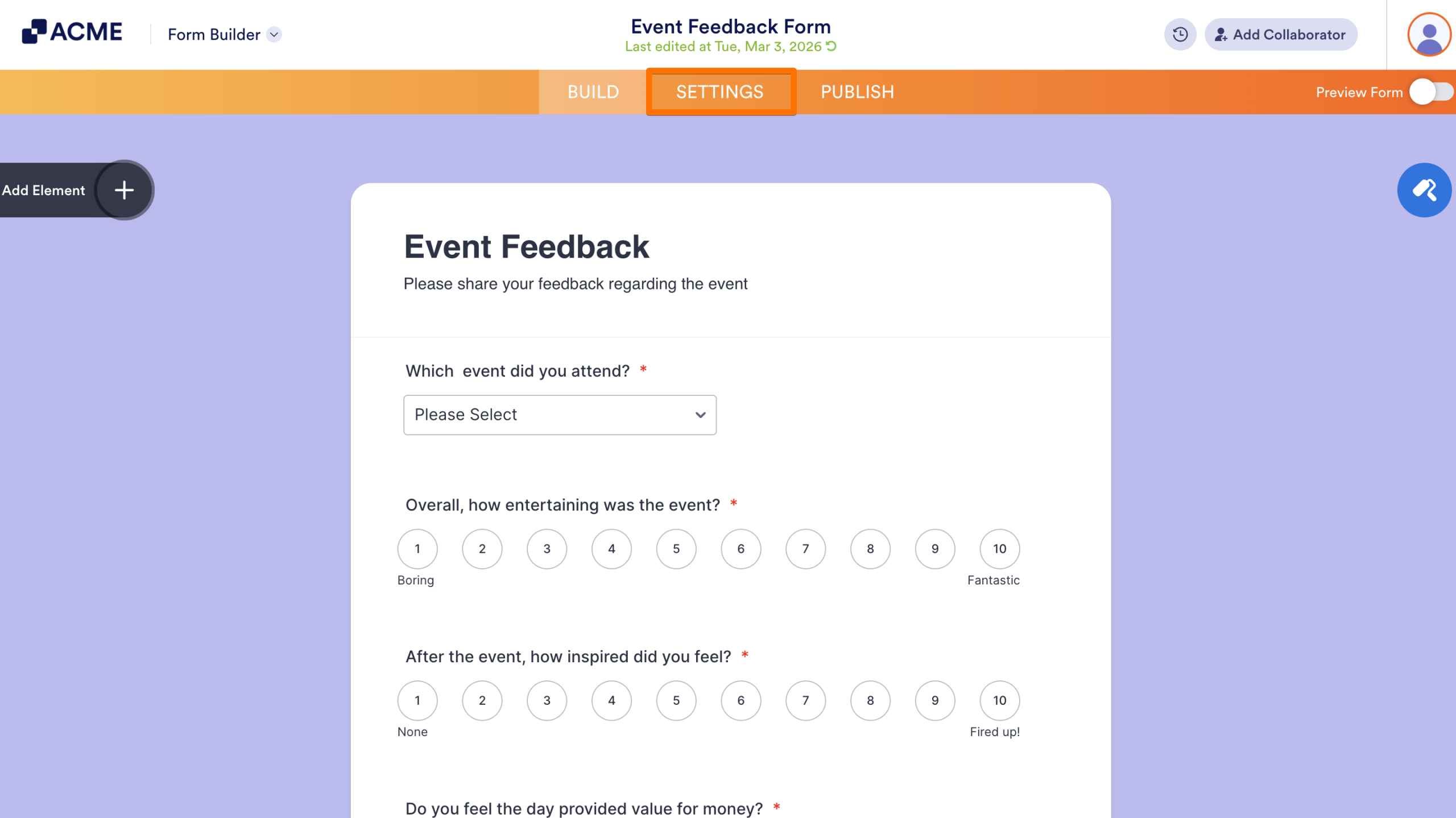
- In the Form Builder, click on Settings in the orange banner at the top of the page.
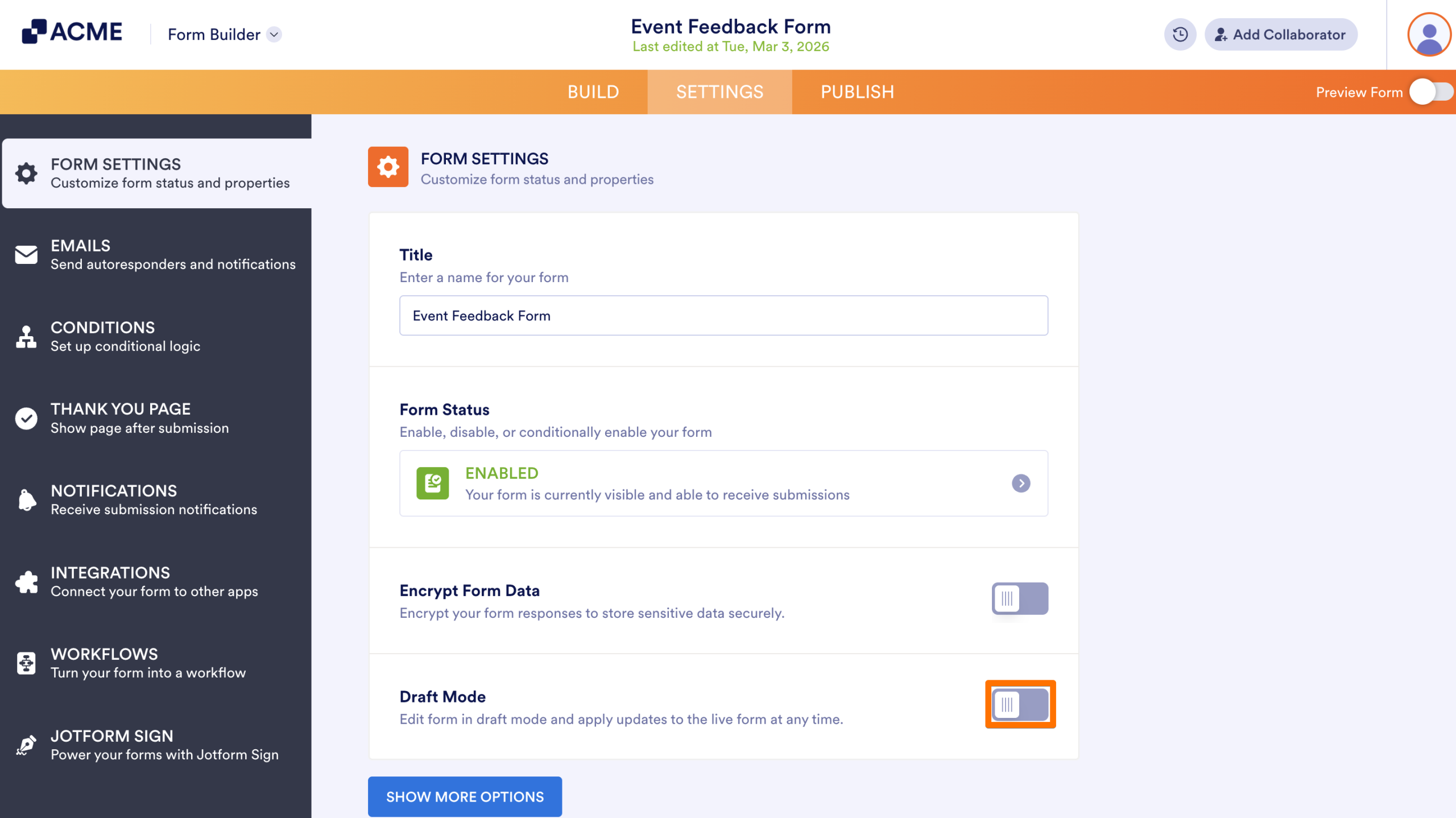
- Then, under Form Settings, toggle on or off the switch next to Draft Mode.
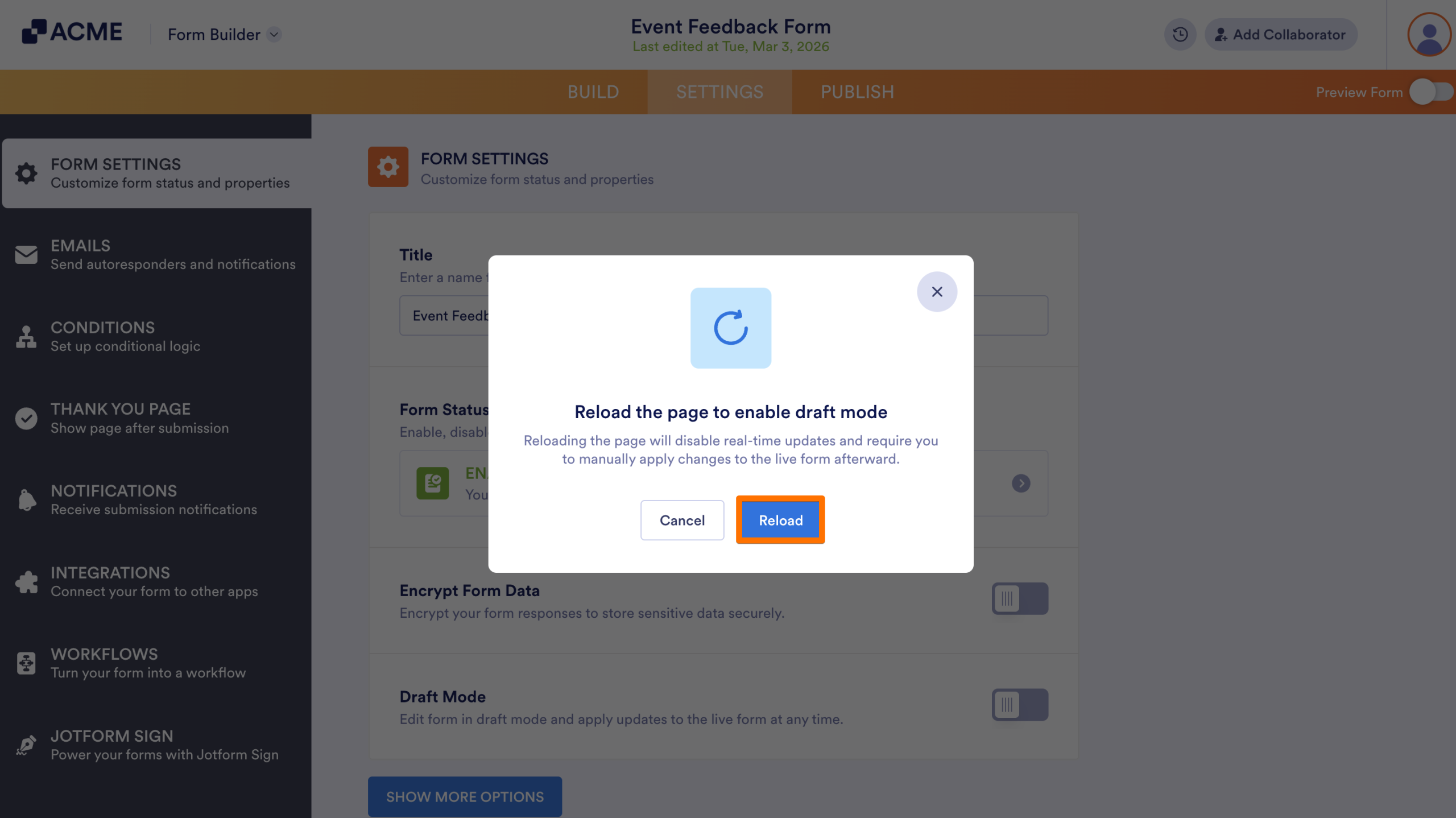
- Finally, click on Reload in the pop-up window.
Managing Pending Draft Changes
Now that you are in Draft Mode, your changes remain unapplied—meaning they are not visible to form fillers immediately. For more information about updating your live version with your draft version, check out our guide How to Apply Your Draft Changes to the Live Form.
If there are pending draft changes on your form and you attempt to disable Draft Mode, a window will pop up. Here, you’ll be asked to either:
- Cancel: Keep your form in Draft mode and save your draft changes.
- Apply Changes: Publish all draft changes to the live form and turn Draft mode off.
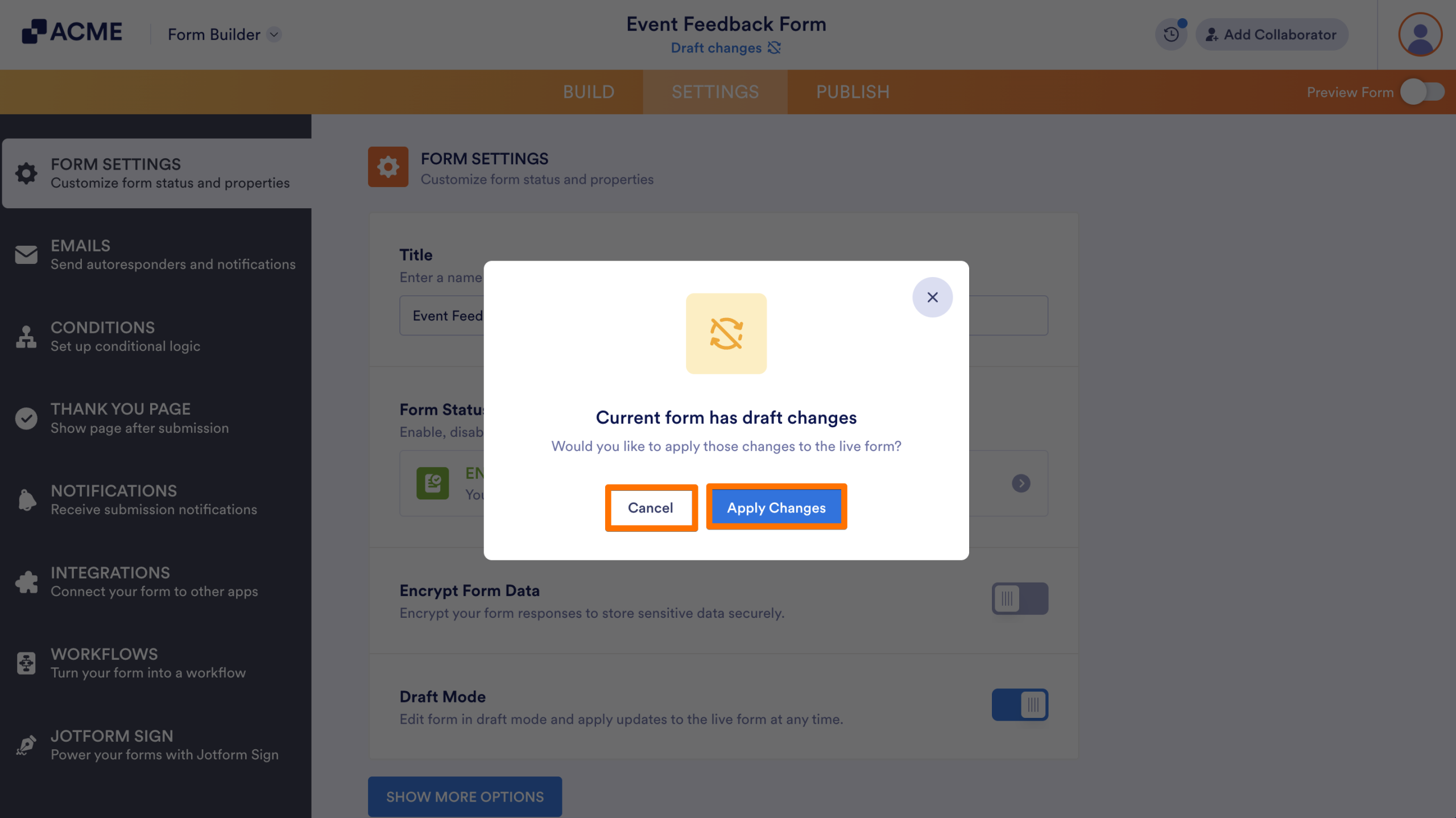
This way, you don’t accidentally overwrite your live form or lose any work in progress.

Send Comment: