As an Admin, you can also enable and disable AI Agents from the Admin Console. Disabling the Agent prevents it from being used while also keeping all related information stored on your server.
 How to Archive or Unarchive Agents in Your Organization from the Admin Console
 How to Trash or Restore Agents in Your Organization from the Admin Console
 How to View and Manage Agents Usage in Your Organization from the Admin Console
 How to Analyze Agents Usage in your Organization from the Admin Console
Disabling an Agent
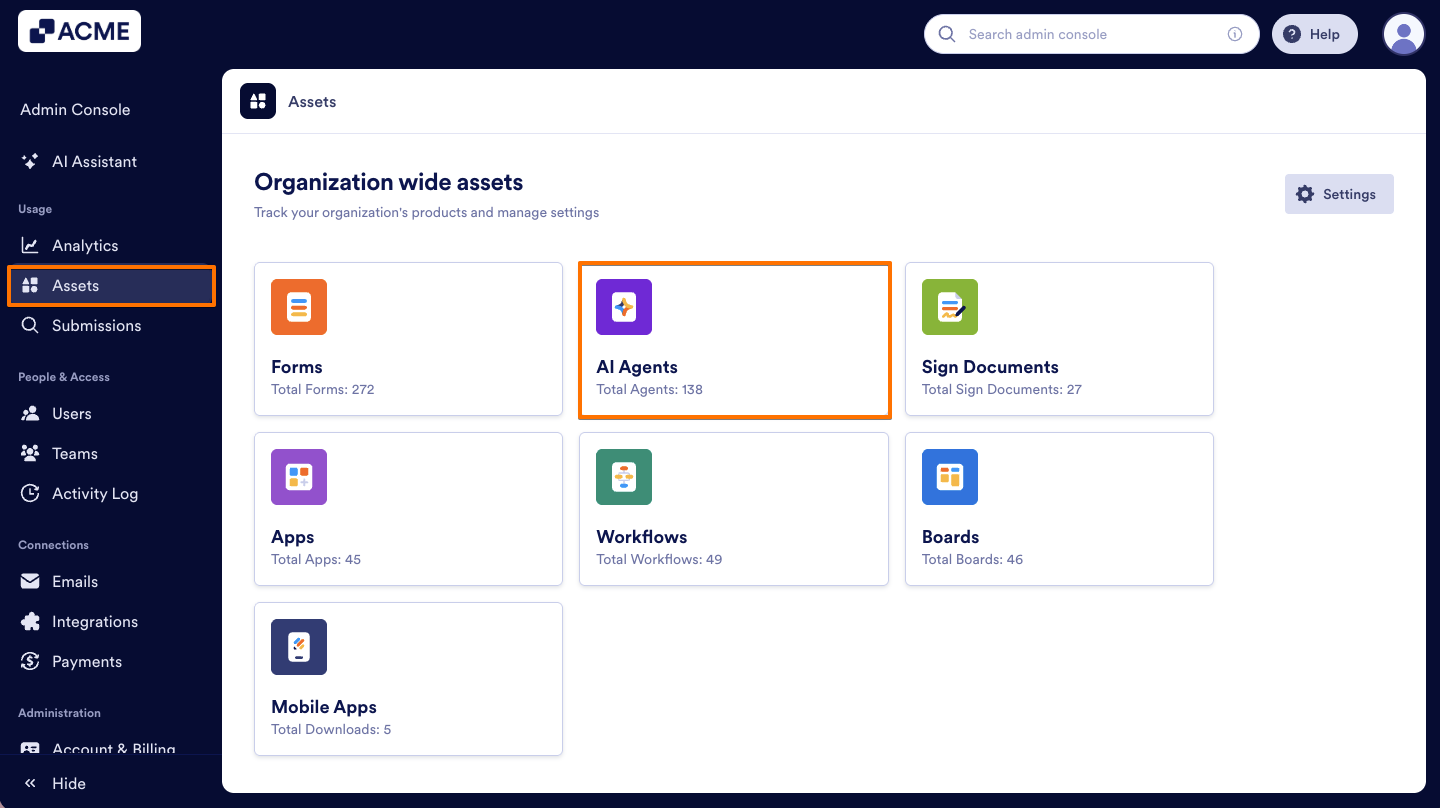
- In the Admin Console, click on Assets from the left-hand side menu.
- Next, click on AI Agents.
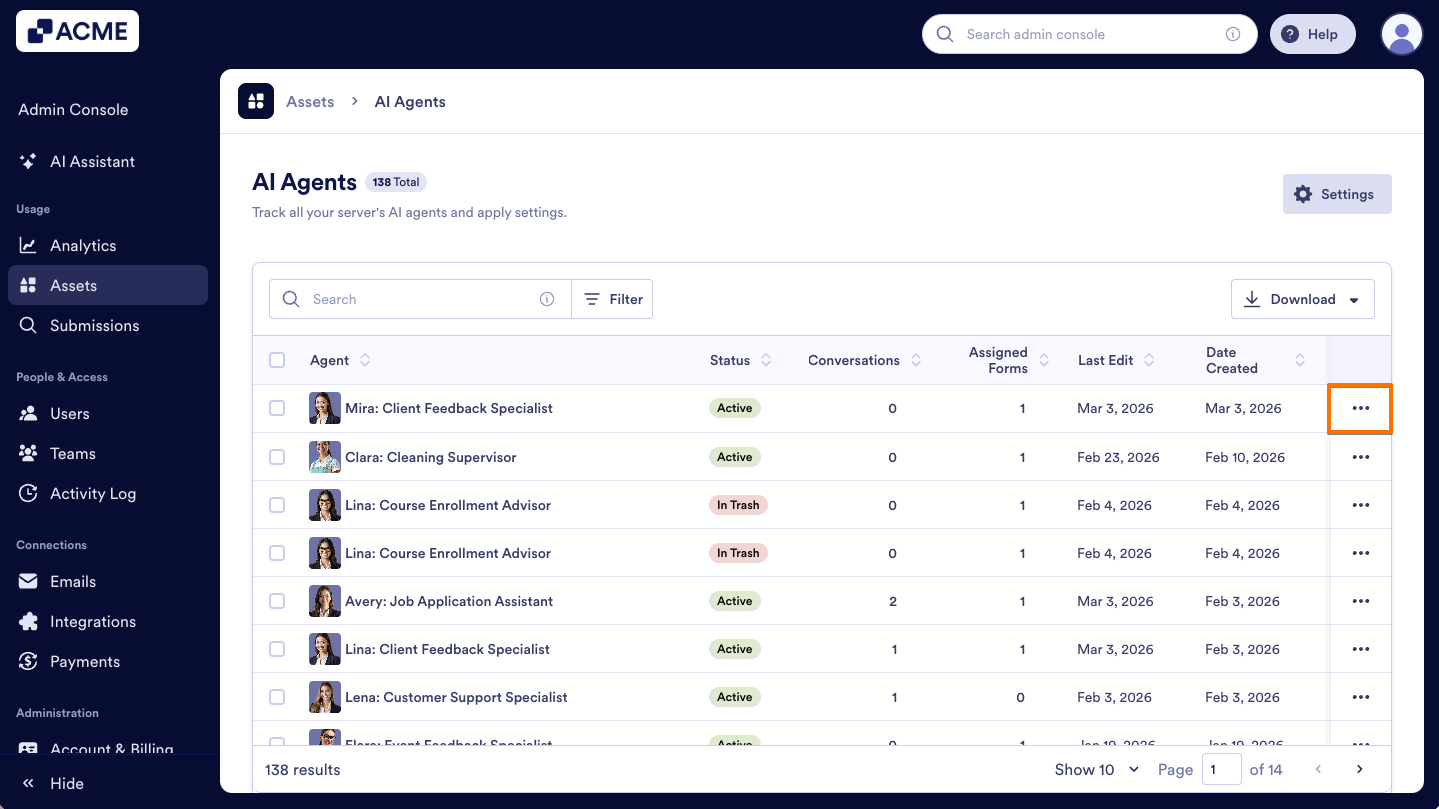
- Click on the Three dots icon next to the Agent you’d like to disable.
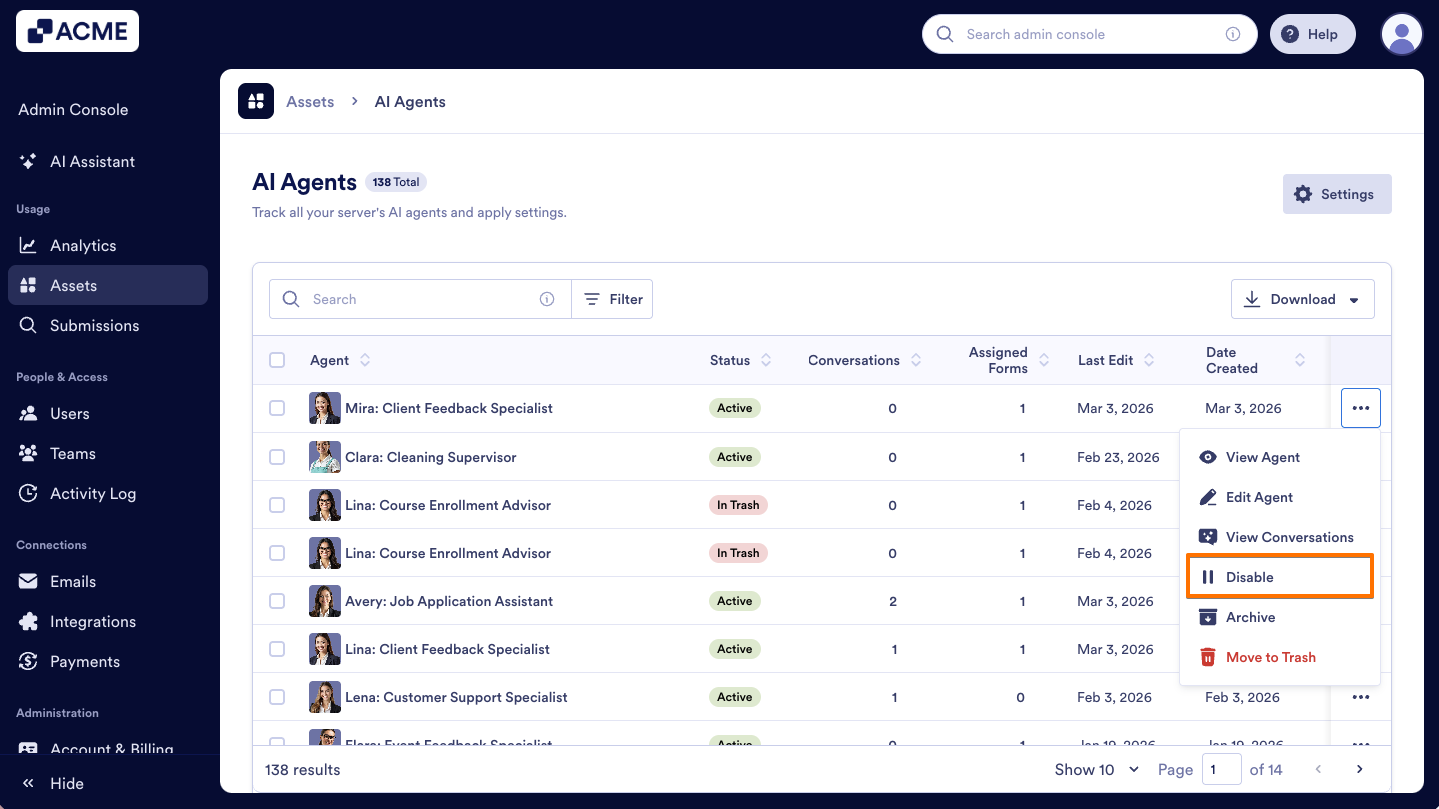
- In the menu, select Disable.
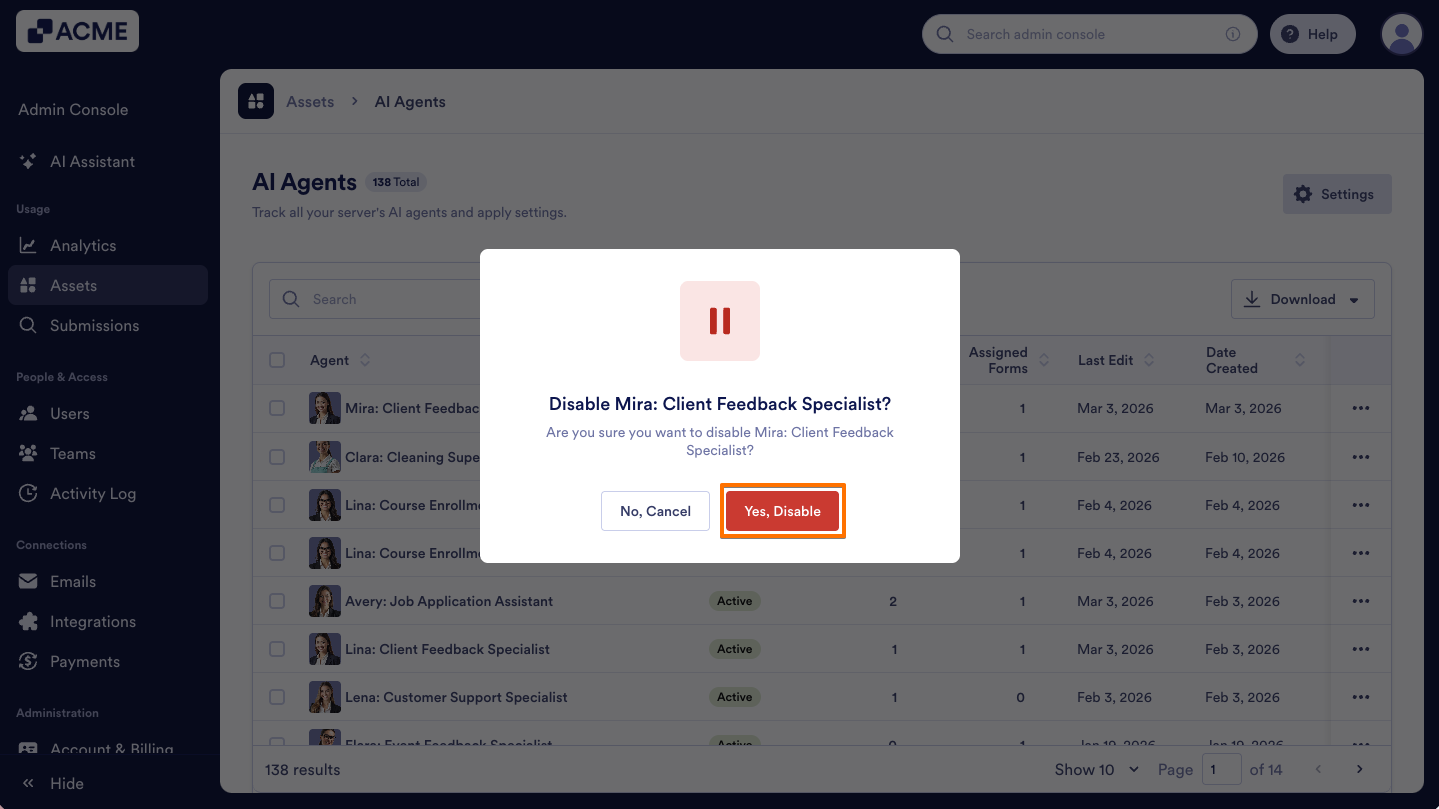
- Finally, click on Yes, Disable in the pop-up window.
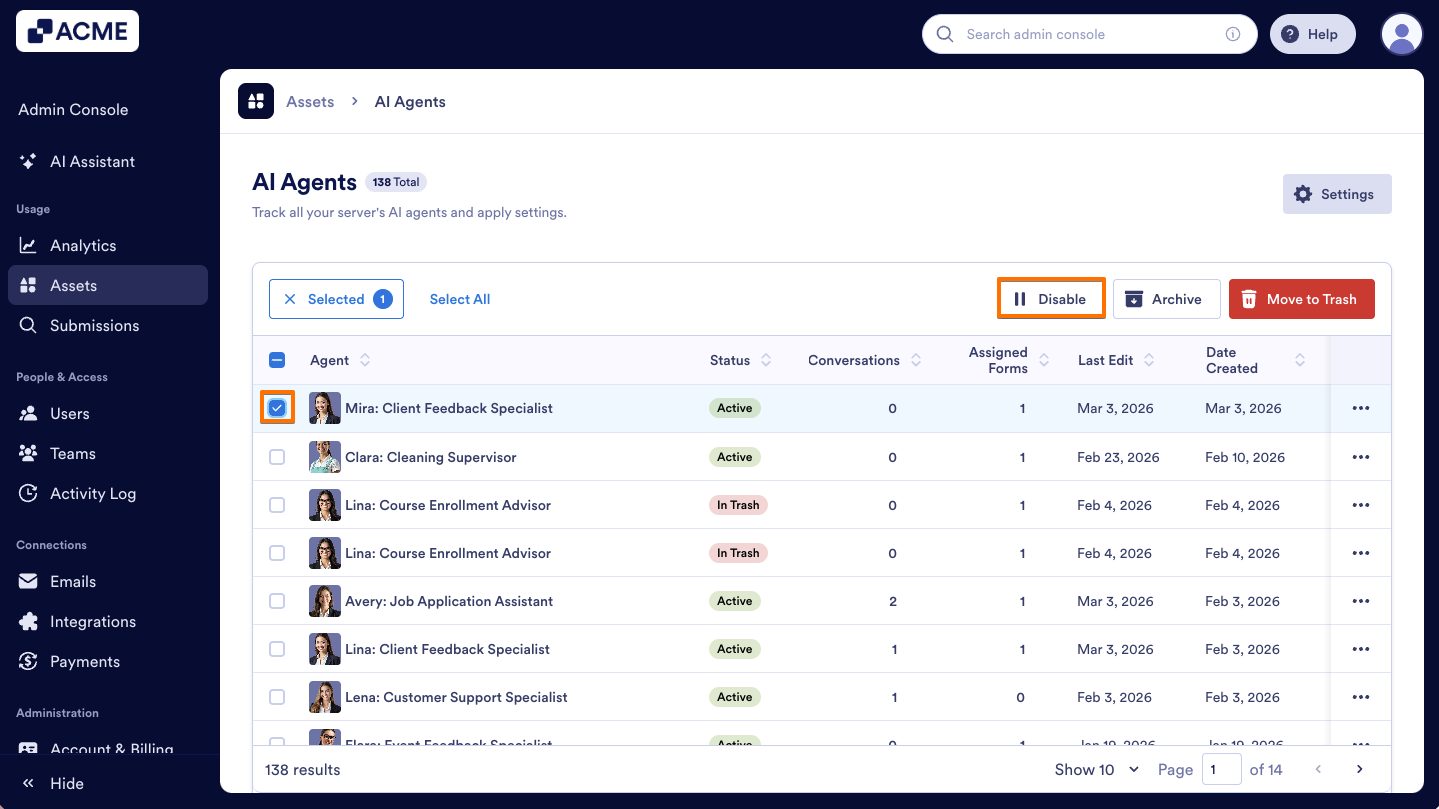
Another way to disable an agent is to use the Disable button at the top. Here’s how:
- On the left side of the Agent you want to disable, select the Checkbox.
- At the top of the list, click on the Disable button.
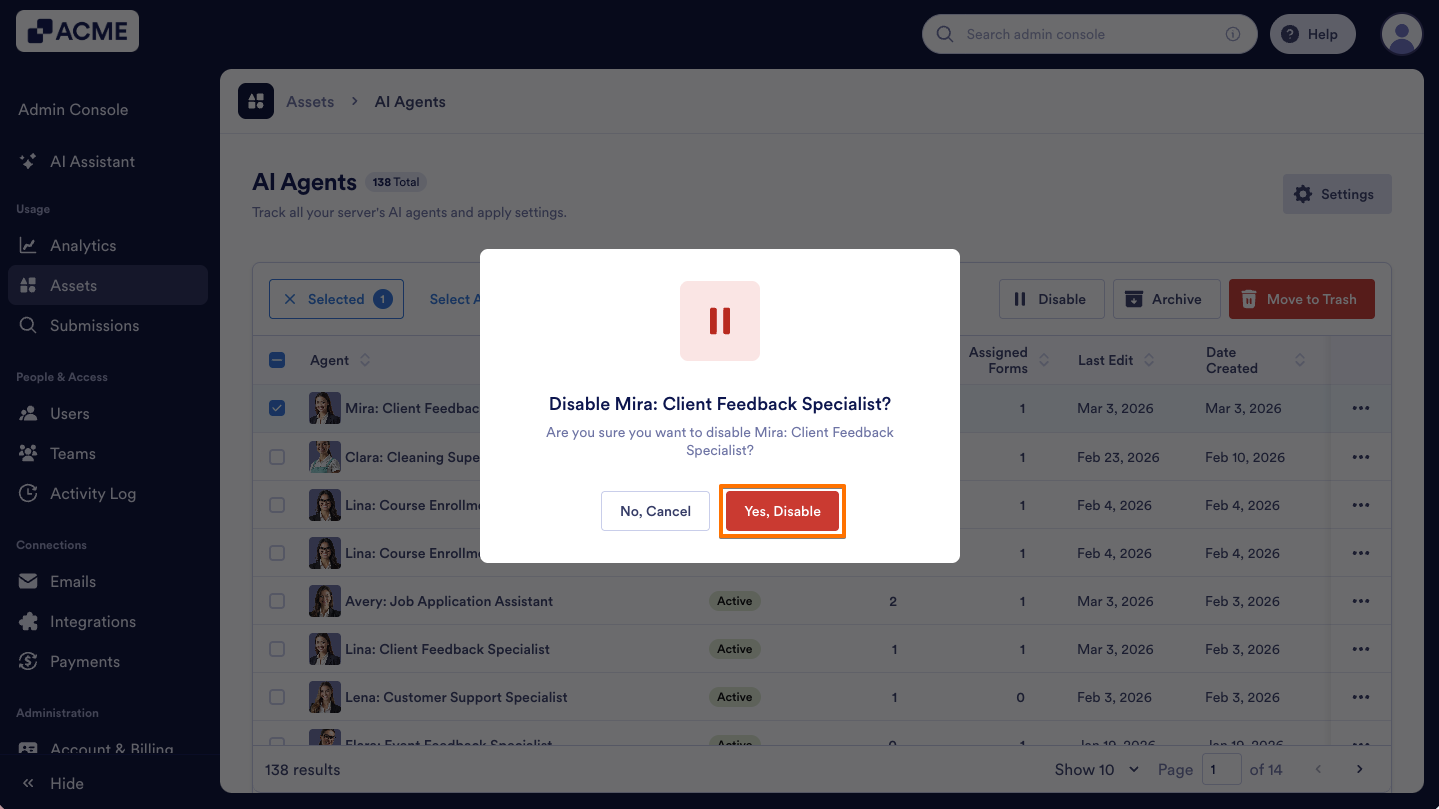
- In the pop-up window, select Yes, Disable.
Enabling an Agent
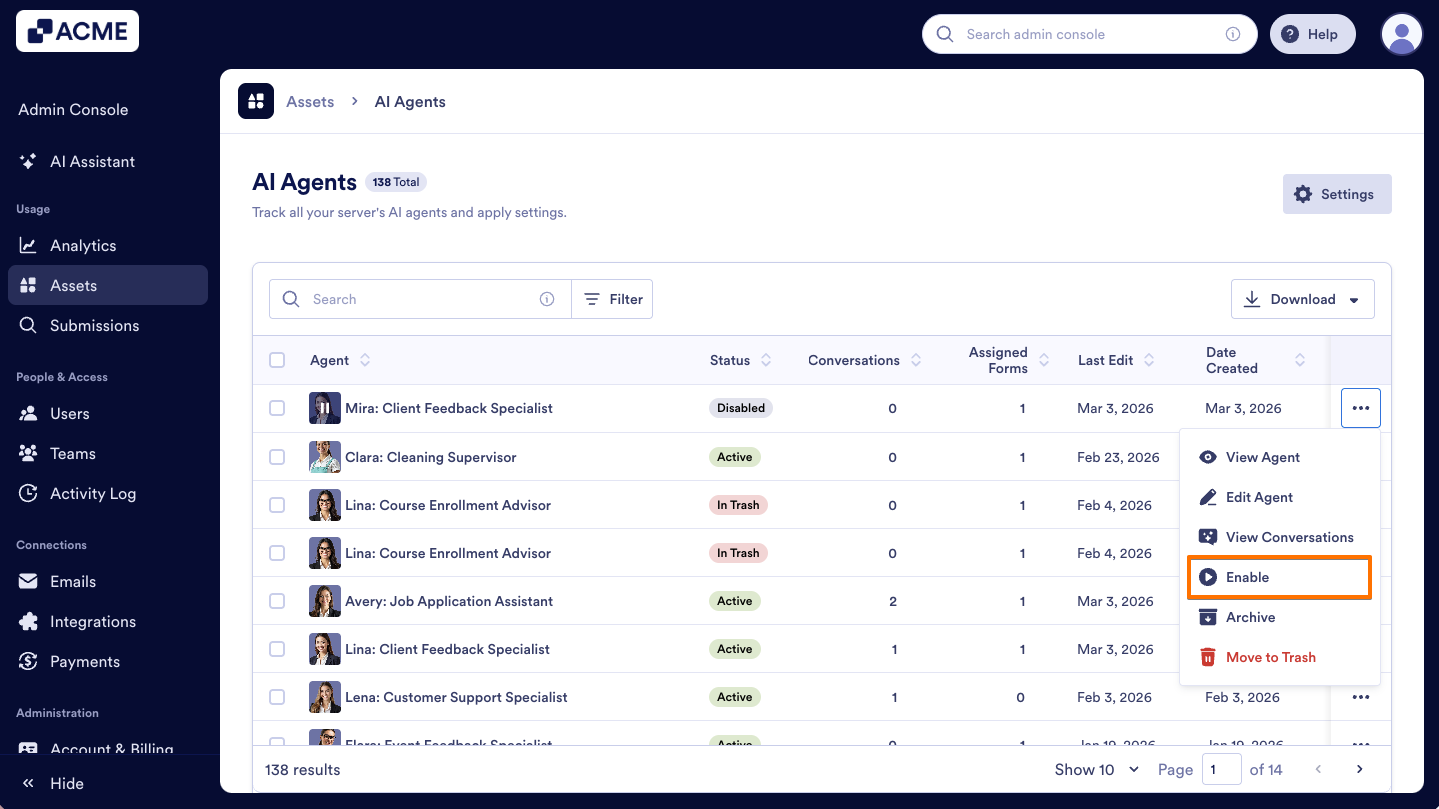
- On the Agents Assets page in your Admin Console, click on the Three dots icon next to the Agent you’d like to enable.
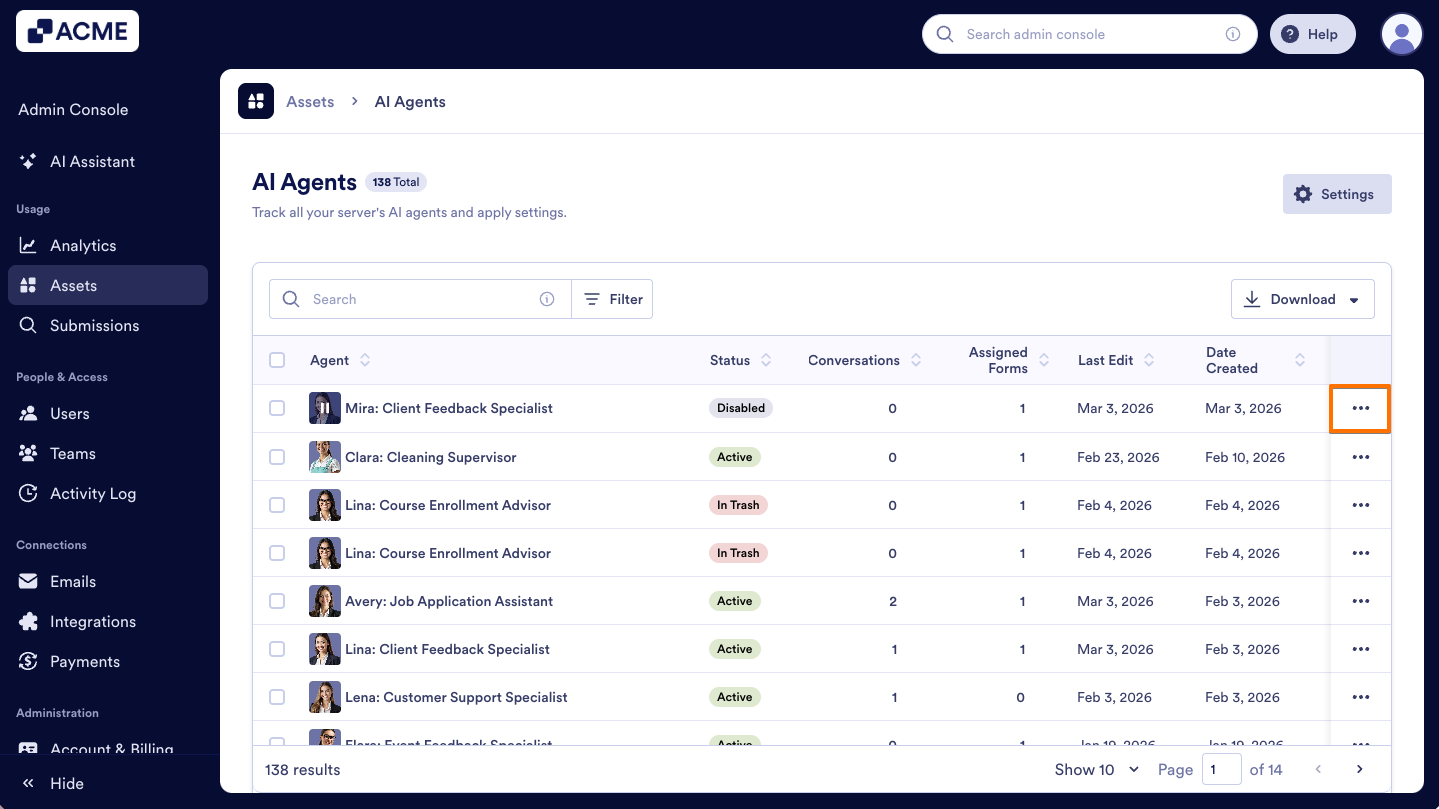
- Then, in the menu, select Enable.
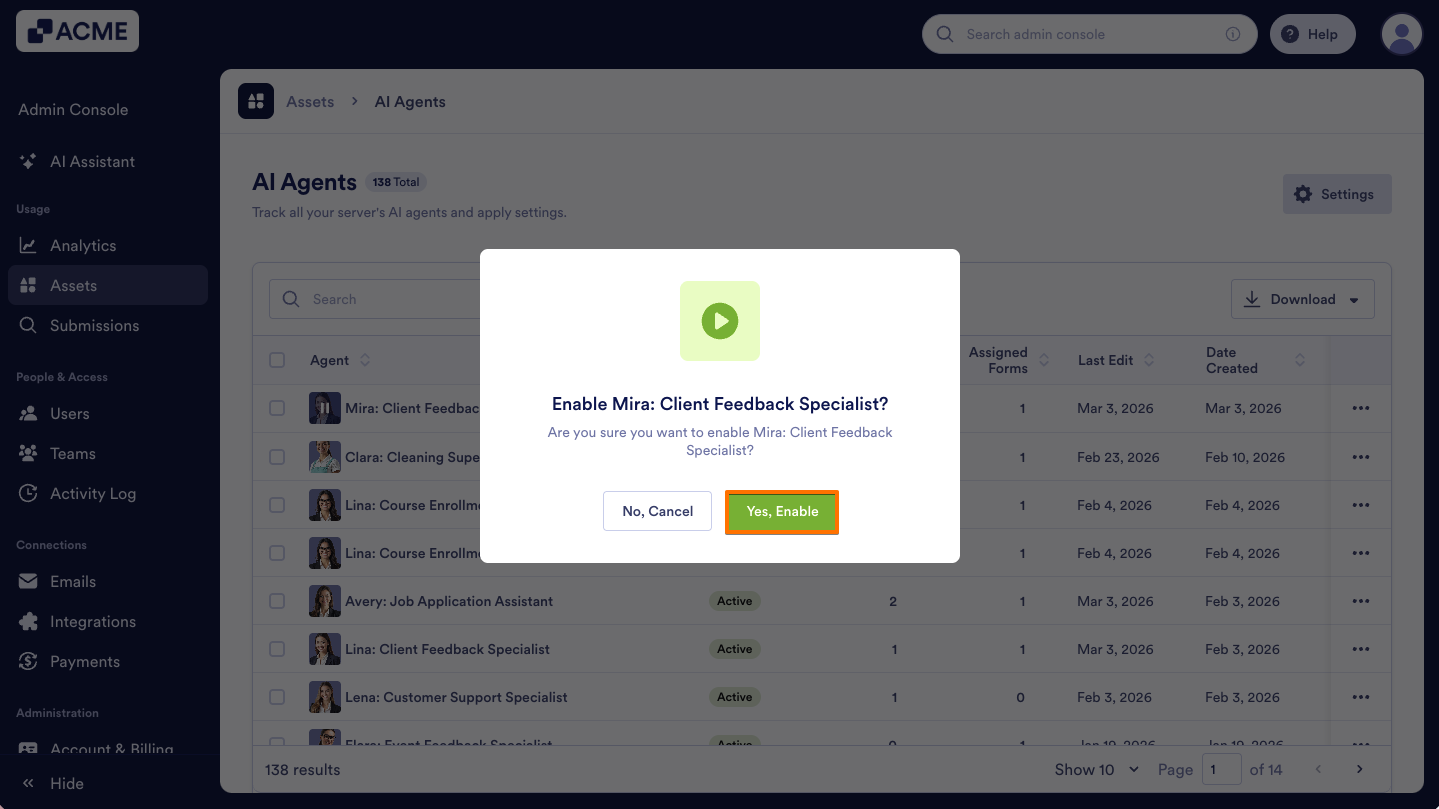
- In the pop-up, click on Yes, Enable to confirm.
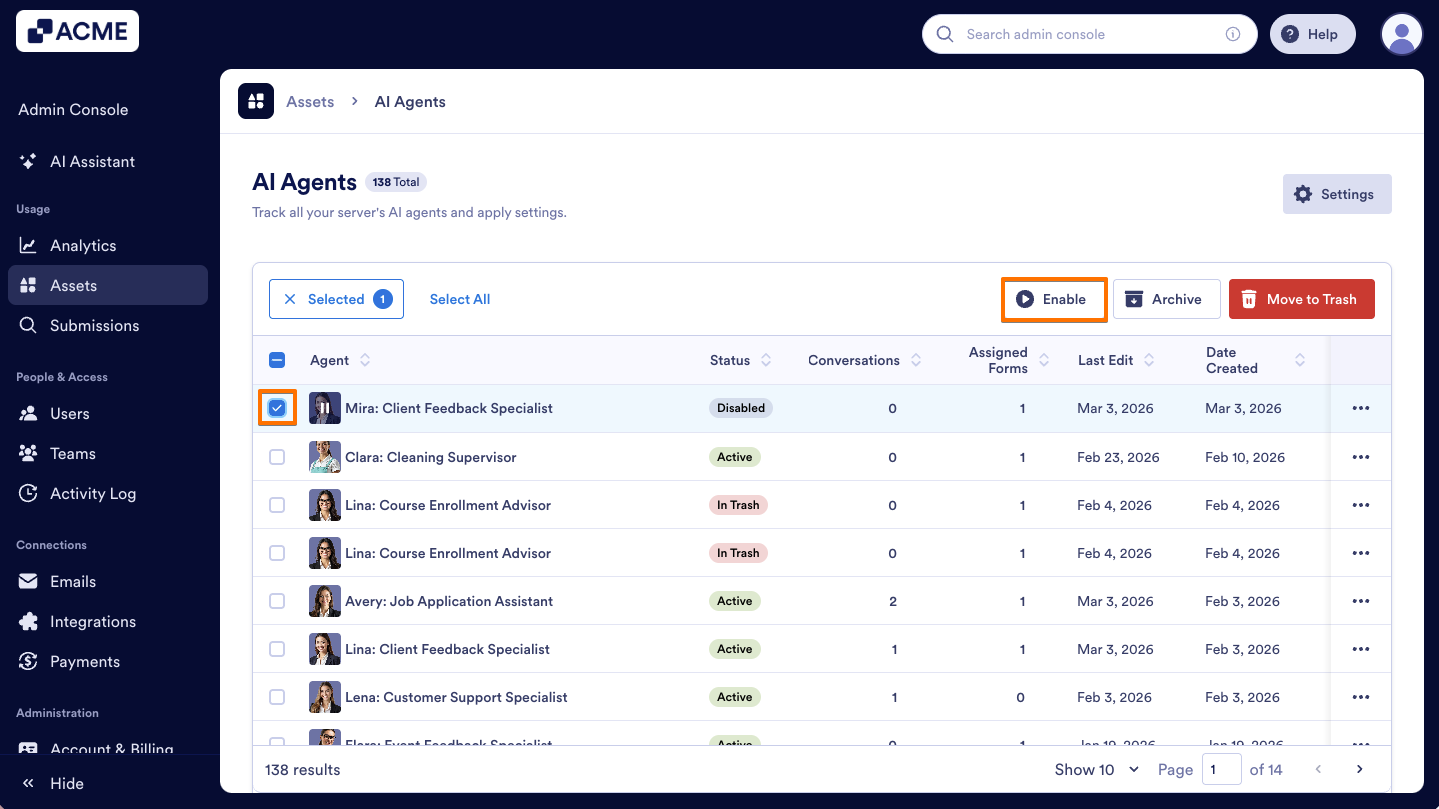
You can also use the Enable button located above the list to enable an Agent. Let me show you how:
- On the Agents Assets page, select the Checkbox on the left side of the Agent you want to disable.
- At the top of the list, click on the Enable button.
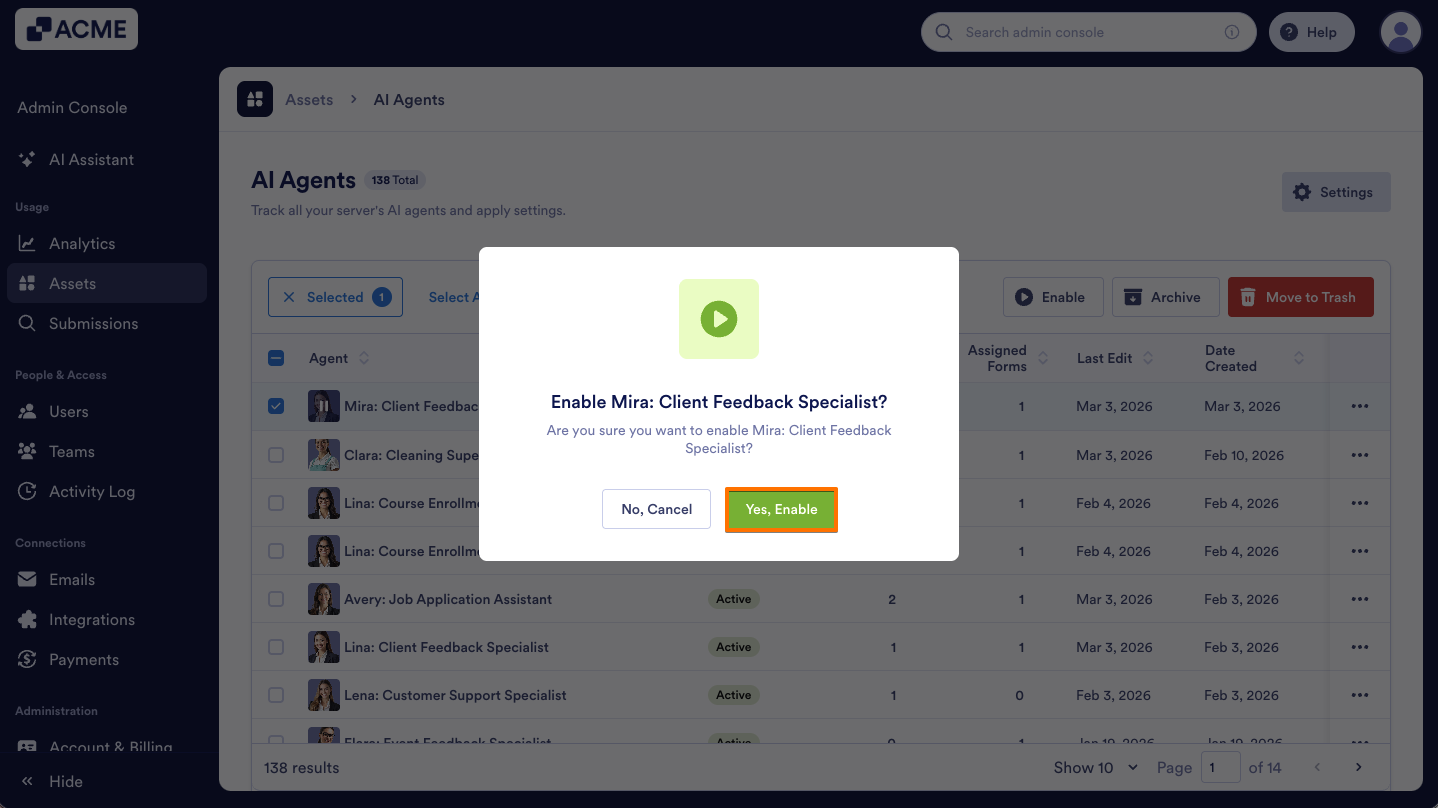
- Finally, in the pop-up, click on Yes, Enable.
Bulk Disabling
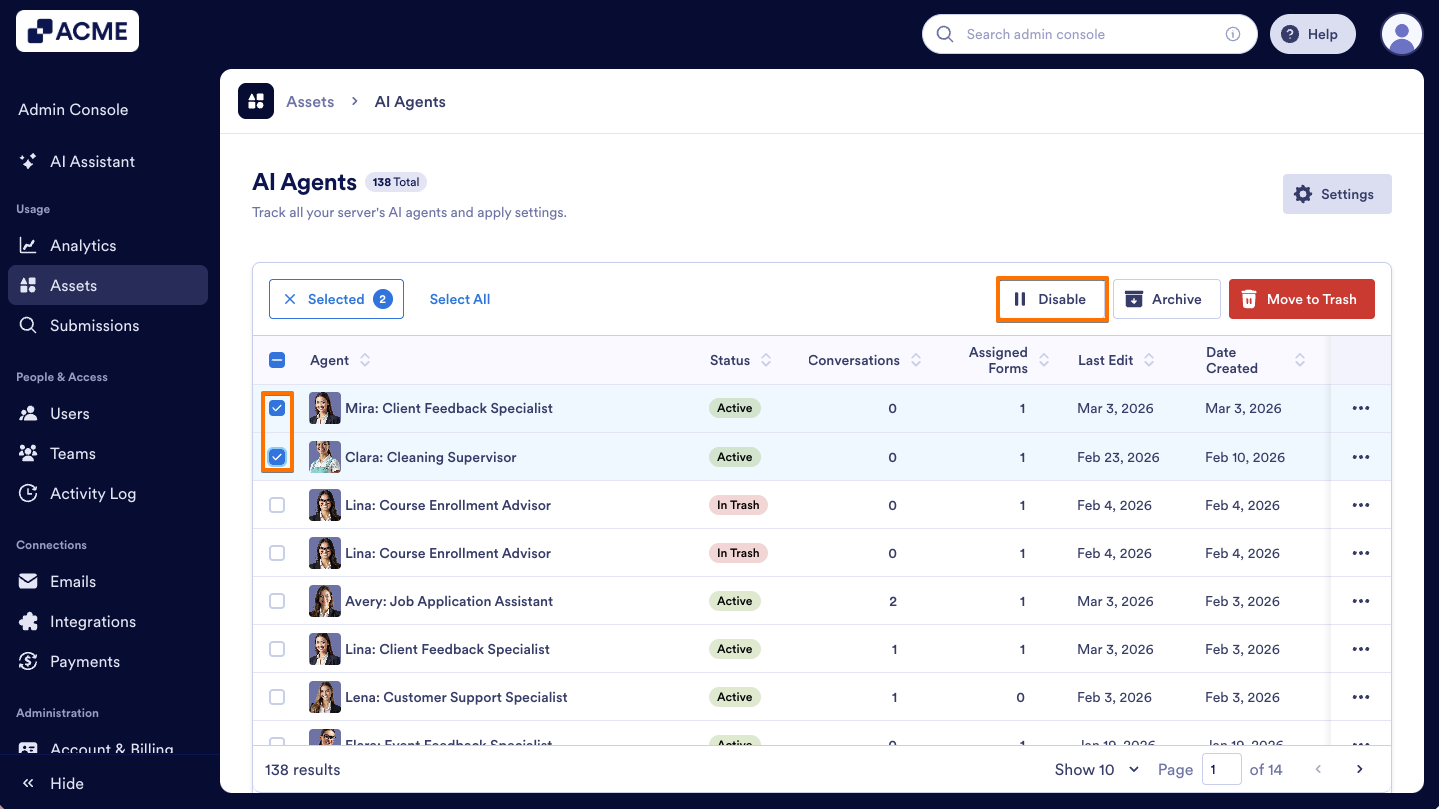
- On the Agents Assets page, select the Checkboxes on the left side of the Agents you want to disable together.
- Then, on the top of the list, click on the Disable button.
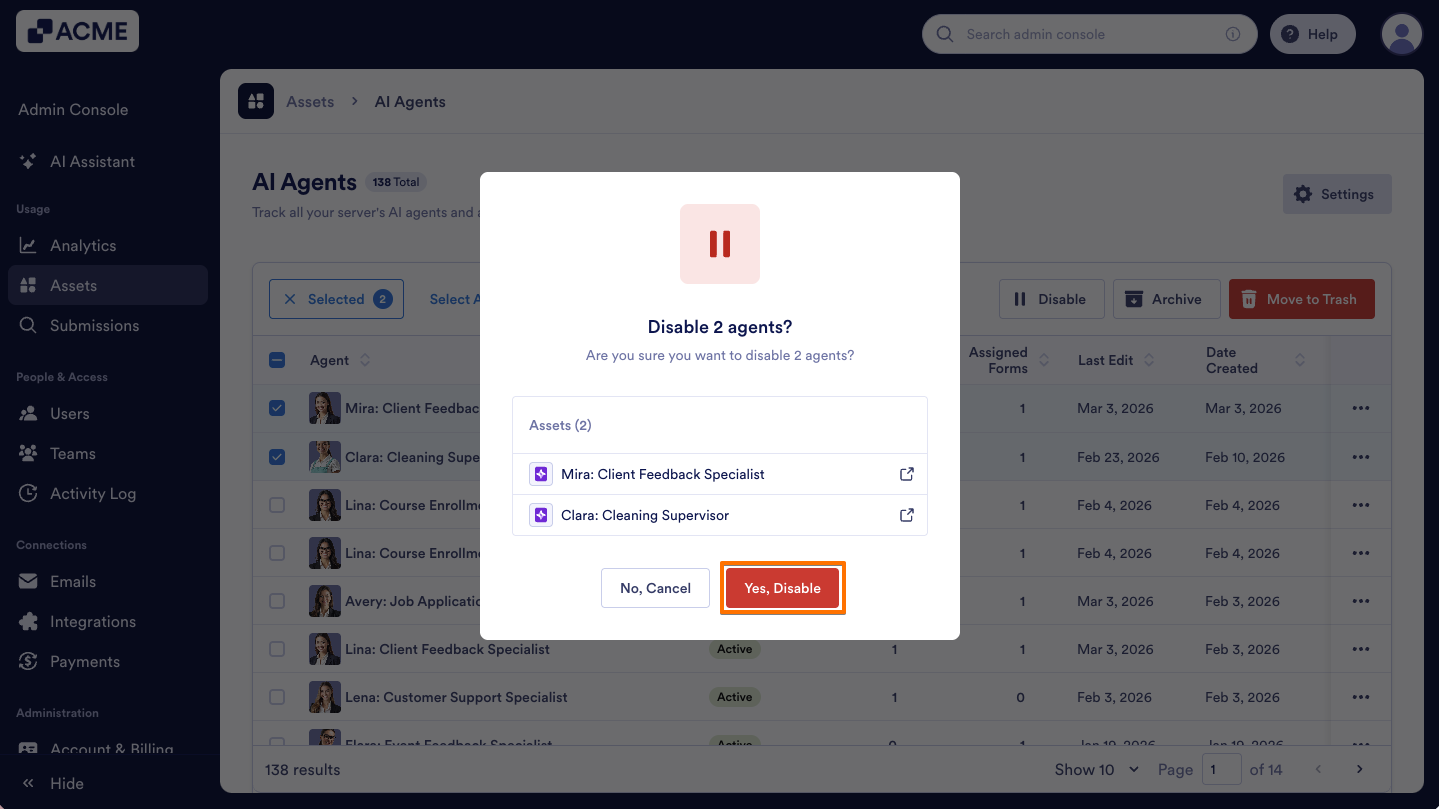
- In the pop-up that comes up, select Yes, Disable to confirm.
Bulk Enabling
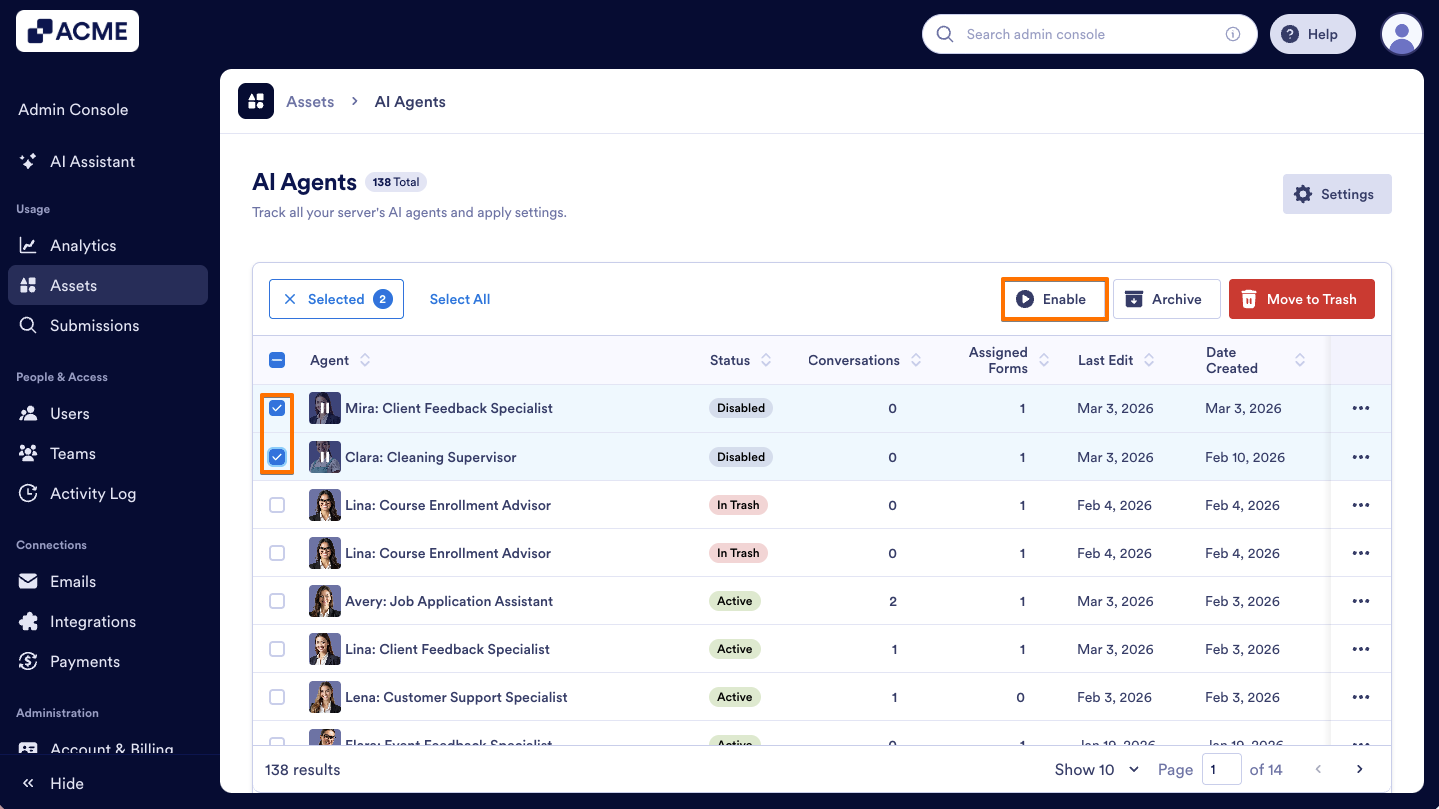
- On the Agents Assets page, select the Checkboxes on the left side of the Agents that were disabled before.
- Then, click on the Enable button above the list.
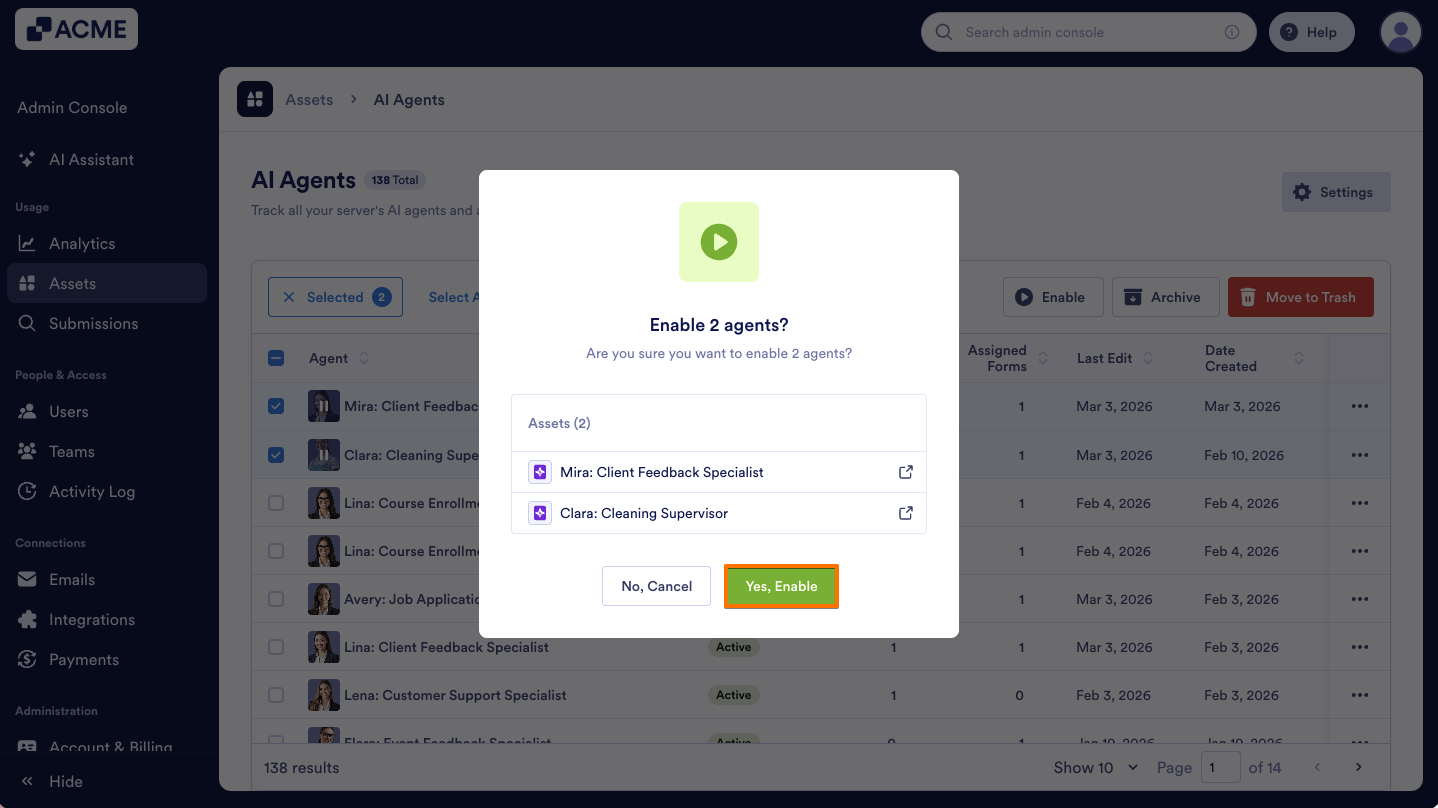
- In the pop-up window, click on Yes, Enable.
Using Filters to View All Disabled Agents in Your Organization
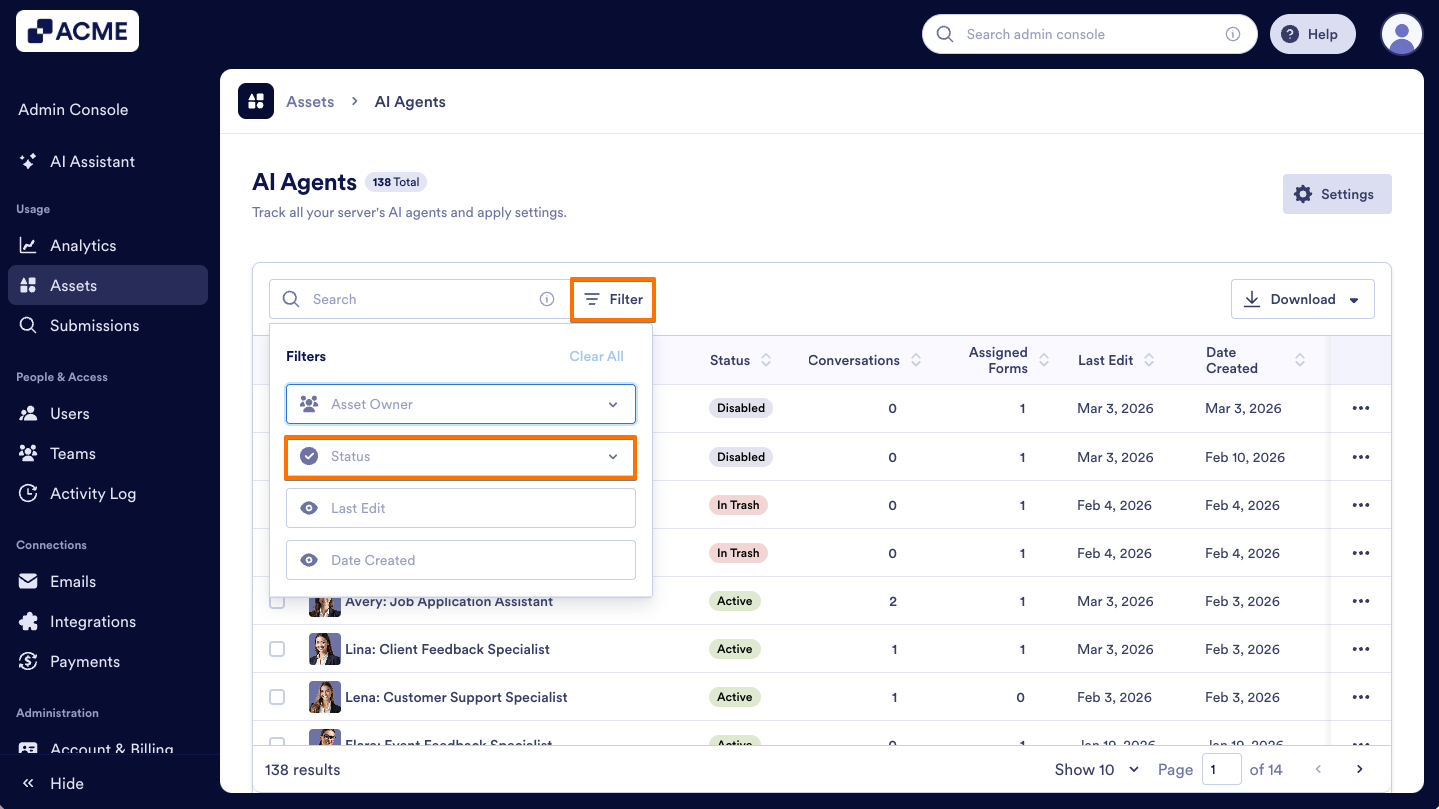
- In the Admin Console’s AI agents Assets page, click on the Filter button on the right side of the Search bar.
- Then, click on the Status dropdown menu.
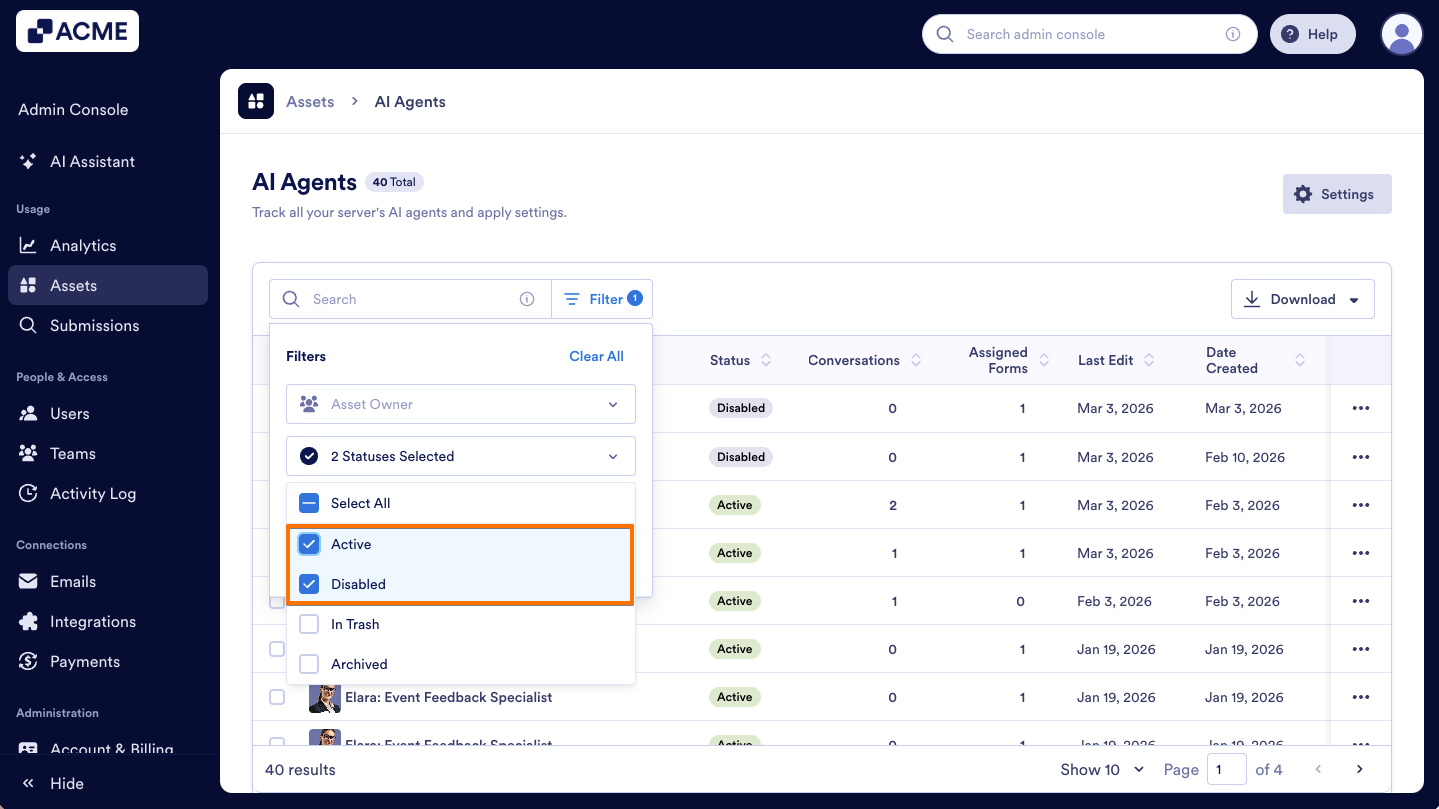
- In the dropdown menu, select Disabled, Active, or both to view disabled and enabled (active) apps.

Send Comment: