Apps can be enabled or disabled either one by one or in bulk, giving admins complete control over their availability across the organization. By adjusting app status as needed, you can ensure that only relevant and approved apps are available to users, helping maintain organization and reduce confusion.
Disabling an App
- In the Admin Console, on the left side of the page, click on Assets, then select Apps.
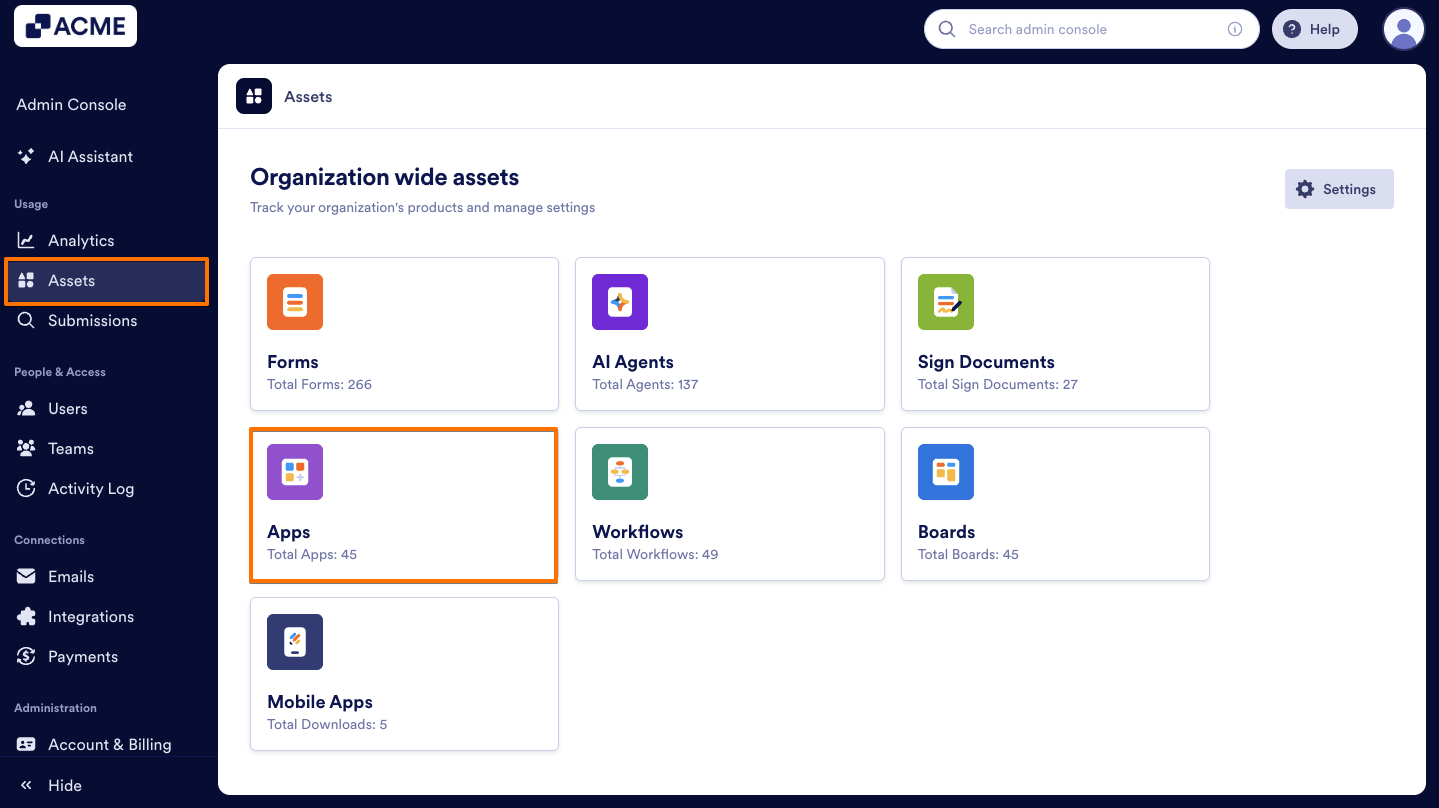
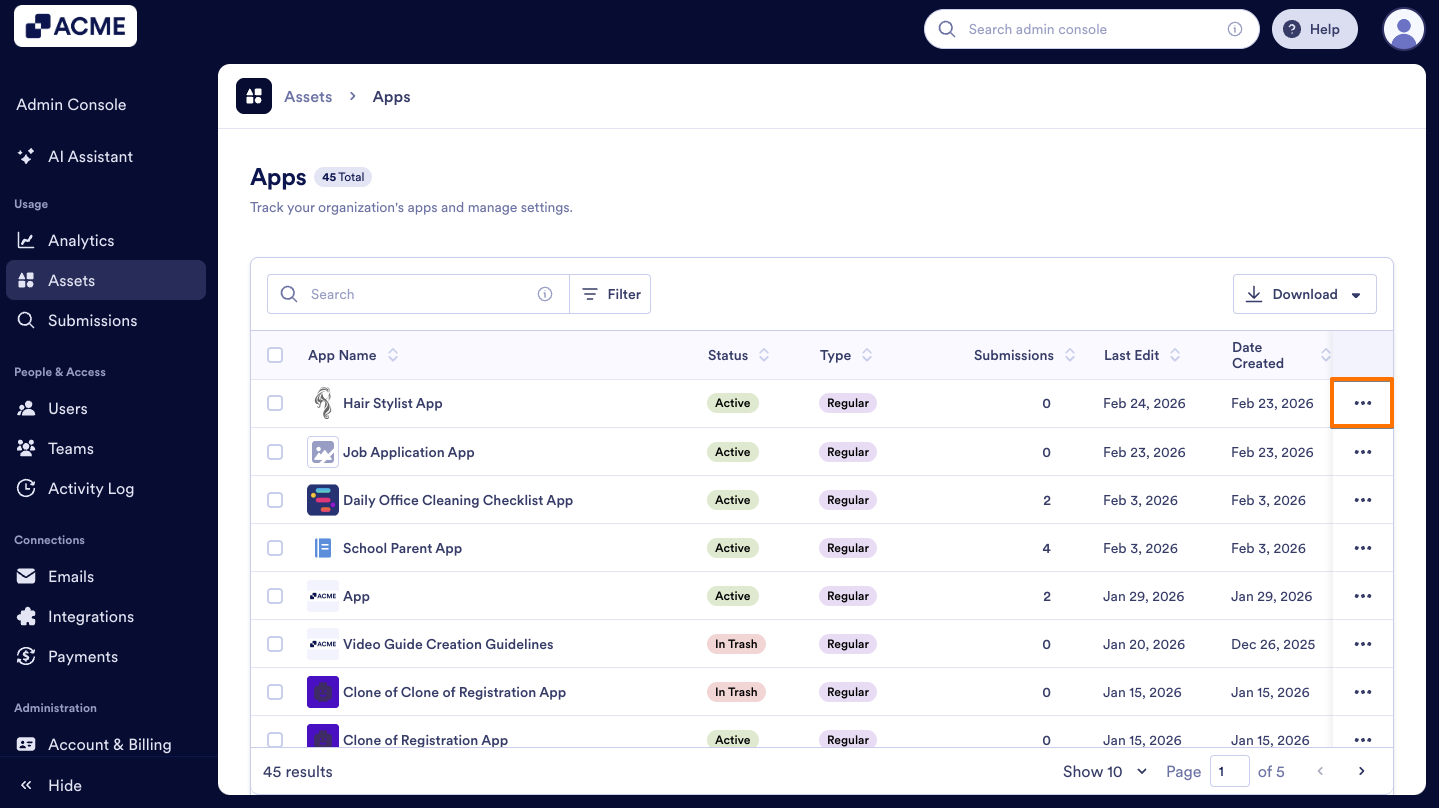
- Then, find the app you want to disable and click on the Three dots icon next to it.
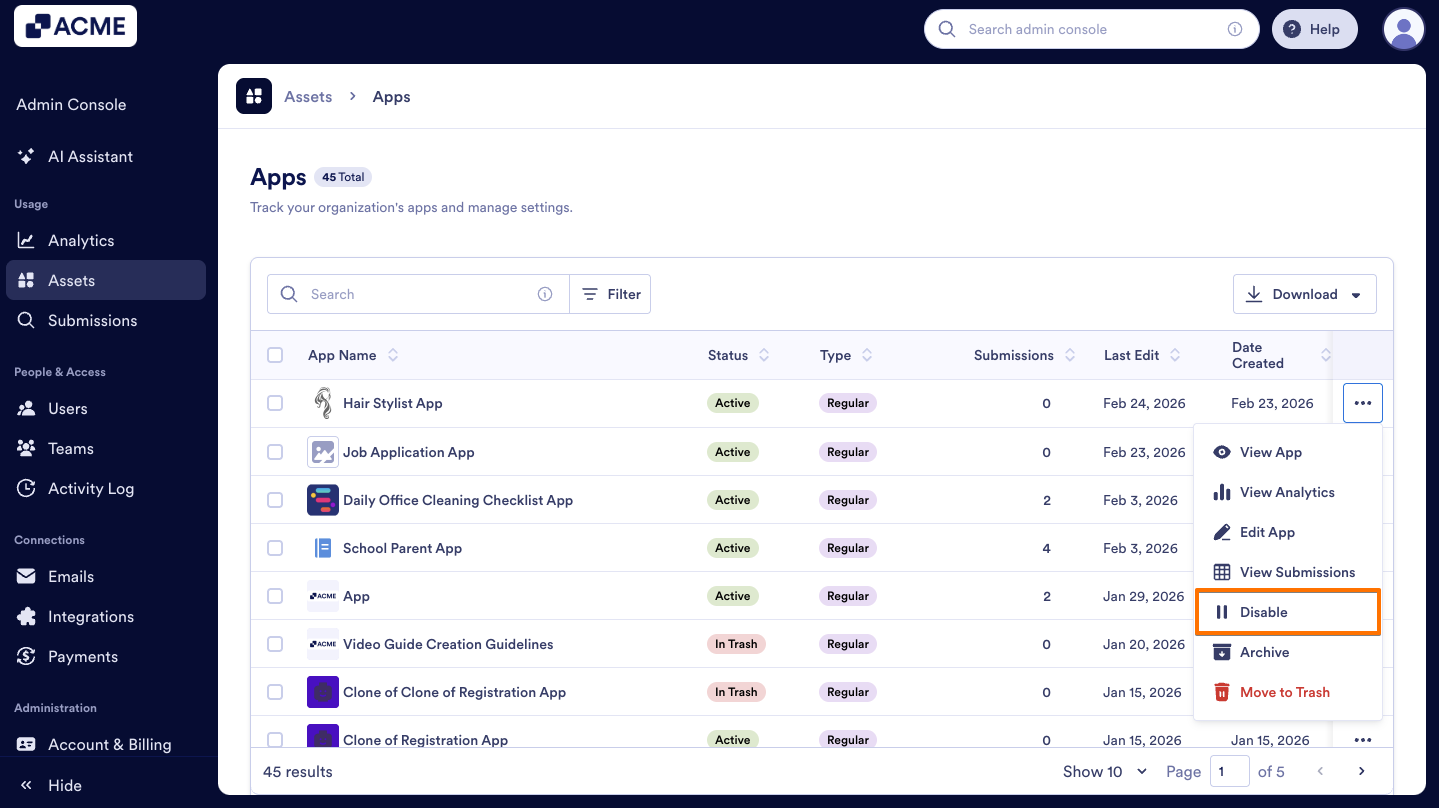
- From the menu, select Disable.
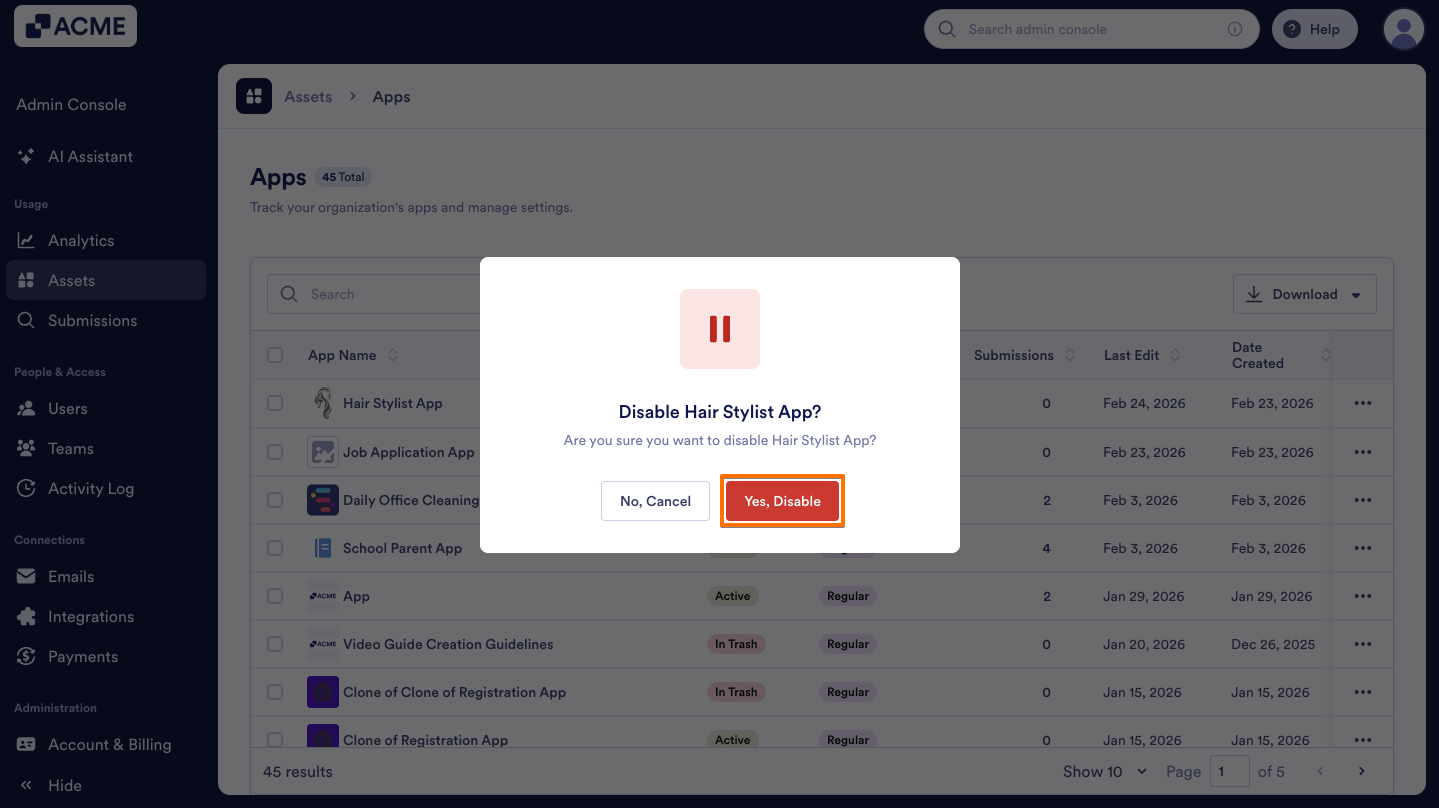
- In the pop-up window, click on Yes, Disable.
Another way to disable an individual app is by using the Disable button at the top. Here’s how:
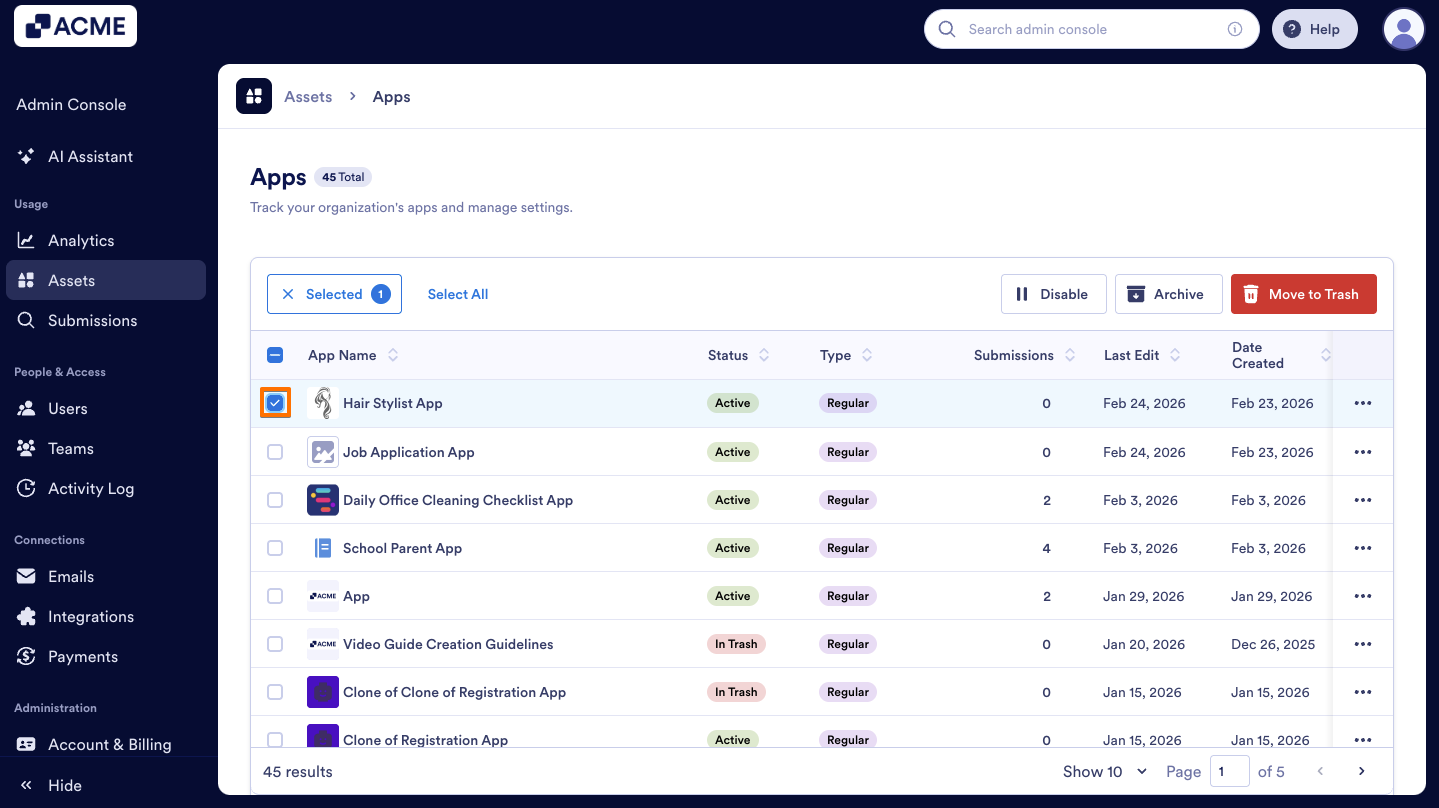
- On the Apps Assets page, click on the Checkbox on the left side of the app you want to disable.
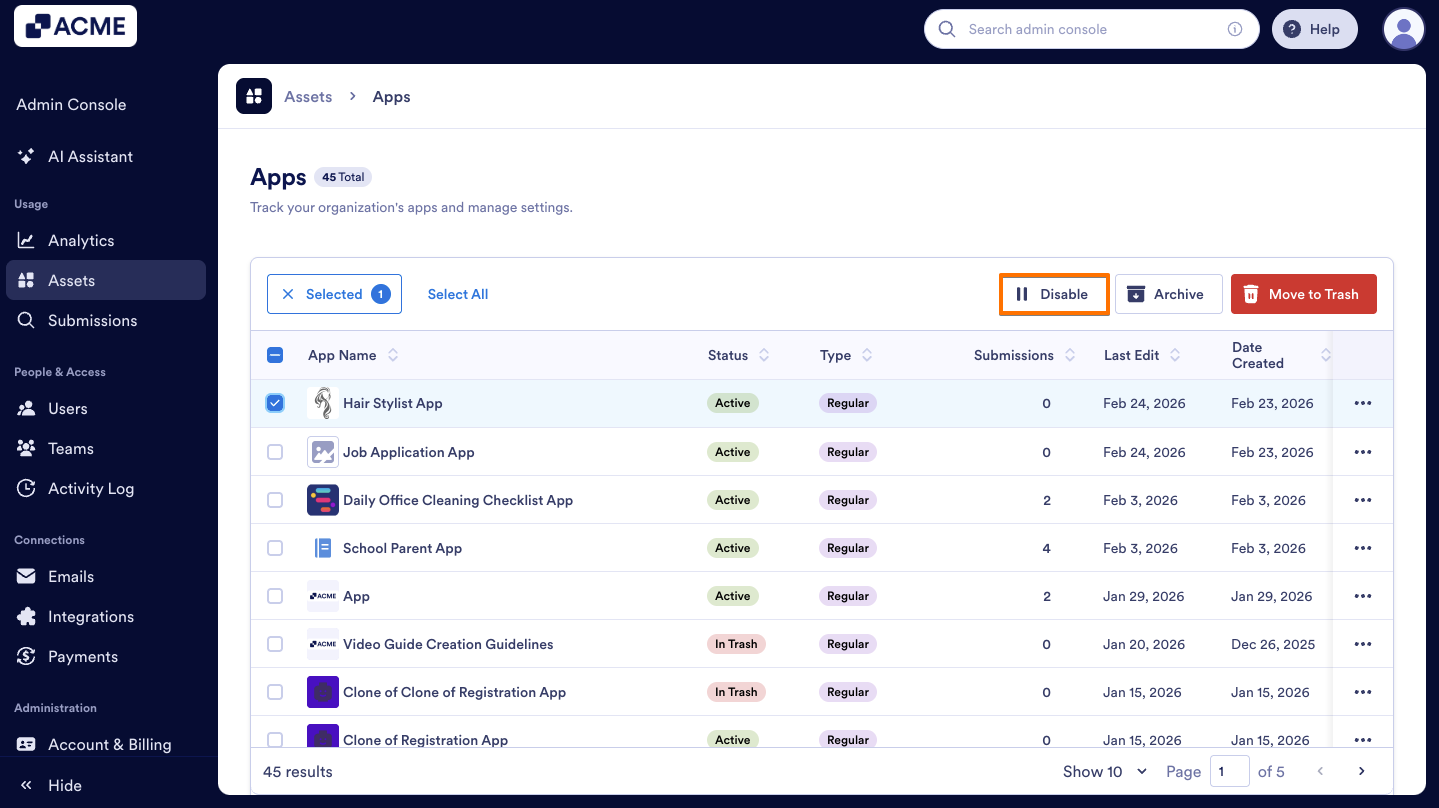
- Click on the Disable button at the top of the list.
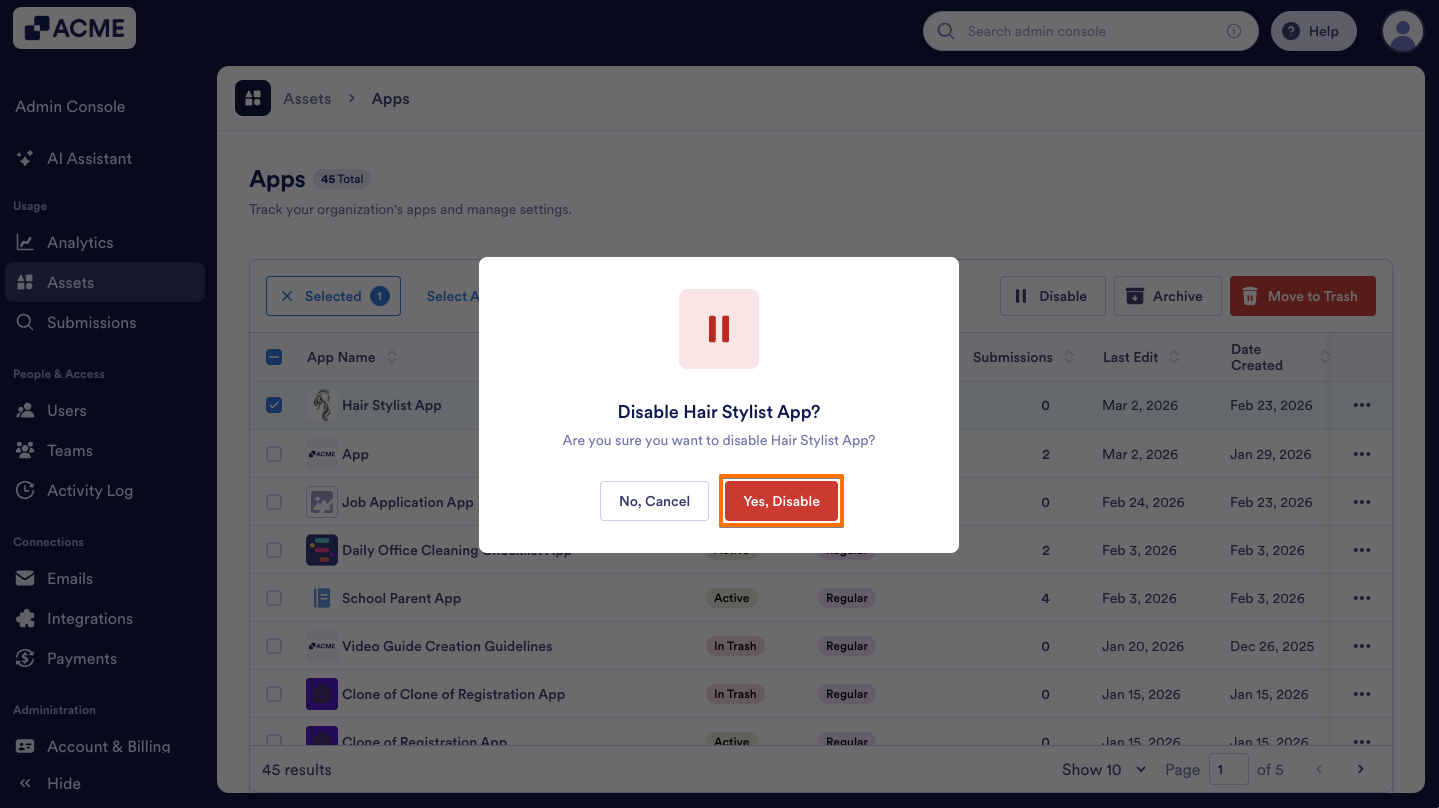
- In the pop-up window, select Yes, Disable to confirm.
Enabling an App
- On the Apps Assets page, find the app you disabled, and on its right side, click on the Three dots icon.
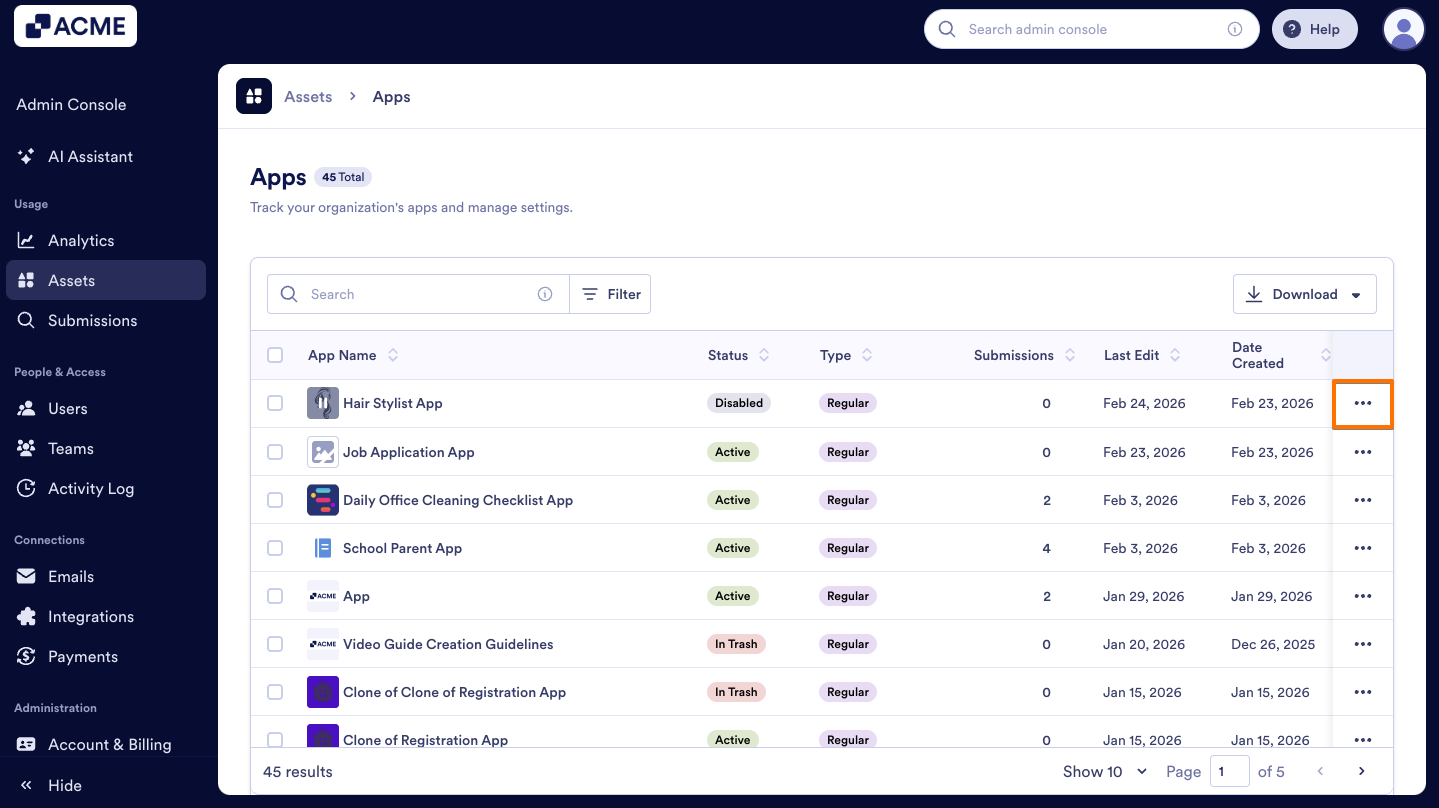
- Then, select the Enable option from the menu.
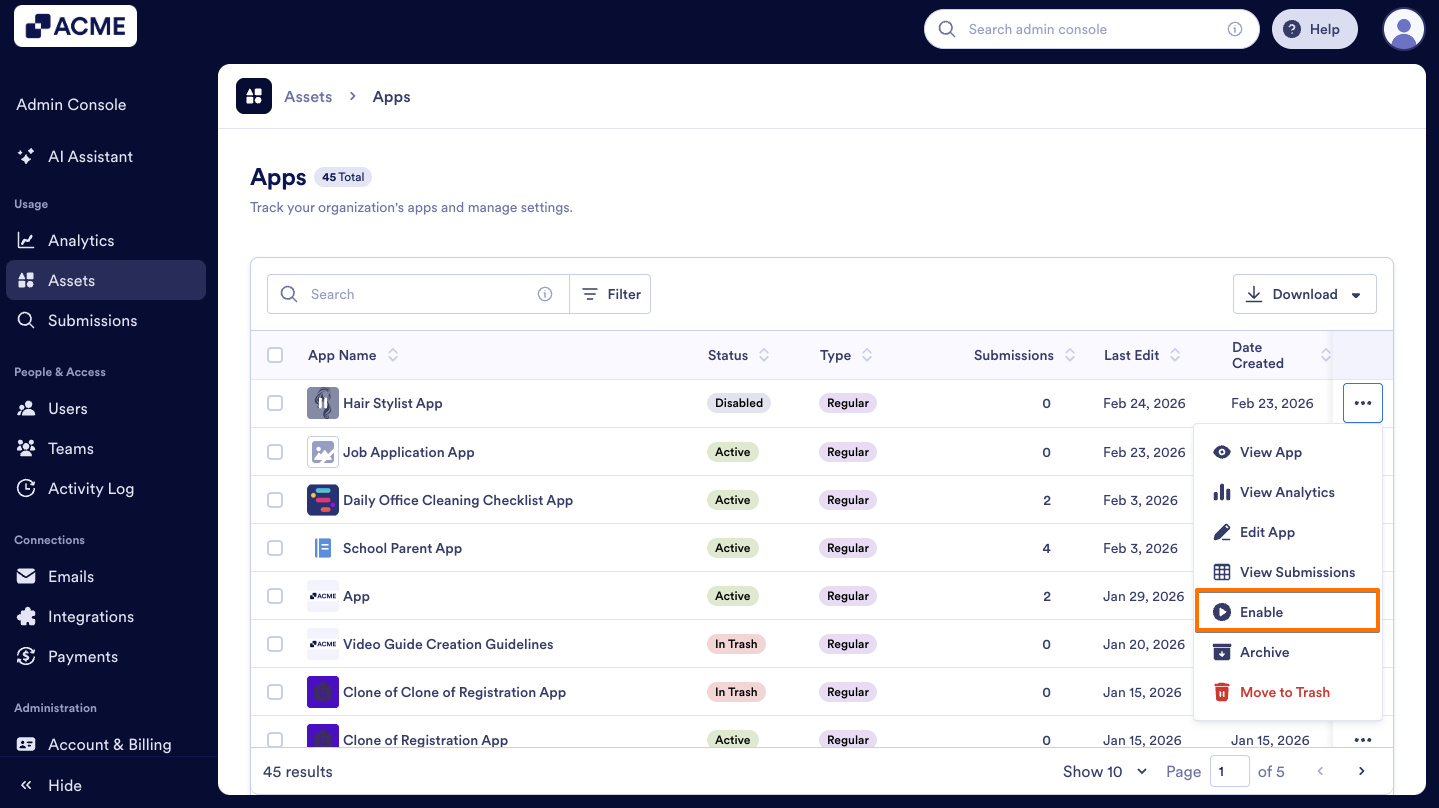
- In the pop-up window, click on Yes, Enable to confirm.
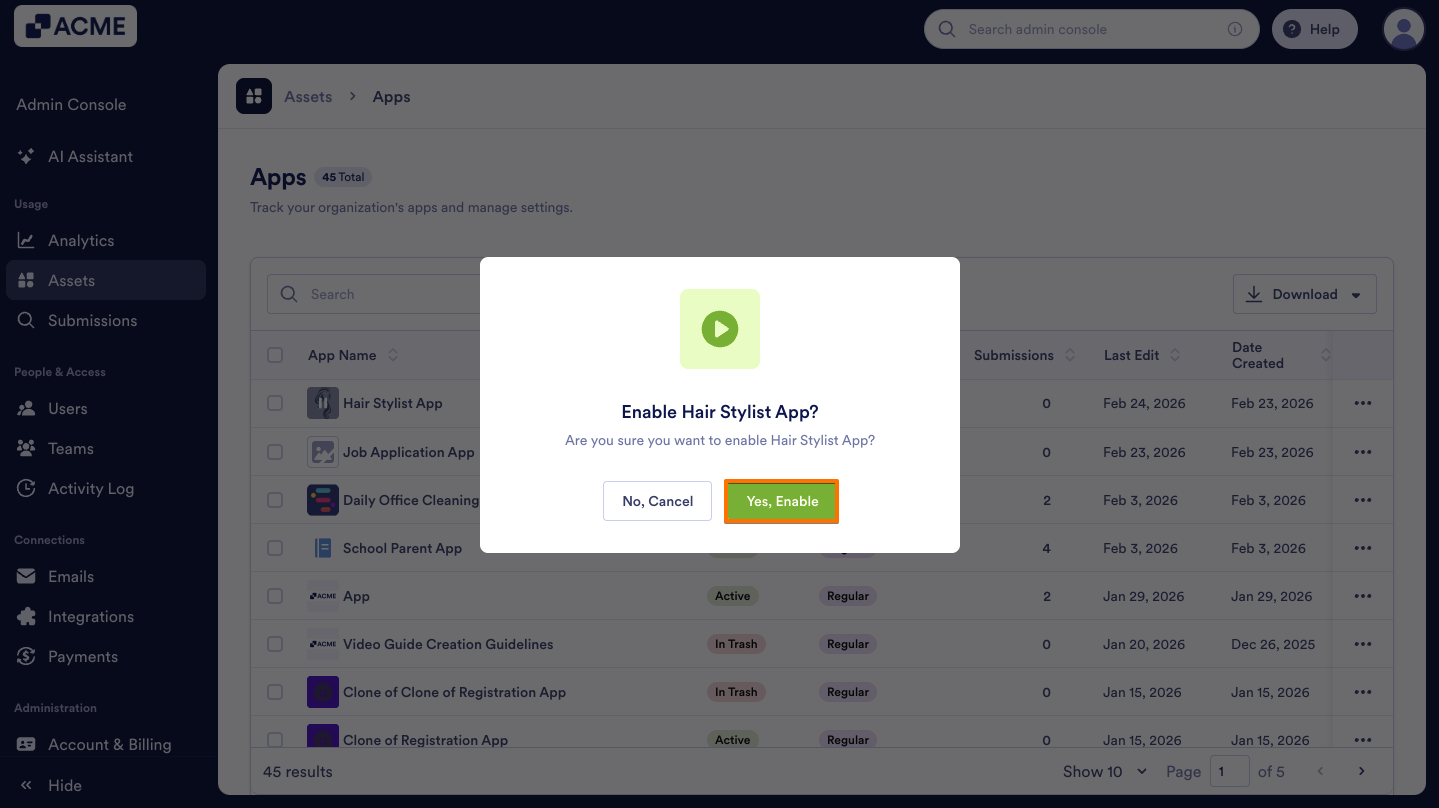
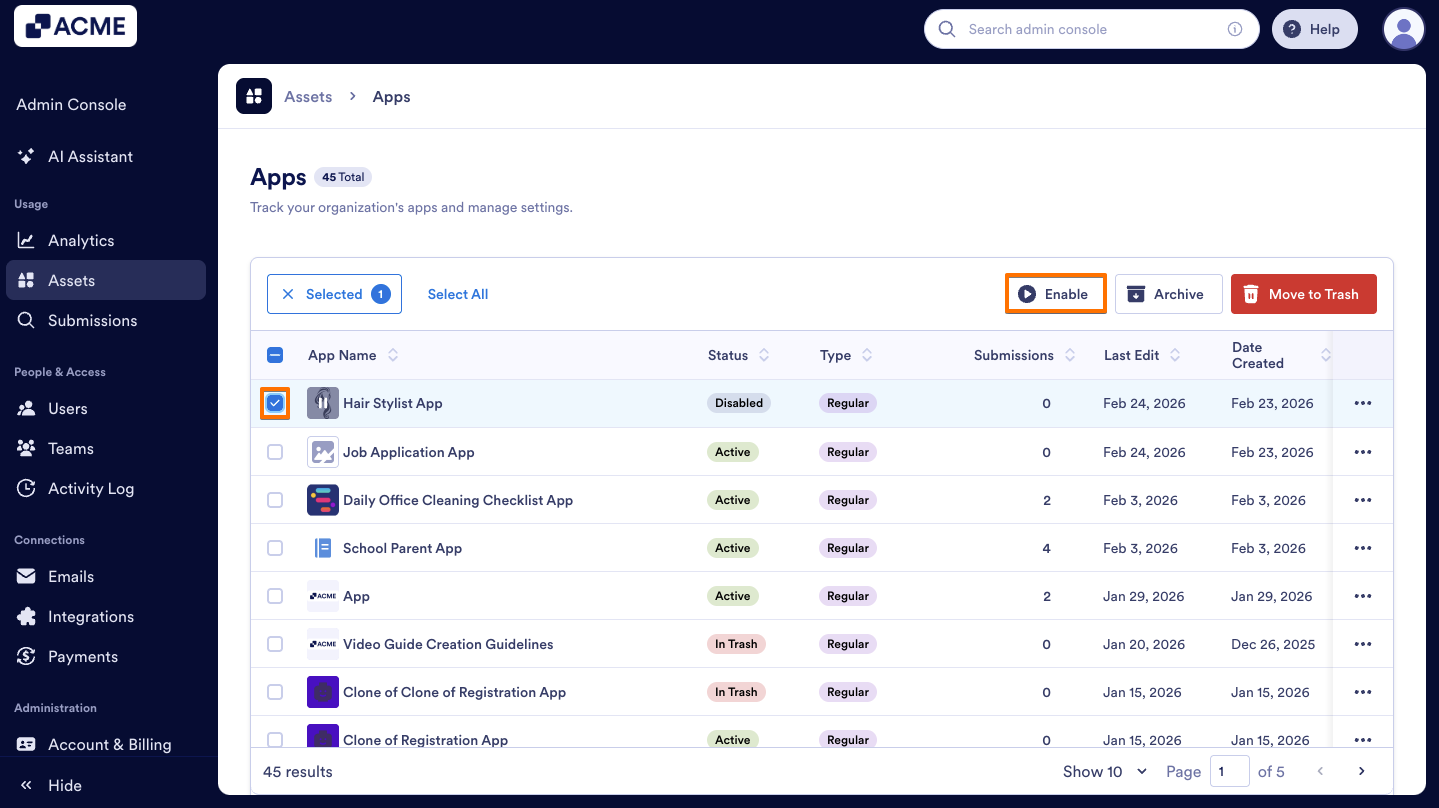
Another way to enable a single app is by using the Enable button above the list. Let me show you how:
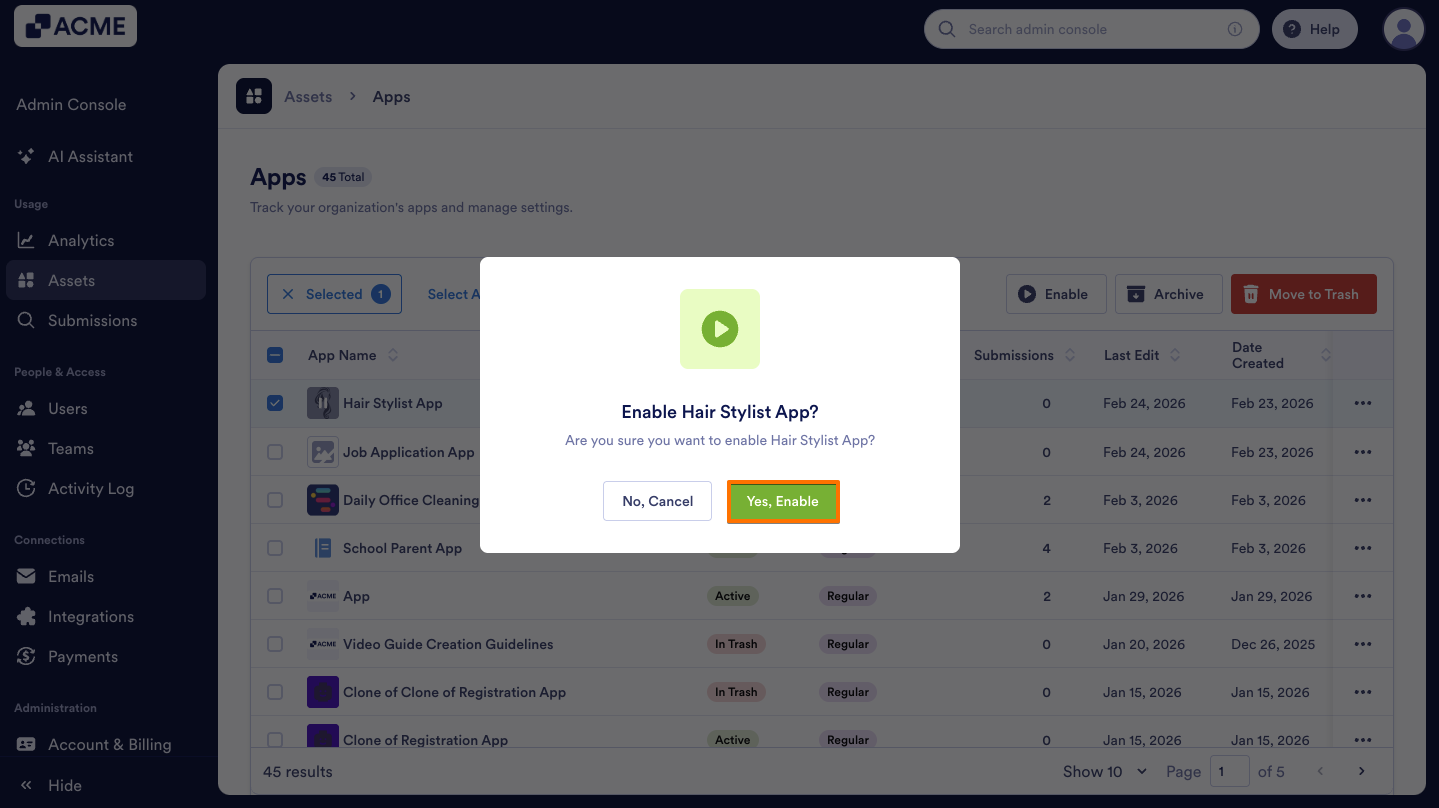
- On the Apps Assets page, check the Checkbox on the left side of the app you want to enable, then click on the Enable button above.
- In the pop-up window, select Yes, Enable to confirm.
Disabling Apps in Bulk
Bulk Disabling Apps allows you to quickly deactivate multiple apps at once, saving time and ensuring consistent app management across your organization.
- On the Apps Assets page in the Admin Console, on the left side of the apps you want to disable, select the Checkboxes.
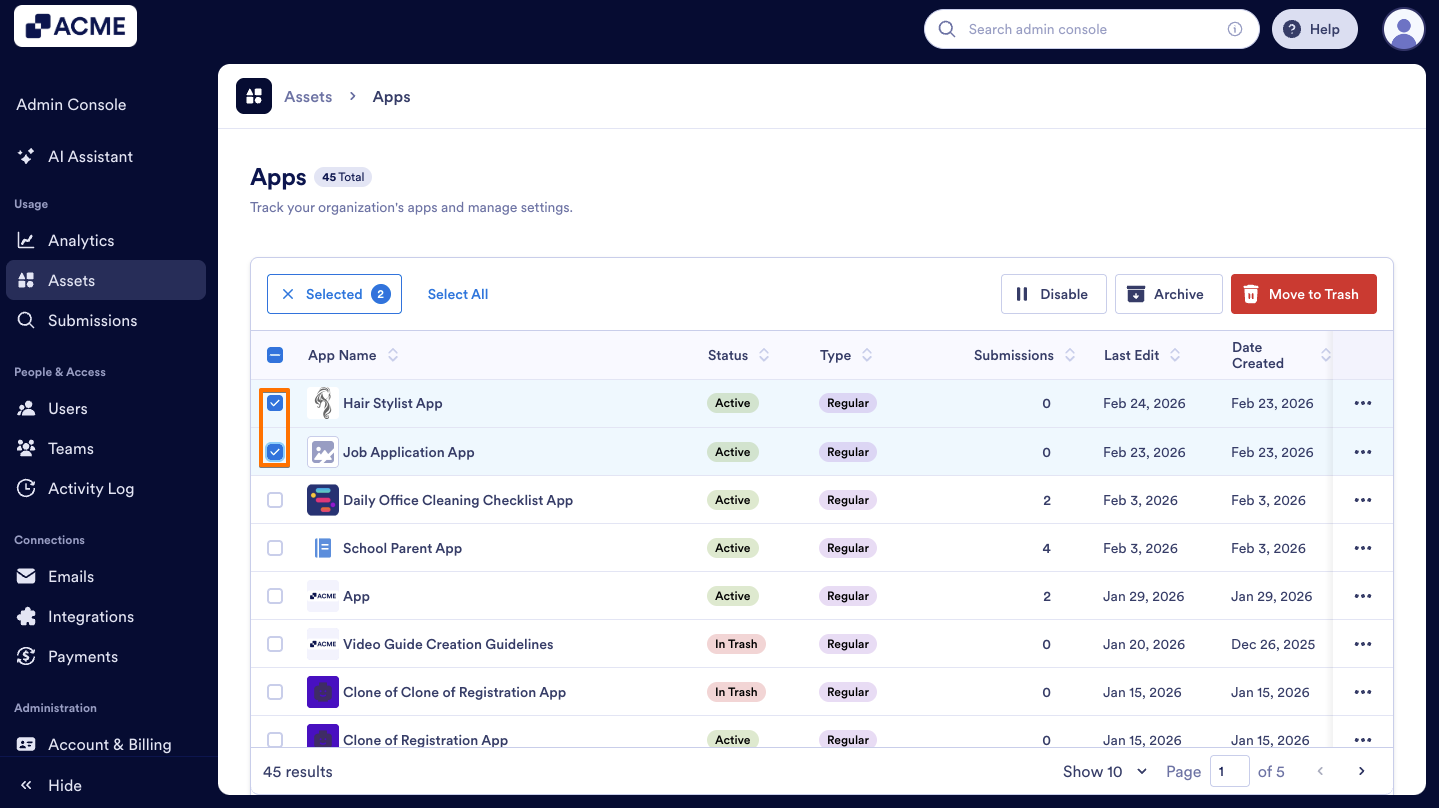
- Click on the Disable button above the list of apps.
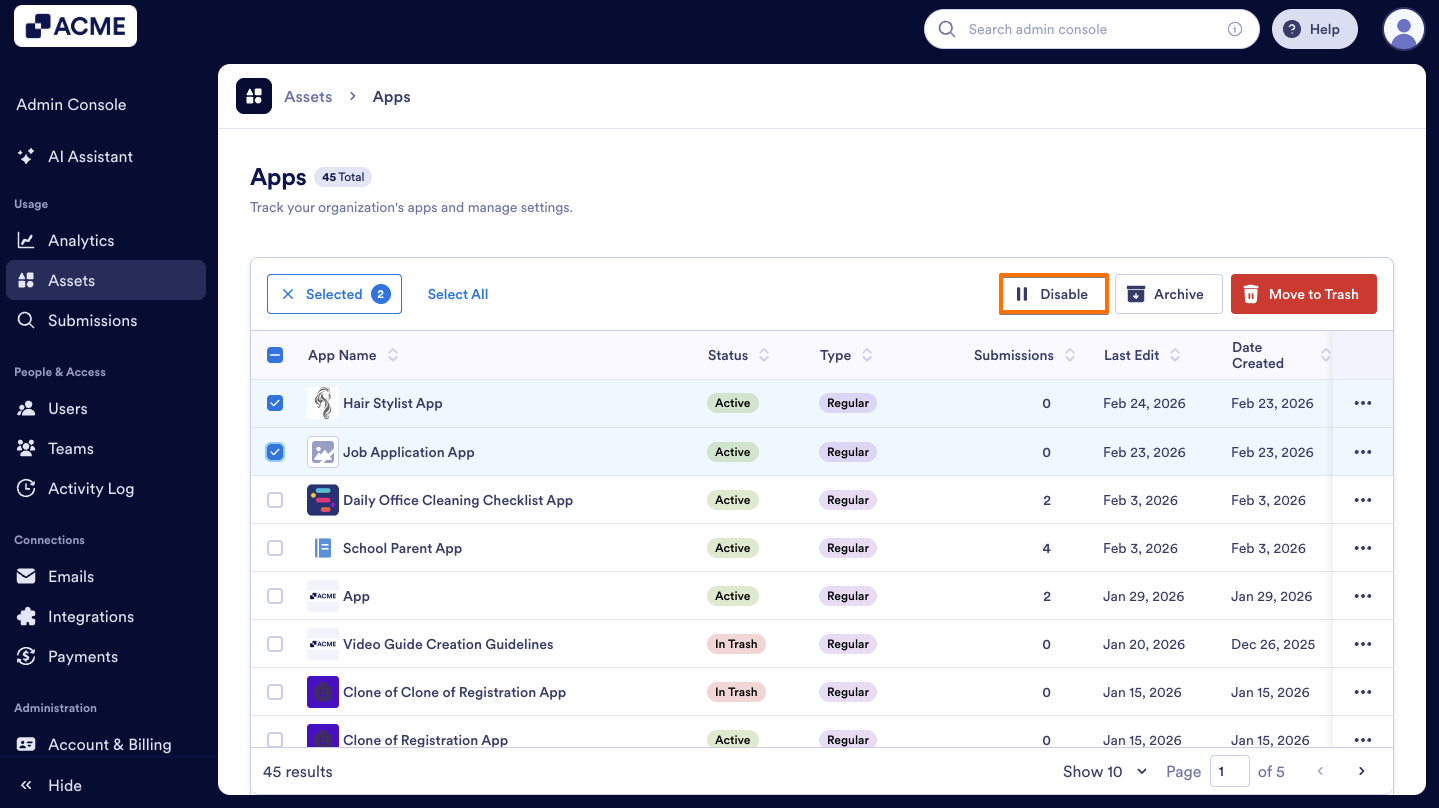
- Finally, in the pop-up window, select Yes, Disable.
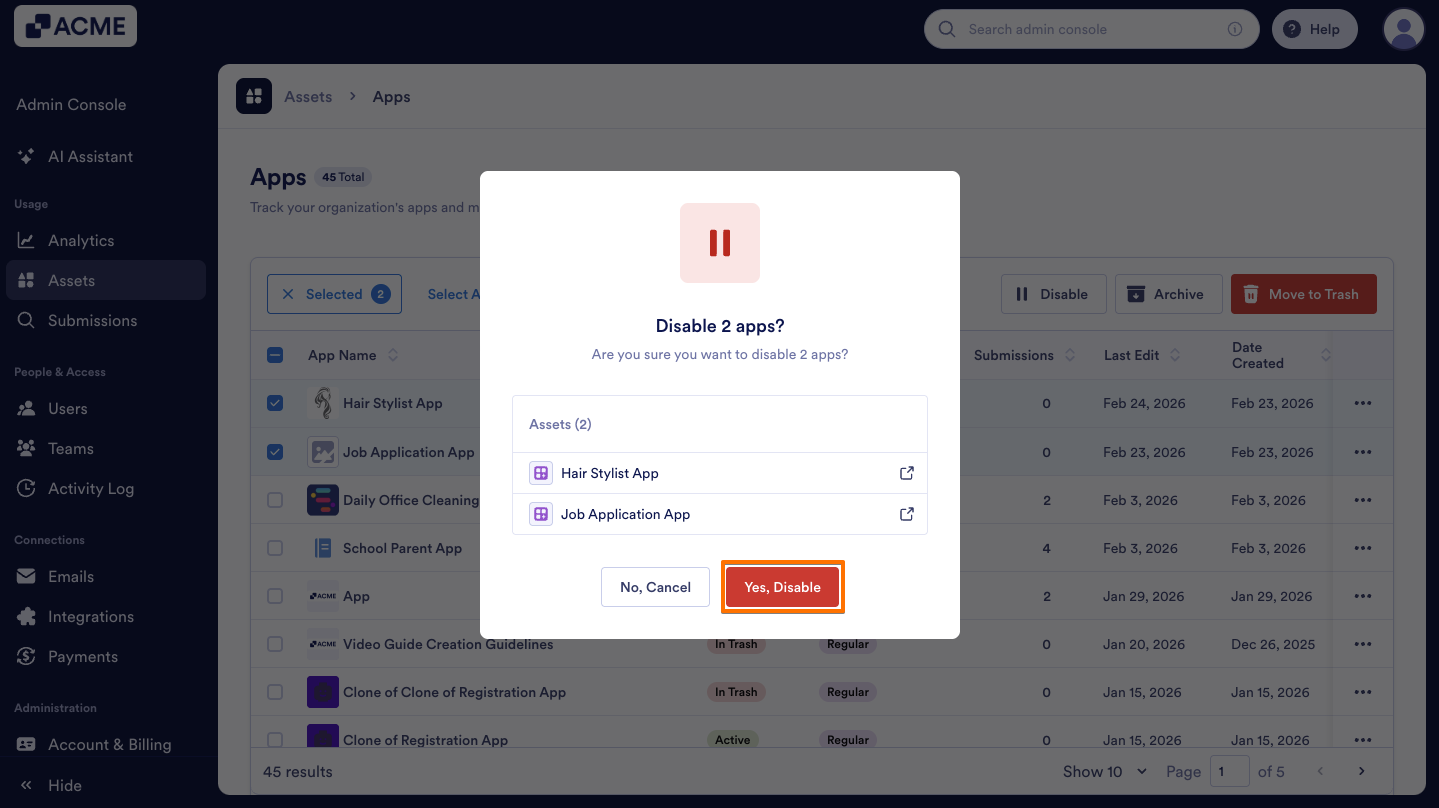
Bulk Enabling Apps
- On the Apps Assets page in the Admin Console, on the left side of the apps that was previously disabled, select the Checkboxes.
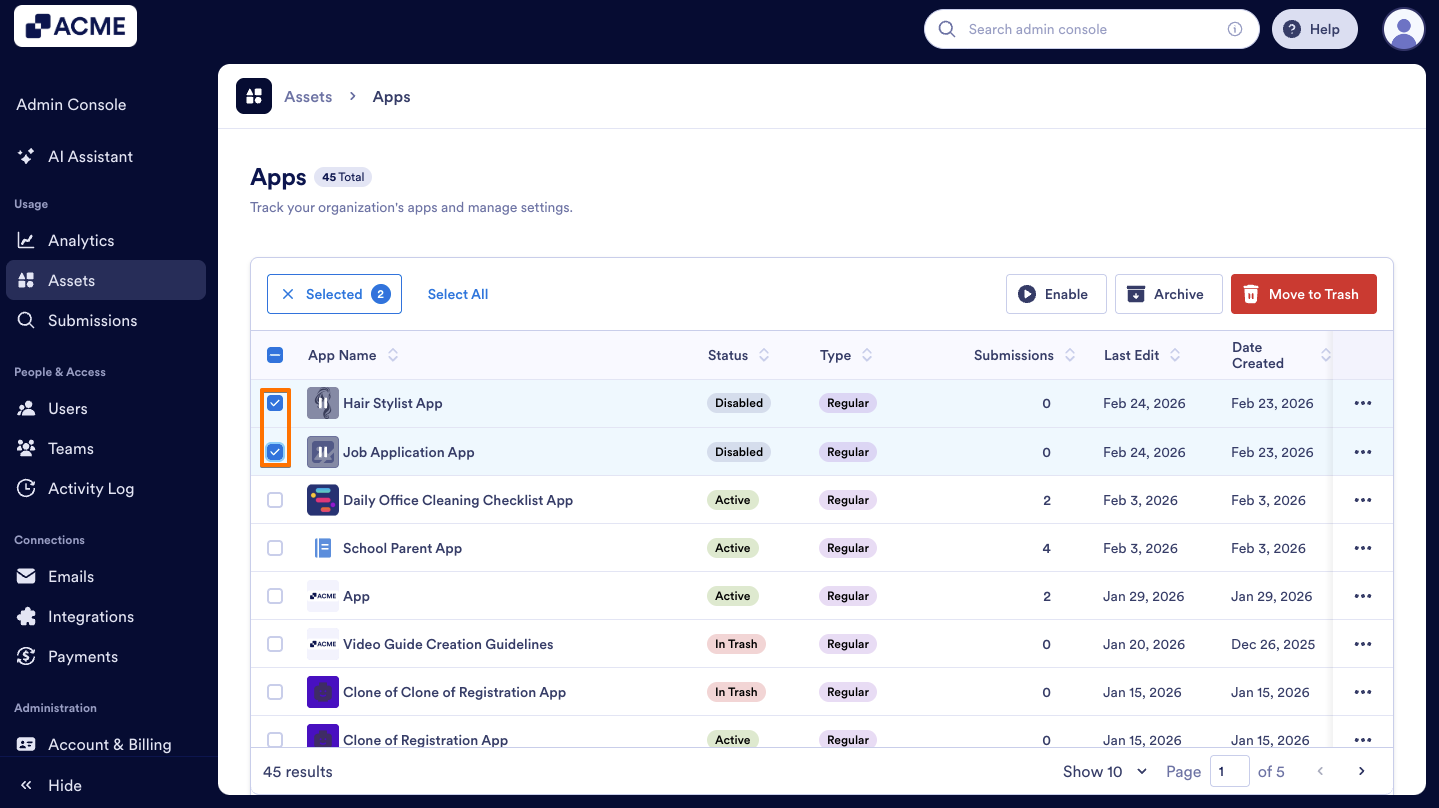
- Then, click on the Enable button above the list.
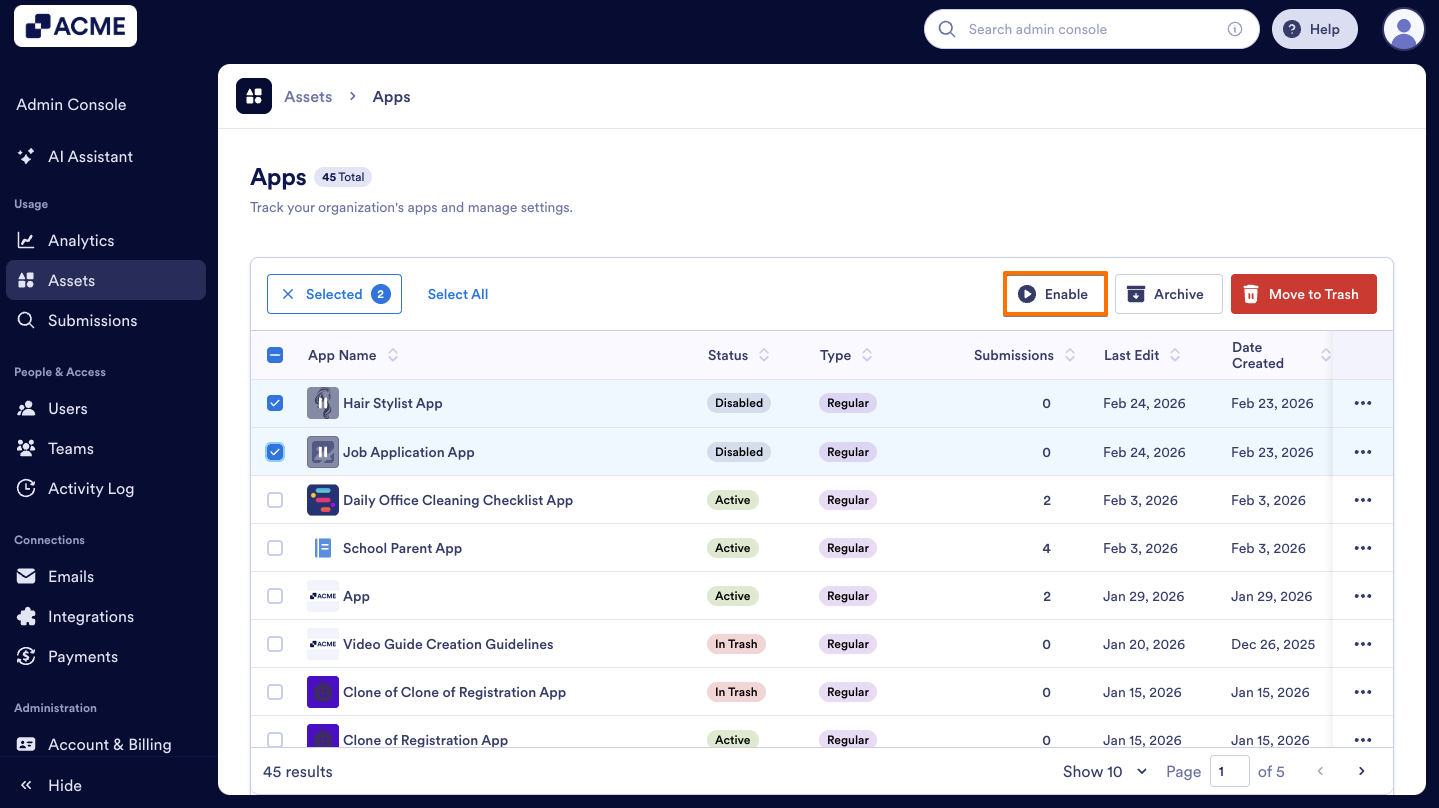
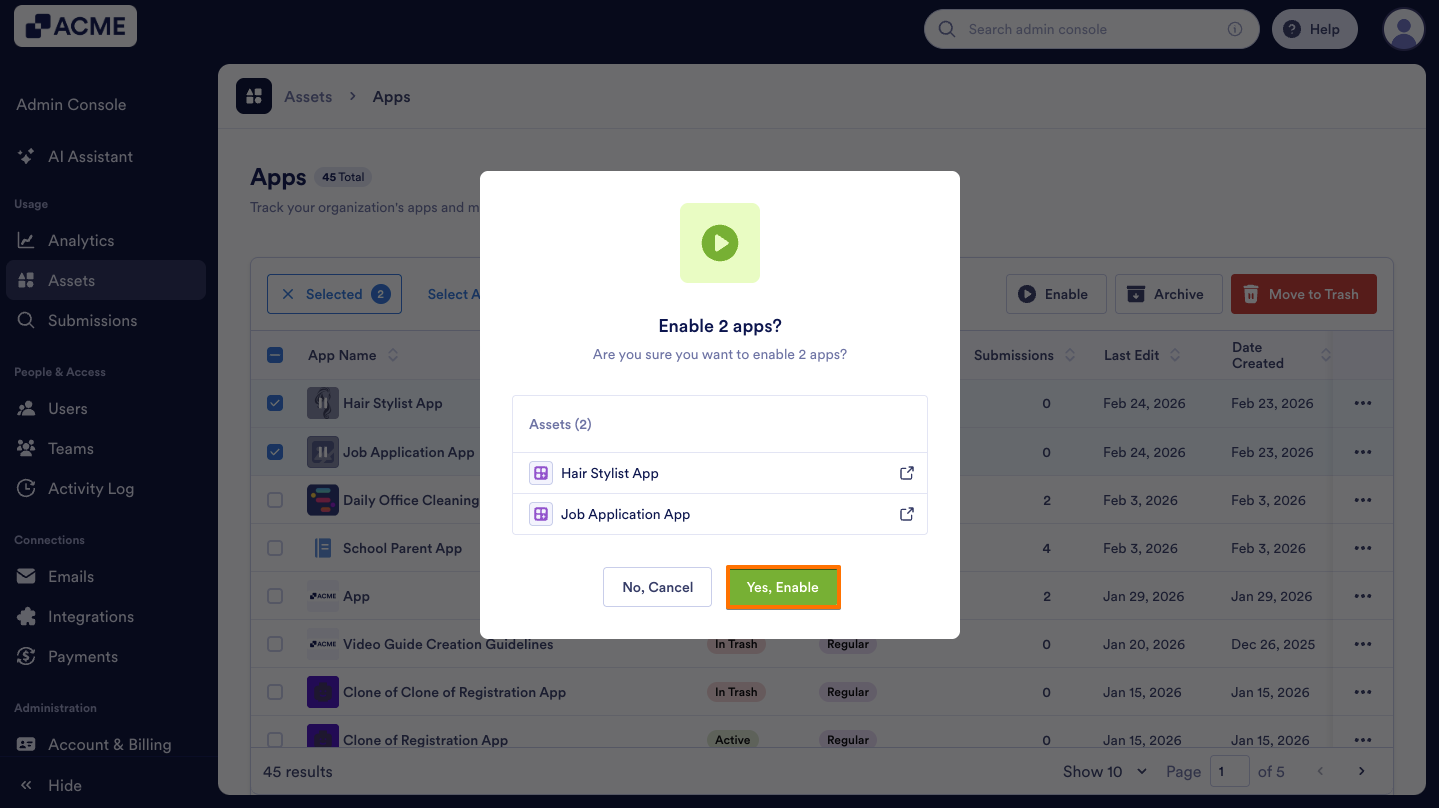
- Finally, on the pop-up window, select Yes, Enable.
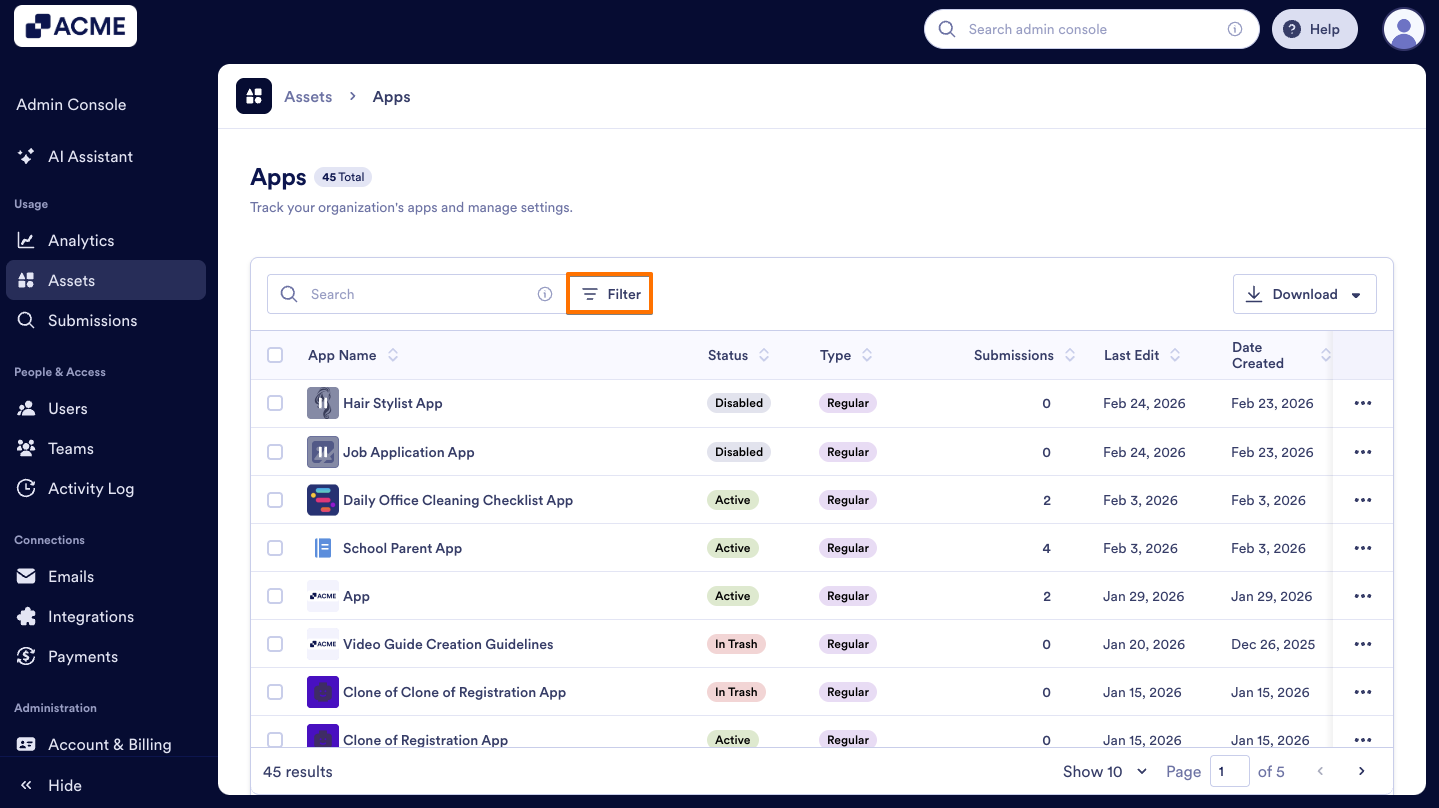
Filtering Apps to View Disabled Apps in Your Organization
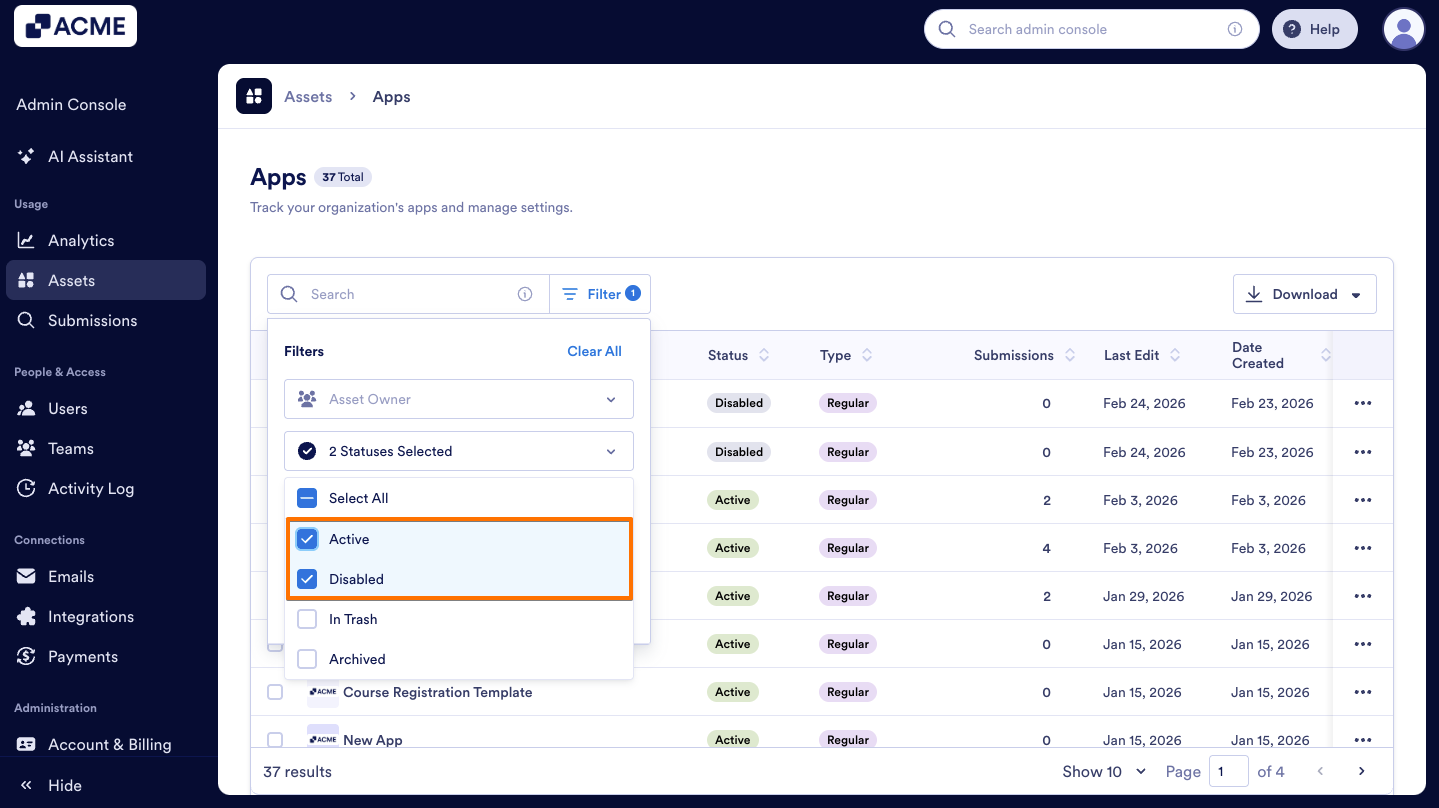
- In the Admin Console’s Apps Assets page, click on the Filter button on the right side of the Search bar.
- Then, click on the Status dropdown menu.
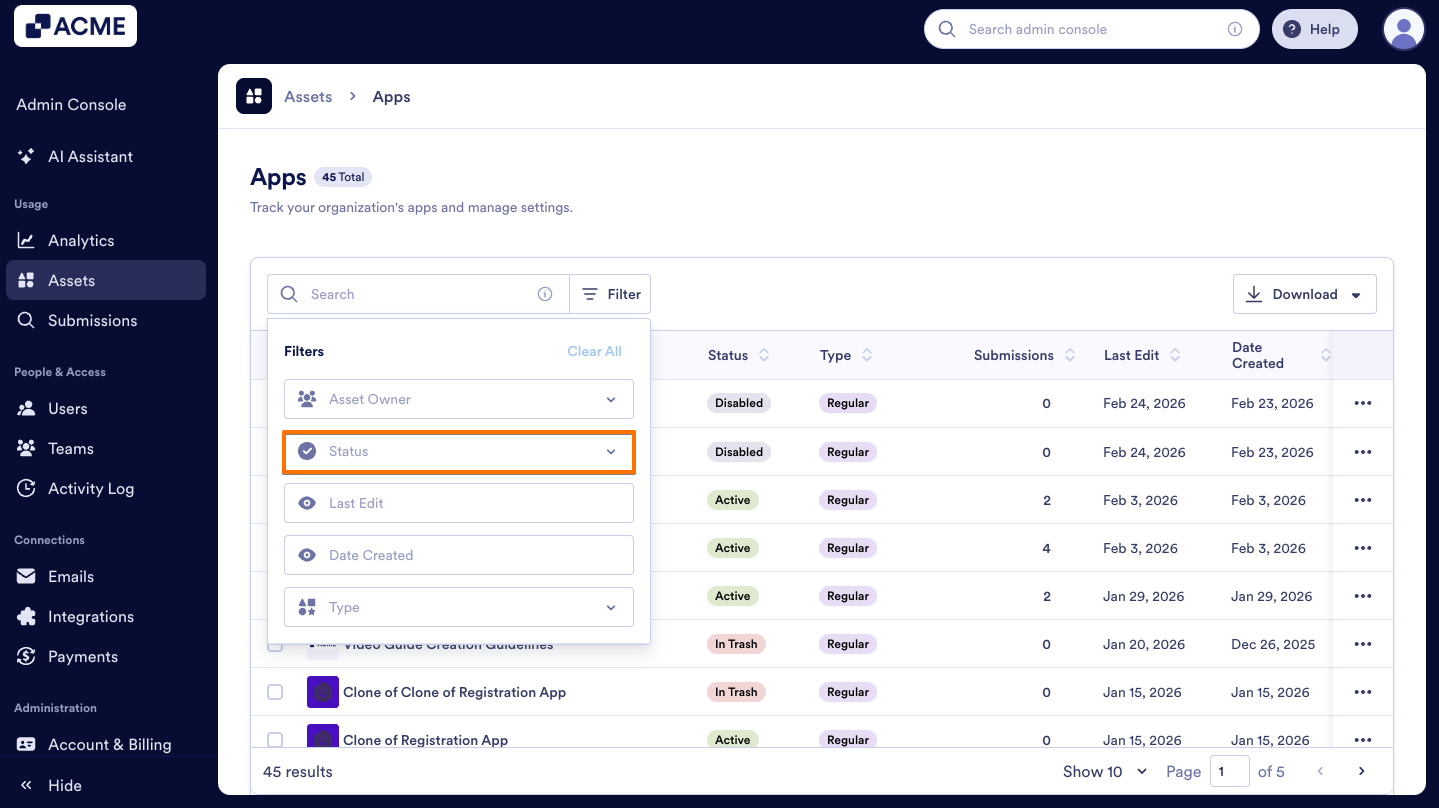
- In the dropdown menu, select Disabled, Active, or both to view disabled and enabled (active) apps.

Send Comment: